How to back up additional WordPress files
How to use the ‘Back up more files’ feature
Follow these steps to activate the ‘Back up more files’ feature in UpdraftPlus Premium. This allows you to include additional file types in your backups, ensuring that all critical data is securely stored.
1. Install and activate UpdraftPlus
If you haven’t already, purchase, install and activate UpdraftPlus Premium.
2. Open UpdraftPlus settings
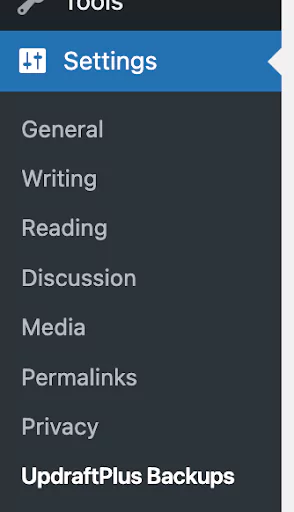
Go to the WordPress ‘Settings’ menu and open ‘UpdraftPlus Backups’.
3. Head over to the ‘Settings’ tab.

4. Navigate to the ‘Include in backups’ section:
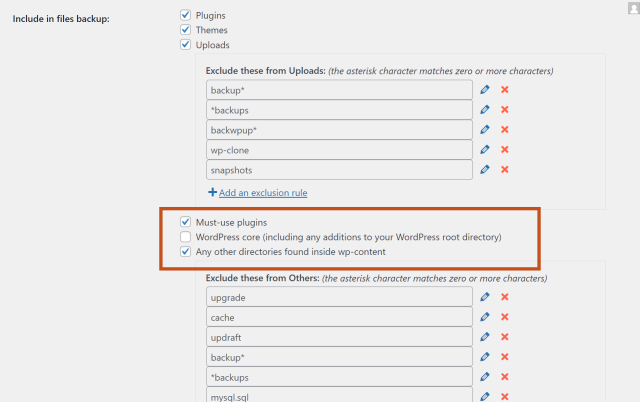
Scroll down to find the ‘include in files backup’ section.
5. Choose which additional files you’d like to back up
6. Save your settings
Scroll to the bottom of the settings page and hit the ‘Save Changes’ button.