How to lock UpdraftPlus settings
Password protect your UpdraftPlus settings
Follow these steps to set up a password required for accessing your UpdraftPlus settings.
1. Install and activate UpdraftPlus
If you haven’t already, purchase UpdraftPlus Premium and follow the simple installation instructions.
2. Open the UpdraftPlus plugin
Go to the WordPress ‘Settings’ menu and open ‘UpdraftPlus Backups’.
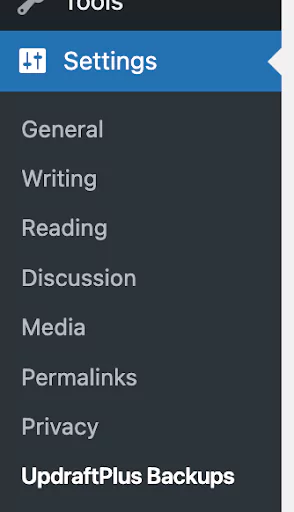
3. Head over to the ‘Advanced Tools’ tab

4. Scroll to find the ‘Lock settings’ option and set your password
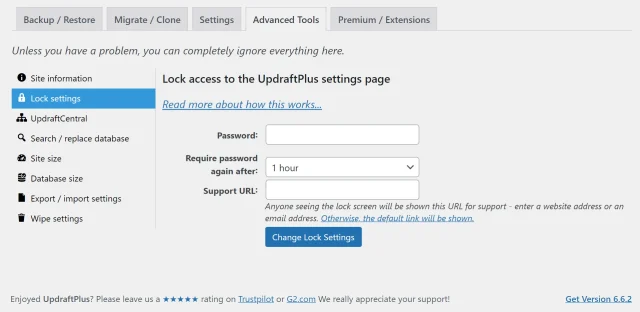
You can also choose how often users will need to re-enter this password to access your UpdraftPlus settings.
You can also add a support email address or URL. This allows people to contact you or get more information if they need access.
5. Save your settings
Hit the ‘Change Lock Settings’ to activate this feature.