The 3-2-1 backup rule explained
It’s a Monday morning. You sit down to check your WordPress site after the weekend, expecting to glance over your analytics. Instead, you’re met with a blank white screen – or worse, a ransom message asking for Bitcoin to get your files back.
We often think of data loss as something that happens to “other people”, until it happens to us. Whether it’s a failed plugin update that crashes your site, a malicious hack, or a server-side hardware failure, the threat is real. That is where the 3-2-1 backup rule comes in. It isn’t just technical jargon; it is a safety net that ensures no matter what happens to your website, you can bounce back and restore your site as if nothing happened.
Key takeaways
Section titled Key takeaways- The 3-2-1 backup rule protects you from single points of failure by spreading your data across locations and storage types
- Relying only on your web host’s backups puts your site at risk if that account is compromised
- WordPress backups must always include both files and the database to be restorable
- Offsite, automated backups are essential for ransomware protection and recovery
- A reliable backup plugin makes the 3-2-1 rule practical, not theoretical
What is the 3-2-1 backup rule?
Section titled What is the 3-2-1 backup rule?The 3-2-1 backup rule was originally coined by photographer Peter Krogh to protect digital assets. It has since become a widely accepted baseline for data protection. The concept is based on redundancy. If one backup fails, you have another. If a disaster wipes out your office or your server, you have a copy somewhere else.
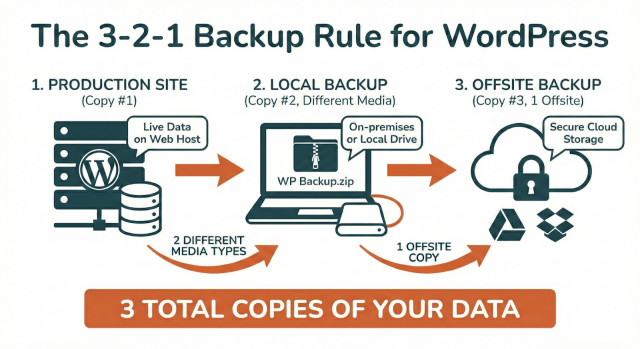
Here is the breakdown:
3 total copies of your data
Section titled 3 total copies of your dataYou should always have three distinct copies of your website. This includes your live production data (the website people are visiting right now) and two additional backup copies. Why three? The chances of three separate locations failing at the same time are extremely low.
2 different types of media
Section titled 2 different types of mediaYou should store your copies on at least two different types of storage media. In the old days, this meant having one copy on your computer’s hard drive and another on a CD or external hard drive.
For a modern WordPress user, “media” translates to different remote storage environments. For example, having one copy on your web server’s local disk and another copy on a remote cloud storage system like Amazon S3, Google Drive, or Dropbox. This protects you against platform-specific failures. If Google Drive goes down, your local server copy is safe. If your server crashes, your cloud copy is safe.
1 copy offsite
Section titled 1 copy offsiteThis is the most critical component. You must keep one copy of your data in a physical location separate from the others. If your office burns down and your computer and backup drive are on the same desk, you lose everything.
In the context of web hosting, “offsite” means “not on your web host’s servers.” If your hosting company suffers a massive data center failure or a hack that wipes their servers (and yes, this happens), your offsite copy in a separate cloud account is your lifeboat.
Why WordPress sites are uniquely vulnerable
Section titled Why WordPress sites are uniquely vulnerableYou might be thinking, “My host does daily backups, isn’t that enough?”
This is a common assumption, and it’s a risky one. Relying on your host for your only backup creates a single point of failure. If your hosting account gets hacked, the attacker often gains access to those backups and deletes them.
If you get locked out of your account due to a billing dispute, you lose access to your site and your backups instantly.
Furthermore, WordPress sites are complex. They are made up of two distinct parts:
- The file system: This includes your themes, plugins, uploads (images/videos), and core WordPress files.
- The database: This is where your actual content lives – your blog posts, page text, comments, user accounts, and settings.
I have seen people manually copy their “wp-content” folder via FTP and think they are safe. But if they didn’t export the database, all they have is a pretty design with no words. Conversely, having the database without the files means you have the text but no way to display it.
The 3-2-1 backup rule forces you to treat both of these elements as critical assets. You need to bundle them together and ship them off to different locations to ensure you can restore your site exactly as it was.
How to apply the 3-2-1 backup to your site
Section titled How to apply the 3-2-1 backup to your siteNow that we know the theory, let’s look at how this works in practice for a WordPress site owner. You don’t need to be a sysadmin to set this up. You just need a workflow.
Step 1: the production copy
Section titled Step 1: the production copyYour live website is Copy #1. It lives on your web host’s server. This is the copy that is vulnerable to hacks, updates gone wrong, and user error.
Step 2: the local backup
Section titled Step 2: the local backupYou need a second copy that is easily accessible. Many people choose to store a backup on their local computer. Downloading a complete backup of your site once a month to a hard drive in your office or home fulfills the “different media” requirement perfectly.
This protects you against internet-wide issues. If the internet goes down or cloud services are unreachable, you still physically possess your data. It gives you a sense of ownership that the cloud cannot replicate.
Step 3: the automated offsite copy
Section titled Step 3: the automated offsite copyThis is where Copy #3 comes in, and this is where automation is essential. You need a copy sent automatically to a secure cloud location.
This is where a backup solution like UpdraftPlus fits into your strategy. Rather than manually logging in to FTP, zipping files, and dragging them to Dropbox every week, you can configure the plugin to do the heavy lifting for you. It can zip up your files and database and push them directly to remote storage locations like Google Drive, Amazon S3, or Microsoft OneDrive.
This separation essentially creates an “air gap.” If your website gets infected with malware, that malware cannot easily jump from your web server to your secure Google Drive account, keeping your third copy clean and ready for restoration.
Why automation beats memory
Section titled Why automation beats memoryWe’re human – we forget things. If your backup plan relies on remembering to click “backup” every Friday at 5pm, it won’t hold up for long. The beauty of modern WordPress tools is that you can “set and forget” this backup schedule. A good rule of thumb is to back up as frequently as you update. If you post daily, back up daily. If you post monthly, a weekly backup might suffice.
How to implement the 3-2-1 strategy using UpdraftPlus
Section titled How to implement the 3-2-1 strategy using UpdraftPlusNow that you understand the “why,” let’s look at the “how.” The reason UpdraftPlus is often the go-to recommendation
for this strategy is that it natively handles the separation of storage locations, which is the hardest part to script
manually.
The very first step is installing the UpdraftPlus plugin to your WordPress site. Once that is out of the way, here is
a step-by-step workflow to turn your WordPress dashboard into a 3-2-1 command center.
Step 1: Connect your offsite storage
Section titled Step 1: Connect your offsite storageThe most critical step is getting your data off the web server.
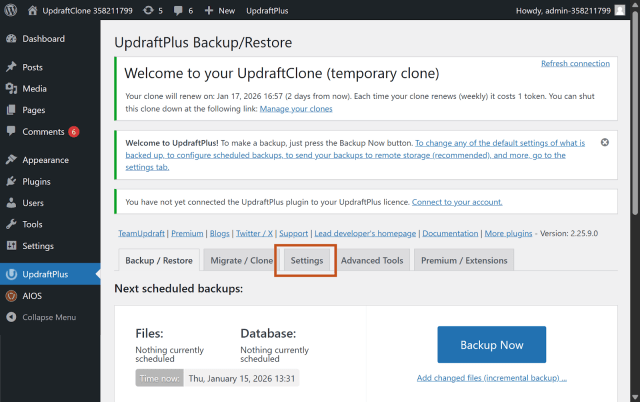
- Navigate to Settings > UpdraftPlus Backups in your WordPress dashboard.
- Click on the Settings tab.
3. Scroll down to Choose your remote storage.
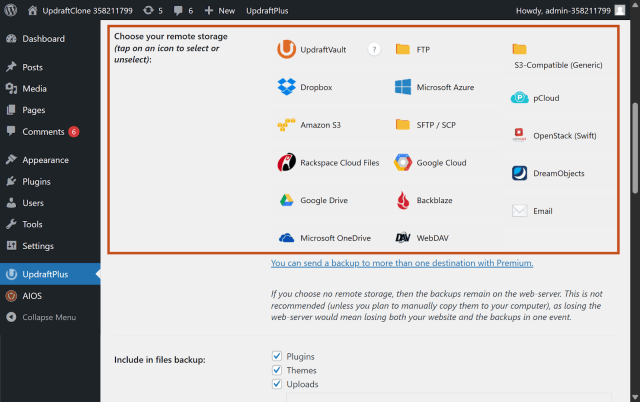
4. Select a service distinct from your hosting. Storing backups on an alternative cloud service like
Google Drive, Dropbox, or Amazon S3 counts as “different media” (Cloud Object Storage vs. Block Storage) and satisfies the “Offsite” requirement.
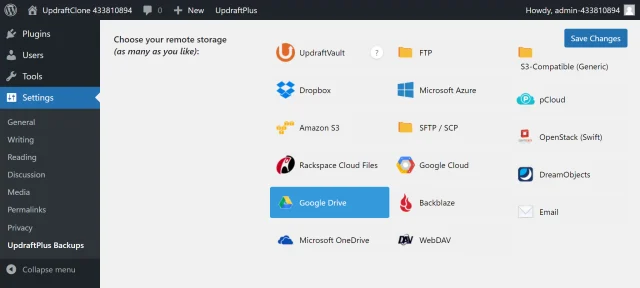
5. Follow the on-screen prompts to authenticate and link your account.
Step 2: Automate the backup schedule
Section titled Step 2: Automate the backup scheduleYou need consistent copies to ensure you always have enough copies.
- In the same Settings tab, look for Files backup schedule and Database backup schedule.
- Change them from Manual to a frequency that matches your posting schedule (e.g., Weekly for files, Daily for database).
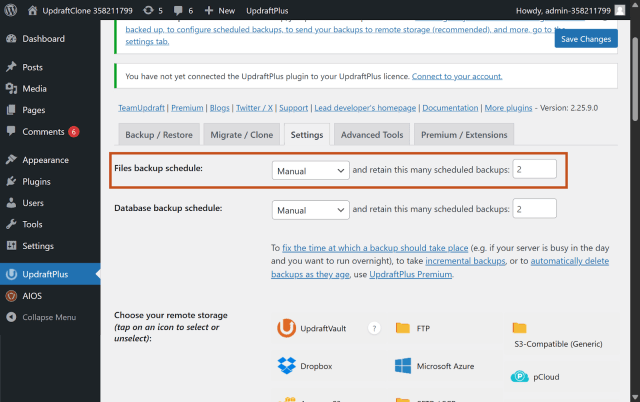
3. Set “retain this many scheduled backups” to at least 2. This ensures you always have historical versions if a recent backup contains a corrupted error.
Step 3: Create the ‘Local’ copy
Section titled Step 3: Create the ‘Local’ copyTo strictly adhere to the 3-2-1 rule, you want a copy that isn’t on the internet at all. This protects you if both your web host and your cloud storage provider suffer outages simultaneously.
Option 1: The automated sync
Why work harder than you have to? If you use a cloud provider like Dropbox, Google Drive,
or OneDrive for Step 1, simply install their desktop app on your computer.
- Configure the app to sync your remote backup folder to your PC.
- Now, every time UpdraftPlus pushes a backup to the cloud, your desktop app automatically pulls a copy down to your hard drive.
This achieves a fully automated “set and forget” offline backup.
Option 2: The manual download
If you prefer total manual control, you can do this anytime from the dashboard:
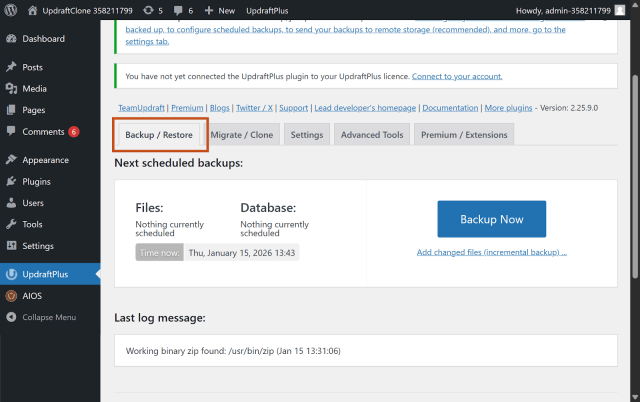
- Go to the Backup / Restore tab.
2. Scroll down to Existing Backups.
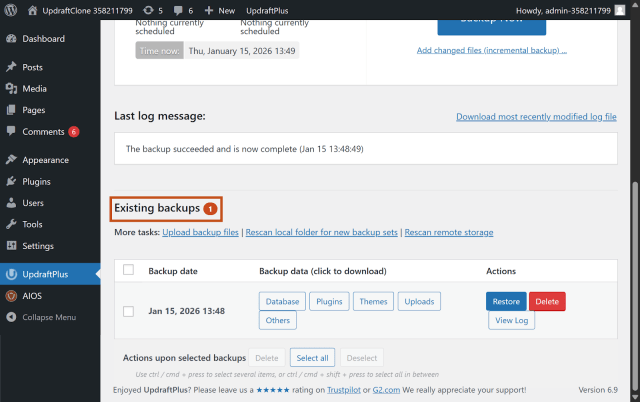
3. Click the buttons for Database, Plugins, Themes, Uploads, and Others.
4. Once UpdraftPlus prepares the files, click Download to your computer.
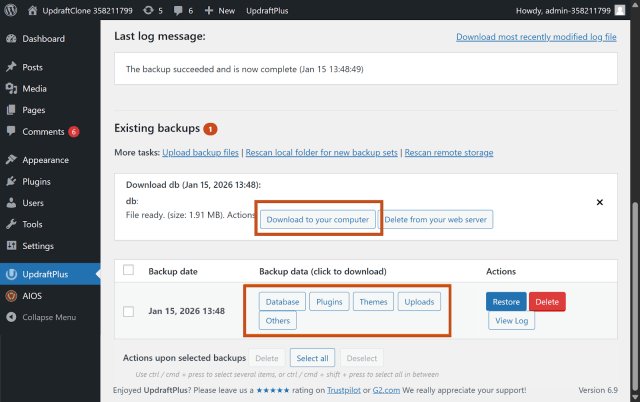
5. Move these zip files to an external hard drive or a dedicated folder on your computer.
Result:
- Copy 1: Live on your server.
- Copy 2: Safe in the Cloud.
- Copy 3: Safe on your hard drive.
You have now achieved full 3-2-1 compliance.
Secure your site while you sleep
Relying on manual backups is where things often go wrong. UpdraftPlus Premium handles multiple backup destinations for you, keeping your 3-2-1 strategy on track.
Common backup mistakes to avoid
Section titled Common backup mistakes to avoidEven experienced site owners slip up with backups. These are some common mistakes I see.
Storing backups on the same server
Section titled Storing backups on the same serverIt’s worth stressing at this point: do not leave your backup zip files in a folder on your web server. If you have a folder like /wp-content/backups/ full of zip files, you are simply filling up your hosting disk space.
More importantly, if the server fails, you lose both the site and the backups. Always send backups offsite immediately.
Ignoring the 3-2-1 rule for small sites
Section titled Ignoring the 3-2-1 rule for small sites“I just have a small blog, I don’t need this.” I hear this often. But small sites are often more vulnerable because they typically have fewer security defenses.
It takes the same effort for an automated bot to attack a small site as it does a large one.
The 3-2-1 rule is scalable; it applies just as much to a personal recipe blog as it does to a corporate enterprise.
Inconsistent schedules
Section titled Inconsistent schedulesIf your last backup was three months ago but you’ve published twenty articles since then, that backup is stale. Restoring from it means losing three months of work.
Always align your backup frequency with how often your content changes.
The future of data protection: the 3-2-1-1-0 rule
Section titled The future of data protection: the 3-2-1-1-0 ruleThe 3-2-1 backup rule is still the foundation of good data protection, but it’s evolving in response to newer threats like ransomware and silent data corruption.
This is where the 3-2-1-1-0 model comes in. It builds on the original rule with two additional safeguards.
The extra “1” refers to immutable storage, a backup copy that’s locked and can’t be altered or deleted for a set period, even if an attacker gains access. The “0” stands for zero errors, meaning backups are regularly verified so you know they can actually be restored.
For WordPress site owners, this doesn’t mean you need to overhaul your setup overnight. It’s about understanding where best practice is heading. Some storage providers already support immutable backups (such as Amazon S3 Object Lock), which adds an extra layer of protection for high-value or frequently updated sites.
Think of 3-2-1-1-0 as the next step beyond the basics – not a replacement for 3-2-1, but an option to strengthen it as your site, traffic, or risk profile grows.
Conclusion
Section titled ConclusionThe 3-2-1 backup rule isn’t about ticking boxes; it’s about removing uncertainty. When something goes wrong (and eventually, something will), the difference between panic and a quick recovery comes down to how well your backups are set up.
For WordPress sites, that means having more than one copy, keeping backups off your hosting server, and ensuring both files and the database are included. Doing this manually might work once or twice, but it’s not sustainable long term.
This is where tools like UpdraftPlus earn their place. They take a proven backup strategy and make it realistic for everyday site owners by automating the process, separating storage locations, and reducing the chances of human error.
If you wait until a site goes down to think about backups, it’s already too late. Set things up properly now, automate what you can, and let your backups do their job quietly in the background.
What is the 3 2 1 rule for backups?
The 3-2-1 rule is a simple backup strategy: three copies, two storage types, one offsite. It is designed to ensure that no single event, whether it is fire, theft, or digital failure can destroy your work.
Does Google Drive count as a different media type?
Yes, it does. If your main site lives on a web server, storing a backup in a cloud service like Google Drive counts as a different storage environment. It’s physically separate from your host and runs on a completely different infrastructure, which helps cover both the “different media” and “offsite” parts of the 3-2-1 rule.
How often should I perform a 3-2-1 backup?
This really comes down to how often your site changes. If you run a WooCommerce store, membership site, or active blog, daily (or even more frequent) backups make sense. For simpler sites that rarely change, a weekly or monthly backup is usually enough. A good rule of thumb is to back up as often as you’d be unhappy to lose data.
Can I just use a plugin for all of this?
Yes, and for most WordPress sites, that’s the sensible option. Trying to manage a 3-2-1 backup strategy manually relies heavily on memory and discipline, which is where things tend to break down. A plugin like UpdraftPlus is built to handle this for you, bundling your files and database together and automatically sending backups to offsite storage, so the strategy keeps working in the background without constant so you don’t have to think about it.
About the author

Becks Faulkner
Becks is the SEO Manager at Updraft WP Software Ltd. She has specialised in search engine marketing for over 11 years. Her background spans various industries, with a primary focus in financial and tech sectors. She is driven by her passion for enhancing organic visibility with holistic SEO strategies.
Categories
UpdraftPlus
Get all our premium features. Direct site-to-site migration, incremental backups, back up automatically before updates and a whole lot more.
From just $70 for the year.
More stories
-

Best WordPress themes for law firms
Find a professional WordPress theme for your law firm, whether you need speed, flexibility, or a ready-made legal layout.
-
How to secure a WordPress site (without overcomplicating it)
Learn how to secure your WordPress site with simple steps that protect against attacks, strengthen logins, and keep your data safe.
-
10 best WordPress themes for beauty salons
Here are the best options to help you stand out, look professional, and turn visitors into bookings.
-
Best Google Analytics alternatives for WordPress
Discover the best Google Analytics alternatives for WordPress, including privacy-friendly tools with simpler dashboards and better performance.
