How to speed up your WordPress site (27 easy ways that actually work)
Category Guides and resources
Topics Performance optimization, Tips and tricks, WordPress,

If your WordPress site is slow, it is probably costing you visitors, conversions, and rankings.
Page speed is not just a technical detail. It affects how people experience your website, how long they stay, and whether they take action. It can also influence how well your pages perform in Google and other search engines.
The good news? You do not need to be a developer to fix it. With the right steps, and a few smart tools, you can make your WordPress site faster and create a better experience for your visitors.
In this guide, we walk you through:
- Why speed matters more than ever
- How to check your site speed
- What slows a WordPress site down
- Quick wins you can apply today
- 27 practical ways to speed up your WordPress site
- Helpful resources if you want to go further
We’ve helped millions of WordPress users improve site performance with WP-Optimize. Based on what we’ve learned, we’ve pulled together this guide to help you reduce load times, improve WordPress performance, and keep your site running smoothly.
Let’s get into it.
Why should you speed up WordPress?
Section titled Why should you speed up WordPress?Speed is no longer a “nice-to-have”, it is essential. Here’s why:
- Higher conversions: Even a one-second delay can reduce conversions by up to 7%
- Better rankings: Google uses Core Web Vitals like Largest Contentful Paint (LCP) and First Input Delay (FID) as ranking signals
- User expectations: Most visitors expect pages to load in under two seconds
- Lower bounce rates: Faster sites keep users engaged for longer
- Reduced costs: Optimised pages put less strain on your server and can lower hosting usage
If your WordPress site is slow, you are not just losing speed, you are losing traffic, engagement, and revenue.
Speed is about more than just faster loading. It is about giving visitors a smoother, frustration-free experience. Even small changes, like better caching or cleaning up your database can make a huge difference.
How to check your WordPress website speed
Section titled How to check your WordPress website speedBefore you start making changes, you need to know how your site is actually performing.
Many site owners assume their website is fast because it loads quickly on their own device. But that can be misleading.
Browsers like Chrome and Safari store cached versions of your site and may even preload it as you type the URL. This means you are often seeing a much faster version than a first-time visitor would.
In reality, new visitors, especially those on slower networks or in different locations, can have a very different experience.
That’s why it is important to test your WordPress website speed using a proper performance tool, rather than relying on your own browser.
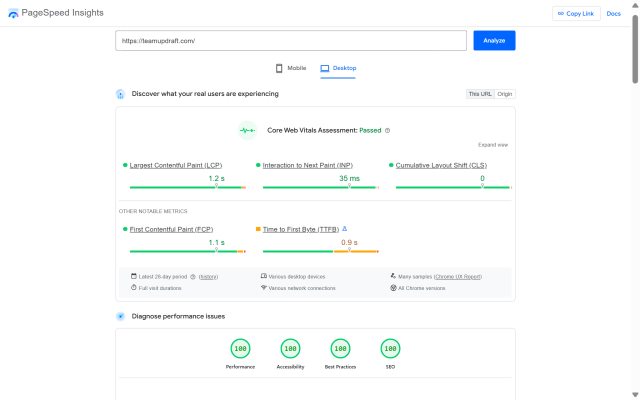
We recommend Google PageSpeed Insights. It is free, easy to use, and gives you a clear breakdown of Core Web Vitals along with practical recommendations to improve your site speed.
Other great options include:
GTmetrix – gives waterfall charts and clear recommendations
Pingdom Tools – simple to use and beginner-friendly
Any of these tools will help you see how your site actually performs for first-time visitors, not just you.
What’s a good page speed to aim for?
Section titled What’s a good page speed to aim for?A good target is for your pages to load in under 2 seconds, but speed is no longer just about load time.
Google now focuses on Core Web Vitals, which measure real user experience:
- Largest Contentful Paint (LCP): under 2.5 seconds
- Interaction to Next Paint (INP): under 200 milliseconds
- Cumulative Layout Shift (CLS): under 0.1
Even small improvements, like reducing load time by a few hundred milliseconds, can lead to better engagement, higher conversions, and improved search rankings.
What slows down a WordPress site?
Section titled What slows down a WordPress site?When you run a speed test, you will probably see a whole bunch of technical jargon that can feel overwhelming, especially if you’re not deep into the technical side of things. But behind all those charts and scores, the same issues tend to come up again and again.
Understanding what actually slows your site down helps you fix the root of the problem, instead of just patching things up.
Here are the most common speed killers we see:
- Web hosting – If your server is underpowered or poorly configured, your site will struggle to load no matter what else you optimise
- WordPress configuration – Without proper caching, WordPress has to rebuild every page from scratch for each visitor, which quickly adds strain and slows everything down
- Heavy page size – Large images, videos, and bulky design elements can massively increase load time
- Poorly coded plugins – One bad plugin can hog resources, cause conflicts, or add seconds to your load time
- External scripts – Ad networks, fonts, and third-party tracking tools can quietly stack up and hurt performance
These are the usual suspects that slow down WordPress sites. The good news? Once you know what’s causing the issue, you can fix it.
Let’s look at exactly how to speed things up and get your WordPress site running properly fast.
Quick wins: Top 10 most effective ways to speed up WordPress
Section titled Quick wins: Top 10 most effective ways to speed up WordPressIf you want to speed up your WordPress site quickly, start here.
These are the highest-impact fixes we’ve seen, and even applying a few of them can noticeably improve your load times.
The easiest way to speed up your WordPress site
WP-Optimize handles caching, image compression, and database cleanup in one simple package, so you can focus on your content instead of worrying about performance.
27 ways to speed up your WordPress site
Section titled 27 ways to speed up your WordPress siteNow let’s get into the practical side of things. These are the strategies you can use to make your WordPress site faster, from quick fixes to more impactful improvements.
1. Choose a high-performance hosting provider
Section titled 1. Choose a high-performance hosting providerYour hosting is the foundation of your website. If your server is slow, no plugin or theme will fully fix the problem.
When choosing a hosting provider, look for:
- SSD or NVMe storage for faster data access
- WordPress-optimised environments
- Built-in or server-level caching
- Enough memory and processing power to handle traffic
- Managed features for updates, security, and performance
If you’re currently on a basic shared hosting plan, upgrading to managed WordPress hosting or a VPS can make a noticeable difference to your site speed.
It doesn’t matter how many speed optimizations you do – if your hosting is slow, everything else suffers. Good hosting is like a solid foundation for a house. Start there.
2. Use the latest PHP version
Section titled 2. Use the latest PHP versionPHP is the language WordPress runs on, and the version you’re using can have a big impact on speed.
Newer versions, like PHP 8.1 or higher, are much more efficient than older ones. They process requests faster, which means your pages load quicker and your site feels more responsive overall.
You can usually update your PHP version from your hosting control panel. If you’re not sure where to find it, your hosting provider’s support team can point you in the right direction.
3. Keep WordPress core, themes, and plugins updated
Section titled 3. Keep WordPress core, themes, and plugins updatedUpdates do more than fix bugs, they often include performance improvements too. Outdated code can slow your site down or introduce security issues.
It’s worth making it a habit to regularly check for updates, or follow our simple guide on how to update your WordPress site safely if you’re unsure where to start.
4. Use a lightweight theme
Section titled 4. Use a lightweight themeNot all WordPress themes are created equal. Some are packed with features you’ll never use, which can quietly slow your site down.
Choosing a lightweight, speed-optimised theme like GeneratePress, Astra, or Neve can make a big difference. These themes are built with clean code and are designed to load quickly straight out of the box.
5. Remove unused plugins
Section titled 5. Remove unused pluginsEvery plugin you install adds some weight to your site, and over time that can start to slow things down.
Even inactive plugins can cause conflicts or create security risks, so it’s worth keeping things tidy.
Audit your plugins regularly, remove anything you’re not using, and swap out bulky plugins for lighter alternatives where you can.
6. Optimize your images
Section titled 6. Optimize your imagesLarge images are one of the most common reasons a WordPress site feels slow. The good news? They’re also one of the easiest things to fix.
You can improve load times by:
- Compressing images before uploading
- Converting them to next-gen formats like WebP
- Resizing images to match how they’re actually displayed
- Using a plugin like WP-Optimize to automate the process
Images are the low-hanging fruit of performance. You don’t need to sacrifice quality, but compressing and resizing images properly can instantly shave seconds off load time.
7. Enable lazy loading
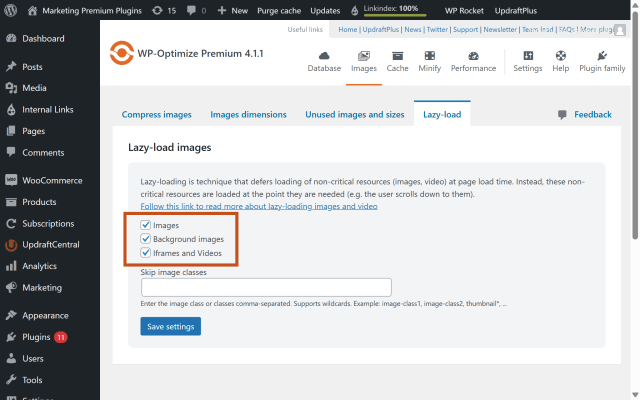
Section titled 7. Enable lazy loadingLazy loading means images and iframes only load when they’re about to come into view, rather than all at once when the page loads.
This can make a big difference to load times, especially on pages with lots of images.
Just make sure your key above-the-fold content (like your hero image) loads straight away, so the page feels fast as soon as someone lands on it.
WP-Optimize makes enabling lazy loading as simple as ticking a box.
8. Avoid hosting videos directly
Section titled 8. Avoid hosting videos directlyIt might be tempting to upload videos straight to your WordPress media library, but it’s usually not the best idea.
Video files are large, and serving them from your own site can quickly eat into your bandwidth. Some hosts may even throttle your performance or charge extra if you go over their limits, even on “unlimited” plans.
They can also make your backups much bigger, which becomes a headache if you ever need to restore your site.
A better approach is to upload your videos to a platform like YouTube or Vimeo, then embed them on your pages. These platforms are built for streaming and take the load off your server.
WordPress makes this easy, just paste the video URL into your post, and it will embed automatically. Job done.
9. Minify CSS and JavaScript files
Section titled 9. Minify CSS and JavaScript filesMinification removes unnecessary characters like spaces and comments from your CSS and JavaScript files, making them smaller and faster to load.
This helps reduce load times without affecting how your site looks or functions.
Tools like WP-Optimize can handle this automatically, so you don’t have to worry about breaking anything.
10. Use a caching plugin
Section titled 10. Use a caching pluginCaching is essential. It stores a ready-made version of your pages so they can load instantly, instead of being rebuilt from scratch every time someone visits your site.
WP-Optimize includes full-page, browser, and object caching, covering the key areas that impact performance.
Once you’ve installed WP-Optimize, you can set up caching in just a few minutes, no complicated setup needed.
Caching is one of the biggest speed boosts you can get with the least amount of effort. Just make sure your cache is cleared regularly, especially if you update your content often.
11. Simplify your design
Section titled 11. Simplify your designIt’s easy to get caught up choosing a theme packed with flashy features, sliders, popups, and animations. But every extra element adds scripts and code, which can quickly slow your site down.
The solution? Keep things simple. Clean, well-spaced layouts not only load faster, but also make it easier for visitors to find what they need and often look more professional too.
12. Optimize your WordPress database
Section titled 12. Optimize your WordPress databaseYour database stores all your content, settings, and more. Over time, it can fill up with unnecessary data like:
- Post revisions
- Spam comments
- Expired transients
- Old options
All of this builds up and clutters your database, making it harder for WordPress to quickly find the information it needs. As a result, every page request takes a little longer, which adds up across your entire site.
Keeping your database clean and tidy helps your site run more efficiently, so pages load faster for your visitors.
13. Limit post revisions
Section titled 13. Limit post revisionsEvery time you save a draft, WordPress keeps a copy as a revision. Over time, these revisions can pile up and bloat your database, making things slower.
You have a couple of ways to keep this under control:
1. Edit your wp-config.php file
Add this line to your wp-config.php file to keep only the most recent 5 revisions:
define('WP_POST_REVISIONS', 5);Change the number to whatever makes sense for you, or set it to false to turn revisions off entirely:
define('WP_POST_REVISIONS', false);2. Use a plugin to manage revisions
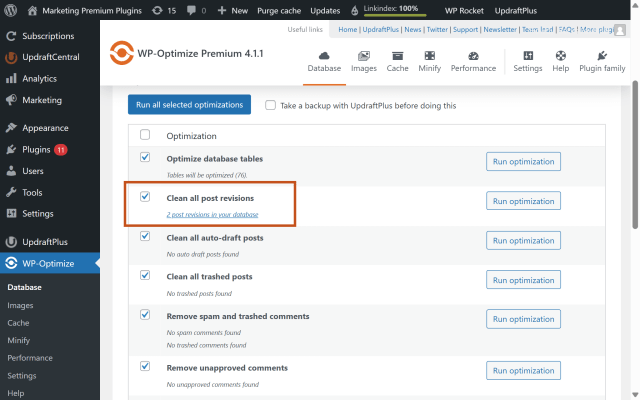
Even after you limit new revisions, old ones still hang around in your database. That is where WP-Optimize comes in handy, it can clean up existing revisions with just a click, and you can even schedule cleanups to run regularly. Just head over to Database > Optimizations and check the box “Clean all post-revisions”
14. Minimize redirects
Section titled 14. Minimize redirectsRedirects can be helpful, but too many slow things down. Avoid redirect chains and regularly audit your URLs using a tool like Screaming Frog.
Redirects are sometimes unavoidable, but they should never be messy. Clean, direct paths are better for performance and make life easier for both users and search engines.
15. Disable pingbacks and trackbacks
Section titled 15. Disable pingbacks and trackbacksPingbacks and trackbacks are old-school ways to notify other blogs of links. They generate unnecessary server requests, so it is best to turn them off under Settings > Discussion.
16. Use a Content Delivery Network (CDN)
Section titled 16. Use a Content Delivery Network (CDN)Your visitors are not all sitting next to your web server. If someone is accessing your site from the other side of the world, loading everything from a single server location can slow things down.
That’s where a Content Delivery Network (CDN) comes in. A CDN is a network of servers distributed globally, storing copies of your static files like images, CSS, and JavaScript.
When someone visits your site, those files are delivered from the server closest to them, which means:
- Faster load times, no matter where your visitors are
- Less strain on your hosting server
- A smoother, more reliable experience overall
Our go-to option is Cloudflare. It’s beginner-friendly, easy to set up, and has a solid free plan that works well for most WordPress sites.
Other good options include KeyCDN and Sucuri, which also offers additional security features alongside content delivery.
17. Enable GZIP compression
Section titled 17. Enable GZIP compressionGZIP compresses your site’s files before they’re sent to a visitor’s browser, helping pages load faster.
Most caching plugins, including WP-Optimize, support this and make it easy to enable.
18. Reduce external scripts
Section titled 18. Reduce external scriptsEvery extra script you add, whether it’s fonts, analytics, or third-party tools, creates another HTTP request.
These can quickly stack up and slow your site down, especially if they rely on external servers.
Only use what you actually need, and where possible, load scripts asynchronously so they don’t block your page from loading.
We see it all the time – sites pulling in half a dozen tracking scripts, custom fonts, and third-party widgets they don’t really need. Every external request adds load time. If it’s not essential, cut it.
19. Prevent hotlinking
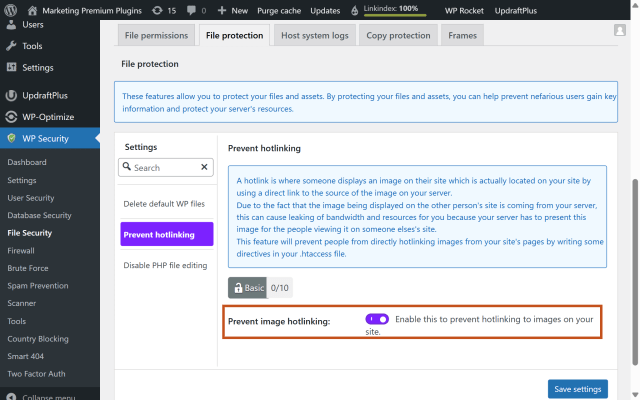
Section titled 19. Prevent hotlinkingIf you’re publishing quality images on your site, chances are someone will eventually try to use them. One common method is hotlinking, where other websites embed your images directly from your server instead of hosting them themselves.
This means they’re using your bandwidth and server resources without sending you any traffic. Over time, that can slow your site down and even increase your hosting costs. Not ideal.
The easiest way to block hotlinking is with a security plugin like AIOS. It lets you protect your images in just a few clicks, no code needed. Just head to File Security, open the File Protection tab, and enable the hotlinking protection option.
20. Schedule cron jobs during low-traffic hours
Section titled 20. Schedule cron jobs during low-traffic hoursWordPress uses something called cron jobs to handle background tasks like publishing scheduled posts or checking for updates. By default, these run when someone visits your site, which can slow things down during busy periods.
Instead, you can disable the built-in WordPress cron system and set up a real server cron job to run at set times, like overnight or during quieter hours.
This helps keep your site running smoothly when visitors are most active.
If you’re not sure how to set this up, your hosting provider’s support team can usually help.
21. Split long posts
Section titled 21. Split long postsLong blog posts with lots of images, videos, or embeds can slow your site down. While in-depth content is great for SEO and engagement, it can also mean a lot of data loading all at once.
Breaking content into multiple pages or turning it into a short series can help:
- Reduce initial page load time
- Make your content easier to read and navigate
- Give readers a reason to come back for the next part
22. Paginate comments
Section titled 22. Paginate commentsIf you have a popular post with hundreds of comments, loading them all on one page can really slow things down.
WordPress lets you paginate comments, which simply means splitting them into smaller chunks across multiple pages.
So instead of loading 300 comments at once, you might show 50 per page, helping the post load much faster.
You can set this up by going to Settings → Discussion and choosing how many comments to display per page.
23. Use responsive media
Section titled 23. Use responsive mediaDifferent devices need different image sizes. There’s no point sending a 2000px-wide image to a phone with a much smaller screen.
Responsive media ensures your site serves the right-sized images for each visitor, reducing data usage and improving load times.
Most modern WordPress themes handle this automatically, but you can also use plugins to fine-tune or extend it further if needed.
Serving oversized images to mobile users is a silent performance killer. Responsive media isn’t just about layout- it’s about sending the right-sized assets to the right device to keep load times fast.
24. Optimize JavaScript execution
Section titled 24. Optimize JavaScript executionNot all JavaScript needs to load straight away. Non-critical scripts can be delayed until after the main content has loaded.
This helps your site become interactive faster and can improve your Core Web Vitals scores.
25. Compress HTML, CSS, and JavaScript
Section titled 25. Compress HTML, CSS, and JavaScriptCompressing your site’s files helps reduce their size, which means they load faster for visitors.
WP-Optimize includes options to minify these assets, helping improve performance without affecting how your site looks or works.
26. Reduce HTTP requests
Section titled 26. Reduce HTTP requestsEvery image, script, and stylesheet on your page creates an HTTP request, and too many of these can slow things down.
You can reduce them by combining files, removing unnecessary plugins, and simplifying your layout where possible.
27. Use fewer fonts and font weights
Section titled 27. Use fewer fonts and font weightsEach font and style you load adds extra weight to your page, which can slow things down.
Sticking to one or two font families, and only the styles you actually need, will not only improve load times but also keep your design more consistent and on-brand.
Troubleshooting common speed issues
Section titled Troubleshooting common speed issuesWhy is my WordPress site so slow?
Slow hosting, unoptimised images, and outdated plugins are some of the most common causes of a slow WordPress site. It’s usually not just one issue, but a combination of things adding up.
How do I know what is slowing things down?
Use tools like GTmetrix, Pingdom, or Google PageSpeed Insights to identify what’s affecting your site speed and where the biggest improvements can be made.
How do I reduce loading time in WordPress?
Start with the basics: use a CDN, enable lazy loading, and defer JavaScript where possible. These changes can improve both perceived and actual load speed.
Where should I start?
Focus on caching, image optimisation, and your hosting setup first. These usually have the biggest impact with the least effort.
Final thoughts
Section titled Final thoughtsSpeeding up your WordPress site doesn’t have to be overwhelming. Even a few of these changes can make a noticeable difference in how your site feels and performs.
A faster site keeps visitors engaged, reduces bounce rates, and helps improve your search rankings, all of which can lead to more traffic and conversions.
If you’d rather not handle everything manually, WP-Optimize makes it easy to take care of caching, image compression, and database clean-ups in just a few clicks, so you can focus on your content while your site runs smoothly.
Ready to speed up your WordPress site?
If fixing 27 things manually makes you want to run for the hills, give WP-Optimize a spin instead.
FAQs
Section titled FAQsWhat is the best speed optimization plugin for WordPress?
WP-Optimize is one of the most effective ways to speed up your WordPress site, combining caching, image compression, and database clean-up in one lightweight plugin. You can also explore other options in our guide to the best WordPress optimisation plugins.
How do I quickly increase the speed of my WordPress site?
Start with the biggest wins: enable caching, compress your images, upgrade your hosting if needed, and switch to a lightweight theme. Even these simple changes can make a noticeable difference to your site speed.
Can I manually optimize my WordPress site speed?
Yes, you can. This includes cleaning up your database, resizing images, editing .htaccess rules, and fine-tuning your theme and plugins. It works well, but it can be time-consuming compared to using a plugin.
Is there a free WordPress speed optimization plugin?
Yes. WP-Optimize has a free version that includes caching, database clean-up, and basic image optimisation, making it a great starting point for improving your site speed.
How often should I perform speed checks on my WordPress site?
It’s a good idea to run a performance check once a month, or after any major updates or changes. Tools like GTmetrix and PageSpeed Insights make it quick and easy to keep an eye on your site speed.
About the author

Becks Faulkner
Becks is the Performance Marketing Manager at Updraft WP Software Ltd, with more than 15 years of marketing experience and over 11 years specialising in SEO. She works across TeamUpdraft’s WordPress products, focusing on content strategy and organic growth. Her experience spans both the financial and technology sectors, helping businesses improve their visibility in search.
Categories
WP-Optimize
Get all our premium features. Lazy loading, pre-load key requests, Cloudfare integration. Optimize individual tables, delete unused images and more.
From just $49 for the year.
More stories
-

5 WordPress Web Design Tips to Improve Your Website
Good web design is about more than appearance. Explore practical WordPress web design tips to improve your website's layout, navigation, mobile responsiveness, accessibility and performance, helping you create a better experience for your visitors.
-
Best AI Website Builders Compared
AI website builders can help you design, write and launch a website in minutes. Compare the best AI-powered website builders based on ease of use, features, customisation, pricing and performance to find the right solution for your next project.
-

How incremental backups save time and storage in WordPress
Incremental backups only save the changes made since your last backup, helping you reduce storage usage, speed up backups and lower server load. Learn how they work and why they're an essential part of an efficient WordPress backup strategy.
-
Best WordPress Website Builders Compared
Discover the best WordPress website builders for every skill level. Compare features, ease of use, pricing and performance to choose the right builder for your blog, business or online store.
