How to back up your WordPress site
Category Guides and resources
Topics Backups, Tips and tricks, WordPress,

If you want to back up your WordPress site, there are a few different ways to do it, from quick plugin-based backups to more manual options using your hosting tools or FTP.
For most people, the easiest and most reliable option is using a backup plugin. It lets you safely back up both your files and database without needing to mess around in your site’s backend.
In this guide, we’ll walk you through five different ways to back up your WordPress site, step by step, so you can choose the method that works best for you.
Whether you want something quick and simple or a more hands-on setup, you’ll find a practical way here to keep your site safe.
Why back up your WordPress site?
Section titled Why back up your WordPress site?Backing up your WordPress site protects you from losing everything, your content, settings, and hard work.
Whether you’re running a personal blog, a business site, or managing client projects, things can go wrong when you least expect it. A backup means you can recover quickly instead of starting from scratch.
Prevent data loss
Section titled Prevent data lossData loss can happen at any time, often when you least expect it. Some of the most common causes include:
- Accidental deletion: Removing the wrong page, post, or setting
- Glitches and conflicts: Updates or plugins causing errors like the white screen of death
- Server issues: Crashes or failures that corrupt your files or database
- Malware and hacks: Attacks that damage or delete your content
While total data loss isn’t common, most sites will run into at least one of these issues over time.
Minimise downtime and stress
Section titled Minimise downtime and stressBackups make fixing problems simple. Whether it’s a broken plugin, a mistake, or malware, you can restore your site and get things back to normal quickly.
Without a backup, you could spend hours or even days troubleshooting and rebuilding your site.
Make migrations and testing easier
Section titled Make migrations and testing easierBackups aren’t just for emergencies. They also make it much easier to migrate your site, create staging environments, or test changes safely before going live.
In short, having a backup gives you flexibility, peace of mind, and a safety net when things go wrong.
What is the best way to back up your WordPress site?
Section titled What is the best way to back up your WordPress site?The best way to back up your WordPress site, for most people, is using a plugin. It’s the quickest, easiest, and most reliable way to create full backups and automate them.
That said, there are a few different methods depending on your setup and how much control you want:
- Back up with a plugin: The best all-around option. It lets you create full backups (files and database) in a few clicks and automate them. Ideal for beginners, site owners, and agencies managing multiple sites.
- Manual backup via cPanel: A quick way to download your files and database through your hosting dashboard. Useful if you prefer a manual approach.
- Manual backup via FTP: Lets you download your site files directly, but does not include your database. You’ll need to combine this with another method.
- Database backup with phpMyAdmin: A fast way to export your database, but it does not include your site files, so it needs to be used alongside FTP or cPanel.
- Backup through your web host: Many hosts offer built-in backups, but they can be limited or unreliable. You may not have full control over how often backups run or where they’re stored.
One important thing to understand is that a full WordPress backup includes both your website files and your database.
Your files include your themes, plugins, and WordPress core, while your database stores your posts, pages, users, and settings.
A common mistake is only backing up files and forgetting the database. Without both, you won’t be able to fully restore your site.
Take the stress out of WordPress backups
Manual backuptake time and are easy to get wrong. UpdraftPlus Premium automatically backs up your site before updates and stores everything securely offsite, so you can restore in minutes if anything goes wrong.
5 ways to back up your WordPress site
Section titled 5 ways to back up your WordPress siteThere are a few different ways to back up your WordPress site, depending on how hands-on you want to be and what tools you have access to.
Below, we’ll walk you through five of the most straightforward methods, step by step, so you can choose the one that works best for you.
Now let’s go through each method step by step, so you can see exactly how to back up your WordPress site.
Method 1: Back up your WordPress site using a plugin (recommended)
Using a plugin is the easiest way to back up your WordPress site, especially if you want something quick, reliable, and easy to manage.
There are plenty of options available in the WordPress Plugin Directory, but it’s worth checking a few things before choosing one:
- Is it tested with the latest version of WordPress?
- Does it have a high number of active installs?
- Is it well-reviewed by other users?
In this guide, we’ll use UpdraftPlus, one of the most popular and trusted backup plugins available.
For most people, a plugin is the best option because it lets you back up your files and database in just a few clicks, without needing to access your server or use tools like FTP.
Here’s how to back up your site using the free version of UpdraftPlus:
Step 1: Install and activate UpdraftPlus
Section titled Step 1: Install and activate UpdraftPlusFirst, install the free version of UpdraftPlus from the WordPress plugin directory.
Go to Plugins → Add New Plugin, search for “UpdraftPlus”, then click Install Now and Activate.
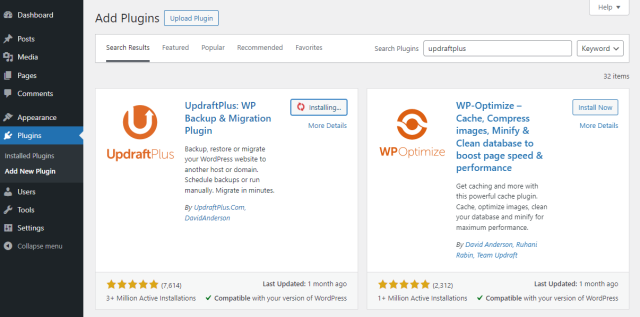
If you have the premium version of UpdraftPlus or installed it manually, you can also click Upload Plugin and upload the zip file directly.
Step 2: Set up remote storage
Section titled Step 2: Set up remote storageNext, choose where you want your backups to be stored.
It’s important not to store backups on your website’s server. If your site is hacked or your server fails, your backups could be lost at the same time.
A safer approach is to store your backups offsite, for example in cloud storage like Google Drive, Dropbox, or Amazon S3.
A good rule to follow is the 3-2-1 backup rule: keep at least three copies of your data, stored in two different locations, with one copy offsite.
To set this up in UpdraftPlus, go to Settings → UpdraftPlus Backups and open the Settings tab.
Select your preferred storage option, then follow the steps to connect and authenticate your account.

Once that’s set up, your backups will automatically be stored in your chosen location.
Step 3: Take a manual backup in UpdraftPlus
Section titled Step 3: Take a manual backup in UpdraftPlusIf you want to create a backup straight away, it’s quick and easy. Just click the Backup Now button.
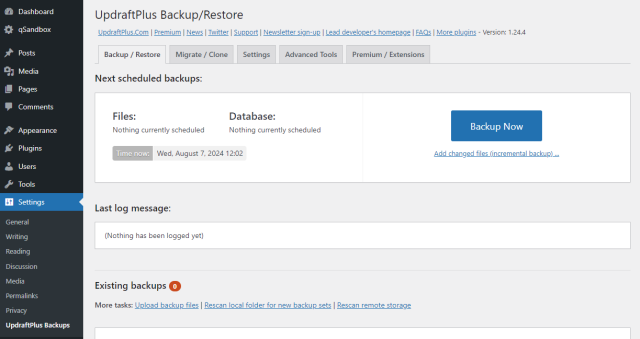
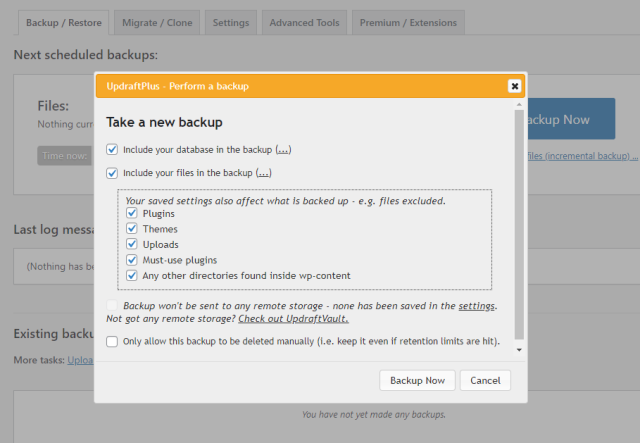
A pop-up will appear where you can choose what to include in your backup. For a full WordPress backup, make sure you select both your files and database.
Then click Backup Now to start the process.
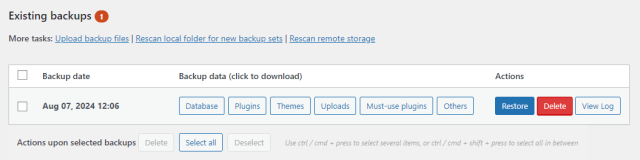
After a few minutes, your site will be backed up and ready to restore if needed.
You can view and manage your backups from the same tab, including restoring your site whenever you need to.
Step 4: Schedule backups
Section titled Step 4: Schedule backupsYou can also set up automatic backups so everything runs in the background without you needing to remember.
Go to the Settings tab, where you can choose how often to back up your files and database.
You can also decide how many backups to keep before older ones are automatically removed.
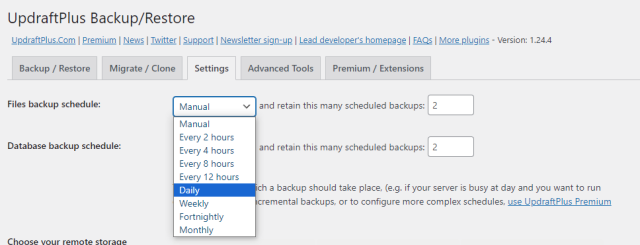
And that’s it. Your site will now be backed up automatically and stored safely, so you’re covered if anything goes wrong.
Method 2: Manually back up your WordPress site via cPanel
If you’d prefer a more hands-on approach, you can back up your site manually using cPanel. This is one of the simplest manual methods and is supported by many hosting providers.
Most web hosts use cPanel (or a similar interface), which you can access through your hosting dashboard. Check your host’s documentation if you’re not sure where to find it.
Step 1: Log in to cPanel
Section titled Step 1: Log in to cPanelStart by logging in to your hosting account and navigating to cPanel. There’s usually a link or menu option that will take you there.
In some cases, you can also access it directly by adding /cpanel to your website’s URL.
Step 2: Run the Backup Wizard
Section titled Step 2: Run the Backup WizardOnce you’re in cPanel, look for the Files section and click Backup Wizard.
This tool lets you create a backup of your website in just a few clicks, including both your database and your home directory (where your WordPress files are stored).
Click Back Up to get started.
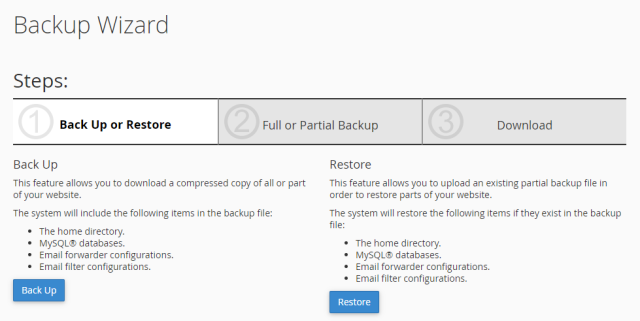
You can choose between a Full Backup or downloading your files and database separately.
A full backup saves everything at once, but it can’t always be restored directly through cPanel.
For more flexibility, it’s often better to download your home directory (your website files) and your database separately, so you can restore them more easily if needed.
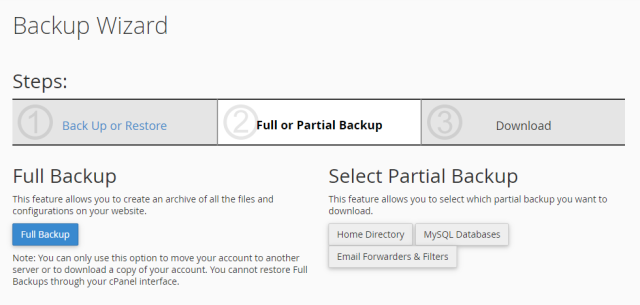
After that, you’ll be prompted to download your backup files.
You can also use the Backup menu instead of the Backup Wizard. It works in the same way, just without the step-by-step guidance.
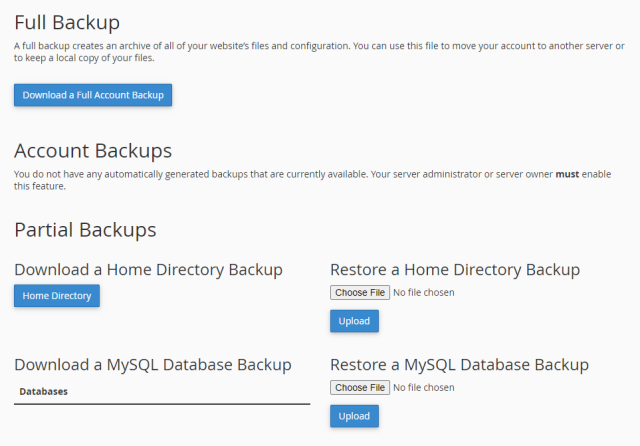
And that’s it, you’ve now taken a manual backup of your website.
Method 3: Manually back up your WordPress site via FTP
If your host doesn’t use cPanel, you can back up your site using FTP (File Transfer Protocol). This lets you access your website files directly and download them to your computer.
Important: This method only backs up your website files, not your database. Since your posts, pages, and other content are stored in the database, you’ll need to back that up separately using the next method.
Step 1: Download an FTP client
Section titled Step 1: Download an FTP clientTo use FTP, you’ll need to install an FTP client. Popular options include FileZilla and WinSCP. We’ll use FileZilla for this example.
You’ll also need your FTP credentials (host, username, password, and port), which you can usually find in your hosting dashboard or request from your provider.
Step 2: Connect using FTP
Section titled Step 2: Connect using FTPOpen FileZilla and enter your FTP credentials in the bar at the top. Then click Quickconnect to connect to your website.
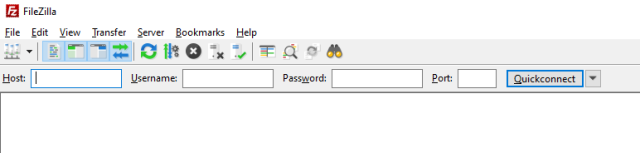
In FileZilla, you’ll see your local files on the left and your website’s files on the right. Navigate to your WordPress directory on the right-hand side, which is often located in the public_html or www folder.
Step 3: Download website files
Section titled Step 3: Download website filesTo take a full file backup, you can simply download your entire WordPress directory.
The most important folder is wp-content, which contains your themes, plugins, and uploads. However, it’s usually best to download everything to make sure nothing is missed.
Select all files and folders (Ctrl + A), then right-click and choose Download.
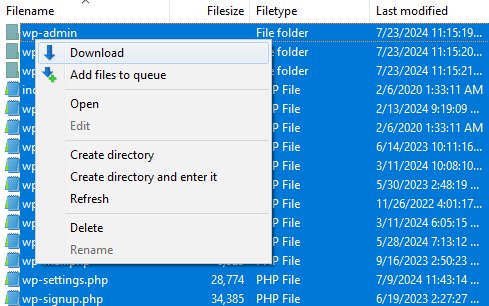
With your files downloaded, the next step is to back up your database, which stores most of your site’s content.
Method 4: Manually back up your database with phpMyAdmin
Your WordPress database contains your posts, pages, comments, users, and settings.
A common mistake is assuming this content is included in your website files. It’s not, so without a database backup, you won’t be able to fully restore your site.
You can access phpMyAdmin through cPanel, or directly from your hosting dashboard, depending on your provider.
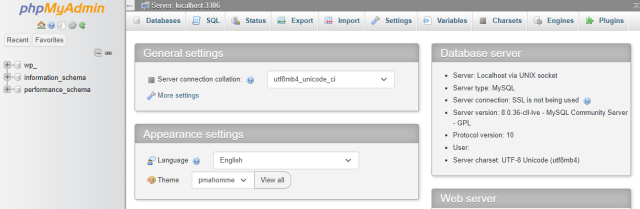
Once you open phpMyAdmin, click on your WordPress database to open it. Then click the Export tab at the top.
If you just want a quick, full database backup, click Export now. You can also set the Export Method to Custom if you want more control over the database entries that are backed up, formatting, and so on.
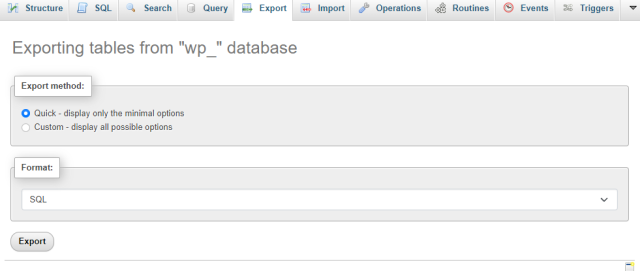
This is a quick way to back up your database, but remember, you’ll still need to back up your website files separately using cPanel or FTP.
Method 5: Back up your WordPress site through your web host
Many web hosts offer built-in backup tools that you can access through your hosting dashboard. The exact setup varies depending on your provider, and not all hosts include this feature.
Here’s how it usually works:
- Log in to your hosting account.
- Find the backup section in your dashboard.
- Choose whether to run a manual backup, schedule automatic backups, or both.
While this can be convenient, it’s a good idea to combine it with another method, like using a backup plugin, so you have more control over your backups.
Wrapping up
Section titled Wrapping upThere are several ways to back up your WordPress site, whether you prefer a manual approach (cPanel, FTP, phpMyAdmin), using your web host, or automating everything with a plugin.
For most people, using a plugin is the easiest and most reliable option, especially if you want to schedule regular backups and avoid doing everything manually.
UpdraftPlus makes this simple, with automatic backups, remote storage options, and easy restores all in one place.
If you need more control, UpdraftPlus Premium adds extra storage locations, the ability to back up to multiple destinations, encryption, multisite support, and more flexible scheduling.
Take backups off your to-do list
Keeping your site backed up shouldn’t be something you have to think about. With UpdraftPlus, your backups run automatically, are stored safely offsite, and are ready to restore whenever you need them.
FAQs
Section titled FAQsHow often should I back up my WordPress site?
It depends on how often your site changes. If you update your site regularly, daily backups are a good idea. For less active sites, weekly backups may be enough. It’s also smart to take a backup before making any major changes.
How do I back up my WordPress site for free?
You can back up your site for free using a plugin like UpdraftPlus or by manually downloading your files and database through tools like cPanel, FTP, and phpMyAdmin.
How do I back up my WordPress site to my computer?
You can download your website files using FTP or cPanel and export your database using phpMyAdmin. If you’re using a plugin, you can download your backup files directly or sync them through a cloud storage service.
How do I back up my WordPress site without plugins?
To back up your site without plugins, you’ll need to manually download your WordPress files using FTP and export your database with a tool like phpMyAdmin. You can also use cPanel or your web host’s backup tools.
Follow the step-by-step methods above for each approach:
Does WordPress have a built-in backup feature?
WordPress includes a basic Export tool, but it only saves content like posts and pages. For a full backup of your site, including files and database, you’ll need to use a backup plugin or manual method.
How do I back up and restore my WordPress site for free?
Along with backing up your site, all the methods we outlined above let you restore for free as well. You can either manually restore files through FTP, phpMyAdmin, and/or cPanel, you can restore your site through UpdraftPlus or any backup plugin.
Note that some backup plugins are not compatible with each other and can only restore backups made from their own plugin. UpdraftPlus can restore backups from other plugins or manual backups you took yourself.
How do I automatically back up my WordPress site?
The easiest way is to use a backup plugin like UpdraftPlus, which lets you schedule backups to run automatically and store them safely offsite.
What is a WordPress backup?
A WordPress backup is a copy of your website’s files and database. It allows you to restore your site if something goes wrong, such as data loss, hacks, or server issues.
How do I back up my WordPress site?
You can back up your WordPress site using a plugin, your hosting provider, or manually via FTP and phpMyAdmin. The easiest method for most people is using a plugin.
What should be included in a WordPress backup?
A full backup should include both your website files (themes, plugins, uploads) and your database (posts, pages, users, and settings). You need both to fully restore your site.
Where should I store my WordPress backups?
It’s best to store backups offsite, such as in cloud storage like Google Drive or Dropbox. This ensures your backups are safe even if your server fails or your site is compromised.
About the author

Brenda Barron
Brenda is a freelance writer with over a decade of experience with web design, development, and WordPress. She specializes in content about business and technology – and often the intersection of the two. When not click-clacking at the keyboard, she’s spending time with her family, playing music, or taking up a new hobby.
Categories
UpdraftPlus
Get all our premium features. Direct site-to-site migration, incremental backups, back up automatically before updates and a whole lot more.
From just $70 for the year.
More stories
-

5 WordPress Web Design Tips to Improve Your Website
Good web design is about more than appearance. Explore practical WordPress web design tips to improve your website's layout, navigation, mobile responsiveness, accessibility and performance, helping you create a better experience for your visitors.
-
Best AI Website Builders Compared
AI website builders can help you design, write and launch a website in minutes. Compare the best AI-powered website builders based on ease of use, features, customisation, pricing and performance to find the right solution for your next project.
-

How incremental backups save time and storage in WordPress
Incremental backups only save the changes made since your last backup, helping you reduce storage usage, speed up backups and lower server load. Learn how they work and why they're an essential part of an efficient WordPress backup strategy.
-
Best WordPress Website Builders Compared
Discover the best WordPress website builders for every skill level. Compare features, ease of use, pricing and performance to choose the right builder for your blog, business or online store.
