The best free analytics plugins for WordPress
If you’re running a WordPress site (or twenty of them) flying blind without analytics is like running ads with your eyes closed. You think you know what’s working, until the leads dry up, conversions dip, or your best-performing post quietly disappears from page one.
That’s why analytics plugins aren’t just “nice to have” tools; they’re your early-warning system. They show you what pages drive revenue, where visitors drop off, and how campaigns actually perform before you waste more budget guessing.
In this guide, we’ll dig into the top free analytics plugins, compare how they handle data, and spotlight where others miss the mark, so you don’t lose growth opportunities simply because you weren’t looking at the numbers.
By the end, you’ll know exactly which plugin keeps you informed, compliant, and ahead of competitors still playing the guessing game.
Why WordPress site owners need analytics
Section titled Why WordPress site owners need analyticsRunning a WordPress site without analytics is basically guesswork. You might see traffic coming in, but you don’t know where it’s from, which pages keep people reading, or which ones quietly lose visitors. Host logs don’t give you the full picture, and Google Analytics alone can feel overwhelming, especially if you’re jumping between multiple tools.
A good analytics plugin brings those insights straight into your WordPress dashboard. It shows you what content performs well, what needs attention, and where people are coming from, so you can make decisions based on real data instead of gut feeling.
Common pain points it solves include:
- Installing and maintaining Google Analytics (or GA4) manually.
- Having to jump between multiple tools (host stats, Google Analytics, custom code).
- Not tracking events like button clicks, downloads, forms.
- Needing an analytics tool that doesn’t slow down the site or conflict with caching.
- Ensuring compliance with privacy laws (e.g., GDPR, cookie consent) while still getting meaningful data.
This article provides a list of the best free analytics plugins for WordPress, explains how to choose among them, shows key features and pitfalls, and offers actionable setup steps.
What to look for when choosing an analytics plugin
Section titled What to look for when choosing an analytics pluginBefore selecting one of the best free analytics plugins for WordPress, evaluate your needs with these criteria:
Feature checklist
Section titled Feature checklist- Page-views, visitors, sessions (basic metrics).
- Real-time data (optional but useful for promotions/live events).
- Event tracking: downloads, button clicks, form submissions.
- Integration with e-commerce (if you use WooCommerce).
- Dashboard inside WordPress (vs having to leave WP to view data).
- Ease of installation and onboarding (minimal code).
- Performance: lightweight, does not slow down your site or conflict with caching.
- Privacy/data ownership: Does it store analytics on your server?
- Does it send data externally?
Compatibility with GDPR/consent requirements. - Free vs premium: What you get without paying.
Decision matrix
Section titled Decision matrixTop free analytics plugins for WordPress
Section titled Top free analytics plugins for WordPressHere are three standout free options that cover different use-cases.
1. Burst Statistics (Free version)
Section titled 1. Burst Statistics (Free version)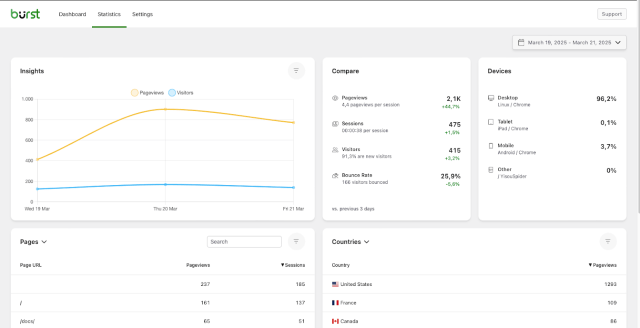
Burst Statistics is a great example of a privacy-friendly, self-hosted analytics plugin built specifically for WordPress.
What it offers (free tier):
- Self-hosted, data stored on your server, no third party tracking.
- Core metrics: pageviews, visitors, sessions, time on page, referrers.
- Real-time dashboard inside WordPress.
- Light footprint; minimal performance impact.
- No Google Analytics account required; no external cookies by default.
What is limited in free tier:
- Advanced features (UTM tracking, geo-insights, multiple goals) are in the Pro version.
Best for: Website owners who want full control of their analytics data, privacy-concerned sites, EU-based websites, sites where performance is critical.
We’ve found that the sites which review their analytics monthly grow faster, because they spot what’s working and drop what’s not.
Get WordPress analytics that make sense
Burst Statistics helps you understand how people interact with your content, from page views to key events, all in a simple WordPress dashboard. No complex setup, no switching platforms just clear insights where you need them.
2. MonsterInsights (Free version)
Section titled 2. MonsterInsights (Free version)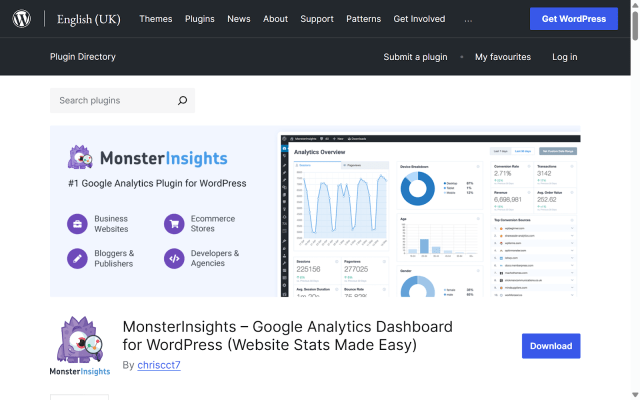
MonsterInsights is widely cited as the most popular analytics plugin for WordPress.
What it offers (free tier):
- Easy Google Analytics (GA4) integration in WordPress.
- Dashboard inside WordPress showing traffic stats.
- Reliable community and strong brand backing.
What is limited in free tier:
- Some event tracking and e-commerce features require upgrade.
Best for: Bloggers or small business owners who want a trusted, user-friendly plugin that connects to Google Analytics quickly.
3. Site Kit by Google (Free version)
Section titled 3. Site Kit by Google (Free version)
Site Kit by Google is the official WordPress plugin from Google and it’s completely free.
Free tier highlights:
- Seamlessly connects Google Analytics, Search Console, PageSpeed Insights, and AdSense in one dashboard
- No need for manual code or API setups, authentication happens with your Google account
- Provides insights on top-performing pages, traffic sources, and search performance directly inside WordPress
Limitations:
- Reports are simplified, not ideal for deep event tracking or e-commerce analysis
- Can occasionally slow down the dashboard or conflict with heavy caching setups
Best for: Site owners who want a trusted, all-in-one Google solution without juggling multiple plugins or dashboards
Side-by-side comparison table
Section titled Side-by-side comparison tableHere’s a simplified comparison of the three plugins above:
Setup & best practices (Step-by-step)
Section titled Setup & best practices (Step-by-step)Here’s a general step-by-step guide for deploying one of these plugins and getting value right away.
Step 1: Choose and install your plugin
Section titled Step 1: Choose and install your pluginGo to Plugins → Add New in your WordPress dashboard. Search for the plugin (e.g., Burst Statistics, MonsterInsights, SiteKit) and click Install → Activate.
Step 2: Connect your analytics account (if required)
Section titled Step 2: Connect your analytics account (if required)For Google Analytics based plugins (MonsterInsights/SiteKit):
- Create or identify your Google Analytics (GA4) property.
- In the plugin settings, connect the property (often via OAuth).
- Confirm tracking code deployment page-wide.
For Burst Statistics:
- No external account needed. Data stored locally.
- Optionally configure cookieless tracking if you want minimal cookie burden.
Step 3: Configure basic settings
Section titled Step 3: Configure basic settings- Select what user roles should be excluded (e.g., admin, editor).
- Enable real-time stats (if available).
- For e-commerce sites: enable WooCommerce or other cart tracking.
- For privacy: ensure anonymisation enabled for IPs or opt-out for logged-in users.
Step 4: Set up event tracking (free tier)
Section titled Step 4: Set up event tracking (free tier)Check if your plugin tracks:
- File downloads
- Button clicks
- Form submissions
- If not, consider adding minimal custom tracking or switching to the plugin that offers it free.
Step 5: Monitor reports and act
Section titled Step 5: Monitor reports and act- Review popular pages/posts and optimise weaker ones.
- Look at traffic sources and allocate budget or effort accordingly.
- If you have conversions (sign-ups, sales), track drop-off and potential bottlenecks.
- Use your data to improve content, links, CTAs or site structure.
Step 6: Keep performance & privacy in check
Section titled Step 6: Keep performance & privacy in check- Run a site speed test using a tool like page speed insights before and after the plugin install to confirm no major regression.
- Review your cookie-consent mechanism to ensure analytics scripts are controlled.
- Take a backup of your analytics settings and data.
Final thoughts
Section titled Final thoughtsIf you just want some numbers in WordPress, most analytics plugins will do the job. But if you actually care about performance, privacy, and understanding what’s happening on your site without drowning in dashboards, the choice becomes clearer.
Google-based plugins like MonsterInsights and Site Kit work well if you’re already committed to GA4 and don’t mind relying on third-party tracking. For many site owners though, that setup can feel heavy, overcomplicated, or harder to keep compliant.
That’s where Burst Statistics stands out. It gives you the essentials – page views, visitors, referrers, and engagement, directly inside WordPress, without sending data elsewhere or slowing things down. You stay in control of your data, avoid unnecessary tracking scripts, and still get insights you can actually act on.
For most WordPress sites, especially those focused on performance, privacy, or simplicity, a lightweight, self-hosted analytics plugin isn’t a compromise – it’s the smarter starting point. Install it, check it regularly, and let the data guide your decisions instead of guessing.
Get clear WordPress analytics without the complexity
Burst Statistics gives you an easy-to-read dashboard, built-in event tracking, and insights that actually make sense, all inside WordPress, with no steep learning curve.
FAQs
Section titled FAQsWhat’s the best free analytics plugin for WordPress?
You can use free versions of plugins like Burst Statistics, MonsterInsights or Site Kit. They offer core analytics without needing a paid upgrade.
Can I track button clicks or form submissions with free plugins?
Some free plugins include basic event tracking but most advanced tracking (custom events, funnel analysis) may require the premium upgrade. You should check plugin documentation before relying on free tier.
Will installing an analytics plugin slow down my WordPress site?
Any plugin adds some load, but well-coded analytics plugins like Burst strive to minimise impact. You should always test performance after install and exclude admin users or logged-in editors from tracking.
What about privacy and GDPR when using analytics plugins?
That depends on the plugin and how it handles data. To stay GDPR-compliant, you’ll need features like IP anonymisation, visitor opt-out options, clear data retention controls, and proper cookie consent handling. Plugins that store analytics data locally or avoid third-party tracking services often make compliance easier, but you should always review the plugin’s privacy settings and documentation.
Do I need Google Analytics to use a WordPress analytics plugin?
No. Some WordPress analytics plugins, like Burst Statistics, work independently of Google Analytics and track visitor data directly inside your WordPress dashboard. This means no external accounts to connect, fewer third-party scripts loading on your site, and more control over how and where your analytics data is stored.
About the author

Elvira Mishra
Elvira has over four years of experience creating and designing content in WordPress. Her background spans multiple digital disciplines, including marketing, SEO, user experience, and human computer interaction.
Categories
Burst Statistics
Unlock advanced insights for your WordPress site. GDPR-friendly tracking, real-time analytics, custom dashboards, and a full set of powerful reporting tools.
More stories
-

Best WordPress themes for food blogs
We’ve rounded up the best WordPress themes designed for recipes, images, and performance.
-

The Best WordPress plugin to clean up old themes
Unused themes can clutter your WordPress site. Here’s a simple way to remove them safely and keep things tidy.
-

World Backup Day: if your site disappeared, would you be ready?
Take five minutes to make sure your WordPress site is backed up and ready to restore.
-
Best WordPress themes for law firms
Find a professional WordPress theme for your law firm, whether you need speed, flexibility, or a ready-made legal layout.
