The Best WordPress plugin to clean up old themes
If you’ve been running a WordPress site for a while, chances are you’ve got a graveyard of old themes sitting in your dashboard. Maybe you tested a few, switched to something better, or your host installed some defaults you never touched. Whatever the reason, those unused themes are still taking up space on your server and could be causing more problems than you realise.
Unused themes might look harmless, but they can take up server space, create update noise, and even introduce security risks if they are left outdated.
That is why many site owners start looking for the best WordPress plugin to clean up old themes. In this guide, we’ll explain why removing unused themes matters, how cleanup plugins help, and which tools are best for safely clearing out leftover theme data.
Key takeaways
Section titled Key takeaways- Unused WordPress themes take up server space and can create security vulnerabilities if left unpatched
- You should always back up your site before deleting any themes or running cleanup tools
- Several plugins can help you identify and remove old themes safely, with WP-Optimize being one of the most reliable all-rounders. Regular site maintenance, including theme cleanup, keeps your WordPress installation running efficiently
Why unused themes are a bigger deal than you’d think
Section titled Why unused themes are a bigger deal than you’d thinkIt’s easy to dismiss old themes as harmless clutter. They’re not active, so what could go wrong? Quite a lot, actually.
Security risks
Section titled Security risksThemes contain PHP code. Even if they’re not active, they’re still sitting on your server. If a theme has a known vulnerability and you haven’t updated it (which is easy to forget when you’re not using it), it can still be exploited. Hackers don’t only go after active themes. According to Patchstack’s WordPress Vulnerability Report, themes are a frequent source of vulnerabilities discovered on WordPress sites.
Server bloat
Section titled Server bloatEach theme can be anywhere from a few megabytes to well over 30MB, especially premium ones. That adds up across hosting plans with limited storage.
Update fatigue
Section titled Update fatigueEvery installed theme shows up in your update queue. When you’re ignoring updates for themes you’ll never use again, it creates noise and makes it easy to miss critical updates for things that actually matter.
Confusing maintenance
Section titled Confusing maintenanceIf you hand your site over to a developer or agency later, a cluttered theme list makes it harder for them to understand your setup quickly.
The good news is cleaning this up is straightforward, especially with the right tools.
Keep your site protected before any cleanup
Before you remove themes or run optimization tools, make sure you have a recent backup ready. UpdraftPlus lets you back up your entire WordPress site to cloud storage like Google Drive, Dropbox or Amazon S3, and restore it with just a few clicks.
Which themes can you safely delete?
Section titled Which themes can you safely delete?Before we get into plugins, a quick rule of thumb on what to keep and what to ditch.
Safe to delete:
- Any theme you installed to test and never used
- Old themes from previous site designs
- Themes that came pre-installed by your host that you’ve never activated
- Duplicate or similar themes you were comparing
Keep these:
- Your active theme (obviously)
- The parent theme, if your active theme is a child theme. Deleting the parent will break your site
- At least one default WordPress theme (like Twenty Twenty-Two or Twenty Twenty-Three) as a fallback for troubleshooting
If you’re unsure whether a theme is a parent theme for something you’re using, check under Appearance > Themes in your WordPress dashboard. Child themes will typically show a note indicating which parent they depend on.
How can plugins help clean up old themes and your site
Section titled How can plugins help clean up old themes and your siteThemes can leave traces across several parts of your WordPress site. When you delete a theme, WordPress removes the theme files themselves, but it does not always remove the data the theme created while it was active.
That leftover data can include:
- old theme settings stored in the
wp_optionstable - image sizes generated by the theme
- revisions and transient data created during testing
- leftover metadata or custom content created by the theme
- Trying to track down and remove this manually through phpMyAdmin or FTP can be risky, especially if you are not familiar with the WordPress database structure.
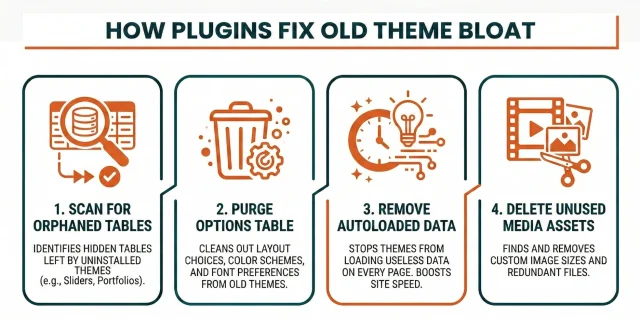
This is where cleanup plugins become extremely useful. Instead of manually digging through database tables and folders, these tools scan your site and highlight data that no longer belongs to an active theme.
Most cleanup plugins follow a similar process:
Scanning for orphaned database tables
Section titled Scanning for orphaned database tablesSome themes create their own database tables to store things like sliders, portfolios, or custom settings. When the theme is deleted, those tables often remain behind. Cleanup plugins scan the database and flag tables that are no longer connected to active themes or plugins.
Cleaning up the options table
Section titled Cleaning up the options tableThe wp_options table is one of the most common places for leftover theme data. Themes often store layout settings, colour schemes, and configuration options there. Cleanup tools identify outdated theme_mods and unused settings so they can be safely removed.
Identifying autoloaded data
Section titled Identifying autoloaded dataSome theme settings are marked as “autoload,” which means they load on every page request. If those settings belong to an old theme, they can slow down your site unnecessarily. Cleanup plugins help detect and remove unused autoloaded data.
Removing unused media assets
Section titled Removing unused media assetsMany themes generate custom image sizes for things like hero banners or portfolio thumbnails. When the theme is removed, those extra image files often remain in your uploads folder. Some cleanup plugins can identify unused image sizes and remove the redundant files.
By using a cleanup plugin, a task that might take hours of manual database work becomes a quick and safe process. Instead of guessing what can be deleted, you can rely on tools designed to identify unnecessary data without breaking your site.
Methodology: How we evaluated the best WordPress plugin to clean up old themes
Section titled Methodology: How we evaluated the best WordPress plugin to clean up old themesTo give you an expert opinion you can trust, I didn’t just look at the number of downloads. I evaluated these plugins based on five quantitative metrics that actually matter for site health:
- Cleanup Thoroughness: How well does it find “orphaned” tables and options specifically left by themes?
- User Safety: Does it include “dry run” previews or safety warnings before permanent deletion?
- Ease of Use: Is the interface intuitive for a novice, or do you need a PhD in databases?
- Automation: Can you schedule cleanups so you don’t have to remember to do them?
If you are doing a larger cleanup of your site, it can also be worth reviewing your current theme and plugin setup to make sure everything is still up to date and actively maintained. I’ve put together a guide to some of the best WordPress themes available today, including plenty of solid themes if you’re on a budget.
The best WordPress plugins to clean up old themes
Section titled The best WordPress plugins to clean up old themesHere are some of the best plugins for the job. Some are powerful all-in-one tools, while others are more lightweight, so the right choice depends on the type of site you run and how much cleanup you want to automate.
1. WP-Optimize
Section titled 1. WP-OptimizeCleanup Thoroughness: 9/10 | User Safety: 10/10 | Ease of Use: 9/10 | Automation: 10/10 | Resource Impact: 8/10 | Overall Score: 9.2/10
WP-Optimize is one of the most reliable plugins in this category. It started out as a database optimization tool but has grown into a full performance plugin that helps keep WordPress sites clean, fast, and efficient. What I like most is its safety-first approach. It doesn’t just delete leftover data, it also optimizes database tables to reclaim space and helps tackle image and file bloat at the same time.
Key features
- Specifically identifies and removes orphaned database tables left by uninstalled themes
- Cleans up expired transients and orphaned metadata that themes often leave behind
- Seamless integration with UpdraftPlus for a safety backup before you purge
- Scheduled cleanups to automatically remove auto-drafts and revisions from theme testing
Pros
- Extremely reliable and well-supported
- One-click “Clean all” functionality for beginners
- Comprehensive dashboard that covers database, images, and cache
Cons
- Advanced scheduling features require the Premium version
- Multi-functional nature might feel excessive for those seeking only a single-purpose tool
Verdict
The best choice for 90% of WordPress users who want a safe, automated, and powerful way to keep their site lean without learning SQL.
Remove unused themes the easy way
WP-Optimize lets you safely delete old WordPress themes and tidy up your site in just a few clicks, helping improve performance and organisation.
2. Database Cleaner (by Meow Apps)
Section titled 2. Database Cleaner (by Meow Apps)Cleanup Thoroughness: 9/10 | User Safety: 9/10 | Ease of Use: 10/10 | Automation: 8/10 | Resource Impact: 9/10 | Overall Score: 9.0/10
Database cleaner is a rising star in 2026. It focuses on a “smart” approach, using a proprietary engine to scan your site and determine what is actually being used. The UI is modern, clean, and features an “Expert vs. Beginner” toggle that ensures you only see the level of detail you are comfortable with.
Key features
- Smart scan technology that highlights tables and options “Used by” or “Not Used by” active components
- Visual interface that labels data by theme/plugin origin
- “Expert Mode” for those who want to manually verify every row of theme mod data
Pros
- The most user-friendly interface currently available in this category
- Excellent at finding “autoloaded” options that slow down your site
- “Dry run” mode is very clear and prevents accidental deletions
Cons
- Smaller community support network compared to long-standing giants
- Core automation and scheduling features are locked behind the Pro version
Verdict
Perfect for users who want a modern, visual tool that makes database cleaning feel less like a technical chore and more like a guided process.
3. WP Reset
Section titled 3. WP ResetCleanup Thoroughness: 7/10 | User Safety: 10/10 | Ease of Use: 8/10 | Automation: 6/10 | Resource Impact: 8/10 | Overall Score: 7.8/10
WP Reset is a bit of a wildcard. It isn’t just a “cleaner” – it’s an environment manager. It’s perfect for the “testing phase” where you are trying out 10 different themes. It allows you to “reset” your site to a clean state or bulk-delete all themes with one click while keeping your admin account safe.
Key features
- Database Snapshots that allow you to “undo” a cleanup instantly
- Bulk theme and plugin deletion tools for fast purging
- Emergency Recovery Script that works even if you are locked out of your site
Pros
- The Snapshot feature provides a massive safety net for experimentation
- Great for developers building and tearing down sites frequently
- Handles the removal of both files and database entries in one workflow
Cons
- Can be dangerous in the wrong hands due to the “Nuclear Reset” options
- Database cleaning is less “smart” or granular than dedicated tools like WP-Optimize
Verdict
The best tool for the “trial and error” phase of site building, offering the peace of mind that comes with instant recovery points.
4. WP-Sweep
Section titled 4. WP-SweepCleanup Thoroughness: 8/10 | User Safety: 10/10 | Ease of Use: 9/10 | Automation: 1/10 | Resource Impact: 10/10 | Overall Score: 7.6/10
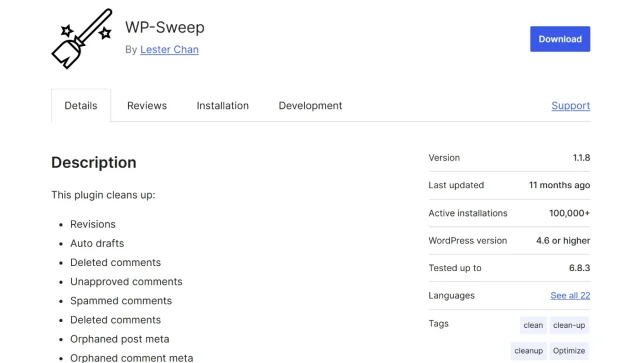
WP-Sweep is the minimalist’s choice. It follows a very specific philosophy: use native WordPress functions to delete data whenever possible. This makes it one of the safest plugins ever made because it doesn’t try to “force” deletions that might corrupt your site.
Key features
- Cleans revisions, auto-drafts, and deleted comments using core functions
- Sweeps orphaned term relationships and metadata effectively
- Simple, one-page dashboard for manual “sweeping” of site sections
Pros
- Completely free with no premium upselling or nag screens
- Incredibly lightweight; can be installed, used, and deleted in minutes
- Extremely safe as it respects WordPress coding standards and hooks
Cons
- Completely lacks scheduling or automation features
- Cannot identify specific orphaned tables as precisely as specialized database plugins
Verdict
A great choice for a quick, manual “spring cleaning” on smaller sites where you don’t need ongoing automation or complex table management.
Comparison table
Section titled Comparison tableNever lose a file during cleanup
Blurb: Accidents happen when you’re scrubbing your database. UpdraftPlus creates a full backup of your files and database so you can experiment with confidence and restore instantly if needed.
Conclusion
Section titled ConclusionKeeping your WordPress installation tidy isn’t just about aesthetics. It’s a practical maintenance habit that helps with security, performance and general manageability. Old themes are one of those things that accumulate quietly until suddenly you’ve got a dozen sitting there, some outdated, some potentially vulnerable.
While there are many options, the best WordPress plugin to clean up old themes for most sites is WP-Optimize. It handles the database, the images, and the cache, all while keeping your data safe through UpdraftPlus.
By removing those old theme files, scrubbing your database tables, and clearing out unused media, you are giving your site the best chance to rank well on Google and provide a great experience for your visitors. Start with a backup, do a quick audit and clear out what you don’t need. Your site will be cleaner, your update queue will be shorter and you’ll have one less thing to worry about next time a vulnerability lands in an old theme you forgot you had.
FAQs
Section titled FAQsWhich is the best WordPress plugin to clean up old themes?
While several tools exist, WP-Optimize is widely considered the best all-in-one solution. It stands out because it doesn’t just delete theme folders; it identifies and removes orphaned database tables, clears out old image sizes, and optimizes your site’s internal storage, all while integrating with UpdraftPlus for a “safety-first” backup
Why does my database size stay the same after I delete a theme?
WordPress doesn’t automatically “vacuum” or shrink your database after data is removed. The space remains “allocated” even if it’s empty. The best WordPress plugin to clean up old themes will actually perform a “table optimization,” which reclaims that empty space and physically reduces the file size of your database.
Can I delete themes without a plugin?
Yes. WordPress has a built-in option to delete themes from Appearance > Themes. Plugins help you audit, prepare and clean up surrounding clutter, but the deletion itself doesn’t require one
Will deleting old themes speed up my site?
Directly, only slightly, since inactive themes don’t load on the front end. But the associated database cleanup and server storage savings can make a small difference. More importantly, it removes potential security vulnerabilities.
What happens if I accidentally delete the wrong theme?
Restore from your backup. This is exactly why a backup before any cleanup is essential.
How do I know if a theme has malware?
Use a security plugin like Wordfence or All-In-One Security (AIOS) to scan your WordPress files. AIOS also offers firewall protection and login security, which is a good complement to any cleanup routine.
What is WP-CLI and should I use it?
WP-CLI is a command-line tool for managing WordPress. If you’re comfortable with the command line, you can use wp theme list to see all installed themes and wp theme delete theme-slug to remove them. It’s fast and precise, but not necessary for most site owners.
Can I just keep my old themes “Deactivated”?
I wouldn’t recommend it. Deactivated themes still take up disk space and, more importantly, can contain security vulnerabilities. Hackers can still exploit code in a deactivated theme. If you aren’t using it, delete it.
About the author

Elvira Mishra
Elvira has over four years of experience creating and designing content in WordPress. Her background spans multiple digital disciplines, including marketing, SEO, user experience, and human computer interaction.
Categories
WP-Optimize
Get all our premium features. Lazy loading, pre-load key requests, Cloudfare integration. Optimize individual tables, delete unused images and more.
From just $49 for the year.
More stories
-

World Backup Day: if your site disappeared, would you be ready?
Take five minutes to make sure your WordPress site is backed up and ready to restore.
-

Best WordPress themes for law firms
Find a professional WordPress theme for your law firm, whether you need speed, flexibility, or a ready-made legal layout.
-

How to secure a WordPress site (without overcomplicating it)
Learn how to secure your WordPress site with simple steps that protect against attacks, strengthen logins, and keep your data safe.
-
10 best WordPress themes for beauty salons
Here are the best options to help you stand out, look professional, and turn visitors into bookings.
