What is the best WordPress plugin for adding code?
If you run a WordPress site long enough, you’ll eventually need to add some custom code – maybe a tracking pixel, CSS tweak, PHP function, or external API script. That’s where choosing the best WordPress plugin for adding code becomes crucial. You want something that lets you insert snippets safely and cleanly, without slowing down your site or risking a crash.
In this guide, I’ll show you how I evaluated the top plugins for adding custom code, share the best free and premium options, and explain which one suits your workflow. Consider this your practical guide to adding code to WordPress the smart, safe way.
Key takeaways
Section titled Key takeaways- How to evaluate a WordPress code-snippet plugin and what to look for
- You’ll see the top contenders in 2025 and which one might fit your workflow best
- Understand free vs premium trade-offs when adding code snippets in WordPress
- Practical tips for adding snippets safely without hurting performance or stability
- Actionable advice for how to layer this with performance, backups, and future trends
Why you should use code snippets
Section titled Why you should use code snippetsIf you’ve ever opened your theme’s functions.php file to add a few lines of code, you’ve probably felt that little twinge of panic, because one typo can bring your entire site down. That’s exactly why snippet plugins exist.
Using a dedicated snippet plugin is safer, cleaner, and way easier to maintain. When you edit functions.php, every change depends on that theme; if you switch or update it, your custom code disappears. Snippet plugins store your code separately, so your tweaks survive theme changes and updates.
They also add built-in safeguards, that means if something goes wrong with your code, the plugin simply deactivates the snippet instead of breaking your site. Plus, you can organize, search, and toggle snippets on and off like mini-plugins, keeping your customizations tidy and future-proof.
In short, snippet plugins let you code smarter.
Methodology: How I selected the plugins
Section titled Methodology: How I selected the pluginsChoosing the best plugin isn’t just about personal preference. Since you’re probably a bit hands-on with WordPress, I focused on clear, practical criteria to see how each plugin performs in real-world use.
- Safety and error handling: Does the plugin include safeguards to prevent broken snippets from crashing your site?
- Ease of use: How intuitive is the interface for adding, editing, and managing snippets – whether you’re a developer or a casual site owner?
- Supported code types: Can it handle PHP, JavaScript, CSS, HTML, and header/footer scripts with conditional logic options?
- Performance impact: Does it let you control when and where snippets load to avoid unnecessary overhead?
- Future-proofing: Are there options like cloud sync, version control, or export tools to reuse snippets safely across sites?
- Community and support: Is it well-maintained, regularly updated, and supported by good documentation or an active user base?
Each plugin is scored across these areas so you can quickly see the strengths and trade-offs. And if you’re just starting out – or want to improve your site’s overall performance – there are a few other essential plugins worth keeping in your toolkit.
Don’t let a snippet break your site
One wrong line of code can crash your WordPress site. With UpdraftPlus, you can backup your site automatically and roll back in seconds if anything goes wrong.
Top plugins for adding code snippets in WordPress
Section titled Top plugins for adding code snippets in WordPressBelow are some of the most reliable plugins for adding custom code to WordPress. Each one well-supported, actively maintained, and built to last.
1. WPCode (formerly “Insert Headers & Footers”)
Section titled 1. WPCode (formerly “Insert Headers & Footers”)Free + Premium (from ~$49/yr) | Safety: 9 | Ease: 8 | Scope: 9 | Performance: 8 | Future-proof: 8 | Community: 9 | Overall: 8.5
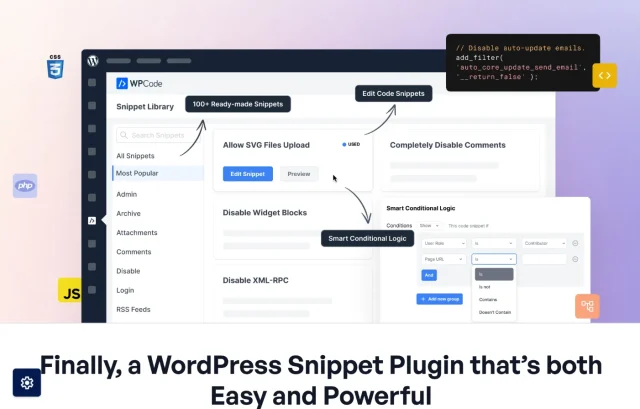
WPCode is good if you run a blog, or multiple blogs, and expect to add moderately complex snippets (e.g., custom functions, tracking codes or CSS tweaks) and you want robust manageability without huge overhead. Good for devs who want one plugin to rule them all.
Key features
- Supports PHP, JavaScript, CSS, HTML, Text snippets (so you’re not just limited to header/footer)
- Conditional logic: you can choose when a snippet runs (e.g., only on certain pages, for certain user-roles)
- Safe error-handling: if a snippet breaks, you won’t lose your site.
- Cloud library & reuse support (premium) – store your snippets and reuse across sites.
- Very strong review record: as noted one comparison says it may be the best code snippet plugin.
Pros
- Highly flexible: many code types and insertion locations
- Strong conditional logic makes performance impact lower
Good free tier and premium scale-option - Designed with future updates in mind (cloud library, export)
Cons
- Some advanced features locked behind premium (cloud sync, versioning, team sharing)
- With great power comes cost: newbies may find the interface slightly more than minimal
- If you run many snippets you’ll still need to maintain organisation
Final verdict
If I had to pick one plugin for most blog-developers wanting to inject code cleanly, I’d pick WPCode. It hits a great balance of features, performance and manageability, and is highly future-capable.
Text goes here2. WPCodeBox
Section titled 2. WPCodeBoxPremium only (~$59 one-time or ~$29/yr) | Safety: 9 | Ease: 7 | Scope: 9 | Performance: 9 | Future-proof: 9 | Community: 8 | Overall: 8.5
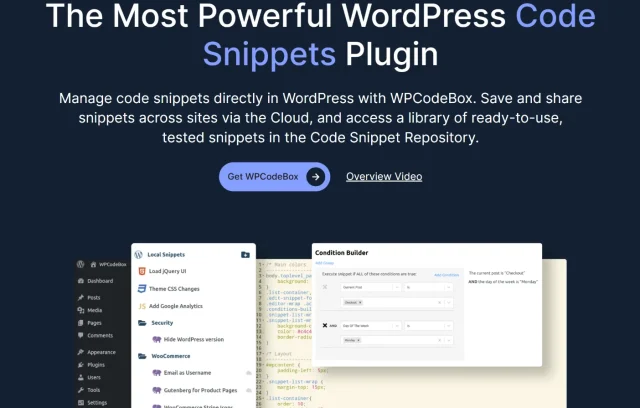
WPCodeBOX is for advanced developers or agencies managing multiple client sites, who want a snippet-manager that doubles as a mini dev environment. If you’re writing custom PHP/JS/CSS regularly, or handing off a site to another dev, this is great.
Key features
- Extremely powerful code editor (autocomplete for WP hooks/actions), supports CSS/SCSS/JS/HTML, and can compile SCSS.
- Option to package your snippets as a “functionality plugin” – i.e., separate plugin rather than database-run snippet. Good for handing off sites.
- Advanced performance control: Gives you full control over when and where snippets run, helping developers fine-tune site performance and workflow.
Pros
- High-end tooling, developer-centric features
- Very good performance control
- Good for agency/workflow setups where you package code for reuse
Cons
- Premium cost, so less fit for hobby bloggers
- Might be overkill if you only occasionally insert a snippet or two
- Slightly steeper learning curve than plug-and-play options
Final verdict
If you’re a serious dev managing code across many sites, WPCodeBox is one of the best code-snippet tools you can invest in. It gives you full control and high performance, though at a premium cost and slightly steeper learning curve.
3. Woody Code Snippets
Section titled 3. Woody Code SnippetsFree + Premium ($29+/yr) | Safety: 8 | Ease: 8 | Scope: 8 | Performance: 8 | Future-proof: 7 | Community: 7 | Overall: 7.7
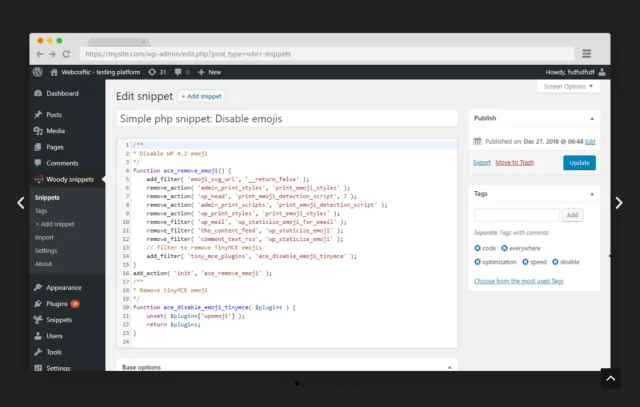
Woody is great when you need reusable snippets across posts, pages, or widgets. Shortcodes make placement flexible, and conditional loading keeps performance optimized.
Key features
- PHP, CSS, JS, HTML support.
- Shortcode generation.
- Conditional snippet loading.
Pros
- Flexible snippet placement
- Multi-code type support
- Conditional execution
Cons
- Slightly dated UI
- Free version limited on advanced features
Final verdict
Great for developers who need shortcodes and controlled snippet placement. Less modern interface, but highly functional.
4. Code Snippets
Section titled 4. Code SnippetsFree + Pro (from ~$39/yr) | Safety: 8 | Ease: 9 | Scope: 7 | Performance: 7 | Future-proof: 7 | Community: 8 | Overall: 7.7
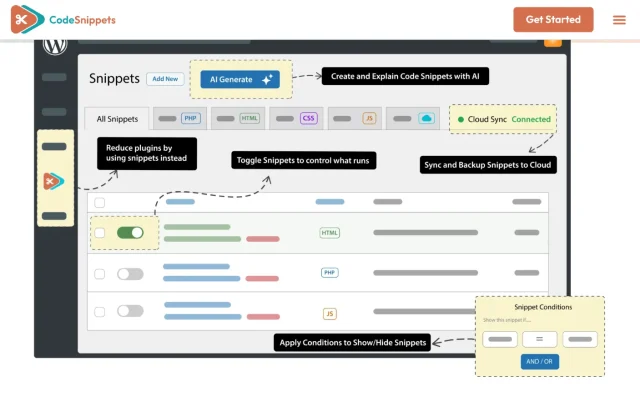
Code Snippets is good for users who want a lightweight, dedicated snippet manager, and either don’t need the full bells and whistles of conditional logic or are comfortable keeping it simple.
Key features
- Provides a GUI interface to add code snippets, avoiding editing theme’s
functions.php. - Support for CSS, JavaScript, PHP snippets via its pro version.
- Safe mode: if a snippet breaks the site you can recover.
Pros
- Strong free tier – you can add snippets without cost
- Simplifies code insertion without messing with theme files
- Clean UI, dedicated snippet-management menu
- Cons
- Conditional logic, advanced scoping of snippet loading may be weaker compared to premium players
- If you run many sites or many snippets, organisation may become manual
- Premium cost required for full capabilities
Final verdict
Code Snippets is a dependable choice. If simplicity is your priority (but you still want power), this is a great pick. For full dev-level control though (conditional loading, cloud sync) you may look elsewhere.
5. Fluent Snippets
Section titled 5. Fluent SnippetsFree | Safety: 8 | Ease: 8 | Scope: 8 | Performance: 8 | Future-proof: 7 | Community: 7 | Overall: 7.7
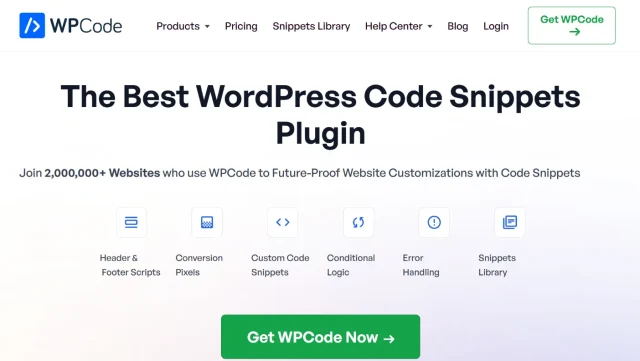
I turn to Fluent Snippets when I want a minimal, fast plugin for managing multiple snippet types safely. Conditional loading ensures site speed stays high even with many snippets.
Key features
- PHP, CSS, JS, HTML support.
- Conditional snippet execution.
- Shortcode generation and import/export.
Pros
- Lightweight and fast
- Multi-type snippet support
- Conditional loading and shortcodes
Cons
- Limited advanced integrations
- Smaller community than WPCode
Final verdict
Fluent Snippets is lightweight, fast, and does exactly what you need without extra clutter. Conditional snippet execution helps keep performance high, and it supports multiple code types. For bloggers or developers who want a no-frills snippet manager that’s reliable and easy to use, this one’s a great pick.
Testing code snippets across multiple sites?
With UpdraftPlus Premium, you can back up to multiple locations, like Google Drive, Dropbox, or Amazon S3, ensuring your work is always safe wherever you store it. Test, restore, and roll back with confidence.
6. Header Footer Code Manager
Section titled 6. Header Footer Code ManagerFree | Safety: 8 | Ease: 9 | Scope: 6 | Performance: 8 | Future-proof: 7 | Community: 7 | Overall: 7.5
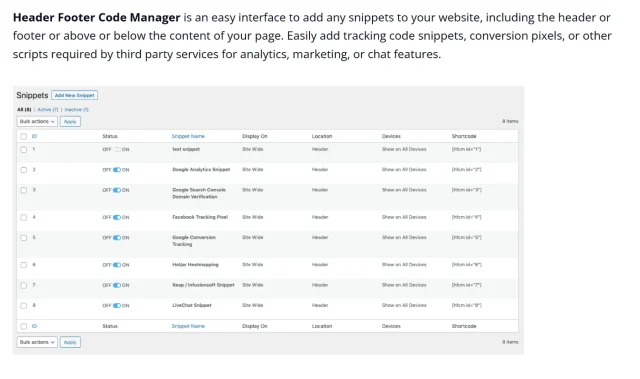
I rely on Header Footer Code Manager for scripts like Google Analytics, Facebook pixels, or meta tags. It’s perfect for marketers or developers needing controlled header/footer injections without touching theme files.
Key features
- Add code to header, footer, or before/after posts.
- Supports CSS, JS, tracking scripts, meta tags.
- Conditional snippet loading per page/post.
- Lightweight and fast.
Pros
- Simple, intuitive interface
- Conditional snippet execution
- Lightweight and fast
Cons
- Doesn’t handle PHP functions
- Limited multi-site features
Final verdict
Header Footer Code Manager is excellent for marketers and developers focused on scripts. It’s lightweight, intuitive, and reliable, though less suitable for complex PHP or multi-type snippet management.
7. Simple Custom CSS and JS
Section titled 7. Simple Custom CSS and JSFree | Safety: 8 | Ease: 9 | Scope: 6 | Performance: 8 | Future-proof: 7 | Community: 7 | Overall: 7.5
I use Simple Custom CSS and JS for front-end tweaks like styling adjustments or JS interactions. Perfect when you need lightweight CSS/JS additions without editing the theme.
Key features
- Add CSS or JS to header, footer, or pages.
- Live editor with syntax highlighting.
- Enqueue options to reduce performance impact.
Pros
- Simple, live editor
- Conditional loading supported
- Lightweight and fast
Cons
- No PHP support
- Limited snippet management
Final verdict
I love this plugin for front-end adjustments, as it’s lightweight, quick, and keeps things neat. If I just need to tweak styling or add small JavaScript snippets, it’s perfect. It’s not for PHP or complex logic, but for straightforward CSS/JS tweaks, it’s exactly what I reach for.
8. Insert PHP Code Snippet
Section titled 8. Insert PHP Code SnippetFree | Safety: 6 | Ease: 7 | Scope: 5 | Performance: 7 | Future-proof: 6 | Community: 6 | Overall: 6.2
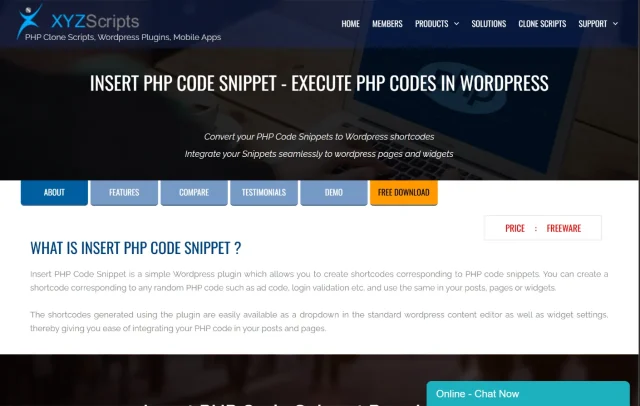
If you often add small PHP functions and want to trigger them via shortcode, e.g., in posts or widgets, and you don’t need the full feature set of logic/conditional loading etc, Insert PHP Code Snippet is a good option to consider.
Key features
- Lets you add PHP code snippets and convert them into shortcodes which you can place in posts/pages/widgets.
- Simple interface with dropdown in editor for snippet shortcodes.
Pros
- Lightweight and focused
- Good for developers comfortable with PHP and using shortcodes
- Free (or very low cost) in many cases
Cons
- Very narrow focus (PHP only)
- Less control over where snippet executes beyond the shortcode placement
- Doesn’t have full conditional loading or advanced targeting
Final verdict
If your work is mostly PHP tweaks, this plugin is simple, safe, and efficient. I use it when I want a function to run without touching the theme’s files. It’s lightweight and easy to use, though it doesn’t support CSS or JS. For quick PHP additions, it’s a solid, no-nonsense choice.
Comparison table
Section titled Comparison tableFuture trends and what to watch
Section titled Future trends and what to watchAs WordPress keeps evolving, it’s worth paying attention to a few trends that can make managing your code snippets easier, safer, and more efficient. Here’s what to look out for:
- Conditional loading: Performance is everything. Look for plugins that let you run snippets only where they’re needed, for example, on checkout pages, for logged-in users, or on mobile devices. WPCode and WPCodeBox both do this well.
- Cloud sync and multi-site reuse: If you manage several websites, being able to store and reuse snippets across projects can save a lot of time.
- Version control and safe rollbacks: Mistakes happen. Plugins that include version history or a safe mode make it easy to undo changes without breaking your site.
- Replacing plugins with snippets: A good snippet manager can replace small, single-purpose plugins. That means fewer active plugins, faster load times, and better overall performance, all good news for SEO and user experience.
- Third-party integrations: As WordPress sites expand beyond simple blogs, support for analytics, tracking pixels, and API integrations is becoming essential. Choose a plugin that makes adding these easy.
- Performance control: Every plugin adds some overhead. Look for snippet managers that let you disable or unload snippets when they’re not needed to keep things running smoothly.
- Backup and recovery: Before testing new snippets, make sure your site is backed up. A plugin like UpdraftPlus keeps your code, settings, and data safe and lets you restore your site instantly if anything goes wrong.
Conclusion
Section titled ConclusionAdding code snippets to WordPress doesn’t have to be complicated or risky. With tools like WPCode, Code Snippets, and WPCodeBox, you can safely add PHP, JS, and CSS while keeping your site fast, stable, and easy to manage. Just remember to back up your site first, and use conditional loading wherever possible to keep performance in check.
Whether you’re adding a small styling tweak or managing complex multi-site workflows, these plugins give you the flexibility and control you need to work confidently. Choose the one that fits your workflow, stay organised, and you’ll be able to expand your site’s functionality without the fear of breaking it.
FAQs
Section titled FAQsWhat is the best WordPress plugin for adding code safely?
It depends on your needs. For managing multiple code types like PHP, JS, CSS, and HTML safely, WPCode or WPCodeBox are excellent choices. For smaller PHP tweaks, Code Snippets or Insert PHP Code Snippet are lightweight and beginner-friendly.
Can I add PHP, JavaScript, and CSS in the same plugin?
Yes. Plugins like WPCode, WPCodeBox, and Fluent Snippets support multiple code types in one interface. This lets you manage PHP, JS, CSS, and HTML safely without touching your theme files.
Do I need a premium plugin to add custom code to WordPress
Not necessarily. Many free plugins like Code Snippets, Header Footer Code Manager, and Simple Custom CSS & JS are sufficient for small tweaks. Premium plugins provide advanced features like multi-site support, snippet libraries, autocomplete, and versioning, which are useful for developers or agencies.
Can I reuse snippets across multiple sites?
Yes. Premium plugins like WPCode and WPCodeBox allow exporting and importing snippets, making it easy to reuse them across multiple sites. This is especially useful for agencies, developers, or bloggers managing several WordPress installations.
Are shortcode-based PHP snippet plugins safe for beginners?
Yes. Plugins like Snippet Shortcodes or Insert PHP Code Snippet convert PHP snippets into shortcodes, allowing you to add functionality to posts or pages safely. They reduce the risk of breaking your site compared to editing functions.php directly.
How can I test new snippets without breaking my site?
Always create a backup before testing new code. A plugin like UpdraftPlus lets you take a full backup in minutes, so you can restore your site instantly if something goes wrong. For safe testing, use plugins like WPCode or Code Snippets, or run experiments in a staging environment if your site handles significant traffic.
About the author

Elvira Mishra
Elvira has over four years of experience creating and designing content in WordPress. Her background spans multiple digital disciplines, including marketing, SEO, user experience, and human computer interaction.
Categories
UpdraftPlus
Get all our premium features. Direct site-to-site migration, incremental backups, back up automatically before updates and a whole lot more.
From just $70 for the year.
More stories
-

World Backup Day: if your site disappeared, would you be ready?
Take five minutes to make sure your WordPress site is backed up and ready to restore.
-

Best WordPress themes for law firms
Find a professional WordPress theme for your law firm, whether you need speed, flexibility, or a ready-made legal layout.
-

How to secure a WordPress site (without overcomplicating it)
Learn how to secure your WordPress site with simple steps that protect against attacks, strengthen logins, and keep your data safe.
-
10 best WordPress themes for beauty salons
Here are the best options to help you stand out, look professional, and turn visitors into bookings.
