How to block a country in WordPress
Have you ever checked your website analytics and noticed random traffic or login attempts from countries you don’t even serve? It’s a common problem and one that can slow your site down, flood your inbox with spam, or open the door to brute-force attacks.
The good news is, yes – you can block traffic from specific countries in WordPress. But before you do, it’s worth knowing the pros and cons. Blocking too broadly can sometimes affect SEO or even lock you out of your own site if you’re not careful.
In this guide, I’ll walk you through how to safely block a country in WordPress, why you might want to, and the best methods to do it without hurting your site’s performance or visibility.
Why you might want to block a country in WordPress
Section titled Why you might want to block a country in WordPressReduce security risks
Section titled Reduce security risksOne of the main reasons people block certain countries is to stop spam or login attacks from places where they don’t do business. Bots often come from high-risk regions and can flood your login page or slow down your site.
Focus on your real audience
Section titled Focus on your real audienceIf your business only serves certain countries, for example, you run a local WooCommerce store that ships only within the EU. Then, restricting access from other regions can reduce unnecessary traffic and server load.
Comply with regulations or licensing restrictions
Section titled Comply with regulations or licensing restrictionsSome industries have strict location-based compliance rules. Blocking access from specific countries helps ensure you meet licensing, copyright, or data-protection requirements.
Filter out non-converting visitors
Section titled Filter out non-converting visitorsNot all traffic is good traffic. If analytics show that certain countries consistently bring fake sign-ups or zero engagement, blocking them can help you focus resources on real users.
The risks of country blocking
Section titled The risks of country blockingBlocking entire countries can help protect your site, but it comes with a few risks if not done carefully:
- Locking yourself out: It’s surprisingly easy to block your own country by mistake, which could stop you (and your team) from logging into the WordPress dashboard.
- SEO issues: If search engine bots like Google or Bing are accidentally blocked, your site’s pages might stop being crawled or indexed, which can cause rankings to drop.
- False positives: Some genuine visitors, customers, or even regular readers might get blocked if they use VPNs or travel abroad.
- Maintenance overhead: IP ranges change often, so if you’re blocking countries manually, you’ll need to keep updating your lists to avoid blocking the wrong users.
Pre-block safety checklist
Section titled Pre-block safety checklistBefore blocking any country, take a few minutes to prepare. It’ll save you a lot of headaches later:
- Check your data: Use an analytics plugin or your server logs to confirm which countries are actually causing problems.
- Back up your site: Before you start, make sure you have a recent backup. With UpdraftPlus, you can do this in just a few minutes.
- Decide what to block: Choose whether you’ll block the entire site, just the admin area, or only the login pages.
- Keep access handy: Have your FTP or cPanel login ready in case you need to undo any changes.
- Whitelist your IP: If you’re using AIOS, whitelist your own IP under Firewall>>Block & allow lists.
- Monitor results: After setting up the block, keep an eye on traffic and performance to make sure it’s working as intended.
How to block a country in WordPress
Section titled How to block a country in WordPressMethod 1: Use a security plugin (Recommended)
Section titled Method 1: Use a security plugin (Recommended)The easiest and most reliable way to block a country in WordPress is with a plugin that handles IP lookup and blocking automatically, like All-In-One Security (AIOS).
AIOS Premium is the most practical choice because it’s not just a country blocker – it’s a complete WordPress protection suite. It includes:
- Country blocking (front-end, admin, or both).
- Firewall and brute-force login protection.
- IP whitelisting and logging
- Regular database updates for accurate geo-IP detection.
Steps to block a country using AIOS Premium:
Before you start, make sure you install AIOS Premium.
- Log in to your WordPress dashboard.
- Make sure to add your MaxMind License Key in the AIOS>>Settings>>Integration.
- On the left sidebar, click on ‘Plugins’ to open the plugins menu.
- Navigate to the ‘Settings’ link underneath the ‘All In One WP Security’ heading.
- On the left sidebar, find and click on the ‘Country Blocking’ option.
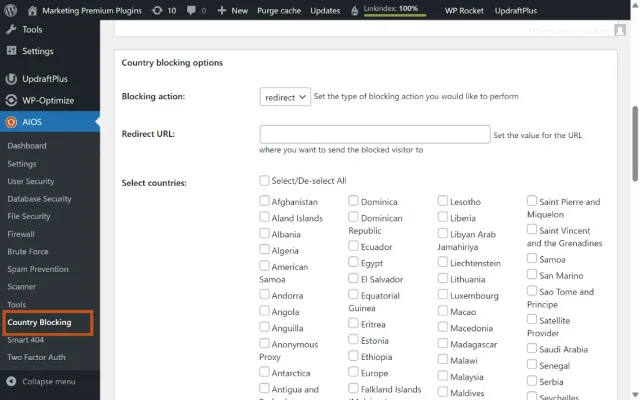
- You are now in the country blocking settings. Here, you can configure which countries to block, set specific URLs for redirection, whitelist IP addresses, and choose specific pages to block.
Because AIOS integrates this feature with broader protection (firewall, brute-force defense, and login monitoring), you get a single, cohesive security layer and no redundant plugins or manual IP lists required.
Method 2: Block countries manually via .htaccess
Section titled Method 2: Block countries manually via .htaccessFor advanced users comfortable editing server files, you can block countries manually using Apache’s .htaccess configuration.
Steps:
- Get the IP range list for the country you want to block from a service like IP2Location or CountryIPBlocks.
- Back up your existing
.htaccessfile. - Add entries similar to this:
# Block Country Example (XX)

<RequireAll>Require all granted

Require not ip 123.45.0.0/16

Require not ip 123.46.0.0/15

</RequireAll>
- Save and upload the file.
- Test from a VPN in the target country to confirm blocking.
Drawbacks:
- Easy to misconfigure and bring your site down.
- Needs regular updates as IP ranges change.
Unless you’re comfortable with Apache syntax and server management, using AIOS or a CDN rule is safer.
Method 3: Block at the CDN or Firewall Level
Section titled Method 3: Block at the CDN or Firewall LevelIf your site runs behind a CDN, you can block countries at the edge, before they even reach your WordPress server.
Example (Cloudflare):
- Go to your Cloudflare Dashboard > Security > Firewall Rules.
- Click Create a Firewall Rule.
- Make sure that the country field equals the desired country you’d like to block.
- Set action to Block or Challenge.
- Save and deploy.
This approach is extremely efficient, since unwanted traffic never reaches your host. You can even combine it with AIOS for layered security: Cloudflare handles global blocking, while AIOS protects your login area and scans for brute-force attempts.
Best practices for safe country blocking
Section titled Best practices for safe country blockingWhitelist carefully
Section titled Whitelist carefullyAlways whitelist your own IP or country before saving changes. If you travel frequently, keep alternative admin access methods (e.g., VPN or host login) ready.
Don’t block search engine crawlers
Section titled Don’t block search engine crawlersEnsure that good bots like Googlebot or Bingbot are allowed. In AIOS, crawler traffic is automatically recognized and exempted from country rules to protect SEO visibility.
Test and monitor
Section titled Test and monitorUse VPN tools to simulate visits from blocked countries. After implementation, monitor:
- AIOS logs (for blocked IPs).
- Google Search Console (for crawl errors).
- Server performance (for load reduction).
WooCommerce-specific tips
Section titled WooCommerce-specific tipsFor securing WooCommerce stores, blocking countries can help reduce fraudulent orders or disputes.
Instead of blocking the entire site, consider:
- Blocking checkout access from high-risk countries.
- Using AIOS to restrict login attempts but still allow product browsing.
- Hiding products from certain regions using the
WC_Geolocationclass.
Combine this with AIOS’s brute-force protection to stop fake account registrations and bots that try to exploit your checkout forms.
Blocking access from countries that have no real intent to convert not only reduces noise but also protects your business from needless attacks.
Conclusion
Section titled ConclusionBlocking a country in WordPress can make your site safer and faster, as long as it’s done carefully. While manual methods work, they take ongoing maintenance and can easily cause problems if set up incorrectly.
With AIOS, you can manage country blocking, firewalls, login protection, and anti-spam tools all from one place – no coding required. It’s a smarter, safer way to protect your site and focus on the visitors who really matter.
If you’re ready to cut down on unwanted traffic and strengthen your site in one move, start with AIOS today.
Protect Your WordPress Site Smarter
Block malicious countries, stop brute-force attacks, and manage your firewall. All from one dashboard.
FAQs
Section titled FAQsCan I block a country without a plugin?
Yes. You can do it manually via .htaccess or through a CDN, but plugins are safer and easier, especially since they update IP lists automatically.
Will blocking countries stop hackers completely?
Not completely. Hackers can still hide behind VPNs or proxy servers. Country blocking helps reduce low-level attacks, but it works best when combined with other security steps like a firewall, strong passwords, and two-factor authentication.
Can blocking countries affect my SEO?
It can but only if you accidentally block legitimate search engine crawlers like Googlebot. Tools such as AIOS handle this automatically by allowing trusted crawlers so your site can still be indexed properly.
What should I do if I accidentally block myself?
Don’t panic. You can regain access by connecting via FTP or your hosting control panel and temporarily renaming the plugin folder to disable it. To avoid this in the future, always whitelist your own IP before enabling country blocking.
About the author

Alexandru Bucsa
Alex is our All-In-One Security Product Manager. With more than six years of WordPress experience, he listens closely to what users need and works hard to make AIOS even better. Drawing on his background in forensic investigations, Alex loves diving into problems to understand their causes and find practical fixes that truly help our community.
Categories
AIOS
Comprehensive, feature-rich, security for WordPress. Malware scanning, firewall, an audit log and much more. Powerful, trusted and easy to use.
From just $70 for the year.
More stories
-

How to secure a WordPress site (without overcomplicating it)
Learn how to secure your WordPress site with simple steps that protect against attacks, strengthen logins, and keep your data safe.
-

10 best WordPress themes for beauty salons
Here are the best options to help you stand out, look professional, and turn visitors into bookings.
-
Best Google Analytics alternatives for WordPress
Discover the best Google Analytics alternatives for WordPress, including privacy-friendly tools with simpler dashboards and better performance.
-
Best WordPress themes for artists and creative portfolios
Discover the best WordPress themes for artists to showcase portfolios and display artwork beautifully.
