Best password protect plugin for WordPress
If you run a WordPress site, there’s a good chance not everything on it is meant for public view. Maybe you’ve got a private page you only want to share with a client, a members-only resource, or a post you’re still working on and don’t want indexed just yet. WordPress does offer a basic password option, but in practice it’s pretty limited and rarely does the job properly.
When you’re trying to protect content, the last thing you want is something awkward to use or unreliable. You need a plugin that’s easy to set up, works as expected, and actually keeps your content private. I’ve spent a lot of time testing different password protection plugins over the years, and the difference between a good one and a frustrating one is huge.
In this post, I’ll walk you through the best password protection plugins for WordPress – from simple tools for locking a single page to more advanced options that let you protect parts of your site, create restricted areas, or work nicely with page builders.
Key takeaways
Section titled Key takeaways- WordPress’s built-in password protection works for quick drafts, but it’s very limited once you need to protect real client or member content.
- The right plugin depends on what you’re trying to lock down, a single page, part of a post, or your entire site all need different tools.
- Basic password plugins are fine for low-risk use, but they don’t offer much protection beyond hiding content.
- If you want to protect your content and your site as a whole, a security plugin like All-in-One Security (AIOS) helps secure your login page, block attacks, and keep your site properly locked down.
Why WordPress’s default protection just doesn’t cut it
Section titled Why WordPress’s default protection just doesn’t cut itFirst, let’s talk about the built-in option. On any post or page, you can go to the “Visibility” setting and change it from “Public” to “Password Protected.”
It works, but it has some big limitations:
- You set one password for that page. That’s it. You can’t have multiple passwords for different user groups.
- You can only protect the entire post or page. You can’t show a public teaser and then lock the rest of the content.
- Want to lock your whole site while it’s under construction? You’d have to manually password-protect every single page.
- The password form is functional, but it’s not pretty and can be hard to style to match your brand.
If you just need to quickly hide one page, it’s fine. But for any professional use, you’re going to need something more robust.
My methodology for finding the best plugins
Section titled My methodology for finding the best pluginsTo figure out which plugins were actually worth recommending, I tested each one with real use cases in mind, the same kinds of situations bloggers, freelancers, and small business owners run into every day. Rather than focusing on features for the sake of it, I paid attention to how well each plugin worked in practice.
Here’s what I looked for:
- Ease of use: How quickly can a non-techy user install the plugin and protect their content? Is the interface intuitive?
- Feature set: What can it do? Does it just protect posts? Or can it handle partial content, categories, WooCommerce products, or the entire site?
- Security level: How secure is it? Does it offer extra features like reCAPTCHA, role-based access, or protection against brute-force guessing?
- Performance impact: Does the plugin slow your site down? A secure site is great, but not if it takes ten seconds to load. We look for lightweight code.
- Support & updates: Is the plugin actively maintained by its developers? If you get stuck, is there good documentation or support to help you?
I’ve given each plugin a score for these metrics so you can quickly compare and find the one that’s the perfect fit for your specific needs.
Before you install any new plugin, especially one that controls access to your content, it’s always worth taking a full backup of your site. Things can go wrong, and a backup is your one-click undo button. I personally use and recommend UpdraftPlus for this. It’s reliable, easy to set up, and has saved me more than once.
The 10 best password protect plugins for WordPress
Section titled The 10 best password protect plugins for WordPressAlright, let’s get into the list. I’ve included a mix of free, freemium, and premium plugins to cover every budget and use case.
1. Password Protect WordPress (PPWP) plugin
Section titled 1. Password Protect WordPress (PPWP) pluginFreemium | Ease of Use: 9/10 | Feature Set: 10/10 | Security Level: 9/10 | Performance: 9/10 | Support: 10/10 | Overall: 9.4/10
Ideal use case: This is for the serious user who needs maximum flexibility. It’s perfect for membership-style sites, online course creators, and businesses with premium content.
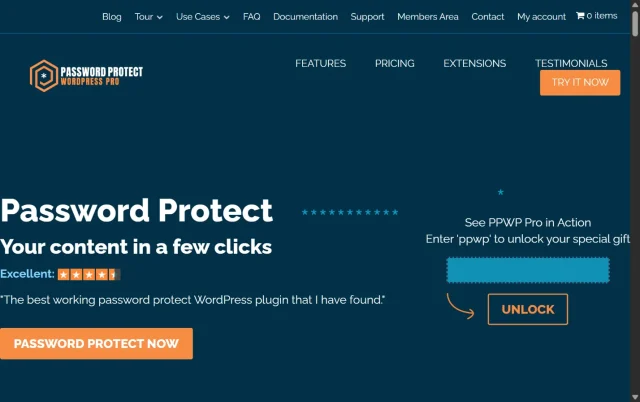
The PPWP plugin is, for many, the go-to solution. The free version is incredibly generous and covers what most people need, and the Pro version is a powerhouse. It’s built to handle everything from single posts to complex, granular protection.
Key features
- Sitewide Protection: Lock your entire WordPress site with a single password (great for development).
- Partial Content Protection: Use a simple shortcode to lock just a part of your post or page.
- Multiple Passwords: (Pro) Create multiple passwords for the same piece of content.
- User Role Protection: (Pro) Automatically unlock content for specific logged-in user roles.
Pros
- The free version is powerful enough for many users
- Extremely flexible and feature-rich Pro version
- Works with page builders like Elementor and Divi
Cons
- With so many features, the settings can be a little overwhelming for absolute beginners
Final verdict
If you need a reliable, all-around Password protect plugin for wordpress that can grow with you, this is it. Start with the free version; you’ll be impressed.
2. Passster
Section titled 2. PasssterIdeal use case: This is perfect for bloggers and content creators who primarily use the Gutenberg block editor and want a simple, elegant way to protect parts of their content.
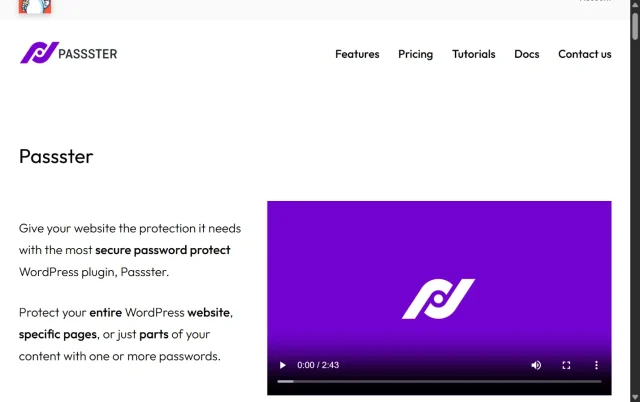
Passster is all about simplicity and a great user experience. It makes protecting content feel effortless and integrates beautifully with the WordPress block editor (Gutenberg). It’s lightweight and won’t slow you down.
Key features
- Block Editor Integration: Comes with its own “Protected Content” block, which is super easy to use.
- Shortcode Protection: Also works with shortcodes for use in page builders or the classic editor.
- Area Protection: (Pro) Create a single “protected area” and reuse it on multiple pages.
- CAPTCHA & reCAPTCHA: (Pro) Adds an extra layer of security to your password forms.
Pros
- Incredibly easy to use, especially with the block editor
- Very lightweight and fast
- Clean and modern interface
Cons
- The free version is a bit more limited than PPWP’s
- Lacks some advanced features like sitewide protection in the free version
Final verdict
If your main goal is partial content protection and ease of use is your number one priority, Passster is a fantastic choice.
Don’t just lock a page. lock your entire site.
Adding a password to a post is a good start, but it won’t protect your site from brute-force attacks on the login page. AIOS goes further by securing your site’s real front door with a firewall, two-factor authentication, and login lockdown.
3. SeedProd
Section titled 3. SeedProdPremium | Ease of Use: 10/10 | Feature Set: 8/10 | Security Level: 8/10 | Performance: 10/10 | Support: 9/10 | Overall: 9.0/10
Ideal use case: This is the absolute best solution for anyone building a new site or doing a redesign. It lets you password-protect your entire site in “development mode” with a beautiful, branded page.

This one is a bit different. SeedProd isn’t just a password protection plugin; it’s the best landing page and “Coming Soon” page builder on the market. Its password protection feature is a key part of its “Coming Soon” and “Maintenance Mode” functionality.
Key features
- Drag-and-Drop Page Builder: Create a beautiful, custom password-protected “Coming Soon” page.
- Access Controls: Easily set up a password-protected page for your entire site while it’s under construction.
- Bypass Link: (Pro) Create a special link you can send to clients to let them bypass the password page without having to enter a password.
- Email Marketing Integration: Collect emails from visitors on your “Coming Soon” page.
Pros
- By far the easiest and most professional-looking way to password-protect a site under construction
- Zero performance impact on your live site (since it’s not live)
- Tons of other features (landing pages, sales pages, etc.)
Cons
- It’s a premium-only plugin
- It’s overkill if you just want to protect a single blog post
Final verdict
For site developers, designers, and anyone launching a new project, SeedProd is a must-have. It handles this specific use case better than anyone else.
4. Password Protected
Section titled 4. Password ProtectedFree | Ease of Use: 10/10 | Feature Set: 7/10 | Security Level: 7/10 | Performance: 10/10 | Support: 8/10 | Overall: 8.4/10
Ideal use case: This is for the developer showing a site to a client, a photographer with a private client gallery, or anyone who needs to quickly and easily make their entire site private.

Don’t confuse this with the “PPWP” plugin from earlier. This plugin, simply named Password Protected, does one thing and does it perfectly: it password-protects your entire WordPress site.
Key features
- One-Click Sitewide Protection: Just enable the plugin, set one password, and your whole site is locked.
- Allow Admin Access: Has a simple checkbox to let logged-in admins see the site without the password.
- IP Whitelisting: (Pro) Allow specific IP addresses to bypass the password.
- Theme Integration: Works with any theme and is super lightweight.
Pros
- The absolute simplest way to lock your entire site
- Extremely lightweight and fast
Completely free for its main purpose
Cons
- It only does sitewide protection. It cannot protect single posts or partial content.
Final verdict
If your-need is “lock my whole site right now,” this is your plugin. It takes about 30 seconds to set up.
5. MemberPress
Section titled 5. MemberPressPremium | Ease of Use: 7/10 | Feature Set: 10/10 | Security Level: 10/10 | Performance: 8/10 | Support: 10/10 | Overall: 9.0/10
Ideal use case: This is for anyone building a serious online business. Think online courses, private coaching communities, or paid newsletters. You’re not just locking content; you’re selling it.
MemberPress is the heavyweight champion of content protection, but it’s a full-blown membership plugin. You’re not just protecting content with a password; you’re protecting it based on membership levels.
Key features
- Advanced Content Dripping: Release protected content to members on a schedule.
- Subscription Management: Charge users for access (one-time or recurring).
- User Role & Capability Rules: Incredibly granular rules for who can see what.
- WooCommerce Integration: Sell access to your protected content as a product.
Pros
- The most powerful and flexible content protection available
- A complete business model in a plugin
- Excellent support and documentation
Cons
- It’s a big, premium plugin and is total overkill for simple password protection
- Has a steeper learning curve than any other plugin on this list
Final verdict
Don’t get this if you just want to hide a page. Get this if you want to build a protected, premium content empire.
6. Content Control
Section titled 6. Content ControlFree | Ease of Use: 8/10 | Feature Set: 8/10 | Security Level: 7/10 | Performance: 9/10 | Support: 7/10 | Overall: 7.8/10
Ideal use case: This is great for simple membership-style sites where you don’t need payment but want to have “members-only” content for anyone who is logged in.
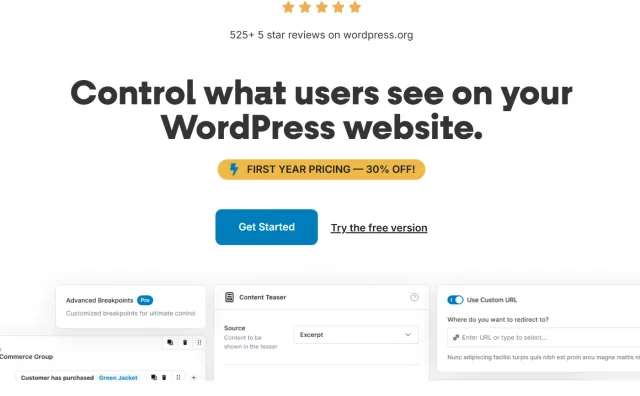
Content Control is a simple, lightweight plugin that gives you more granular control over page and post visibility than WordPress does by default.
Key features
- User Role Restriction: Restrict content to specific user roles.
- Logged-in/Logged-out Status: Easily show content to only logged-in or only logged-out users.
- Redirects: Set a custom URL to redirect unauthorized users to (like your homepage or a login page).
Pros
- Simple and lightweight
- The redirect feature is very useful
- It’s free
Cons
- It’s based on user roles, not passwords
- Not as feature-rich as premium options
Final verdict
A solid, free plugin for simple role-based content restriction. If you just want to hide a page from logged-out users, this is a great pick.
7. All-in-One Security (AIOS)
Section titled 7. All-in-One Security (AIOS)Free | Ease of Use: 8/10 | Feature Set: 10/10 | Security Level: 10/10 | Performance: 9/10 | Support: 9/10 | Overall: 9.2/10
Ideal use case: This is for the business owner or professional who understands that protecting a page is only one part of site security. You’re not just hiding content; you’re actively defending your entire website.
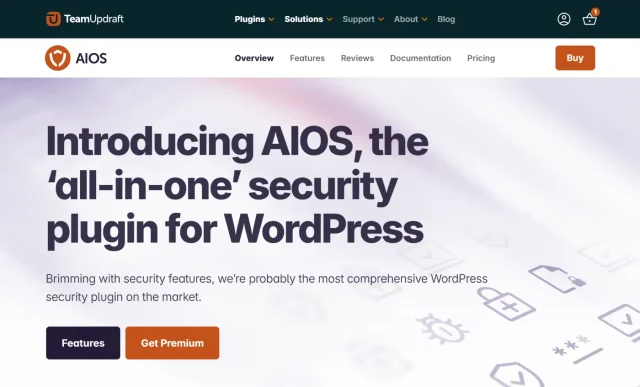
Now we’re talking about the bigger picture. While many password protection plugins only secure specific pages or posts, All-in-One Security (AIOS) goes a step further. It’s a comprehensive security plugin that includes password protection features as part of a larger suite.
Key features
- Password Protection: Includes a feature to password-protect your entire site with a single password.
- Login Lockdown: Protects your login page (wp-admin) from brute-force attacks.
- Two-Factor Authentication (2FA): Adds an incredibly strong layer of security to your user accounts.
- Firewall: Blocks malicious traffic before it even reaches your site.
Pros
- It’s a complete, all-in-one security solution, not just a content-hiding tool
- The free version is extremely powerful
- Gives you multiple layers of site protection in one place
Cons
- The sheer number of options can be intimidating for a total beginner
- It’s not designed for granular, partial content protection like Passster or PPWP
Final verdict
If you’re looking for a password protect plugin for wordpress, you should seriously consider if what you really need is a full security plugin. AIOS gives you robust protection for your entire site, including your login page, which is often the weakest link.
8. Hide Posts
Section titled 8. Hide PostsFree | Ease of Use: 9/10 | Feature Set: 7/10 | Security Level: 6/10 | Performance: 10/10 | Support: 7/10 | Overall: 7.6/10
Ideal use case: This is perfect for “bonus” content you want to share with your email list. You can send them the direct link, but new visitors to your site will never stumble upon it.
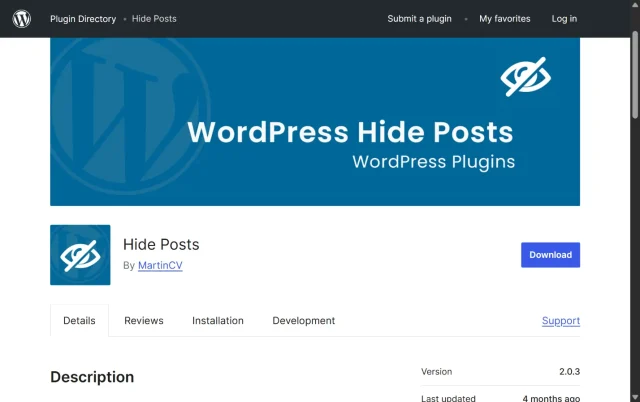
Hide Posts takes a different approach. It doesn’t password-protect content; it just hides it from public-facing areas of your site, like the homepage, category archives, and search results. The post is still accessible if you have the direct link.
Key features
- Hide from Everywhere: A simple checkbox on the post-edit screen to hide it from the front page, category pages, tags, search, etc.
- Still Accessible via Link: Anyone with the direct URL can still see the post.
- Extremely Simple: No settings page. Just one checkbox.
Pros
- Incredibly simple
- Zero performance impact
- Perfect for “unlisted” posts
Cons
- It is not secure. Anyone with the link can see it, and it could still be indexed by Google if linked to.
- No password protection at all
Final verdict
A great tool for a specific marketing use case, but do not use this for truly sensitive or private content.
Comparison table
Section titled Comparison tableGet complete site security in one plugin
Why juggle multiple plugins? AIOS gives you content protection, a powerful web firewall, login lockdown, and file security all in one place.
Conclusion
Section titled ConclusionChoosing the right password protection plugin really just depends on what you’re trying to hide and how much control you need.
My advice? Don’t get overwhelmed by the options. Start by clearly defining your one main goal right now.
- Are you just hiding a single client gallery or a page under construction? A free, focused plugin like Password Protected is probably all you need.
- Do you want to show a teaser and then lock the rest of your post? Passster or Password Protect WordPress (PPWP) are your best friends.
- Are you launching a whole new site? Honestly, nothing beats the professional look of a SeedProd ‘Coming Soon’ page.
- And if you’re thinking about charging for access, you’re ready to graduate to a complete system like MemberPress.
The only thing worth keeping in mind is that content protection and site security are not the same thing. Locking a page won’t stop bots or attackers from targeting your login area. If you want proper, all-round protection (passwords included) this is where a full security plugin like AIOS becomes the more sensible choice.
FAQs
Section titled FAQsHow do I password protect a page in WordPress without a plugin?
WordPress includes a built-in feature: while editing a page or post, click Visibility → Password Protected in the “Publish” panel, then enter a password. However, this option is quite limited, it only supports one password per page and lacks role-based access, analytics, or multi-page protection. For anything more advanced, you’ll need a dedicated password protect plugin for WordPress like PPWP or Passster.
What’s the difference between WordPress’s default protection and a plugin?
WordPress has a basic, built-in “Password Protected” option under the “Visibility” settings for any post or page. It’s functional but very limited. It only lets you set one password for the entire post, and its login form is hard to customize.
A Password protect plugin for wordpress gives you much more control. You can protect just parts of a post, lock your entire site with one click, set multiple passwords for the same page, or even protect entire categories.
How can I password protect just a part of a WordPress post?
The easiest way is with a plugin like Passster or Password Protect WordPress (PPWP). These plugins give you a special shortcode (like [ passster]Your hidden content[/passster] ) or a Gutenberg block. You simply wrap the content you want to hide, and the plugin will automatically show a password form in its place. This is perfect for hiding a download link, a special video, or a bonus answer.
How can I protect my WordPress admin area with a password?
Beyond page protection, you should secure your admin login using a security plugin like AIOS. It allows you to rename your login URL, enable two-factor authentication (2FA), and block brute-force attacks, which is far stronger than using a single extra password on wp-admin.
Will password-protected content hurt my SEO?
No. By default, password-protected content is not indexed by search engines like Google. The plugins (and WordPress itself) tell Google’s crawlers that the content is private and should not be included in search results. This is what you want – it ensures your private client galleries or members-only content don’t show up in a public search.
If I just need to hide a page “under construction”, which plugin should I pick?
For simple use-cases (one or two pages, minimal future growth) something like Password Protected (by WPExperts) or Passster might suffice. They are easy to set up and cost little (or free). If you anticipate expansion (client-areas, many pages, role-based access), pick something more flexible (e.g., PPWP or Paid Member Subscriptions).
Which password protect plugin is best for WooCommerce stores?
If you run a WooCommerce site and want to hide your shop, categories, or products, WooCommerce Private Store (by Barn2) is the top choice. It allows you to make your entire shop or selected categories private behind a password. For broader access control and member logins, Paid Member Subscriptions or MemberPress are great alternatives.
How can I protect files and media uploads in WordPress?
Plugins like AIOS let you password-protect or restrict file access (images, PDFs, videos). This ensures that even if someone has the file URL, they can’t download it without proper authentication. Perfect for private documents or client deliverables.
About the author

Elvira Mishra
Elvira has over four years of experience creating and designing content in WordPress. Her background spans multiple digital disciplines, including marketing, SEO, user experience, and human computer interaction.
Categories
AIOS
Comprehensive, feature-rich, security for WordPress. Malware scanning, firewall, an audit log and much more. Powerful, trusted and easy to use.
From just $70 for the year.
More stories
-

Best Google Analytics alternatives for WordPress
Discover the best Google Analytics alternatives for WordPress, including privacy-friendly tools with simpler dashboards and better performance.
-
Best WordPress themes for artists and creative portfolios
Discover the best WordPress themes for artists to showcase portfolios and display artwork beautifully.
-
Best hosting company for WordPress: Top providers compared
We tested top providers for speed, uptime, support, and pricing to help you choose the right host.
-

What are XSS attacks on WordPress and how to stop them
Learn what a WordPress XSS attack is, how it works, and how to prevent it before it compromises your site.
