How to fix bypass URL secure link issues in WordPress
Category Guides and resources
Topics Security, Tips and tricks, WordPress,
If you’ve ever been locked out of your own website or needed a simple way to share a private page with a client, you’re definitely not alone. Problems like forgotten login URLs and overly restrictive security settings are surprisingly common when managing a WordPress site.
Learning how to bypass a secure URL link in WordPress can be surprisingly useful. Sometimes security settings end up being a little too strict, and other times you just want an easier way to give someone access without making them create an account first.
In this guide, I’ll walk you through a few practical ways to handle both situations safely and easily, using proven WordPress tools and a few safe recovery methods.
Key takeaways
Section titled Key takeaways- Bypass links allow people to view protected content without needing a username or password
- You can use whitelisting to make sure you never accidentally lock yourself out of your own site
- If you are currently locked out, you can regain access by using FTP to temporarily disable security plugins
- Always create a full site backup with a tool like UpdraftPlus before changing security or database settings
- Set expiration dates or change bypass keys regularly to keep your site secure
What exactly is a ‘bypass URL’ secure link in WordPress?
Section titled What exactly is a ‘bypass URL’ secure link in WordPress?A bypass URL is a link that provides alternative access to content, login areas, or restricted parts of a WordPress website. Depending on how it’s configured, it may allow a trusted user to view protected content, access a staging site, or bypass certain security restrictions without following the standard login process.
Different plugins and security tools implement bypass URLs in different ways. Some generate temporary access links for clients or reviewers, while others provide recovery mechanisms if you’re locked out of your own website.
In most cases, bypass URLs are designed to improve convenience without completely removing security controls.
Why would you ever need to bypass a secure link?
Section titled Why would you ever need to bypass a secure link?It might feel a bit strange to talk about bypassing the very security you worked so hard to set up. However, there are several professional and technical reasons why knowing how to bypass url secure link WordPress is actually a sign of a well-managed site.
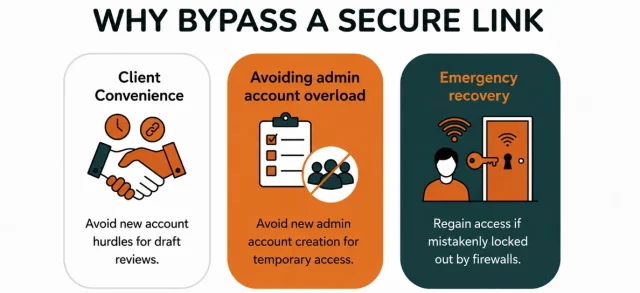
Client Convenience: If you are a freelancer or agency, asking a client to “Create an account” just to see a draft of a landing page is a hurdle. A bypass link lets them see your work instantly.
Avoiding Admin account overload: Instead of creating 50 temporary user accounts for a launch team, you can use one secure bypass link that expires after the launch.
Emergency Recovery: Security plugins can occasionally flag your own behavior as “suspicious” (like if you try to log in from a hotel Wi-Fi). Knowing how to bypass those blocks ensures you aren’t stuck waiting for a lockout timer to expire while your site needs an update.
What is a secure bypass link
Section titled What is a secure bypass linkA secure bypass URL (sometimes called a signed link, expiring link, or tokenized access URL) is a special link that gives someone temporary access to content that is normally protected or private in WordPress. Instead of removing security entirely, you’re allowing someone to “bypass” the login or membership wall for a limited time and under controlled conditions.
These links contain built-in security parameters that the server checks before allowing access. Typically, a secure bypass link includes:
- Parameter Purpose
- Token / Signature Confirms the link is genuine and not guessed or modified
- Expiry Timestamp Automatically disables the link after a set time
- Target Resource The file, page, or media item the user is allowed to view
Essentially, a bypass link is about creating a “fast lane” for people and tools you trust, while keeping the wall up for everyone else.
How to bypass protected content safely in WordPress
Section titled How to bypass protected content safely in WordPressTo handle bypass links correctly, we have to look at what you’re trying to achieve. Are you trying to make sure you don’t get locked out, or are you trying to give someone else a way in?
Scenario A: Whitelisting your own access with AIOS
Section titled Scenario A: Whitelisting your own access with AIOSIf you use a security plugin like AIOS (All In One Security), you can set it up so that it always recognizes your computer. This is essentially a permanent bypass for the site owner.
Step-by-step guide to whitelisting your IP:
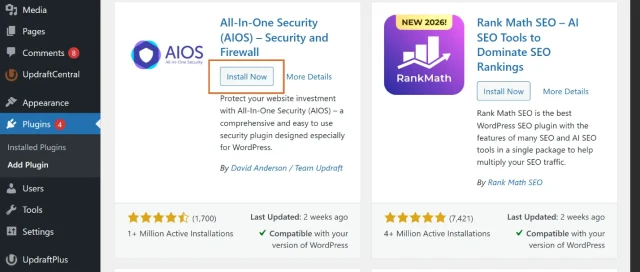
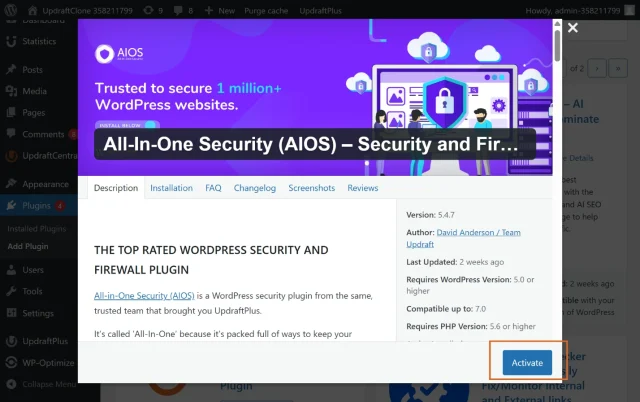
- If you haven’t yet installed AIOS, login into your WordPress site, go to Plugins > Add new, search for AIOS, install and activate
2. Click on AIOS in the sidebar
3. Go to Firewall and then click the Block and allow lists tab
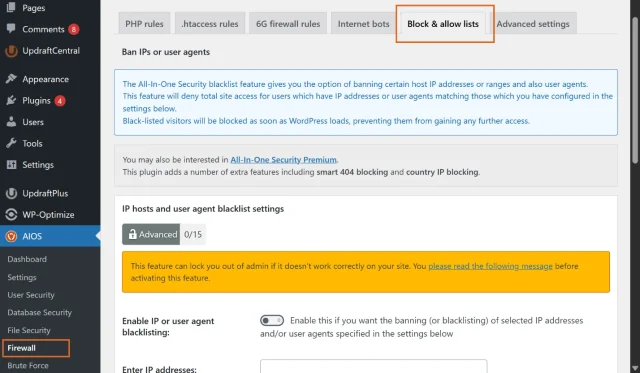
4. Scroll down to Allow list > Enter IP addresses
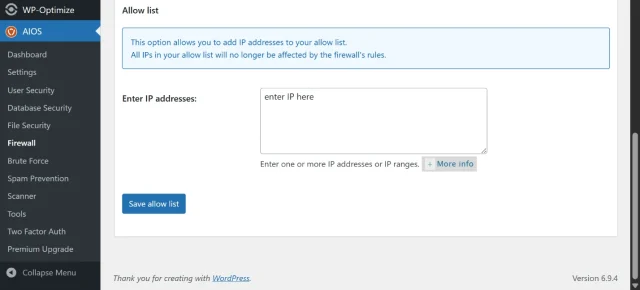
5. Find your current IP address (AIOS usually lists it right on the page for you) and enter it into the text box
6. Save your settings
Once this is done, you’ve created a “safe lane” for yourself. Even if the firewall is set to be very strict, it will always let your IP through.
Stop locking yourself out of WordPress
Getting blocked by your own security settings can be just as frustrating as dealing with unwanted visitors. AIOS helps you secure your login page, whitelist trusted IP addresses, and reduce the risk of accidental lockouts while keeping your site protected.
Scenario B: Creating bypass links
Section titled Scenario B: Creating bypass linksfor others (Password Protected plugin)
AIOS is built for high-level security, but it doesn’t actually generate “visitor links” for private pages. For that, I usually recommend a lightweight plugin called Password Protected. It’s simple and does exactly what we need.
Step 1: Generate the tokenized link
Inside your plugin settings:
- Navigate to the specific page or post you’ve protected.
- Look for a setting labeled Bypass URL or Private Access Link.
- Click Generate. This will create a URL that looks something like this:
[https://yoursite.com/private-page/?access_key=5f3e2b](https://yoursite.com/private-page/?access_key=5f3e2b)...
Step 2: Set expiration and usage limits
Don’t leave these links active forever! A good practice is to set the link to expire after 24 or 48 hours. You can also limit it to a certain number of clicks. This ensures that even if the link is leaked, it won’t be a permanent hole in your security.
How to regain access if you’re locked out of WordPress
Section titled How to regain access if you’re locked out of WordPressIf your security plugin doesn’t provide the features like AIOS and has blocked you, and the standard login URL isn’t working, you have to go “under the hood.”
Method 1: The FTP “Rename” Trick
This is the easiest way to bypass a security plugin that is blocking you. By renaming the plugin’s folder, you essentially “turn it off” so you can log in normally.
- Connect to your site using an FTP client (like FileZilla) or your hosting File Manager.
- Navigate to
/wp-content/plugins/. - Find the folder of your security plugin (e.g.,
all-in-one-wp-security-and-firewall). - Right-click and rename it to something like
plugin-name-OLD. - Refresh your login page. The security rules are now bypassed, and you can log in.
Method 2: Bypassing via the Database (phpMyAdmin)
If your password reset email isn’t arriving, you can bypass the “forgot password” system by changing your password directly in the database.
Creating your own secure bypass system with code
Section titled Creating your own secure bypass system with codeFor the developers out there, you might want a more “custom” way to bypass url secure link wordpress without relying on a bulky plugin. You can do this by using “Signed URLs.”
A Signed URL uses a secret key to create a unique signature. If the signature in the URL doesn’t match what the server expects, access is denied.
Sample Code for a simple bypass
Section titled Sample Code for a simple bypassYou can add a snippet like this to your functions.php file to create a custom access check:
function custom_secure_bypass_check() {
    $secret_key = 'my_super_secret_token';
    if (isset($_GET['bypass']) && $_GET['bypass'] === $secret_key) {
        // Log the user in or set a cookie to allow access
        setcookie('site_bypass_access', 'true', time() + 3600, '/');
    }
}
add_action('init', 'custom_secure_bypass_check');
In this example, visiting [yoursite.com/?bypass=my_super_secret_token](https://yoursite.com/?bypass=my_super_secret_token) would set a cookie that lets the user past your custom security walls for one hour.
Always have a recovery plan
Before making changes to security settings, it’s worth having a recent backup available. UpdraftPlus helps you automatically store backups in the cloud so you can restore your site if something goes wrong.
Conclusion
Section titled ConclusionBypass URLs can be a useful way to share protected content, regain access to your website, or make life easier for trusted users without weakening your overall security setup.
The key is to use them carefully. Temporary access links, IP allowlists, and recovery methods all have their place, but they should be treated as controlled access tools rather than permanent workarounds. Using strong tokens, limiting access where possible, and removing bypass links when they are no longer needed will help keep your website secure.
If you’re making changes to security settings, login controls, or access permissions, it’s also worth having a recent backup available before you start. That way, if something goes wrong, you have a straightforward way to restore your WordPress site and get back online quickly.
When used properly, bypass URLs can help you strike the right balance between security and convenience without locking out the people who genuinely need access.
FAQs
Section titled FAQsWhat is a bypass URL in WordPress?
A bypass URL is a special link that provides temporary or alternative access to protected content, login areas, or restricted pages. Depending on the plugin or security tool being used, it may allow trusted users to access content without following the standard login process.
What is the difference between a bypass URL and a password-protected page?
A password-protected page requires visitors to enter a password before accessing content. A bypass URL contains a unique access token that allows authorised users to access the content without entering the password.
Is it safe to use bypass URLs in WordPress?
Bypass URLs can be safe when used correctly. Use long, unique tokens, limit who receives the link, set expiration dates where possible, and remove access when it is no longer needed. A bypass URL should be treated like a password and never shared publicly.
How do I share a password-protected page without creating a user account?
Some plugins allow you to generate temporary access links for protected pages. This can be useful when sharing draft content, staging sites, or client previews without creating additional user accounts.
Can I create a bypass link without a plugin?
It is possible to create custom bypass systems using code, but this usually requires development experience and ongoing maintenance. For most WordPress users, a plugin is the simpler and safer option.
How can I regain access to WordPress if I’m locked out?
If a security plugin or custom login URL has locked you out, you can often regain access using FTP or your hosting file manager. Temporarily disabling the security plugin usually restores the default login settings so you can access the dashboard again.
Should bypass links expire?
Temporary access links should always have an expiration date. Expiration dates reduce the risk of old links being shared, reused, or discovered by unauthorised users long after they are needed.
What should I do if my bypass link stops working?
Check whether the link has expired, reached its usage limit, or been disabled by the plugin that created it. If the content is protected by a security plugin, review any firewall or access-control rules that could be blocking access.
Do I need a backup before changing WordPress security settings?
Having a recent backup is always recommended before making changes to security plugins, access controls, or database settings. If something goes wrong, a backup provides a fast way to restore your website.
About the author

Alexandru Bucsa
Alex is our All-In-One Security Product Manager. With more than six years of WordPress experience, he listens closely to what users need and works hard to make AIOS even better. Drawing on his background in forensic investigations, Alex loves diving into problems to understand their causes and find practical fixes that truly help our community.
Categories
AIOS
Comprehensive, feature-rich, security for WordPress. Malware scanning, firewall, an audit log and much more. Powerful, trusted and easy to use.
From just $44.50 for the year.
More stories
-

5 WordPress Web Design Tips to Improve Your Website
Good web design is about more than appearance. Explore practical WordPress web design tips to improve your website's layout, navigation, mobile responsiveness, accessibility and performance, helping you create a better experience for your visitors.
-
Best AI Website Builders Compared
AI website builders can help you design, write and launch a website in minutes. Compare the best AI-powered website builders based on ease of use, features, customisation, pricing and performance to find the right solution for your next project.
-

How incremental backups save time and storage in WordPress
Incremental backups only save the changes made since your last backup, helping you reduce storage usage, speed up backups and lower server load. Learn how they work and why they're an essential part of an efficient WordPress backup strategy.
-
Best WordPress Website Builders Compared
Discover the best WordPress website builders for every skill level. Compare features, ease of use, pricing and performance to choose the right builder for your blog, business or online store.
