How to clone a page in WordPress
Category Guides and resources
Topics Tips and tricks, UpdraftClone, WordPress,

If you build landing pages, sales pages, service pages, or even regular blog content in WordPress, you’ll eventually find yourself wanting to reuse an existing design rather than starting from a blank page.
It’s a task we see WordPress users run into all the time. You have a page with the right layout, styling, forms, and calls to action already in place, but creating a near-identical version means rebuilding everything from scratch unless you know the quickest way to duplicate it.
The good news is that learning how to clone a page in WordPress is straightforward. Depending on your setup, you can duplicate a page in just a few clicks, preserving the design, content, and settings so you can make changes without affecting the original.
In this guide, we’ll show you how to clone a page in WordPress using plugins, built-in editor features, and manual methods. We’ll also explain when each approach makes sense so you can choose the option that best fits your workflow.
Key takeaways
Section titled Key takeaways- The fastest way to clone a page in WordPress is using the Block Editor’s Copy all blocks feature, which works well for simple same-site duplication.
- If you regularly duplicate pages or posts, a dedicated plugin provides a quicker and more complete solution.
- Moving a page to another WordPress site is different from cloning content on the same site, as themes, plugins, media files, and settings may also need to be transferred.
- Tools like UpdraftPlus can clone and migrate site data between environments, making them useful for staging sites and site-to-site transfers.
- Developers can create a custom duplication feature using
functions.php, but this approach requires careful testing and maintenance. - Before publishing a cloned page, update the URL, SEO metadata, and internal links to avoid duplicate content and indexing issues.
Why you need to know how to clone a WordPress page
Section titled Why you need to know how to clone a WordPress pageWhen you clone a page in WordPress (or duplicate a page), you’re creating an exact copy of an existing page. This includes the layout, images, settings, and often SEO metadata too.
This is useful in more situations than you might think.
Common scenarios for cloning
Section titled Common scenarios for cloning- Creating landing pages: Clone a high-converting page to test new headlines or CTAs
- Consistent blog layouts: Use an existing post as a template for new content
- Testing changes safely: Duplicate a page before making design or plugin changes
- Product catalogues: Copy product layouts to keep everything consistent
Method 1: The “Quick-Fix” with the Block Editor
Section titled Method 1: The “Quick-Fix” with the Block EditorIf you just need to duplicate content on the same site, the built-in Block Editor is the fastest option.
- Open the page you want to duplicate.
- In the top right corner, click the three vertical dots (Options).
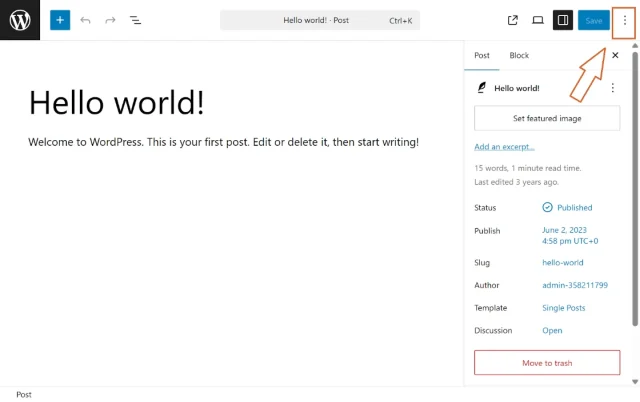
3. Select Copy all blocks.
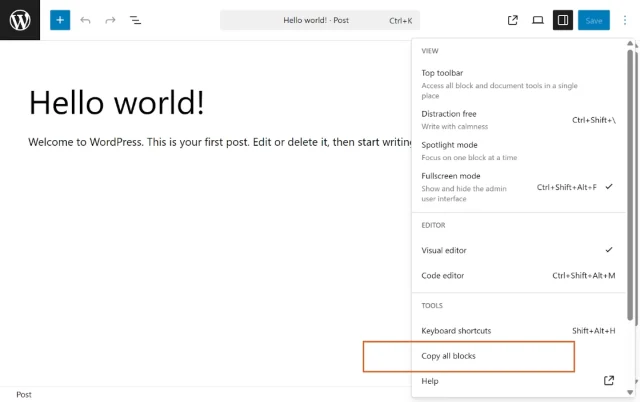
4. Create a New Page and simply paste (Ctrl+V or Cmd+V) into the editor.
Method 2: The easiest route: using a plugin
Section titled Method 2: The easiest route: using a pluginIf you’re trying to clone a page within the same site, a simple duplication plugin or using the block editor will usually do the job.
But if you want to move that page to a different WordPress site, or create a staging version to test changes, things work a bit differently.
That’s because WordPress pages don’t exist on their own. They rely on your theme, plugins, media files, and database settings. Simply copying the content won’t always bring everything across properly.
In these cases, you’re not just cloning a page. you’re effectively cloning part (or all) of your site.
This is where a tool like UpdraftPlus comes in.
How to clone and migrate a page in WordPress
Section titled How to clone and migrate a page in WordPressUpdraftPlus doesn’t just duplicate content – it allows you to clone or migrate your entire WordPress site (or a full backup) between environments.
This makes it ideal for:
- creating staging versions
- testing changes safely before going live
Rather than copying a single page, it transfers everything your site depends on, including your database, media files, themes, plugins, and settings. This ensures your pages work exactly the same in the new environment.
Step-by-step: Cloning via UpdraftPlus
Section titled Step-by-step: Cloning via UpdraftPlusTo clone content between sites, you’ll need UpdraftPlus installed on both your source and destination site.
Here’s how the migration process works:
- Install UpdraftPlus: Go to Plugins > Add New and search for UpdraftPlus. Activate it on both your “source” site (where the page is) and your “destination” site.
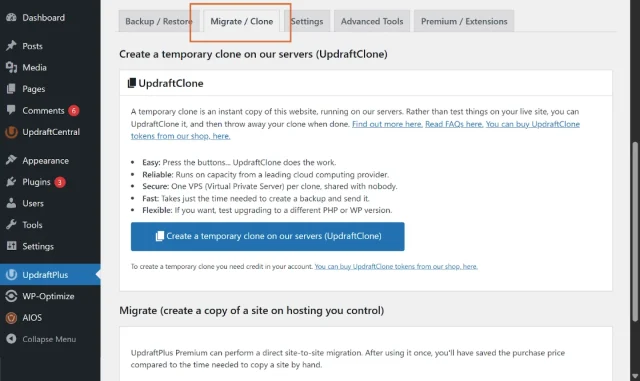
- Access the Migrate/Clone Tab: In your WordPress dashboard, go to UpdraftPlus and click the Migrate / Clone tab.
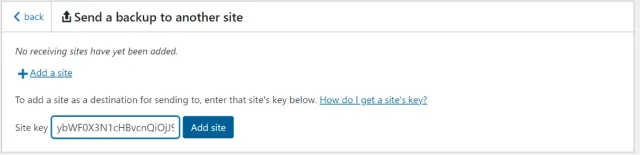
3 Send a Backup: On your source site, click the button that says Send a backup to another site.
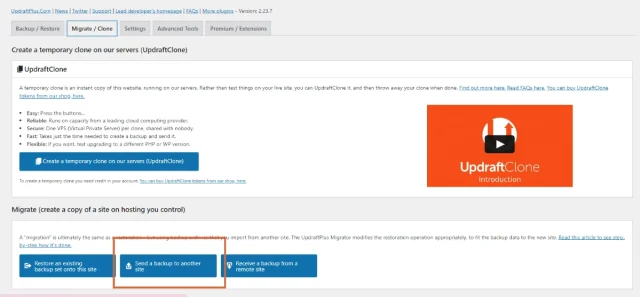
4. Connect the Sites: You will need a “site key” from your destination site. On the new site, click Receive a backup from a remote site to generate this key.
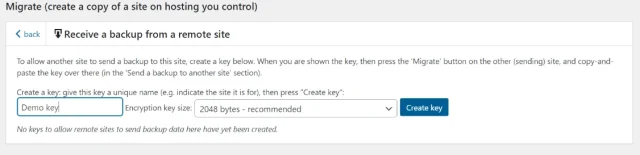
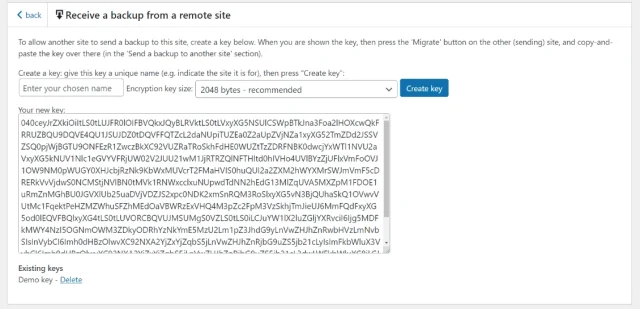
5. Clone the Content: Paste the key into your source site. You can then choose exactly what to send, database, plugins, or themes.
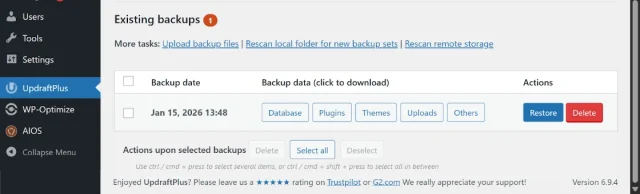
6. Restore: Once the data is sent, go to the destination site’s Existing Backups and click Restore.
This method is the gold standard for when you need to know how to clone pages in WordPress across different domains or from a staging site to a live site.
Clone and migrate without the friction
Moving content between WordPress sites can quickly get messy. UpdraftPlus gives you full control through backups, while Premium unlocks direct site-to-site transfers, so you can move everything exactly as it is, quickly and reliably.
Method 3: The developer route with functions.php
Section titled Method 3: The developer route with functions.phpIf you want to keep your site lightweight and avoid extra plugins, you can duplicate WordPress posts manually by modifying the functions.php file.
Instead, always edit the functions.php file inside your active theme folder (ideally a child theme).
Step-by-step: Manual duplication via code
Section titled Step-by-step: Manual duplication via code- Backup Your Site: Before touching any code, run a full backup.
- Access Theme Files: Go to Appearance > Theme File Editor in your dashboard (or use FTP to navigate to
/wp-content/themes/your-active-theme/). - Open functions.php: Find the
functions.phpfile in the right-hand list. - Paste the Snippet: Go to the very bottom of the file and paste the following code:
/* Function for post duplication. Filters and actions included. */
function rd_duplicate_post_as_draft(){
  global $wpdb;
  if (! ( isset( $_GET['post']) || isset( $_POST['post'])  || ( isset($_REQUEST['action']) && 'rd_duplicate_post_as_draft' == $_REQUEST['action'] ) ) ) {
    wp_die('No post to duplicate has been supplied!');
  }
  /* Get original post id */
  $post_id = (isset($_GET['post']) ? $_GET['post'] : $_POST['post']);
  $post = get_post( $post_id );
  $current_user = wp_get_current_user();
  $new_post_author = $current_user->ID;

  if (isset($post) && $post != null) {
    $args = array(
      'comment_status' => $post->comment_status,
      'ping_status'    => $post->ping_status,
      'post_author'    => $new_post_author,
      'post_content'   => $post->post_content,
      'post_excerpt'   => $post->post_excerpt,
      'post_name'      => $post->post_name,
      'post_parent'    => $post->post_parent,
      'post_password'  => $post->post_password,
      'post_status'    => 'draft',
      'post_title'     => $post->post_title,
      'post_type'      => $post->post_type,
      'to_ping'        => $post->to_ping,
      'menu_order'     => $post->menu_order
    );
    $new_post_id = wp_insert_post( $args );
    $taxonomies = get_object_taxonomies($post->post_type);
    foreach ($taxonomies as $taxonomy) {
      $post_terms = wp_get_object_terms($post_id, $taxonomy, array('fields' => 'slugs'));
      wp_set_object_terms($new_post_id, $post_terms, $taxonomy, false);
    }
    $post_meta_infos = $wpdb->get_results("SELECT meta_key, meta_value FROM $wpdb->postmeta WHERE post_id=$post_id");
    if (count($post_meta_infos)!=0) {
      $sql_query = "INSERT INTO $wpdb->postmeta (post_id, meta_key, meta_value) ";
      foreach ($post_meta_infos as $meta_info) {
        $meta_key = $meta_info->meta_key;
        if( $meta_key == '_wp_old_slug' ) continue;
        $meta_value = addslashes($meta_info->meta_value);
        $sql_query_sel[]= "SELECT $new_post_id, '$meta_key', '$meta_value'";
      }
      $sql_query .= implode(" UNION ALL ", $sql_query_sel);
      $wpdb->query($sql_query);
    }
    wp_redirect( admin_url( 'edit.php?post_type='.$post->post_type ) );
    exit;
  } else {
    wp_die('Post creation failed, could not find original post: ' . $post_id);
  }
}
add_action( 'admin_action_rd_duplicate_post_as_draft', 'rd_duplicate_post_as_draft' );

/* Add the duplicate link to action list for post_row_actions */
function rd_duplicate_post_link( $actions, $post ) {
  if (current_user_can('edit_posts')) {
    $actions['duplicate'] = '<a href="' . wp_nonce_url('admin.php?action=rd_duplicate_post_as_draft&post=' . $post->ID, basename(__FILE__), 'duplicate_nonce' ) . '" title="Duplicate this item" rel="permalink">Duplicate</a>';
  }
  return $actions;
}
add_filter( 'post_row_actions', 'rd_duplicate_post_link', 10, 2 );
add_filter('page_row_actions', 'rd_duplicate_post_link', 10, 2);
This code does two main things.
First, it uses add_filter to inject a new “Duplicate” link into the row of actions you see when you hover over a page or post title in your dashboard.
Second, it uses add_action to handle the actual heavy lifting. When you click that link, the function grabs all the data from the original post (the title, content, and categories) and uses wp_insert_post to create a brand new draft. It even loops through the postmeta table to ensure things like your Featured Image and custom field data are carried over exactly.
Which method is best for you?
Section titled Which method is best for you?Post-cloning checklist
Section titled Post-cloning checklistCloning a page is quick, but it’s easy to overlook small details that can affect performance and SEO. Use this checklist to make sure everything is set up properly before you hit publish.
Update the Permalink (URL Slug)
Section titled Update the Permalink (URL Slug)When you clone a page, WordPress usually adds “-2” to the end of the URL. This isn’t ideal, so it’s worth updating it straight away in the Page settings sidebar to something clean and relevant.
Refresh your SEO Metadata
Section titled Refresh your SEO MetadataIf you’re using a plugin like Yoast or Rank Math, the meta title and description will be copied from the original page. Leaving them unchanged can lead to duplicate content issues, so take a minute to rewrite them for the new page.
Check your Internal Links
Section titled Check your Internal LinksAny buttons, anchor links, or internal links may still point to the original page. Go through and test everything to make sure links stay on the new page and work as expected.
Maintaining site health while cloning
Section titled Maintaining site health while cloningIf you’re cloning pages regularly, your database can start to build up unnecessary data over time. A simple maintenance routine will help keep your site running smoothly.
Start with a safety net. Before making any major changes, always back up your WordPress site first. That way, if something goes wrong, you can restore your site quickly without losing work.
Then clean things up. After a round of cloning or updates, use a tool like WP-Optimize to remove post revisions, unused data, and database clutter. Keeping things lean helps your site stay fast and responsive.
Protect your work before making changes
Bulk edits, cloning, and updates don’t always go to plan. UpdraftPlus gives you a reliable backup you can restore in minutes, so you’re never stuck fixing things manually.
Conclusion
Section titled ConclusionOnce you know how to clone a page in WordPress, you’ll probably find yourself using it all the time. It’s one of those simple tricks that can save a surprising amount of time, especially if you’re regularly creating landing pages, updating service pages, or working from a proven layout.
For most users, the quickest option is either copying blocks in the Block Editor or using a duplication plugin. If you’re moving content between different sites or setting up a staging environment, you’ll need something that brings across the data behind the page as well, not just the content you can see on screen.
Before you publish your cloned page, take a few minutes to make it your own. Update the URL, review the SEO title and description, and check that any buttons or internal links point where they should. It’s a small job that can save headaches later.
And if you’re making larger changes to your site, it’s always worth having a recent backup to fall back on. That’s where tools like UpdraftPlus can be invaluable. If you regularly create test pages, staging sites, or lots of duplicate content, keeping your database tidy with WP-Optimize can help keep everything running smoothly too.
FAQs
Section titled FAQsHow to clone a page in WordPress?
There are several ways to clone a page in WordPress. For a quick duplicate on the same site, open the page in the Block Editor, select Copy all blocks, then paste them into a new page. If you want to duplicate additional elements such as metadata, featured images, or custom fields, a page duplication plugin is usually the easiest option. If you’re moving content between WordPress sites, you’ll need a migration tool such as UpdraftPlus, which can transfer the files, database, and settings your page depends on.
Does cloning a page affect my SEO?
No, cloning a page won’t damage your SEO. What matters is what happens next. If you publish two pages with near-identical content, search engines may have difficulty deciding which one to rank. That’s why it’s a good idea to update the content, URL, meta title, and meta description before making a cloned page live.
Can I clone a page in WordPress without a plugin?
Yes, you can duplicate content using the “Copy all blocks” feature in the WordPress Block Editor or by copying the HTML in Code Editor mode. This works well for basic layouts, but it won’t copy things like featured images, custom fields, or SEO settings.
How do I clone a page to a different website?
If you’re moving a page to another WordPress site, you’ll usually need to transfer more than just the page content. Things like images, settings, and database data may also be required for the page to work correctly. A migration tool such as UpdraftPlus can help move that data between sites, reducing the risk of missing files or broken functionality.
What is the difference between a clone and a staging site?
A cloned page is simply a copy of an individual page or post. A staging site is a separate copy of your entire website, including its themes, plugins, database, and settings. Staging sites are typically used to test updates, design changes, or new functionality before making those changes on your live site.
Do I need to update anything after cloning a page?
Yes. Before publishing a cloned page, it’s worth spending a few minutes reviewing it. Update the URL (slug), review the meta title and description, and test any buttons or internal links that were copied across. This helps avoid duplicate content issues and makes sure visitors end up where you expect them to.
What is the easiest way to duplicate a page in WordPress?
The easiest way is usually using a plugin that adds a “Duplicate” option in your dashboard. For quick same-site duplication, the Block Editor also works well. If you need to move content between sites, a tool like UpdraftPlus makes the process much more reliable.
About the author

Elvira Mishra
Elvira has over four years of experience creating and designing content in WordPress. Her background spans multiple digital disciplines, including marketing, SEO, user experience, and human computer interaction.
Categories
UpdraftClone
Spin up a temporary test site on our servers directly from UpdraftPlus in minutes. Throw it away when you’re done.
More stories
-

Best AI Website Builders Compared
AI website builders can help you design, write and launch a website in minutes. Compare the best AI-powered website builders based on ease of use, features, customisation, pricing and performance to find the right solution for your next project.
-

How incremental backups save time and storage in WordPress
Incremental backups only save the changes made since your last backup, helping you reduce storage usage, speed up backups and lower server load. Learn how they work and why they're an essential part of an efficient WordPress backup strategy.
-
Best WordPress Website Builders Compared
Discover the best WordPress website builders for every skill level. Compare features, ease of use, pricing and performance to choose the right builder for your blog, business or online store.
-

How to Schedule WordPress Backups
Learn how to schedule WordPress backups, choose the right frequency, and keep copies ready when you need to restore your site.
