How to secure a WordPress site (without overcomplicating it)
Let’s talk about how to secure a WordPress site properly.
Most WordPress sites aren’t hacked because someone was personally targeted. They’re compromised because something small was left exposed. An outdated plugin. A weak login. No firewall. No monitoring.
I work in WordPress security, and the pattern is almost always the same. The majority of successful attacks aren’t clever. They’re predictable.
So if you want to secure your WordPress site in a way that actually holds up, not just feels secure, this WordPress security guide focuses on what really matters.
Key takeaways
Section titled Key takeaways- Most WordPress hacks happen because basic settings were left exposed, such as outdated plugins, weak logins, or missing firewalls
- Effective WordPress security uses layers: protect access, harden the application, and filter traffic before it reaches your site
- Keep plugins, themes, and WordPress core updated to reduce vulnerabilities
- Enable a firewall, two-factor authentication, login attempt limits, and malware monitoring to block common attacks
- Backups don’t prevent hacks but make recovery much faster if your site is compromised
- WordPress security is ongoing maintenance, not a one-time setup
Why WordPress sites get hacked
Section titled Why WordPress sites get hackedWordPress itself isn’t insecure – it’s popular. And when something powers a large portion of the web, attackers automate against it. They don’t hand-pick targets. They run scripts.
Bots constantly scan for simple weaknesses like:
- Outdated plugins with known vulnerabilities
- Login pages with no protection
- Weak or reused passwords
- Sites without firewalls
- Sloppy configuration
They’re not targeting you personally. They’re testing thousands of doors and waiting to see which one opens.
When a vulnerability becomes public, attackers don’t need to break in. They just scan for version numbers at scale. If you haven’t updated, you’ve basically announced you’re exploitable.
The three layers of WordPress security
Section titled The three layers of WordPress securitySecurity isn’t one setting you toggle on. It’s structure. There are three core layers that actually matter:
- Protect access
- Harden the application
- Filter traffic before it reaches your site
Miss one, and you’ve left a gap – exactly what automated attacks look for. Let’s break it down.
Layer 1: Protect access
Section titled Layer 1: Protect accessThis is your front door. Most hacks start at the login page, not some complex exploit.
Use strong, unique passwords
Weak or reused passwords are one of the most common causes of compromise. Here’s how to stay safe:
- Use long passwords
- Don’t reuse them across sites
- Store them in a password manager
Enable two-factor authentication (2FA)
If you only implement one improvement from this guide, make it 2FA.
Two-factor authentication adds a second verification step when you log in. After entering your password, you’re asked for a short code from an app on your phone.
So even if someone manages to get your password, they still can’t access your site without that extra code.
And here’s the important part: password leaks happen all the time. Not necessarily from your site. From other platforms. From old accounts you forgot about. Attackers reuse those credentials automatically.
Two-factor authentication stops that chain reaction.
Start by enabling it for administrator accounts. That’s where the real damage can happen.
Most security plugins, including AIOS, let you turn on 2FA in a few clicks. You scan a QR code, connect it to an authenticator app, and you’re done.
Example: Enabling two-factor authentication inside AIOS takes less than a minute.
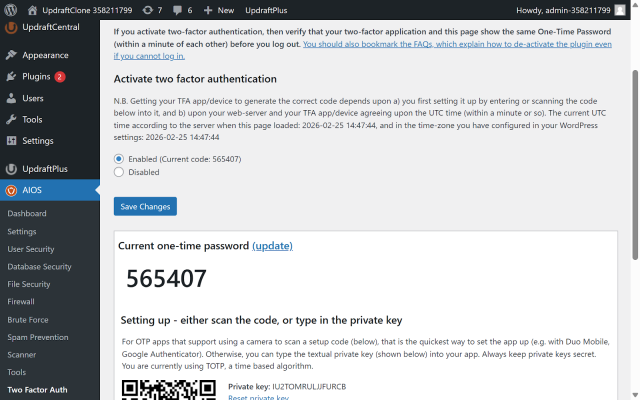
It’s simple. And it’s one of the highest impact changes you can make to secure a WordPress site.
Limit login attempts
By default, your WordPress login page will happily accept unlimited password guesses.
Which sounds harmless. Until you realise bots can try thousands of combinations automatically.
That’s what a brute force attack is. It’s not someone sitting there typing. It’s software hammering your login page over and over, hoping something sticks.
Login attempt limits shut that down.
After a small number of failed attempts, the account or IP address is temporarily locked out. No more guessing.
To secure your WordPress site properly:
- Allow three to five login attempts
- Set a short lockout period
- Keep an eye on repeated failures
With AIOS, you can set up login attempt limits for WordPress in just a few clicks, without touching any code.
It’s simple. And it eliminates one of the most common automated attack methods overnight.
Take control of login security before it becomes a problem
Brute force protection, two-factor authentication and login monitoring all in one place. AIOS makes it easy to lock down access without digging through settings.
Layer 2: Harden WordPress itself
Section titled Layer 2: Harden WordPress itselfNow we focus on reducing vulnerabilities on your WordPress site. This is where solid WordPress security best practices make a real difference.
If layer one was about locking the front door, this layer is about strengthening the building itself.
Keep WordPress, themes and plugins updated
Outdated plugins are one of the most common causes of WordPress compromises.
Here’s how it usually plays out. A vulnerability is discovered. The developer releases a patch. The vulnerability becomes public. And within hours, automated scanners start searching for sites that haven’t updated yet.
They’re not guessing. They know the exact version they’re looking for.
If your site is running it, you’re exposed.
So keep it simple:
- Enable automatic updates for WordPress core
- Review plugin updates weekly
- Remove anything you’re not actively using
If a plugin hasn’t been updated in a long time, that’s a red flag. Check the “Last updated” date in the WordPress plugin directory. If it hasn’t been touched in months or years, and support threads are unanswered, it may no longer be actively maintained.
Healthy plugins receive regular updates. Not because they’re unstable, but because software evolves. Security patches are released. Compatibility changes.
Updates aren’t about new features. They’re about closing known holes before someone walks through them.
In most cases I’ve seen, the attacker didn’t do anything advanced. They just used a known exploit against an outdated plugin.
Delete unused plugins and themes
Inactive doesn’t mean safe.
If a plugin or theme is installed on your site, its code still exists on your server. And if that code contains a vulnerability, it can still be exploited, even if the plugin is turned off.
That’s what people mean by “attack surface.” The more code you have installed, the more potential entry points exist.
So if you’re not actively using a plugin or theme, delete it completely. Don’t just deactivate it.
Less code means fewer opportunities for something to go wrong.
And honestly, most sites run more plugins than they need to.
Disable file editing in the dashboard
By default, WordPress allows administrators to edit theme and plugin files directly from inside the dashboard.
It sounds convenient. But in reality, it’s rarely needed. And if someone gains admin access, it gives them a very easy way to inject malicious code into your site.
Disabling it removes that shortcut.
You can turn it off by adding a single line to your wp-config.php file:
define('DISALLOW_FILE_EDIT', true);It’s a small change. But it closes off an unnecessary risk.
Hide version information
By default, WordPress exposes its version number in the page source and sometimes in feeds.
Does hiding it make you invisible? No.
But it removes an easy signal for automated scanners. Many bots look for specific WordPress versions tied to known vulnerabilities. If you’re broadcasting your exact version, you’re making their job easier.
Security isn’t about magic tricks. It’s about removing low-effort wins.
Hiding version details won’t stop a determined attacker, but it reduces noise and cuts down automated probing.
You can do this manually with code, but most people won’t. Plugins like AIOS include an option to hide version information automatically, along with other small hardening tweaks that are easy to miss.
And when it comes to securing a WordPress site, small reductions in exposure add up.
Secure your WordPress database
Your WordPress database is where everything lives.
Posts. Pages. Users. Password hashes. Plugin settings. Configuration details. If an attacker compromises your database, they don’t just deface your homepage. They can create hidden admin accounts, inject spam links, or redirect traffic without touching your theme files.
So securing your WordPress database matters just as much as securing the rest of your site.
Here’s how to approach it properly.
Change the default table prefix
By default, WordPress uses wp_ as the table prefix.
Many automated SQL injection scripts assume that prefix exists. Changing it doesn’t make you invisible, but it removes an easy assumption from automated attacks.
If you’re setting up a new site, choose a custom prefix during installation.
If the site is already live, use a trusted plugin or follow a safe migration process. Don’t manually edit tables unless you know exactly what you’re doing.
Plugins like All-In-One Security (AIOS) can handle this safely, updating all the necessary database references without you having to touch anything manually.
It’s not a silver bullet. It’s friction. And friction slows down automated attacks.
Restrict database user permissions
Your WordPress database user should only have the permissions it needs. Nothing more.
It does not need global privileges across your entire server. It does not need remote access enabled unless you specifically use it.
Most managed hosting providers configure this correctly by default. But if you’re on shared hosting or managing your own server, it’s worth checking.
The principle is simple: least privilege.
If credentials are ever exposed, limited permissions reduce the damage.
This same principle applies to your authentication setup too. WordPress uses security keys and salts to protect login sessions and cookies. If those are weak or left unchanged, they can make it easier to hijack sessions.
Plugins like AIOS can help here as well, making it easy to regenerate salts and apply additional hardening measures without digging through configuration files.
Protect wp-config.php
Your database credentials are stored inside wp-config.php.
If that file is exposed, your database is exposed.
Make sure:
- File permissions are not overly permissive
- Your hosting blocks direct access to the file
- You’re not accidentally exposing backups in public directories
On some servers, you can move wp-config.php one directory above your web root for an extra layer of protection.
This is basic hardening. But it matters.
Block SQL injection at the firewall layer
Most database compromises don’t happen because someone logged directly into your database server.
They happen through vulnerable plugins or forms that allow malicious input.
That’s where SQL injection comes in.
Firewall and SQL Injection Protection
A properly configured firewall filters malicious request patterns before they reach WordPress or your database. It doesn’t replace updates, but it provides a safety buffer if something slips through.
Security plugins like AIOS include firewall rules designed to detect and block common SQL injection patterns. That extra filtering layer significantly reduces database risk.
Back up your database separately
If your database is corrupted or compromised, restoring a clean copy is often faster and safer than trying to manually repair it.
Your database changes far more frequently than your files. New orders, form submissions, comments and user activity are all stored there. That means your database backups usually need to run more often than your file backups.
Just as important is retention. Attacks aren’t always noticed straight away. If your backups only go back a few days, you might not have a clean version to restore from. Keeping a longer history gives you a better chance of rolling back to a pre-compromise state.
Make sure your backup solution:
- Includes the database, not just files
- Runs frequently enough to avoid data loss
- Stores backups off-site
- Keeps enough historical backups to recover from delayed issues
- Lets you restore individual components when needed
Tools like UpdraftPlus allow you to schedule database and file backups separately and restore them independently. That flexibility matters during incident response, where you might only need to roll back one part of your site.
Database security isn’t just about prevention. It’s about being able to recover quickly and safely.
Layer 3: Activate a firewall
Section titled Layer 3: Activate a firewallA firewall sits between your site and the internet. Its job is simple: inspect incoming traffic and block suspicious requests before they reach WordPress. That means filtering out common attack patterns such as SQL injection attempts, cross-site scripting payloads, and automated probing.
Even if a plugin has a vulnerability, a firewall can sometimes block exploitation attempts before they ever hit your site. It acts as a safety buffer. Not a replacement for updates, but a strong second line of defence.
In practice, I’ve seen firewalls block exploitation attempts within hours of a vulnerability being disclosed. That buffer matters.
You can use a plugin-based firewall that runs inside WordPress, or a cloud-based one that filters traffic before it even reaches your server. Both approaches work. The important part is that you don’t run without one.
AIOS, for example, includes firewall rules specifically tuned for WordPress environments. Other tools take different approaches. What matters is that you don’t run without one.
Because running a WordPress site without a firewall today is like leaving your door unlocked and hoping no one tries the handle.
Back up your WordPress site regularly
Prevention matters. But recovery matters just as much.
I’ve seen site owners spend days trying to manually clean infected files, only to restore from backup in five minutes afterwards. The backup would’ve saved them a weekend.
Even well-maintained sites run into problems. A plugin conflict. A hosting issue. A vulnerability that appears before you’ve had a chance to patch it. Things break. Sometimes through no fault of your own.
If your database is compromised or your files are altered, restoring from a clean backup is often far safer and faster than trying to manually untangle everything.
So make backups automatic.
Back up your WordPress site regularly. Store those backups off-site, not just on the same server. Include both your files and your database. And test the restore process at least once, so you know it works before you actually need it.
Just as importantly, think about retention. Attacks aren’t always spotted immediately. If your backups only go back a few days, you might not have a clean version to restore from. Keeping a longer history gives you more flexibility to roll back to the right point in time.
Tools like UpdraftPlus make automated off-site backups straightforward, and features like enhanced retention rules help ensure you can restore your site to the most suitable pre-compromise state.
Security reduces risk. Backups reduce consequences.
Monitor for suspicious activity
Security isn’t just about blocking attacks. It’s about noticing when something unusual happens.
At a minimum, enable:
- File change detection
- Login notifications
- Alerts when new administrator accounts are created
- Scheduled malware scans
File change detection tells you if core files or plugin files are modified unexpectedly. Login alerts let you know when someone signs in, especially from a new location. And notifications for new admin accounts are critical, because attackers often create a hidden administrator user to maintain access.
You don’t need to obsess over logs or check your dashboard every hour. But you should review alerts periodically. Early detection limits damage. The faster you spot something, the easier it is to fix.
Scan for malware and respond correctly
Monitoring tells you when something changes. Scanning helps you confirm whether something malicious is already there. These aren’t the same thing.
A file change alert might tell you a file was modified. A malware scan helps determine whether that modification was legitimate or malicious.
To strengthen your WordPress security, you should:
- Enable scheduled malware scans
- Review scan results instead of ignoring them
- Act quickly if suspicious files are flagged
Many security plugins include automated scanning and compare your core files against known clean versions. That makes it easier to detect injected code or unexpected modifications.
But here’s something important. Scanning detects problems. It doesn’t fix the root cause.
If malware is found, you should:
- Restore from a clean backup if possible
- Change all administrator passwords
- Reset authentication salts
- Update all plugins and themes
- Review user accounts for anything suspicious
If you try to clean infected files manually without fixing how the attacker got in, the problem usually comes back.
Most reinfections happen because the original vulnerability was never patched. Cleaning without fixing access is temporary at best.
WordPress security isn’t just about blocking attacks. It’s about detecting compromise early and responding correctly.
That’s what separates a minor incident from a prolonged cleanup nightmare.
Hosting and server considerations
Section titled Hosting and server considerationsYour hosting setup matters more than most people realise.
If your server is poorly configured, running outdated PHP, or missing basic protections, no security plugin can fully compensate for that. Plugins strengthen WordPress itself. They can’t fix a weak foundation underneath it.
Choose a host that supports modern PHP versions and keeps them updated. Make sure HTTPS is properly configured, your SSL certificate renews automatically, and file permissions aren’t overly permissive.
Good hosting providers handle a significant portion of security at the server level. Poor ones leave you exposed.
When you’re thinking about how to secure a WordPress site properly, hosting is part of the strategy. Not an afterthought.
Use HTTPS and enforce SSL properly
Every WordPress site should run over HTTPS. Not just the homepage. Everything.
HTTPS encrypts data between your visitors and your server. That includes login credentials, cookies and form submissions. Without it, that data can be intercepted.
Most hosts provide free SSL certificates through Let’s Encrypt. Make sure:
- HTTPS is enabled for the entire site
- Your SSL certificate renews automatically
- HTTP traffic redirects to HTTPS
- Mixed content errors are fixed
HTTPS won’t stop malware. But it prevents credential interception and session hijacking.
It’s a basic WordPress security best practice. And in 2026, it’s essential.
Common WordPress security mistakes
Section titled Common WordPress security mistakesOver the years, I’ve seen the same patterns again and again:
- Relying only on hosting backups
- Installing too many plugins
- Ignoring low-traffic or “secondary” sites
- Treating security as a one-time setup
Relying on hosting backups alone is risky. They’re helpful, but you don’t always control how often they run or how long they’re retained.
Installing too many plugins increases complexity and expands your attack surface. More code means more potential vulnerabilities.
Low-traffic sites aren’t safer. Bots don’t care how many visitors you get. They care whether you’re vulnerable.
And perhaps the biggest mistake? Setting everything up once and assuming you’re done.
Security is not a checkbox. It’s ongoing maintenance.
Quick start security checklist
Section titled Quick start security checklistIf you want a simple action plan to secure your WordPress site, start here.
- Enable two-factor authentication
- Limit login attempts
- Keep WordPress, themes and plugins updated
- Remove unused plugins and themes
- Activate a firewall
- Back up your WordPress site off-site
- Enable security monitoring
You don’t need to implement everything in a single afternoon. But if you work through this list, you’ll block the vast majority of automated WordPress attacks.
That alone puts you ahead of most sites on the internet.
Final thoughts
Section titled Final thoughtsSecuring a WordPress site isn’t about paranoia. It’s about applying practical WordPress security best practices in layers.
Strong authentication. Updated software. Sensible defaults. A firewall. Reliable backups. Basic monitoring.
Each layer reduces exposure. Together, they make your site significantly harder to exploit.
If you want login protection, firewall rules and monitoring in one place, AIOS brings those controls together in a single dashboard. Pair that with a solid backup strategy and you cover both prevention and recovery.
That’s what actually works in real-world WordPress security today.
Take control of your WordPress security
From login protection to real-time activity monitoring, AIOS gives you the tools to stay on top of your site’s security without the stress.
FAQs about securing a WordPress site
Section titled FAQs about securing a WordPress siteIs WordPress secure?
WordPress core is actively maintained and considered secure. The development team releases regular updates and patches when vulnerabilities are discovered.
Most compromises don’t happen because WordPress itself is insecure. They happen because of outdated plugins, weak passwords, poor configuration or lack of ongoing maintenance.
WordPress is secure when it’s managed properly. The software isn’t the weak point – neglect usually is.
Do I really need a security plugin?
Technically, you can harden WordPress manually. But it’s time-consuming and easy to get wrong.
You’d need to configure firewall rules yourself, edit core configuration files, monitor logs, set up login protections and keep everything aligned as WordPress evolves. One small mistake can leave a gap.
A security plugin centralises those protections in one place. It handles the heavy lifting, reduces configuration errors and makes ongoing security realistic for normal site owners.
For most users, it’s the easiest way to secure a WordPress site.
What is the biggest security risk for WordPress sites?
Outdated plugins are one of the most common risks. Once a vulnerability becomes public, attackers immediately scan for sites that haven’t updated.
Weak passwords and missing login protection follow closely behind. Most attacks aren’t sophisticated. They exploit known WordPress vulnerabilities that were never patched.
How often should I update my WordPress site?
Check for updates at least weekly. Apply critical security patches as soon as they’re released.
The longer a vulnerability remains unpatched, the greater the chance automated bots will find it.
Can backups protect my site from hacks?
Backups don’t prevent attacks. They protect you from the consequences.
A clean, recent WordPress backup can turn a serious compromise into a quick restore. Without one, recovery is slower, riskier and often more expensive.
How do WordPress sites get hacked?
Most WordPress sites are compromised through automated attacks, not targeted ones. Bots scan for known vulnerabilities in outdated plugins, weak login credentials or misconfigured settings.
If your site matches a known weakness, it can be exploited within minutes of that vulnerability becoming public.
Do I need both a security plugin and backups?
Yes. They solve different problems.
A security plugin like AIOS helps prevent attacks by blocking malicious activity and hardening your site. Backups ensure you can recover quickly if something does go wrong.
Relying on just one leaves a gap.
Is WordPress more vulnerable than other platforms?
WordPress isn’t inherently more vulnerable, but it is a common target because of its popularity.
Attackers focus on it because it powers a large percentage of websites, not because it’s less secure.
About the author

Becks Faulkner
Becks is the SEO Manager at Updraft WP Software Ltd. She has specialised in search engine marketing for over 11 years. Her background spans various industries, with a primary focus in financial and tech sectors. She is driven by her passion for enhancing organic visibility with holistic SEO strategies.
Categories
AIOS
Comprehensive, feature-rich, security for WordPress. Malware scanning, firewall, an audit log and much more. Powerful, trusted and easy to use.
From just $70 for the year.
More stories
-
The Best WordPress plugin to clean up old themes
Unused themes can clutter your WordPress site. Here’s a simple way to remove them safely and keep things tidy.
-

World Backup Day: if your site disappeared, would you be ready?
Take five minutes to make sure your WordPress site is backed up and ready to restore.
-

Best WordPress themes for law firms
Find a professional WordPress theme for your law firm, whether you need speed, flexibility, or a ready-made legal layout.
-
10 best WordPress themes for beauty salons
Here are the best options to help you stand out, look professional, and turn visitors into bookings.
