How to update your site to the latest version of WordPress

If you have a WordPress website, you will know that it should always be run on the latest version of WordPress as the updated version of the software provides better performance and security.
In this blog, we will discuss all the ways you can update your website to the latest version of WordPress. We will go through the process on how to download the latest WordPress version and update it manually and also show you how to automate your WordPress updates – which can be highly beneficial, as it can save you a lot of time and effort.
Key takeaways
Section titled Key takeaways- Always run a full database and file backup before starting any upgrades. Store your backup files in a remote location like Google Drive
- Test major version changes on a cloned staging site first
- Understand the difference between minor and major software releases
- Perform updates during your lowest traffic periods to minimize disruption
- Never overwrite your configuration files when using an FTP client
- Use dedicated management tools to safely automate your future updates
Why you should always use the latest version of WordPress
Section titled Why you should always use the latest version of WordPressThe reality of open source software
Section titled The reality of open source softwareWordPress is an extremely popular and open source software platform. This means everyone can study the code, as it is available publicly as open source. This allows developers to analyze, improve and contribute to the WordPress codebase. Whenever a developer finds any bugs or security issues, it is reported to the WordPress software team, who then fix the issue and release a new WordPress update, with all the issues hopefully fixed. This approach to problem analysis/solving has largely been the reason why WordPress has managed to grow so rapidly.
Hackers actively look for older vulnerabilities
Section titled Hackers actively look for older vulnerabilitiesThe web is not populated only by people with good intentions. There are entire cottage industries in operation that exist solely to employ hackers. These individuals actively look for vulnerabilities and loopholes in the source code. Because WordPress powers over a third of all the websites in the world it is a hugely popular target. Hackers keep a close eye on release notes. If a vulnerability is found and patched in a new version hackers will actively search for sites still running the older vulnerable version. If you fail to upgrade you are leaving your digital front door wide open for them to steal valuable data like emails and billing information.
Gaining access to new features and performance boosts
Section titled Gaining access to new features and performance boostsSecurity is critical but updates bring plenty of positive additions too. Users get access to brand new features and better performance metrics when they download the latest software. For example major releases frequently introduce entirely new block editing capabilities or improved media handling. Every new release typically includes code optimizations that make the platform run faster. Developers are constantly finding ways to reduce database queries. Faster sites rank better in search engines and keep visitors engaged much longer.
Now you are aware and understand the need to upgrade WordPress, let’s take a detailed look at how to perform the upgrade.
Things to do before upgrading WordPress
Section titled Things to do before upgrading WordPressI never blindly hit the update button without preparing my environment first. A few minutes of preparation can save you absolute misery if something goes wrong. I treat this pre flight checklist as a mandatory ritual for every single site I manage.
1. Take a complete backup and store it remotely
Section titled 1. Take a complete backup and store it remotelyWhenever you plan to update the software remember to always take a backup of the current site with a trusted plugin like UpdraftPlus. Every update carries a tiny risk of software conflicts. By having a backup you will be able to restore the site immediately if the new updates break your layout. I strongly recommend that you store your backup in a remote storage location rather than on your web server. Sending your files to a service like Google Drive or Dropbox means you will always have access to them. If a server upgrade goes completely wrong your backup files remain perfectly safe elsewhere.
Protect your site with intelligent backups
Do not let a failed update wipe out months of hard work. UpdraftPlus automatically backs up your files and database so you always have a perfect restore point ready to go.
2. Create an identical test site with UpdraftClone
Section titled 2. Create an identical test site with UpdraftCloneFor extra safety and peace of mind you should never test major changes on your live site. You can use a tool like UpdraftClone to create an identical copy of your site. This allows you to test out any update in a safe private sandbox environment. It further removes any potential risks because you are not experimenting on your actual visitors. Once you have created a clone of your site you can carry out updates and click around to test your contact forms and layouts. You can then apply those same updates to your live site knowing everything is completely compatible.
3. Check your traffic to find the best time
Section titled 3. Check your traffic to find the best timeOnce you have your website backed up you need to choose the right time to schedule your upgrade. Updating the core software usually only takes a minute or two but it can occasionally take longer. During this process it is vital that your customers do not face any unexpected behavior or access issues. To avoid this it is best to pick a time when you typically have fewer users active on the site. I always check my Burst Statistics dashboard to identify my quietest traffic windows. Burst Statistics gives me a clear privacy friendly breakdown of when my visitors are offline. I schedule my maintenance during those specific low traffic hours.
4. Disable caching temporarily
Section titled 4. Disable caching temporarilyCaching tools are fantastic for speeding up your page load times. They can however interfere with software installations on rare occasions. A caching tool might try to serve an outdated file while the system is trying to write new ones to your server. I always purge my cache and disable my caching plugin temporarily before I start upgrading my core files. This ensures the browser loads the absolute newest files once the process finishes.
The proper sequence for safe updates
Section titled The proper sequence for safe updatesThe order in which you update your components actually matters quite a bit. If you update a complex theme before the core software you might trigger a fatal error due to incompatible code. The official recommendation from developers is a specific three step sequence. You should always update your core software first. Once that is complete you can move on to your active and inactive plugins. Finally you should update your themes. Following this exact order ensures that the foundation of your site is ready to support the latest features required by your extensions.
Manually upgrading WordPress to the latest version
Section titled Manually upgrading WordPress to the latest versionThe platform regularly releases updates to the public. These updates come in two very distinct flavors known as major and minor releases. Understanding the difference between them will dictate how you approach your maintenance routine.
Upgrading WordPress from the Dashboard
Section titled Upgrading WordPress from the DashboardThis is a straightforward and easy to follow process. All you need to do is press on the ‘UPDATE NOW’ button and the upgrade will start automatically. It can be done in a few moments.
To access this option, go to Dashboard->Updates page in your WordPress site. You will see the ‘UPDATE NOW’ button as shown below.
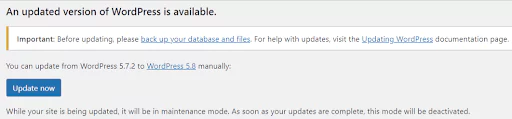
In the screenshot, you will see that it states that your site will be in maintenance mode until the updates are complete. As previously mentioned, this is the reason for picking the ‘Low visitor’ hours when carrying out your upgrade.
Press the ‘Update now’ button and WordPress initiates the upgrading process for you. It may take a couple of minutes.
Once WordPress has installed the updates, you should be redirected to a page where you can see a list of new features available in the latest update.
There may be some cases where this process is not possible. If this is the case, you can follow the below update process instead.
Upgrade WordPress using FTP Client
Section titled Upgrade WordPress using FTP ClientThere may be some cases where the dashboard process is simply not possible. Your server might time out or a glitch might lock you out of your admin area. If this is the case you can update the software manually by sending the files directly to your server.
In order to update WordPress manually to the latest version, you will need to perform the following steps.
- Download the latest WordPress zip.
- Extract the zip.
- Connect your site with an FTP client (FileZilla is a popular FTP Client).
- Upload wp-admin, wp-includes directories (from the extracted zip) on your site, replacing older versions.
- Upload all core files from the root directory of extracted zip. Remember not to change the
wp-config.phpfile. - Upload
wp-content/index.php.
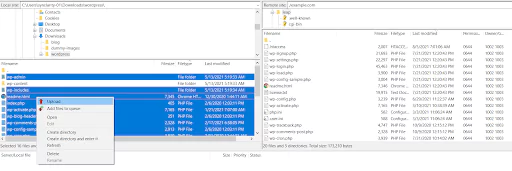
WordPress writes the code for core functionalities and new features in the wp-admin and wp-includes folders. The files in the root directory also contain the code for new updates. While updating WordPress, we need to only replace these files and folders. When developing your WordPress websites, remember not to touch these files – at any cost, as it can break the system. These files are part of the core development and must remain untouched.
Once you are done with the manual process, go to the admin area of your site. Sometimes you need to update your database for the new version. You may see the below notice asking to update your WordPress database.
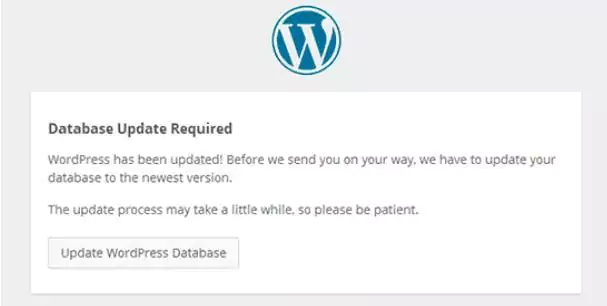
If you come across this notice, just press the ‘Update WordPress Database’ button.
After this, login to your admin area – you should now see you have successfully updated to the latest version of WordPress.
It is important to carry out due diligence on your site after an update. Browse your site and make sure everything is in the right place and is working correctly. Most of the time, WordPress updates will not cause any issues if you are using the system correctly and carried out the update in the proper manner. However, if you are experiencing unpredictable behaviour, you can quickly restore your site to the older working version using your UpdraftPlus backup.
You can also save further time by automating the WordPress updates process using the Easy Update Manager plugin.
Manage automatic WordPress updates
Section titled Manage automatic WordPress updatesIf you want to save significant time you can automate your maintenance process. The built in auto update features are good but they lack granular control. I prefer using the Easy Updates Manager plugin for this task. This incredible tool is built by the exact same team that brings you UpdraftPlus.
At the time of writing, Easy Updates Manager has 300K+ active installations. By using this plugin, you can automate WordPress, plugin and theme updates.
Users can also use a free version of the plugin with a limited set of features. However, it is suggested that you install the Premium version, as it contains many handy features that can make updating easier and quicker. These include:
- Safe Update – Block automatic updates if the update states a minimum PHP or WP version requirement that is not met by the site/server.
- Schedule Updates. Customize your update schedule to minimize any downtime.
- Auto-update protection. If something goes wrong during an auto-update, the plugin will alert you via email and then try to fix it automatically.
Upon installation, you can find the settings under the Dashboard->Updates options. On this page, you will see the different options to manage WordPress, plugin and theme updates. Under the ‘WordPress core updates’, press the ‘Auto update all releases’ button.
Add your email address under ‘Core notification emails’. You will now receive an email at this address when your site updates.
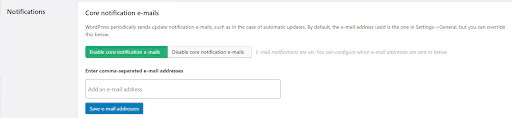
When using the premium version of the plugin, you can set your updates to suit your schedule. As previously discussed, if you wanted to update WordPress and pick a time when your site had less visitors, go to the ‘Advanced’ tab and set your preferred schedule time under ‘Automatic update scheduling’.
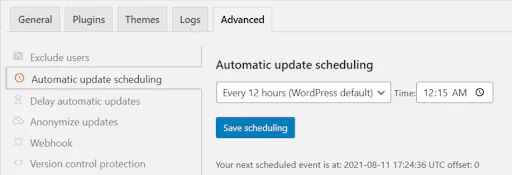
These are the basic settings required to automate your WordPress updates. Now you can just sit back and relax and let the plugin handle all the upgrading stuff for you.
How to update WordPress plugins and themes
Section titled How to update WordPress plugins and themesThe most frequent maintenance you will perform involves your extensions. Developers release theme and plugin updates constantly to patch bugs and ensure compatibility with the core software. When you log into your dashboard you will see a circular arrows icon at the top of your screen. Clicking that icon takes you directly to the central updates screen.
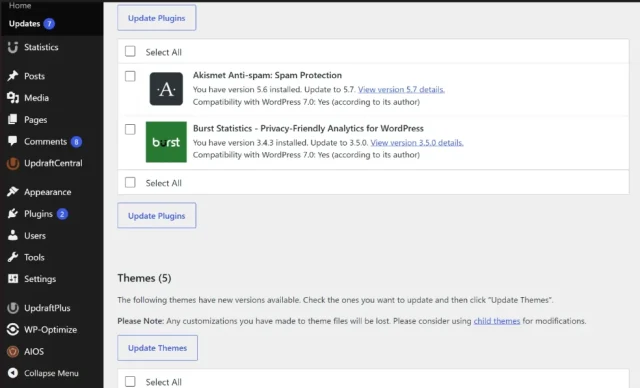
From here you can select all your outdated plugins and click the button to upgrade them. I personally prefer to update my plugins one by one rather than doing them all in massive bulk batches. Updating individually allows me to test the site after each installation. If the site breaks I know exactly which specific plugin caused the crash. Once your plugins are finished you can scroll down to the themes section on that same page. Select your active theme and upgrade it. Keep in mind that upgrading a theme will overwrite any direct PHP modifications you made to the template files.
What to do if an update breaks your site
Section titled What to do if an update breaks your siteIt is important to carry out due diligence on your site after any maintenance. Browse your site and make sure everything is in the right place and functioning perfectly. Most of the time things will go smoothly if you followed the proper steps. However if you are experiencing unpredictable behavior you need to know how to troubleshoot.
The white screen of death
Section titled The white screen of deathYou click a button and suddenly your browser goes completely blank. This blank screen is usually caused by a severe plugin conflict. Since you cannot access the dashboard menu you will need to use your FTP client to connect to your server. Navigate to your wp-content folder and locate the plugins folder. Rename that folder to something different like plugins-disabled. This forces the system to deactivate every single plugin immediately. Refresh your browser page. If the admin area loads you know a plugin was definitely the culprit. You can rename the folder back to its original name and reactivate your tools one by one until the site breaks again to find the offender.
Stuck in maintenance mode
Section titled Stuck in maintenance modeSometimes a server glitch prevents the temporary maintenance file from deleting itself. Your site just stays locked in maintenance mode indefinitely. The fix is incredibly simple and takes ten seconds. Connect to your server via your FTP client and look in your root folder. You will see a file simply named dot maintenance. Delete that specific file and your site will immediately become visible to the public again.
Theme customization disappearing
Section titled Theme customization disappearingNew site owners often spend days tweaking template files to get their design perfect. They run a theme update and suddenly their site looks completely generic. When you upgrade a theme the server deletes the old theme folder entirely. Any code you typed directly into those files is permanently gone. To prevent this tragedy you must use a child theme. A child theme acts as a protective shield that sits on top of the parent theme holding all your custom modifications safely.
Conclusion
Section titled ConclusionLearning how to update wordpress properly is a fundamental skill for any website owner. We have run through both the automatic and manual processes for upgrading to the latest version. You can use either process in order to help keep your site safe from hackers and running at peak performance. It shifts you from being a passive user who hopes nothing breaks to an active manager who controls their digital environment.
Remember that preparation is everything. As long as you take a thorough backup before updating using UpdraftPlus you have absolutely nothing to worry about. Make it a habit to check your dashboard weekly apply your patches promptly and enjoy the peace of mind that comes with a secure setup.
FAQs
Section titled FAQsHow often should I check for new releases?
You should log into your dashboard at least once a week to check for new releases. If you manage a busy ecommerce store you should check daily. The faster you apply critical security patches the safer your customer data will be.
Will I lose my blog posts during an upgrade?
No you will not lose your content at all. Your blog posts pages and media files are stored safely in your database and your wp-content folder. The upgrade process only modifies the core system files that run the application itself.
Why does my installation keep failing?
Installations usually fail because of incorrect file permissions on your server or highly restrictive security settings set by your host. It can also happen if your server is running completely out of disk space. Check your hosting dashboard to ensure you have plenty of storage available.
About the author

TeamUpdraft
Our team consists of WordPress developers, marketers, and industry experts committed to providing you with the resources and skills you need to succeed online. Whether you’re just starting out or seeking advanced strategies, we’re here to enhance your WordPress journey and support you at every stage.
Categories
TeamUpdraft
We’re the team behind some of the WordPress community’s most loved WordPress plugins.
Developers, designers and website owners trust us to back up, migrate, optimize and secure more than 5 million WordPress websites worldwide.
More stories
-

How incremental backups save time and storage in WordPress
Incremental backups only save the changes made since your last backup, helping you reduce storage usage, speed up backups and lower server load. Learn how they work and why they're an essential part of an efficient WordPress backup strategy.
-

Best WordPress Website Builders Compared
Discover the best WordPress website builders for every skill level. Compare features, ease of use, pricing and performance to choose the right builder for your blog, business or online store.
-
How to Schedule WordPress Backups
Learn how to schedule WordPress backups, choose the right frequency, and keep copies ready when you need to restore your site.
-

Best plugins for affiliate marketers
Build a smarter affiliate site using WordPress plugins for link management, analytics, conversions, speed, security and programme growth.
