How to secure WordPress media files
When you first set up a WordPress site, most of your focus goes into design, content, and getting everything looking right. But there’s one thing that often gets overlooked: your media files.
By default, anything you upload to your WordPress media library is publicly accessible via its direct URL. That means if someone has the link to an image, PDF, or file, they can view or download it, even if it’s not linked anywhere on your site.
Securing your WordPress media files is essential if you’re running a business, membership site, or storing any kind of private content. Whether it’s paid downloads, client documents, or your own original images, leaving your media library exposed creates unnecessary risk.
In this guide, I’ll walk you through how to protect your media files, prevent misuse, and keep your WordPress site secure without overcomplicating things.
Key takeaways
Section titled Key takeaways- WordPress media files are publicly accessible by default unless you restrict them
- Disabling directory browsing is one of the simplest and most effective security steps
- Hotlink protection stops other websites from using your images and bandwidth
- Plugins like AIOS make media security much easier to manage
- Backups are essential in case files are deleted, corrupted, or compromised
Why securing your media files matters
Section titled Why securing your media files mattersMost people think of WordPress security as logins, passwords, and admin access. But your media folder is often one of the most exposed parts of your site.
Everything you upload lives inside your /wp-content/uploads/ directory. If this isn’t properly protected, it can be accessed directly by anyone who knows the file path, or by bots scanning your site.
This becomes a bigger issue if you:
- sell digital downloads
- run a membership site
- upload private or client-only content
- use original images you don’t want reused elsewhere
Without protection, files can be shared, downloaded, or reused without your permission. In some cases, your server resources can even be used by other websites through hotlinking.
Common threats to your media library
Section titled Common threats to your media library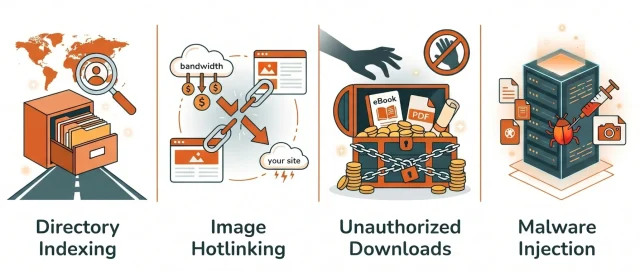
Before fixing the problem, it helps to understand what you’re protecting against.
- Directory Indexing: If your server is misconfigured, anyone can type your site’s upload URL into a browser and see a list of every single file you’ve ever uploaded, organized by year and month.
- Image Hotlinking: This is when another site uses your image URL to show a picture on their site. You pay for the hosting and bandwidth, while they get the content.
- Unauthorized Downloads: For membership or e-commerce sites, this is the biggest headache. It’s when a direct file URL is shared on forums or social media, allowing non-members to access private content.
- Malware Injection: Sometimes, attackers try to upload malicious files disguised as images to gain control of your server.
The easiest way to secure media files: using a plugin
Section titled The easiest way to secure media files: using a pluginYou can secure your media files manually using server rules, but for most site owners, a security plugin is a much safer and easier option.
Using All-In-One Security (AIOS)
Section titled Using All-In-One Security (AIOS)All-In-One Security (AIOS) is one of the simplest ways to lock down your WordPress media files without touching code.
It includes built-in tools to:
- disable directory browsing
- prevent hotlinking
- monitor file changes
- strengthen file permissions
Everything is handled through your dashboard, so you don’t need to edit .htaccess files or server settings yourself.
Protect the content that powers your website
Media protection is just one part of a secure site. AIOS helps you lock down your files, monitor changes, and protect your WordPress site from common threats – all from one dashboard.
How to secure WordPress media files using AIOS
Section titled How to secure WordPress media files using AIOSThe beauty of using a tool like AIOS is that it bridges the gap between complex server rules and a user-friendly dashboard. Instead of writing rules for your server, you are checking boxes that have been tested and vetted by security experts.
1. Hardening your filesystem security
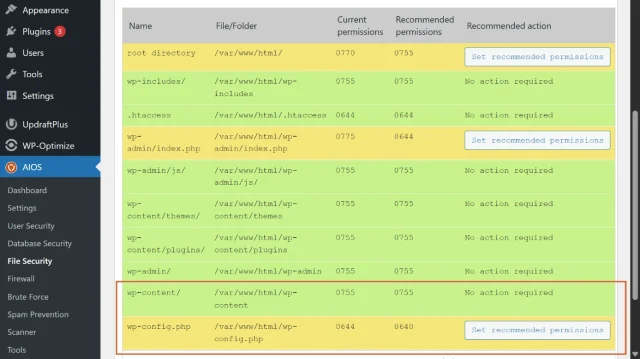
Section titled 1. Hardening your filesystem securityAIOS provides a centralized place to manage the “health” of your files. When you go to the File Security tab, you’ll see an overview of your file permissions.
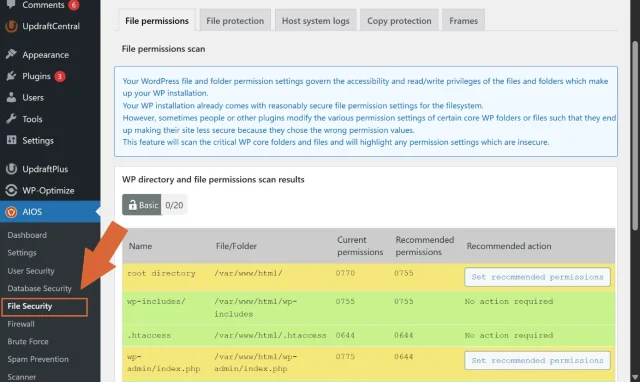
- File Permissions Check: This is a vital first step. If your
/uploads/folder has “777” permissions, it means anyone can write or delete files there. AIOS identifies these weak spots and lets you fix them with one click to the recommended “755” or “644” settings.
- PHP File Editing: Attackers often try to gain access to the WordPress dashboard to edit plugin or theme files directly. AIOS allows you to disable the built-in WordPress file editor. This ensures that even if someone gets into your dashboard, they can’t inject malicious code into your media-handling files.
2. Disabling directory browsing with a single click
Section titled 2. Disabling directory browsing with a single clickAs I mentioned earlier, directory browsing is a massive vulnerability. In AIOS, you don’t have to touch your .htaccess file manually.
- Navigate to the Firewall > .htaccess rules > Listing Directory Content tab.
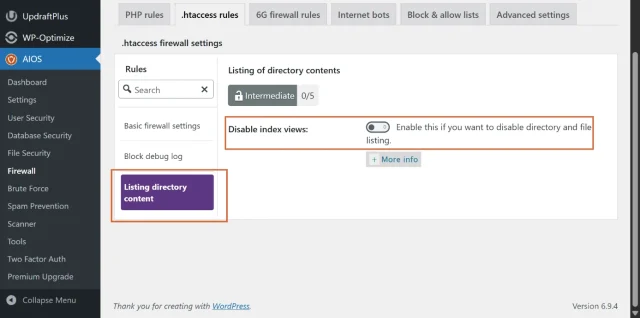
- Toggle the Disable index views switch.
By enabling this, AIOS automatically places the necessary rules into your server configuration. If a curious visitor or a bot tries to browse your /wp-content/uploads/ folder, they will be met with a “403 Forbidden” page rather than a list of your private assets. It’s a simple toggle that closes a massive door.
3. Preventing image hotlinking
Section titled 3. Preventing image hotlinkingWe talked about how hotlinking drains your server resources. AIOS makes the fix incredibly simple:
- Go to File Security > File Protection > Prevent hotlinking tab.
- Enable Prevent image hotlinking
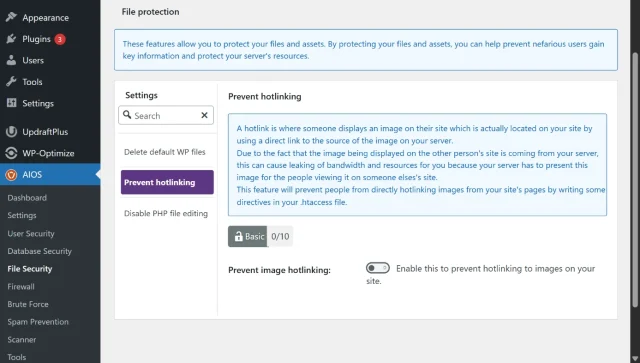
- Once checked, AIOS adds a snippet to your site’s configuration that checks the “Referrer” of any image request.
If the request comes from a domain that isn’t yours, the server simply refuses to serve the image. This ensures that your bandwidth and your budget is spent only on your own visitors.
4. Monitoring file changes in the media library
Section titled 4. Monitoring file changes in the media libraryA sneaky tactic hackers use is “hiding in plain sight.” They might upload a malicious file into your 2026/04 media folder, giving it a name like header-bg-extra.php. Because we have thousands of files in our media libraries, you would likely never notice it.
AIOS includes a File Change Detection scanner. This tool takes a “snapshot” of your file system. If a new file is added to your media library or an existing image is modified, AIOS will send you an email alert. This is a vital part of knowing how to secure WordPress media files because it alerts you to “insider” threats or successful breaches that have already happened, allowing you to clean them up before they do damage.
Why backups are just as important as security
Section titled Why backups are just as important as securityEven with the best security setup, things can still go wrong. Files can be deleted, overwritten, or corrupted.
That’s why backups are essential.
If your media library is compromised or lost, a backup is the only reliable way to restore everything quickly.
Using a backup plugin like UpdraftPlus means your media files are safely stored offsite. If anything happens, you can restore your entire library in just a few clicks without starting from scratch.
Restore your media files in minutes, not day
If something goes wrong, you don’t want to start from scratch. UpdraftPlus keeps your media library backed up and ready to restore, so you can get your site back online quickly without losing your work.
Best practices for managing media files
Section titled Best practices for managing media filesSecuring your media files isn’t just about one setting, it’s about building a few simple habits that keep your site clean, controlled, and harder to exploit.
Here are the practices that make the biggest difference:
- Audit your media library regularly Old files are easy to forget about. If you’ve got outdated client documents, unused downloads, or assets you no longer need, remove them. The less you store, the less there is to expose or protect.
- Use smart file naming. Clear filenames are good for organisation and SEO, but avoid anything that reveals sensitive information. Instead of something like
client-contract-2026.pdf, keep it neutral and non-sensitive. - Limit user access (least privilege). Only give higher-level roles like Editor or Administrator to people who genuinely need them. Most users only need Author-level access, which reduces the risk of accidental or malicious changes to your media files.
- Keep everything updated. WordPress core, plugins, and themes regularly release security updates. Leaving updates pending creates unnecessary risk, especially when vulnerabilities are publicly known.
- Combine security with performance. A bloated media library can slow your site down as well as increase risk, making site speed optimisation even more important. Keeping your database and files optimised with tools like WP-Optimize helps improve site speed while maintaining a healthier WordPress environment.
Conclusion
Section titled ConclusionYour media library is easy to overlook, but it plays a bigger role in your site’s security than most people realise.
By default, WordPress doesn’t restrict access to uploaded files. That means it’s up to you to put the right protections in place.
The good news is, you don’t need to overcomplicate it. Start with the basics:
- disable directory browsing
- prevent hotlinking
- monitor file changes
- keep regular backups
From there, it’s about consistency. Keep your site updated, review your files now and then, and make sure you always have a reliable backup in place.
Tools like AIOS help you lock things down, and UpdraftPlus gives you a safety net if anything goes wrong.
Get those two pieces right, and you’re not just securing your media files – you’re protecting everything behind your site.
FAQs
Section titled FAQsHow do I secure WordPress media files?
To secure WordPress media files, you should disable directory browsing, prevent hotlinking, and restrict access where needed. The easiest way to do this is with a security gin like AIOS, which applies these protections without requiring manual server changes.
Can I restrict access to WordPress media files?
Yes. You can restrict access to media files so only logged-in users or specific roles can view them. This usually requires a membership plugin or advanced access control setup, depending on your site.
Can I protect my images from being downloaded or right-clicked?
You can add basic protection using tools like AIOS, but it’s not foolproof. Users can still take screenshots or access files directly if they have the URL. The best approach is combining this with proper access control and file protection.
What happens to SEO if I secure my images?
Securing your media files won’t affect SEO as long as search engines can still access them. Most security tools allow you to block unwanted traffic while still allowing search engine crawlers, so your images can appear in search results.
Where are WordPress media files stored?
Most WordPress media files are stored in the /wp-content/uploads/ folder. This is the main directory you should secure, as it contains all images, PDFs, and uploaded content from your media library.
Do I need a plugin to secure WordPress media files?
No, but it’s the easiest and safest option. You can manually configure server rules, but plugins like AIOS handle everything for you and reduce the risk of breaking your site.
What is directory browsing and why should I disable it?
Directory browsing allows anyone to view a list of files in your uploads folder. Disabling it prevents visitors and bots from seeing your media library structure, which helps protect sensitive files.
What is image hotlinking and how do I stop it?
Hotlinking is when another website uses your image URLs to display your images. This uses your server resources without your permission. You can stop it by enabling hotlink protection in a plugin like AIOS.
How do I keep my media files safe if something goes wrong?
The best way to protect your files is with regular backups. Using a tool like UpdraftPlus ensures your media library is stored offsite, so you can restore everything quickly if files are lost, deleted, or compromised.
About the author

Elvira Mishra
Elvira has over four years of experience creating and designing content in WordPress. Her background spans multiple digital disciplines, including marketing, SEO, user experience, and human computer interaction.
Categories
AIOS
Comprehensive, feature-rich, security for WordPress. Malware scanning, firewall, an audit log and much more. Powerful, trusted and easy to use.
From just $44.50 for the year.
More stories
-

5 WordPress Web Design Tips to Improve Your Website
Good web design is about more than appearance. Explore practical WordPress web design tips to improve your website's layout, navigation, mobile responsiveness, accessibility and performance, helping you create a better experience for your visitors.
-
Best AI Website Builders Compared
AI website builders can help you design, write and launch a website in minutes. Compare the best AI-powered website builders based on ease of use, features, customisation, pricing and performance to find the right solution for your next project.
-

How incremental backups save time and storage in WordPress
Incremental backups only save the changes made since your last backup, helping you reduce storage usage, speed up backups and lower server load. Learn how they work and why they're an essential part of an efficient WordPress backup strategy.
-
Best WordPress Website Builders Compared
Discover the best WordPress website builders for every skill level. Compare features, ease of use, pricing and performance to choose the right builder for your blog, business or online store.
