How to track and view pageviews in WordPress

Understanding how people move through your site can make a big difference in the content you create and the decisions you make. One of the simplest ways to get that insight is by looking at your pageviews, a metric that shows which pages are getting attention and which ones might need improving. If you’re completely new to this, our guide to WordPress analytics explains the basics in more detail.
If you’ve ever tried to check pageviews in WordPress and ended up lost in technical tools or cluttered dashboards, you’re definitely not alone. Most site owners just want a simple way to see what people are reading, where traffic is going, and how their site is performing without needing to learn complicated analytics software. Many are also looking for more privacy-friendly ways to measure traffic, especially as tracking without cookies becomes more important.
In this guide, we’ll show you how to see pageviews on WordPress using a simple, privacy-friendly analytics plugin. By the end, you’ll know how to start tracking pageviews in just a few clicks and how to use that data to better understand what’s working on your site. If you’ve found Google Analytics difficult to use, you might also want to explore some simpler Google Analytics alternatives.
Key takeaways
Section titled Key takeaways- Why pageview tracking is essential for improving your WordPress site
- The main methods for viewing pageviews without technical setup
- How Burst Statistics provides privacy-friendly, easy-to-read analytics
- What metrics you should focus on beyond pageviews
- Step-by-step instructions for installing a pageview tracking plugin
- Answers to common questions about WordPress analytics
Why pageviews matter
Section titled Why pageviews matterPageviews help you understand which content resonates with your readers. When you can clearly see which posts are attracting traffic, you can create more of what works and optimize what does not.
Common goals include:
- Improving user engagement
- Increasing conversions
- Identifying topics worth expanding
- Spotting underperforming pages
Without accurate pageview data, you are making decisions based on assumptions. Reliable analytics turn those assumptions into clear insights.
Using an analytics plugin to see pageviews
Section titled Using an analytics plugin to see pageviewsAnalytics plugins offer the easiest and most reliable way to view traffic without leaving your WordPress dashboard. Tools like Burst Statistics provide clear reports, privacy-friendly tracking, and automatic pageview logging.
Why Choose Burst Statistics?
- No account or external dashboard needed
- GDPR-friendly by design
- Easy-to-understand insights
- Minimal setup
- Lightweight and fast
For many website owners, this is the most accessible solution.
How to track pageviews step by step with Burst Statistics
Section titled How to track pageviews step by step with Burst StatisticsBurst Statistics is a privacy-friendly analytics plugin built for WordPress. It offers simple, accurate reporting that fits directly into your dashboard. Here is how to get started.
Step 1: Install Burst Statistics
Section titled Step 1: Install Burst Statistics- In your WordPress dashboard, go to Plugins
- Select Add New
- Search for Burst Statistics
- Click Install
- Activate the plugin
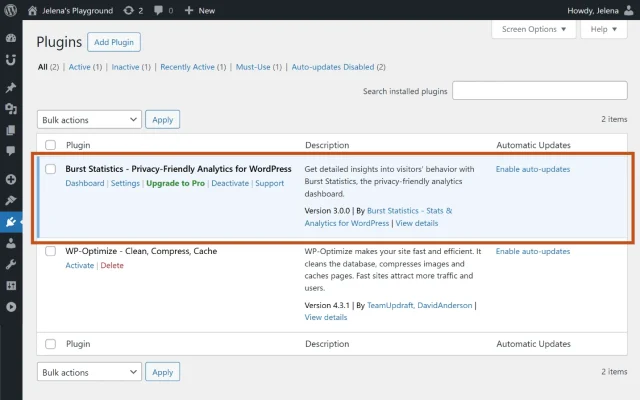
Step 2: Start tracking automatically
Section titled Step 2: Start tracking automaticallyOnce activated, Burst begins collecting pageviews immediately. There is no additional configuration, and no cookie banner is needed because Burst uses privacy-by-design measurement.
Step 3: View your pageviews
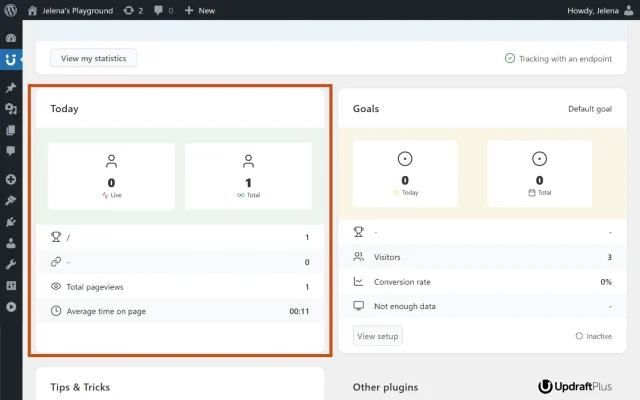
Section titled Step 3: View your pageviewsFor today’s activity, open the Dashboard tab and check the Today panel. There, you can see:
- Most viewed page
- Top referring website
- Total pageviews
- Average time on page
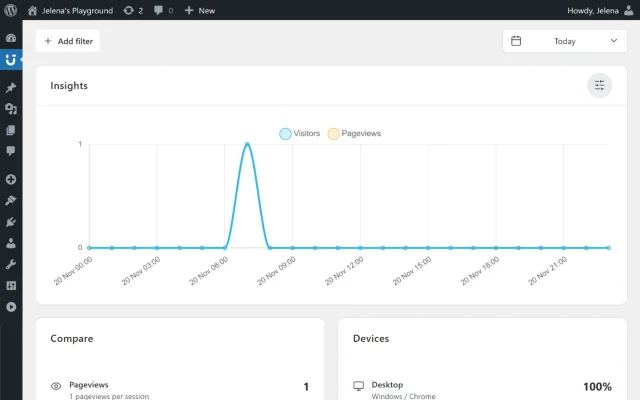
For historical data, go to the Insights tab. You can:
- View a timeline of activity
- Filter by date range
- Compare data with previous periods
- See devices, referrers, and most viewed pages
You can find additional guidance in the Burst documentation.
What pageview data looks like
Section titled What pageview data looks likeBurst Statistics gives WordPress site owners clear charts and easy-to-read lists that help you understand how visitors interact with your content. Each metric offers insight you can use to improve your site’s performance and strategy.
Most viewed posts and pages
Section titled Most viewed posts and pagesBurst shows which posts and pages attract the most attention.
Why this matters:
- Helps you identify your strongest content
- Shows what topics your audience cares about
- Helps you decide what type of content to create more of
How it helps you improve:
- Update or expand successful posts to boost engagement
- Use high-performing pages to guide your SEO or content strategy
- Add internal links from popular posts to drive traffic to other areas of your site
Traffic trends over days and weeks
Section titled Traffic trends over days and weeksYou’ll see how your traffic rises or falls over time in clear timeline charts.
Why this matters:
- Reveals patterns such as peak days or hours
- Helps you measure the impact of promotions, SEO improvements and new content
How it helps you improve:
- Post at optimal times to maximize exposure
- Spot long-term growth or decline early
- Understand seasonality in your niche
Visitor behavior: returning vs. bouncing
Section titled Visitor behavior: returning vs. bouncingBurst tracks whether visitors come back repeatedly or leave quickly after viewing one page.
Why this matters:
- Returning visitors indicate loyal, engaged readers
- High bounce rates can point to weak content or poor user experience
How it helps you improve:
- Improve headlines or intros to hook visitors quickly
- Strengthen internal linking to keep readers exploring
- Track whether new content encourages visitors to return
Devices used by your visitors
Section titled Devices used by your visitorsBurst shows which devices your visitors use most often.
Why this matters:
- Different devices require different design considerations
- A high percentage of mobile users means mobile performance is critical
- Knowing device usage helps you understand your audience’s browsing habits
How it helps you improve:
- Optimize your theme and layout for the most common devices
- Identify mobile usability issues (font size, button spacing, load times)
- Tailor your content format (shorter paragraphs for mobile-heavy audiences)
- Prioritize performance improvements for devices where users tend to drop off
Referrers (where your visitors come from)
Section titled Referrers (where your visitors come from)Burst shows which websites, platforms, or search engines send traffic to your site.
Why this matters:
- Reveals which marketing channels actually work
- Helps you spot new opportunities, such as a blog linking to you or a social post driving unexpected traffic
- Shows which referral sources you should invest more time in
- Helps you understand how visitors discover your content
How it helps you improve:
- Strengthen partnerships or content that generates strong referral traffic
- Create more content for platforms that send engaged visitors
- Identify underperforming channels and adjust your strategy
- Track the impact of campaigns, social posts, newsletters, or backlinks
Burst gives you clear activity data without complexity. It helps site owners understand what works so they can grow with confidence.
Common mistakes when checking pageviews
Section titled Common mistakes when checking pageviewsMany WordPress owners fall into one of these traps.
Mistake 1: Looking only at total pageviews
Section titled Mistake 1: Looking only at total pageviewsIt’s easy to glance at one big number and feel like your site is doing great.
But here’s the problem:
A high total doesn’t tell you which pages are succeeding, or which ones are silently failing.
Why it matters:
You might have one viral post driving everything while the rest of your content barely gets seen.
How Burst Statistics helps:
It breaks views down per page, revealing what’s actually working.
Mistake 2: Ignoring pages that are underperforming
Section titled Mistake 2: Ignoring pages that are underperformingMany WordPress owners don’t notice the pages that get almost no views.
Why this happens:
Those pages are buried deep in your site or published long ago.
The real impact:
- Low-performing pages hurt your overall SEO
- Outdated posts frustrate visitors
- You miss easy wins, many weak pages only need small updates
How Burst Statistics helps:
You can spot low-traffic in the Pages panel, so you know exactly which posts or pages need updates, stronger internal links, or SEO improvements.
Mistake 3: Checking your stats too infrequently
Section titled Mistake 3: Checking your stats too infrequentlyMany site owners only look at analytics once in a while, usually when something is already going wrong.
Why it’s a problem:
- You miss sudden traffic drops
- You can’t tell whether recent content is performing
- Small issues (like broken links or slow pages) go unnoticed for weeks
Solution:
To make sure you never miss important changes again, you can set up automated email reports.
Go to Settings → General, where you can:
- Choose how frequently you want reports
- Add one or multiple email recipients
- Personalize report content with Burst Statistics Pro
This ensures that even if you forget to check the dashboard, your key insights come straight to your inbox.
Final thoughts
Section titled Final thoughtsUnderstanding your pageviews is one of the easiest ways to get a clearer picture of how your WordPress site is performing. Once you can see which pages attract traffic, where visitors are coming from, and how people interact with your content, it becomes much easier to make informed decisions about your site.
The good news is that you do not need complicated analytics tools to start tracking this data. With a simple WordPress analytics plugin like Burst Statistics, you can view pageviews, visitor trends, referrers, and other useful insights directly inside your dashboard without feeling overwhelmed by reports.
Whether you run a blog, business website, or online store, regularly checking your pageviews can help you spot opportunities, improve underperforming content, and better understand what your audience actually wants to see.
Track pageviews easily with Burst Statistics
Get accurate, privacy-friendly analytics built directly into WordPress. Understand your audience, improve your content, and grow confidently with Burst.
FAQs
Section titled FAQsWill my own visits inflate the stats?
Many people worry that editing, previewing, or testing pages will skew their analytics. Burst automatically filters admin and editor activity, so your pageview numbers reflect real visitor behavior, not internal testing.
Can I track traffic for individual posts?
Yes. Many owners assume only overall traffic matters, but per-page insights are crucial. Burst gives a page-by-page breakdown, so you can see which posts attract attention and which ones are being ignored.
How can I see if visitors are returning or bouncing?
Understanding visitor behavior is tricky without the right tools. Burst shows returning vs. one-time visitors, helping you gauge engagement and whether your content keeps people coming back.
How do I spot traffic drops before they become a problem?
Many owners only notice problems after a drop is obvious. With daily dashboard updates and optional email reports, Burst helps you catch sudden traffic dips early, so you can fix issues quickly.
How do I know where my visitors are coming from?
People often guess which channels drive traffic. Burst provides referrer data, showing which websites, social platforms, or search engines send visitors. This helps you invest your time and marketing efforts where it actually works.
About the author

Jelena Janić
Jelena is the Product Manager for UpdraftPlus and WP-Optimize. With seven years of experience, she’s taken on many roles – from tester to developer and now product manager. Along the way, she noticed a disconnect between how products are built and what customers need, sparking a passion for steering products toward solutions that truly serve the people who use them. Today, she ensures every WP-Optimize development decision is geared toward boosting WordPress website performance, enhancing usability, and increasing customer satisfaction.
Categories
Burst Statistics
Unlock advanced insights for your WordPress site. GDPR-friendly tracking, real-time analytics, custom dashboards, and a full set of powerful reporting tools.
More stories
-

5 WordPress Web Design Tips to Improve Your Website
Good web design is about more than appearance. Explore practical WordPress web design tips to improve your website's layout, navigation, mobile responsiveness, accessibility and performance, helping you create a better experience for your visitors.
-
Best AI Website Builders Compared
AI website builders can help you design, write and launch a website in minutes. Compare the best AI-powered website builders based on ease of use, features, customisation, pricing and performance to find the right solution for your next project.
-

How incremental backups save time and storage in WordPress
Incremental backups only save the changes made since your last backup, helping you reduce storage usage, speed up backups and lower server load. Learn how they work and why they're an essential part of an efficient WordPress backup strategy.
-
Best WordPress Website Builders Compared
Discover the best WordPress website builders for every skill level. Compare features, ease of use, pricing and performance to choose the right builder for your blog, business or online store.
