Must-have WordPress plugins for every website (2026)

Starting a WordPress site can feel a bit like moving into a new house. Everything looks great at first, but once you’re in, you quickly realise what’s missing – security on the doors, a way to keep things clean, and something to keep an eye on what’s going on.
That is exactly what plugins are for. They take a basic WordPress installation and turn it into something you can actually rely on day to day.
One of the most common mistakes we see is people installing far more plugins than they need. It usually starts with good intentions, but too many tools can slow your site down, create conflicts, and make things harder to manage over time.
In reality, you only need a small number of well-chosen plugins to cover the essentials.
Whether you are building your first site or managing several, these are the plugins worth having in place if you want your site to stay secure, fast, and easy to run.
Key takeaways
Section titled Key takeaways- Quality matters more than quantity. A smaller set of well-coded plugins is better for performance and stability
- Security, backups, and speed are the foundations of any reliable WordPress site
- A fast website needs more than caching alone. Regular database cleanup and image optimisation matter too
- The best plugins save time and simplify your workflow rather than adding more complexity
It is worth choosing tools that give you control over your data and site management
Overview: The essential toolkit
Section titled Overview: The essential toolkitMethodology: How to choose the essentials
Section titled Methodology: How to choose the essentialsWith over 60,000 plugins in the WordPress directory, how do you choose the plugins you must have? These are the main things I look at when deciding whether a plugin is worth installing:
- Security and stability: Is it actively maintained and updated regularly?
- Trust and track record: Does it have a strong install base and solid user ratings?
- Control over your data: Does it help you stay in control, or does it rely too heavily on third-party systems?
- Resource efficiency: Does it quietly do its job, or does it add unnecessary weight to your site?
Every plugin on this list has been chosen with those points in mind.
If you are also still setting your site up, it is worth choosing a good theme alongside the right plugins. There are plenty of options in the WordPress directory, but the choice can get overwhelming fast. If you need help narrowing it down, our guide to the best free themes for WordPress is a good place to start.
The must-have WordPress plugins for any website
Section titled The must-have WordPress plugins for any websiteBelow are some of the best plugins to consider for almost any WordPress site. You may not need every single one, but these are the tools most site owners will benefit from having in place.
1. All In One Security (AIOS)
Section titled 1. All In One Security (AIOS)Domain: Security | Pricing: Free / Premium from $70/yr | Active Installs: 1+ Million | Rating: 4.7/5
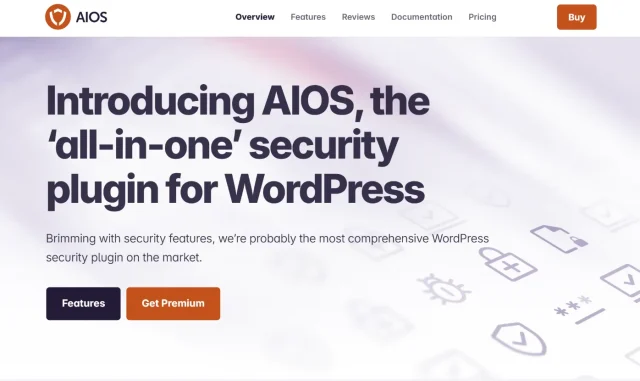
WordPress itself is secure, but because it is so widely used, it is a common target for bots and attacks. AIOS helps protect the most vulnerable parts of your site and makes security much easier to manage.
AIOS has a setup wizard that walks you through the most important security features, ensuring that you have the firewall set up and you have protection against bots in just a few clicks. There is also a security meter that indicates areas that require additional protections.
Key features
- Login protection, including custom login URLs
- Firewall tools to block malicious traffic
- Comment spam prevention
- Filesystem protection to stop unwanted PHP file edits
Pros
- Free version includes a firewall, bot and comment protection and moreLightweight compared to some heavier security plugins
- Easy for beginners to understand and use
Cons
- The feature rich plugin suite can feel overwhelming at first
- Enabling too many features can result in you being locked out of your site.
Why you need this
WordPress sites are constantly targeted by automated login attacks and malicious bots. Without protection, your login page becomes an easy entry point.
AIOS adds practical safeguards like login protection, firewall rules, and activity monitoring so those attacks are blocked before they become a problem.
Keep bots out of your WordPress login
Exposed admin pages are one of the easiest ways in for brute force attacks. AIOS hides your login, adds two-factor authentication, and blocks repeated login attempts automatically.
2. Yoast SEO
Section titled 2. Yoast SEODomain: SEO | Pricing: Free / $99/yr | Active Installs: 5+ Million | Rating: 4.8/5

You can publish the best content in the world, but if search engines cannot properly understand it, it is much harder for people to find. Yoast SEO remains one of the most widely used SEO plugins for a reason. It helps with technical basics like XML sitemaps and canonical URLs, while also giving you guidance on things like readability and on-page optimisation.
Key features
- On-Page Analysis: Checks keyword density and readability.
- Technical SEO: Automatically handles canonical URLs and XML sitemaps.
- Social Previews: Shows how your post will look on X (Twitter) and Facebook.
- Schema Markup: Helps Google understand your content structure.
Pros
- Beginner-friendly and easy to use
- Huge amount of documentation and support available
- Reliable updates and long-standing reputation
Cons
- The free version includes a lot of upsell prompts
- Can feel like more than you need if you only want basic meta title and description editing
Why you need this
It helps you build better SEO habits from the start and makes it easier to publish content that search engines can understand.
3. UpdraftPlus
Section titled 3. UpdraftPlusDomain: Backups | Pricing: Free / Premium from $70/yr | Active Installs: 3+ Million | Rating: 5/5
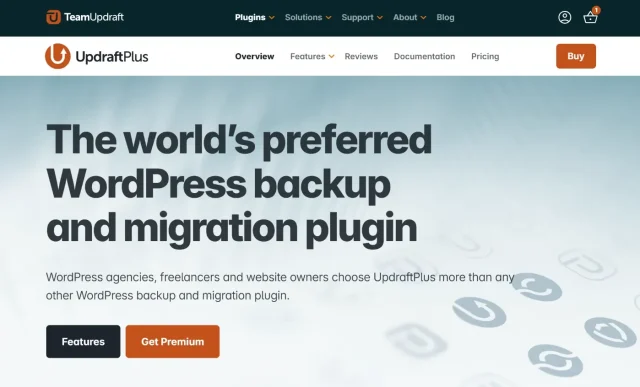
If you install only one plugin from this list, make it UpdraftPlus.
A backup is the one thing you hope you never need, but when something goes wrong, it is the difference between a quick recovery and a total nightmare. While many hosts include backups, they are often stored on the same server as your site or come with limits on how easily you can restore them.
UpdraftPlus gives you more control by letting you schedule backups automatically and send them to remote storage such as Google Drive, Dropbox, or Amazon S3. That means you still have access to your backup even if your hosting account runs into trouble.
Key features
- Automated scheduled backups
- Separate file and database backups
- One-click restoration
- Huge choice of remote storage options
- Migration solutions
Pros
- Easy to automate and manage
- Works with a wide range of remote storage providers
- Trusted by millions of WordPress users
- Efficient with server resources
Cons
- The interface is more functional than modern
- Some migration and advanced features are only available in Premium
Why you need this
Your host’s backup should never be your only safety net. Websites break more often than people expect. Updates fail, plugins conflict, servers crash, and sometimes mistakes happen. When that happens, the difference between a five-minute fix and losing your entire site is a proper backup.
UpdraftPlus gives you an independent copy of your website stored safely off your server, so you can restore everything quickly if something goes wrong.
Recover your site in minutes, not days
Premium gives you incremental backups, advanced scheduling, and multiple storage locations, so you always have a reliable copy ready when something goes wrong.
4. WP-Optimize
Section titled 4. WP-OptimizeDomain: Optimization | Pricing: Free / Premium from $49/yr | Active Installs: 1+ Million | Rating: 4.9/5
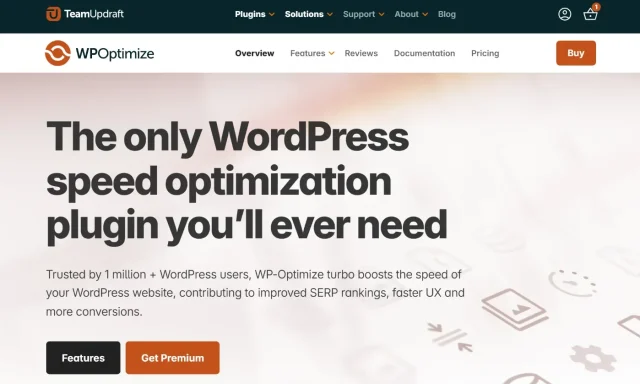
A lot of people think website speed is just about caching, but that is only part of the picture. If your database is full of old revisions, spam comments, and leftover data, your site can still feel sluggish.
WP-Optimize stands out because it tackles several performance tasks in one place: database cleanup, image compression, and page caching.
Key features
Pros
- Replaces multiple separate optimisation plugins
- Includes mobile-friendly caching rules
- Supports automatic cleanup schedules
Cons
- Database cleanup should always be done carefully and with a backup in place
- Minification settings can sometimes clash with more complex themes or setups
Why you need this
WordPress sites naturally collect clutter over time – post revisions, spam comments, temporary data, and oversized images. Left unchecked, that buildup slowly drags your site down.
WP-Optimize keeps everything fast by cleaning your database, compressing images, and caching pages so your site stays fast without constant manual maintenance.
Speed up your site without constant maintenance
WP-Optimize Premium combines advanced caching, lazy loading, and smarter minification controls to keep your site fast without breaking layouts.
5. Burst Statistics
Section titled 5. Burst StatisticsDomain: Analytics | Pricing: Free / Premium from $49/yr | Active Installs: 200,000+ | Rating: 4.9/5
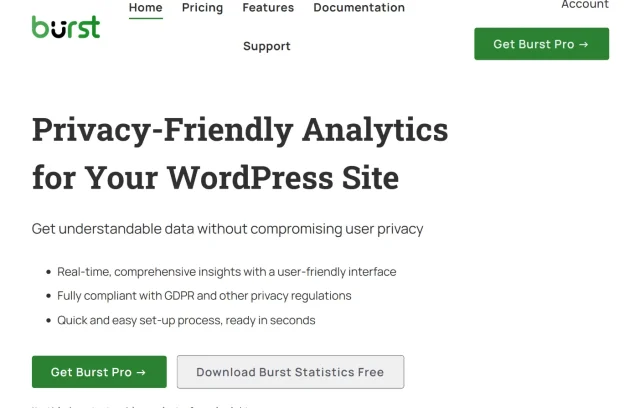
Privacy matters more than ever, and for many site owners, Google Analytics 4 feels overly complex for what they actually need.
Burst Statistics offers a simpler, privacy-friendly alternative by keeping your data inside WordPress rather than sending it elsewhere.
Key features
- Privacy-focused analytics
- Stats displayed directly in WordPress
- Core metrics such as visitors, sessions, and referrers
- Lightweight setup
Pros
- Very quick to set up
- Easy to understand at a glance
- Useful for sites that want a simpler analytics setup
Cons
- Less detailed than more advanced analytics platforms
- On very large sites, the stored data may need occasional maintenance
Why you need this
Most site owners just want to know how their website is performing without digging through complicated analytics dashboards.
Burst Statistics gives you clear traffic insights directly inside WordPress while keeping your data private and under your control.
Understand your traffic without the complexity
Burst Pro adds goal tracking, UTM insights, and deeper reporting, so you can see what’s working without relying on complicated external tools.
6. WPForms
Section titled 6. WPFormsDomain: Forms | Pricing: Free / Premium from $49/yr | Active Installs: 6+ Million | Rating: 4.9/5
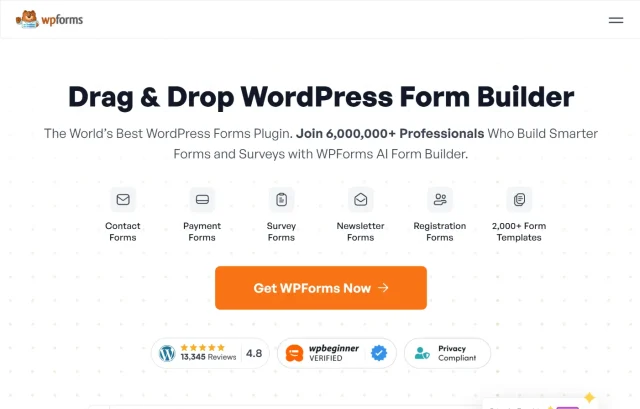
Almost every website needs a way for visitors to get in touch, and WPForms is one of the easiest form builders to use.
Instead of relying on clunky shortcodes or code snippets, it gives you a visual drag-and-drop builder so you can create forms quickly.
Key features
- Drag-and-drop builder
- Pre-built templates
- Spam protection
- Instant email notifications
Pros
- Very easy to use
- The free version works well for many sites
- Responsive and fast-loading
Cons
- More advanced features require the paid version
- Some styling tweaks may need custom CSS depending on your theme
Why you need this
A proper contact form looks more professional and helps protect your email address from spam.
7. Elementor
Section titled 7. ElementorDomain: Builder / Design | Pricing: Free / Premium from $59/yr | Active Installs: 5+ Million | Rating: 4.6/5

Sometimes the default block editor or your chosen theme is enough. Sometimes it is not.
If you want more control over layout, animations, and page design without writing code, Elementor is still one of the best-known visual builders available.
Key features
- Visual drag-and-drop editing
- Motion effects and animations\
- Lottie animation support
Responsive controls for different devices
Pros
- Huge amount of flexibility
- Large ecosystem of add-ons and tutorials
- Strong design controls without needing a developer
Cons
- Can affect performance if you overuse animations or heavy layouts
- Takes time to fully learn if you want to use its more advanced features
Why you need this
If design matters to your brand, Elementor gives you more creative control than the default editor on its own.
8. UpdraftCentral
Section titled 8. UpdraftCentralDomain: Management | Pricing: Free / Premium from $70/yr | Active Installs: 100,000+ (Suite) | Rating: 5/5
If you manage more than one WordPress site, UpdraftCentral can save you a huge amount of time.
Instead of logging into each site one by one, it gives you a central dashboard where you can handle updates, backups, and user management across multiple websites.
Key features
- Centralized Backups: Run, schedule, and monitor backups for all connected sites from one screen.
- Bulk Updates & Management: Update plugins, themes, and even core WordPress files across your entire network simultaneously.
- User Management: Add, remove, or edit user permissions across multiple sites without jumping between dashboards.
- Remote Login: Access any connected site’s specific dashboard with a single click.
- Flexible Hosting Options:
- Self-Hosted: The base version is available free via the WordPress repository, with a Premium version available for advanced features.
- Cloud (Hosted): For those who prefer not to manage the dashboard themselves, the Cloud version offers convenience. Notably, you receive five free licenses with any UpdraftPlus Premium purchase, and you can purchase additional licenses as your portfolio grows.
Pros
- Excellent time saver for agencies or anyone running multiple sites
- Available as hosted or self-hosted
- Integrates naturally with UpdraftPlus
- If you have premium, your site can automatically connect to UpdraftCentral when you assign a licence via a check box.
- The premium version also allows managing all of your installed plugins, themes and pages for all your websites in one place, which is a massive time saver.
Cons
- More than most single-site owners need
- Sometimes requires some initial setup to connect your sites
Why you need this
Managing multiple WordPress sites usually means logging into each one separately to run updates, check backups, and fix problems.
UpdraftCentral puts everything in one place, so you can maintain all your sites from a single dashboard instead of juggling dozens of browser tabs.
Save hours managing multiple WordPress sites
The Premium version lets you control updates, backups, users, and content across all your sites from one place, cutting down repetitive admin work.
9. Akismet
Section titled 9. AkismetDomain: Anti-Spam | Pricing: Free (Personal) / ~$10/mo (Commercial) | Active Installs: 5+ Million | Rating: 4.5/5

Spam is one of those problems that starts almost as soon as your site goes live.
Akismet filters spam comments automatically using a huge shared database of known spam patterns, helping keep your site and database cleaner.
Key features
- Automatic spam filtering
- Database cleanup through spam discarding
- Review history for blocked comments
Pros
- Well-established and widely trusted
- Works quietly in the background
- No CAPTCHAs needed for most setups
Cons
- Commercial sites need a paid plan
- False positives are uncommon but still possible
Why you need this
Manually dealing with spam comments is not a good use of your time. Akismet takes care of it for you.
10. Internal Link Juicer
Section titled 10. Internal Link JuicerDomain: SEO / Linking | Pricing: Free / Premium from $69.99/yr | Active Installs: 80,000+ | Rating: 4.7/5
Internal linking is one of the most useful on-site SEO tasks, but it can be time-consuming if you are doing it manually.
Internal Link Juicer helps automate part of that process. You assign keywords to a target post, and the plugin adds internal links when those keywords appear elsewhere on your site.
Key features
- Keyword-based automation
- Anchor text variation
- Whitelist and blacklist controls
- Link tracking dashboard
Pros
- Great time saver for content-heavy sites
- Helpful for keeping older posts connected
- Once set up, it reduces a lot of manual work
Cons
- Needs careful settings to avoid over-linking
- Requires some upfront setup to map keywords properly
Why you need this
It helps maintain a stronger internal linking structure without needing to manually edit every article yourself.
Automate your internal linking
The Pro version gives you advanced controls like smarter keyword targeting, link limits, and detailed reporting, so you can scale your internal linking without overdoing it.
Conclusion
Section titled ConclusionBuilding your first WordPress site is a big milestone. It is exciting, but it can also feel overwhelming when you are staring at a blank dashboard and trying to work out what you actually need.
The good news is that you do not need dozens of plugins or a complicated setup. You just need the right foundation.
Think of the tools in this guide as the essentials that keep everything running smoothly behind the scenes. UpdraftPlus protects your data, AIOS helps secure your login and site, and WP-Optimize keeps performance in check. From there, you can build on top with the tools that match your goals, whether that is forms, analytics, design, or managing multiple sites.
What matters most is getting those core pieces in place early. That is what gives you a faster, safer, and more reliable site from day one, and saves you time fixing problems later.
You do not need to be a developer to run a professional WordPress website. With the right setup in place, you can focus less on maintenance and more on growing your site with confidence.
The ultimate toolkit for WordPress success
Why patch your site together with separate tools when you can use trusted backups, security, and optimisation plugins built to work well together?
FAQs
Section titled FAQsIf I only install 3 plugins from this list, which are the absolute essentials?
If you want to keep your site as lightweight as possible and strip it down to the bare minimum, focus on the “Holy Trinity” of site survival. These are the core essentials:
- UpdraftPlus (Backups): Because if your site crashes or gets deleted, nothing else matters. This is your safety net.
- All In One Security (AIOS): To prevent bots and hackers from breaking your site in the first place.
- WP-Optimize (Speed): To keep your database clean and your site fast.
Those three give you a strong foundation. Everything else can be added later depending on what your site needs.
What are the must-have WordPress plugins?
The essential plugins most WordPress sites need are:
- UpdraftPlus for backups
- All In One Security (AIOS) for protection
- WP-Optimize for speed and performance
These cover the core foundations of running a safe, fast, and reliable website. From there, you can add extras like SEO, forms, or analytics depending on your goals.
Will installing too many plugins slow down my site?
Not always. It depends more on the quality of the plugins than the number.
A few poorly coded plugins can slow your site down more than a larger number of well-built ones. That said, every plugin adds some overhead, so it is best to keep your setup focused and avoid unnecessary tools.
Do I really need a security plugin if my host provides security?
Yes, in most cases it is still recommended.
Hosting security typically protects the server, but it may not cover WordPress-specific risks such as login attacks, plugin vulnerabilities, or suspicious activity within your site. A plugin like AIOS adds protection at the application level.
Are WordPress plugins safe to use?
Most plugins in the WordPress repository are safe, but it is important to choose carefully.
Look for plugins that are regularly updated, have a strong number of active installs, and good user reviews. Avoid outdated or poorly maintained plugins, as they can introduce security risks.
Should I use free or premium WordPress plugins?
Free plugins are often enough for smaller or personal sites.
Premium plugins are usually worth considering for business websites, as they offer advanced features, better performance, and access to support when something goes wrong.
How often should I update my plugins?
You should update plugins as soon as updates are available, especially if they include security fixes.
Before updating, it is a good idea to take a backup. If you manage multiple sites, tools like UpdraftCentral can make updates much easier to handle.
About the author

Elvira Mishra
Elvira has over four years of experience creating and designing content in WordPress. Her background spans multiple digital disciplines, including marketing, SEO, user experience, and human computer interaction.
Categories
TeamUpdraft
We’re the team behind some of the WordPress community’s most loved WordPress plugins.
Developers, designers and website owners trust us to back up, migrate, optimize and secure more than 5 million WordPress websites worldwide.
More stories
-

5 WordPress Web Design Tips to Improve Your Website
Good web design is about more than appearance. Explore practical WordPress web design tips to improve your website's layout, navigation, mobile responsiveness, accessibility and performance, helping you create a better experience for your visitors.
-
Best AI Website Builders Compared
AI website builders can help you design, write and launch a website in minutes. Compare the best AI-powered website builders based on ease of use, features, customisation, pricing and performance to find the right solution for your next project.
-

How incremental backups save time and storage in WordPress
Incremental backups only save the changes made since your last backup, helping you reduce storage usage, speed up backups and lower server load. Learn how they work and why they're an essential part of an efficient WordPress backup strategy.
-
Best WordPress Website Builders Compared
Discover the best WordPress website builders for every skill level. Compare features, ease of use, pricing and performance to choose the right builder for your blog, business or online store.
