How to clean up and optimize your WordPress database
Category Guides and resources
Topics Performance optimization, Tips and tricks, WordPress,

Over time, your WordPress site quietly collects digital “junk” – old post revisions you’ll never use, spam comments, orphaned data from deleted plugins, and expired temporary records. This invisible clutter sits in your database, slowing down page loads, making backups take longer and leaving your admin dashboard feeling just a little sluggish.
The tricky part? Cleaning it up manually often means diving into complex SQL commands or poking around in phpMyAdmin, tasks most site owners either don’t have time for or would rather avoid altogether. Meanwhile, the clutter just keeps growing, making your site less responsive day by day.
That’s where WP-Optimize comes in. This all-in-one tool safely clears out the unnecessary data, reorganizes your database, and even adds extra speed boosts through image compression and caching. All in just a few clicks, no technical skills required.
In this guide, you’ll discover exactly how to use WP-Optimize for quick, effective database cleanup, plus a few smart habits to keep your site lean in the long run. And for those who like exploring options, we’ll also share some alternative plugins at the end.
Key takeaways
Section titled Key takeaways- Remove unnecessary data such as revisions, spam comments and expired transients.
- Always back up before making database changes.
- Use WP-Optimize to clean, optimize and schedule database maintenance.
- Review orphaned data and unused plugin tables before deleting them.
- Choose a cleanup schedule based on your site’s needs.
- Database cleanup works best alongside caching and image optimization.
Why WP-Optimize is the best choice for database cleanup
Section titled Why WP-Optimize is the best choice for database cleanupWP-Optimize stands out because it combines database cleanup, image compression and page caching in one plugin. For database optimization specifically, it can clean up:
- Post revisions and auto-draft posts
- Trashed posts
- Spam and unapproved comments
- Expired transient options
- Pingbacks and trackbacks
- Orphaned post, user and comment metadata
- Orphaned relationship data
- Database table overhead
You can run individual optimizations or schedule recurring cleanups. Premium also provides more advanced control over database tables and scheduling.
How to clean and optimize your WordPress database with WP-Optimize
Section titled How to clean and optimize your WordPress database with WP-Optimize1. Back up your site first
Section titled 1. Back up your site firstEven though WP-Optimize is safe, a backup is your insurance policy.
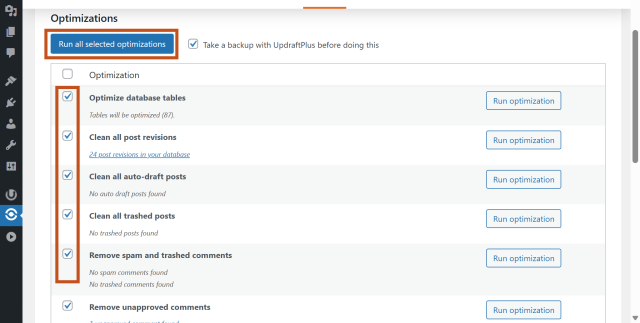
If you have UpdraftPlus installed, you don’t even need to leave WP-Optimize to take one. On the Database tab in WP-Optimize, you’ll see a “Take a backup with UpdraftPlus before doing this” checkbox right above the cleanup options.
Clicking this creates a complete backup of your site before you run any optimization. This means you can restore instantly if anything unexpected happens during the cleanup.
2. Install and activate WP-Optimize
Section titled 2. Install and activate WP-Optimize- Go to Plugins → Add New
- Search for WP-Optimize
- Install and activate
3. Review cleanup options
Section titled 3. Review cleanup optionsGo to WP-Optimize > Database > Optimizations to see the available cleanup tasks. Depending on your WordPress setup, you may see options for:
- Post revisions
- Auto-draft posts
- Trashed posts
- Spam and trashed comments
- Unapproved comments
- Expired transient options
- Pingbacks
- Trackbacks
- Orphaned post metadata
- Orphaned user metadata
- Orphaned comment metadata
- Orphaned relationship data
Review the options before running them. Some data, such as revisions, may still be useful, while deleting metadata or other orphaned data should be done with care. WP-Optimize includes warnings for some potentially destructive database cleanup actions.
4. Run your first cleanup
Section titled 4. Run your first cleanup- Tick the boxes for the items you want to remove
- Click Run all selected optimizations
- Wait for the process to finish, this usually takes a few seconds to a minute
5. Schedule automatic cleanups
Section titled 5. Schedule automatic cleanupsThis is where WP-Optimize really shines:
- In the Settings tab, scroll to the Scheduled clean-up settings
- Add schedule
- Select as many optimisation tasks as you wish
- Select the frequency
- Add schedule
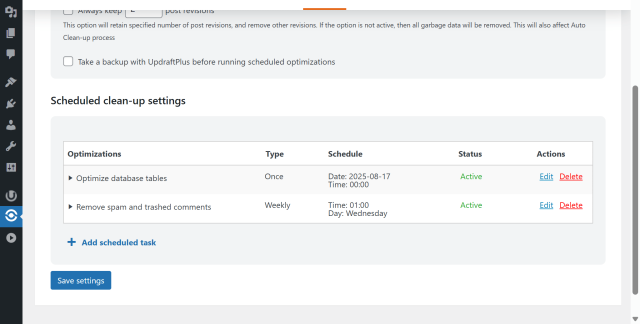
If you have WP-Optimize Premium, you get advanced control, you can choose the exact date and time for each scheduled cleanup and even set different schedules for individual database cleanup tasks. For example, you could clear spam comments daily but optimize tables only once a month.
By automating this process, you prevent bloat before it becomes a problem.
6. Optimize tables for maximum efficiency
Section titled 6. Optimize tables for maximum efficiencyDatabase cleanup and table optimization are related but different tasks. Cleanup removes data that is no longer needed, while table optimization works on the database tables themselves to reclaim available space and reduce overhead where appropriate.
To optimize your tables with WP-Optimize:
- Go to WP-Optimize > Database.
Open the Tables tab. - Review the available database tables and their size and usage information.
- Back up your database before making table changes.
- Select the table you want to optimize and click Optimize.
WP-Optimize also provides an option to optimize InnoDB tables even when they do not report conventional table overhead. Use this with care, particularly on large or busy databases, because table operations can consume server resources while they run.
WP-Optimize Premium provides additional control for optimizing individual database tables, which can be useful when you need to investigate or target a particular table rather than applying the same operation across the entire database.
Best practices when using WP-Optimize
Section titled Best practices when using WP-Optimize- Avoid deleting needed revisions
- Set a sensible schedule
– For active blogs, weekly cleanup is good. For smaller sites, monthly is fine. - Combine with image compression and caching
– WP-Optimize’s other features can give you a bigger overall speed boost. - Use the Get Total Spent Query Power tweak for WooCommerce users (Database -> Power tweaks)
– WooCommerce uses a slow query to calculate “total spent” on a customer’s first order. This slows down your store and order processing. This power tweak replaces it with two faster queries for smoother performance. - Use the Index Post Meta Table Power tweak (Database -> Power tweaks)
– The WordPresspostmetatable often runs searches much slower than needed. Long key sizes block indexing, causing delays as your site grows. This tweak adds an efficient index (if safe) to make searches faster.
Maintenance checklist with WP-Optimize
Section titled Maintenance checklist with WP-Optimize- Set and stagger automatic cleanups
Schedule at least monthly for low-activity sites, weekly (or more) for busy sites. If you manage several on the same server, stagger the days and times so you’re not running optimizations across all sites at once. This avoids server strain. - Review cleanup settings regularly
Different sites have different needs. A WooCommerce store might need frequent expired transient cleanups, while a simple blog might focus on post revisions. Review each site’s WP-Optimize settings every quarter to make sure they still match its usage. - Monitor database size
Use your hosting control panel or a plugin report to spot sudden growth in any site’s database. Big jumps could mean a plugin is storing excessive data that needs to be addressed. - Run manual cleanups after big changes
If you update a theme, replace a plugin, or remove unused tools, run a manual WP-Optimize cleanup to clear leftover data that’s no longer needed. - Keep WP-Optimize updated everywhere
Use a central management tool to update WP-Optimize across all your sites at once. Updates often include new cleanup options and safety improvements. - Pair with UpdraftPlus for one-click backups
Before any big cleanup, take a backup directly from within WP-Optimize if UpdraftPlus is installed. Especially important when working across multiple sites. - Track performance over time
Keep a simple spreadsheet or dashboard log of each site’s database size and cleanup frequency. This helps you spot trends and adjust your schedules for maximum benefit.
A cluttered database is like a messy desk, it slows you down and makes everything harder to find. WP-Optimize clears out the junk so your site runs faster, smoother and without the hassle of technical know-how.
Conclusion
Section titled ConclusionRegular database maintenance helps keep your WordPress installation lean by removing data you no longer need and managing database tables effectively.
WP-Optimize makes these tasks accessible from the WordPress dashboard, with options for one-time cleanup, table optimization and scheduled maintenance. Just make sure you back up before making changes and review potentially destructive cleanup options before running them. For the best results, treat database cleanup as one part of a broader WordPress performance strategy alongside caching, image optimization, efficient plugins and good hosting.
Keep your database fast and clean automatically
With WP-Optimize Premium, you don’t just get advanced scheduling, multisite support, and extra optimization tools, you also unlock powerful table usage insights. Instantly see which database tables are actually being used, which are wasting space and take control without touching a single SQL query.
FAQs
Section titled FAQsHow do I clean up my WordPress database?
You can clean your WordPress database using a plugin such as WP-Optimize. It can remove unnecessary data such as old revisions, trashed content, spam comments and expired transients, and can also optimize database tables.
Is it safe to clean a WordPress database?
Database cleanup can be safe when you review what is being removed and create a backup first. Take extra care with orphaned metadata and unused plugin tables, as some data may still be needed.
How often should I clean my WordPress database?
There is no single schedule that works for every site. Sites that generate a lot of content, comments or temporary data may need more frequent cleanup than smaller sites.
Does cleaning a WordPress database speed up a website?
Database cleanup can reduce unnecessary data and database overhead, but it does not automatically make every WordPress site faster. Performance also depends on factors such as caching, hosting, plugins and database queries.
About the author

Jelena Janić
Jelena is the Product Manager for UpdraftPlus and WP-Optimize. With seven years of experience, she’s taken on many roles – from tester to developer and now product manager. Along the way, she noticed a disconnect between how products are built and what customers need, sparking a passion for steering products toward solutions that truly serve the people who use them. Today, she ensures every WP-Optimize development decision is geared toward boosting WordPress website performance, enhancing usability, and increasing customer satisfaction.
Categories
WP-Optimize
Get all our premium features. Lazy loading, pre-load key requests, Cloudfare integration. Optimize individual tables, delete unused images and more.
From just $49 for the year.
More stories
-

Direct WordPress site-to-site migration: A step-by-step guide
Learn how direct WordPress site-to-site migration works and how to move your website between hosts or domains without manually transferring files.
-

5 WordPress Web Design Tips to Improve Your Website
Good web design is about more than appearance. Explore practical WordPress web design tips to improve your website's layout, navigation, mobile responsiveness, accessibility and performance, helping you create a better experience for your visitors.
-
Best AI Website Builders Compared
AI website builders can help you design, write and launch a website in minutes. Compare the best AI-powered website builders based on ease of use, features, customisation, pricing and performance to find the right solution for your next project.
-

How incremental backups save time and storage in WordPress
Incremental backups only save the changes made since your last backup, helping you reduce storage usage, speed up backups and lower server load. Learn how they work and why they're an essential part of an efficient WordPress backup strategy.
