The best free analytics plugins for WordPress

If you’re running a WordPress site, analytics can tell you a lot about what’s working and what isn’t. From your most popular pages and traffic sources to how visitors interact with your content, the right data can help you make better decisions about your website.
A good analytics plugin makes those insights easier to access, often directly from your WordPress dashboard. Depending on the plugin, you can monitor traffic, track important interactions and understand how your campaigns are performing without having to piece together data from multiple tools.
In this guide, we compare some of the best free analytics plugins for WordPress, looking at their features, privacy, ease of use and limitations to help you choose the right option for your website.
Why WordPress site owners need analytics
Section titled Why WordPress site owners need analyticsAnalytics helps you understand how people find and use your WordPress site. You can see which pages attract the most visitors, where your traffic comes from and how people interact with your content, giving you useful data to guide your decisions.
A good analytics plugin can make this information easier to access by bringing key insights directly into your WordPress dashboard.
Depending on the plugin you choose, it can help you:
- Set up analytics without manually adding tracking code.
- View important website data without switching between multiple platforms.
- Track interactions such as button clicks, downloads and form submissions.
- Monitor website activity while keeping performance in mind.
- Manage analytics with greater control over privacy and data collection, helping you meet requirements such as GDPR and cookie consent.
What to look for when choosing an analytics plugin
Section titled What to look for when choosing an analytics pluginThe best free analytics plugin for your WordPress site will depend on what you want to track, how much control you need over your data and whether you want to manage everything from your WordPress dashboard. Before choosing a plugin, consider the following:
Feature checklist
Section titled Feature checklist- Core analytics: Does it track useful metrics such as page views, visitors, sessions and traffic sources?
- Real-time data: Can you see what’s happening on your site right now?
- Event tracking: Can you track interactions such as button clicks, downloads and form submissions?
- WooCommerce support: If you run an online store, check whether it supports WooCommerce analytics and the metrics you need.
- WordPress dashboard: Can you view your analytics without leaving WordPress?
- Ease of use: Look for straightforward setup and reporting that matches your level of experience.
- Performance: Consider how the plugin collects and processes data and whether it has an impact on WordPress performance.
- Privacy and data ownership: Check where your analytics data is stored, whether it is shared with third parties and what controls you have over it.
- Privacy compliance: Consider what features are available to help you meet relevant privacy and cookie consent requirements.
- Free vs premium features: Check which features are included for free and which require a paid upgrade.
Decision matrix
Section titled Decision matrixTop free analytics plugins for WordPress
Section titled Top free analytics plugins for WordPressWe’ve compared three popular free analytics plugins for WordPress, each suited to different needs, from privacy-focused analytics to Google Analytics integration.
1. Burst Statistics (Free version)
Section titled 1. Burst Statistics (Free version)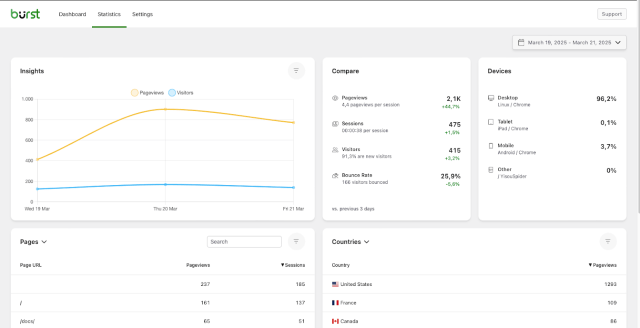
Burst Statistics is a privacy-friendly analytics plugin built specifically for WordPress. It keeps analytics data on your own server and provides an easy-to-use dashboard without requiring a Google Analytics account.
What it offers in the free version:
- Self-hosted analytics, with data stored on your own WordPress server.
- Key metrics including page views, visitors, sessions, time on page and referrers.
- Real-time insights directly from your WordPress dashboard.
- Built-in event tracking to help you understand how visitors interact with your site.
- Privacy-friendly tracking, with cookieless options available.
- No Google Analytics account required.
What is limited to Pro:
- More advanced analytics and reporting features, including UTM campaign tracking and geolocation insights.
Best for: WordPress site owners looking for a simple, privacy-focused analytics solution with greater control over their data.
We’ve found that the sites which review their analytics monthly grow faster, because they spot what’s working and drop what’s not.
Get WordPress analytics that make sense
Burst Statistics helps you understand how people interact with your content, from page views to key events, all in a simple WordPress dashboard. No complex setup, no switching platforms just clear insights where you need them.
2. MonsterInsights (Free version)
Section titled 2. MonsterInsights (Free version)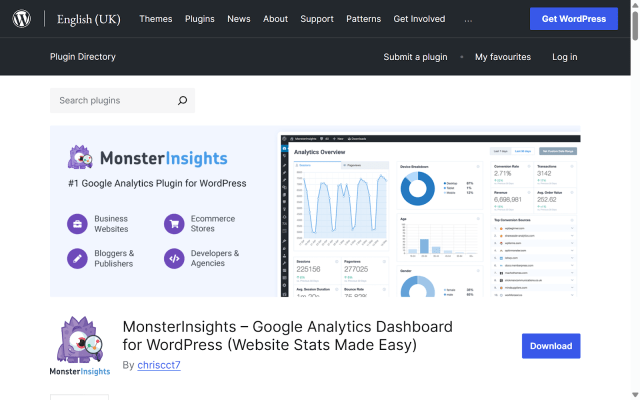
MonsterInsights is a popular WordPress analytics plugin that makes it easier to connect your website to Google Analytics and view key reports from your WordPress dashboard.
What it offers in the free version:
- Easy Google Analytics (GA4) integration without manually adding tracking code.
- Analytics reports directly inside the WordPress dashboard.
- Key insights into website traffic, visitor behaviour and top-performing content.
What is limited to Pro:
- More advanced reporting and tracking features, including enhanced e-commerce tracking and some conversion-focused reports.
Best for: Bloggers and small business owners who already use Google Analytics and want an easier way to connect it to WordPress and view key insights from their dashboard.
3. Site Kit by Google (Free version)
Section titled 3. Site Kit by Google (Free version)
Site Kit by Google is Google’s official WordPress plugin, bringing data from several Google services into your WordPress dashboard. The plugin is completely free to use.
What it offers:
- Connects Google Analytics, Search Console, PageSpeed Insights and AdSense with WordPress.
- Simple setup and authentication using your Google account, without manually adding tracking code.
- Provides insights into website traffic, popular content and search performance directly from WordPress.
Limitations:
- Reports are more streamlined than the full reports available within individual Google services.
- Less suited to users who need advanced analytics, custom reporting or more detailed e-commerce insights.
Best for: WordPress site owners who use several Google services and want to view key insights from them in one place.
Setup & best practices (step-by-step)
Section titled Setup & best practices (step-by-step)Once you’ve chosen the right analytics plugin for your site, follow these general steps to get set up and start collecting useful data.
Step 1: Choose and install your plugin
Section titled Step 1: Choose and install your pluginGo to Plugins → Add New in your WordPress dashboard. Search for your chosen plugin, such as Burst Statistics, MonsterInsights or Site Kit, then click Install Now followed by Activate.
Step 2: Connect your analytics account (if required)
Section titled Step 2: Connect your analytics account (if required)For plugins that use Google Analytics, such as MonsterInsights and Site Kit:
- Create a Google Analytics (GA4) property or select an existing one.
- Follow the plugin’s setup process to connect your Google account and select the relevant property.
- Check that analytics tracking is working correctly on your site.
For Burst Statistics:
- No external analytics account is required, as your analytics data is stored locally.
- Review the plugin’s privacy settings and configure cookieless tracking if appropriate for your site.
Step 3: Configure basic settings
Section titled Step 3: Configure basic settings- Exclude administrator, editor or other logged-in user roles where appropriate, so your own activity doesn’t skew the data.
- Enable real-time statistics if they’re available and useful for your needs.
- If you run an online store, review the plugin’s WooCommerce or e-commerce tracking options.
- Review the plugin’s privacy settings, including options for IP anonymisation, cookieless tracking, data retention and excluding logged-in users where available.
Step 4: Set up event tracking
Section titled Step 4: Set up event trackingEvent tracking helps you understand what visitors do beyond simply viewing a page. Depending on your plugin and plan, you may be able to track interactions such as:
- File downloads
- Button and link clicks
- Form submissions
- Other important actions or conversions on your site
Check which events your chosen plugin tracks automatically and which require additional setup or a paid plan. Focus on the interactions that are actually useful for measuring your website’s goals.
Step 5: Monitor your reports and act on the data
Section titled Step 5: Monitor your reports and act on the data- Review your most popular pages and posts to understand what content is performing well.
- Compare traffic sources to see which channels are bringing visitors to your site.
- Monitor important conversions, such as sign-ups or sales, and look for potential drop-off points.
- Use what you learn to improve your content, internal links, CTAs and site structure.
Step 6: Keep performance and privacy in check
Section titled Step 6: Keep performance and privacy in check- Test your site before and after installing the plugin using a tool such as PageSpeed Insights to check for any significant changes in performance.
- Review your cookie consent and privacy settings to make sure analytics tracking is configured appropriately for your site and visitors.
- Keep WordPress and your analytics plugin up to date so you benefit from the latest performance, compatibility and security improvements.
- Back up your WordPress site regularly so you have a recent restore point if an update or configuration change causes problems.
Final thoughts
Section titled Final thoughtsThe best free analytics plugin for WordPress depends on what you want to measure and how you prefer to manage your data.
MonsterInsights is a good option if you already use Google Analytics and want to make GA4 easier to access from WordPress, while Site Kit is useful if you want to bring insights from several Google services into your dashboard.
If privacy, simplicity and greater control over your analytics data are priorities, Burst Statistics is a strong choice. It provides key website metrics and event tracking directly within WordPress, with your analytics data stored on your own server and no Google Analytics account required.
Whichever plugin you choose, the important thing is to regularly review the data you collect and use it to make informed decisions about your content, marketing and website.
Get clear WordPress analytics without the complexity
Burst Statistics brings key website metrics and built-in event tracking into an easy-to-use WordPress dashboard, helping you understand how visitors interact with your site while keeping control of your analytics data.
FAQs
Section titled FAQsWhat’s the best free analytics plugin for WordPress?
For most WordPress users, Burst Statistics is a strong free option, particularly if you want privacy-friendly analytics, built-in event tracking and greater control over your data. MonsterInsights is a good choice if you already use Google Analytics, while Site Kit is useful if you want insights from multiple Google services within WordPress.
Can I track button clicks or form submissions with free plugins?
Yes. Some free WordPress analytics plugins can track events such as button clicks, link clicks, downloads and form submissions. More advanced features, such as custom event tracking or funnel analysis, may require a paid plan, so check what’s included with your chosen plugin.
Will installing an analytics plugin slow down my WordPress site?
An analytics plugin can affect performance, but the impact depends on how it collects and processes data. Well-optimised plugins such as Burst Statistics are designed with performance in mind. Test your site before and after installation to check for any significant changes, and exclude your own visits or logged-in users where appropriate to keep your analytics data accurate.
What about privacy and GDPR when using analytics plugins?
Privacy and GDPR requirements depend on how your analytics plugin collects, processes and stores visitor data. Features such as IP anonymisation, cookieless tracking, data retention controls and visitor opt-out options can help you manage privacy more effectively. You should also review whether data is stored locally or shared with third parties and make sure your analytics setup works with your site’s cookie consent and privacy requirements.
Do I need Google Analytics to use a WordPress analytics plugin?
No. Some WordPress analytics plugins, such as Burst Statistics, work independently of Google Analytics. Burst stores analytics data on your own WordPress server, so there’s no Google Analytics account to connect and you have greater control over how and where your website data is stored.
About the author

Elvira Mishra
Elvira has over four years of experience creating and designing content in WordPress. Her background spans multiple digital disciplines, including marketing, SEO, user experience, and human computer interaction.
Categories
Burst Statistics
Unlock advanced insights for your WordPress site. GDPR-friendly tracking, real-time analytics, custom dashboards, and a full set of powerful reporting tools.
More stories
-

Direct WordPress site-to-site migration: A step-by-step guide
Learn how direct WordPress site-to-site migration works and how to move your website between hosts or domains without manually transferring files.
-

5 WordPress Web Design Tips to Improve Your Website
Good web design is about more than appearance. Explore practical WordPress web design tips to improve your website's layout, navigation, mobile responsiveness, accessibility and performance, helping you create a better experience for your visitors.
-
Best AI Website Builders Compared
AI website builders can help you design, write and launch a website in minutes. Compare the best AI-powered website builders based on ease of use, features, customisation, pricing and performance to find the right solution for your next project.
-

How incremental backups save time and storage in WordPress
Incremental backups only save the changes made since your last backup, helping you reduce storage usage, speed up backups and lower server load. Learn how they work and why they're an essential part of an efficient WordPress backup strategy.
