3 WordPress Database Backup Mistakes That Could Break Your Website

A WordPress backup can complete successfully and still let you down when you need it most. It might contain the wrong database, miss important plugin tables or be stored on the same server as your website. The problem is, you might not realise anything is wrong until your website breaks and you need that backup to get things running again.
Knowing how to back up your WordPress website is a good starting point, but creating a backup is only half the job. You also need to know what’s included, where it’s stored and whether you can actually restore it when something goes wrong.
In this guide, we’ll look at three common WordPress database backup mistakes, why they matter and how to avoid them so you can recover your website with confidence.
Key takeaways
Section titled Key takeaways- A database backup isn’t a complete website backup. You’ll also need your themes, plugins and uploads to fully restore your site.
- Store backups away from your website. Keep at least one copy offsite so it’s protected if your server fails or becomes compromised.
- Back up as often as your data changes. Busy websites, particularly WooCommerce stores, may need more frequent database backups.
- Test your backups regularly. A successful backup doesn’t guarantee a successful restore. Testing is the best way to catch problems before an emergency.
- Keep multiple recovery points. Older backups give you more options if data loss, corruption or another issue goes unnoticed.
- Protect access to your backups. Store backup files securely and limit who can view, download or delete them.
What is a WordPress database backup?
Section titled What is a WordPress database backup?A WordPress website is made up of two main components: its files and its database. Both are important, but they store different parts of your website.
Your WordPress database holds much of the information that changes as you use your site, including posts, pages, user accounts, settings, comments and WooCommerce orders. Your website files, on the other hand, contain your WordPress installation, themes, plugins and uploaded media.
A WordPress database backup creates a copy of the information stored in your database, allowing you to recover it if something goes wrong. However, it doesn’t include your website files, so a database backup alone won’t be enough to fully restore your website.
A WordPress database backup is typically saved as an SQL file, which contains the information needed to recreate your database. There are several ways to export your WordPress database, including tools such as phpMyAdmin and command-line utilities.
However, restoring an SQL backup doesn’t mean your entire website will be restored. You might recover your posts, pages and settings, but your theme files, plugins and uploaded images won’t be included.
That’s why a complete WordPress backup needs to cover both your database and your website files. Without both, you risk an incomplete restoration when something goes wrong.
Mistake 1: Assuming a database backup is enough
Section titled Mistake 1: Assuming a database backup is enoughYou’ve backed up your WordPress database, the process completed successfully and the backup file is safely stored. So, if something goes wrong, you should be able to restore your website, right?
Not necessarily.
Imagine you’re running a WooCommerce store with hundreds of products, customer orders, thousands of images and a customised theme. If your website crashes and all you have is a database backup, you could recover your product information, orders and settings, but still be missing the files needed to get your store running again.
Your images might be missing, your theme won’t be restored and any plugins or custom functionality stored in your website files will need to be recovered separately.
This is particularly problematic during website migrations, server failures or malware recovery, when you may need to rebuild your website from scratch.
How to avoid this mistake
Section titled How to avoid this mistakeMake sure your backup strategy covers everything you’d need to restore a working version of your website, including:
- WordPress database: Posts, pages, settings, users, WooCommerce orders and other stored data.
- Themes and plugins: The files responsible for your website’s appearance and functionality.
- Uploads: Images, documents and other media stored in your uploads directory.
- Custom files and configuration: Any additional code, scripts or configuration files your website depends on.
Most of these files are stored within your WordPress installation, particularly the wp-content directory. WordPress core files can generally be replaced with a fresh installation, but your custom files and site-specific content need to be preserved.
Using a WordPress backup plugin like UpdraftPlus can make this easier by allowing you to back up your database, plugins, themes and uploads as part of a complete backup process.
The key takeaway? A successful database backup doesn’t necessarily mean you have everything needed to restore your website. Make sure you’re backing up the whole site, not just the database.
Database backup mistakes that can make recovery fail
Section titled Database backup mistakes that can make recovery fail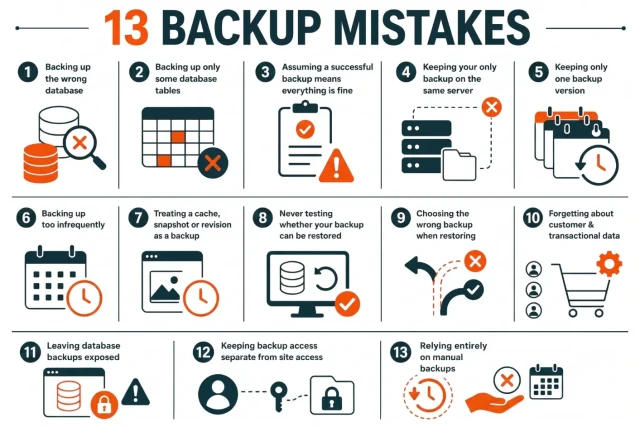
1. Backing up the wrong database
Section titled 1. Backing up the wrong databaseThis is particularly easy to do on hosting accounts containing multiple websites. A server might have several MySQL or MariaDB databases, and the names may not immediately tell you which one belongs to which site.
Before exporting a database manually, check the site’s wp-config.php file. The DB_NAME value identifies the database WordPress is configured to use.
You should also verify:
- The database name
- The database user
- The database host
- The table prefix
- The tables contained in the selected database
Do not rely on a database name that merely looks correct. The same applies when using a backup plugin. Make sure the backup is actually associated with the intended WordPress installation.
2. Backing up only some database tables
Section titled 2. Backing up only some database tablesA WordPress database can contain tables created by WordPress itself as well as tables added by plugins. A partial export might be appropriate for a specific development task, but it should not be mistaken for a complete website backup.
This becomes particularly important for sites using plugins that store substantial amounts of information in custom tables.
Examples include:
- WooCommerce
- Membership plugins
- Learning management systems
- Booking systems
- Form plugins
- Customer relationship tools
- Forums
- Directory plugins
Before relying on a database backup, check that the relevant tables are included.
3. Assuming a successful backup job means everything is fine
Section titled 3. Assuming a successful backup job means everything is fineA backup system reporting “completed” is useful, but it is not the same thing as proving that the backup is recoverable. A backup could complete successfully while still being:
- Incomplete
- Too old
- Stored in the wrong location
- Missing important tables
- Inaccessible
- Corrupted
- Unsuitable for the environment where it needs to be restored
The better question is not simply: Did the backup run?
The more useful question is: Could this backup restore the website if something went wrong right now?
Answering that requires verification and, eventually, a restore test.
A successful backup isn’t enough
Make backup failures easier to spot before they become recovery problems. UpdraftPlus automates scheduled database and file backups and provides detailed reports so you can check what actually ran and when.
4. Keeping your only backup on the same server
Section titled 4. Keeping your only backup on the same serverA backup stored on the same server as your website can disappear along with the website.
For example, a hosting account could experience:
- Server failure
- Account deletion
- Storage failure
- Malware infection
- Accidental file deletion
- A compromised administrator account
When both the website and its only backup are affected by the same incident, there is no independent recovery copy. WordPress recommends keeping multiple backups and storing copies in different locations.
A better setup is to keep at least one backup away from the production server.
The exact combination depends on the website, but the principle remains the same: do not make one server responsible for both your live site and your only recovery copy.
5. Keeping only one backup version
Section titled 5. Keeping only one backup versionKeeping multiple backup versions gives you more room for error. Suppose your website was compromised on Monday, but the problem was not discovered until Friday. An automated backup may have continued running throughout the week.
The latest backup could therefore contain the compromised state. Having older restore points gives you more options.
A simple retention strategy might include:
- Daily backups for the last 7 to 14 days
- Weekly backups for several weeks
- Monthly backups for longer-term recovery
This is only a starting point. The appropriate retention period depends on the website. A personal blog with occasional updates does not have the same requirements as an ecommerce store processing orders every hour.
The key is to retain enough history to recover from problems that are not discovered immediately.
6. Backing up too infrequently
Section titled 6. Backing up too infrequentlyBackup frequency should reflect how frequently your site’s data changes. A blog that publishes once a week has a very different risk profile from a WooCommerce store receiving orders throughout the day.
Consider a store that takes 50 orders between two database backups. If the site needs to be restored to the previous backup, those orders may no longer exist in the restored database. That creates a measurable amount of potential data loss. A useful way to think about backup frequency is:
How much new data could this site afford to lose?
WordPress documentation notes that smaller sites may use less frequent backups, while high-activity sites may need more frequent backups.
For sites with constant activity, consider more frequent database backups.
7. Treating a cache, snapshot or revision as a backup
Section titled 7. Treating a cache, snapshot or revision as a backupWordPress provides several mechanisms that can help recover from mistakes, but they serve different purposes.
- A post revision lets you recover an earlier version of content.
- A cache stores previously generated content.
- A staging site provides a separate environment for testing.
- A hosting snapshot can capture a server state.
None of these should automatically be treated as a replacement for an independent WordPress backup. A proper backup strategy should clearly define which recovery mechanism is being used for which problem.
For example:
The more serious the incident, the more important an independent backup becomes.
Keep more recovery points without heavier backups
Frequent file backups can put pressure on your server and storage. UpdraftPlus Premium can back up changed files incrementally, while database backups remain full backups, helping active WordPress sites balance protection with resource use.
8. Never testing whether your backup can be restored
Section titled 8. Never testing whether your backup can be restoredJust because a backup completes successfully doesn’t mean it’ll work when you need it. Files can become corrupted, important data might be missing or the restoration process itself could fail. Without testing, you may not discover these problems until you’re trying to recover a broken website.
The best way to check is to perform a test restore somewhere other than your live website. This could be:
- A WordPress staging site
- A temporary hosting environment
- A local WordPress installation
- An isolated test server
If you’re unsure where to start, our guide to restoring WordPress from a backup explains different recovery methods, including restoring database backups using phpMyAdmin and MySQL/MariaDB commands.
What should you check after a test restore?
Being able to access your WordPress dashboard is a good sign, but it doesn’t necessarily mean everything has been restored correctly. Take a few minutes to check that your website’s content, functionality and important data are all intact.
- Access: Can administrators and other users log in successfully?
- Content: Are your posts, pages and other important content present?
- Appearance: Does your theme display correctly, and are images and navigation menus working?
- Plugins: Are your plugins active, with their settings and functionality intact?
- Forms and integrations: Do contact forms, email notifications and essential integrations work?
- WooCommerce: Are your products, customer records, orders and order details present and accurate?
For business websites, pay particular attention to anything that affects customers or revenue. A restored homepage might look fine, but missing WooCommerce orders, broken checkout functionality or lost customer information could still cause serious problems.
The takeaway: Don’t wait for an emergency to find out whether your backups work. Test restores regularly, particularly after major website changes, so you can be confident your recovery process works when it matters.
Don’t wait for a full-site disaster to test a backup. Restore a recent copy to a staging or temporary site and check the parts of the website that matter most, such as logins, forms, payments, orders and media. A 10-minute test can reveal a recovery problem long before you need the backup in an emergency.
Record how long restoration takes
Restore testing provides another useful piece of information: recovery time. A backup may technically work, but restoring it could take several hours. That matters when the website is business-critical.
Knowing the approximate recovery time helps you plan for outages and decide whether additional recovery measures are necessary.
9. Choosing the wrong backup when restoring
Section titled 9. Choosing the wrong backup when restoringHaving multiple backups creates another decision: choosing the right restore point. The newest backup is not necessarily the right one. Suppose a database problem started on Tuesday, but it was discovered on Friday.
A Friday backup might contain the damaged database.
A Monday backup might be healthy.
The safest restore point could therefore be the backup immediately before the problem appeared.
Before restoring, determine:
- When the problem started
- When the problem was first noticed
- Which backups were created before the problem
- What important data was created after those backups
- Whether that newer data can be preserved
This is particularly important for ecommerce, membership and community websites. Restoring an older database can remove legitimate data that was created after the backup.
10. Forgetting about customer and transactional data
Section titled 10. Forgetting about customer and transactional dataSome WordPress sites can tolerate losing a small amount of content. An ecommerce store has a much smaller margin for error.
WooCommerce stores can have constantly changing database information, including:
Orders
- Customer accounts
- Product information
- Inventory
- Coupons
- Shipping information
- Payment-related records
- Reviews
Membership websites can have similarly important data involving accounts, subscriptions and access permissions. The backup strategy needs to account for these changes. A daily backup might be adequate for one site and completely inadequate for another. For high-activity sites, consider shorter backup intervals and more frequent recovery points.
11. Leaving database backups exposed
Section titled 11. Leaving database backups exposedDatabase backups can contain sensitive information. Depending on the site, a database export could contain:
- User information
- Email addresses
- Customer records
- Order information
- Site configuration
- Plugin data
- Business information
That makes backup files worth protecting. Customer data and other personal information in those backups also need appropriate safeguards.
Do not leave SQL files in a publicly accessible directory where anyone who discovers the URL could potentially download them. Also avoid sharing backup files through unrestricted public links. Backup storage should have appropriate access controls, and sensitive backup data should be encrypted where appropriate. UpdraftPlus includes database encryption as one of its backup security features.
12. Keep backup access separate from WordPress access
Section titled 12. Keep backup access separate from WordPress accessYour website administrator account should not necessarily be the only route to your backups. Consider a scenario where an attacker compromises a WordPress administrator account and gains access to the site’s backup management system.
If that account can also delete remote backups, an attack could affect both the website and its recovery copies.
Use strong authentication and restrict access to backup storage. For businesses and agencies, make sure backup access is tied to the organisation rather than a single employee’s personal account. Document who has access and what they can do.
13. Relying entirely on manual backups
Section titled 13. Relying entirely on manual backupsManual database exports can be useful before major changes. For example, creating a manual backup before a migration or large database operation is sensible. The problem comes when manual backups become the entire backup strategy. People forget, the schedules change, and updates happen unexpectedly.
A site can receive important data between manual backup sessions. Automated backups reduce the chance that protection depends on someone remembering to perform the task.
Check your automated backups regularly
Automation still needs monitoring.
Periodically check:
- The date of the most recent successful backup
- Backup frequency
- Remote storage connections
- Backup size
- Retention settings
- Available storage
- Backup logs
- Restore functionality
A backup system can stop working because of an expired storage connection, hosting change, configuration problem or other issue. The longer nobody checks, the longer a failed backup process can go unnoticed.
Full database backups and incremental file backups
Section titled Full database backups and incremental file backupsWhen choosing a backup setup, it helps to understand the difference between full and incremental backups.
A full database backup captures all the selected tables and data in one run. It provides a complete restore point, but can take longer to create and use more server resources and storage than an incremental backup.
With UpdraftPlus Premium, incremental backups apply to files rather than the database. They capture files changed since the previous backup, reducing duplicated data. Database backups are still created as full backups, so set their frequency according to how quickly your site’s database changes.
Back up more often without starting from scratch
Need frequent recovery points for a busy WordPress site? UpdraftPlus Premium can back up changed files incrementally, reducing the data processed and stored for file backups. Pair this with suitably frequent full database backups for your site’s activity level.
Data privacy regulations and your backup archives
Section titled Data privacy regulations and your backup archivesBackup archives can still fall within data protection rules because they may contain personal data. Which laws apply depends on where your organisation and users are based, as well as how the data is handled.
A WordPress database may contain names, email addresses, shipping details and other personal data. Storing that information in a poorly secured cloud account can create both security and compliance risks.
Choose a storage provider and location that fit your organisation’s legal obligations. Restrict access, review retention periods and use encryption where appropriate. If you are unsure what applies, seek advice for your circumstances.
A safer WordPress database backup workflow
Section titled A safer WordPress database backup workflowA reliable process does not need to be complicated.
- Identify what your site needs. List the database, files, uploads, themes, plugins and custom functionality that need to be recoverable.
- Choose an appropriate backup frequency. Match the schedule to how often the website’s data changes.
- Back up the database and files. Do not assume a database-only backup can reproduce the entire website.
- Use remote storage. Keep at least one recovery copy separate from the production server.
- Retain multiple versions. Keep enough historical backups to recover from problems discovered later.
- Monitor backup results. Check that backups are actually completing and reaching their intended storage locations.
- Test restoration. Restore a backup in a staging or test environment and verify important functionality.
- Document recovery. Record where backups are stored, who can access them and how the site should be restored.
This workflow gives you protection across the entire backup lifecycle rather than focusing only on the moment the backup is created.
How to create a WordPress database backup manually
Section titled How to create a WordPress database backup manuallyYou don’t necessarily need a backup plugin to export your WordPress database. Depending on your hosting setup and technical experience, you can create a database backup using phpMyAdmin, MySQL/MariaDB or WP-CLI.
Each method produces a database export that you can store securely and use if you need to recover your data. However, these methods only back up your database, not your themes, plugins or uploaded files.
Option 1: Export your database using phpMyAdmin
Section titled Option 1: Export your database using phpMyAdminphpMyAdmin is a database management tool included with many WordPress hosting providers. It allows you to export your database through a web interface without using the command line.
To create a backup using phpMyAdmin:
- Log in to your hosting control panel and open phpMyAdmin.
- Select your WordPress database from the list on the left.
- Click the Export tab.
- Choose Quick to export the entire database, or Custom if you need to select specific tables or export settings.
- Make sure SQL is selected as the export format.
- Click Export to download your database backup.
- Store the downloaded file somewhere secure, preferably away from your live website.
Before exporting, double-check that you’ve selected the correct database. If you’re using the Custom export option, make sure all the tables needed by your website are included, particularly those created by plugins or WooCommerce.
Option 2: Back up your database using MySQL or MariaDB
Section titled Option 2: Back up your database using MySQL or MariaDBIf you have command-line access to your hosting environment, you can use mysqldump to export your WordPress database directly.
For example:
mysqldump -u username -p database_name > wordpress-backup.sqlReplace username and database_name with your database credentials. You’ll be prompted to enter your database password before the export begins.
The command creates an SQL file named wordpress-backup.sql in your current directory. You can then move it to a secure backup location.
This approach is particularly useful for developers and website administrators who manage WordPress through SSH or want to incorporate database exports into automated scripts.
Option 3: Export your database using WP-CLI
Section titled Option 3: Export your database using WP-CLIWP-CLI is a command-line tool for managing WordPress installations. If it’s available on your server, you can use it to export your database without manually entering your database credentials.
From your WordPress installation directory, run:
wp db export wordpress-backup.sqlThis creates an SQL backup using the database connection details configured for your WordPress website.
WP-CLI can be especially useful when managing multiple websites or automating routine maintenance tasks. If you’re using UpdraftPlus Premium, you can also manage UpdraftPlus backups using WP-CLI, making it easier to incorporate backups into your existing workflows.
Remember: Whichever method you choose, exporting your database is only one part of protecting your website. You’ll still need to back up your WordPress files separately and make sure you can restore both when needed.
nually
There are several ways to create a database backup without a dedicated backup plugin.
Using phpMyAdmin
Section titled Using phpMyAdminphpMyAdmin is commonly available through hosting control panels. The general process is:
- Open phpMyAdmin
- Select the correct WordPress database
- Choose Export
- Select the required tables
- Choose SQL as the export format
- Start the export
- Save the resulting file somewhere secure
WordPress provides instructions for exporting databases through phpMyAdmin. The most important part is selecting the correct database and ensuring the required tables are included.
Using MySQL or MariaDB
Section titled Using MySQL or MariaDBDevelopers with command-line access can use mysqldump. A basic example is:
mysqldump -u username -p database_name > wordpress-backup.sql
The resulting SQL file can then be stored securely and used during restoration.
WordPress documents MySQL and MariaDB backup and restoration methods in its database backup documentation.
Using WP-CLI
Section titled Using WP-CLIWP-CLI is another useful option for developers and technical WordPress managers.
The wp db dump command can export the database using the credentials configured for the WordPress installation. For example:
wp db dump wordpress-backup.sql
The official WP-CLI documentation provides further details about the wp db dump command. WP-CLI can be particularly useful when backups form part of a larger server-side automation workflow. It can also be used to manage UpdraftPlus backups from the command line.
How UpdraftPlus helps you avoid WordPress database backup mistakes
Section titled How UpdraftPlus helps you avoid WordPress database backup mistakesKeeping on top of WordPress backups shouldn’t mean having to remember to create them manually every time something changes on your website.
UpdraftPlus makes it easier to protect your website by automating backups of your database and files, storing copies remotely and providing tools to restore your site when something goes wrong.
With scheduled backups, you can reduce the risk of missing important changes. Remote storage options also mean you’re not relying entirely on your hosting server to keep your backups safe.
More protection with UpdraftPlus Premium
Section titled More protection with UpdraftPlus PremiumFor busy websites, WooCommerce stores and businesses where losing recent data could be costly, UpdraftPlus Premium offers additional features to give you more control over how your backups are created, stored and managed.
- Automatic backups before updates: Create a recovery point before making changes to WordPress, themes or plugins.
- Incremental backups: Back up changes made since your previous backup, helping reduce the time and resources needed for frequent backups.
- Multiple remote storage locations: Keep backup copies in more than one destination, reducing your reliance on a single storage provider.
- Advanced retention rules: Keep multiple recovery points so you have more options if a problem goes unnoticed.
- Detailed backup reports: Get greater visibility into your backup activity and identify potential issues before you need to restore your site.
- Database encryption: Add an extra layer of protection to database backups containing sensitive website information.
Of course, no backup plugin can guarantee a successful recovery without proper configuration and testing. It’s still important to check that your backups contain everything you need and periodically test the restoration process.
Whether you’re managing a personal blog or a busy WooCommerce store, having a reliable backup routine in place can make recovering from unexpected problems much less stressful.
Explore all UpdraftPlus features to find the backup options that best suit your website.
This checklist tells you far more about your ability to recover than simply checking whether a backup plugin is installed.
Conclusion
Section titled ConclusionCreating a WordPress database backup is an important step towards protecting your website, but it’s only part of the picture. If you’re backing up the wrong database, missing essential files or storing everything in one place, you could still find yourself unable to recover your site when something goes wrong.
The good news is that most of these mistakes are easy to avoid. Start by reviewing your current backup setup. Are your backups running often enough? Are they stored somewhere secure and separate from your website? And, most importantly, have you tested whether you can actually restore them?
UpdraftPlus can help take the manual work out of protecting your website, with scheduled database and file backups, remote storage and straightforward restoration tools. For websites that need additional protection, UpdraftPlus Premium offers more advanced backup and recovery options.
Ultimately, it’s not just about having a backup. It’s about knowing you can rely on it when you need it most.
FAQs
Section titled FAQsWhat is the biggest database backup mistake?
The biggest mistake is assuming that a backup file automatically provides a complete recovery solution. The backup needs to contain the correct data, be recent enough, remain accessible and be capable of being restored successfully.
Is a WordPress database backup enough to restore a website?
No. A database backup contains important WordPress data, but a complete website recovery generally also requires the relevant WordPress files, themes, plugins, uploads and custom files.
How often should a WordPress database be backed up?
The appropriate frequency depends on how frequently the website changes. A low-activity blog may require less frequent backups, while a WooCommerce store or membership website with constant activity may need much more frequent database backups
Should WordPress backups be stored on the same server?
A local server copy can be useful for fast recovery, but it should not be the only backup. Keep at least one copy in a
so a problem affecting the server does not also remove the recovery copy.
How do you know if a database backup works?
The most reliable way is to restore the backup in a staging or test environment and check the site’s important content and functionality. Simply seeing that an SQL file exists does not prove that it can be restored successfully.
Can you restore WordPress using only a database backup?
A database backup can recover much of a WordPress site’s content and configuration, but it cannot recreate files that were not included in the database. Themes, plugins, uploads and custom files may need to be restored separately.
Should you back up before updating WordPress plugins?
Yes. A fresh backup before a significant plugin, theme or WordPress core update gives you a known recovery point if the update causes problems. WordPress recommends backing up before upgrades.
Are hosting backups enough for WordPress?
Hosting backups can be useful, but check what they include, how long they are retained, where they are stored and how restoration works. An independent backup gives you an additional recovery option if the hosting environment becomes unavailable.
Is an automated backup better than a manual database export?
For ongoing protection, automation reduces the chance of missed backups because the process does not depend on someone remembering to perform it. Manual exports are still useful before migrations, major updates and significant database operations.
About the author

Ivan Đukić
Ivan is the Product Manager for UpdraftPlus. With a background as a full-stack developer, he’s spent years building custom features, plugins, and tools. Often working side by side with product and marketing teams to bring ideas to life. Comfortable across the full lifecycle, from shaping concepts to QA and support, he found product management to be a natural next step. Today, Ivan focuses on turning complex needs into reliable, user-friendly solutions that help WordPress site owners protect and manage their websites with confidence.
Categories
UpdraftPlus
Get all our premium features. Direct site-to-site migration, incremental backups, back up automatically before updates and a whole lot more.
From just $70 for the year.
More stories
-

WordPress update broke your site? Here’s how to fix it
Has a WordPress update broken your website? Learn how to identify the problem, fix common update errors and safely restore your site.
-

10 Best WordPress Plugins for Agencies in 2026
Discover the best WordPress plugins for agencies, from backups and security to performance optimisation and site management. Explore tools that make managing multiple client websites easier and more efficient.
-
Direct WordPress site-to-site migration: A step-by-step guide
Learn how direct WordPress site-to-site migration works and how to move your website between hosts or domains without manually transferring files.
-

5 WordPress Web Design Tips to Improve Your Website
Good web design is about more than appearance. Explore practical WordPress web design tips to improve your website's layout, navigation, mobile responsiveness, accessibility and performance, helping you create a better experience for your visitors.