WordPress update broke your site? Here’s how to fix it
Updated WordPress and now your website isn’t working? Perhaps you’re seeing a blank screen, an error message or a layout that suddenly looks completely different. Whatever the issue, the priority is getting your site working again without making things worse.
WordPress updates can occasionally cause problems, particularly when plugins, themes or PHP versions aren’t compatible. The good news is that many of these issues can be fixed without rebuilding your website. And if you have a recent backup, you may be able to restore your WordPress site to a previous date.
In this guide, we’ll walk you through how to identify what’s gone wrong, troubleshoot common WordPress update errors and recover your website safely. We’ll also explain why backing up your WordPress site before updating is one of the simplest ways to protect yourself against future problems.
Key takeaways
Section titled Key takeaways- Most WordPress update issues can be fixed. Plugin conflicts, theme incompatibilities and PHP version mismatches are common causes, so identifying what changed is the best place to start.
- WordPress Recovery Mode can help you regain access. If a plugin or theme causes a fatal error, Recovery Mode may let you access your dashboard and deactivate the affected extension.
- A stuck update doesn’t always mean a broken site. If WordPress is stuck in maintenance mode after an interrupted update, removing the
.maintenancefile can restore access. You’ll still need to check whether the update completed successfully. - A recent backup can save hours of troubleshooting. If you can’t resolve the problem quickly, you may be able to restore your WordPress site to a previous date and get things working again.
- Prevention makes future updates less risky. Back up your WordPress site before making changes and test major updates on a staging site whenever possible.
First, work out what changed
Section titled First, work out what changedBefore disabling plugins or replacing WordPress files, check what changed immediately before the site broke. This matters because WordPress sites are made up of several components that interact with each other:
Look at your WordPress dashboard’s Updates screen if you still have access. Also check your hosting panel, update emails or activity logs if your site uses them.
Make a note of everything that changed.
For example: WordPress core updated at 10:15. Site started showing a critical error at 10:16.
That makes WordPress core the first thing I’d investigate.
Another example: Elementor updated at 09:40. The homepage layout broke immediately afterwards.
That points much more strongly towards the plugin, its interaction with the theme or another plugin.
Check whether the whole site is broken
Section titled Check whether the whole site is brokenTry both:
- Your homepage
wp-admin/
If WordPress is stuck in maintenance mode
Section titled If WordPress is stuck in maintenance modeSeeing the message “Briefly unavailable for scheduled maintenance. Check back in a minute”? This usually means WordPress started an update but didn’t finish properly.
During updates, WordPress creates a temporary .maintenance file in your site’s root directory. Normally, this file is removed automatically once the update finishes. If the process is interrupted, it can be left behind, keeping your website stuck in maintenance mode.
Here’s how to fix it:
- Wait a few minutes. Make sure WordPress isn’t still completing an update before making any changes.
- Access your website files. Open your hosting provider’s file manager or connect to your server using FTP or SFTP.
- Find the .maintenance file. Look in your WordPress root directory, usually
public_html. You may need to enable the option to show hidden files. - Delete the file. Once you’ve confirmed the update is no longer running, remove only the
.maintenancefile. - Check your website. Reload your site and WordPress dashboard to see whether normal access has returned. Check that the interrupted update completed successfully.
If your website is still showing maintenance mode, check your update or server logs, or contact your hosting provider for assistance.
Important: Avoid updating other plugins or themes while troubleshooting. Making several changes at once can make it harder to identify what caused the original problem.
Use WordPress Recovery Mode
Section titled Use WordPress Recovery ModeWordPress has a built-in Recovery Mode that can help when a fatal PHP error prevents normal site operation.
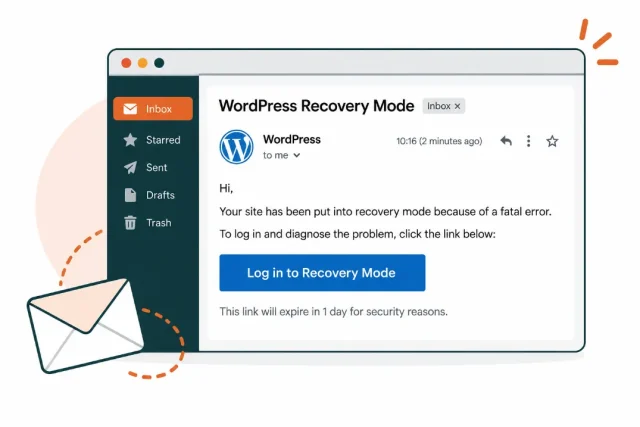
When WordPress detects certain fatal errors, it can send the site’s administrator an email containing a special Recovery Mode login link. WordPress pauses the faulty plugin or theme for your Recovery Mode session, allowing you to access the dashboard and troubleshoot the problem.
Check the administrator email address configured for the site.
Also check:
- Spam or junk folders
- Any hosting email filters
Once you’re in Recovery Mode, look for the component WordPress identifies as causing the problem. You may see something such as a plugin name, theme name or PHP file in the error details. If the problem started immediately after that component was updated, deactivate it and test the site again.
Recovery Mode is particularly useful because you do not need to start editing WordPress files just to regain dashboard access.
Check the error message before changing anything else
A blank page provides little to work with. An error message or log entry can narrow the search, especially when dealing with a critical error in WordPress.
Common messages include:
There has been a critical error on this websiteFatal errorCall to undefined functionCannot redeclare functionAllowed memory size exhaustedParse error- HTTP 500 errors
- Look for the file path, plugin name, theme name or line number in the error.
For example, an error that refers to /wp-content/plugins/example-plugin/...
strongly suggests that the plugin is involved.
An error that refers to /wp-content/themes/example-theme/...
points towards the theme or an interaction with another component.
Do not assume the component named in the error is always the only cause. A plugin can fail because another plugin, the theme or the server’s PHP version changed.
Use the WordPress debug log when the error is not clear
When I need more information, I use WordPress’s debug log rather than repeatedly changing things and hoping for the best. Before editing wp-config.php, make a backup if you still have access to your site.
You can enable logging with:
- define( ‘WP_DEBUG’, true );
- define( ‘WP_DEBUG_LOG’, true );
- define( ‘WP_DEBUG_DISPLAY’, false );
These settings tell WordPress to log errors without displaying them publicly on the site. WordPress documents WP_DEBUG_LOG as a way to write errors to wp-content/debug.log, while WP_DEBUG_DISPLAY can be used to prevent those errors appearing in the site’s HTML.
- Load the broken page again and then check: wp-content/debug.log
- Look for entries created around the time the problem occurred.
Disable the plugin that caused the problem
Once you’ve identified a likely plugin, disabling it is usually the safest first fix. Understanding how WordPress installs plugins can also help when investigating plugin-related problems.
If you can access wp-admin
- Go to
- Plugins > Installed Plugins
- Find the plugin that was updated and click Deactivate.
- Then check the frontend again.
If the site immediately starts working, you’ve got a strong indication that the updated plugin is responsible.
If wp-admin is unavailable
You can disable a plugin through your hosting file manager or FTP.
- Go to wp-content/plugins/
- Find the relevant plugin folder and rename it.
- For example: example-plugin
- can become: example-plugin-disabled
WordPress will no longer load the plugin.
Disable the theme if the theme update caused the problem
Section titled Disable the theme if the theme update caused the problemA theme update can cause problems for similar reasons, especially when the site uses:
- A child theme
- Custom PHP
- A page builder
- Custom templates
- Theme-specific plugins
- Custom JavaScript or CSS
If you can access wp-admin
- Go to Appearance > Themes
- Activate a default WordPress theme.
This changes the site’s appearance temporarily, but it can tell you whether the updated theme is responsible. If the site starts working again, the theme or its interaction with another component is the likely culprit.
If you cannot access wp-admin
- Use your hosting file manager or FTP to open: wp-content/themes/
- Rename the active theme’s folder.
- For example: my-theme
- could become: my-theme-disabled
WordPress should then fall back to an available default theme.
Clear your cache before assuming the update failed
Not every post-update problem is a broken plugin or theme. Sometimes the update worked but your site is serving old cached files alongside the newly updated code.
Clear:
- Your WordPress caching plugin
- Your host/server cache
- Your CDN cache, if you use one
- Your browser cache
Then test the site in a private browser window.
This is particularly relevant when:
- The site loads but looks unstyled
- Buttons or menus have stopped working
- CSS changes are not appearing
- JavaScript features have stopped working
- Only some visitors can see the problem
WordPress also recommends clearing caches after updates so visitors are not left seeing old files.
Check PHP compatibility
Section titled Check PHP compatibilityPHP is the server-side language WordPress runs on, and compatibility problems can appear after a plugin, theme or WordPress update.
For example, an older theme might have worked with your existing PHP version for years. A newer version of that theme may now rely on PHP features that your hosting environment doesn’t support.
The reverse can happen too. Older plugins may contain code that produces problems on newer PHP versions. Check your site’s PHP version under:
Tools > Site Health > Info > Server
You can also check it through your hosting control panel.
Before changing PHP versions, make a backup and check the compatibility requirements of WordPress, your active theme and important plugins.
Restore a backup when you need the site back quickly
Section titled Restore a backup when you need the site back quicklySometimes troubleshooting is not the best use of your time. When you need to return to a known working state, restoring WordPress from backup files and database can be the safer option. For example, I would consider restoring a backup quickly when:
- The site is completely inaccessible
- It’s an e-commerce site losing orders or revenue
- You cannot identify the source of the error
- You have a recent backup from immediately before the update
- The site needs to be restored while you investigate the compatibility issue separately
WordPress itself recommends having a backup before updating and notes that a backup can be restored if an upgrade causes problems.
There is one important consideration. Restoring a backup also restores the site’s data to the state captured by that backup.
If your backup was taken yesterday and your site received new orders, comments, form submissions or other content today, those changes may not be present in the restored copy. That’s why a backup from immediately before the update is particularly useful.
Have a backup ready before every update
A backup from yesterday may not be enough when an update breaks your site today. UpdraftPlus can automatically create a backup immediately before eligible WordPress core, plugin, and theme updates, giving you a recent restore point if something goes wrong.
Roll back the update that caused the problem
Section titled Roll back the update that caused the problemOnce you’ve identified the component that broke the site, rolling back that specific update can be a better option than restoring the entire website.
For example:
If plugin version 5.4 worked but version 5.5 broke the site, temporarily roll back to 5.4 while waiting for a compatible release.
The same principle can apply to a theme update. For WordPress core, a rollback is more involved and should be approached carefully.
Why WordPress updates sometimes break sites
Section titled Why WordPress updates sometimes break sitesWordPress updates are important, but a WordPress site is not a single piece of software.
A typical site combines WordPress core, a theme and child theme, multiple plugins and sometimes custom code. Updating one part can expose an incompatibility elsewhere. These are some of the most common causes:
- Plugin and theme incompatibility: A plugin may depend on a function, hook or behaviour provided by a particular version of WordPress or a theme. When that dependency changes, the plugin can fail.
- Plugin conflicts: An update can change how one plugin interacts with another. Both plugins may have worked perfectly yesterday, then one update changes the conditions under which they run.
- PHP compatibility: A plugin or theme may require a newer PHP version, or contain code that is not compatible with the PHP version running on your server.
- Custom code: bespoke functions and integrations may rely on behaviour that an update changes. Check code added through:
- functions.php
- A child theme
- A custom plugin
- A code snippets plugin
- A page builder
- A custom integration
- Incomplete or failed updates: sometimes the problem is not compatibility at all. An update may fail because of:
- Hosting resource limits
- File permissions
- Interrupted connections
- Server errors
- Insufficient disk space
- An incomplete file transfer
This is one reason to check the update result before assuming that a compatibility conflict is responsible.
Do not stop updating WordPress because one update broke your site
Section titled Do not stop updating WordPress because one update broke your siteIt can be tempting to turn off updates altogether after an incident. I wouldn’t recommend that.
WordPress, plugins and themes receive updates that can include security fixes, bug fixes, compatibility improvements and performance improvements. WordPress recommends keeping the software on your site up to date.
The better approach is to make updates recoverable. That means:
- Keep reliable backups
- Test major changes when possible
- Keep plugins and themes maintained
- Remove abandoned software
- Monitor PHP compatibility
- Know how to disable a plugin or theme
- Keep a recent restore point before important changes
The goal is not to avoid updates. It’s to make a failed update a recoverable problem, using practices such as the 3-2-1 backup rule.
When an update breaks a WordPress site, resist the urge to change several things at once. Identify what changed, isolate the failing component, and make one change at a time. That makes the problem much easier to diagnose and avoids creating new issues while fixing the original one
How to prevent a broken update from becoming a major problem
Section titled How to prevent a broken update from becoming a major problemThe safest update problems are the ones you have already prepared to recover from. Use this checklist before making important changes:
1. Keep a current backup
Section titled 1. Keep a current backupYour backup should include the database and the files required to restore the site. Store backups somewhere separate from the website itself when possible. That gives you another recovery option if your hosting account becomes unavailable.
2. Test important updates
Section titled 2. Test important updatesFor a business-critical site, use a staging environment to test significant plugin, theme or core changes before applying them to production. This is especially useful for sites running:
- WooCommerce
- Membership systems
- Booking systems
- Complex page builders
- Custom themes
- Large plugin stacks
3. Update one variable at a time when troubleshooting
Section titled 3. Update one variable at a time when troubleshootingWhen a site is already broken, do not update five plugins and the theme at the same time. You won’t know which change fixed or caused the problem.
4. Keep an eye on PHP
Section titled 4. Keep an eye on PHPDo not let the PHP version on your hosting account become an afterthought. Check compatibility before making major changes and keep your server environment maintained.
5. Have a backup immediately before updates
Section titled 5. Have a backup immediately before updatesThis is the part I consider most useful for everyday WordPress maintenance. A backup from last night is useful. A backup created immediately before an update is much better when that update is the thing that breaks your site.
How to create a backup before every update
Section titled How to create a backup before every updateThis is where automation is useful: it removes the need to remember to click Backup Now before every change. UpdraftPlus can automatically back up your WordPress database and the relevant component before an update takes place. That includes WordPress core, plugins and themes.
Once enabled, the process works like this:
- UpdraftPlus creates the pre-update backup
- The update runs
- If the update causes a problem, you have a restore point from immediately before that change
That timing matters. A scheduled backup may be several hours old, and the site could have received new orders, comments or form submissions since it ran. A pre-update backup reduces the amount of recent data at risk if you need to restore.
Make pre-update backups automatic
UpdraftPlus Premium can automatically back up the database and the relevant component before eligible WordPress core, plugin and theme updates. You get a restore point tied to that specific change without relying on a manual reminder.
What does UpdraftPlus back up before an update?
Section titled What does UpdraftPlus back up before an update?The feature backs up the database and the relevant component being updated. For example:
This means you do not necessarily need to create a large full-site backup every time a small plugin update is installed. The purpose is to create a restore point that corresponds closely to the change you’re about to make.
When to get professional help
Section titled When to get professional helpNot every WordPress update issue needs a developer, but there are times when getting expert help is the safest and quickest way to get your website working again.
Consider contacting your hosting provider, developer or WordPress support team if:
- Your website is losing sales or enquiries. If customers can’t complete purchases, make bookings or submit forms, restoring normal service should be a priority.
- You don’t have a recent backup. Without a reliable restore point, further troubleshooting could put your website’s content or data at risk.
- The problem involves your database or custom code. These issues can be more complex to diagnose and may require specialist knowledge.
- Basic troubleshooting hasn’t worked. If disabling the suspected plugin or theme hasn’t resolved the issue, there may be a deeper compatibility or server problem.
- You’re unsure about making technical changes. Editing files via FTP or modifying
wp-config.phpcan introduce new problems if you’re unfamiliar with the process.
If your website supports important business operations, avoid experimenting with fixes you’re unsure about. Getting professional help early can prevent further disruption and reduce the risk of data loss.
Conclusion
Section titled ConclusionA broken website after a WordPress update can be frustrating, but most issues can be resolved by identifying what changed and working through the possible causes. Start with the error message, check for plugin or theme conflicts and use WordPress Recovery Mode where available. If troubleshooting isn’t getting you anywhere, restoring your WordPress site to a previous date may be the quickest way to get things working again.
That doesn’t mean you should avoid WordPress updates. Keeping your site updated is essential for security, performance and compatibility. The important thing is having a reliable backup strategy in place so that, if something does go wrong, you have a recent restore point to fall back on.
UpdraftPlus Premium makes this easier with automatic pre-update backups for supported WordPress core, plugin and theme updates. Rather than relying solely on your last scheduled backup, you can have a restore point created immediately before an update, helping you recover more confidently if something breaks.
With the right precautions in place, you can keep your WordPress site secure and up to date without worrying that every update could leave you starting from scratch.
FAQs
Section titled FAQsWhy did my WordPress site break after an update?
The most common causes are compatibility problems between WordPress core, plugins, themes, custom code and the PHP version running on your server. An update can change something that another component relies on.
How do I fix a WordPress site that broke after an update?
First identify what changed, then check the error message or Recovery Mode email. Disable the plugin or theme that appears responsible, clear caches and check the debug log. If you cannot resolve the problem quickly, restore a recent backup if you have one and investigate the update separately.
How do I know which WordPress update broke my site?
Check your WordPress update history, hosting logs, activity logs or email notifications. Compare the time of each update with the moment the problem appeared. If only one plugin or theme was updated immediately beforehand, investigate it first.
What should I do if I can’t access WordPress admin after an update?
Check the site’s administrator email for a WordPress Recovery Mode link. If you do not receive one, you can use your hosting file manager or FTP to temporarily rename the suspected plugin or theme folder so WordPress stops loading it.
Can I restore my WordPress site after a failed update?
A backup taken before the update can return the site to an earlier working state. Be aware that restoring an older backup can remove changes made after that backup was created.
Should I roll back WordPress after an update breaks my site?
A rollback can be appropriate as a temporary recovery measure when a specific update is responsible. Once the site is stable, investigate the compatibility issue and update to a compatible release rather than remaining on an outdated version indefinitely.
How can I prevent an update from breaking my WordPress site?
Keep reliable backups, test important changes on staging and keep your WordPress environment maintained. UpdraftPlus can also automatically back up your database and the relevant plugin, theme or WordPress component immediately before an update, giving you a recent restore point if something goes wrong.
Does UpdraftPlus Premium automatically back up before plugin and theme updates?
With the feature enabled, UpdraftPlus Premium can automatically create a pre-update backup for WordPress core, plugins and themes.
Is it better to disable WordPress automatic updates?
Not necessarily. Automatic updates can help keep WordPress components current, but they should be paired with reliable backups and an appropriate testing and recovery process. WordPress recommends regular backups when using plugin and theme auto-updates.
About the author

Elvira Mishra
Elvira has over four years of experience creating and designing content in WordPress. Her background spans multiple digital disciplines, including marketing, SEO, user experience, and human computer interaction.
Categories
UpdraftPlus
Get all our premium features. Direct site-to-site migration, incremental backups, back up automatically before updates and a whole lot more.
From just $70 for the year.
More stories
-

10 Best WordPress Plugins for Agencies in 2026
Discover the best WordPress plugins for agencies, from backups and security to performance optimisation and site management. Explore tools that make managing multiple client websites easier and more efficient.
-
Direct WordPress site-to-site migration: A step-by-step guide
Learn how direct WordPress site-to-site migration works and how to move your website between hosts or domains without manually transferring files.
-

5 WordPress Web Design Tips to Improve Your Website
Good web design is about more than appearance. Explore practical WordPress web design tips to improve your website's layout, navigation, mobile responsiveness, accessibility and performance, helping you create a better experience for your visitors.
-
Best AI Website Builders Compared
AI website builders can help you design, write and launch a website in minutes. Compare the best AI-powered website builders based on ease of use, features, customisation, pricing and performance to find the right solution for your next project.