How to Migrate Part of a WordPress Site
Yes, you can migrate only part of a WordPress website. You might need to move a group of posts, copy a theme or transfer a plugin and its settings. If you’re pushing changes from staging to a live site, a partial migration can help you leave newer orders, user accounts and content in place -provided you avoid replacing the tables that store them.
The key is knowing what each part of your site depends on. Moving a plugin’s files, for example, may leave its settings or saved data behind. This guide explains which method to use, what to include and when a full migration makes more sense. Before you start, use our WordPress migration checklist to plan the move and the checks afterwards.
Key takeaways
Section titled Key takeaways- Use a full migration when the destination should become an exact copy of the source
- Choose a partial migration when the destination contains newer orders, users or content that must remain untouched
- Map every feature’s files, settings, uploads and database tables before moving it
- Use WordPress Export for supported posts and pages; reserve table or row-level work for experienced users
- UpdraftPlus Premium can select themes, plugins and whole database tables, but it does not turn table replacement into a row-level merge
- Back up both sites, test on a copy and confirm the destination after every selective transfer
Why you might want to avoid moving everything
Section titled Why you might want to avoid moving everythingA selective migration is useful when the destination contains content or data that must remain in place. These are some of the most common situations in which moving only part of a site may be appropriate.
Updating a live site from a staging environment
Section titled Updating a live site from a staging environmentStaging environments are temporary environments where you can safely test new plugins, layouts and software. For example, a redesign may take several weeks on staging while the live site continues to receive orders, registrations, comments and content updates.
Replacing the live database with an older staging copy could overwrite those newer records. Instead, identify the files, settings and database tables required by the redesign, then test the transfer on a copy before changing production.
Cleaning up a bloated database
Section titled Cleaning up a bloated databaseWordPress databases can accumulate revisions, transients and data left behind by plugins over time. Cleaning up and optimizing your WordPress database can help remove unnecessary data before a migration. Some plugins leave settings or custom tables behind after they are removed. You might decide to start fresh with a clean installation on a new server.
Clean up the source database before migrating where appropriate, or use WordPress’s Export and Import tools when you only need supported content types. Do not discard unfamiliar tables without confirming what uses them and taking a backup.
Splitting a large network
Section titled Splitting a large networkSometimes a single website grows too large and needs to be divided. You might have a blog that also runs an active forum and you want to move the forum to its own dedicated server.
Separating the forum may require its files, configuration, uploads, users and related database tables. Because those records may be connected to the rest of the site, this type of migration usually needs careful mapping and testing.
Migrate the WordPress data you actually need
When a full-site copy is unnecessary, UpdraftPlus Premium lets you select the themes, plugins and database tables included in a migration.
Understanding what makes up your site
Section titled Understanding what makes up your siteA WordPress site relies on both files and a database. Selective migration works only when you understand which parts a feature uses and how they relate.
The file system
Section titled The file systemThe file system contains WordPress core, themes, plugins, uploads and other files used by the site.
The most important folder in your file system is the wp-content directory. This folder houses your specific themes and your plugins. It also contains the uploads folder where all of your images and media attachments are stored. When you want to move a design you are usually dealing with the files inside this directory.
The database
Section titled The databaseThe database stores content, users, settings and plugin data. A theme or plugin may supply the code for a feature while its configuration and content remain in one or more database tables.
The challenges of manual partial migration
Section titled The challenges of manual partial migrationDevelopers can move selected site elements manually using specialist tools. They use File Transfer Protocol applications to move specific folders and they use database management tools like phpMyAdmin to export specific tables.
I do not recommend this approach for most users. It requires a sound understanding of WordPress files, databases and dependencies, as well as tested backups of both sites. These are the main sources of risk.
Dealing with serialized data
Section titled Dealing with serialized dataWordPress stores a lot of its configuration settings in a format called serialized data. This format groups different pieces of information together and assigns them a specific character count.
Serialized values can be corrupted if URLs are changed with a basic text replacement that does not recalculate their stored lengths. Use a WordPress-aware search-and-replace process rather than editing database dumps as plain text.
Managing dependencies
Section titled Managing dependenciesDifferent parts of your website rely on each other to function properly. A specific plugin might store its code in the file system but keep its settings in the wp_options database table. It might also create its own custom database tables to store unique information.
If you only move the plugin files without moving the associated database tables the plugin will not work on the new server. Before moving a feature manually, identify its files, options, custom tables, uploads and any shared records it depends on. Plugin documentation or a staging test may be more reliable than guessing from table names.
A successful partial migration isn’t about moving less data; it’s about moving the right data. WordPress features often depend on a combination of files, database settings and related tables, so understanding those relationships is essential before transferring anything selectively.
How to migrate WordPress partially
Section titled How to migrate WordPress partiallyUpdraftPlus supports migration between WordPress sites, and Premium adds direct site-to-site migration along with the ability to choose which themes, plugins and database tables are included. This provides more control than treating every migration as an all-or-nothing site clone. UpdraftPlus also includes a WordPress-aware search-and-replace process for stored site URLs during migration.
Choose which themes to migrate
Section titled Choose which themes to migrateThemes control the visual appearance of your website. You might have ten different themes installed on your server but you only actually use one of them. Leaving unused themes behind can reduce the amount of data transferred.
UpdraftPlus Premium lets you select the themes included in the migration. This avoids transferring unused theme files that the destination does not need.
Select specific plugins to move
Section titled Select specific plugins to movePlugins add functional features to your website like contact forms and security scanners. Development environments often contain debugging plugins that you do not want to install on your live public server.
The migration workflow lets you choose which plugins to include. Remember that a plugin may also rely on options, custom tables or uploads, so review those dependencies before restoring it on the destination.
Pick individual database tables
Section titled Pick individual database tablesSelecting database tables provides precise control, but it also carries the greatest risk. Replacing live tables with older staging copies can remove recent orders, users, form entries or content.
UpdraftPlus Premium displays the database tables available for migration. Select tables only after confirming which features use them: even wp_options contains settings shared across the site, and replacing it can affect far more than one design change. Test the selection on a copy and keep a current backup of the destination.
Take control of your site transfers
Choose the themes, plugins and database tables a migration actually requires. UpdraftPlus Premium provides selective controls so you can avoid an unnecessary full-site transfer.
Step by step partial migration process
Section titled Step by step partial migration processStart by backing up both WordPress sites, including their files and databases. Keep a recovery copy outside the migration itself. Test the process on a copy of the destination, and plan a suitable window for any live changes. Our direct site-to-site migration guide covers the connection process in more detail.
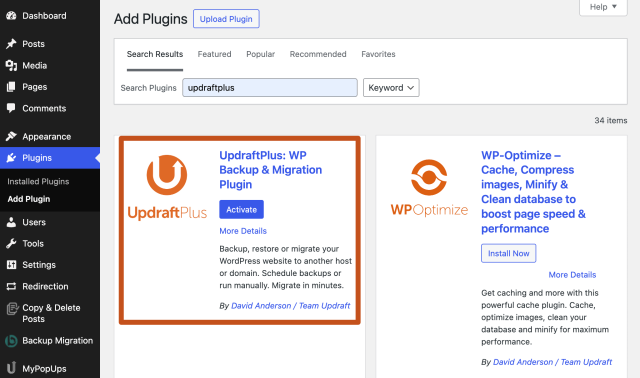
2. On the source site, open UpdraftPlus > Migrate / Clone and start the migration process.
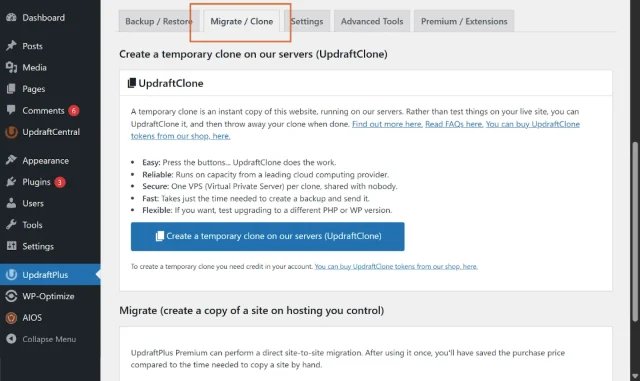
3. UpdraftPlus Premium uses a secure key to connect the source and destination sites. Create a key on the relevant site, copy it and use it to establish the connection between the two installations.
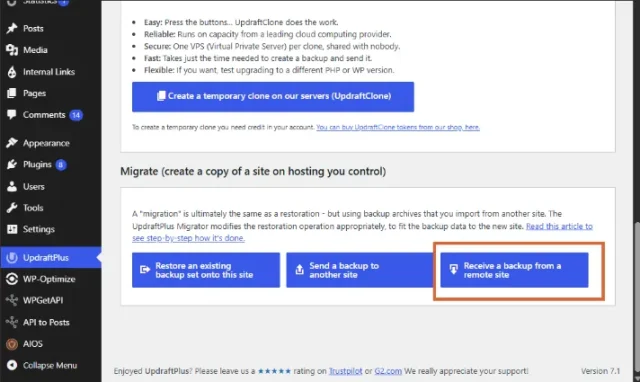
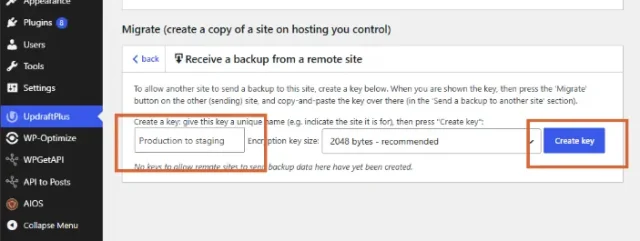
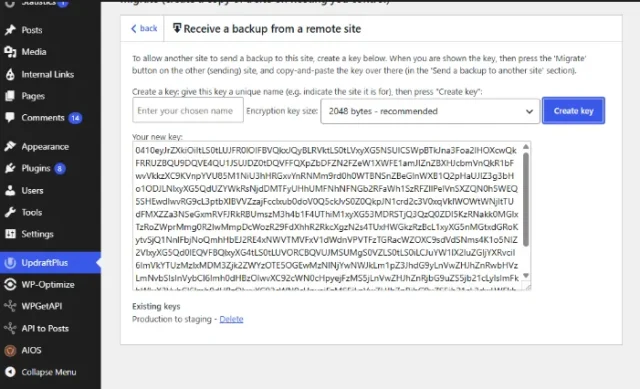
4. Once the sites are connected, you can use the connection for future migrations as well.
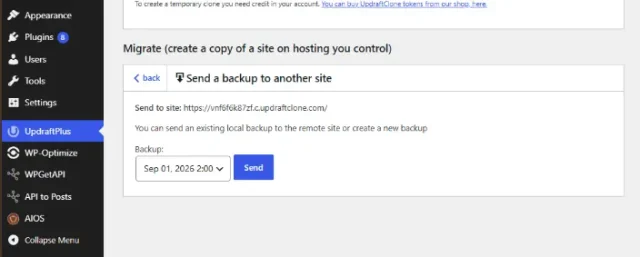
5. Choose the option to send the site or backup to the connected destination site. UpdraftPlus will prepare the migration and transfer the selected data between the two installations.
6. You can choose which types of data you want to transfer, including:
- Plugins
- Themes
- Uploads
- Database
- Other files where applicable
7. If you are migrating database data, review the selected tables carefully. A plugin or feature may rely on more than one table, so avoid selecting tables based only on their names.
8. If you are moving between different site URLs, make sure the search and replace site location in the database option is enabled. This updates stored references to the old site location and helps prevent broken links or redirects back to the original site.
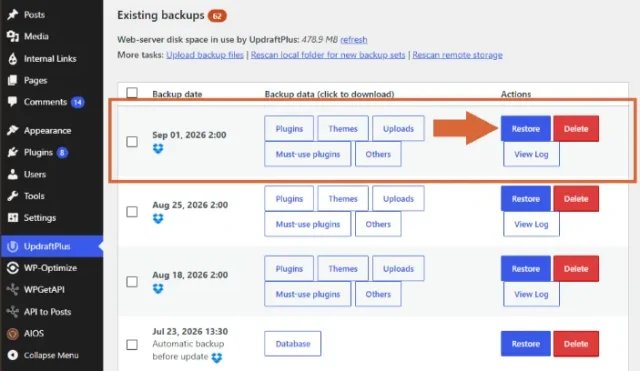
9. Review the selected components and start the restore. Selected database tables may replace their destination equivalents; this is not a row-level merge
Post transfer testing and troubleshooting
Section titled Post transfer testing and troubleshootingYou should always thoroughly test your destination site after moving new files or data. Even automated transfers require a human check to ensure everything looks and functions correctly. I recommend following a strict testing protocol.
Checking your permalinks
Section titled Checking your permalinksSometimes moving database tables can cause your internal links to break, resulting in 404 error pages. You may also need to review your WordPress permalinks after the transfer. This is common and may be resolved by refreshing the site’s rewrite rules.
Go to Settings > Permalinks. You do not need to change the permalink structure; click Save Changes to refresh the rewrite rules. This action flushes your rewrite rules and forces the server to recognise your new database structure.
Verifying plugin functionality
Section titled Verifying plugin functionalityIf you choose to move specific plugins you need to test their output. Submit a test message through your contact forms to ensure they can send emails properly. Add a product to your cart to verify your store is calculating totals correctly.
If a feature does not work, check its files, settings, custom tables, uploads and licence or API configuration. Restore additional data only after confirming the missing dependency.
Inspecting media files
Section titled Inspecting media filesImages can sometimes disappear if you moved a theme but forgot to move the associated upload folders. Check your media library on the destination site to ensure your thumbnails are generating properly.
If images are missing, confirm that the relevant uploads were transferred and that stored URLs point to the destination. Restore the required uploads only after checking what is absent.
When I would avoid a partial migration
Section titled When I would avoid a partial migrationSelective migration is useful, but it is not always the right choice. I would lean towards a complete migration when:
- The destination should be an exact copy of the source
- I am moving to a new host without changing the site’s structure
- The site contains many interconnected plugins
- I am unsure which database tables belong to a feature
- The website is highly customised
- The destination does not contain data that needs to be preserved
- I need a complete disaster-recovery copy
A full migration is usually the clearer choice when the destination should reproduce the existing site.
Partial migration vs full migration
Section titled Partial migration vs full migrationChoose according to the result you need. Use a full migration for an exact copy; use selective migration when only part of the source belongs on the destination.
What about migrating only database rows?
Section titled What about migrating only database rows?This is possible with some database tools, but it is more advanced than selecting entire tables. WP-CLI, for example, supports exporting selected tables and can apply conditions to export specific records from a table. You can also use WP-CLI for UpdraftPlus to manage backup-related tasks from the command line. Its documentation includes examples of exporting selected posts and their related metadata.
That gives experienced developers row-level control. For most website owners, though, I would avoid manually manipulating individual database rows unless there is a clear reason to do so. At that level, you need to understand relationships between records, IDs, metadata and serialized values. For a routine WordPress migration, a purpose-built migration tool is generally easier to manage.
Conclusion
Section titled ConclusionYou don’t always need to move the whole site. If you’re transferring a few posts, WordPress’s built-in tools may be all you need. Moving a theme or plugin takes a little more care, as its settings, content and images may need to come with it.
Start with what you want to move and what you need to keep. Back up both sites, try the transfer on a test copy and check that everything works before making changes to your live site.
For more control over the move, UpdraftPlus Premium lets you choose individual themes, plugins and database tables and transfer them directly between connected sites. Just remember that restoring a table can replace the data already there, so check your selection carefully before you restore.
FAQs
Section titled FAQsCan I migrate individual post/pages from one WordPress site to another?
WordPress’s built-in Export tool can export posts and lets you filter them by categories, authors, date ranges and status. You can export all posts/pages if you migrate the post and postameta tables and the uploads.
Can I migrate only one plugin?
A migration tool with selective controls can move one plugin’s files. However, moving the plugin files alone may not transfer its settings or stored data. You need to account for the plugin’s database tables, options, uploads or other dependencies.
Can I migrate only a theme?
The theme files can be moved independently, but theme configuration may be stored in the WordPress database. Menus, widgets, Customizer settings and other configuration may therefore require additional data.
Can I migrate only selected database tables?
Some WordPress migration tools support selecting individual database tables. UpdraftPlus Premium supports choosing which database tables to migrate as part of its selective migration functionality.
The important part is identifying related tables before importing them.
Can I migrate WordPress without migrating the database?
This is possible for certain use cases. Tools can migrate selected files such as themes, plugins or media without transferring the database. This works best when the destination database already contains the information those files need.
Can I migrate WordPress content without migrating the theme?
The built-in WordPress Export and Import functionality is designed for moving content between WordPress installations without cloning the entire website.
Is partial WordPress migration safe?
It can be, provided you understand the dependencies involved and have a backup. The main risk is creating an incomplete installation by moving one component without the data or files it relies on.
Can I migrate selected plugins and database tables with UpdraftPlus?
UpdraftPlus Premium supports selecting themes, plugins and database tables for migration. It also provides direct site-to-site migration between connected sites.
About the author

Elvira Mishra
Elvira has over four years of experience creating and designing content in WordPress. Her background spans multiple digital disciplines, including marketing, SEO, user experience, and human computer interaction.
Categories
UpdraftPlus
Get all our premium features. Direct site-to-site migration, incremental backups, back up automatically before updates and a whole lot more.
From just $70 for the year.
More stories
-
3 WordPress Database Backup Mistakes That Could Break Your Website
Even small WordPress database backup mistakes can lead to lost data, failed restores or website downtime. Discover three common pitfalls and how to avoid them before they cause problems.
-
WordPress update broke your site? Here’s how to fix it
Has a WordPress update broken your website? Learn how to identify the problem, fix common update errors and safely restore your site.
-
10 Best WordPress Plugins for Agencies in 2026
Discover the best WordPress plugins for agencies, from backups and security to performance optimisation and site management. Explore tools that make managing multiple client websites easier and more efficient.
-
Direct WordPress site-to-site migration: A step-by-step guide
Learn how direct WordPress site-to-site migration works and how to move your website between hosts or domains without manually transferring files.