A beginner’s guide to WordPress file permissions
If you’ve been trying to fix a WordPress error, there’s a good chance you’ve come across the term file permissions.
Maybe you’ve seen an error such as “Permission denied”, “Could not create directory”, “Installation failed” or “403 Forbidden”. Or perhaps someone has simply told you to “check your file permissions” without explaining what that actually means.
File permissions control who can read, change and execute the files and folders that make up your WordPress website. Most of the time they work quietly in the background, but when they’re wrong, they can stop WordPress from uploading images, installing plugins, running updates, creating backups and carrying out other everyday tasks.
Permissions also play an important role in security. Make them too restrictive and WordPress may stop working properly. Make them too open and you could give users or processes more access to your files than they need.
The good news is that you don’t need to be a Linux expert to understand the basics. In this guide, we’ll explain how WordPress file permissions work, what numbers such as 755 and 644 mean, which settings are normally recommended and how to troubleshoot permission problems safely.
Key takeaways
Section titled Key takeaways- File permissions control who can read, change and execute the files and folders on your WordPress server.
- For most WordPress sites, 755 is commonly used for directories and 644 for files, although your hosting provider may use a different configuration.
- Permissions that are too restrictive can stop uploads, updates, backups and plugins from working correctly.
- Permissions that are too open can create unnecessary security risks. Avoid using 777 as a quick fix.
- File ownership matters too. If your permissions look correct but WordPress still can’t write to a file, ownership or your hosting configuration may be the real problem.
- Always create a backup before changing permissions across your WordPress installation.
What are WordPress File Permissions?
Section titled What are WordPress File Permissions?Every WordPress website is made up of hundreds or even thousands of files and folders. They contain everything from WordPress itself to your themes, plugins, uploaded images and configuration.
File permissions are the rules your server uses to decide who can access those files and what they’re allowed to do with them.
There are three basic permissions:
These permissions are often combined, so that a user or group can both read and write to them such as with regular PHP files, or read and execute them like you would see with a folder.
Users and groups
Section titled Users and groupsWhen looking at the permissions of a file you will see three values. These represent:
- The user who owns the file
- The group that the file belongs to which is a collection of users
- Other users on the system that are not part of the group. This can often be called Other, Public or World.
When talking about security of permissions it’s often most important to pay attention to the Other permission. If this is set too loosely it can lead to a security risk.
Another important note is that these users and groups are not the same as the users that are registered for your WordPress website. They are users and groups that belong to the server that is accessing them. This is the same as how you have a login user on your computer or how you have a login user to connect to your site via FTP.
Ownership vs. permission
Section titled Ownership vs. permissionUp until now we’ve been discussing the different permission levels read, write, execute but another concept is just as important:
- What user owns the file
- What group does the file belong to
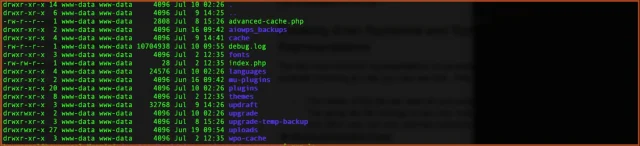
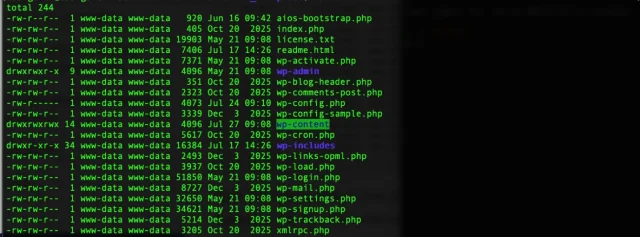
If these are set incorrectly then it can be just as bad as having incorrect permissions. Typically, the owner of the file is the same system user that the web server and PHP run as (e.g www-data) but in some cases like shared hosting the owner of the file is your user account in the hosting system and the system user that runs the web server and PHP are part of the group that is assigned to the file.
In the image below, we can see that the owner of the file is www-data and the group assigned to the file is www-data.
Understanding permission numbers such as 755 and 644
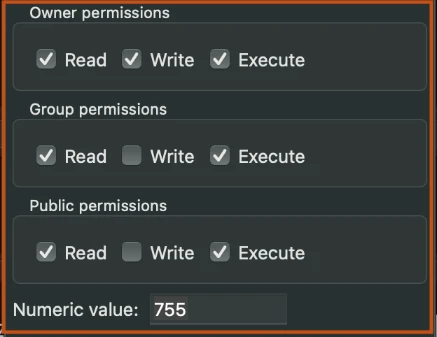
Section titled Understanding permission numbers such as 755 and 644The two most common representations of permissions are numerical and symbolic, however you may see checkboxes if looking at permissions using your hosts file manager or an FTP program such as FileZilla. For example if looking at a file you may see 644. This means that:
- The owner of the file can read (4) and write (2)
- The group the file belongs to can only view the contents of the file
- Any other user can only view the contents of the file
Symbolic representations are normally shown if connecting to the server using the command line. In the image below we can see a breakdown of these permissions that are grouped into three values for each of the respective permission levels (owner, group, other) and an additional one noting if it’s a directory.
Taking the plugins directory as an example we see:
drwxr-xr-x
This means:
- This is a directory (d)
- The owner of the file can read, write and execute (
rwx) - The group assigned can read and execute but cannot write (
r-x) - The other users can read and execute but not write (
r-x)
How WordPress Uses File Permissions
Section titled How WordPress Uses File PermissionsWordPress doesn’t just need to read files to display your website. It also needs permission to create, change and remove files during normal day-to-day tasks.
Reading PHP Files
Section titled Reading PHP FilesAt the most basic level, your web server and PHP need to be able to read the files that make up WordPress.
If they can’t access a required PHP file, your site may fail to load or display an error.
Uploading images and other media
Section titled Uploading images and other mediaWhen you upload an image through the Media Library, WordPress needs to write that file to your uploads directory.
If the server doesn’t have the required access, your upload can fail even though there’s nothing wrong with the image itself.
Installing Plugins, Themes and Applying Updates
Section titled Installing Plugins, Themes and Applying UpdatesWordPress needs to create temporary files, unpack plugin or theme packages and then write the new files into the appropriate directories.
The same applies to WordPress core updates.
A permissions or ownership problem affecting just one of those locations can be enough to make an installation or update fail.
Taking Backups
Section titled Taking BackupsBackup plugins need access to the files they’re trying to back up.
For example, UpdraftPlus needs to be able to read your WordPress files and directories and write to its working directory. If it can’t access the files or directories it needs, backups or restores may fail.
Creating Cache and Minified Files
Section titled Creating Cache and Minified FilesPerformance plugins may need write access too.
WP-Optimize, for example, needs to create cached pages and minified CSS or JavaScript files. Depending on the feature being used, it may also need to make changes associated with caching configuration.
Writing Firewall Rules
Section titled Writing Firewall RulesSecurity plugins can also rely on the filesystem.
Features in All-In-One Security (AIOS) may need the appropriate access to write security or firewall rules. Incorrect permissions can therefore affect security features as well as normal WordPress functionality.
Before changing file permissions
Section titled Before changing file permissionsBefore changing any WordPress file permissions, create a full backup of your site. Permission changes are usually easy to reverse, but applying the wrong setting recursively can affect hundreds of files or directories at once.
It’s also worth checking what your hosting provider recommends before making changes. If your site is already working normally, there’s usually no reason to change its permissions simply because they differ from the values in this guide.
Changing file permissions? Back up first.
A small permissions mistake can stop parts of your WordPress site from working. UpdraftPlus lets you create a complete backup of your files and database before making changes, so you’ve got a reliable way back if something goes wrong.
Recommended File Permissions for WordPress
Section titled Recommended File Permissions for WordPressWe’ve covered a lot about what permissions and ownership are for WordPress, but what does WordPress actually need in order to run properly? The below table will cover most cases but could be different on some hosting providers.
Common WordPress file permission errors
Section titled Common WordPress file permission errorsIn this section we’ll go over some common errors and consequences of having incorrect permissions for WordPress.
Your site can display a critical error
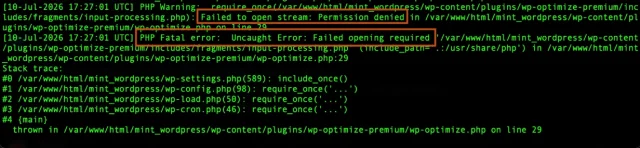
Section titled Your site can display a critical errorIf you’re seeing the dreaded “there has been a critical error on this site”, one of the causes can be incorrect file permissions. For example if a plugin has incorrect file permissions on just one file this can lead to this error.
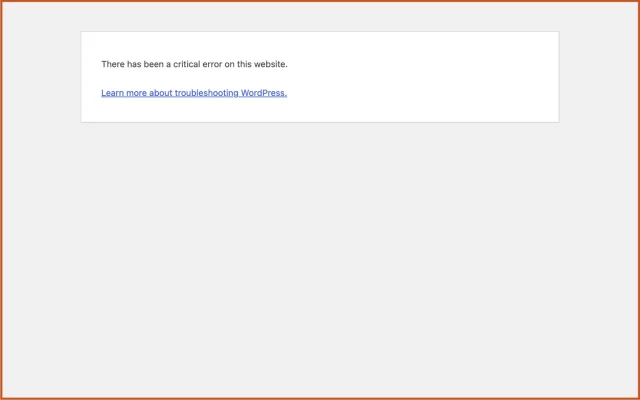
In a case like this, consult your WordPress Debug log to see the specific error. In this example we can see “Failed to open stream: Permission denied” and “Failed opening required”.
Plugin, theme or WordPress updates can fail
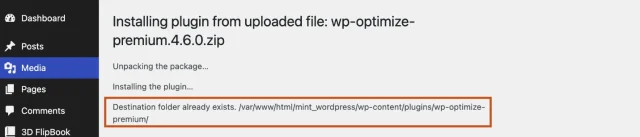
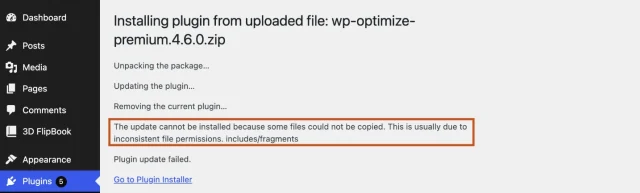
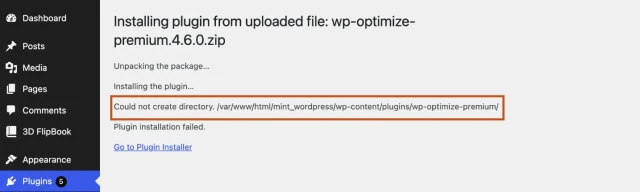
Section titled Plugin, theme or WordPress updates can failWhen trying to install or update a plugin or theme, incorrect permissions can lead to errors such as:
- Destination folder already exists
- Could not copy file
- Could not remove current plugin
- Could not create directory
These are indications that the permissions are incorrect for a file or folder in the plugin.
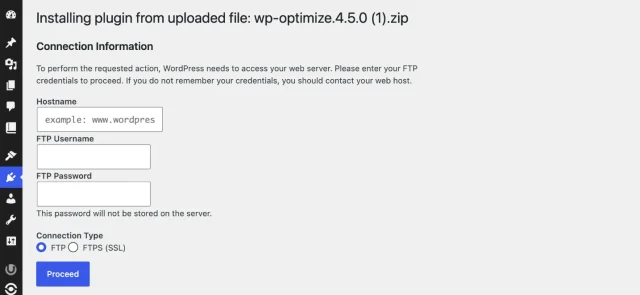
WordPress asks for FTP Credentials
If WordPress asks for FTP
credentials when you’re installing or updating a plugin or theme, it usually means WordPress can’t write directly to the files it needs to change.
File permissions on wp-content may be responsible, but file ownership and the way your hosting environment is configured can cause the same behaviour.
If the permissions already look correct, don’t make them more permissive just to get around the prompt. Check the file ownership or ask your hosting provider to confirm that WordPress has the access it needs.
Your site can become less secure
Section titled Your site can become less securePermissions that are too open can create a security risk by giving users or processes more access to your files than they actually need.
For example, setting folders to 777 or files to 666 allows other users on the server to make changes. This can be particularly risky on shared hosting. If another account or application on the same server is compromised, overly permissive settings could make it easier for an attacker to modify your WordPress files.
That could include changing plugin files, adding malicious code or accessing sensitive files such as wp-config.php.
There’s a balance to get right, though. Making permissions too restrictive can cause problems too, preventing WordPress and your plugins from accessing or changing the files they need. That’s why it’s better to use the permissions recommended for your hosting environment rather than simply making everything more restrictive.
Backups and restores can fail
Section titled Backups and restores can failBackup plugins also need the correct permissions to read, create and replace files.
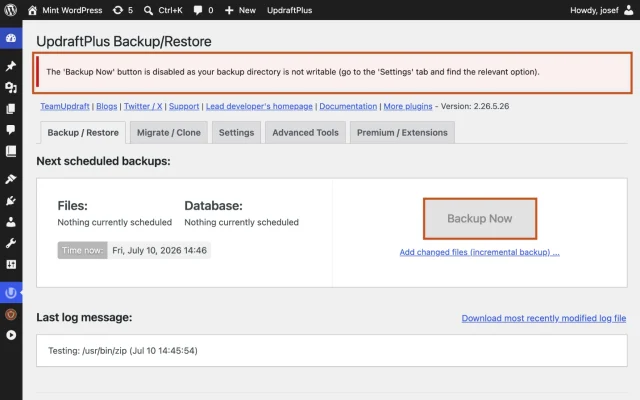
For example, UpdraftPlus needs sufficient access to its backup directory, which is wp-content/updraft by default. If it can’t write to this directory, UpdraftPlus may disable the option to create a backup until the permissions issue has been resolved.
Permissions can also cause problems during a restore. UpdraftPlus needs to be able to replace existing WordPress files with those from your backup, so insufficient permissions can cause the restoration to fail.
In the case of restores, if UpdraftPlus doesn’t have sufficient permissions to replace files then it will lead to a failed restore. In the restoration log you’ll see something like:
Failed. Destination Directory UID=33, GID=33. Effective/real user IDs of the current process: 33/33. Effective/real group IDs of the current process: 33/33.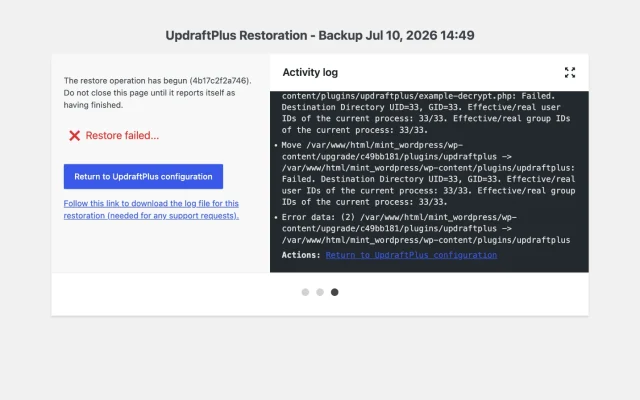
Cache or Minified Files Cannot Be Created
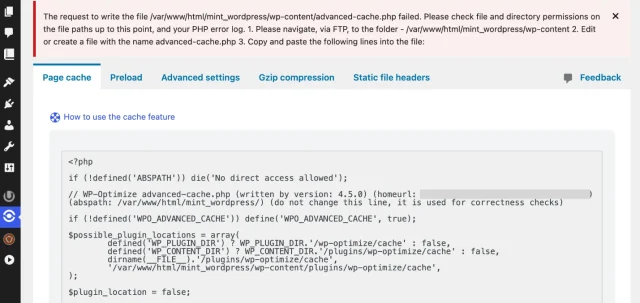
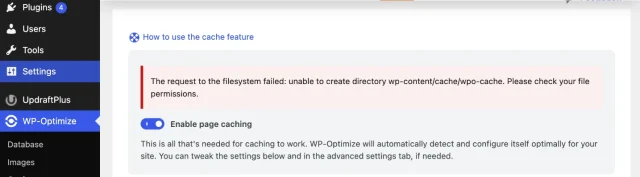
Section titled Cache or Minified Files Cannot Be CreatedCaching and optimisation plugins need permission to create and update files on your server. If those permissions aren’t correct, you may see errors such as:
The request to write the file /wp-content/advanced-cache.php failed.
The request to the filesystem failed: unable to create directory wp-content/cache/wpo-cache.
For example, WP-Optimize needs the correct permissions to create files such as advanced-cache.php and save cached versions of your pages in the wp-content/cache directory.
If you see one of these errors, check the permissions and ownership of the affected file or directory. Avoid making the entire folder writable as a quick fix, as overly permissive settings can introduce unnecessary security risks.
How to change File Permissions
Section titled How to change File PermissionsThere are a number of ways that you can change the file and folder permissions for your site, depending on your level of comfort or how you access your server. We’ll go through some of the most common ones below.
When to change WordPress File Permissions
In most scenarios if WordPress was installed by an experienced developer or a reputable web hosting company, you shouldn’t need to change WordPress file permissions. However, if WordPress was installed manually or you’re running into some of the errors described above then you may need to change the permissions for files and folders on your WordPress site. We always recommend taking a full backup of your site using a plugin like UpdraftPlus before making any changes.
Using cPanel
Section titled Using cPanelcPanel is one of the most popular and common web hosting management systems, so we’ll use that for this example however other hosting providers should have similar steps.
- Log in to your cPanel and select the File Manager which is located in the Files section.
- Navigate to the folder where WordPress is installed (usually public_html) and find the folder or file that you want to change permissions for.
- Right-click on the file or folder and select Change Permissions. This will open a little popup window where you can select checkboxes for read, write and execute for the Owner, Group and World.
- Click on Change Permissions to apply the changes.
Using FTP
Section titled Using FTPAnother way to modify the file permissions is using an FTP program such as FileZilla or CyberDuck.
- Connect to your site using your FTP username and password.
- Navigate to the WordPress installation folder.
- Right click on the file or folder and select File Permissions.
- Using the checkboxes you can change the read, write and execute permissions for Owner Group and World. You can also set the numeric value if preferred.
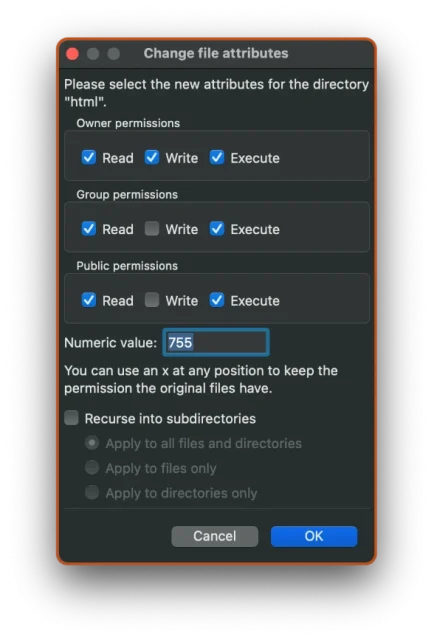
5. Optionally, if you need to change all of the permissions within subdirectories you can select Recurse into subdirectories and set the permissions for files and folders.
6. Click OK to set the permissions.
Using a plugin
Section titled Using a pluginPlugins such as AIOS can also help you set the recommended file permissions for core WordPress files and folders.
- If not installed, install the AIOS plugin from the WordPress repository here.
- Navigate to AIOS > File Security > File Permissions.
- This window will display the current file permissions for important WordPress files and folders.
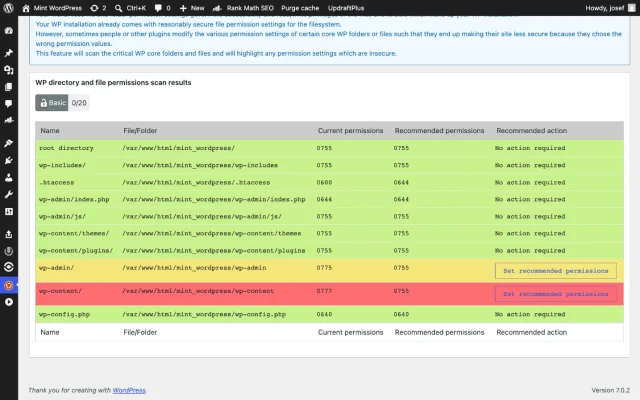
4. If the plugin detects any incorrect file permissions you can quickly set them by selecting Set recommended permissions beside each of the entries.
Correct file permissions are an important part of WordPress security. AIOS makes it easier to check key files and folders from your dashboard and apply recommended permissions without having to manage them manually.
Take the guesswork out of WordPress file permissions
All-In-One Security lets you check the permissions of important WordPress files and folders from your dashboard and quickly apply recommended settings where changes are needed.
Using SSH
Section titled Using SSHIf you have ssh access to your web server and are comfortable using the command line, you can quickly set the recommended permissions using two commands.
- Log in to your web server using ssh.
- Navigate to the directory where WordPress is installed using the
cdcommand. - If you want to verify the existing permissions you can check this with the
ls -lcommand. This will display all of the files and folders with their symbolic representation.
4. To set the recommended permissions for all folders and subfolders you can run the command:
find . -type d -exec chmod 755 {} +
This command will find all folders and subfolders starting in your current directory and set the permissions to the recommended ones.
5. To set the recommended permissions for all files you can run the command:
find . -type f -exec chmod 644 {} +
This command will find all files recursively starting in your current directory and set the permissions to the recommended ones.
Ask the Hosting Support
Section titled Ask the Hosting SupportOf course if any of these methods are a little too daunting, another way to have the permissions changed is to reach out to the hosting support for assistance.
WordPress file permission best practices
Section titled WordPress file permission best practicesOnce you’ve corrected any permission issues, there are a few simple habits that can help keep your WordPress website secure and reduce the chances of running into the same problem again.
Stick to the recommended permissions
Section titled Stick to the recommended permissionsFor most WordPress websites, the following settings are appropriate:
Unless your hosting provider advises otherwise, there’s rarely a need to use more permissive settings.
Avoid making unnecessary changes
Section titled Avoid making unnecessary changesIf your website is working normally, there’s usually no benefit in changing file permissions.
Incorrect permissions are far more likely to cause problems than improve performance or security.
Only make changes when:
- troubleshooting a specific issue
- following guidance from your hosting provider
- carrying out planned maintenance where permissions need to be adjusted.
Keep WordPress updated
Section titled Keep WordPress updatedMany security issues that people attempt to solve by changing permissions are actually caused by outdated software.
Keeping the following up to date is one of the most effective ways to protect your website:
- WordPress core
- plugins
- themes
- PHP (where supported by your hosting provider).
If you manage multiple websites or want greater control over updates, Easy Updates Manager can help you schedule, automate and monitor WordPress updates more effectively.
Review your plugins regularly
Section titled Review your plugins regularlyEvery plugin you install adds code to your website.
Remove plugins you no longer use and choose well-maintained plugins from trusted developers.
Fewer unnecessary plugins generally means:
- fewer potential security vulnerabilities
- fewer compatibility problems
- a simpler website to maintain.
Use strong authentication
Section titled Use strong authenticationFile permissions help protect your files, but they don’t stop someone logging into your WordPress dashboard with a stolen password.
Good account security is equally important.
We recommend:
- unique passwords
- two-factor authentication (2FA)
- limiting login attempts
- removing unused administrator accounts
- reviewing user roles regularly.
These are all features that can be managed with a security plugin like AIOS.
Back up your website regularly
Section titled Back up your website regularlyEven if your permissions are perfectly configured, unexpected problems can still happen.
A failed update, hosting issue or accidental change could leave your website unusable.
Having a recent backup means you can restore your site quickly without rebuilding everything from scratch.
With UpdraftPlus, you can schedule automatic backups and store them securely in cloud storage services such as:
- Google Drive
- Dropbox
- Microsoft OneDrive
- Amazon S3
- UpdraftVault
- and many others.
Common myths about WordPress file permissions
Section titled Common myths about WordPress file permissionsThere are plenty of misconceptions surrounding file permissions.
Let’s clear up some of the most common ones.
Myth: 777 is the best permission because everything works
Section titled Myth: 777 is the best permission because everything worksFalse.
Although setting permissions to 777 might temporarily solve certain write errors, it also grants full access to everyone.
This significantly increases the security risk and should generally be avoided.
If using 777 appears to fix a problem, it’s often a sign that the underlying issue is file ownership or server configuration rather than the permissions themselves.
Myth: File permissions make WordPress faster
Section titled Myth: File permissions make WordPress fasterFalse.
Permissions control access to files.
They don’t affect page load times or website performance.
If you’re trying to speed up your WordPress site, focus on areas such as:
- page caching
- database optimisation
- image compression
- removing unused plugins.
WP-Optimize includes tools to help with all of these, making it a much better place to start when improving performance.
Myth: Every website should have identical permissions
Section titled Myth: Every website should have identical permissionsFalse.
While 755 and 644 are widely recommended, not every hosting environment is the same.
Managed WordPress hosts often use different ownership models and security configurations behind the scenes.
If your hosting provider recommends different settings, it’s usually best to follow their guidance.
Myth: Permission errors are always caused by permissions
Section titled Myth: Permission errors are always caused by permissionsFalse.
This is one of the biggest misconceptions.
The underlying cause could actually be:
- incorrect ownership
- insufficient disk space
- PHP configuration
- hosting restrictions
- corrupted files
- server security rules.
Permissions are just one piece of the puzzle.
Conclusion
Section titled ConclusionWordPress file permissions can look complicated at first, especially when you’re faced with numbers like 755 and 644, but the principle behind them is fairly simple: your site needs enough access to work properly without giving files and folders more access than they need.
For most WordPress sites, you shouldn’t need to change file permissions regularly. If you do run into errors with uploads, updates, backups or caching, check the affected permissions and file ownership before making changes across your entire site. And avoid using 777 as a quick fix. It may make an error disappear, but it can create a much bigger security problem in the process.
If you’re unsure, your hosting provider can usually check that your permissions and ownership are correct for their server configuration. It’s also a good idea to take a full backup before changing anything, so you have a safe way back if something doesn’t go as planned.
Correct file permissions are just one part of securing WordPress. Security plugins like AIOS can help you check important file permissions from your WordPress dashboard while also adding protection such as login security, firewall rules and file change detection, giving you a much broader layer of protection for your site.
FAQs
Section titled FAQsWhat are the recommended WordPress file permissions?
For most WordPress websites:
- Directories: 755
- Files: 644
Some hosting providers recommend different settings for files such as wp-config.php, so it’s always worth checking their documentation before making changes.
What does 755 mean?
The three digits represent permissions for:
- Owner
- Group
- Public
With 755:
- the owner can read, write and execute
- the group can read and execute
- everyone else can read and execute.
It’s the most common setting for WordPress directories.
What does 644 mean?
With 644:
- the owner can read and write
- everyone else can read only.
This is the standard setting for most WordPress files.
Is 777 ever safe?
Generally, no.
Giving files or folders 777 permissions allows anyone with server access to modify them.
In rare situations, your hosting provider may ask you to temporarily use 777 while diagnosing a problem, but it should never be left in place longer than necessary.
Why is WordPress asking for FTP credentials?
This usually means WordPress can’t write directly to your website’s files.
- Possible causes include:
- incorrect permissions
- incorrect file ownership
- your hosting configuration.
Changing permissions may help, but it’s not always the complete solution.
What happens if my file permissions are wrong?
- Plugin installation failures
- Media upload errors
- Failed WordPress updates
- “Permission denied” messages
- 403 Forbidden errors
They can also increase security risks if files are left too accessible.
Can changing file permissions break my website?
Yes.
Setting permissions incorrectly can prevent WordPress from accessing the files it needs to function properly. That’s why it’s important to understand the correct permissions before making any changes and only adjust them when necessary.
Do file permissions affect plugins?
Yes.
Plugins need permission to:
- install
- update
- create files
- write cache data
- store settings.
Incorrect permissions can prevent plugins from working as expected.
How do I restore the original permissions?
If you’ve accidentally changed permissions, you can usually restore them by setting:
- directories back to 755
- files back to 644
If you’re unsure what the correct values should be, contact your hosting provider before making further changes.
Should I change wp-config.php permissions?
Many hosting providers recommend more restrictive permissions for wp-config.php because it contains sensitive information such as your database credentials.
However, the correct setting varies depending on your hosting environment, so it’s best to follow your host’s recommendations.
What’s the difference between permissions and ownership?
Permissions determine what actions can be performed.
Ownership determines who those permissions apply to.
A website can still experience permission-related errors if the ownership is incorrect, even when the permission numbers look right.
About the author

Elvira Mishra
Elvira has over four years of experience creating and designing content in WordPress. Her background spans multiple digital disciplines, including marketing, SEO, user experience, and human computer interaction.
Categories
AIOS
Comprehensive, feature-rich, security for WordPress. Malware scanning, firewall, an audit log and much more. Powerful, trusted and easy to use.
From just $44.50 for the year.
More stories
-
10 Best WordPress Plugins for Agencies in 2026
Discover the best WordPress plugins for agencies, from backups and security to performance optimisation and site management. Explore tools that make managing multiple client websites easier and more efficient.
-
Direct WordPress site-to-site migration: A step-by-step guide
Learn how direct WordPress site-to-site migration works and how to move your website between hosts or domains without manually transferring files.
-

5 WordPress Web Design Tips to Improve Your Website
Good web design is about more than appearance. Explore practical WordPress web design tips to improve your website's layout, navigation, mobile responsiveness, accessibility and performance, helping you create a better experience for your visitors.
-
Best AI Website Builders Compared
AI website builders can help you design, write and launch a website in minutes. Compare the best AI-powered website builders based on ease of use, features, customisation, pricing and performance to find the right solution for your next project.
