How to back up WordPress to OneDrive

Backing up your WordPress site to Microsoft OneDrive gives you an off-site copy of your website that remains separate from your hosting account. You can set up automatic backups of your files and database, so recent copies of your site are stored in OneDrive without having to download them manually.
This means that if your site is affected by a failed update, server problem, security incident or accidental change, you’ll have a recent backup stored remotely and ready to restore.
In this guide, we’ll show you how to automatically back up WordPress to OneDrive, including how to connect your Microsoft account, choose a backup schedule and check that your backups are being stored correctly.
Key takeaways
Section titled Key takeaways- You can automatically back up your WordPress website to Microsoft OneDrive, keeping a copy separate from your hosting account.
- A complete WordPress backup should include both your website files and database.
- Automatic backups reduce the risk of missing backups and can be scheduled based on how often your website changes.
- OneDrive can be used as a remote storage destination with UpdraftPlus Premium.
- After setting everything up, run a test backup to check that your files are being successfully stored in OneDrive.
Understanding the core components of your website
Section titled Understanding the core components of your websiteBefore you connect WordPress to OneDrive, it’s worth understanding what a backup actually includes. Your website isn’t just one file – it’s made up of two key parts, and you’ll need both if you ever have to restore your site.
Website files
Section titled Website filesYour website files are everything that makes your site look and work the way it does. They include:
- The WordPress core software
- Your theme
- Your plugins
- Photos, videos and other media uploads
Without these files, your website won’t display or function properly.
Database
Section titled DatabaseYour database stores all of your website’s content and settings, including:
- Posts and pages
- User accounts
- Comments
- Website settings and configuration
Think of it as the part of your website that changes every time you publish a post, update a page or receive a new comment.
Why you need both
Section titled Why you need bothA complete WordPress backup always includes both your files and your database. If you only back up your files, you’ll lose your content and settings. If you only back up your database, you won’t have the files needed to run your website.
The good news is that backup plugins like UpdraftPlus take care of both automatically, so when you restore your website, everything is put back together exactly as it was.
Why external cloud storage matters
Section titled Why external cloud storage mattersCreating a backup is only half the job, where you store it matters just as much. If your backups are kept on the same server as your website and something happens to your hosting account, you could lose both your live site and your backups at the same time.
By storing your backups in OneDrive, you always have a separate copy of your website that’s available if you ever need to recover from a failed update, server issue or security incident.
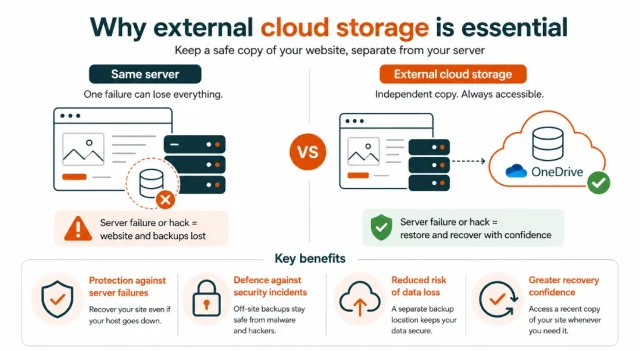
Storing backups in an external cloud service such as OneDrive gives you an independent copy of your website that remains available even if your server fails.
Some of the biggest benefits include:
- Protection against server failures: Recover your site even if your hosting provider experiences an outage or hardware failure.
- Defence against security incidents: Off-site backups remain safe if malware or hackers compromise your website.
- Reduced risk of data loss: A separate backup location means one failure is less likely to affect everything.
- Greater recovery confidence: You’ll always have access to a recent copy of your website when you need to restore it.
While many web hosts offer backup services, they shouldn’t be your only safeguard. Keeping an additional copy in cloud storage gives you far greater control over your recovery options.
Why choose Microsoft OneDrive for WordPress backups
Section titled Why choose Microsoft OneDrive for WordPress backupsIf you already use Microsoft products or have a Microsoft 365 subscription, OneDrive can be a convenient place to store your WordPress backups. It provides remote cloud storage that can be accessed independently of your hosting account and works with WordPress backup plugins such as UpdraftPlus.
Some of the benefits of using OneDrive for WordPress backups include:
- Remote storage: Your backups are stored separately from your WordPress hosting, so they remain accessible if you experience problems with your server or hosting account.
- Microsoft 365 integration: Many Microsoft 365 plans include OneDrive storage, so you may already have cloud storage available to use.
- Access from multiple devices: You can access and download files stored in OneDrive from supported desktop, mobile and web applications.
- File version history: OneDrive supports version history, which can help you recover previous versions of files where available.
- Flexible storage: Different storage plans are available if you need additional space as your backup requirements grow.
- Built-in security: Microsoft uses encryption to protect OneDrive data both in transit and at rest.
For WordPress users who already use Microsoft services, OneDrive is a practical option for keeping backups off-site and accessible when they are needed.
Why I stopped relying on manual backups
Section titled Why I stopped relying on manual backupsWhen I first started building websites, I handled every backup myself. Every Friday afternoon I would log into WordPress, download a copy of my website and save it to a folder on my computer. It seemed like a good system, and for a while it was.
Then I missed a week.
I was busy finishing client work, and by the time I remembered, another week had gone by. Not long afterwards, a plugin update caused problems with my website. My most recent backup was nearly a month old, which meant I had lost weeks of content and changes.
That was the moment I realised manual backups only work if you remember to do them every single time. Most of us have good intentions, but websites are easy to forget when work gets busy.
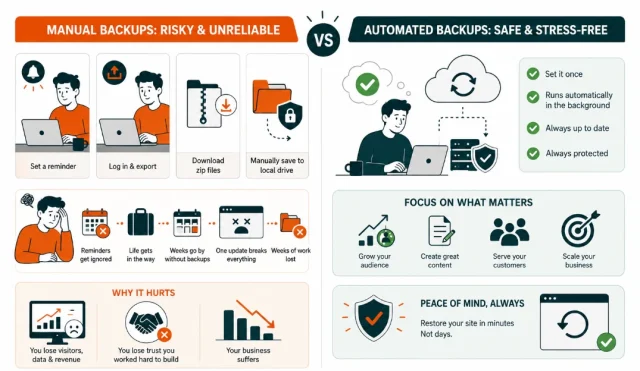
That is why I now recommend automating backups wherever possible. Once everything is set up, your backups run on a schedule, are stored safely in OneDrive and are there when you need them, without relying on memory or reminders.
Take the risk out of WordPress updates
Get ultimate peace of mind with automatic backups that trigger right before any theme or plugin update. UpdraftPlus protects your hard work so you can focus on growing your business.
How to automatically back up WordPress to OneDrive
Section titled How to automatically back up WordPress to OneDriveIn this tutorial, we’ll use UpdraftPlus to automatically back up your WordPress files and database to Microsoft OneDrive. You can choose how often your backups run, how many copies to keep and where they’re stored in your OneDrive account.
Microsoft OneDrive is available as a remote storage option with UpdraftPlus Premium. Before you begin, make sure you have UpdraftPlus Premium installed and activated on your WordPress site.
1. Open the UpdraftPlus settings
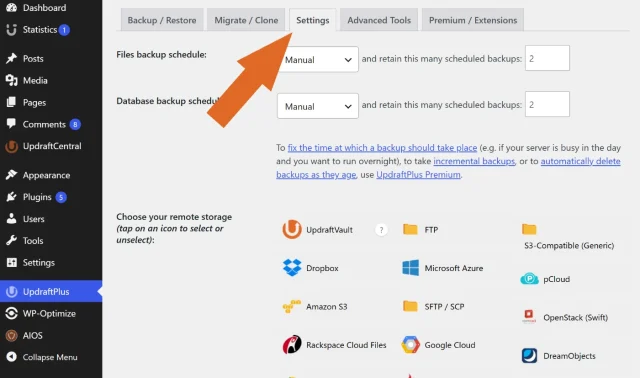
Section titled 1. Open the UpdraftPlus settings- Log in to your WordPress dashboard and go to Settings > UpdraftPlus Backups.
- Select the Settings tab. This is where you’ll configure your backup schedule and connect OneDrive as your remote storage destination.
2. Configure your automated schedule
Section titled 2. Configure your automated schedule- At the top of the Settings page, choose how often you want to back up your website files and database using the Files backup schedule and Database backup schedule dropdown menus.
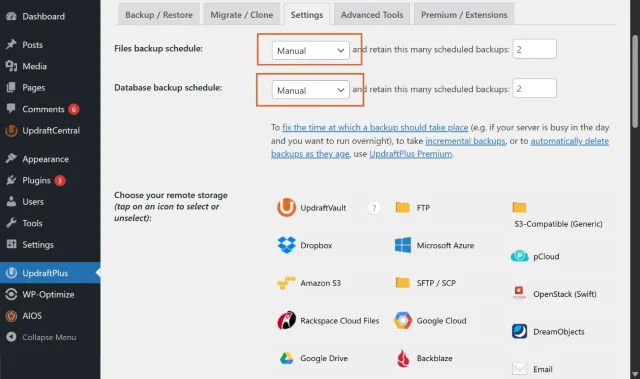
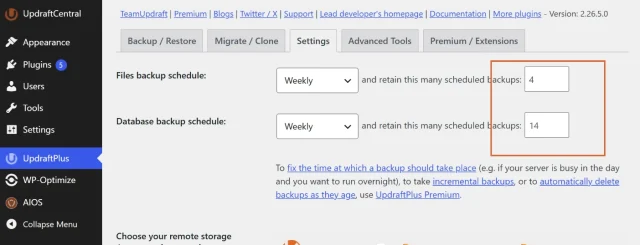
2. If you are not sure where to start, weekly backups for your files and daily backups for your database are a sensible option for many WordPress websites. If your site changes more frequently, you may want to run backups more often.
3. Next, choose how many backup copies you want to keep. This helps manage your OneDrive storage while ensuring you still have several restore points available if you ever need them.
3. Select your Microsoft storage destination
Section titled 3. Select your Microsoft storage destinationScroll down to the Choose your remote storage section. Here you will see a selection of cloud storage providers supported by UpdraftPlus.
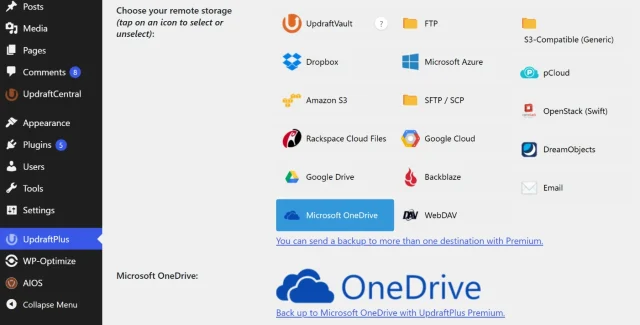
2. Click the Microsoft OneDrive icon to select it. Once selected, the icon will turn blue to show it is active.
4. Define your storage folder
Section titled 4. Define your storage folder- After selecting OneDrive, a new settings panel will appear below the storage options.
- In the OneDrive folder field, enter the name of the folder where you want your backups to be saved. You can use any name you like, such as My Backups or your website’s name. Creating a dedicated folder helps keep your backups organised and makes them easier to find if you ever need to restore your site.
5. Connect your Microsoft account
Section titled 5. Connect your Microsoft accountScroll to the bottom of the Settings page and click Save Changes.
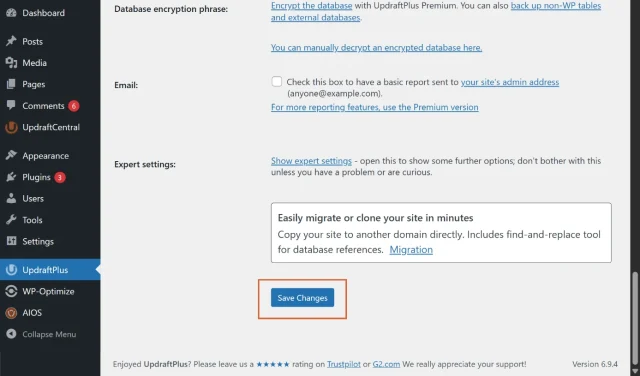
- A popup dialog or prominent link will immediately appear asking you to authenticate with Microsoft. Click the provided link.
- You will be redirected to a secure Microsoft login page.
- Log in with your credentials, click Yes to allow the plugin access and then click Complete Setup to return to your dashboard.
6. Run a manual test to verify the connection
Section titled 6. Run a manual test to verify the connection- Return to the main Backup/Restore tab inside the plugin.
- Click the large blue Backup Now button.

3. Ensure the checkbox to send this backup to remote storage is firmly checked in the popup window.
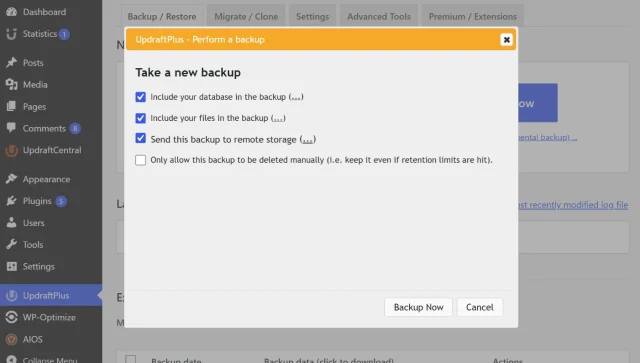
4. Click the button to start the process. Once the progress bar completes, log into your Microsoft account in a new browser tab and verify your zip archives are sitting safely inside the new folder you created.
Having problems authenticating with Microsoft OneDrive?
Section titled Having problems authenticating with Microsoft OneDrive?In most cases, clicking Complete Setup will automatically reconnect you to your WordPress dashboard and finish the authentication process.
However, some security plugins, web application firewalls (WAFs), hosting security rules or browser extensions can block the automatic redirect. If this happens, don’t worry – you can complete the connection manually.
When you finish signing in to Microsoft, you’ll be shown an authorization code. Copy this code, then return to Settings → UpdraftPlus Backups in your WordPress dashboard and paste it into the authentication field when prompted.
If you’re still unable to connect:
- Make sure any browser ad blockers or privacy extensions aren’t blocking the authentication window.
- Temporarily disable any security or firewall rules that may be preventing the redirect, then try again.
- Check that pop-ups are allowed for your WordPress site and Microsoft authentication pages.
- If you’re using a managed host or corporate network, a firewall or proxy may be blocking the authentication request. In this case, using the manual authorization code is usually the quickest solution.
Once authentication has been completed successfully, UpdraftPlus will be able to send your backups directly to your Microsoft OneDrive account automatically.
More control over your WordPress backups
Go beyond scheduled OneDrive backups with incremental backups, automatic backups before updates and advanced scheduling. UpdraftPlus Premium gives you more control over your backups as your website grows.
Conclusion
Section titled ConclusionBacking up WordPress to Microsoft OneDrive gives you an off-site copy of your website that remains separate from your hosting account. By automating the process, you can make sure your files and database are backed up regularly without having to create and download backups manually.
With UpdraftPlus Premium, you can connect your WordPress site to OneDrive, choose how often your backups run and manage how many backup copies you keep.
Once you’ve completed the setup, run a test backup and check that it appears in your chosen OneDrive folder. It’s a simple final check that confirms your automatic backups are configured correctly.
FAQs
Section titled FAQsCan I back up WordPress to OneDrive automatically?
Yes. You can use a compatible WordPress backup plugin to create backups on a schedule and send them automatically to Microsoft OneDrive. With UpdraftPlus, OneDrive is available as a remote storage option with UpdraftPlus Premium.
How often should I back up my WordPress site to OneDrive?
This depends on how frequently your website changes. A relatively static website may only need weekly file backups, while sites that regularly receive orders, comments or content updates may need database backups daily or more frequently.
How much OneDrive storage do I need for WordPress backups?
This depends on the size of your WordPress site, how many backups you keep and whether you use full or incremental backups. Check the size of your existing backups and allow enough storage for multiple restore points rather than keeping only one copy.
Is OneDrive a good place to store WordPress backups?
OneDrive is a good choice because it stores your backups separately from your hosting account, making them available even if your website experiences server issues or your hosting account becomes unavailable.
About the author

Elvira Mishra
Elvira has over four years of experience creating and designing content in WordPress. Her background spans multiple digital disciplines, including marketing, SEO, user experience, and human computer interaction.
Categories
UpdraftPlus
Get all our premium features. Direct site-to-site migration, incremental backups, back up automatically before updates and a whole lot more.
From just $70 for the year.
More stories
-

5 WordPress Web Design Tips to Improve Your Website
Good web design is about more than appearance. Explore practical WordPress web design tips to improve your website's layout, navigation, mobile responsiveness, accessibility and performance, helping you create a better experience for your visitors.
-
Best AI Website Builders Compared
AI website builders can help you design, write and launch a website in minutes. Compare the best AI-powered website builders based on ease of use, features, customisation, pricing and performance to find the right solution for your next project.
-

How incremental backups save time and storage in WordPress
Incremental backups only save the changes made since your last backup, helping you reduce storage usage, speed up backups and lower server load. Learn how they work and why they're an essential part of an efficient WordPress backup strategy.
-
Best WordPress Website Builders Compared
Discover the best WordPress website builders for every skill level. Compare features, ease of use, pricing and performance to choose the right builder for your blog, business or online store.
