World Backup Day: if your site disappeared, would you be ready?

It’s not something most WordPress users think about – until it happens.
A plugin update fails.
A file gets deleted.
A hosting issue takes your site offline.
A security problem corrupts your database.
Suddenly, your website isn’t working, and you’re left trying to figure out how to recover it.
This is exactly why World Backup Day exists. Every year on 31 March, it’s a reminder to make sure the work you’ve put into your website is protected before something goes wrong.
If you’re not currently using a backup plugin, you can get started with the free version of UpdraftPlus and set up automatic backups in just a few clicks.
If you’re looking for more advanced features, UpdraftPlus Premium adds flexible scheduling, multiple storage locations, and detailed reporting. It’s especially useful for agencies, developers, or anyone managing multiple WordPress sites who wants extra control and time-saving tools.
The good news is that it only takes a few minutes to check. Here are three simple things you can do today to make sure your WordPress site is backed up and ready to restore if needed.
1. Automate your backups for peace of mind
Section titled 1. Automate your backups for peace of mindManual backups are easy to forget, especially when you’re busy updating plugins, creating content, or managing client sites. Automatic backups help ensure your site is protected in the background.
With UpdraftPlus, you can schedule backups to run:
- Every few hours
- Daily
- Weekly
- Monthly
If you already have a schedule in place, it’s worth reviewing it. Sites that change frequently, such as WooCommerce stores, may benefit from more frequent backups, while less active sites may not need them as often.
Premium users can also schedule backups at specific times, such as overnight, or automatically run backups before updates for additional protection.
2. Get notified when backups complete
Section titled 2. Get notified when backups completeBackups are only helpful if you know they’re actually completing successfully. Enabling backup reports means you’ll receive confirmation when a backup runs and can spot any issues early.
To check this:
- Open UpdraftPlus
- Go to the Settings tab
- Scroll to Email
- Make sure the box is checked
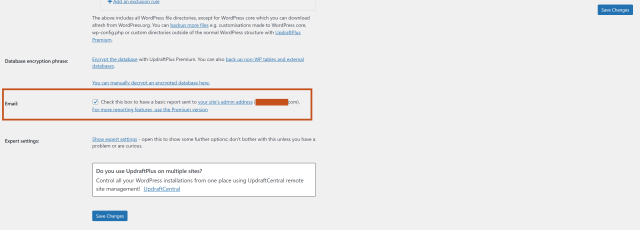
This small step gives you confidence that your backups are running as expected.
3. Keep your backups safe offsite
Section titled 3. Keep your backups safe offsiteIf your backups are saved on the same server as your website, they could be lost at the same time as your site. That’s why storing backups offsite is strongly recommended.
With UpdraftPlus, you can back up your WordPress site for free to:
- Google Drive
- Dropbox
- Amazon S3
- Rackspace Cloud
- OpenStack (Swift)
- DreamObjects
Premium users can also back up to additional locations, including:
- Microsoft OneDrive
- Microsoft Azure
- Google Cloud
- Backblaze
- SFTP and SCP
- pCloud
- WebDAV
- UpdraftVault
You can even back up to multiple locations for extra peace of mind.
To connect remote storage:
- Open UpdraftPlus
- Go to Settings
- Click your preferred storage provider
- Follow the connection steps
Take a few minutes today
Section titled Take a few minutes todayWorld Backup Day is simply a reminder to check that your backups are working before you need them.
Restoring a backup takes minutes. Rebuilding a WordPress site from scratch can take far longer.
Taking a few minutes today helps ensure that if something unexpected happens, you’re ready to recover quickly and get your site back online.
You can get started today with the free version of UpdraftPlus and set up automatic backups in just a few clicks. If you need more flexibility, remote storage options, and advanced scheduling, UpdraftPlus Premium adds extra protection and time-saving features.
Take the guesswork out of backups
Automatic backups, remote storage, and one-click restores mean you’re prepared for plugin conflicts, updates, or unexpected issues. Set it up once and let UpdraftPlus handle the rest.
About the author

Becks Faulkner
Becks is the Performance Marketing Manager at Updraft WP Software Ltd, with more than 15 years of marketing experience and over 11 years specialising in SEO. She works across TeamUpdraft’s WordPress products, focusing on content strategy and organic growth. Her experience spans both the financial and technology sectors, helping businesses improve their visibility in search.
Categories
UpdraftPlus
Get all our premium features. Direct site-to-site migration, incremental backups, back up automatically before updates and a whole lot more.
From just $70 for the year.
More stories
-

How to back up WordPress automatically
Learn how to back up WordPress automatically and schedule regular backups of your website’s files and database, so you always have a recent copy ready if something goes wrong.
-

What is DNS over HTTPS (DoH) and should you enable it for WordPress?
DNS over HTTPS encrypts DNS requests to improve privacy and security. Learn how DoH works, its benefits and how to enable it.
-

UpdraftPlus vs BlogVault: Which WordPress Backup Plugin Is Best?
Compare UpdraftPlus and BlogVault across backups, restores, migrations, storage, pricing and more to see which WordPress plugin comes out on top.
-
What is an SSL/TLS handshake and why does it matter for WordPress?
Learn what an SSL handshake is, how the SSL/TLS handshake establishes a secure connection and why the process matters for your WordPress website.
