How to safely delete a WordPress site without losing data

Whether you’re retiring an old website, moving to a new host or starting again from scratch, deleting a WordPress site is more than just removing a few files. It’s easy to forget about things like your database, domain name, hosting plan or search listings until it’s too late.
The good news is that deleting a WordPress site properly is straightforward. Before you remove anything, take a few simple steps to protect your data and decide what should happen to the rest of your website.
In this guide, you’ll learn how to create a complete backup, safely remove your WordPress files and database, decide what to do with your domain name, cancel any services you no longer need and make sure your old URLs are handled correctly before taking your site offline.
Key takeaways
Section titled Key takeaways- Create a complete backup of your WordPress files and database before deleting anything.
- Decide what to do with your domain name and preserve any valuable SEO before taking your site offline.
- Remove your WordPress files and database safely using your hosting control panel or an FTP client.
- Export important data, such as analytics reports, before closing your website.
- Cancel any hosting plans or subscriptions you no longer need to avoid unnecessary charges.
Before deleting your site, ask yourself
Section titled Before deleting your site, ask yourself- Are you moving to a new domain?
- Are you migrating hosts?
- Do you simply want to hide the site?
- Could you archive it instead?
Lots of people searching this query don’t actually want to delete their site – they want to move it.
Why you might need to delete WordPress site files
Section titled Why you might need to delete WordPress site filesThere are many reasons you might decide to clear out your server. You could be starting a brand new business venture and need a completely clean slate. Sometimes an old project simply no longer serves your goals. Leaving an abandoned website online can actually become a security risk over time.
Hackers frequently target outdated plugins and themes on abandoned domains. If you leave an old project sitting on your server it could eventually compromise your other active websites. Taking the time to delete junk data is an important part of good WordPress maintenance.
You might also be moving to a completely different platform. If you are rebuilding your online presence using a different content management system you will need to clear out the old files. Clearing the server prevents file conflicts and frees up valuable storage space on your hosting account.
How to delete a WordPress site
Section titled How to delete a WordPress siteDeleting a WordPress site involves more than cancelling your hosting plan or removing a few files. To avoid losing valuable content or accidentally deleting the wrong data, it is important to work through the process in the right order.
Start by creating and downloading a complete backup of your website, including both your WordPress files and database. Once your backup is stored safely, you can remove the site files, delete the associated database and complete any remaining tasks, such as handling your domain name, redirects and hosting subscription.
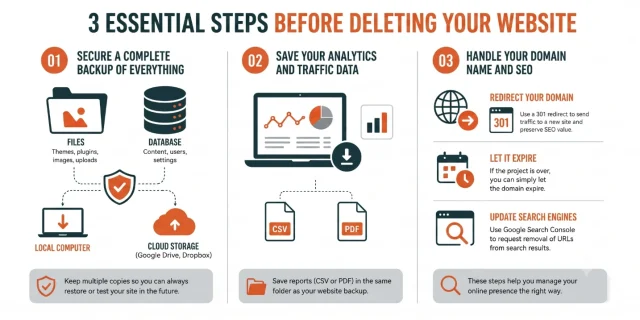
Step 1. Create a complete backup of your website
Section titled Step 1. Create a complete backup of your websiteBefore deleting anything, create a complete backup of your WordPress site. Even if you do not expect to use the website again, its content, images or settings could still be useful in the future.
A WordPress website is made up of two main parts: its files and its database. The files include your images, themes, plugins and WordPress installation files. The database stores your posts, pages, comments, users and website settings. You need to back up both to create a complete, restorable copy of the site.
One of the easiest ways to do this is with UpdraftPlus. It creates downloadable backup archives of your files and database, which you can store safely and restore later if needed.
Follow these steps to back up your WordPress site using UpdraftPlus before removing anything from your server:
- Log into your WordPress dashboard and go to Plugins > Add New Plugin.
- Search for UpdraftPlus, then click Install Now followed by Activate.
- Go to Settings > UpdraftPlus Backups.
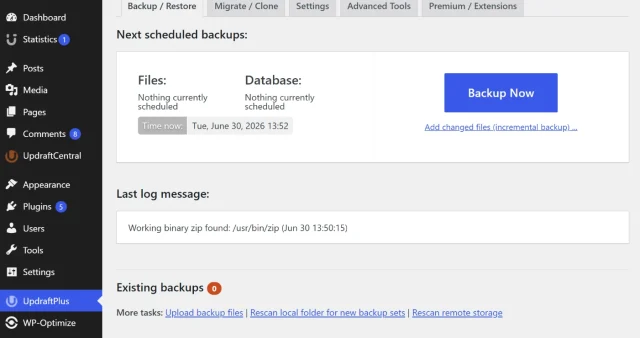
4. Click the large blue ‘Backup now’ button on the main dashboard screen
5. Check the boxes to include both your database and your files in the popup window
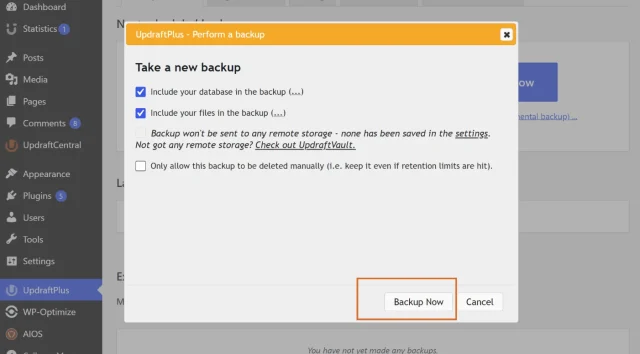
6. Click ‘Backup now’ again and wait for the progress bar to completely finish
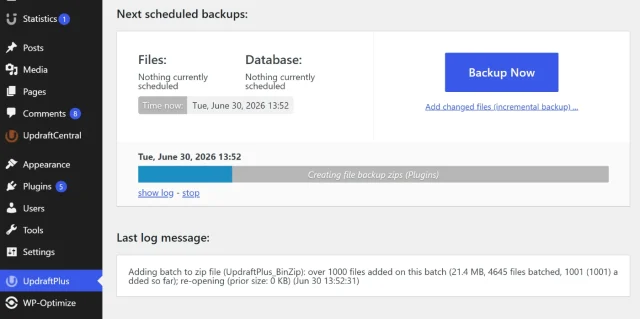
7. Scroll down to your existing backups and click each component to download them
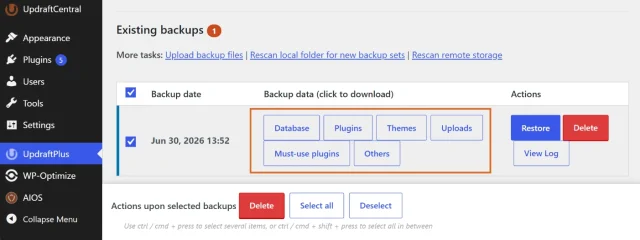
You should download this backup directly to your local computer. I also recommend uploading a copy to a cloud storage provider like Google Drive or Dropbox. Having multiple copies ensures you can always restore your project on a local testing environment if you get nostalgic.
The biggest mistake I see is people assuming they’ll never need the site again. A few months later they’re looking for an old blog post, a customer record or even just a logo they forgot to save. Storage is cheap, rebuilding a lost website isn’t. I always recommend taking a complete backup before deleting anything, even if you’re convinced you’ll never use it again.
Back up first. Delete with confidence.
Once a website is deleted, there’s often no easy way back. UpdraftPlus creates a complete backup of your files and database, so you can safely remove your site knowing you have a copy ready to restore whenever you need it.
Step 2. Save your analytics and traffic data
Section titled Step 2. Save your analytics and traffic dataMost people forget to save their traffic data before they close their hosting account. Your historical traffic data is incredibly valuable for future projects. It tells you what type of content worked well and where your visitors came from.
If you use external tracking tools you might retain access to this data. However many privacy focused site owners keep their data locally. I always use Burst statistics because it keeps all my traffic data locally on my server. This makes exporting a simple spreadsheet of my past performance incredibly secure and fast before I delete anything.
Make sure you download your reports in a format like CSV or PDF. Save these files in the same folder as your website backup. Having your traffic history alongside your content makes it easy to review your past successes.
Step 3. Decide what to do with your domain name and SEO
Section titled Step 3. Decide what to do with your domain name and SEOBefore deleting your WordPress files, decide what should happen to your domain name. Your domain registration is separate from your web hosting, so deleting your website does not automatically cancel or remove your domain.
If you’re replacing your website or moving to a new domain, set up a 301 redirect to send visitors and search engines to the new location. This helps preserve backlinks, rankings and any existing traffic.
If you’re permanently retiring the website, decide whether you want to keep the domain name or let it expire. You may wish to keep ownership of the domain to prevent someone else from registering it in the future.
It’s also worth using Google Search Console to request the temporary removal of important URLs while Google recrawls your site. Over time, Google will remove pages from its index automatically once it detects that they return the appropriate HTTP status code, such as 404 (Not Found) or 410 (Gone).
One mistake I see quite often is people treating their domain like it’s tied to their hosting account. It isn’t. If a site has built up backlinks, rankings or even just a memorable domain name, deleting the files without a plan can throw away years of value. Even if you’re retiring the website, it’s worth deciding whether the domain still has a purpose before you let it go.
How do you delete a WordPress site on self hosted platforms
Section titled How do you delete a WordPress site on self hosted platformsMost people use self hosted solutions through companies like Bluehost, SiteGround or GoDaddy. These platforms give you full access to your underlying server files. Because you have full control you have to manually remove the components yourself.
Finding your database name in wp-config
Section titled Finding your database name in wp-configBefore we delete anything we need to know exactly which database belongs to your site. Many hosting accounts hold multiple websites on the same server. Deleting the wrong database will instantly break a different website on your account.
You can find the correct database name by looking at a specific core file. Log into your hosting account and open the file manager. Navigate to the root folder of the website you want to remove.
Look for a file called wp-config.php and open it in the text editor. Scroll down until you see a line of code that mentions the DB_NAME. Write down the name listed inside the quotation marks so you know exactly which database to target later.
Removing your files using cpanel file manager
Section titled Removing your files using cpanel file managerThe easiest way to remove your files is through your hosting control panel. Most hosting providers use a system called cPanel. Log into your hosting dashboard and look for the icon labeled File Manager.
Click on the File Manager and look for a folder called public_html on the left side. If this is your only website all your files will live directly inside this folder. If this is an addon domain you will need to look for a folder with your specific website name.
Open the correct folder and click the select all button at the top of the screen. Double check that you are in the correct directory. Click the delete button and confirm that you want to skip the trash and permanently remove the files. Your website is now officially offline.
Removing your files using an ftp client
Section titled Removing your files using an ftp clientSome people prefer to use an FTP client instead of a web browser interface. This method is great if your hosting provider does not offer a traditional file manager. You will need to download a free program like FileZilla to connect to your server.
Open your FTP client and enter your server address, username and password. You can find these credentials in your hosting account dashboard. Click connect and wait for your server files to populate on the right side of the screen.
Navigate to your website root folder just like you would in the file manager. Select all the files and folders inside that directory. Right click on the highlighted files and select delete from the dropdown menu. This process might take a few minutes depending on how many images you have uploaded over the years.
Deleting your database in phpmyadmin
Section titled Deleting your database in phpmyadminNow that the files are gone we need to clean up the database. Go back to your main hosting dashboard and look for the databases section. Click on the icon labeled phpMyAdmin to open your database management tool.
You will see a list of databases on the left hand side of the screen. Find the exact database name you wrote down earlier from the configuration file. Click on that database to view all the tables inside it.
Once you’ve confirmed you’re working with the correct database, you can either delete the individual tables or remove the database entirely, depending on your hosting setup.
How to delete a WordPress.com site
Section titled How to delete a WordPress.com siteIf your website is hosted on WordPress.com, the process is different from deleting a self-hosted WordPress website. Because WordPress.com manages the hosting for you, you do not have direct access to your site’s files or database.
Before deleting your site, export your content from the dashboard. This gives you a copy of your posts, pages and media if you decide to reuse them later.
To delete your site:
- Log into your WordPress.com dashboard.
- Go to Settings for the site you want to delete.
- Scroll to the bottom of the page and select the option to permanently delete your site.
- Follow the on-screen prompts to confirm the deletion.
If you’re using a custom domain, remember that deleting your site does not necessarily cancel your domain registration. If you’re using a free wordpress.com address, that site address may not be available to use again after it has been permanently deleted.
What to do after you delete a WordPress site
Section titled What to do after you delete a WordPress siteDeleting your WordPress site is only part of the job. Before you move on, it’s worth spending a few minutes checking that everything linked to your old website has been dealt with properly.
Think about any services that were connected to the site, such as your hosting plan, email accounts or premium plugin subscriptions. If you’re keeping your domain name, you should also review what happens when people visit it and how your old pages appear in search results.
Taking care of these final housekeeping tasks can help you avoid unexpected costs, prevent visitors running into broken links and make sure you don’t lose anything important.
Cancelling your web hosting plan
Section titled Cancelling your web hosting planIf this was the only website on your hosting account, you can cancel your hosting plan once you’re certain you no longer need it. Most hosting providers charge on a recurring subscription, so forgetting to cancel could mean paying for a service you’re no longer using.
Log into your hosting provider’s billing portal and review your active subscriptions. If you’re not ready to cancel immediately, consider turning off automatic renewal first. This lets you use the remainder of your current billing period while giving yourself time to change your mind if needed.
It’s also worth reviewing any premium plugins, themes or third-party services that were connected to the website. Cancelling subscriptions you no longer use can help avoid unnecessary ongoing costs.
Check your email accounts
Section titled Check your email accountsMany hosting providers include email hosting as part of your web hosting package. If you’ve been using email addresses linked to your domain, such as [[email protected]](mailto:[email protected]), make sure you’ve backed up any important emails before cancelling your hosting.
If you want to keep using those email addresses, you’ll need to move them to another email provider before your hosting account is closed.
Removing your URLs from Google Search
Section titled Removing your URLs from Google SearchDeleting your WordPress site doesn’t automatically remove it from Google’s search results. Your pages may continue to appear for days or even weeks after the site has gone offline, which can send visitors to broken pages or error messages.
If you want to hide your content more quickly, you can use the Removals tool in Google Search Console to temporarily remove URLs from Google’s search results while Google recrawls your website.
Over time, Google will revisit your site and recognise that the content has been permanently removed. If your pages return the appropriate HTTP status code, such as 404 (Not Found) or 410 (Gone), Google will eventually remove those URLs from its index automatically.
The Removals tool only provides a temporary hide. Permanent removal happens once Google confirms the pages are no longer available during future crawls.
Update important links
Section titled Update important linksIf you’re moving to a new website or domain, take a few minutes to update any links you control. This includes your social media profiles, Google Business Profile, email signature, online directories and any marketing materials that point to your old website.
Updating these links helps visitors find the right website and reduces the number of people landing on broken pages. If you’ve set up 301 redirects, it’s still good practice to update links where possible rather than relying on redirects indefinitely.
Build your next website on a stronger foundation
Starting a new WordPress site is the perfect time to put security first. AIOS protects your login page, blocks common attacks and helps keep your website secure from the moment it goes live.
Conclusion
Section titled ConclusionDeleting a WordPress site isn’t difficult, but don’t rush it. Before you remove anything, take a complete backup and spend a few minutes checking what will happen to your domain, hosting account and search listings.
Trust me, it’s worth it. I’ve lost count of the number of times people have been certain they’d never need an old website again, only to realise a few months later they wanted to recover a page, an image or a database. A backup gives you that option.
If you don’t already have a reliable backup solution, make that your first step. UpdraftPlus makes it easy to create a complete backup before you delete anything, so you can make changes knowing your data is safely stored if you ever need it again.
FAQs
Section titled FAQsCan I undo a site deletion if I change my mind?
If you created a backup before deleting your site, you can restore it whenever you need to. Without a backup, recovery can be much more difficult. Some hosting providers keep automatic backups for a limited time, so if you’ve only recently deleted your site, contact your host as soon as possible to see whether a restore is still available.
Does deleting a WordPress site delete the database?
Not always. Deleting your WordPress files doesn’t automatically remove the database unless you delete it separately or use a one-click uninstall tool that removes both. If you’re deleting a self-hosted WordPress site manually, remember to remove both the files and the database once you’ve taken a backup.
Will deleting my site release my domain name for someone else to buy?
Deleting your website doesn’t cancel your domain registration. You keep ownership of your domain until its registration expires or you choose not to renew it. If you want to keep the domain for a future project, simply continue renewing it.
Can I temporarily hide my site instead of deleting it?
If you’re planning to redesign your website or take it offline for a while, enabling maintenance mode is often a better option than deleting it. Your files, database and content remain intact, so you can make the site live again whenever you’re ready.
Does deleting my WordPress site automatically cancel my hosting?
No. Removing your WordPress files only deletes the website itself. Your hosting plan will usually remain active until you cancel it through your hosting provider or switch off automatic renewal.
Can I recover a deleted WordPress site without a backup?
Recovery may still be possible if your hosting provider keeps automatic backups, but there’s no guarantee they’ll still be available. If no backup exists, recovering a deleted WordPress site can be difficult or impossible, which is why creating a backup before deleting anything is so important.
What is the fastest way to delete a self-hosted WordPress site?
Some hosting providers include one-click uninstall tools, such as Softaculous, which remove both your WordPress files and database automatically. If your host doesn’t offer this feature, you’ll need to delete them manually using your hosting control panel or an FTP client.
Can I delete WordPress without deleting my domain name?
Yes. Your WordPress installation, hosting account and domain name are three separate things. You can remove your WordPress website while keeping ownership of your domain, allowing you to build a new website on it later or point it somewhere else.
About the author

Elvira Mishra
Elvira has over four years of experience creating and designing content in WordPress. Her background spans multiple digital disciplines, including marketing, SEO, user experience, and human computer interaction.
Categories
UpdraftPlus
Get all our premium features. Direct site-to-site migration, incremental backups, back up automatically before updates and a whole lot more.
From just $70 for the year.
More stories
-

5 WordPress Web Design Tips to Improve Your Website
Good web design is about more than appearance. Explore practical WordPress web design tips to improve your website's layout, navigation, mobile responsiveness, accessibility and performance, helping you create a better experience for your visitors.
-
Best AI Website Builders Compared
AI website builders can help you design, write and launch a website in minutes. Compare the best AI-powered website builders based on ease of use, features, customisation, pricing and performance to find the right solution for your next project.
-

How incremental backups save time and storage in WordPress
Incremental backups only save the changes made since your last backup, helping you reduce storage usage, speed up backups and lower server load. Learn how they work and why they're an essential part of an efficient WordPress backup strategy.
-
Best WordPress Website Builders Compared
Discover the best WordPress website builders for every skill level. Compare features, ease of use, pricing and performance to choose the right builder for your blog, business or online store.
