What’s the best way to backup WordPress

If you’re wondering about the best way to back up a WordPress site, the short answer is this: use an automated backup solution that stores your backups separately from your website. While you can create manual backups or rely on your hosting provider, those approaches often have limitations that only become obvious when you need to restore your site.
Over the years, we’ve seen WordPress websites lost because of failed plugin updates, server issues, accidental changes and security incidents. In many cases, the difference between a minor inconvenience and a major outage comes down to having a recent, reliable backup that’s easy to restore.
In this guide, we’ll compare different ways to back up WordPress, explain the pros and cons of each approach, and help you choose the solution that’s best suited to your website. We’ll also cover backup best practices, including how often to back up your site, where to store your backups and why testing them is just as important as creating them.
Key takeaways
Section titled Key takeaways- Automated, off-site backups are the most reliable way to protect a WordPress website from data loss.
- A complete WordPress backup should always include both your website files and your database.
- Hosting backups are useful, but they shouldn’t be your only recovery option.
- The right backup strategy depends on how often your website changes, with busier sites typically requiring more frequent backups.
- Test your backups regularly to make sure you can restore your website if something goes wrong.
Why every WordPress website needs a backup
Section titled Why every WordPress website needs a backupUnexpected problems can happen to any WordPress website. A security breach, a plugin or theme update that doesn’t go to plan, a server issue or even an accidental mistake can all lead to lost data or a website that stops working properly.
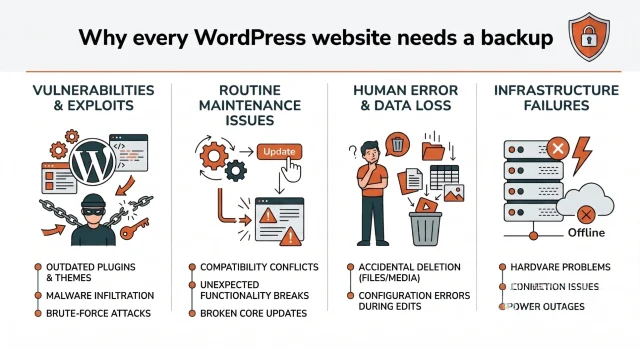
While cyberattacks are often the first thing people think about, they’re only one of many reasons websites need reliable backups. In practice, some of the most common causes of data loss happen during routine website maintenance, including:
- Plugin or theme updates that introduce compatibility issues
- WordPress core updates that cause unexpected problems
- Accidental deletion of files, media or content
- Server failures or hosting issues
- Configuration mistakes during maintenance
Without a recent backup, recovering from any of these issues can be difficult, time-consuming and, in some cases, impossible.
A backup gives you the confidence to update, maintain and improve your website, knowing you can quickly restore it if something goes wrong. Whether you run a personal blog, a business website or an online store, regular backups are one of the simplest ways to protect your content, minimise downtime and keep your website running smoothly.
What’s included in a WordPress backup?
Section titled What’s included in a WordPress backup?A complete WordPress backup consists of two parts: your website files and your database. Both are needed to restore your website successfully, so backing up just one isn’t enough.
Website files
Section titled Website filesYour website files contain everything that controls how your website looks and functions, including:
- WordPress core files
- Themes
- Plugins
- Images, videos and other uploaded media
- Configuration files
Together, these files provide the structure and functionality of your website.
Website database
Section titled Website databaseYour database stores the content and settings that make your website unique, including:
- Posts and pages
- User accounts
- Comments
- Website settings
- Plugin data
- Other site configuration information
Unlike your website files, your database changes regularly as you publish new content, update settings or receive comments and customer data.
Why both matter
Section titled Why both matterYour website files and database work together. Backing up only your files preserves your site’s appearance but not its content or settings. Backing up only the database preserves your content but leaves you without the files needed to run your website.
For that reason, a complete WordPress backup should always include both.
The three main ways to back up a WordPress website
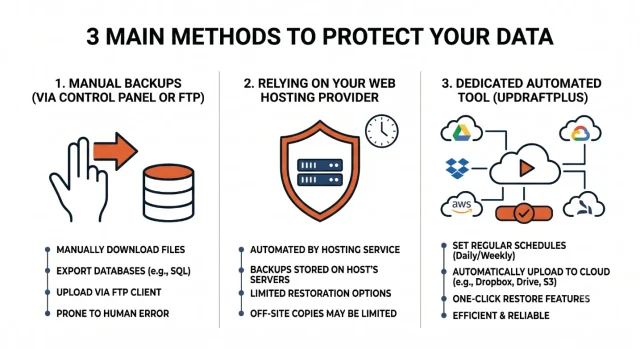
Section titled The three main ways to back up a WordPress websiteThere are three main ways to back up a WordPress website, each offering a different balance of convenience, flexibility and protection. Understanding how they work will help you choose the approach that’s best suited to your website and how you manage it.
Manual backups via control panel or FTP
Section titled Manual backups via control panel or FTPThe manual approach involves getting your hands dirty under the hood of your web server. You have to log into your web hosting control panel or use a File Transfer Protocol client to move data yourself.
- First you navigate to your file manager application
- You locate your public HTML directory containing all your live assets
- You highlight everything and compress it into a massive zip archive
- You wait for the server to finish processing this heavy task
- You download that enormous file directly to your local computer hard drive
Next you have to access a separate tool called phpMyAdmin to interact with your raw database. You find your specific database name and export it as an SQL file to your computer.
Manual backups give you complete control over when and where your backups are stored, which can be useful before making major changes to your website.
The downside is that the process takes time and relies on you remembering to do it regularly. If your website changes frequently and you miss a backup, you could lose recent content, customer data or other important updates if something goes wrong.
Relying on your web hosting provider
Section titled Relying on your web hosting providerMany hosting providers include automated backups as part of their service, making them a convenient way to recover your website if something goes wrong. In many cases, restoring a backup is as simple as logging into your hosting account and selecting a restore point.
While hosting backups are useful, they shouldn’t be your only backup strategy. Backup policies vary between providers, with differences in how often backups are created, how long they’re retained and where they’re stored. Some hosts also charge for restores or only make backups available on certain plans.
For the best protection, it’s worth treating hosting backups as a secondary safeguard rather than your primary recovery solution. Keeping an independent backup gives you more control and reduces your reliance on a single provider.
Using a dedicated backup plugin
Section titled Using a dedicated backup pluginFor most WordPress websites, a backup plugin offers the best balance of convenience, flexibility and reliability. Rather than creating backups manually, you can schedule them to run automatically and store them in a location you choose, such as Google Drive, Dropbox, OneDrive or Amazon S3.
Plugins like UpdraftPlus can back up both your website files and database, making it much easier to recover your site if something goes wrong. Many also include features such as scheduled backups, one-click restores and support for multiple remote storage providers.
The biggest advantage is that you’re in control of your backup strategy. You can choose how often backups run, where they’re stored and how many copies to keep, helping you tailor your backups to the needs of your website.
Automate your WordPress backups
UpdraftPlus Premium automatically backs up your WordPress site on a schedule that suits you and stores your backups in multiple remote locations, including Google Drive, Dropbox, OneDrive and Amazon S3. That means your backups are always there when you need them, even if your hosting account isn’t.
One of the biggest advantages of using a dedicated backup plugin is that you can store your backups independently of your web hosting account. Most plugins support remote storage providers such as Google Drive, Dropbox, OneDrive and Amazon S3, helping keep your backups separate from your live website.
Storing backups off-site provides an extra layer of protection. If your server fails, your hosting account is compromised or your website becomes inaccessible, you’ll still have a recent backup available that can be used to restore your site.
Comparison of best ways to backup WordPress
Section titled Comparison of best ways to backup WordPressThe table below compares the three main WordPress backup methods, highlighting their strengths, limitations and the types of websites they’re best suited to.
Choosing the right backup strategy for your website
Section titled Choosing the right backup strategy for your websiteThe best way to back up a WordPress site depends largely on how often your website changes. A personal blog that’s updated once a month doesn’t need the same backup schedule as an online store processing orders throughout the day.
As a general guide:
- Static websites can usually be backed up weekly.
- Blogs and business websites should be backed up daily if new content is added regularly.
- Online stores, membership sites and forums often benefit from more frequent backups to protect orders, customer data and other important changes.
It’s also worth thinking about where your backups are stored. Keeping daily backups for several weeks can use a significant amount of storage, particularly if your website contains lots of images or downloadable files. Choosing a backup solution that gives you flexible scheduling and retention settings makes it much easier to manage storage without sacrificing protection.
Follow the 3-2-1 backup rule
Section titled Follow the 3-2-1 backup ruleOne of the most widely recommended backup strategies is the 3-2-1 rule. It’s a simple approach that helps reduce the risk of losing your website if one backup fails or becomes unavailable.
The principle is straightforward:
- One copy is your live WordPress website.
- One copy is stored locally, such as on an external hard drive or NAS.
- One copy is stored off-site using a cloud storage provider such as Google Drive, Dropbox, OneDrive or Amazon S3.
Keeping backups in multiple locations means you’re less dependent on a single device, server or hosting provider. If one copy becomes unavailable, you’ll still have another version that can be used to restore your website.
Many WordPress backup plugins, including UpdraftPlus, make it easy to follow the 3-2-1 rule by automatically sending backups to remote cloud storage while allowing you to keep additional local copies if needed.
When basic backups are no longer enough
Section titled When basic backups are no longer enoughA simple backup schedule works well for many WordPress websites, but as your site grows, your backup requirements often change. Larger websites, online stores and membership sites typically need backups that are quicker to create, easier to manage and flexible enough to keep up with frequent updates.
One of the biggest improvements is incremental backups, which save only the changes made since the previous backup instead of creating a full copy of your website every time. This reduces server load, speeds up the backup process and uses less storage, making it particularly useful for websites that are updated regularly.
As your website grows, it’s also helpful to have more control over how backups are managed. Features such as advanced scheduling, automatic backup retention and support for multiple remote storage providers make it easier to protect your website without creating unnecessary storage overhead.
Another valuable feature is automatic backups before WordPress Core, plugin and theme updates. If an update causes a problem, you can restore your website to its previous state in just a few clicks instead of spending time diagnosing and fixing the issue manually.
For websites that continue to grow, additional features such as site migration, encrypted backups and more advanced storage options can make managing and protecting your WordPress site much simpler.
Ready to take your backups to the next level?
As your WordPress website grows, so do your backup requirements. UpdraftPlus Premium includes incremental backups, automatic backups before updates, advanced scheduling and flexible remote storage, making it easier to protect larger websites while reducing server load and backup times.
Conclusion
Section titled ConclusionThe best way to back up a WordPress website is to use an automated backup solution that stores your backups separately from your website. While manual backups and hosting backups can still play a role, they shouldn’t be your only line of defence.
Whichever backup method you choose, make sure it includes both your website files and database, stores copies in a separate location and is scheduled frequently enough to match how often your website changes. It’s also worth testing your backups occasionally so you know they’ll work when you need them.
A backup is something you hope you’ll never have to use, but when a plugin update fails, a server issue occurs or a mistake happens, it can save hours of work and get your website back online quickly. UpdraftPlus makes this process straightforward by automating your backups, storing them securely and giving you a simple way to restore your website whenever you need to.
FAQs
Section titled FAQsWhat is the best way to back up a WordPress site?
For most WordPress websites, a backup plugin that stores backups in a separate location is the most reliable option. It reduces the risk of forgetting to create backups, supports regular backup schedules and makes restoring your website much quicker if something goes wrong.
How often should I back up my WordPress site?
That depends on how often your website changes. A blog or business website that’s updated regularly should usually be backed up daily, while ecommerce stores, membership sites and forums often benefit from more frequent backups. Smaller websites that rarely change may only need weekly backups.
Can I rely on my hosting provider’s backups?
Hosting backups are useful, but they shouldn’t be your only recovery option. Backup policies vary between hosting providers, and some charge for restores or keep backups for a limited time. Keeping your own independent backups gives you greater control and reduces your reliance on a single provider.
Does backing up a WordPress site affect performance?
Creating a backup uses server resources, particularly on larger websites. Running backups during quieter periods and using incremental backups where available can help reduce the impact on performance.
Do I need a developer to restore my WordPress website?
Not necessarily. Most WordPress backup plugins include straightforward restore tools that guide you through the process. With solutions like UpdraftPlus, you can restore your website directly from the WordPress dashboard without needing advanced technical knowledge.
About the author

Elvira Mishra
Elvira has over four years of experience creating and designing content in WordPress. Her background spans multiple digital disciplines, including marketing, SEO, user experience, and human computer interaction.
Categories
UpdraftPlus
Get all our premium features. Direct site-to-site migration, incremental backups, back up automatically before updates and a whole lot more.
From just $70 for the year.
More stories
-

5 WordPress Web Design Tips to Improve Your Website
Good web design is about more than appearance. Explore practical WordPress web design tips to improve your website's layout, navigation, mobile responsiveness, accessibility and performance, helping you create a better experience for your visitors.
-
Best AI Website Builders Compared
AI website builders can help you design, write and launch a website in minutes. Compare the best AI-powered website builders based on ease of use, features, customisation, pricing and performance to find the right solution for your next project.
-

How incremental backups save time and storage in WordPress
Incremental backups only save the changes made since your last backup, helping you reduce storage usage, speed up backups and lower server load. Learn how they work and why they're an essential part of an efficient WordPress backup strategy.
-
Best WordPress Website Builders Compared
Discover the best WordPress website builders for every skill level. Compare features, ease of use, pricing and performance to choose the right builder for your blog, business or online store.
