UpdraftPlus vs Duplicator: Which is the best backup and migration plugin?
Are you trying to decide between UpdraftPlus vs Duplicator for your WordPress site?
UpdraftPlus and Duplicator are two popular WordPress plugins for backing up and migrating your website. Both offer free and premium versions, but there are some important differences in how they handle backups, migrations, storage and other features.
In this article, we’ll compare UpdraftPlus and Duplicator side by side, including their free and premium versions, to help you decide which is the better fit for your WordPress backup and migration needs.
UpdraftPlus vs Duplicator: Key features
Section titled UpdraftPlus vs Duplicator: Key featuresLet’s start by looking at the core features offered by UpdraftPlus and Duplicator, including what’s available in their free and paid versions.
UpdraftPlus
Section titled UpdraftPlus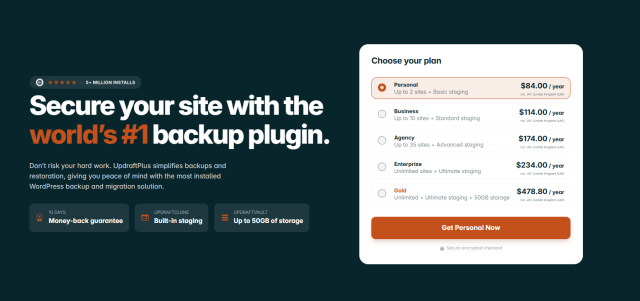
UpdraftPlus is a popular WordPress backup and migration plugin with more than 3 million active installations. Available in both free and Premium versions, it lets you back up, restore and migrate WordPress websites.
The free version includes manual and scheduled backups, remote storage options, restores and backup-based migration. UpdraftPlus Premium adds more advanced features, including incremental backups, automatic backups before updates and direct site-to-site migration.
UpdraftPlus is designed to make these tasks manageable from the WordPress dashboard without requiring coding or command-line experience.
Some of the main features of UpdraftPlus include:
- Manual and scheduled WordPress backups
- Backup and restore of your website’s files and database
- Restore directly from the WordPress dashboard
- Remote storage options, including Google Drive, Dropbox and Amazon S3
- WordPress migration to a new host or URL
- Separate backup schedules for files and databases
Premium version:
- Incremental backups
- Automatic backups before WordPress, theme and plugin updates
- Password-protected backups
- Additional remote storage options, including Microsoft OneDrive, Microsoft Azure, Backblaze and SFTP
- Backup of WordPress core and additional files outside the standard WordPress directories
- WordPress multisite support
- Database encryption
- Advanced reporting
- Restore backups created by a wider range of other WordPress backup plugins
- WP-CLI support
Duplicator
Section titled DuplicatorLike UpdraftPlus, Duplicator is a WordPress backup and migration plugin. It has more than 1 million active installations and is available in both free and Pro versions.
Duplicator lets you back up, migrate and clone WordPress sites. The free version covers core backup and migration functionality, while Duplicator Pro adds features such as scheduled backups, remote storage and more advanced migration options.
Some of the key features of Duplicator include:
- Manual, on-demand backups
- Full-site and database-only backups
- Backup and restore of your WordPress files and database
- Manual site migration and cloning
- Options to exclude selected files or database tables from a backup
Pro version:
- Scheduled automatic backups
- Remote storage options, including Google Drive, Dropbox, Amazon S3, Microsoft OneDrive and FTP/SFTP
- Drag-and-drop site migrations
- Recovery Points for easier site recovery
- WordPress multisite support on eligible plans
- Backup archive encryption
UpdraftPlus vs Duplicator: Backup
Section titled UpdraftPlus vs Duplicator: BackupNow, let’s dive into our UpdraftPlus vs Duplicator comparison. Here’s what each plugin offers when it comes to backing up your WordPress site.
UpdraftPlus
Section titled UpdraftPlusUpdraftPlus provides a quick and easy way to create a backup of your WordPress website.
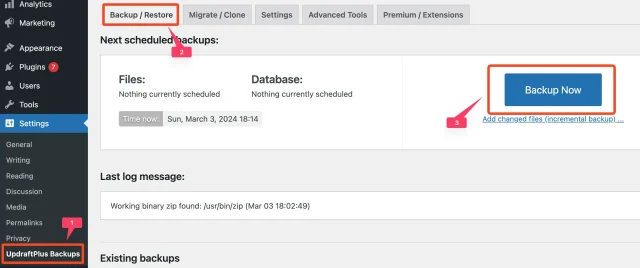
Once you install the plugin, navigate to Settings > UpdraftPlus Backups > Backup/Restore and simply click on the Backup Now button.
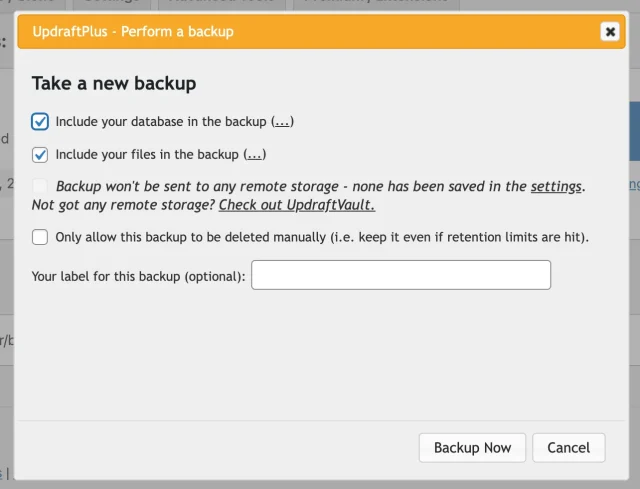
You’ll be presented with customisation options for your backup. You can backup either the database or your files (everything in the WP content directory), or both.
With the premium version, you can also choose which database and files to back up.
Click Backup Now to start the backup.
You’ll receive detailed reports to your email address whenever a backup job finishes. Though you have to set these up first by heading to the UpdraftPlus settings and enabling email notifications.
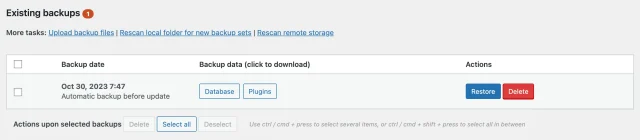
After a backup is created, it’s listed under Existing backups in the Backup/Restore tab. From here, you can download your database, plugins, themes, etc., or restore them with one click.
UpdraftPlus lets you choose a secure remote storage location for your backups. This ensures that your backups are stored safely outside of your WordPress site.
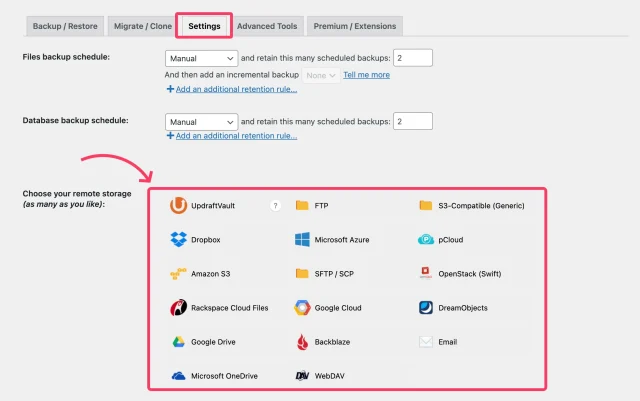
The following cloud storage locations are available in the free version:
- Dropbox
- Google Drive
- Amazon S3 (or compatible)
- Rackspace Cloud
- DreamObjects
- OpenStack Swift
- FTP
If you upgrade to UpdraftPlus Premium, you can access more than one of the following remote storage options:
- Microsoft OneDrive
- SFTP
- Microsoft Azure
- WebDAV
- Google Cloud
- SCP
- Backblaze
- pCloud
The premium version also lets you back up everything in your WordPress root directory and all other directories on your web server.
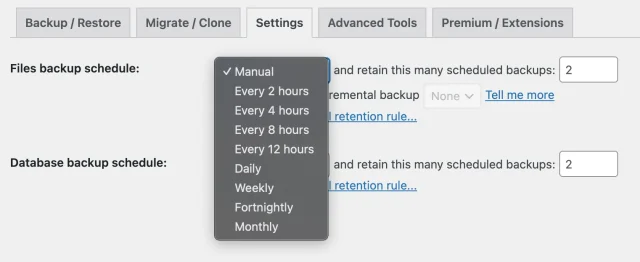
You can also set different schedules for backing up your websites’ files and database. You can also choose to back up at specific times (e.g. at 1am or during periods of low traffic).
With the free version, you can back up every 2, 4, 6 hours (etc).
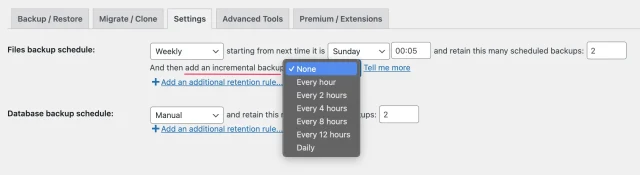
Another benefit of UpdraftPlus Premium is the incremental backup feature. This feature saves time and resources by only backing up changes since the last full site backup.
Duplicator
Section titled DuplicatorThe Duplicator plugin creates website backups with its ‘Package’ system. To back up your site, you first have to create a ‘Package’ by going to Duplicator Pro > Packages > Create New.
After that, you need to assign a name to the backup and select a remote storage location.
The free version of Duplicator supports FTP/SFTP. You’ll need to upgrade to Duplicator Pro for more cloud storage options, including:
- Dropbox
- FTP/SFTP
- Google Drive
- OneDrive
- Amazon S3 (or any S3 compatible storage service)
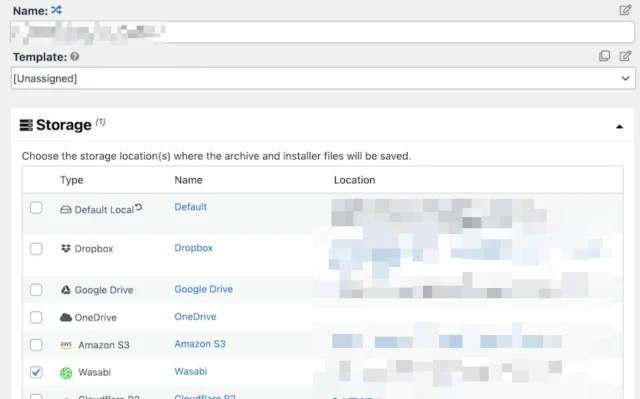
Then, you’ll be directed to choose what to back up in the ‘archive’ file.
By default, Duplicator creates a backup that includes your entire WordPress installation, including the database, plugins, themes, and core WordPress files. If you need to back up a specific set of plugins or themes, you’ll have to upgrade to Duplicator Pro.
In the next step, Duplicator will scan your site to ensure all content is backed up successfully.
After the scan is completed, you’ll be able to initiate the backup process. To download your backup file, look for it on the Packages page of the plugin.
Verdict
Section titled VerdictBoth plugins provide solid backup options, but there are some important differences between their free and paid versions.
UpdraftPlus includes scheduled backups and remote storage options in its free version, while these features require a paid Duplicator plan. UpdraftPlus Premium also offers incremental backups and automatic backups before WordPress, plugin and theme updates.
Duplicator offers plenty of control over how backups are created, particularly with its paid plans, but UpdraftPlus may be the better fit if you want more automated backup features available without upgrading.
UpdraftPlus vs Duplicator: Restore
Section titled UpdraftPlus vs Duplicator: RestoreCreating reliable backups is important, but you also need to be able to restore your site when something goes wrong. Here’s how the restore process compares between UpdraftPlus and Duplicator.
UpdraftPlus
Section titled UpdraftPlusRestoring a site backup with UpdraftPlus is straightforward. From your WordPress dashboard, go to Settings > UpdraftPlus Backups > Backup / Restore.
Under Existing backups, find the backup you want to use and click Restore. You can then choose which components to restore, such as your database, plugins, themes, uploads or other files, before starting the restoration process.
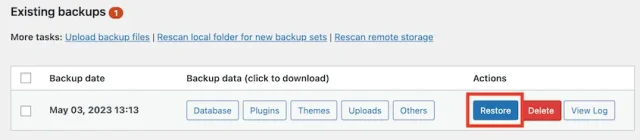
A pop-up will appear where you can choose which parts of the backup you want to restore. With UpdraftPlus Free, you can restore components such as your database, plugins, themes, uploads and other files.
UpdraftPlus Premium gives you more granular control over the restoration process, including the ability to exclude specific plugins, themes, uploads or database tables when restoring a backup.
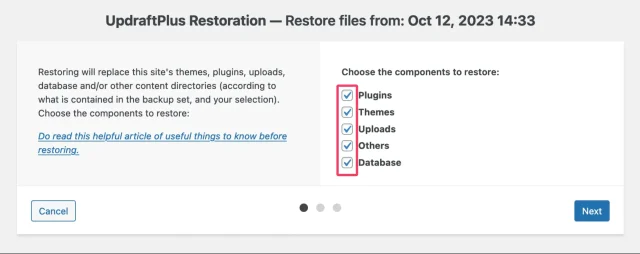
Once you’ve chosen what you want to restore, click Restore to start the process.
When the restoration is complete, UpdraftPlus will display a Restore successful message. You can then click Return to UpdraftPlus configuration to return to the UpdraftPlus dashboard.
Duplicator
Section titled DuplicatorDuplicator also lets you restore WordPress backups, although the process differs between the free version and paid plans.
With Duplicator Free, restoring a site involves working with the backup archive and installer files, making the process more manual than restoring directly from the WordPress dashboard.
Duplicator’s paid plans offer a more streamlined restore process, including 1-click Recovery Points that can help you quickly roll your site back to a working backup.
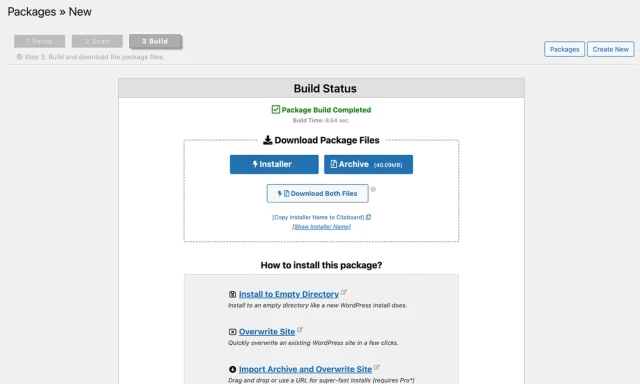
Next, upload the backup archive and installer file to your website’s root directory. You can do this using an FTP/SFTP client such as FileZilla or through your hosting provider’s File Manager.
Once the files are uploaded, open the installer in your browser. The URL will typically look something like https://example.com/installer.php.
Duplicator will run a series of checks before beginning the restore. Review the information shown, accept the required terms and notices, then continue to the next step.
The installer wizard will then guide you through restoring the site and configuring the database. You’ll need your database details, including the database name, username, password and host, so make sure you have these available before starting.
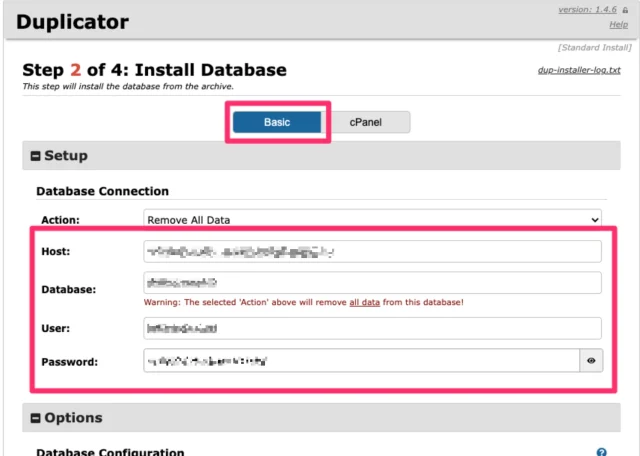
Once you’ve reviewed the settings, click Next to begin the restoration process.
Wait for Duplicator to finish restoring the site. Keep the Auto delete installer files after login option selected so the installer files are removed once you’ve successfully logged back in.
Finally, click Admin Login to access your WordPress dashboard. Check that your pages, plugins, themes and other site content are working as expected and confirm that the restoration was successful.
Verdict
Section titled VerdictBoth plugins can restore WordPress backups, but UpdraftPlus offers a simpler restore process in its free version. Backups can be restored directly from the WordPress dashboard, with the option to choose which components you want to restore.
Duplicator Free uses a more manual restoration process involving the backup archive and installer files, which may require FTP/SFTP or your hosting File Manager. Duplicator’s paid plans make restoration more streamlined with features such as Recovery Points.
For beginners or anyone looking for an easier restore process without upgrading, UpdraftPlus has the advantage.
UpdraftPlus vs Duplicator: Migration
Section titled UpdraftPlus vs Duplicator: MigrationBoth UpdraftPlus and Duplicator can be used to migrate a WordPress website to a new host or domain. However, the migration process and features available differ between their free and paid versions.
Here’s how UpdraftPlus and Duplicator compare when it comes to WordPress migration.
UpdraftPlus
Section titled UpdraftPlusUpdraftPlus Free lets you migrate a WordPress site by creating a backup and restoring it on another WordPress installation.
Start by creating a complete backup of your existing site. Then, set up WordPress at the new location and install and activate UpdraftPlus.
On the new site, go to Settings > UpdraftPlus Backups > Backup / Restore. Under Existing backups, select Upload backup files and upload the backup files from your original site.
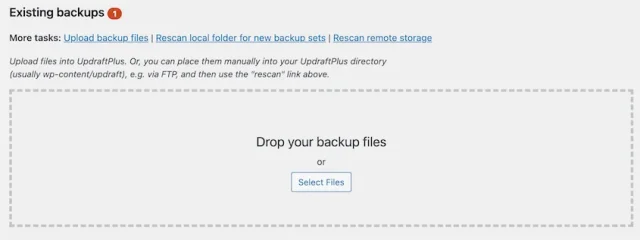
Once the upload is complete, the backup will appear under Existing backups.
Select the backup and click Restore. UpdraftPlus will guide you through choosing which components to restore before replacing the content of the destination WordPress installation with your backup.
UpdraftPlus Premium adds more advanced migration features through its Migrator functionality. This includes direct site-to-site migration, so you can send a site to another WordPress installation without manually downloading and uploading the backup files.
When moving to a new domain, UpdraftPlus Premium can also search and replace references to the old site URL in your database as part of the migration process. You can connect the two sites using a migration key, making it easier to transfer the site directly between installations.
Duplicator
Section titled DuplicatorWith Duplicator Free, migrating a WordPress site involves creating a backup package containing your site files and database, along with an installer file.
Start by creating the backup on your existing site and downloading the archive and installer files. On your new server, create a database for the migrated WordPress site and make a note of the database name, username, password and host.
Next, upload the Duplicator archive and installer file to the destination using FTP/SFTP or your hosting provider’s File Manager.
Open the installer file in your browser and follow the migration wizard. You’ll be asked to enter the database details for the new location before Duplicator extracts the backup and transfers your site.
Once the migration is complete, log in to your WordPress dashboard and check that your pages, plugins, themes and other site functionality are working as expected.
Verdict
Section titled VerdictBoth plugins offer streamlined migration features with their paid versions, but their free migration processes differ.
UpdraftPlus Free lets you migrate a site by creating a backup and restoring it on another WordPress installation. With Duplicator Free, the process involves creating a backup package, downloading the archive and installer files, uploading them to the destination server and configuring the new database.
Both approaches work, but UpdraftPlus Free involves fewer technical steps, making it the more straightforward option for users who are less comfortable working with server files and databases.
UpdraftPlus vs Duplicator: Pricing
Section titled UpdraftPlus vs Duplicator: PricingEven the most feature-rich plugin might not be ideal if it strains your budget. Here’s a breakdown of UpdraftPlus vs Duplicator pricing to help you choose the solution that best fits your financial needs.
UpdraftPlus
Section titled UpdraftPlusWith UpdraftPlus Free, you can back up, restore and migrate your WordPress site. If you need more advanced features, UpdraftPlus Premium starts at $84 per year, including UK VAT.
There are five Premium plans to choose from:
- Personal: $84/year – up to 2 sites
- Business: $114/year – up to 10 sites
- Agency: $174/year – up to 35 sites
- Enterprise: $234/year – unlimited sites
- Gold: $478.80/year – unlimited sites, Ultimate staging and 50GB of UpdraftVault storage
Every Premium plan includes:
- Additional remote storage options
- Incremental backups
- Automatic backups before WordPress, plugin and theme updates
- One-click site migration
- More control over which parts of your site you restore
- The ability to store backups in multiple locations
- UpdraftVault storage, with the amount depending on your plan
- Premium support and updates
Duplicator
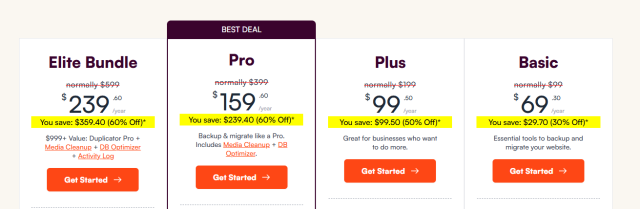
Section titled DuplicatorDuplicator offers four paid plans, with pricing based largely on the number of sites and the features included:
- Basic: normally $99/year – up to 2 sites
- Plus: normally $199/year – up to 5 sites
- Pro: normally $399/year – up to 20 sites
- Elite Bundle: normally $599/year – up to 100 sites
Duplicator regularly offers introductory discounts, so the price you pay for your first year may be lower than the standard annual price shown above.
Verdict
Section titled VerdictDuplicator frequently offers significant introductory discounts, which can make its paid plans attractive for the first year. However, these promotional prices increase to the standard annual rate when the subscription renews.
At standard pricing, UpdraftPlus offers lower annual prices across comparable site allowances. For example, UpdraftPlus Personal supports up to 2 sites for $84 per year including UK VAT, while Duplicator Basic supports up to 2 sites at a standard price of $99 per year.
For users comparing the longer-term cost rather than introductory offers, UpdraftPlus generally offers better value for money.
Conclusion
Section titled ConclusionBoth UpdraftPlus and Duplicator are capable WordPress backup and migration plugins, with free and paid options to suit different types of websites.
However, UpdraftPlus comes out ahead in several areas. Its free version includes features such as scheduled backups and remote storage that require a paid Duplicator plan, while its dashboard-based restore and migration workflows involve fewer manual steps than Duplicator Free.
UpdraftPlus Premium also adds features such as incremental backups, automatic backups before updates, direct site-to-site migration and additional remote storage options. At standard annual pricing, its plans are also competitively priced compared with equivalent Duplicator plans.
Duplicator remains a strong option, particularly for users who prefer its package-based migration approach or need features included in its paid plans. But for users looking for a combination of ease of use, backup automation, migration features and long-term value, UpdraftPlus is our overall winner.
Ready to add more advanced backup and migration features to your site? Explore UpdraftPlus Premium.
FAQs
Section titled FAQsWhat is the best free backup plugin for WordPress?
UpdraftPlus is the best free backup plugin for WordPress, with over 3 million active installs. It offers scheduled backups to various cloud storage options, easy restoration, and a user-friendly interface.
What is the alternative to Duplicator?
UpdraftPlus is the best alternative to Duplicator. It offers more advanced backup and migration features. However, Duplicator requires more technical knowledge for migrations in the free version.
Is UpdraftPlus premium worth it?
UpdraftPlus premium offers additional features like multisite backups, advanced scheduling options, and migration of plugins and themes. However, the free version also covers essential backup and migration needs for most users.
What is the fastest way to backup WordPress?
The fastest way to back up a WordPress site is to install a WordPress backup plugin like UpdraftPlus. This plugin can help automate the process by allowing you to schedule regular backups. UpdraftPlus also provides incremental backups to minimise resources and save time.
About the author

Emman Zahid
Emman is the SEO Content Writer at Updraft WP Software. She has over 5 years of experience in creating compelling content for some of the biggest WordPress brands out there. In addition to writing, Emman helps expand reach and ROI through content marketing and organic strategies.
Categories
UpdraftPlus
Get all our premium features. Direct site-to-site migration, incremental backups, back up automatically before updates and a whole lot more.
From just $70 for the year.
More stories
-

Direct WordPress site-to-site migration: A step-by-step guide
Learn how direct WordPress site-to-site migration works and how to move your website between hosts or domains without manually transferring files.
-

5 WordPress Web Design Tips to Improve Your Website
Good web design is about more than appearance. Explore practical WordPress web design tips to improve your website's layout, navigation, mobile responsiveness, accessibility and performance, helping you create a better experience for your visitors.
-
Best AI Website Builders Compared
AI website builders can help you design, write and launch a website in minutes. Compare the best AI-powered website builders based on ease of use, features, customisation, pricing and performance to find the right solution for your next project.
-

How incremental backups save time and storage in WordPress
Incremental backups only save the changes made since your last backup, helping you reduce storage usage, speed up backups and lower server load. Learn how they work and why they're an essential part of an efficient WordPress backup strategy.
