What is an SSL certificate and why your WordPress site needs one
Category Guides and resources
Topics Security, Tips and tricks, WordPress,

If you run a website, you’ve probably come across the term SSL certificate. An SSL certificate is a digital certificate that verifies a website’s identity and helps encrypt data exchanged between the site and its visitors. It’s also what allows your website to use HTTPS, helping protect sensitive information such as passwords, contact details and payment data.
SSL stands for Secure Sockets Layer. Although SSL itself has now been replaced by the more secure TLS (Transport Layer Security) protocol, “SSL” is still the term commonly used when talking about website certificates and secure HTTPS connections.
Whether you run a personal blog, business website or online store, HTTPS is now a fundamental part of keeping a WordPress site secure. Without a valid SSL certificate, visitors may see browser security warnings, while information sent between your website and its users may not be adequately protected.
In this guide, we’ll explain what an SSL certificate is, how SSL and TLS work, the different types of certificates available and why HTTPS matters for WordPress. We’ll also show you how to check your SSL certificate, troubleshoot common problems and set up HTTPS correctly on your site.
Key takeaways
Section titled Key takeaways- An SSL certificate verifies a website’s identity and helps encrypt data exchanged between the site and its visitors.
- SSL has technically been replaced by the more secure TLS protocol, although “SSL certificate” remains the commonly used term.
- A valid SSL certificate enables HTTPS, helping protect sensitive information and avoid browser security warnings.
- HTTPS is a Google ranking signal and an important part of good technical SEO, although it is only one of many factors that can affect search rankings.
- After installing an SSL certificate on WordPress, you should update your site URLs to HTTPS, redirect HTTP traffic and check for mixed content or certificate errors.
What is an SSL certificate?
Section titled What is an SSL certificate?SSL stands for Secure Sockets Layer, an encryption protocol originally developed to secure data sent over the internet. SSL has since been replaced by the more secure Transport Layer Security (TLS) protocol, although the term “SSL” is still commonly used when referring to website certificates and HTTPS.
An SSL certificate is a digital certificate that helps verify the identity of a website and enables an encrypted connection between a web server and a visitor’s browser. The server is where your WordPress site is hosted, while the browser is what someone uses to access it. When HTTPS is enabled, data exchanged between the two is encrypted, making it much more difficult for an unauthorised third party to intercept and read.
You can think of an SSL certificate as a digital ID card for your website. It contains information that helps a browser verify that it’s communicating with the correct domain and includes the public key needed to establish a secure connection. Once that connection is established, sensitive information such as passwords, contact details and payment data can be transmitted securely between the visitor and your website.
The difference between SSL and TLS
Section titled The difference between SSL and TLSYou might occasionally see the acronym TLS used alongside or instead of SSL. TLS stands for Transport Layer Security. It is actually just a newer and more secure version of the original protocol.
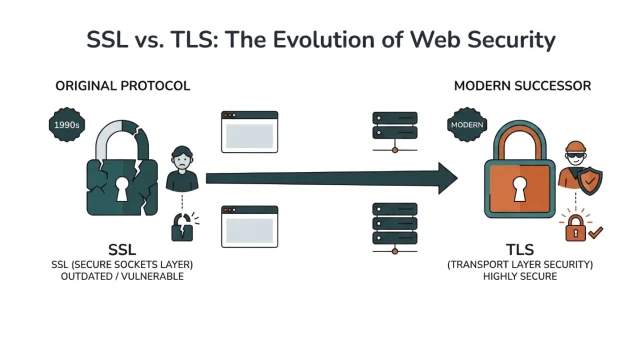
The original technology was created in the 1990s and went through several iterations before being officially replaced by TLS. However, the old acronym was so widely adopted that the industry just kept using it. When you buy or install a certificate today, you are actually getting the modern TLS version. Everyone just continues to call them by their legacy name for the sake of simplicity.
How does an SSL certificate work?
Section titled How does an SSL certificate work?An SSL certificate works by helping a browser verify a website’s identity and establish an encrypted connection with its server. This process happens automatically whenever someone visits a website over HTTPS and usually takes just a fraction of a second.
When a visitor connects to your WordPress site, their browser and your web server exchange information to confirm the site’s identity and agree on how the connection will be secured. The SSL/TLS certificate plays an important role in this process by providing information about the website and the public key needed to establish a secure connection.
Once the connection has been authenticated and encryption established, data can be exchanged securely between the browser and your website. This helps protect information such as login credentials, form submissions and payment details while they’re being transmitted.
Here’s what happens during that process.
The digital handshake explained
Section titled The digital handshake explainedThis initial conversation is known as the SSL handshake. When a browser attempts to access your secured website, it first asks your server to identify itself. Your server responds by sending a copy of its digital certificate.
The browser then checks this document against a list of trusted issuers. It verifies that the document is valid, unexpired and belongs to the exact domain requested. If everything checks out, the browser sends a message back to the server agreeing to form a secure connection. This entire process happens so fast that your visitor never even notices it.
Public and private keys
Section titled Public and private keysEncryption relies on cryptographic keys. Your SSL/TLS certificate contains a public key, while the corresponding private key is stored securely on your server and should never be shared.
- The public key is shared with anyone who visits your site. It is used to lock or encrypt the data being sent from the browser to the server.
- The private key stays hidden on your server. It is the only thing that can unlock the data encrypted by the public key.
This one-way locking mechanism ensures that even if a hacker intercepts the data in transit, they cannot decipher it.
Protect your login, not just your data
SSL encrypts passwords in transit, but it won’t stop brute-force attacks. AIOS Premium adds two-factor authentication and login protection to keep attackers out.
What information does an SSL certificate contain?
Section titled What information does an SSL certificate contain?An SSL certificate is a relatively small data file containing information that allows browsers to verify a website’s identity and establish a secure connection. You can think of it as a digital ID card for your website.
The exact information can vary depending on the type of certificate, but an SSL/TLS certificate typically contains:
- The domain name the certificate was issued for
- Any additional domains or subdomains covered by the certificate
- The name of the certificate authority (CA) that issued it
- The certificate authority’s digital signature, which helps browsers verify that the certificate is authentic
- The certificate’s validity period, including when it becomes valid and when it expires
- The public key associated with the certificate
- Depending on the type of certificate, information about the organisation it was issued to
The corresponding private key is stored separately on the server and should never be included in or shared with the certificate.
During the SSL/TLS handshake, the browser uses the certificate and its public key to help authenticate the website and establish a secure connection. If the certificate is valid and trusted, the browser and server can then securely exchange encrypted data.
Why does your WordPress site need an SSL certificate?
Section titled Why does your WordPress site need an SSL certificate?You don’t need to run a large online store to benefit from an SSL certificate. Even a small blog or portfolio site exchanges information with visitors and needs a secure connection. SSL/TLS helps protect that information while also enabling HTTPS and avoiding browser security warnings.
1. Protecting sensitive user data
Section titled 1. Protecting sensitive user dataEven if you don’t sell products directly on your site, you may still handle sensitive information. If you have a contact form, visitors could be sending you their names, email addresses and private messages. If you allow user registration, you’ll also be handling login credentials and other account information.
Whenever you log into your own WordPress dashboard, your username and password are transmitted between your browser and your website. Without HTTPS, information sent over the connection may be vulnerable to interception. SSL/TLS encrypts data while it’s in transit, making it much harder for an unauthorised third party to read.
2. Supporting your search engine rankings
Section titled 2. Supporting your search engine rankingsHTTPS is part of good technical SEO. Google has used HTTPS as a ranking signal since 2014, giving secure pages a small advantage when other ranking factors are similar.
That doesn’t mean installing an SSL certificate will automatically improve your rankings. Content quality, relevance, backlinks and overall site performance are much stronger factors. However, HTTPS is now a standard requirement for a well-configured website and helps ensure both visitors and search engines access a secure version of your pages.
For WordPress site owners, enabling HTTPS is a relatively simple technical SEO step that also brings much more important benefits around security and visitor trust.
3. Building trust with your audience
Section titled 3. Building trust with your audienceVisitors expect websites to provide a secure connection, particularly when they’re entering passwords, personal information or payment details. HTTPS gives browsers a way to confirm that the connection to your website is encrypted and that your SSL/TLS certificate is valid.
By contrast, browsers may display security warnings when a website uses an insecure connection or has a problem with its certificate. These warnings can make visitors understandably reluctant to enter personal information or continue using the site.
HTTPS is therefore about more than encrypting data. It’s also an important part of providing visitors with a secure and trustworthy experience when they use your WordPress website.
4. Meeting modern browser security requirements
Section titled 4. Meeting modern browser security requirementsModern browsers such as Chrome, Safari and Firefox clearly distinguish between secure HTTPS connections and websites that don’t use encryption. If your site is served over HTTP, the browser may indicate that the connection isn’t secure, particularly when visitors are asked to enter sensitive information.
More prominent security warnings can appear when there’s a problem with an SSL certificate, such as when it has expired, doesn’t match the domain or can’t be verified. Depending on the problem, visitors may have to click through a warning before they can access the website.
These warnings can undermine trust and discourage visitors from continuing, especially if they’re being asked to log in, complete a form or make a payment. Keeping your SSL certificate valid and your site correctly configured to use HTTPS helps provide visitors with the secure browsing experience they expect.
Different types of SSL certificates available
Section titled Different types of SSL certificates availableWhen you start looking into securing your site, you’ll notice there are several types of SSL certificates available. They all provide encryption for data transmitted between your website and its visitors, but they differ in the level of identity verification carried out by the Certificate Authority (CA) before the certificate is issued.
The three main validation levels are Domain Validation (DV), Organisation Validation (OV) and Extended Validation (EV). The right option depends largely on the type of website you run and how much identity verification you need.
Domain validation certificates
Section titled Domain validation certificatesDomain validation is the most common and basic type available. To get one of these, you only need to prove that you have administrative control over the domain name. The issuing authority will usually send an email to the domain owner or ask you to place a specific file on your server.
These are incredibly fast to obtain and are often issued within minutes. They are perfect for personal blogs, small portfolio sites and standard informational websites. Because the verification process is automated, these are usually very cheap or entirely free.
Organization validation certificates
Section titled Organization validation certificatesOrganization validation takes things a step further. The issuing authority will actually investigate your company before granting the document. They will check government registries to ensure your business is a legally registered entity.
This process takes a few days to complete. When visitors view the details of an organization validation certificate, they can see the verified name of your company. This offers a higher level of trust and is ideal for medium-sized businesses, corporate websites and organizations that collect user data.
Extended validation certificates
Section titled Extended validation certificatesExtended validation offers the highest level of authentication available. The issuing authority performs a rigorous background check on your business. They will verify your physical address, legal operational status and contact information.
These are the most expensive options and take the longest time to issue. They are primarily used by large e-commerce platforms, financial institutions and massive global brands. For the vast majority of standard WordPress users, this level of validation is unnecessary.
How to check if your WordPress site is secure
Section titled How to check if your WordPress site is secureOne of the easiest ways to check whether your WordPress site is using a secure connection is to look at the URL in your browser’s address bar. A secure website should load over HTTPS rather than HTTP.
Depending on the browser you’re using, you may see a padlock or another site information icon next to the address. Clicking this will usually show more information about the connection and whether the site’s SSL certificate is valid.
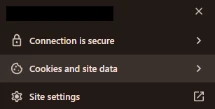
You can also view the certificate itself to check details such as the domain it covers, the Certificate Authority (CA) that issued it and when it expires. For a more detailed check, online SSL testing tools can help identify problems with your certificate or server configuration.
Common SSL errors in WordPress and how to fix them
Section titled Common SSL errors in WordPress and how to fix themInstalling an SSL certificate on your server is usually straightforward. However, configuring WordPress to use HTTPS correctly can sometimes cause errors. Old HTTP URLs, conflicting redirects or certificate problems can all prevent your site from loading securely.
If you see a security warning after enabling SSL, don’t panic. Many of these problems are relatively common and can be fixed once you’ve identified the cause. Here are some of the issues you might encounter.
Fixing mixed content warnings
Section titled Fixing mixed content warningsMixed content is a common problem after moving a WordPress site from HTTP to HTTPS. It happens when the main page loads securely over HTTPS but some resources, such as images, scripts or stylesheets, are still being loaded over HTTP.
When this happens, your browser may indicate that the page isn’t fully secure. To fix the problem, identify any resources still being loaded over HTTP and update them to use HTTPS where appropriate. On WordPress, old HTTP URLs may be stored in your database, theme files or plugin settings, so you may need to update these as part of the move.
Before making bulk changes to your WordPress database, take a full backup of your site so you can restore it if anything goes wrong.
Resolving redirect loops
Section titled Resolving redirect loopsA redirect loop occurs when your site gets stuck repeatedly redirecting between URLs. After enabling SSL, this can happen when more than one part of your setup is trying to redirect HTTP traffic to HTTPS, such as a WordPress plugin, your hosting platform or server configuration.
If you encounter a redirect loop, check that your WordPress Address and Site Address are configured correctly and use HTTPS. You should also check for conflicting redirect rules in your hosting or server configuration. Clearing your browser and website caches can also help after you’ve corrected the underlying problem.
Dealing with expired certificates
Section titled Dealing with expired certificatesSSL certificates aren’t valid forever and need to be renewed before they expire. How renewal works depends on your Certificate Authority and hosting provider, although many WordPress hosts now manage SSL certificate renewals automatically.
If a certificate expires, browsers can display a prominent security warning because they can no longer verify that the connection is trusted. If this happens, check your hosting dashboard or contact your hosting provider to find out why the certificate wasn’t renewed and renew or replace it as soon as possible.
Once the certificate has been renewed, check that your website loads correctly over HTTPS and that browsers no longer report a certificate error.
Back up before changing SSL settings
Changing HTTPS settings can occasionally break a site. UpdraftPlus Premium creates an automatic backup before you make changes, so you can restore everything in minutes.
How to get and install an SSL certificate on WordPress
Section titled How to get and install an SSL certificate on WordPressThe exact process for installing an SSL certificate will vary depending on your hosting provider, but most WordPress hosts now make it relatively straightforward.
Before you begin, it’s a good idea to back up your WordPress site. You’ll be making changes to your site’s URLs and HTTPS configuration later in the process, so having a recent backup gives you a way to restore your site if something doesn’t go to plan.
Step 1. Choose a Certificate Authority
Section titled Step 1. Choose a Certificate AuthorityFirst, you’ll need an SSL certificate from a trusted Certificate Authority (CA). For many WordPress websites, a free Domain Validation (DV) certificate is all that’s needed. Many hosting providers include free SSL certificates as part of their hosting plans, often through Let’s Encrypt, so check what’s available through your host before purchasing one separately.
If you need Organisation Validation (OV) or Extended Validation (EV), you’ll generally need to obtain a certificate from a commercial Certificate Authority. Providers include DigiCert, GlobalSign and Sectigo. The application and verification process will vary depending on the type of certificate you choose.
Step 2. Install the certificate through your host
Section titled Step 2. Install the certificate through your hostMost WordPress hosting providers let you install or enable SSL directly from your hosting dashboard. Look for an SSL, HTTPS or security section and follow your host’s instructions to activate the certificate for your domain.
If your host provides automated SSL through a service such as Let’s Encrypt, it can usually handle the request, domain validation and installation for you. The exact process and activation time will depend on your hosting provider.
If automated installation isn’t available, you may need to generate a Certificate Signing Request (CSR) and install the certificate manually. A CSR contains information needed to request your SSL certificate, including your domain and public key. If you’re unsure how to do this, check your hosting provider’s documentation or contact their support team.
Step 3. Update your WordPress address settings
Section titled Step 3. Update your WordPress address settingsOnce the certificate is installed and active on your server, check that WordPress is configured to use HTTPS. In your WordPress dashboard, go to Settings > General. Here, you’ll see the WordPress Address (URL) and Site Address (URL) fields.
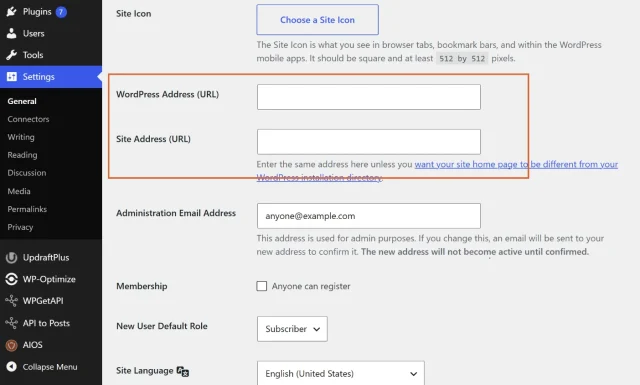
Change both URLs from http:// to https://, checking them carefully before you save. An incorrect URL can make your site or WordPress dashboard temporarily inaccessible, which is why it’s important to have a recent backup before making these changes.
Scroll down and click Save Changes.
Step 4. Redirect HTTP traffic to HTTPS
Section titled Step 4. Redirect HTTP traffic to HTTPSOnce your SSL certificate is installed and WordPress is configured to use HTTPS, make sure anyone visiting the old HTTP version of your site is automatically redirected to the secure HTTPS version. Visitors and search engines may still reach HTTP URLs through old bookmarks, search results or links from other websites.
Many hosting providers configure HTTPS redirects automatically when you enable SSL, so check your hosting settings first. If yours doesn’t, you can set up a permanent 301 redirect at the server level to send HTTP requests to the corresponding HTTPS URLs.
If you’re not comfortable editing your server configuration, your hosting provider may be able to set this up for you. WordPress plugins can also handle HTTPS redirects and help resolve some mixed content issues.
Whichever method you use, check your site afterwards to make sure HTTP URLs redirect correctly to HTTPS and that your pages load without mixed content or certificate warnings.
Conclusion
Section titled ConclusionAn SSL certificate is an essential part of securing a modern WordPress website. It helps protect data exchanged between your site and its visitors, enables HTTPS and allows browsers to verify that they’re connecting to the correct domain. While the technology used today is technically TLS rather than SSL, the term “SSL certificate” remains widely used.
For most WordPress site owners, getting an SSL certificate is relatively straightforward, particularly as many hosting providers now include free certificates. Once yours is installed, check that your WordPress URLs use HTTPS, redirect HTTP traffic to the secure version and fix any mixed content or certificate warnings that appear.
Before changing URLs, redirects or SSL settings, it’s also worth taking a full backup of your WordPress site. Problems are uncommon, but having a recent backup gives you a quick way to restore your site if a configuration change doesn’t go to plan.
UpdraftPlus makes it easy to back up and restore your WordPress site, giving you a reliable fallback before making important security or configuration changes.
FAQs
Section titled FAQsWhat is an SSL certificate chain?
An SSL certificate chain is the sequence of certificates that connects a website’s SSL/TLS certificate to a trusted root Certificate Authority. It usually includes the website certificate, one or more intermediate certificates and a root certificate trusted by browsers and operating systems. This chain allows a browser to verify that the certificate presented by a website was issued by a trusted authority.
What is a CSR in an SSL certificate?
A Certificate Signing Request (CSR) is a block of encoded data generated when you apply for an SSL/TLS certificate. It contains information needed by the Certificate Authority (CA), such as your domain name and public key. The corresponding private key remains on your server and should be kept secure.
What is SSL certificate pinning?
SSL certificate pinning is a security technique that allows an application to recognise a specific SSL/TLS certificate or public key as trusted. If a different certificate is presented, the connection can be rejected. It is mainly used in applications rather than standard websites and can help protect against certain man-in-the-middle attacks, although it requires careful management because certificate changes can cause connections to fail.
What is a wildcard SSL certificate?
A wildcard SSL certificate secures a main domain and multiple subdomains using a single certificate. For example, a wildcard certificate for *.example.com could protect blog.example.com, shop.example.com and support.example.com. This can make SSL management easier for websites that use several subdomains.
What is an SSL certificate?
An SSL certificate is a digital certificate that verifies your website’s identity and encrypts the connection between your website and its visitors. This helps protect sensitive information such as passwords, contact form submissions and payment details from being intercepted.
Is SSL the same as HTTPS?
No, but they’re closely related. An SSL certificate enables HTTPS by creating a secure, encrypted connection between a browser and your website. HTTPS is the secure version of HTTP, while SSL (now technically TLS) is the technology that makes it possible.
Do all websites need an SSL certificate?
Yes. Whether you run a personal blog, business website or online store, an SSL certificate helps protect visitor data, improves trust and prevents browsers from displaying “Not Secure” warnings.
Can I get an SSL certificate for free?
Yes. Many hosting providers offer free SSL certificates through Let’s Encrypt, making it easy to secure your WordPress website without paying for a certificate.
How do I know if my website has an SSL certificate?
The easiest way is to visit your website and look for the padlock icon in your browser’s address bar. Your website address should also begin with https:// rather than http://.
What happens if an SSL certificate expires?
If your SSL certificate expires, browsers will warn visitors that your website is not secure. In some cases, users may be prevented from accessing your site until the certificate is renewed.
What’s the difference between SSL and TLS?
TLS (Transport Layer Security) is the modern version of SSL (Secure Sockets Layer). Although SSL has been replaced by TLS, the term “SSL certificate” is still widely used throughout the industry.
About the author

Alexandru Bucsa
Alex is our All-In-One Security Product Manager. With more than six years of WordPress experience, he listens closely to what users need and works hard to make AIOS even better. Drawing on his background in forensic investigations, Alex loves diving into problems to understand their causes and find practical fixes that truly help our community.
Categories
UpdraftPlus
Get all our premium features. Direct site-to-site migration, incremental backups, back up automatically before updates and a whole lot more.
From just $70 for the year.
More stories
-

10 Best WordPress Plugins for Agencies in 2026
Discover the best WordPress plugins for agencies, from backups and security to performance optimisation and site management. Explore tools that make managing multiple client websites easier and more efficient.
-

Direct WordPress site-to-site migration: A step-by-step guide
Learn how direct WordPress site-to-site migration works and how to move your website between hosts or domains without manually transferring files.
-

5 WordPress Web Design Tips to Improve Your Website
Good web design is about more than appearance. Explore practical WordPress web design tips to improve your website's layout, navigation, mobile responsiveness, accessibility and performance, helping you create a better experience for your visitors.
-
Best AI Website Builders Compared
AI website builders can help you design, write and launch a website in minutes. Compare the best AI-powered website builders based on ease of use, features, customisation, pricing and performance to find the right solution for your next project.
