What is HTTPS and why it matters for your WordPress site

Every website address begins with either HTTP or HTTPS, but most people never stop to wonder what those letters actually mean. If you’ve ever noticed the padlock icon in your browser or seen a “Not Secure” warning, HTTPS is the reason.
HTTPS is one of the simplest and most important steps you can take to protect your website, but it’s only one part of keeping your WordPress site secure.
In this guide, we’ll explain what HTTPS stands for, how it works, why it matters for every website, and how to enable it on your WordPress site.
Key takeaways
Section titled Key takeaways- HTTPS stands for Hypertext Transfer Protocol Secure. It encrypts data sent between a visitor’s browser and your website, helping protect sensitive information while it’s being transmitted.
- Using HTTPS protects login credentials, contact form submissions and other personal data from being intercepted while it’s being transmitted.
- A secure website builds trust with visitors, removes browser “Not Secure” warnings and can provide a small SEO advantage in search results.
- Most WordPress hosting providers include free SSL certificates, making it quick and affordable to switch your website from HTTP to HTTPS.
- HTTPS is an important part of WordPress security, but it works best alongside other security measures such as strong passwords, regular updates and a security plugin.
What does HTTPS stand for?
Section titled What does HTTPS stand for?If you are new to website management, the alphabet soup of technical terms can be overwhelming. Let us break it down simply. HTTPS stands for Hypertext Transfer Protocol Secure. The “Secure” part is the most critical addition to the original HTTP protocol. Standard HTTP is simply the set of rules used to transfer data between a web browser and a website.
The problem with standard HTTP is that it sends data in plain text. If someone intercepts that data, they can read it easily. This is incredibly dangerous if your visitors are entering passwords, credit card numbers or personal details.
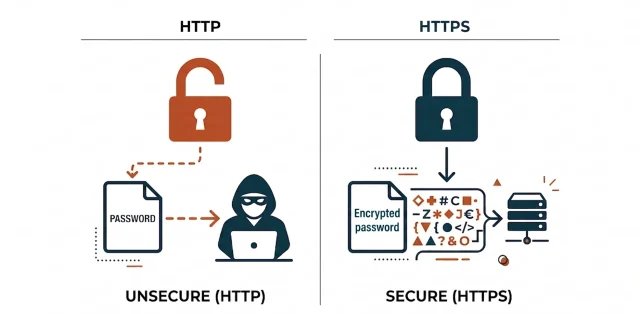
HTTPS adds a layer of encryption to that data transfer. It uses a security protocol to scramble the information as it travels across the internet. Even if a hacker intercepts the data, they will only see a jumbled mess of characters. The data can only be unscrambled by the intended recipient.
How SSL and TLS certificates make HTTPS work
Section titled How SSL and TLS certificates make HTTPS workTo use HTTPS, your website needs an SSL or TLS certificate. These digital certificates enable the encrypted connection between your website and a visitor’s browser.
Although you’ll often hear people talk about SSL certificates, the technology used today is actually TLS (Transport Layer Security). SSL (Secure Sockets Layer) is the older version, but the name “SSL certificate” has remained the industry standard.
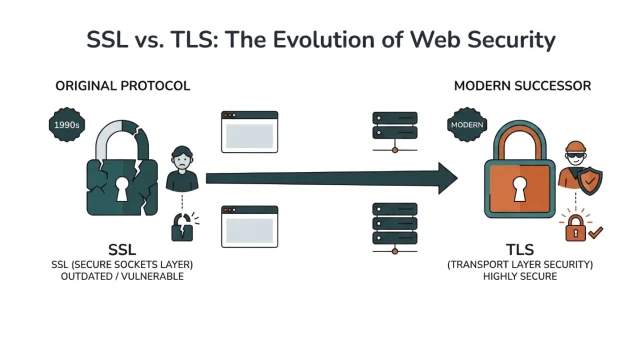
When someone visits your website, their browser first checks that your certificate is valid and that they’re connecting to the correct website. It then establishes an encrypted connection so that any information exchanged during the visit is protected.
This process happens automatically in the background and usually takes less than a second, allowing visitors to browse your website securely without noticing anything happening behind the scenes.
If you’d like to learn more about how HTTPS works, you can also read our guides on SSL certificates and SSL handshakes.
Why HTTPS matters for your WordPress site
Section titled Why HTTPS matters for your WordPress siteWhether you run a personal blog, a business website or an online store, HTTPS is an important part of keeping your WordPress site secure. It’s easy to assume that only websites handling payments need encryption, but that’s not the case.
Every WordPress website exchanges information with visitors, whether that’s login credentials, contact form submissions or other personal data. HTTPS helps protect that information, builds trust with your audience and supports the overall performance and visibility of your website.
1. Protecting sensitive data
Section titled 1. Protecting sensitive dataEven if you don’t run an ecommerce website, your WordPress site still handles sensitive information. Every time you log in to your WordPress dashboard, your username and password are sent between your browser and your website. Without HTTPS, that information could potentially be intercepted.
The same applies to contact forms, newsletter sign-ups and any other forms where visitors submit personal information. HTTPS encrypts this data while it’s being transmitted, helping to protect both your website and your visitors.
HTTPS protects your login. Two-factor authentication protects your account
HTTPS encrypts login credentials while they’re travelling to your website, but attackers can still target your WordPress login page. AIOS adds two-factor authentication, making it much harder for unauthorised users to access your admin area, even if a password is compromised.
2. Building trust with your audience
Section titled 2. Building trust with your audienceModern web browsers clearly indicate whether a website is secure. If your site doesn’t use HTTPS, visitors may see a “Not Secure” warning in their browser, which can make them think twice about continuing.
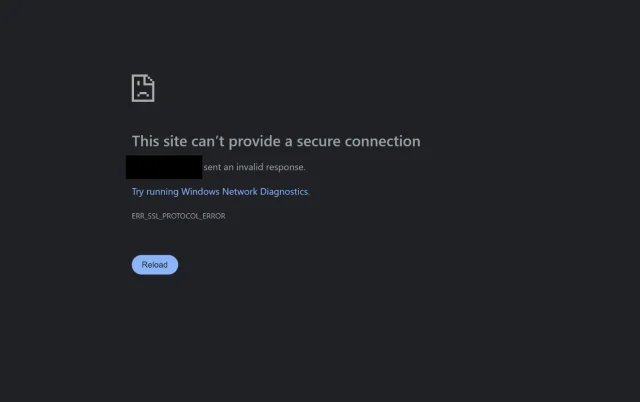
Imagine being a new visitor landing on a website and seeing a bright red warning label. Most users will immediately click away and find a competitor they can trust.
A secure connection replaces that warning with a reassuring padlock icon.
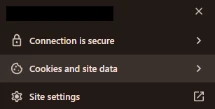
This visual cue tells your visitors that you care about their privacy and run a professional operation. Trust is the foundation of any successful website.
3. Supporting your SEO efforts
Section titled 3. Supporting your SEO effortsGoogle has used HTTPS as a ranking signal for several years, making it one of many factors that can influence where your website appears in search results.
While switching to HTTPS alone won’t dramatically improve your rankings, it removes a potential disadvantage and helps ensure your website meets modern expectations for security and user experience.
4. Supporting modern web technologies
Section titled 4. Supporting modern web technologiesMany modern browser features only work on secure websites. Services such as push notifications, geolocation and other browser APIs require an HTTPS connection before they’ll function.
HTTPS also enables newer versions of the HTTP protocol, such as HTTP/2, which can improve website performance by making data transfer more efficient. While your hosting provider plays the biggest role in website speed, enabling HTTPS helps ensure your website can take advantage of these modern technologies.
HTTP vs HTTPS comparison table
Section titled HTTP vs HTTPS comparison tableHow to enable HTTPS on your WordPress site
Section titled How to enable HTTPS on your WordPress siteEnabling HTTPS is usually much easier than people expect. Most WordPress hosting providers include free SSL certificates and guide you through the setup process. Once your certificate is installed, you’ll simply need to update your website to use HTTPS instead of HTTP.
Step 1. Install an SSL certificate
Section titled Step 1. Install an SSL certificateBefore your website can use HTTPS, you’ll need an SSL certificate for your domain.
The good news is that most hosting providers include free SSL certificates through Let’s Encrypt, so you won’t usually need to purchase one separately.
Log in to your hosting control panel and look for an SSL, Security or Let’s Encrypt section. In many cases, enabling HTTPS is as simple as clicking a button and waiting a few minutes for the certificate to be installed.
If your hosting provider doesn’t offer free SSL certificates, it’s worth considering a host that does, as HTTPS has become a standard feature for modern websites.
Step 2. Update your WordPress URLs
Section titled Step 2. Update your WordPress URLsOnce your SSL certificate is active, log in to your WordPress dashboard and go to Settings → General.
You’ll see two fields:
- WordPress Address (URL)
- Site Address (URL)
Update both so they begin with https:// instead of http://, then save your changes.
WordPress will log you out after making this change. This is expected, as your website is now using the secure version of your URL. Simply log back in using the new HTTPS address.
Step 3. Redirect visitors to HTTPS
Section titled Step 3. Redirect visitors to HTTPSTo make sure everyone uses the secure version of your website, you’ll need to redirect visitors from HTTP to HTTPS.
Many hosting providers can enable this automatically. Alternatively, plugins like Really Simple SSL can help configure redirects if your hosting provider doesn’t do this for you.
Once the redirect is in place, anyone visiting your old HTTP address will automatically be sent to the secure HTTPS version instead.
Step 4. Check that everything is working
After enabling HTTPS, visit a few pages on your website to make sure everything is working as expected.
Look for:
- The padlock icon in your browser.
- Pages loading over
https://. - No “Not Secure” warnings.
- Images, styles and scripts loading correctly.
If you see mixed content warnings or missing padlock icons, don’t worry, we’ll cover the most common HTTPS issues and how to fix them in the next section.
Secure your hard work before making big changes
Changing your site URLs can occasionally cause unexpected issues. UpdraftPlus lets you easily backup your entire site before making major changes so you can always restore it if things go wrong.
Fixing common WordPress HTTPS issues
Section titled Fixing common WordPress HTTPS issuesEnabling HTTPS is usually a straightforward process, but you may run into a few issues afterwards. Most problems are easy to fix once you know what’s causing them.
Mixed content warnings
Section titled Mixed content warningsA mixed content warning appears when your website loads over HTTPS, but some resources such as images, stylesheets or JavaScript files are still being loaded over HTTP.
When this happens, your browser may not display the padlock icon, even though you’ve installed an SSL certificate.
The most common solution is to update any old http:// URLs in your WordPress database so they use https:// instead. Many search and replace plugins can do this automatically.
Before making database changes, always create a complete backup of your website so you can restore it if anything goes wrong.
Resolving redirect loops
Section titled Resolving redirect loopsIf your browser displays a “Too many redirects” error after enabling HTTPS, your website may have conflicting redirect rules.
This often happens if your hosting provider, a plugin and your website configuration are all trying to force HTTPS at the same time.
Start by clearing your WordPress cache and your browser cache. If the problem continues, temporarily disable any plugins that manage redirects or SSL settings and check your hosting control panel for existing HTTPS redirect rules.
Why does my website still say “Not Secure”?
Section titled Why does my website still say “Not Secure”?If your SSL certificate has been installed but your browser still labels your website as “Not Secure“, there are a few things to check:
- Make sure your SSL certificate is active and hasn’t expired.
- Confirm your WordPress Address and Site Address both use
https://. - Check for mixed content warnings caused by HTTP resources.
- Clear your website and browser caches after making changes.
Once these issues have been resolved, your browser should recognise your website as secure.
Maintaining your digital certificates
Section titled Maintaining your digital certificatesOne of the most common mistakes I see website owners make is forgetting about SSL certificate renewals. SSL certificates aren’t permanent, they’re typically valid for between 90 days and a year. If your certificate expires, browsers will display security warnings that can put visitors off and prevent them from trusting your website.
If you’re using a free Let’s Encrypt certificate through your hosting provider, renewals are usually handled automatically. Even so, it’s worth checking occasionally that everything is working as expected. I also recommend setting yourself a reminder every few months to make sure your certificate is still active, especially if you manage multiple websites.
If you’ve purchased a commercial SSL certificate, you’ll usually need to renew and reinstall it before it expires. Keeping your certificate up to date ensures your website remains secure and continues serving visitors over HTTPS without interruption.
Conclusion
Section titled ConclusionHTTPS stands for Hypertext Transfer Protocol Secure, and it’s one of the simplest ways to make your WordPress site safer. By encrypting the data exchanged between your website and its visitors, HTTPS helps protect sensitive information, builds trust with your audience and supports modern web standards.
In my experience, enabling HTTPS is often one of the quickest improvements website owners can make. Most hosting providers include free SSL certificates, and once everything is set up correctly, your website benefits from a more secure connection with very little ongoing maintenance.
It’s worth remembering, though, that HTTPS is only one layer of WordPress security. While it protects data as it’s being transmitted, it doesn’t stop malware, brute force attacks or vulnerable plugins from putting your website at risk. Combining HTTPS with regular updates, strong passwords and a security plugin such as AIOS gives your WordPress site much stronger protection against a wider range of threats.
FAQs
Section titled FAQsWhat’s the difference between HTTP and HTTPS?
HTTP transfers data between a browser and a website without encryption. HTTPS does the same thing but encrypts that data using an SSL/TLS certificate. This makes it much harder for anyone to intercept sensitive information such as passwords, contact form submissions or payment details.
Does HTTPS improve SEO?
HTTPS is one of Google’s ranking signals, meaning it can contribute to your website’s SEO. While switching to HTTPS alone won’t dramatically improve your rankings, it helps your site meet modern security standards and removes a potential disadvantage compared with non-secure websites.
Can I get HTTPS for free?
Most WordPress hosting providers include free SSL certificates through services such as Let’s Encrypt. For the majority of websites, these provide everything you need to enable HTTPS without paying for a commercial certificate.
Do I need to be a developer to enable HTTPS?
Most website owners can enable HTTPS without any development experience. Many hosting providers offer one-click SSL installation, and WordPress makes it easy to update your website to use HTTPS once the certificate has been installed.
Does HTTPS make my website completely secure?
HTTPS protects data while it’s being transmitted between your website and its visitors, but it doesn’t protect against every security threat. Keeping WordPress up to date, using strong passwords and adding extra protection such as malware scanning and two-factor authentication are all important parts of securing your WordPress site.
What happens if my SSL certificate expires?
If your SSL certificate expires, browsers will warn visitors that your website isn’t secure. This can affect visitor trust and may prevent people from accessing your site. Most free SSL certificates renew automatically, but it’s worth checking occasionally that the renewal process is working correctly.
About the author

Elvira Mishra
Elvira has over four years of experience creating and designing content in WordPress. Her background spans multiple digital disciplines, including marketing, SEO, user experience, and human computer interaction.
Categories
AIOS
Comprehensive, feature-rich, security for WordPress. Malware scanning, firewall, an audit log and much more. Powerful, trusted and easy to use.
From just $44.50 for the year.
More stories
-

10 Best WordPress Plugins for Agencies in 2026
Discover the best WordPress plugins for agencies, from backups and security to performance optimisation and site management. Explore tools that make managing multiple client websites easier and more efficient.
-

Direct WordPress site-to-site migration: A step-by-step guide
Learn how direct WordPress site-to-site migration works and how to move your website between hosts or domains without manually transferring files.
-

5 WordPress Web Design Tips to Improve Your Website
Good web design is about more than appearance. Explore practical WordPress web design tips to improve your website's layout, navigation, mobile responsiveness, accessibility and performance, helping you create a better experience for your visitors.
-
Best AI Website Builders Compared
AI website builders can help you design, write and launch a website in minutes. Compare the best AI-powered website builders based on ease of use, features, customisation, pricing and performance to find the right solution for your next project.
