How to download a WordPress site
Category Guides and resources
Topics Backups, Tips and tricks, WordPress,

Downloading a WordPress site is useful when you want to move to a new host, create a staging copy or simply keep a copy of your website somewhere safe.
But downloading a complete WordPress site involves more than saving the pages you can see in your browser. Your site is made up of files, including themes, plugins and media uploads, as well as a database containing your posts, pages, settings and other important information. To create a complete copy, you’ll need both.
In this guide, we’ll show you how to download a WordPress site using a backup plugin, your hosting tools or FTP/SFTP, including how to download both your website files and database.
You’ll learn how to:
- Download a complete copy of your WordPress site with UpdraftPlus.
- Download WordPress files using your hosting control panel or FTP.
- Export your WordPress database.
- Choose the right method depending on what you need the downloaded copy for.
Method 1: Download your WordPress site using a plugin
Section titled Method 1: Download your WordPress site using a pluginFor most WordPress users, a backup plugin is the easiest way to download a complete copy of a website. Instead of manually downloading your files and exporting your database separately, a plugin can package the different parts of your site into backup files that you can save to your computer.
For this example, we’ll use UpdraftPlus. The free version lets you create a complete backup and download your database, plugins, themes, uploads and other WordPress files directly from your dashboard.
How to download your WordPress site with UpdraftPlus
Section titled How to download your WordPress site with UpdraftPlusThe process is straightforward: install UpdraftPlus, create a backup containing your website files and database, then download the completed backup to your computer.
Follow the steps below to create and download a complete copy of your WordPress site.
1. Install and activate UpdraftPlus
Section titled 1. Install and activate UpdraftPlus- In your WordPress dashboard, go to Plugins > Add New Plugin and search for “UpdraftPlus”.
- Click Install Now, then Activate.
For more detailed instructions, see our UpdraftPlus installation guide.
2. Create a complete backup of your site
Section titled 2. Create a complete backup of your site- Go to Settings > UpdraftPlus Backups and open the Backup / Restore tab.
- Click Backup Now.
- Make sure both your database and files are included in the backup.
- Click Backup Now again to start the backup.
3. Wait for your backup to complete
Section titled 3. Wait for your backup to completeUpdraftPlus will now create your backup. The time this takes will depend on the size of your website, so wait until the process has finished before downloading your files.
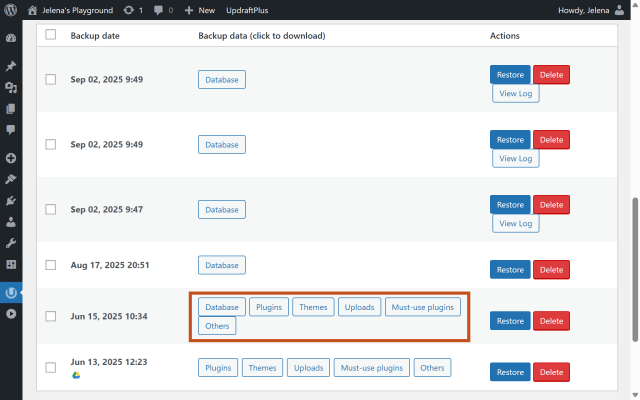
Once complete, the backup will appear under Existing backups, ready to download.
4. Download your backup files
Section titled 4. Download your backup filesUnder Existing backups, you’ll see the different components that make up your WordPress backup, including:
- Database
- Plugins
- Themes
- Uploads
- Others
Click each component, then select Download to your computer.
If you want a complete copy of your WordPress site, make sure you download every component before moving on.
5. Check and store your downloaded site safely
Section titled 5. Check and store your downloaded site safely- Check that you’ve downloaded every component of the backup, including your database, plugins, themes, uploads and other files.
- Keep all files from the same backup together and clearly label the folder with your site name and the backup date.
- Store your downloaded copy somewhere secure, such as an external drive or another protected storage location.
Tip: A local copy is useful, but for ongoing backups it’s a good idea to keep an additional copy off-site. UpdraftPlus can automatically send backups to remote storage services such as Google Drive, Dropbox or UpdraftVault.
Tips for keeping your downloaded WordPress site safe
Section titled Tips for keeping your downloaded WordPress site safe- Create a fresh copy before major changes: Download a new backup before updating themes or plugins, redesigning your site or making other significant changes.
- Test important backups: If you’re relying on the downloaded copy for a migration or recovery, consider testing it in a staging environment to make sure it can be restored successfully.
- Keep more than one recent backup: Don’t rely on a single downloaded copy. Keeping multiple restore points gives you another option if your latest backup contains a problem.
- Keep an off-site copy: In addition to downloading your site locally, storing another copy in a separate location can protect you if your computer or primary storage fails.
Method 2: Download your WordPress site manually
Section titled Method 2: Download your WordPress site manuallyYou can also download a complete WordPress site without using a backup plugin. This gives you direct access to your website files and database, but requires a little more technical knowledge and involves downloading the two separately.
To create a complete copy of your site manually, you’ll need to:
- Download your WordPress files using your hosting provider’s File Manager or an FTP/SFTP client.
- Export your WordPress database using a tool such as phpMyAdmin.
- Keep the website files and database together so you have everything needed to restore or move the site later.
Download your WordPress files
Section titled Download your WordPress filesYour WordPress files include your themes, plugins, media uploads and WordPress core files. You can usually download these through your hosting control panel’s File Manager or by connecting to your server using FTP/SFTP.
Make sure you download the entire WordPress installation rather than only the wp-content folder if you want a complete copy of the site.
Export your WordPress database
Section titled Export your WordPress databaseYour database contains important site data including your posts, pages, settings, users and other WordPress and plugin data. Downloading your files alone therefore isn’t enough to create a complete copy of your website.
Most hosting providers give you access to phpMyAdmin or another database management tool that you can use to export the database as an SQL file.
Pros and cons of downloading WordPress manually
Section titled Pros and cons of downloading WordPress manuallyPros:
- Direct control over which files and database you download.
- No backup plugin required.
- Useful if you already have experience working with hosting tools, FTP/SFTP and databases.
Cons:
- More technical than using a backup plugin.
- Files and the database need to be downloaded separately.
- There’s a greater chance of creating an incomplete copy if you accidentally miss files or export the wrong database.
Save time with automated backups
UpdraftPlus can automatically back up your WordPress files and database on a schedule and store copies in your chosen remote location, so you don’t have to download everything manually each time.
Things to watch out for
Section titled Things to watch out for- Large sites can take longer to download: Sites with large media libraries or lots of files may take longer to back up and download, and can require more server resources.
- Make sure you have both your files and database: Downloading only your WordPress files isn’t enough for a complete copy of your site. You’ll also need your database.
- Check that your download is complete: Before deleting, migrating or making major changes to your live site, make sure all the files you expect are present and your database export has completed successfully.
- Don’t rely on a single copy: Keeping your only backup on the same server as your website leaves both vulnerable to the same server failure or security issue. Consider keeping an additional copy in remote or cloud storage.
- Keep downloaded backups secure: Your site files and database can contain sensitive information, so store them somewhere secure and avoid leaving backup files publicly accessible.
Conclusion
Section titled ConclusionThere are several ways to download a WordPress site, and the right method depends on what you need the copy for and how comfortable you are working with website files and databases.
For most users, a backup plugin is the easiest option. UpdraftPlus lets you create a complete backup and download your WordPress files and database directly from your dashboard. If you prefer more control, you can download your files manually using your hosting File Manager or FTP/SFTP and export your database separately.
Whichever method you choose, make sure you have both your WordPress files and database, check that the download is complete and store your copy somewhere secure. That way, you’ll have everything you need if you want to restore, move or work with your site later.
Make WordPress backups easier
UpdraftPlus Premium gives you more ways to automate, manage and store your backups, with additional remote storage options and advanced backup features to help you protect your WordPress site.
FAQs
Section titled FAQsCan I just export content instead of backing up the full site?
Yes, WordPress’s built-in Tools → Export will download posts/pages/comments only. But this won’t include themes, plugins or uploads, so you’ll get an incomplete copy of the site.
Can I download the backup to my PC with UpdraftPlus?
Yes you can back up your WordPress site to your PC or Mac easily with UpdraftPlus. After creating a backup with UpdraftPlus you go to Existing Backups and click “Download to your computer” for each component (database, uploads, etc).
Why would I want UpdraftPlus Premium instead of the free version?
UpdraftPlus Premium adds features like incremental backups, more cloud storage options, automated backups before updates, site migration tools, and priority support. All designed to make your WordPress site safer, faster to restore and easier to manage.
What’s the best way to download a WordPress site?
The easiest and safest way is to use a backup plugin like UpdraftPlus. It lets you create a full backup of your site, including your database, plugins, themes, and uploads and download it directly to your computer or store it securely in the cloud. Manual methods work too, but they’re more technical and risk missing important files.
How long does it take to download a WordPress site?
It depends on your site size and hosting speed. Most smaller sites download within a few minutes. Large WooCommerce or membership sites may take longer due to big uploads folders.
Do I need to download both the files and the database?
Yes. To have a complete, restorable copy of your WordPress site, you need both. The database contains your content, settings, users, and orders, while the files include your themes, plugins, uploads, and core structure. Downloading only one means you won’t be able to fully recreate your site later.
How do I download just my themes, plugins, or media files?
With UpdraftPlus, you can download individual parts of your site without taking a full backup. After running or selecting an existing backup, go to Settings → Backup/Restore → Existing Backups and choose the component you want – plugins, themes, uploads, or others. Click Download to your computer next to that specific section, and UpdraftPlus will only download that file.
About the author

Jelena Janić
Jelena is the Product Manager for UpdraftPlus and WP-Optimize. With seven years of experience, she’s taken on many roles – from tester to developer and now product manager. Along the way, she noticed a disconnect between how products are built and what customers need, sparking a passion for steering products toward solutions that truly serve the people who use them. Today, she ensures every WP-Optimize development decision is geared toward boosting WordPress website performance, enhancing usability, and increasing customer satisfaction.
Categories
UpdraftPlus
Get all our premium features. Direct site-to-site migration, incremental backups, back up automatically before updates and a whole lot more.
From just $70 for the year.
More stories
-

5 WordPress Web Design Tips to Improve Your Website
Good web design is about more than appearance. Explore practical WordPress web design tips to improve your website's layout, navigation, mobile responsiveness, accessibility and performance, helping you create a better experience for your visitors.
-
Best AI Website Builders Compared
AI website builders can help you design, write and launch a website in minutes. Compare the best AI-powered website builders based on ease of use, features, customisation, pricing and performance to find the right solution for your next project.
-

How incremental backups save time and storage in WordPress
Incremental backups only save the changes made since your last backup, helping you reduce storage usage, speed up backups and lower server load. Learn how they work and why they're an essential part of an efficient WordPress backup strategy.
-
Best WordPress Website Builders Compared
Discover the best WordPress website builders for every skill level. Compare features, ease of use, pricing and performance to choose the right builder for your blog, business or online store.
