Direct WordPress site-to-site migration: A step-by-step guide
Moving a WordPress site often means downloading a large backup, uploading it to a new server and then restoring it. Direct site-to-site migration removes much of that manual handling by sending the migration backup from one WordPress installation to another. It is a practical option when you are changing hosts, copying a live site for development or moving work between staging and production.
The transfer may be simpler, but a reliable migration still needs preparation and testing. This guide explains how direct WordPress migration works, what gets moved and the checks to make before sending visitors to the new site.
Key takeaways
Section titled Key takeaways- Direct migration reduces the need to download and re-upload backup files
- A fresh, independently stored backup gives you a safe recovery point
- Matching WordPress and PHP versions can prevent avoidable restore problems
- UpdraftPlus Premium supports direct migration between compatible WordPress installations.
- Same-domain hosting moves require an alternative backup transfer method, such as remote storage or FTP/SFTP.
- Test pages, forms, logins and store functions before changing DNS
- Use a WordPress-aware search and replace when the site URL changes
What is direct site-to-site migration?
Section titled What is direct site-to-site migration?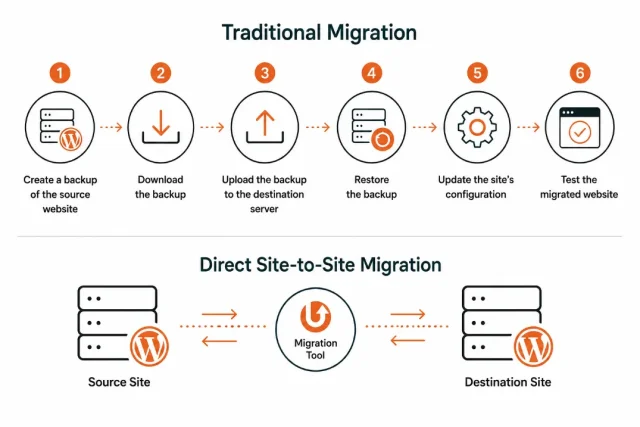
Direct site-to-site migration is a method of moving a WordPress website from one server or installation to another through a connection between the two sites.
A traditional migration often looks like this:
- Create a backup of the source website
- Download the backup
- Upload the backup to the destination server
- Restore the backup
- Update the site’s configuration
- Test the migrated website
With a direct migration, the source and destination sites communicate with each other. The migration tool transfers the required data directly between them, reducing the amount of manual file handling involved.
The exact process depends on the migration plugin. Many tools use a temporary key generated by the destination site. The source site uses that key to establish an authorised connection before sending the migration data. The word direct therefore describes the transfer route. It does not mean the website is copied instantly or that the migration process skips backups and restoration.
The site’s data still needs to be packaged, transferred, and restored correctly.
What gets moved during a direct WordPress migration?
Section titled What gets moved during a direct WordPress migration?A WordPress website consists of several different types of data. A full migration may include:
The database is particularly important.
WordPress stores posts, pages, users, settings, menus, plugin information, and many other pieces of site data in the database. Media files such as images and PDFs are generally stored separately in the wp-content/uploads directory.
Plugins can also split their data between files and database tables. This means copying only the WordPress files will not normally produce a complete copy of the website.
WordPress recommends backing up both the WordPress files and database when moving a site to another server.
Direct migration vs traditional WordPress migration
Section titled Direct migration vs traditional WordPress migrationThe main difference between migration methods is how the data travels from the old site to the new one.
Direct migration is particularly useful when both WordPress installations are accessible and compatible.
A manual migration can be preferable when the two servers cannot communicate or when greater control over the backup files is required.
Neither approach is automatically better for every website. The right choice depends on the hosting environment, site size, migration requirements, and level of technical control needed.
Why skip the manual download and upload step?
Section titled Why skip the manual download and upload step?Downloading and re-uploading a large website archive adds extra steps to a migration. Slow or unreliable connections can interrupt the transfer, and large backup files may take a long time to move.
The files also need enough free space on your computer before they can be uploaded again. If a transfer fails, you may need to restart it or verify the archive before continuing.
Sending the migration backup directly between the two sites avoids using your computer as the middle step. That can be especially useful for sites with large media libraries or limited local storage.
Check what is making your database larger
Large or unused database tables can make a site heavier to back up and move. WP-Optimize Premium’s table usage insights help you identify which plugins use each table before you clean up, so you can make informed changes ahead of the migration.
When should you use direct site-to-site migration?
Section titled When should you use direct site-to-site migration?Direct migration can be useful in several common WordPress scenarios, including moving to a new domain.
Moving to a new hosting provider
Section titled Moving to a new hosting providerChanging hosting providers while keeping the same domain requires a different migration approach. UpdraftPlus’s direct site-to-site migration uses site keys associated with website addresses, so it may reject the connection when the source and destination share the same URL.
For this type of move, create a backup on the source site and transfer it to the destination using a shared remote storage location, FTP/SFTP, or manual download and upload. Once the backup is available on the destination, restore it using UpdraftPlus. After testing the migrated site, update your DNS records to point to the new server.
Moving a staging site to production
Section titled Moving a staging site to productionStaging sites are commonly used to test design changes, plugin updates, WordPress upgrades, and new functionality, and you can test WordPress themes and plugins without going live. Once the work is approved, the staging website may need to be transferred to production. Direct site-to-site migration can reduce the amount of manual work involved in this process.
However, care is needed when the production website has changed since the staging copy was created. Restoring the staging database could overwrite newer production content.
Creating a development copy
Section titled Creating a development copyA production website can also be copied to another WordPress installation for development or testing. This gives developers a realistic version of the live site without requiring changes to the production environment.
Before doing this, sensitive information should be considered. A development copy may contain user accounts, customer information, form submissions, or other private data.
Moving to a new domain
Section titled Moving to a new domainA domain migration involves more than changing the domain name in the WordPress settings. The old domain can appear throughout the database in:
- Post content
- Page content
- Plugin settings
- Theme settings
- Image URLs
- Internal links
- Custom fields
- Widgets
- Navigation menus
The migration therefore needs a reliable search-and-replace process. A simple database-wide text replacement is not always safe because WordPress and plugins can store data in serialized formats.
Migration tools that understand WordPress data structures can handle these replacements more safely.
Which plugin can you use for direct site-to-site migration?
Section titled Which plugin can you use for direct site-to-site migration?UpdraftPlus Premium combines direct migration with backup and restoration tools. That means you can move the site and keep using the same plugin to protect it afterwards.
Once two sites are connected, you can migrate between them repeatedly. This is useful for development and staging workflows where content or changes need to move more than once.
After moving to the new server, UpdraftPlus can continue handling scheduled backups and remote backup storage. That means the same plugin can cover two separate needs:
Move the site, then protect it
For agencies and freelancers managing several WordPress installations, this can also reduce the number of migration and backup tools that need to be maintained.
UpdraftPlus Premium allows unlimited migrations, so the feature is not restricted to a single move.
Move your WordPress site directly
Skip the download-and-upload step. UpdraftPlus Premium lets you connect two WordPress sites and send the migration backup directly to the destination, reducing manual file handling during the move.
How to perform a direct site-to-site migration with UpdraftPlus
Section titled How to perform a direct site-to-site migration with UpdraftPlusThe following process uses UpdraftPlus Premium and assumes the source and destination are two accessible WordPress installations.
1. Prepare the destination site
Section titled 1. Prepare the destination siteStart by creating the WordPress installation that will receive the migrated site.
The destination might be:
- A new hosting account
- A staging site
- A development server
- A new domain
- A temporary hosting environment
Install and activate UpdraftPlus Premium on both the source and destination sites. The destination should have sufficient storage for the migration.
It is also worth checking that the source and destination use compatible versions of WordPress and PHP. Use the same versions where possible because version differences can cause restoration problems.
2. Create a fresh backup
Section titled 2. Create a fresh backupBefore starting the migration, create a fresh backup of the source site. Even though the migration process creates and transfers backup data, an independent recovery point is still useful.
For additional protection, store a backup remotely rather than relying only on files located on the source server. This gives you a fallback if the migration fails or the destination is configured incorrectly.
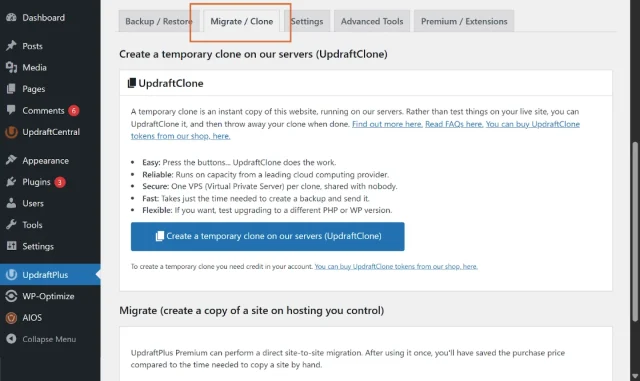
3. Open the Migrate/Clone tab on the destination
Section titled 3. Open the Migrate/Clone tab on the destinationLog into the destination WordPress dashboard.
- Go to: Settings > UpdraftPlus Backups > Migrate/Clone
- Scroll down to the migration section and select: Receive a backup from a remote site
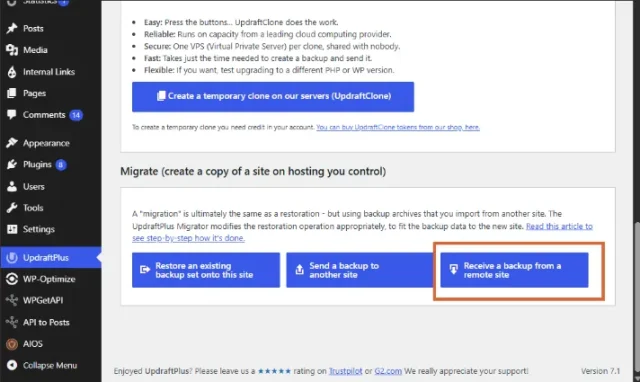
This tells UpdraftPlus that the destination will receive a backup from another WordPress installation.
4. Create a migration key
Section titled 4. Create a migration key- Enter a name for the key so that the connection can be identified later. For example:
Production to staging
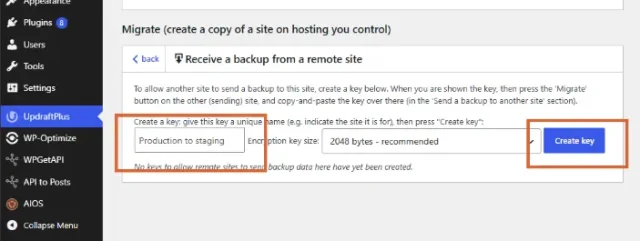
- Select Create key.
- UpdraftPlus will generate the site key
- Copy the key and store it securely.
The key should not be posted publicly or shared with anyone who does not need access to the destination.
5. Add the destination to the source site
Section titled 5. Add the destination to the source siteNow return to the source WordPress installation.
- Open Settings > UpdraftPlus Backups > Migrate/Clone
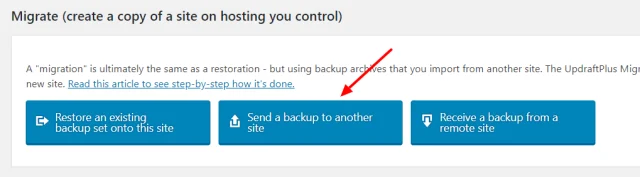
- Select Send a backup to another site
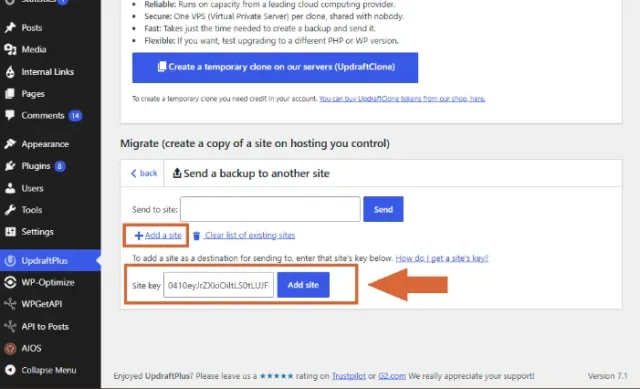
- Paste the destination’s site key into the Site key field.
- Select Add site.
The destination should now appear as an available migration target.
6. Send the backup to the destination
Section titled 6. Send the backup to the destination- Select the destination site and start the transfer.
- UpdraftPlus will create the backup data required for the migration and send it to the connected destination.
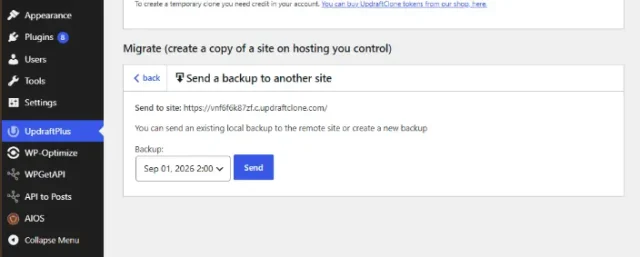
The amount of time required depends on the size of the site and the available server and network resources. A small website may complete relatively quickly, while a site with a large media library or database can take considerably longer.
7. Restore the backup on the destination
Section titled 7. Restore the backup on the destinationOnce the backup has been transferred, return to the destination site.
- Open Settings > UpdraftPlus Backups > Backup/Restore
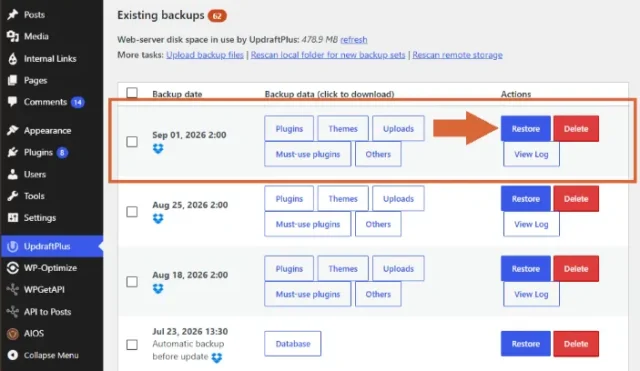
- Look under Existing backups.
- The transferred backup should appear there.
- Select Restore to begin the restoration process.
8. Select what to restore
Section titled 8. Select what to restoreUpdraftPlus will display the components available for restoration.
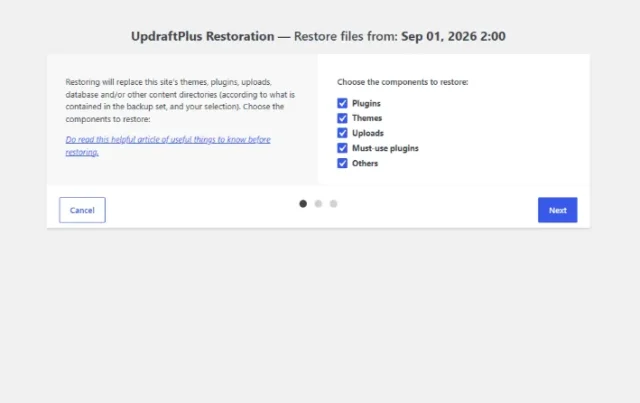
These can include:
- Plugins
- Themes
- Uploads
- Database
- Other files
For a complete migration to a fresh destination, the relevant components will generally all be selected. However, don’t automatically restore everything when the destination already contains important data.
For example, restoring the source database could overwrite information that was created independently on the destination. UpdraftPlus Premium allows individual plugins, themes, database tables, and other components to be selected where required.
9. Enable search and replace when the URL changes
Section titled 9. Enable search and replace when the URL changesThis step is particularly important when moving the website to a different domain or URL.
During the restoration process, make sure the option to Search and replace site location in the database is enabled when appropriate. This allows UpdraftPlus to update references to the old website location.
Without URL replacement, the new website can contain links and settings that still point to the original site. In some situations, WordPress may even redirect the user back to the old website.
A same-domain server migration is different. When the domain stays the same and only the hosting server changes, URL replacement may not be required. UpdraftPlus provides separate guidance for moving hosts without changing the site’s address.
10. Complete the restoration
Section titled 10. Complete the restoration- Select Restore and allow UpdraftPlus to complete the process.
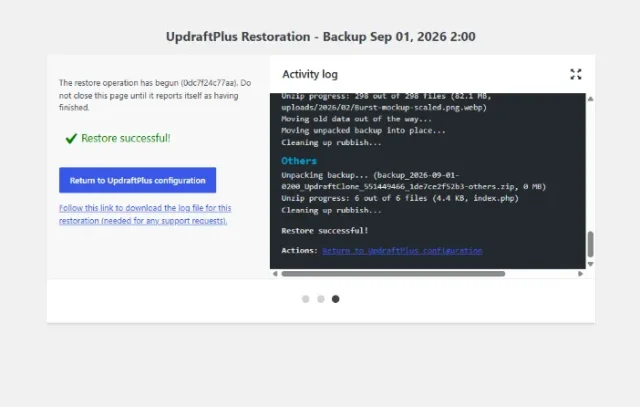
Depending on the size of the website and the components being restored, this can take some time.
Don’t treat the completion message as the end of the migration. The destination still needs to be checked.
11. Log into the migrated site
Section titled 11. Log into the migrated siteAfter a database migration, the destination’s WordPress user accounts come from the source database.
That means the login credentials used on the original site will generally become the credentials used on the migrated site.
If the destination had a separate administrator account before restoration, that account may no longer exist after the source database has replaced the destination database.
This is a common detail to be aware of before starting the restoration.
Moving hosts without changing your domain
Section titled Moving hosts without changing your domain- Create a fresh backup of your website using UpdraftPlus on the source server.
- Transfer the backup to the destination using one of these methods:
- Remote storage: Configure the destination to access the same remote storage location as the source, then rescan remote storage.
- FTP/SFTP: Download the backup files from remote storage if necessary, then upload them to the destination site’s wp-content/updraft directory.
- Manual transfer: Download the backup files from the source and upload them through the destination’s UpdraftPlus backup uploader.
- On the destination, rescan for the backup files if necessary, then select Restore.
- Restore the required website components and test the site.
- Update DNS to point the domain to the new server once the destination is ready.
Keep an independent backup before starting and check that all backup components have transferred successfully.
What should you check after migrating with UpdraftPlus?
Section titled What should you check after migrating with UpdraftPlus?A migration is complete only after the destination has been tested.
- Check WordPress
- Log into WordPress, open the dashboard. Check Settings > General and confirm the site URL
- Check the permalink structure
- Confirm the active theme
- Check plugin activation
- Check WordPress and PHP versions
- Check website content. Open several pages and posts rather than checking only the homepage. Look for:
- Missing images
- Broken internal links
- Incorrect URLs
- Missing featured images
- Broken embeds
- Missing custom content
- Incorrect navigation menus
- Check forms and interactive features. Test the features visitors rely on. For example:
- Contact forms
- Search
- Login
- Registration
- Password reset
- Comments
- Membership features
- Booking forms
- Check that emails are also being delivered correctly.
- Check WooCommerce. WooCommerce sites require additional testing because they contain transactional data. Check:
- Products
- Product variations
- Customer accounts
- Orders
- Cart
- Checkout
- Payment gateways
- Shipping
- Taxes
- Coupons
- Stock levels
- Transactional emails
- For an active store, plan the migration carefully so new orders or customer activity aren’t lost while the WooCommerce database is being transferred
- Check SEO. For a domain migration, review:
- Canonical URLs
- Internal links
- Redirects
- XML sitemap
- Robots.txt
- Image URLs
- Metadata
- Old-domain references
- Search the site for remaining references to the old domain where appropriate.
-
- Check SSL, caching and performance:
- Confirm HTTPS works
- Clear WordPress cache
- Clear CDN cache
- Test several pages
- Check page speed
- Review server logs
- Confirm scheduled tasks are running
- Reactivate security configurations
- Check firewall settings
The new site should be tested before the old site is taken offline.
Dealing with server timeouts
Section titled Dealing with server timeoutsDirect transfers can still run into hosting limits. A server may stop a long-running process when it reaches its PHP execution time or memory allowance, which can interrupt the backup or restore.
Large media libraries, databases and individual files can make this more likely. UpdraftPlus splits backups into separate archives, set to 400MB by default, and can resume interrupted processes. The archive size is configurable if your hosting environment needs smaller files.
You can also ask your hosting provider to temporarily increase your server limits. The specific values you want to increase are the maximum execution time and the PHP memory limit. A higher execution time gives the server permission to work on the transfer for a longer period.
Sometimes, a security firewall can block an incoming connection or data transfer. ModSecurity, a web application firewall (WAF), may block a request if it matches a security rule. Ask your hosting provider to check the server logs, identify the rule being triggered, and whitelist or exclude that rule if appropriate. If the issue persists, your host may consider temporarily disabling ModSecurity, although this reduces protection against malicious requests.
Keep a backup outside your server
A fresh backup gives you a recovery point if the migration goes wrong. UpdraftPlus Premium lets you store backups in multiple remote locations, so your recovery copy does not depend on the server you are moving from.
Handling SSL certificates
Section titled Handling SSL certificatesThe destination server needs a valid SSL certificate for the domain before visitors can use the migrated site securely. Many hosts provide automated certificates through Let’s Encrypt, but the certificate may not be issued until the host can verify that the domain points to the new server.
Check your host’s certificate process before changing DNS. Some providers support pre-provisioning or alternative validation; others issue the certificate shortly after the DNS change. If you use a proxy or CDN, confirm its SSL settings as part of the migration plan.
After the DNS change, confirm that HTTPS works on the homepage, the WordPress dashboard and any checkout or login pages. Redirect HTTP traffic only after the certificate is active and working correctly.
Conclusion
Section titled ConclusionDirect site-to-site migration can reduce manual file handling when the source and destination can establish a supported connection. However, moving to a new host while keeping the same domain requires a different approach: transfer the backup through remote storage, FTP/SFTP or manual download and upload, then restore it on the destination. Back up your site first, test the migrated website and update DNS only when the new server is ready.
UpdraftPlus Premium brings the migration and backup process together. You can connect the two WordPress sites, transfer the backup directly, restore the required components, and continue using the same plugin for scheduled backups after the move. For a host change, staging-to-production transfer, development copy, or domain migration, that gives you a straightforward way to move the site without adding unnecessary manual steps.
FAQs
Section titled FAQsWhat is direct site-to-site migration?
Direct site-to-site migration transfers a WordPress site’s data directly from one WordPress installation to another rather than requiring the backup files to be manually downloaded and uploaded.
Can UpdraftPlus migrate a WordPress site directly?
UpdraftPlus Premium includes direct site-to-site migration. The destination generates an encryption key, the source uses that key to connect, and the backup can then be sent to the destination for restoration.
What happens if direct migration fails?
The direct connection can be investigated for firewall, security, proxy, server, or configuration problems. As a fallback, the backup can be downloaded from the source and uploaded to the destination manually before being restored.
Do both sites need UpdraftPlus?
For UpdraftPlus Premium’s direct site-to-site migration workflow, it needs to be installed and activated on both the source and destination sites.
Can UpdraftPlus migrate a site to a different domain?
When the site’s location changes, the migration restoration process can run a database search and replace to update references to the old URL.
Does direct migration mean a backup is no longer needed?
A direct migration still relies on backup data being transferred and restored. Keep a separate backup before you begin so you have a recovery point if the migration fails.
Does UpdraftPlus migrate the database?
The database can be included in the migration. UpdraftPlus Premium also lets you select individual database tables when a full database restore is not appropriate.
Will WordPress users and passwords be migrated?
When the source database is migrated, the WordPress user accounts stored in that database are also migrated. Users will generally need to use their credentials from the source site after restoration.
Can UpdraftPlus migrate a WooCommerce website?
UpdraftPlus can migrate WooCommerce sites, but stores need additional planning because orders, customers, inventory, and other information can change during the migration. TeamUpdraft provides specific guidance for cloning and migrating WooCommerce stores with UpdraftPlus.
Can two sites be migrated between repeatedly?
UpdraftPlus Premium lets you link two sites once and migrate between them repeatedly, which is useful for development and staging workflows.
About the author

Elvira Mishra
Elvira has over four years of experience creating and designing content in WordPress. Her background spans multiple digital disciplines, including marketing, SEO, user experience, and human computer interaction.
Categories
UpdraftPlus
Get all our premium features. Direct site-to-site migration, incremental backups, back up automatically before updates and a whole lot more.
From just $70 for the year.
More stories
-

5 WordPress Web Design Tips to Improve Your Website
Good web design is about more than appearance. Explore practical WordPress web design tips to improve your website's layout, navigation, mobile responsiveness, accessibility and performance, helping you create a better experience for your visitors.
-
Best AI Website Builders Compared
AI website builders can help you design, write and launch a website in minutes. Compare the best AI-powered website builders based on ease of use, features, customisation, pricing and performance to find the right solution for your next project.
-
How incremental backups save time and storage in WordPress
Incremental backups only save the changes made since your last backup, helping you reduce storage usage, speed up backups and lower server load. Learn how they work and why they're an essential part of an efficient WordPress backup strategy.
-
Best WordPress Website Builders Compared
Discover the best WordPress website builders for every skill level. Compare features, ease of use, pricing and performance to choose the right builder for your blog, business or online store.
