How to duplicate a WordPress site: Best plugins compared
Category Guides and resources
Topics Tips and tricks, UpdraftClone, WordPress,

Duplicating a WordPress site is something most website owners need to do at some point. You might be moving to a new host, creating a staging site to test changes, launching a client project from a template, or simply creating a backup copy before making major updates.
The challenge is that a WordPress website is much more than just pages and posts. To duplicate a WordPress site successfully, you need to copy the database, media files, themes, plugins, settings, and user accounts without breaking anything along the way. While it is possible to do this manually, it is usually time-consuming and carries a higher risk of errors.
Over the years, WordPress duplication plugins have made the process significantly easier. The right tool can create an exact copy of your website, handle URL changes, transfer your data safely, and help you get up and running much faster.
In this guide, I’ll compare the best plugins to duplicate a WordPress site, explain where each one excels, and help you choose the right option for your website, budget, and level of technical experience.
Key takeaways
Section titled Key takeaways- The easiest way to duplicate a WordPress site is with a dedicated plugin that copies both your files and database automatically, reducing the risk of migration errors.
- Different tools suit different needs: beginners often prefer simple migration plugins, while agencies and developers may need staging, multisite, or deployment features.
- If you’re duplicating a WooCommerce store or large website, choose a plugin that can handle large databases and media libraries without timing out.
- Back up your WordPress site before duplicating it so you have a recovery point if anything goes wrong during the migration process.
- Some plugins focus solely on migrations, while others like UpdraftPlus also include backups, staging environments, and disaster recovery tools for ongoing site management.
- UpdraftPlus ranked highest in our testing because it combines site duplication, migration, backup, and restoration features in a single workflow.
Reasons to duplicate your WordPress site
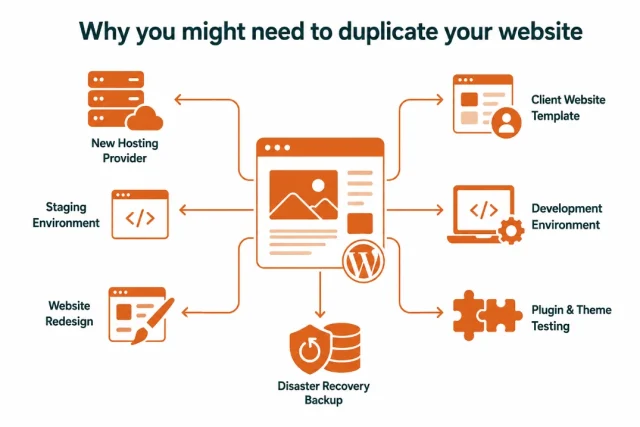
Section titled Reasons to duplicate your WordPress siteDuplicating a WordPress site means creating an exact copy of an existing website, including its files, database, themes, plugins, settings, and content. This process is commonly used for website migrations, staging environments, backups, development projects, and launching similar websites without rebuilding everything from scratch. Understanding why you need duplication, can help you choose the right plugin for your specific needs.
1. To move to a new hosting provider
Section titled 1. To move to a new hosting providerChanging your web hosting provider is usually the most common reason people start looking for duplication tools. Your website grows over time and you might eventually need a much faster server to handle the increased traffic. A duplication plugin lets you pack everything up and migrate your WordPress site to a new host safely. It ensures all your hard work transfers over intact.
2. To create a staging environment
Section titled 2. To create a staging environmentAnother fantastic reason is creating a staging or testing environment. Testing major plugin updates or installing a totally new theme on a live website is a terrible idea. Things can break and cause your visitors to leave out of frustration. A cloned version gives you a safe playground to experiment. You can break things on the staging server and your visitors won’t notice a single glitch.
3. To build client websites from templates
Section titled 3. To build client websites from templatesWeb design agencies and freelancers also use cloning tools to save massive amounts of time on client work. Developers often create a master template website with their favorite themes and essential plugins already pre-installed. They simply clone this master template for every new client project that comes through the door. This strategy completely removes the tedious and repetitive setup phase.
4. Maintain disaster recovery backups
Section titled 4. Maintain disaster recovery backupsAnother common reason to duplicate a WordPress site is to create a local development environment or maintain a disaster recovery copy. Running a duplicate of your website on your own computer allows you to test changes, troubleshoot issues, and work offline without affecting the live site. It also provides an additional copy of your website that can be used to recover quickly if your hosting account is compromised, your site becomes corrupted, or something goes wrong during a major update.
How I evaluated the best plugins to duplicate a WordPress site
Section titled How I evaluated the best plugins to duplicate a WordPress siteNot all WordPress duplication plugins offer the same capabilities. To compare them fairly, I assessed each solution using the factors that have the biggest impact on reliability, ease of use, migration performance, and long-term value.
Before duplicating your website, it’s worth taking a few minutes to review your backup strategy. Having a recent backup of your WordPress site gives you a recovery point if anything goes wrong during the migration or cloning process.
Best plugin to duplicate a WordPress site
Section titled Best plugin to duplicate a WordPress site1. UpdraftPlus
Section titled 1. UpdraftPlusOverall rating: 9.6/10 | Price: Free, Premium from $84/year | Ease of use: 9.5/10 | Migration: 9.5/10 | Backups: 10/10 | Large sites: 9/10 | Support: 9.5/10
If your goal is simply to duplicate a WordPress site safely and reliably, UpdraftPlus is one of the strongest options available.
One of the reasons it stands out is that it doesn’t treat duplication as a standalone task. Creating a copy of a website is often only part of the process. You may also need to move the site to a new host, restore it if something goes wrong, create a staging environment, or keep ongoing backups once the migration is complete.
Instead of using one plugin to duplicate your site and another to protect it afterwards, UpdraftPlus combines backup, restoration, migration, and cloning tools in a single solution. This makes it particularly useful for website owners who want a straightforward workflow without juggling multiple plugins.
I’ve also found that many duplication tools work well until something goes wrong. Having reliable backups and one-click restores available in the same dashboard can make a huge difference if a migration doesn’t go to plan.
Key features
- Full website migration
- Scheduled and on-demand backups
- Incremental backups
- Cloud storage integrations
- Easy restoresrestores
- Multisite support (Premium)
- Search and replace functionality
- Staging functionality
Pros
- Combines duplication, migration, backup, and restoration in one plugin
- Beginner-friendly setup process
- Suitable for both small websites and larger projects
- Strong cloud backup support
- Excellent documentation and support resources
Cons
- Some migration and cloning features require Premium
- Advanced options may take time to explore fully
Final verdict
For most WordPress users, UpdraftPlus offers the best balance of simplicity, reliability, and long-term value. It doesn’t just help you duplicate a WordPress site today; it also gives you the tools to migrate, restore, and protect that site in the future. If you’re looking for one plugin that can handle the entire lifecycle of a WordPress website, this is the option I’d recommend first.
Duplicate your site with confidence
A successful site duplication starts with a reliable backup. UpdraftPlus lets you back up, migrate, and restore your WordPress site from a single dashboard.
2. Duplicator
Section titled 2. DuplicatorOverall rating: 9.4/10 | Price: Free, Pro from $49.50/year | Ease of use: 8.5/10 | Migration: 10/10 | Backups: 8.5/10 | Large sites: 9.5/10 | Support: 9/10
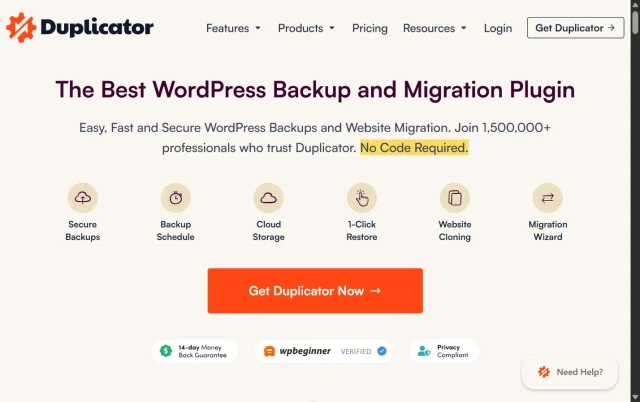
Duplicator is a good option if your main focus is migrating and duplicating WordPress websites. It has a long history in the WordPress ecosystem and offers plenty of control over the migration process, particularly for agencies and developers managing multiple websites.
It isn’t quite as beginner-friendly as some alternatives on this list, and new users may need a little more time to become familiar with the workflow. However, if you regularly move websites between hosts or create copies of client sites, Duplicator remains a reliable and well-established option.
Key features
- Full website packaging and deployment
- One-click website cloning
- Server-to-server migrations
- Scheduled backups
- Cloud storage integrations
- Drag-and-drop installer
- Multisite support
- Search and replace functionality
Pros
- Excellent migration capabilities
- Handles large websites well
- Powerful deployment workflow
- Suitable for agencies and developers
- Supports multisite migrations
- Strong documentation and support
Cons
- Interface can feel technical for beginners
- Some advanced features require a premium plan
- Initial setup takes longer than some beginner-focused alternatives
Final verdict
Duplicator is best suited to users who regularly migrate or duplicate WordPress websites and want more control over the process. While beginners may find simpler alternatives elsewhere on this list, agencies, freelancers, and developers will likely appreciate its flexibility and migration-focused feature set.
3. All-in-One WP Migration
Section titled 3. All-in-One WP MigrationOverall rating: 9.1/10 | Price: Free, Premium from $69/year | Ease of use: 10/10 | Migration: 9/10 | Backups: 7.5/10 | Large sites: 8/10 | Support: 8.5/10
All-in-One WP Migration is a popular choice for WordPress users who want a simple way to move or duplicate a website. Instead of dealing with databases, FTP access, or server settings, it allows you to export a site into a single file and import it into another WordPress installation with just a few clicks.
Key features
- One-click exports
- Drag-and-drop imports
- Automatic URL replacement
- Database migration
- Theme and plugin migration
- Broad hosting compatibility
- Beginner-friendly interface
Pros
- Extremely easy to use
- Minimal learning curve
- Fast setup process
- Reliable migration workflow
- Well-suited to non-technical users
Cons
- Free version has import size limitations
- Fewer advanced customization options
- Large websites may require premium extensions
Final verdict
All-in-One WP Migration is best suited to beginners, small business owners, and anyone looking for a straightforward way to duplicate or migrate a WordPress site. It doesn’t offer as much flexibility as some developer-focused alternatives, but its simple workflow makes it a good choice for users who want to get a site moved quickly without dealing with technical complexity.
4. BlogVault
Section titled 4. BlogVaultOverall rating: 8.9/10 | Price: From $149/year | Ease of use: 9/10 | Migration: 9/10 | Backups: 9.5/10 | Large sites: 9/10 | Support: 9/10
BlogVault takes a different approach to many WordPress migration plugins. Rather than focusing solely on backups or site duplication, it combines migrations, backups, staging, monitoring, and security tools into a single managed platform.
Key features
- Off-site backups
- One-click migrations
- Staging environments
- WooCommerce support
- Incremental backups
- Malware monitoring
- Website management dashboard
Pros
- Offloads much of the migration process from your server
- Strong backup infrastructure
- Minimal server resource usage
- Great for WooCommerce stores
- Includes staging capabilities
Cons
- More expensive than many alternatives
- Some features may be excessive for small websites
- Primarily focused on premium customers
- Higher ongoing cost than most
- WordPress migration plugins
Final verdict
BlogVault is best suited to businesses, agencies, and WooCommerce stores that want more than just a migration tool. The combination of backups, staging, monitoring, and security features makes it appealing for websites where stability and uptime are a priority. For smaller websites, the cost may be difficult to justify, but larger or revenue-generating sites may benefit from the additional functionality and managed approach.
5. Migrate Guru
Section titled 5. Migrate GuruOverall rating: 8.8/10 | Price: Free | Ease of use: 8.5/10 | Migration: 9.5/10 | Backups: 6/10 | Large sites: 10/10 | Support: 8/10
Migrate Guru focuses on one job: moving WordPress websites from one location to another. Rather than combining backups, security, staging, and management tools into a single platform, it concentrates almost entirely on migrations. This narrower focus makes it particularly useful for larger websites, where migration speed and server resources can become a concern.
Key features
- Large site migration support
- Automated migration process
- Hosting provider integrations
- Minimal server load
- URL replacement
- Database migration
Pros
- Excellent for large websites
- Free to use
- Fast migration process
- Reduces server strain
- Works with many popular hosting providers
Cons
- Limited backup functionality
- No staging tools
- Less useful for ongoing site management
Final verdict
Migrate Guru is best suited to users who need to move a WordPress site from one host to another and don’t require additional backup or site management features. Its ability to handle larger websites makes it a good option when other migration plugins struggle with server limits or timeouts. If you’re looking for a dedicated migration tool rather than an all-in-one solution, it’s well worth considering.
6. WP Staging
Section titled 6. WP StagingOverall rating: 8.6/10 | Price: Free, Pro from €89/year | Ease of use: 8.5/10 | Migration: 7.5/10 | Backups: 8/10 | Large sites: 8/10 | Support: 9/10
WP Staging takes a slightly different approach from most plugins on this list. Rather than focusing on moving websites between hosts, it is designed to create duplicate versions of your website that can be used for testing, development, and troubleshooting.This makes it particularly useful if you regularly update plugins, redesign pages, test new functionality, or want a safe place to experiment before making changes to a live website.
Key features
- One-click staging site creation
- Push-to-live functionality
- Database cloning
- File synchronization
- Safe testing environments
- Backup integration
- Multisite support
Pros
- Excellent staging functionality
- Reduces risk when testing updates
- User-friendly interface
- Makes testing changes safer
- Supports larger websites
Cons
- Not a dedicated migration tool
- Advanced features require premium plans
- Fewer backup options than specialist backup plugins
Final verdict
WP Staging is best suited to website owners, developers, and agencies that regularly make changes to their websites and want a safer way to test them first. It isn’t the strongest option if your main goal is migrating websites between hosts, but it does a very good job of creating staging environments where updates, redesigns, and new features can be tested before going live.
7. WP Migrate
Section titled 7. WP MigrateOverall rating: 8.4/10 | Price: From $49/year | Ease of use: 7.5/10 | Migration: 9/10 | Backups: 5/10 | Large sites: 8.5/10 | Support: 9/10
WP Migrate is aimed at developers and agencies that regularly move websites between local, staging, and live environments. Rather than focusing on backups or one-click migrations, it provides tools for synchronising databases and website content across different versions of a site. This makes it particularly useful for teams working on ongoing website development, where changes need to be moved between environments regularly.
Key features
- Database migration
- Search and replace functionality
- Serialized data handling
- Push and pull workflows
- Media file migration
- Environment synchronization
- Developer-focused controls
Pros
- Strong database migration tools
- Powerful developer features
- Reliable URL replacement
- Useful for staging and development workflows
- Ideal for agency environments
Cons
- Not beginner-friendly
- No dedicated backup system
- Higher learning curve than most alternatives
Final verdict
WP Migrate is best suited to developers, agencies, and technical users who regularly work across local, staging, and live environments. Its database migration tools and synchronisation features make it particularly useful for ongoing development work. For most website owners, the additional complexity will probably be unnecessary, but experienced users may appreciate the extra control it provides.
8. BackupBuddy
Section titled 8. BackupBuddyOverall rating: 8.2/10 | Price: From $99/year | Ease of use: 8/10 | Migration: 8/10 | Backups: 9/10 | Large sites: 7.5/10 | Support: 8/10
BackupBuddy remains focused on backup, restoration, and migration tasks. While newer alternatives offer additional features and different workflows, BackupBuddy continues to appeal to users looking for a backup-first approach to website management.
Key features
- Complete site backups
- Scheduled backups
- Website migration tools\
- Malware scanning integrations
- Backup storage destinations
- Site restoration tools
- Email notifications
Pros
- Strong backup functionality
- Long track record in the
- WordPress ecosystem
- Reliable recovery process
- Good documentation
- Supports scheduled automation
Cons
- Interface feels somewhat dated
- More expensive than some competitors
- Fewer advanced migration features
- Less focus on staging and development workflows than some competitors
Final verdict
BackupBuddy is best suited to website owners who place backups and recovery at the centre of their workflow. It may not offer the same migration flexibility or staging capabilities as some newer alternatives, but it still provides a dependable way to back up, restore, and move WordPress websites. If your priority is protecting your site and maintaining reliable recovery options, it’s worth considering.
9. Total Upkeep
Section titled 9. Total UpkeepOverall rating: 7.8/10 | Price: Free, Premium from $29/year | Ease of use: 8/10 | Migration: 7/10 | Backups: 8.5/10 | Large sites: 7/10 | Support: 8/10
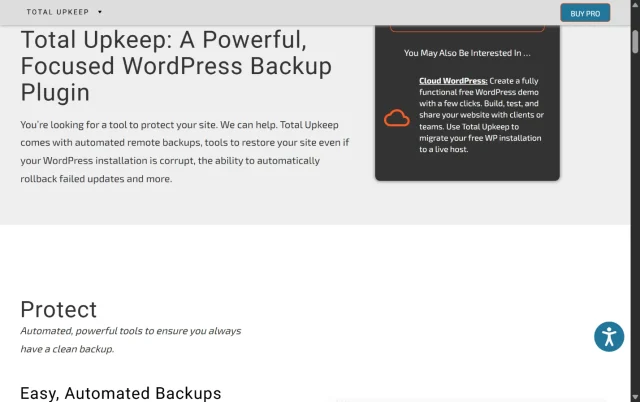
Total Upkeep focuses on helping WordPress users back up, restore, and duplicate their websites without adding too much complexity. Its emphasis on automation and recovery tools makes it particularly appealing to bloggers, freelancers, and small business owners who want a straightforward way to protect their sites.
Key features
- Automatic backups
- Website cloning
- Rollback functionality
- Update protection
- Recovery tools
- Scheduled backups
- Pre-update snapshots
Pros
- Affordable premium plans
- Beginner-friendly interface
- Helpful recovery and rollback tools
- Good value for smaller websites
- Simple setup process
Cons
- Limited enterprise features
- Fewer migration options than top-ranked tools
- Not ideal for very large websites
Final verdict
Total Upkeep is best suited to bloggers, freelancers, and small business owners looking for a simple way to back up, restore, and duplicate a WordPress site. It doesn’t offer the same depth of migration, staging, or developer-focused features as some of the higher-ranked tools on this list, but many users won’t need that level of complexity. If your priority is keeping a website protected and recoverable without spending a fortune, it’s a reasonable option to consider.
Best WordPress site duplication plugins compared
Section titled Best WordPress site duplication plugins compared✓ = Included | ✓* = Limited or premium functionality | ◐ = Partial support
Migrate today, stay protected tomorrow
Don’t use one tool to migrate and another to recover. UpdraftPlus combines site duplication, migration, backups, and one-click restores in one powerful solution
Conclusion
Section titled ConclusionDuplicating a WordPress site is much easier than it used to be. Whether you’re moving to a new host, creating a staging site, launching a client project, or simply creating a safety net before making major changes, the right plugin can save a significant amount of time and reduce the risk of costly mistakes.
The best choice ultimately comes down to what you’re trying to achieve. Some tools are geared towards simple migrations, others focus on staging environments, and some are built around backups and disaster recovery. Before choosing a plugin, think about how often you’ll need to duplicate websites, the size of your site, and whether you need additional features such as backups, staging, or multisite support.
Whatever tool you choose, one piece of advice remains the same: always create a full backup before duplicating a WordPress site. Having a recovery point available can make all the difference if something doesn’t go to plan.
For users looking for a solution that combines duplication, migration, backup, and restoration in a single plugin, UpdraftPlus remains one of the easiest options available. It helps simplify the duplication process while giving you the reassurance of a reliable backup should you ever need it.
FAQs
Section titled FAQsWhat is the easiest way to duplicate a WordPress site?
The easiest way to duplicate a WordPress site is by using a dedicated WordPress site duplicator plugin such as UpdraftPlus, All-in-One WP Migration, or Duplicator. These tools automate the process of copying your files, database, themes, plugins, and settings, reducing the need for manual configuration.
Can I duplicate a WordPress site for free?
Yes, several plugins offer free versions that allow you to duplicate a WordPress site. UpdraftPlus, Duplicator, Migrate Guru, WP Staging, and All-in-One WP Migration all provide free plans, although some advanced migration, staging, or backup features may require a premium upgrade.
Is duplicating a WordPress site the same as backing it up?
Not exactly. A backup creates a restore point that can be used to recover your website if something goes wrong. Duplicating a WordPress site creates a fully functional copy that can be moved to another server, used as a staging environment, or launched as a separate website. Many plugins, including UpdraftPlus, support both functions.
Can I duplicate a WordPress site to a new domain?
Yes. Most WordPress migration plugins allow you to duplicate your website and move it to a different domain name. The best tools automatically update internal URLs and database references during the migration process.
What is the difference between cloning, duplicating, and migrating a WordPress site?
These terms are often used interchangeably, but there are slight differences. Cloning and duplicating typically refer to creating an identical copy of a website, while migration usually refers to moving that copy to a new hosting environment or domain. Most modern WordPress site duplicator plugins can perform all three tasks.
How long does it take to duplicate a WordPress site?
The time required depends on the size of the website, server performance, and the plugin being used. Small websites can often be duplicated in just a few minutes, while large websites with extensive media libraries may take significantly longer.
What should I do after duplicating a WordPress site?
After duplicating your site, you should:
- Test all pages and navigation menus
- Verify forms and contact functionality
- Check media files and images
- Review SEO settings
- Confirm user logins work correctly
- Test WooCommerce checkout processes if applicable
- Monitor traffic and performance metrics
Taking these steps helps ensure your duplicated website functions exactly as intended.For a more detailed post-migration checklist, see our WordPress migration checklist.
Can I duplicate a WordPress site without a plugin?
Yes, but it usually involves manually copying website files, exporting the database, updating URLs, and configuring the new environment. For most users, a plugin is faster and less prone to errors.
About the author

Becks Faulkner
Becks is the Performance Marketing Manager at Updraft WP Software Ltd, with more than 15 years of marketing experience and over 11 years specialising in SEO. She works across TeamUpdraft’s WordPress products, focusing on content strategy and organic growth. Her experience spans both the financial and technology sectors, helping businesses improve their visibility in search.
Categories
UpdraftPlus
Get all our premium features. Direct site-to-site migration, incremental backups, back up automatically before updates and a whole lot more.
From just $70 for the year.
More stories
-

10 Best WordPress Plugins for Agencies in 2026
Discover the best WordPress plugins for agencies, from backups and security to performance optimisation and site management. Explore tools that make managing multiple client websites easier and more efficient.
-

Direct WordPress site-to-site migration: A step-by-step guide
Learn how direct WordPress site-to-site migration works and how to move your website between hosts or domains without manually transferring files.
-

5 WordPress Web Design Tips to Improve Your Website
Good web design is about more than appearance. Explore practical WordPress web design tips to improve your website's layout, navigation, mobile responsiveness, accessibility and performance, helping you create a better experience for your visitors.
-
Best AI Website Builders Compared
AI website builders can help you design, write and launch a website in minutes. Compare the best AI-powered website builders based on ease of use, features, customisation, pricing and performance to find the right solution for your next project.
