Best ways to export WordPress database for backups

Exporting your WordPress database gives you a copy of the data behind your website, making it useful for backups, migrations, and troubleshooting. In this guide, we’ll cover the simplest ways to export a WordPress database using UpdraftPlus, phpMyAdmin, and WP-CLI.
Key takeaways:
Section titled Key takeaways:- WordPress database exports are digital insurance for protecting site content, settings, and user data.
- Database exports alone don’t include media files or themes – complete site backups require additional steps.
- 3 reliable export methods are covered:
- UpdraftPlus (user-friendly, automated).
- phpMyAdmin (manual, requires technical knowledge).
- WP-CLI (command-line, for advanced users).
- UpdraftPlus offers the most comprehensive solution with automated scheduling, selective exports, and remote storage options.
Why you need to export your WordPress database
Section titled Why you need to export your WordPress databaseWhen you export a WordPress database, you create a backup that contains the database elements of your website. This captures your site’s core WordPress database, including posts, pages, comments, user information and site configurations.
However, it’s essential to understand that database exports alone don’t include files and folders, such as images in your wp-content/uploads folder or themes stored on the server. For complete protection, you’d need to take a complete backup that includes both the database and file components.
Database exports provide essential protection in several critical scenarios:
- Protection against data loss: Server crashes, hacking attempts and failed plugin updates can compromise your database without warning. Having a recent export means you can restore your site’s functionality within minutes rather than starting from scratch.
- Site migrations made simple: Database exports are a must-have for transferring your site’s core content and settings when you’re changing hosting providers, moving to a staging environment or creating a local development copy.
- Troubleshooting and rollback capability: When new plugins or themes cause conflicts, database exports allow you to restore your site to a previous working state. This rollback capability is invaluable when you need to isolate problems or test different configurations.
- Professional development workflows: Agencies and developers particularly benefit from database exports during client handovers, as they provide clean snapshots of sites at specific development milestones.
- Confident experimentation: With a recent database backup, you can test new features, make structural changes or experiment with different configurations, knowing you can always return to a working version.
The frequency of your database exports should align with how often your content changes and your risk tolerance. Here are the recommended schedules:
- Before any major changes: Always export before WordPress updates, new plugin installations or theme modifications.
- After significant content additions: Export following major content publishing sessions or structural changes.
- Regular scheduled exports based on site activity:
Choose a backup frequency based on how often your site’s data changes and how much recent data you could afford to lose. For example, an eCommerce, membership or community site with frequent transactions or user activity may benefit from daily or even more frequent backups. An active content site might use daily or weekly backups, while a rarely updated site may need less frequent backups. The important thing is to maintain a consistent schedule and keep backups separate from the live site.
Database backups are your first line of defence against data loss. In our experience helping millions of WordPress users, sites with regular database exports recover from incidents 90% faster than those without proper backup strategies. The key is consistency – automated, scheduled exports ensure your data is always protected.”
3 reliable methods to export your WordPress database
Section titled 3 reliable methods to export your WordPress databaseNow that you understand why database exports are crucial, let’s dive into the practical side. You have three excellent options for exporting your WordPress database, each designed for different skill levels and use cases.
The key is choosing the approach that matches your comfort level and backup needs. Some methods prioritise ease of use and automation, while others offer granular control and advanced features. Here’s how they stack up:
For most WordPress site owners, a backup plugin such as UpdraftPlus is the simplest option for creating and automating database backups. phpMyAdmin provides more direct database control, while WP-CLI is particularly useful for developers and server administrators who need scripting or automation.
Method 1: Export WordPress database with UpdraftPlus
Section titled Method 1: Export WordPress database with UpdraftPlusUpdraftPlus is one of the industry’s most trusted WordPress backup plugins, with over 3 million active installations and an excellent Trustpilot rating. This popularity is mainly due to its ability to make complex database operations accessible to users of all technical levels, while providing enterprise-grade reliability.

The plugin simplifies what was once a technical challenge into a straightforward process. Here’s your step-by-step guide to exporting your WordPress database with UpdraftPlus:
1. Install UpdraftPlus. Navigate to your WordPress admin dashboard, select “Plugins”, then “Add New”. Search for “UpdraftPlus” and click “Install Now”. After installation completes, click “Activate”.
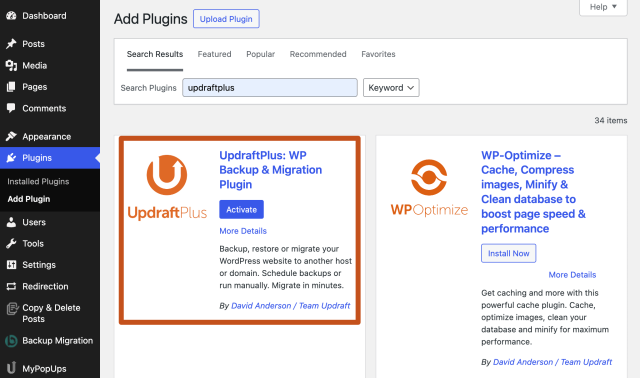
2. Access the backup interface. From your WordPress admin dashboard, go to “UpdraftPlus” then “Backup/Restore”. This opens your backup control centre, where you can manage all backup operations.

3. Initiate the database export. Click the blue “Backup Now” button. A popup window will appear with backup options.
4. Select database-only backup. In the popup, check only the “Include your database in the backup” option. This creates a focused export containing just your database content, perfect for migration or troubleshooting purposes. Click “Backup Now” to start the process.

5. Download your exported database. Once the backup completes, navigate to the “Existing Backups” tab. Here you’ll see your database backup listed with a download link. Click on the database component to download the file to your computer.

Alternately, UpdraftPlus also gives users the option to not use the default and configure where they want their backup to be saved.
6. Choose remote storage. UpdraftPlus also offers sophisticated remote storage options that automatically save your backups to cloud services. To configure this, go to “UpdraftPlus” > “Settings” and choose your preferred remote storage option (Dropbox, Google Drive, Amazon S3 and others).
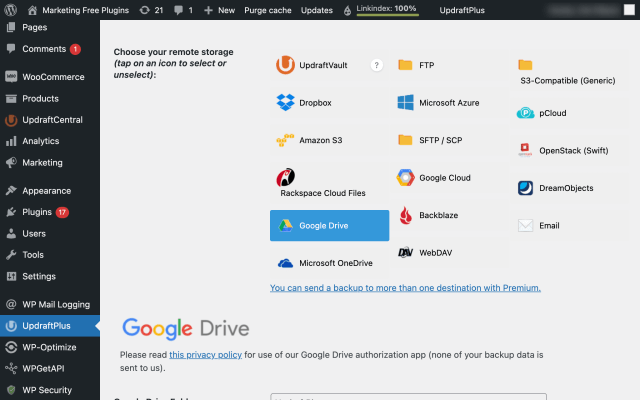
7. Send database backup to remote storage. When taking future backups, select “Send this backup to remote storage” to automatically upload your database export after completion.

Premium features that enhance database backups
Section titled Premium features that enhance database backupsUpdraftPlus Premium unlocks advanced capabilities that streamline database management:
- Automated backup scheduling: Schedule backups according to how frequently your site changes.
- Automatic backups before updates: Create a backup before updating WordPress core, plugins or themes, so you have a recent restore point if an update causes problems.
- Additional remote storage options: Store backups with supported third-party storage services and keep copies away from your web server.
- Incremental backups: For supported configurations, incremental backups can reduce the amount of data that needs to be processed during subsequent backups.
- Advanced backup and migration features: Premium adds further tools for managing and restoring WordPress sites.
UpdraftPlus eliminates the technical complexity traditionally associated with manual database exports. You don’t need to understand SQL, navigate hosting control panels or remember command-line syntax. The plugin handles the technical details while giving you complete control over when and how your database gets exported.
Automate your database protection
Exporting your WordPress database manually is time-consuming and easy to forget. With UpdraftPlus Premium, you can schedule automatic database backups, export only the tables you need, and keep copies safe in remote cloud storage.
Method 2. Manual export via phpMyAdmin
Section titled Method 2. Manual export via phpMyAdminphpMyAdmin provides direct access to your WordPress database through a web-based interface available in most hosting control panels. This method requires no plugins but demands more technical knowledge and understanding of database structures. It’s ideal for one-time exports or situations where you need granular control over the export process.
This approach works well when you want to examine your database structure, export specific tables or work in environments where plugin installation isn’t feasible. However, it lacks the automation capabilities that make regular backups practical for most users.
Here’s your complete guide to manually exporting your WordPress database:
1. Log in to your web hosting control panel (commonly cPanel, Plesk or a custom dashboard).
2. Navigate to the Databases section.
3. Click on the phpMyAdmin icon or link.

4. Click on the database associated with your WordPress installation from the left sidebar, where all your databases are listed. If you’re unsure which database belongs to your WordPress site, you can find this information in your wp-config.php file (located in your WordPress root directory).
5. Click on the Export tab at the top of the phpMyAdmin interface. On the Export page, choose the export method available in your version of phpMyAdmin. Quick uses the default settings, while Custom lets you select specific tables, output options and other export settings. methods:
- Quick: Uses default export settings (simpler option). For most standard WordPress sites, this option is sufficient, so choose it.
- Custom: Allows for more detailed configuration.
6. Select SQL from the format dropdown menu.
7. Click Go to start the export process.
💡Best practices for phpMyAdmin exports: Store your database backups in multiple locations – never rely solely on your web server for backup storage. Consider using cloud storage services or external drives to ensure your backups survive server failures.
While phpMyAdmin provides complete control over your database export process, it requires manual execution each time. For regular backups, automated solutions like UpdraftPlus offer better reliability and convenience.
Troubleshooting large database exports
Section titled Troubleshooting large database exportsLarge WordPress databases can fail during browser-based exports because of PHP execution limits, memory limits, web-server timeouts or hosting restrictions.
Try these approaches:
- Use compression: If your phpMyAdmin installation offers gzip or another compression option, use it to reduce the size of the exported file.
- Use Custom export: Export only the tables you need when a complete database dump is unnecessarily large.
- Export from the command line: For very large databases, WP-CLI or mysqldump can be more reliable than a browser-based export.
- Check hosting limits: If the export repeatedly times out, ask your hosting provider whether PHP, web-server or database limits are preventing the export. Avoid changing server settings unless you understand how they affect the rest of the site.
- Split the export when necessary: For particularly large databases, export tables or groups of tables separately and verify that all required tables are included before attempting a restore.
Method 3. Command-line exports with WP-CLI
Section titled Method 3. Command-line exports with WP-CLIWP-CLI (WordPress Command Line Interface) represents the most efficient method for exporting WordPress databases, particularly for developers, system administrators and users managing multiple WordPress installations. This powerful tool enables lightning-fast database operations without browser interfaces or graphical tools.
The command-line approach excels in scenarios requiring automation, handling large databases or integrating database exports into deployment workflows. Advanced users appreciate WP-CLI’s speed and scriptability, which allows for sophisticated backup strategies and bulk site management.
Prerequisites and setup: WP-CLI must be installed on the server. If it isn’t already installed, the recommended installation method involves downloading the Phar build and placing it in the system’s executable path.
WP-CLI commands must be executed from the WordPress root directory. If you don’t operate within this directory, errors may occur because WP-CLI relies on detecting the wp-config.php file to infer database credentials. Use cd to navigate:
cd /path/to/wordpressThe core command for database exports is wp db export, which invokes mysqldump internally:
wp db export backup.sqlThis command:
- Automatically detects database credentials from wp-config.php (DB_NAME, DB_USER, DB_PASSWORD, DB_HOST).
- Generates an SQL dump file (backup.sql) in the current directory.
- Includes all tables by default unless filtered using –tables or–exclude_tables.
You know it executed successfully when it returns:
Success: Exported to 'backup.sql'.Specify custom file paths: You can specify an absolute path to save the backup outside the WordPress directory to prevent accidental public exposure and use the $(date +\%F) to macro append the current date (e.g., 2025-05-06.sql) to facilitate organised backups:
wp db export /home/user/backups/$(date +\%F).sqlCompress exports for large databases: Pipe output to gzip for compressed backups, dramatically reducing storage requirements and transfer times:
wp db export - | gzip > backup.sql.gzThe compression typically reduces database file sizes by 80-90%, making it an excellent option for large websites or environments with limited storage.
Split very large SQL dumps: If you need to divide a large SQL dump into smaller files for storage or transfer, you can pipe the export through split:
wp db export - | split -b 500M - backup_part_This divides the exported SQL stream into multiple files of approximately 500 MB each. Make sure you understand how to recombine the files before attempting a restore.
Table filtering options: Export specific tables or exclude unnecessary data:
wp db export --tables=wp_posts,wp_postmeta backup.sql
wp db export --exclude_tables=wp_comments,wp_commentmeta backup.sql
These options prove valuable when you need focused exports for debugging or when migrating specific content types.
SSH alternative method
Section titled SSH alternative methodIf you don’t have WP-CLI but have SSH access, you can run mysqldump -u user -p dbname > backup.sql && gzip backup.sql for the same result. Replace user with your actual MySQL username and dbname with the name of the database you want to back up. This approach provides a reliable fallback for command-line database exports.
Command breakdown:
> backup.sql redirects the output to a file named backup.sql.
&& ensures this command only runs if the previous one succeeds.
gzip backup.sql compresses the backup.sql file into backup.sql.gz and deletes the original backup.sql file.
You can find your database credentials in your wp-config.php file. Look for DB_USER (username), DB_NAME (database_name) and be prepared to enter the DB_PASSWORD when prompted.
This SSH method provides the same core functionality as WP-CLI database exports while working in environments where WP-CLI isn’t available. The compressed output saves significant storage space and reduces transfer times for large databases.
WordPress Export vs. database export: what’s the difference?
Section titled WordPress Export vs. database export: what’s the difference?WordPress provides more than one way to export site data, but these exports serve different purposes.
A database export creates an SQL dump of the site’s database tables. It can contain WordPress settings, posts, pages, users, comments and data stored by plugins and themes.
WordPress’s built-in Export feature creates a WXR/XML file containing selected WordPress content, such as posts, pages, authors, terms and comments. It is intended for moving content between WordPress installations rather than creating a complete database backup.
If your goal is backup and restoration of the database, use a database backup/export method such as UpdraftPlus, phpMyAdmin or wp db export. If your goal is moving selected WordPress content, the WordPress Export tool may be more appropriate.
Secure your WordPress site with reliable UpdraftPlus backups today
Section titled Secure your WordPress site with reliable UpdraftPlus backups todayYou now have three proven methods for exporting your WordPress database: UpdraftPlus for simplicity, phpMyAdmin for hands-on control and WP-CLI for developer efficiency. Each serves its purpose, but the reality is that manual approaches often fail when life gets busy, deadlines pile up or you simply forget.
Your database contains everything that makes your WordPress site unique, from every blog post you’ve crafted to every customisation you’ve made. Protecting this data should be a priority, not an afterthought.
UpdraftPlus stands out as the most complete solution for this, addressing the key concerns we’ve discussed throughout this guide. Plus, with UpdraftPlus Premium, you gain access to enterprise-level features like scheduled backups that turn database protection from a manual chore into an automated safeguard.
Protect your database before disaster strikes
Don’t wait for a crash or hack to show you the value of backups. UpdraftPlus Premium gives you automated scheduling, selective exports, and secure offsite storage so your data is always safe.
FAQs
Section titled FAQsHow do I export a WordPress database?
You can export a WordPress database using a backup plugin such as UpdraftPlus, phpMyAdmin, or WP-CLI. UpdraftPlus is generally the easiest option for most WordPress users because it can automate backups and store them remotely. phpMyAdmin provides direct database access, while WP-CLI is useful for developers and administrators who prefer command-line tools.
How do I export a WordPress database without a plugin?
You can export a WordPress database without a plugin using phpMyAdmin or WP-CLI. In phpMyAdmin, select the database used by your WordPress installation, choose Export, select SQL as the format, and download the resulting file. If you have SSH and WP-CLI access, you can also use wp db export to create an SQL database dump.
Where is the WordPress database stored?
A WordPress database is stored on your hosting server, usually in a MySQL or MariaDB database managed through your hosting control panel. WordPress connects to the database using the credentials defined in the site’s wp-config.php file. The database is separate from the WordPress files stored on the server.
What is included in a WordPress database export?
A WordPress database export contains the data stored in your site’s database tables. Depending on the plugins and themes installed, this can include posts, pages, comments, users, settings, WooCommerce data, plugin data, and other site information. It does not normally include your WordPress files, themes, plugins, or media files stored in the uploads directory.
What is the difference between a WordPress database export and a full website backup?
A database export contains your site’s database, while a full WordPress backup should also include the WordPress files, plugins, themes, media/uploads, and other relevant files. A database export alone may therefore be insufficient to completely restore a WordPress website.
Can I export only certain WordPress database tables?
Yes. Tools such as phpMyAdmin allow you to select individual database tables for export. This can be useful when you need specific data rather than a complete database dump. However, be careful when exporting tables individually because WordPress and plugins can rely on relationships between multiple tables.
Is exporting a WordPress database the same as backing it up?
Not necessarily. An exported database file can serve as a database backup, but a proper WordPress backup strategy should also consider your site’s files and remote backup storage. You should also periodically verify that your backups can actually be restored.
About the author

Jelena Janić
Jelena is the Product Manager for UpdraftPlus and WP-Optimize. With seven years of experience, she’s taken on many roles – from tester to developer and now product manager. Along the way, she noticed a disconnect between how products are built and what customers need, sparking a passion for steering products toward solutions that truly serve the people who use them. Today, she ensures every WP-Optimize development decision is geared toward boosting WordPress website performance, enhancing usability, and increasing customer satisfaction.
Categories
UpdraftPlus
Get all our premium features. Direct site-to-site migration, incremental backups, back up automatically before updates and a whole lot more.
From just $70 for the year.
More stories
-

5 WordPress Web Design Tips to Improve Your Website
Good web design is about more than appearance. Explore practical WordPress web design tips to improve your website's layout, navigation, mobile responsiveness, accessibility and performance, helping you create a better experience for your visitors.
-
Best AI Website Builders Compared
AI website builders can help you design, write and launch a website in minutes. Compare the best AI-powered website builders based on ease of use, features, customisation, pricing and performance to find the right solution for your next project.
-

How incremental backups save time and storage in WordPress
Incremental backups only save the changes made since your last backup, helping you reduce storage usage, speed up backups and lower server load. Learn how they work and why they're an essential part of an efficient WordPress backup strategy.
-
Best WordPress Website Builders Compared
Discover the best WordPress website builders for every skill level. Compare features, ease of use, pricing and performance to choose the right builder for your blog, business or online store.
