How incremental backups save time and storage in WordPress

A full WordPress backup copies everything included in the backup each time it runs, even when only a small amount of data has changed. On a growing site with a large media library, years of content and a busy database, that can mean more storage, longer backup times and additional server load.
Incremental backups take a different approach by backing up changes made since the previous backup. So, if a 1 GB set of website files changes by just 20 MB, the next incremental backup only needs to capture those changes rather than copying the entire 1 GB again.
For WordPress sites that need frequent backups, this can make backups faster and significantly reduce the amount of storage they require. In this guide, we’ll explain how incremental backups work, how they compare with full and differential backups, when they’re most useful and how to use incremental file backups with UpdraftPlus Premium.
Key takeaways
Section titled Key takeaways- Incremental backups capture changes made since the previous backup, reducing the amount of data that needs to be processed, transferred and stored.
- They can make frequent backups more practical for large, frequently updated or media-heavy WordPress sites.
- Incremental backups usually depend on a full backup as their baseline, so maintaining a reliable backup chain is important for restoration.
- WordPress files and the database may need different backup approaches. UpdraftPlus Premium uses incremental backups for changed files, while database backups are scheduled separately.
- A sensible backup strategy combines periodic full backups, incremental backups where appropriate, remote storage and retention rules that give you enough recovery points.
What is an incremental backup?
Section titled What is an incremental backup?An incremental backup captures data that has changed since the previous backup rather than creating another complete copy of everything each time.
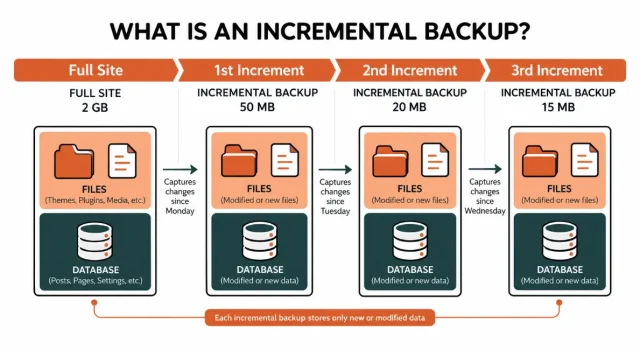
Imagine a WordPress site with 2 GB of files.
On Monday, I create a full file backup containing 2 GB. On Tuesday, I upload 50 MB of images and modify a few theme files. Instead of copying the entire 2 GB again, an incremental backup only needs to capture those changes.
On Wednesday, I add another 20 MB of images. The next incremental backup captures the changes made since Tuesday.
The backup sequence could look something like this:
The exact sizes will depend on your site, the backup software and what changes between each backup. The key point is that unchanged files don’t need to be copied again with every incremental backup.
This can make incremental backups particularly useful for large or frequently updated WordPress sites where only a relatively small proportion of the site’s files change between backup runs.
It’s also important to distinguish between your WordPress files and database. Your files include themes, plugins and uploaded media, while the database stores content and other dynamic information such as posts, pages, comments and settings. A complete WordPress backup needs to account for both, but they don’t necessarily need to be backed up in the same way or on the same schedule.
How do incremental backups work in WordPress?
Section titled How do incremental backups work in WordPress?An incremental backup works as part of a backup chain. The process usually begins with a full backup, which provides the baseline. Each incremental backup then captures the changes made since the previous backup.
A simplified backup chain might look like this:
Full backup > Increment 1 > Increment 2 > Increment 3 > Increment 4
If you need to restore the site to the point represented by Increment 4, the backup system uses the full backup together with the relevant increments in the chain to reconstruct that restore point.
This dependency is an important difference between incremental and full backups. An incremental backup isn’t usually a completely independent copy of your site. Its smaller size comes from storing only what has changed, but that also means the backup chain needs to remain intact and be managed correctly.
A reliable backup solution should manage this relationship automatically, rather than requiring you to manually piece backup files together. It’s also worth understanding how to restore WordPress from backup files and a database before you need to recover a live site.
Take the complexity out of incremental backups
UpdraftPlus Premium manages incremental backup sets automatically, so you can capture frequent changes without manually piecing backups together.
What happens when a file changes?
Section titled What happens when a file changes?Imagine your site already contains this image:
wp-content/uploads/photo.jpg
If you edit the image and upload a new version, an incremental backup can identify that the file has changed and include the updated version in the next backup. The same principle applies when you add new files, such as uploading new images to your media library.
Instead of creating another full copy of all your website files, the incremental backup only needs to capture the files that have changed since the previous backup.
This is particularly useful for large WordPress sites where most files remain unchanged between backups. A site might contain several gigabytes of media, themes and plugins, while only a small number of files are added or updated each day.
Exactly how file changes are detected and stored varies between backup solutions, so it’s worth checking what your chosen WordPress backup plugin includes when it describes its backups as incremental.
Full vs incremental vs differential backups
Section titled Full vs incremental vs differential backupsFull, incremental and differential backups all protect your data, but they differ in how much information they copy each time.
A full backup copies everything included in the backup.
An incremental backup captures changes made since the previous backup, whether that was a full or incremental backup.
A differential backup captures all changes made since the most recent full backup.
Here’s how they compare:
For example, imagine you create a full backup on Monday. You then make 10 MB of new changes on Tuesday, another 20 MB on Wednesday and another 30 MB on Thursday.
With incremental backups, each backup captures only the changes since the previous backup:
- Tuesday: 10 MB
- Wednesday: 20 MB
- Thursday: 30 MB
With differential backups, each backup contains all the changes made since Monday’s full backup:
- Tuesday: 10 MB
- Wednesday: 30 MB
- Thursday: 60 MB
This is why incremental backups can significantly reduce the amount of data that needs to be processed and stored between full backups. Differential backups generally require more storage as changes accumulate, but restoration can be simpler because fewer backup sets may be needed.
There isn’t one approach that’s best for every website. The right choice depends on how frequently your site changes, how much data you need to protect and the functionality offered by your backup solution.
Incremental backups are most valuable when they make frequent protection practical without creating unnecessary storage overhead. The key is not simply backing up less data, but having a reliable system that maintains the backup chain and makes restoration straightforward.
Why incremental backups save storage
Section titled Why incremental backups save storageStorage is one of the clearest benefits of incremental backups. A simple example shows why.
Suppose your WordPress files total 1 GB and you want to keep 10 backup points. If each one were a full 1 GB file backup, you could be storing roughly:
1 GB × 10 = 10 GB
Now imagine you keep one 1 GB full backup followed by nine incremental backups averaging 50 MB each:
1 GB + (9 × 50 MB) = 1.45 GB
In this simplified example, the incremental approach requires 1.45 GB of storage rather than 10 GB because unchanged files aren’t being copied into every backup.
Actual backup sizes and savings will vary depending on factors such as compression, how much your site changes between backups and how your backup solution stores incremental data. However, the example demonstrates why incremental backups can make frequent restore points more practical as a site grows.
This can be particularly useful if you’re paying for remote backup storage or need to retain multiple backup points over a longer period. The less unchanged data you repeatedly store, the easier it can be to manage your storage requirements and costs.
Large, media-heavy WordPress sites can benefit in particular. A photography site, news site, membership site or WooCommerce store might contain several gigabytes of images and other uploads, while only a relatively small proportion of those files change between individual backups.
Stop backing up the same data
UpdraftPlus Premium’s incremental backups capture changed files without repeatedly backing up files that haven’t changed. Use less storage while keeping frequent backup points for your WordPress site.
Why incremental backups save time
Section titled Why incremental backups save timeA full file backup may need to process a large amount of data even when only a small proportion of your files have changed. If your website contains 3 GB of files but only 30 MB have changed since the previous backup, an incremental backup can focus on those changes rather than creating another full copy.
This can reduce the amount of data that needs to be processed, compressed and transferred to remote storage, helping backups complete more quickly.
The exact time saving will depend on your site, hosting environment, remote storage and backup solution. However, incremental backups can make frequent backup points more practical, particularly for larger WordPress sites where only a relatively small proportion of files change between backups.
Instead of repeatedly creating full file backups throughout the day, you can combine periodic full backups with more frequent incremental backups to capture changes between them.
How incremental backups reduce WordPress server load
Section titled How incremental backups reduce WordPress server loadCreating a WordPress backup requires server resources. Depending on the backup solution, your server may need to scan files, read data, compress backup archives and transfer them to remote storage.
For a small website, the impact may be minimal. On a larger WooCommerce store, media-heavy website or site running on limited hosting resources, repeatedly processing a large volume of files can place more demand on the server.
Incremental backups can reduce the amount of data that needs to be processed during each incremental run. When only a small proportion of your files have changed, this can mean less work for the server compared with creating another full file backup.
Incremental backups still use server resources because the backup software needs to identify and process changes. The benefit is that unchanged files don’t need to be repeatedly included in every backup.
When incremental backups make the most sense
Section titled When incremental backups make the most senseNot every WordPress site needs the same backup strategy. How often you back up your WordPress site should depend on how frequently it changes, what type of data is changing and how much recent data you can afford to lose.
Incremental backups can be particularly useful for sites that are:
- Frequently updated – Sites where files are regularly added or changed can benefit from more frequent, smaller incremental backups rather than repeatedly creating full file backups.
- Large – If your site contains several gigabytes of files, repeatedly creating full backups can require considerably more time, storage and server resources.
- Media-heavy – Photography sites, portfolios, news sites and stores can accumulate large media libraries while only a relatively small proportion of those files change between individual backups.
- Running WooCommerce – Online stores change constantly through orders, customer activity and product updates. Much of this information is stored in the database, so database backup frequency is particularly important alongside your file backup strategy. Our guide to backing up a WooCommerce database explains how to protect this frequently changing data.
- Managed by an agency or freelancer – If you’re responsible for 20, 50 or 100 WordPress sites, repeatedly creating full backups can quickly increase your overall storage requirements. Incremental file backups can make managing frequent backups across multiple client sites more efficient.
- Hosted on limited resources – Sites on shared or resource-constrained hosting may benefit from reducing the amount of data processed during frequent backup operations.
Why databases are treated differently than files
Section titled Why databases are treated differently than filesA WordPress site consists of both files and a database, and the two contain different types of information.
Your files include themes, plugins, uploaded images and other media. These can account for a large proportion of your site’s overall size, particularly if you have an extensive media library.
Your database stores information such as posts, pages, comments, settings and user data. On a WooCommerce site, it also contains frequently changing information such as orders and customer data.
UpdraftPlus Premium’s incremental backups apply to your WordPress files. When an incremental backup runs, it can capture file changes without repeatedly backing up all of your unchanged files. The database is backed up separately according to the database schedule you configure.
This means you can use frequent incremental backups for changing files while setting your database backup frequency according to how often its data changes. For a relatively static site, that might mean less frequent database backups, while a busy WooCommerce or membership site may need them much more often.
Step by step guide to configuring the system with UpdraftPlus
Section titled Step by step guide to configuring the system with UpdraftPlusUpdraftPlus Premium lets you combine periodic full file backups with more frequent incremental backups, while scheduling your WordPress database separately.
You can choose how often full backups are created, then set incremental backups to capture file changes between them. This gives you more frequent restore points without repeatedly creating a complete copy of all your website files.
Your database backup schedule can be configured independently, so you can choose a frequency that reflects how often your site’s data changes.
Below, we’ll walk through how to configure this backup strategy in UpdraftPlus Premium, including your schedules, remote storage and the settings worth checking before relying on it.
Build a smarter backup schedule
Combine periodic full backups with frequent incremental backups using UpdraftPlus. Set your schedules once and let automated backups protect your site as it changes.
Step 1. Install and activate UpdraftPlus Premium
Section titled Step 1. Install and activate UpdraftPlus PremiumIf you haven’t already installed UpdraftPlus Premium:
- Download UpdraftPlus Premium: Download the plugin ZIP file from your TeamUpdraft account.
- Remove the free version if necessary: If UpdraftPlus Free is already installed, deactivate and delete it before installing Premium.
- Install the plugin: In WordPress, go to Plugins > Add New > Upload Plugin, select the Premium ZIP file and click Install Now.
- Activate UpdraftPlus Premium: Activate the plugin, then connect your TeamUpdraft account from the Premium / Extensions tab to activate your purchase on the site.
You can then open UpdraftPlus from your WordPress dashboard.
Step 2. Connect your remote storage
Section titled Step 2. Connect your remote storageStoring backups remotely means you can still access them if your website’s server becomes unavailable. Read our guide to storing WordPress backups offsite to learn more about why this matters.
- Open the UpdraftPlus settings: Go to UpdraftPlus Backups > Settings.
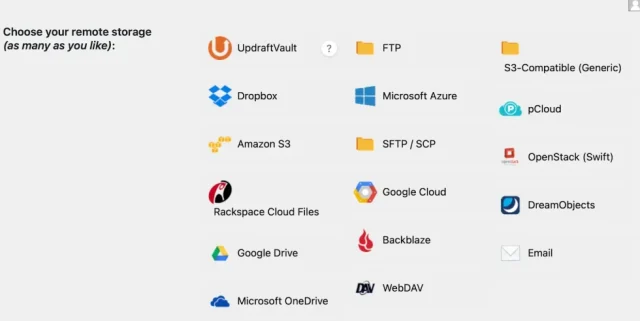
- Choose your remote storage: Select your preferred storage provider, such as Google Drive, Dropbox or Amazon S3. You can also follow our guide to backing up WordPress to Google Drive automatically.
- Connect your account: Follow the instructions shown for your chosen storage provider to authenticate the connection.
- Save your settings: Once you’ve configured your storage, save your changes.
Step 3. Configure your full and incremental backup schedules
Section titled Step 3. Configure your full and incremental backup schedulesOpen the Settings tab in UpdraftPlus and find the file and database backup schedule options.
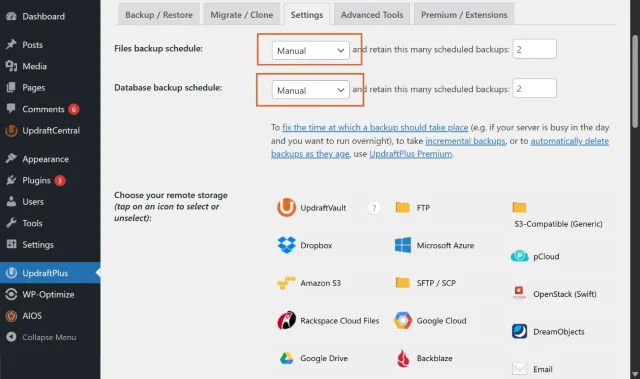
- Choose your full file backup schedule: Decide how frequently UpdraftPlus should create a full backup of your files and how many backups you want to retain.
- Set your incremental backup frequency: Choose how often UpdraftPlus should add an incremental backup between full backups. Incremental backups can be scheduled every hour, every 2, 4, 8 or 12 hours, or daily.
- Configure your database schedule: Choose a separate database backup frequency based on how often your site’s data changes.
- Review your retention settings: Decide how many backups you want UpdraftPlus to retain.
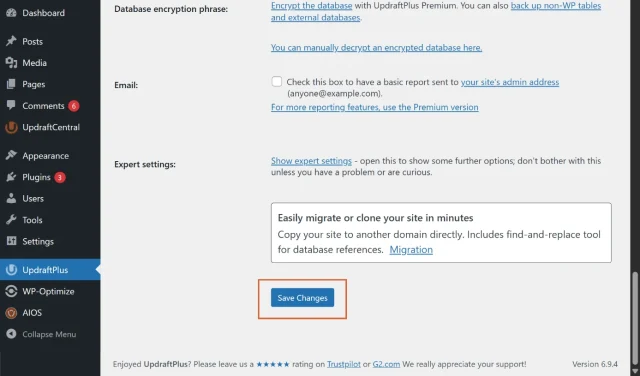
- Save your settings: Scroll to the bottom of the page and click Save Changes.
Once configured, UpdraftPlus will automatically create full and incremental backups according to your schedules. You can view them under Existing backups in the Backup / Restore tab.
Step 4. Create your first full backup
Section titled Step 4. Create your first full backup- Save your settings: Scroll to the bottom of the Settings tab and click Save Changes.
- Return to Backup / Restore: Open the Backup / Restore tab in UpdraftPlus.

- Create a full backup: Click Backup Now and follow the prompts to create your first full backup.
- Check your backup: Once the backup has completed, check that it appears under Existing backups and has been successfully sent to your chosen remote storage.
This full backup provides a baseline for your incremental backups. UpdraftPlus can then automatically add incremental file backups according to the schedule you configured, with new full backups created according to your main file backup schedule.
How to troubleshoot common setup mistakes
Section titled How to troubleshoot common setup mistakesOnce your backup schedule is configured, it’s worth checking a few common issues that can prevent backups from working as expected.
Ignoring backup warnings or errors
Section titled Ignoring backup warnings or errorsPay attention to any warnings or failed backup notifications from UpdraftPlus. A problem with your remote storage connection, available storage or scheduled backup could mean that a backup hasn’t completed or been stored where you expected.
If you receive an error, check your recent backup activity and confirm that your latest backup appears under Existing backups and in your chosen remote storage location.
Backing up unnecessary files
Section titled Backing up unnecessary filesCache directories, temporary files and other data that can easily be recreated don’t always need to be included in your backups. Including unnecessary files can increase backup size and require additional processing and storage.
UpdraftPlus lets you configure which directories and files are included or excluded from your backups. Review these settings carefully rather than excluding folders unless you’re confident they aren’t needed for restoration. You can do this in the settings tab.
Choosing the wrong backup frequency
Section titled Choosing the wrong backup frequencyRunning incremental backups more frequently isn’t automatically better. Your schedule should reflect how often your site’s files actually change and how much data you could afford to lose between backups.
For example, a frequently updated site may benefit from incremental file backups every few hours, while a more static site may not need them as often. Remember to consider your database separately, particularly for WooCommerce, membership or other sites where database content changes frequently.
Best practices for a reliable WordPress backup strategy
Section titled Best practices for a reliable WordPress backup strategyConfiguring incremental backups is only one part of a reliable backup strategy. You also need to think about how long backups are retained, whether they can be restored successfully and how securely they’re stored.
Set appropriate retention rules
Section titled Set appropriate retention rulesKeeping more restore points isn’t always better. Over time, old backups can consume a significant amount of remote storage, particularly if you’re managing a large site or multiple WordPress websites.
UpdraftPlus Premium includes advanced retention rules that let you keep backups for different periods. For example, you might retain recent backups more frequently while keeping selected older restore points for longer.
Choose retention rules based on how far back you’re realistically likely to need to restore your site and the amount of storage available.
Test your restoration process
Section titled Test your restoration processA backup is only useful if you can successfully restore from it. Periodically testing your backups can help confirm that they’re working and make you more familiar with the restoration process before you need it on a live website.
Our guide to preparing to restore your WordPress site explains what to check before starting a restoration.
Where possible, test restores in a staging or other safe test environment rather than experimenting on your live site.
Secure your remote storage accounts
Section titled Secure your remote storage accountsYour remote backups may contain sensitive website data, including database information, user details and other information you wouldn’t want an unauthorised person to access.
Protect accounts such as Google Drive or Dropbox with a strong, unique password and enable two-factor authentication where available. You should also review who has access to your backup storage and remove access that is no longer required.
Conclusion
Section titled ConclusionIncremental backups can make frequent WordPress backups more efficient by reducing the amount of unchanged data that needs to be processed, transferred and stored. They work alongside periodic full backups rather than replacing them, helping you maintain frequent restore points without repeatedly creating complete copies of your website files.
With UpdraftPlus Premium, you can schedule incremental file backups between full backups, configure your database backup schedule separately and store your backups remotely. Together with appropriate retention rules and regular restore testing, this gives you a flexible backup strategy that can grow with your WordPress site.
FAQs
Section titled FAQsAre incremental backups better than full backups?
Not necessarily. Full and incremental backups serve different purposes and are often most effective when used together. Full backups provide a complete baseline, while incremental backups capture changes between them, reducing the amount of data that needs to be processed and stored.
Do incremental backups include the WordPress database?
It depends on the backup solution. With UpdraftPlus Premium, incremental backups apply to your WordPress files, while database backups are scheduled separately. This lets you choose different backup frequencies based on how often your files and database change.
Do incremental backups save storage?
Yes, they can significantly reduce storage requirements when relatively little data changes between backups. Instead of repeatedly storing complete copies of unchanged files, incremental backups capture the changes made since the previous backup. The amount of storage you save will depend on your site’s size and how frequently its files change.
How often should I take an incremental backup?
It depends on how frequently your site’s files change and how much recent data you could afford to lose. A frequently updated or media-heavy site may benefit from incremental file backups every few hours, while a relatively static site may need them less often. Your database backup frequency should be considered separately.
What is the difference between incremental and differential backups?
Incremental backups capture changes since the previous backup, while differential backups capture all changes since the most recent full backup. Incremental backups typically require less storage, while differential backups can make restoration simpler because fewer backup sets may be required.
Should I still create full backups if I use incremental backups?
Yes. Incremental backups work alongside full backups rather than replacing them. The full backup provides the baseline, with subsequent incremental backups capturing changes made between full backups. Creating fresh full backups periodically also prevents your backup strategy from relying indefinitely on the same baseline.
About the author

Elvira Mishra
Elvira has over four years of experience creating and designing content in WordPress. Her background spans multiple digital disciplines, including marketing, SEO, user experience, and human computer interaction.
Categories
UpdraftPlus
Get all our premium features. Direct site-to-site migration, incremental backups, back up automatically before updates and a whole lot more.
From just $70 for the year.
More stories
-

Direct WordPress site-to-site migration: A step-by-step guide
Learn how direct WordPress site-to-site migration works and how to move your website between hosts or domains without manually transferring files.
-

5 WordPress Web Design Tips to Improve Your Website
Good web design is about more than appearance. Explore practical WordPress web design tips to improve your website's layout, navigation, mobile responsiveness, accessibility and performance, helping you create a better experience for your visitors.
-
Best AI Website Builders Compared
AI website builders can help you design, write and launch a website in minutes. Compare the best AI-powered website builders based on ease of use, features, customisation, pricing and performance to find the right solution for your next project.
-
Best WordPress Website Builders Compared
Discover the best WordPress website builders for every skill level. Compare features, ease of use, pricing and performance to choose the right builder for your blog, business or online store.
