How often should I backup my WordPress site?

I’ve worked with WordPress sites for years, and one thing I’ve learned is that most people don’t think about backups until they need one.
It usually happens after a plugin update goes wrong, a site gets hacked, a hosting issue causes data loss, or someone accidentally deletes the wrong thing. When that happens, having a recent backup can be the difference between restoring your site in minutes and spending hours trying to recover lost content.
One of the questions I’m asked most often is: how often should I backup my WordPress site? The answer depends on how frequently your site changes. A small brochure website updated every few months has very different backup requirements to a busy WooCommerce store processing orders throughout the day.
In this guide, I’ll explain how often you should back up your WordPress site, the factors that affect your backup schedule, and how to make sure you’re always protected without having to remember to run backups manually.
Key takeaways
Section titled Key takeaways- Match your backup frequency to your activity. The more often your site changes, the more often you should back it up
- Follow the 3-2-1 backup rule: keep three copies, on two different systems, with one stored offsite
- Back up your database more frequently than your files, as it changes more often
- Automated backups are essential. A backup only works if it actually exists when you need it
Why backup frequency matters more than you think
Section titled Why backup frequency matters more than you thinkA simple way to answer “how often should I back up my WordPress site?” is to ask yourself this:
If your site crashed right now, how much work would you be okay losing?
For most people, the answer is none.
Backups aren’t just for worst-case scenarios like hacks. They protect you from everyday issues too, like plugin conflicts, failed updates, server errors, or even accidental changes.
If you’re working on your site daily but only backing up once a week, you’re taking a risk with everything you’ve done in between.
The goal isn’t just to have backups. It’s to have them often enough that you never lose anything important.
The WordPress backup frequency matrix
Section titled The WordPress backup frequency matrixThe best backup schedule depends on how your site is used. Here’s a simple starting point based on common site types:
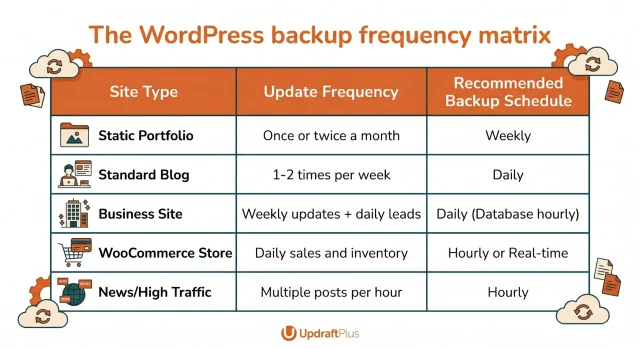
Understanding the two halves of your backup
Section titled Understanding the two halves of your backupYour WordPress site is made up of two main parts: your database and your files.
- Your database includes your posts, pages, comments, and settings. Every time you update content or someone interacts with your site, this changes – which is why it usually needs more frequent backups.
- Your files include your themes, plugins, and media uploads. These tend to change less often unless you’re regularly updating your design or adding new content.
Most backup tools (including UpdraftPlus) let you set different schedules for each. A common setup is daily database backups and weekly file backups, which keeps your site protected without using unnecessary storage.
Factors that change your backup needs
Section titled Factors that change your backup needsEven with a set schedule, there are times when you should always run an extra backup.
Before making any changes
Section titled Before making any changesBefore you update a plugin, change your theme, or mess with any code, you should run a manual backup. Even if you have auto-updates turned on, having a fresh backup from five minutes ago makes it much easier to revert if the update breaks your layout.
During traffic spikes
Section titled During traffic spikesIf your site is getting more traffic than usual, backups become even more important. More activity means more data being generated, whether that’s orders, comments, or user accounts.
Keeping an eye on this (for example, using a tool like Burst Statistics) can help you spot when your backup schedule needs to be more frequent.
The goal of a backup strategy isn’t just to have a file; it’s to have a path back to normalcy. We tell our users that the best backup frequency is the one that covers your ‘maximum tolerable loss.’ If you can’t imagine re-typing the last four hours of work, then you shouldn’t be backing up any less than every four hours.
Why a backup plugin is a game changer
Section titled Why a backup plugin is a game changerSome hosting providers offer backups, but they’re often limited or tied to the same server as your site.
A dedicated backup plugin gives you more control. Your backups can be stored offsite, scheduled properly, and restored quickly when needed.
UpdraftPlus is widely used because it keeps things simple. You can automate backups, choose exactly what gets backed up, and restore your site in just a few clicks, without digging through server files.
How to automate your backup schedule
Section titled How to automate your backup scheduleThe easiest way to protect your site is to automate your backups. That way, you’re not relying on remembering to do it manually.
Here’s how to set it up using UpdraftPlus:
- Install and activate: Go to Plugins > Add New, search for “UpdraftPlus” then install and activate the plugin.
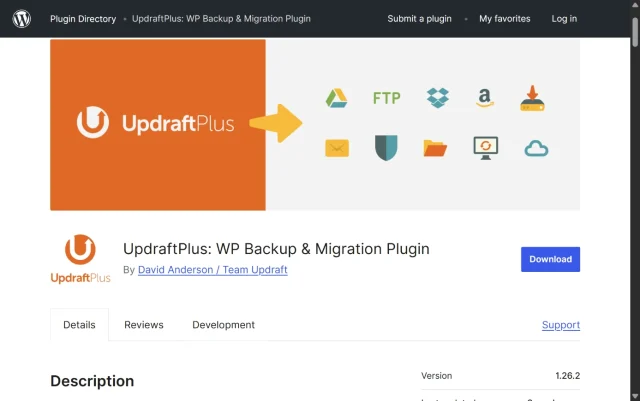
2. Access Settings. Go to Settings > UpdraftPlus Backups and click on the Settings tab at the top
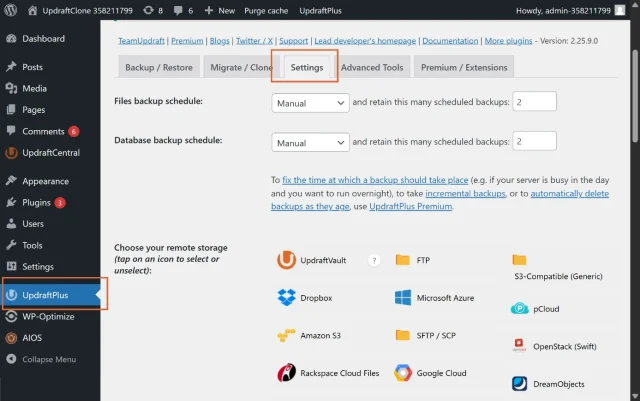
3. Set your backup schedule. Find “Files backup schedule” and “Database backup schedule” Choose how often each should run (for example, daily for the database and weekly for files).
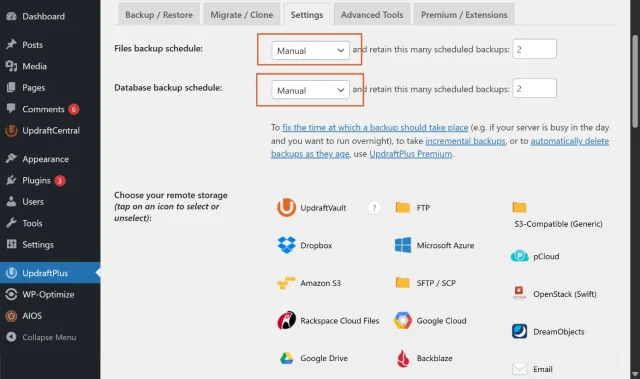
4. Choose how many backups to keep – Next to each schedule, you’ll see “and retain this many scheduled backups.” Enter a number to control how many backups are stored before older ones are automatically deleted.
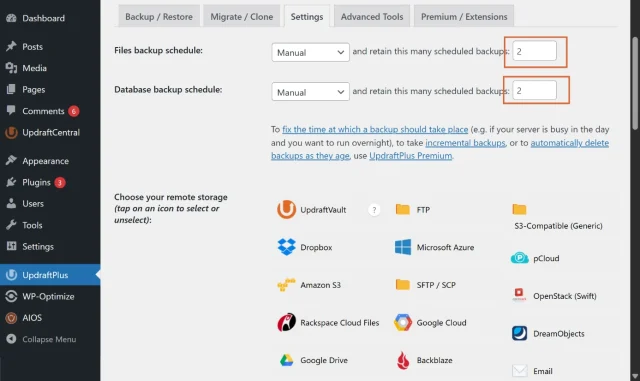
5. Connect Remote Storage Scroll down to “Choose your remote storage” and select a provider like Google Drive or Dropbox. Follow the prompts to authorise the connection.
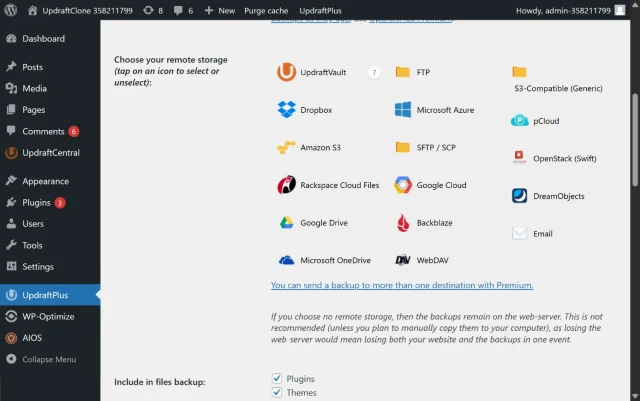
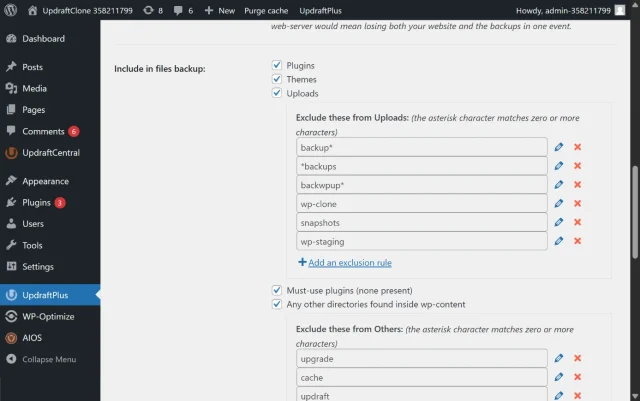
6. Make sure important files are included, Scroll down to “Include in files backup” and ensure “Plugins,” “Themes,” and “Uploads” are checked.
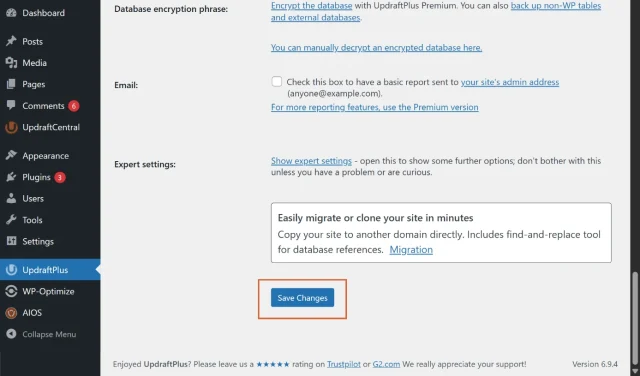
7. Save Your Changes. Scroll to the bottom and click Save Changes. Your backups will now run automatically based on the schedule you’ve set.
Never miss an important backup
The best backup schedule is the one you don’t have to remember. UpdraftPlus Premium lets you automate backups, run them before WordPress updates, and store them securely offsite, helping you stay protected even when your site changes every day.
Common mistakes site owners make
Section titled Common mistakes site owners makeEven if you’re backing up regularly, a few common mistakes can still leave your site exposed.
- Storing backups locally
If your server goes down or your hosting account is compromised, local backups can be lost with it. Always store your backups offsite using a cloud provider like Google Drive, Dropbox, or Amazon S3. - Ignoring database bloat
Over time, your database fills up with unnecessary data like post revisions and expired transients. This makes backups larger and slower. Using a tool like WP-Optimize every so often helps keep things clean and efficient. - Not checking backup logs
Backups don’t always run perfectly. If your storage fills up or something fails, you might not notice straight away. Most backup plugins will send notifications, so it’s worth keeping an eye on them to make sure everything is running as expected.
How to verify your backups
Section titled How to verify your backupsA backup is only useful if it actually works.
At least once or twice a year, it’s worth testing a full restore in a safe environment. This could be a staging site or a local WordPress install.
If everything restores correctly, you know your setup is working. If something fails, it’s much better to find out now while your site is live, rather than in the middle of an emergency.
Conclusion
Section titled ConclusionThe right backup schedule depends on how often your website changes. If you’re publishing new content regularly, collecting form submissions, or processing customer orders, more frequent backups can save you from losing valuable data if something goes wrong.
The important thing isn’t just having backups. It’s making sure they’re running often enough to protect the work you’re doing today, not the version of your site from last week.
That’s why many WordPress site owners choose to automate the process. With UpdraftPlus, you can schedule backups to run automatically, store them securely in remote locations, and restore your site quickly if disaster strikes.
If you’re still relying on manual backups or aren’t confident your current backup schedule is doing enough, now is a good time to review your setup and make sure your website is properly protected.
FAQs
Section titled FAQsHow often should I back up my WordPress blog?
For a smaller blog, a daily database backup and a weekly file backup is usually enough. This keeps your content protected without using unnecessary storage, especially if you’re not updating your site every day.
Does WordPress have a built-in backup feature?
No, WordPress doesn’t include a built-in backup system. To properly protect your site, you’ll need to use a backup plugin or rely on backups provided by your hosting provider.
How long does a WordPress backup take?
Most WordPress backups take between 2 and 10 minutes. The exact time depends on your site size, especially your media library, as well as your server performance.
Where is the safest place to store WordPress backups?
The safest place to store backups is offsite, using a cloud storage provider like Google Drive, Dropbox, or Amazon S3. This ensures your backups are still accessible even if your server fails.
Should I back up my site before updating plugins or themes?
Yes, always run a manual backup before updating plugins, themes, or WordPress core. If something breaks, you’ll be able to restore your site quickly without losing any work.
Can I automate WordPress backups for free?
Yes, you can automate backups using free tools like UpdraftPlus. It allows you to schedule both database and file backups without needing a paid plan.
What happens if my WordPress backup is too large?
If a backup is too large, it can time out or fail to complete. Most reliable backup plugins avoid this by splitting backups into smaller chunks, making them easier for your server to process.
Do WordPress backups include themes and plugins?
A full backup includes your themes, plugins, uploads, and database. However, many site owners back up the database more frequently than files, as it changes more often.
About the author

Elvira Mishra
Elvira has over four years of experience creating and designing content in WordPress. Her background spans multiple digital disciplines, including marketing, SEO, user experience, and human computer interaction.
Categories
UpdraftPlus
Get all our premium features. Direct site-to-site migration, incremental backups, back up automatically before updates and a whole lot more.
From just $70 for the year.
More stories
-

5 WordPress Web Design Tips to Improve Your Website
Good web design is about more than appearance. Explore practical WordPress web design tips to improve your website's layout, navigation, mobile responsiveness, accessibility and performance, helping you create a better experience for your visitors.
-
Best AI Website Builders Compared
AI website builders can help you design, write and launch a website in minutes. Compare the best AI-powered website builders based on ease of use, features, customisation, pricing and performance to find the right solution for your next project.
-

How incremental backups save time and storage in WordPress
Incremental backups only save the changes made since your last backup, helping you reduce storage usage, speed up backups and lower server load. Learn how they work and why they're an essential part of an efficient WordPress backup strategy.
-
Best WordPress Website Builders Compared
Discover the best WordPress website builders for every skill level. Compare features, ease of use, pricing and performance to choose the right builder for your blog, business or online store.
