How to prevent downtime on your WordPress site

Dealing with WordPress downtime is a significant worry and can be really frustrating. It can badly impact user experience and also cause potential revenue loss. That’s why your website must stay functional and accessible around the clock. If users can’t access your site, it might leave them dissatisfied with your service and brand.
Website downtime can affect your SEO, particularly when search engines repeatedly encounter server errors while crawling your site. A temporary outage does not automatically damage your rankings. However, persistent availability issues can affect crawling, indexing, and organic visibility. Maintaining uptime helps protect your site’s accessibility and search performance.
In this guide, you’ll discover the most common causes of website downtime. You’ll also learn some practical tips that will help you prevent WordPress downtime and keep your site running smoothly!
What causes website downtime?
Section titled What causes website downtime?Before digging deeper into downtown prevention, it’s important to understand why WordPress downtime occurs.
Here are a few reasons why your website might be experiencing downtime.
1. Expired domain
Section titled 1. Expired domainYour domain name (http://example.com) is the web address users type in their browser’s URL bar to access your website. If you purchased the domain some time ago, there’s a chance that the domain registration for your website may have expired. This makes your site inaccessible to users, resulting in downtime.
2. Poor web hosting
Section titled 2. Poor web hostingThe choice of web hosting plays a pivotal role in your website’s performance. Third-party website hosting is great, but not all hosting providers are the same. Despite promising reliability and uptime guarantees, cheaper web hosting plans often use insufficient resources and outdated IT infrastructure. As a result, the likelihood of hardware failures increases, leading to a higher risk of downtime.
3. High website traffic
Section titled 3. High website trafficWhen your website receives a sudden influx of visitors that surpasses your hosting capacity, downtime can occur. It can also happen during peak traffic times, such as product launches. The overload can strain the server, causing slow performance or temporary unavailability.
4. Plugin or theme issues
Section titled 4. Plugin or theme issuesPlugins and themes can cause WordPress downtime when they contain bugs, introduce compatibility conflicts, or consume excessive server resources. Common causes include:
-
Plugins or themes incompatible with your WordPress or PHP version.
-
Conflicts between plugins or between a plugin and your active theme.
-
Updates that introduce bugs or break existing functionality.
-
Plugins that consume excessive memory or server resources.
These issues can cause PHP errors, slow responses, or a completely inaccessible website.
5. Cyber attacks or malware
Section titled 5. Cyber attacks or malwareCyber attacks can frequently cause website downtime and are more prevalent than you might assume. These attacks can take various forms, including DDoS (Distributed Denial of Service) attacks.
In a DDoS attack, attackers overwhelm a website or its infrastructure with excessive traffic or requests, exhausting available resources and making the site inaccessible to legitimate visitors.
Malware can also cause downtime by modifying website files, injecting malicious scripts, consuming server resources, or compromising the site’s functionality. In some cases, hosting providers may temporarily suspend an infected website to prevent further damage.
6. Unsuccessful/incomplete WordPress auto-updates
Section titled 6. Unsuccessful/incomplete WordPress auto-updatesAutomatic updates aim to improve your site’s security and performance. But sometimes, they may encounter issues during the process. If an update is interrupted or fails to complete, it may leave your site unstable, possibly resulting in downtime.
7. Custom coding errors
Section titled 7. Custom coding errorsEnsure the accuracy of your custom CSS, HTML, or other code files on your website. Even a minor syntax error, such as a missing semicolon, can disrupt your site and cause downtime.
9 actionable tips to prevent WordPress website downtime
Section titled 9 actionable tips to prevent WordPress website downtimeSo, how do you minimise downtime? Let’s look at a few ways you can prevent WordPress downtime and ensure your website is always up and running.
1. Monitor your website’s uptime
Section titled 1. Monitor your website’s uptimeThe first thing to do for downtime prevention is to know if and when your website is experiencing downtime.
Even if your hosting provider promises a 99.9% uptime guarantee, your website could still go down. That’s why it’s important to continuously monitor your website for downtime.
There are several tools and plugins available that you can use to set up monitoring for your site. These tools allow you to check whether your site is working and take proactive measures against potential downtime.
One effective choice is the uptime monitoring feature in the All-In-One Security (AIOS) Premium plugin.
AIOS Premium monitors your website’s uptime at five-minute intervals and sends notifications when downtime is detected. Its uptime reports also help you review availability history and identify recurring outages.
For more comprehensive monitoring, consider checking availability from multiple locations and monitoring response times alongside uptime. This can help identify regional connectivity issues, server performance problems, and outages that affect only certain visitors.
And not just alerts, AIOS also provides comprehensive reports showcasing your website’s uptime history, response times, and even past outages. You can analyse these reports and identify potential issues before they escalate into significant downtime events.
Some other tools for uptime monitoring include Pingdom and Site24x7. These tools also offer a variety of site metrics, including website speed and uptime.
Never get caught off guard by downtime
Every minute your site is offline can cost you visitors, revenue, and search rankings. AIOS Premium checks your site’s uptime every 5 minutes, alerts you instantly if it goes down, and gives you detailed reports so you can act fast.
2. Set up regular backups
Section titled 2. Set up regular backupsRegular backups are essential to avoid losing data and minimise downtime in case of unexpected website outages.
For instance, if your website crashes while your customers are making a purchase or editing their profiles, they may lose their unsaved changes. This will result in lost sales and a negative user experience.
Regardless of the issue, creating frequent backups lets you quickly restore your site to its previous version if anything goes wrong.
To easily back up your site, you can install a reliable WordPress backup plugin like UpdraftPlus.
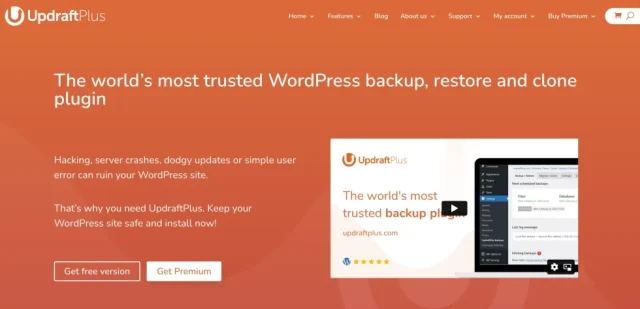
UpdraftPlus is the highest-rated plugin for managing backups in WordPress. It allows you to set up automatic backups on an hourly, daily, weekly, fortnightly, or monthly basis. Of course, you can also perform manual backups.
UpdraftPlus Premium utilises incremental backup technology, which means that it only backs up the changes made since the last backup. This not only saves storage space but also speeds up the backup process.
In the event of downtime or data loss, UpdraftPlus makes the restoration process straightforward. You can easily back up and restore each WordPress entity (database, plugins, themes, and other content) in a separate file, all from your WordPress control panel.
Moreover, it supports various storage destinations, including popular cloud services like Dropbox, Google Drive, Amazon S3, and more.
Downtime happens. Recovery doesn’t have to be difficult.
A failed update or server issue can take your website offline. With UpdraftPlus Premium, schedule automatic backups, use incremental backups to save resources, and restore your website when something goes wrong.
To configure UpdraftPlus backup settings:
- Navigate to Settings > UpdraftPlus Backups.
- Specify the backup schedule.
- Choose remote storage options (such as cloud services).
- Select what you want to include in the backup.
- Set up encryption if needed.
- Click on Save Changes.
Now, you can manually initiate a backup or wait for the scheduled backup to run. UpdraftPlus will create a backup of your WordPress files and database.
If a disaster occurs, you can restore your website by taking the following steps:
- Navigate to the UpdraftPlus dashboard.
- Choose the backup you want to restore.
- Follow the prompts to restore your files and database.
3. Pick the right plugins and themes
Section titled 3. Pick the right plugins and themesAs discussed earlier, problems with your website plugins or theme may lead to downtime. Therefore, we don’t suggest using just any plugin or theme.
To prevent WordPress downtime:
- Install well-coded and reputable themes and plugins.
- Check reviews, ratings, and known compatibility issues.
- Once you’ve thoroughly examined the new software, feel free to install it.
To avoid any future issues, regularly update your plugins and themes. For this, Easy Updates Manager is a recommended choice.
Easy Updates Manager is a powerful WordPress tool that allows you to fully manage updates for all of your plugins and themes. You don’t have to log in and manually check for updates.
Keep your plugins, themes, and WordPress core updated to receive security fixes and maintain compatibility. However, updates can occasionally introduce bugs or conflicts. Before updating:
-
Back up your website.
-
Check changelogs and compatibility information.
-
Test major updates on a staging site.
-
Avoid installing plugins or themes from untrusted sources.
-
Remove unused plugins and themes to reduce security risks and unnecessary maintenance.
Use a managed update workflow that allows you to control updates, monitor failures, and recover your website if an update causes problems.
4. Timely renew your domain name registration
Section titled 4. Timely renew your domain name registrationIf your domain name expires and you forget to renew it, your website will go down. That’s why it’s important to renew your domain name registration on time.
You can easily prevent your domain from expiring by opting for auto-renewal. Some domain registrars also enable you to purchase domains for periods longer than a year.
To check if your domain is still valid, you can use the WHOIS lookup tool.
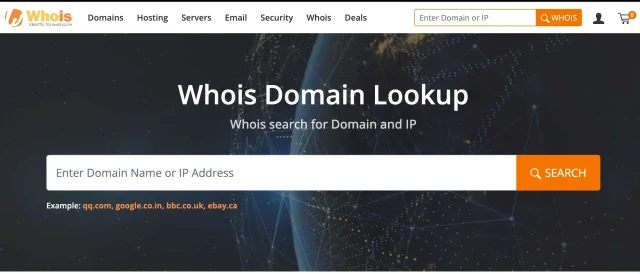
Simply enter your domain name and click the search button to view its details. If your domain has expired, it may appear available for registration.
5. Enhance your website security
Section titled 5. Enhance your website securityHackers can attack your website in various ways, some of which can potentially disrupt your website. Boosting your site security can help you avoid these attacks in the first place.
For starters, regularly scan for malware and address potential threats before they impact your site’s availability. Other ways to boost your security include:
- Using strong passwords
- Implementing CAPTCHA or enabling two-factor authentication
- Ensuring your website URLs start with HTTPS
- Setting up a Web Application Firewall (WAF). It’ll monitor your website’s traffic and block suspicious users before they reach your server.
You can also rely on quality security plugins like AIOS Premium. AIOS takes your WordPress site’s default login security features to a whole new level. It offers advanced security features like:
- CAPTCHA
- Simple two-factor authentication
- Password strength tool
- Login and Force logouts
- Automatic protection from the latest threats
- .htaccess file protection
- DDOS attacks prevention
- Automatic malware scanning
- Protection against fake Google bots
- Unlimited support
- Detailed reporting
– and much more!
Stop security issues before they take your website down.
Malware and malicious login attempts can compromise your website and disrupt its availability. All-In-One Security (AIOS) helps protect WordPress with features such as firewall protection, login security, and malware scanning.
6. Use a Content Delivery Network (CDN)
Section titled 6. Use a Content Delivery Network (CDN)A Content Delivery Network (CDN) is a group of interconnected servers distributed around the world. They store cached static files of your website and deliver your content from a network location closest to your audience.
Again, as we mentioned in the previous section, sudden traffic spikes can overload your server, which can cause downtime. With a CDN, the load gets distributed across multiple servers. If one server experiences issues, others can step in, preventing downtime.
7. Optimize your website for speed
Section titled 7. Optimize your website for speedPoor website performance could also cause your site to appear down, even when it’s up and running. It’s also a significant threat to your site’s user experience. This is particularly concerning as Google now prioritizes site rankings based on user experience.
Luckily, you can easily optimize performance with advanced plugins like WP-Optimize.
WP-Optimize Premium offers a range of features to help with performance optimization, including:
- Browser cache
- Page cache
- Mobile-specific cache
- Preload cache
- User-specific cache
- GZIP compression
- Minify CSS and JavaScript
- Lazy loading
- Database optimization
- Image optimization
All these functionalities contribute to a more stable WordPress environment, ultimately reducing the risk of downtime.
Keep your WordPress website running smoothly
A slow website can frustrate visitors and put unnecessary strain on your server. WP-Optimize helps improve website performance with database cleaning, image compression, and caching, reducing resource usage and helping your website handle traffic more efficiently.
8. Understand HTTP error codes that result in downtime
Section titled 8. Understand HTTP error codes that result in downtimeNot every HTTP error indicates complete website downtime. Monitoring the affected URLs and identifying the underlying cause helps determine whether the issue is isolated or site-wide.
9. Move to a reliable WordPress hosting
Section titled 9. Move to a reliable WordPress hostingSelecting a reliable website host with a good track record of minimal downtime is crucial for your site’s ongoing availability. If your server lacks proper maintenance, you may encounter difficulty keeping your site online.
There are many factors to consider when choosing a hosting provider. But in terms of preventing website downtime, some important ones include:
- A secure domain
- Sufficient bandwidth
- Robust server infrastructure
- An uptime guarantee
- 24/7 customer support
The key is to find a website host that supports your site’s unique needs and has a reputation for reliability in the past.
Summary
Section titled SummaryAnd that’s all!
Website downtime can result from hosting failures, traffic spikes, plugin conflicts, failed updates, or security incidents. While no website can guarantee 100% availability, you can significantly reduce downtime with proactive monitoring, reliable backups, regular maintenance, and a secure hosting environment.
Use uptime monitoring to detect outages quickly, maintain tested backups for recovery, and optimise your website to handle traffic efficiently. Choosing reliable hosting and applying updates carefully can further reduce the risk of unexpected disruptions.
FAQs about website downtime
Section titled FAQs about website downtimeHow do I check website downtime?
To check website downtime, use reliable tools and plugins like AIOS, Pingdom, and Site24x7. These tools will monitor your site’s availability and send alerts in case of interruptions.
What are the disadvantages of downtime in a website?
Disadvantages of website downtime include loss of revenue, bad user experience, and potential damage to the site’s reputation.
What is acceptable website uptime?
Acceptable website uptime is 99.9%. Many businesses even aim for a higher rate.
How long is website maintenance?
Website maintenance duration varies from website to website. However, it’s typically scheduled during off-peak hours to minimise user impact.
About the author

Emman Zahid
Emman is the SEO Content Writer at Updraft WP Software. She has over 5 years of experience in creating compelling content for some of the biggest WordPress brands out there. In addition to writing, Emman helps expand reach and ROI through content marketing and organic strategies.
Categories
UpdraftPlus
Get all our premium features. Direct site-to-site migration, incremental backups, back up automatically before updates and a whole lot more.
From just $70 for the year.
More stories
-

How to Migrate Part of a WordPress Site
Learn how to migrate specific pages, posts, media and other content from one WordPress site to another without moving the entire website.
-
3 WordPress Database Backup Mistakes That Could Break Your Website
Even small WordPress database backup mistakes can lead to lost data, failed restores or website downtime. Discover three common pitfalls and how to avoid them before they cause problems.
-
WordPress update broke your site? Here’s how to fix it
Has a WordPress update broken your website? Learn how to identify the problem, fix common update errors and safely restore your site.
-

10 Best WordPress Plugins for Agencies in 2026
Discover the best WordPress plugins for agencies, from backups and security to performance optimisation and site management. Explore tools that make managing multiple client websites easier and more efficient.