How to create a WordPress site
Category Guides and resources
Topics Tips and tricks, WordPress, WordPress development,
Creating a WordPress site is much easier than most people expect. You don’t need to be a developer, learn code, or spend thousands hiring someone to build it for you.
Whether you want to start a blog, launch a business website, build an online store, or create a personal portfolio, WordPress gives you the flexibility to build almost anything.
The part that usually overwhelms beginners is knowing where to start. Between hosting, domains, themes, plugins, and endless advice online, it’s easy to feel stuck before your website is even live.
In this guide, I’ll walk you through how to create a WordPress site step by step, from choosing hosting and installing WordPress to customising your design, adding features, improving performance, and launching your site with confidence.
Key takeaways
Section titled Key takeaways- WordPress makes it possible to build a website without needing coding skills.
- Choosing the right hosting provider and domain name gives your site a strong foundation from the start.
- Themes control your website design, while plugins add extra features and functionality.
- Creating key pages like your homepage, about page, and contact page helps visitors navigate your site more easily.
- Setting up backups, security, updates, and performance optimisation early can save you a lot of headaches later on.
Getting started with WordPress basics
Section titled Getting started with WordPress basicsBefore creating your website, it helps to understand what WordPress actually is and why so many people use it to build websites of all kinds.
WordPress is a free content management system (CMS) that powers over 40% of websites online. While it originally started as a blogging platform, it’s now used for almost everything, including business websites, online stores, portfolios, membership sites, and blogs.
One thing that often confuses beginners is that there are actually two versions of WordPress: WordPress.com and self-hosted WordPress (WordPress.org).
- WordPress.com handles the hosting for you, so it’s quicker and easier to get started. However, customisation is more limited, and some features, themes, plugins, and monetisation options are locked behind higher-tier plans.
- Self-hosted WordPress means you choose your own hosting provider and install WordPress yourself. It takes slightly more setup, but you get complete control over your website and can install any theme, plugin, or feature you want.
Here’s a quick comparison to help you decide:
For most beginners creating a blog, business website, portfolio, or online store, self-hosted WordPress is usually the better long-term option because it gives you far more flexibility as your website grows.
If you’re simply experimenting or testing an idea, WordPress.com can still be a good starting point. But many people eventually move to self-hosted WordPress once they want more control over themes, plugins, SEO, monetisation, or design customisation.
One thing a lot of beginner guides gloss over is the real-world trade-off between convenience and flexibility. WordPress.com is easier to get started with, but it’s also easier to outgrow later on, especially if you want to run ads, sell products, improve performance, or fully customise your site.
For this guide, I’ll focus mainly on self-hosted WordPress so you have the freedom to build and grow your website without hitting those limitations later.
Planning your website goals
Section titled Planning your website goalsOne of the biggest mistakes beginners make is jumping straight into themes, colours, and design before thinking about what the website actually needs to do.
Before you start building, take a few minutes to think about the main purpose of your website. Are you starting a blog, building a business website, creating an online store, or putting together a portfolio to showcase your work?
Your goals will shape almost every decision you make later, including your layout, plugins, pages, and overall site structure.
For example:
- Blogs usually benefit from clean, easy-to-read layouts and strong navigation. If you’re building a content-focused site, it’s worth exploring some of the best WordPress themes for blogs.
- Business websites often need contact forms, service pages, testimonials, and clear calls to action. Larger companies may also benefit from more professional corporate WordPress themes.
- Online stores need product pages, payment options, and a smooth mobile experience. Choosing one of the best eCommerce themes for WordPress can make that setup much easier.
- Portfolios tend to focus more heavily on visuals, galleries, and showcasing previous work. Creative users may also want to look at some of the best WordPress themes for artists.
Before moving on, make a quick list of your must-haves:
- Main goal of the website (inform, sell, generate leads, build a community, etc.)
- Your target audience
- Features you know you’ll need (blog, booking forms, galleries, online payments, memberships, etc.)
This step is easy to skip, but it can save you a huge amount of time later on by helping you avoid unnecessary themes, plugins, or features you don’t actually need.
For example, if most of your visitors are likely to browse on mobile devices, choosing a fast, mobile-friendly theme early on becomes much more important.
A lot of beginners focus entirely on design, but things like performance, backups, and mobile usability make a huge difference to how a website actually performs long term. Getting those basics right early can save a lot of headaches later on.
How to create a WordPress site step by step
Section titled How to create a WordPress site step by stepNow it’s time to start building your website.
I’ll walk you through the full process step by step, from choosing a domain name and hosting provider to installing WordPress, customising your site, adding plugins, and getting everything ready to launch.
Most of this can be done without touching a single line of code, and once you understand the basics, managing a WordPress site becomes much easier than most beginners expect.
Step 1: Choose your domain and hosting
Section titled Step 1: Choose your domain and hostingThe first thing you’ll need is a domain name and a hosting provider.
Your domain name is your website address, like yourwebsite.com, while hosting is the service that stores your website files and makes your site accessible online.
Choosing a domain name is often harder than the technical setup itself. Try to keep it:
- Short and easy to remember
- Simple to spell
- Relevant to your brand, business, or content
- Easy to say out loud
It’s also worth checking that your chosen name isn’t already heavily associated with another business or brand. A quick Google search and social media check can save you headaches later on.
Alongside the name itself, you’ll also need to choose a top-level domain (TLD). This is the ending that comes after the final dot in your web address.
Some common examples include:
- .com – The most widely used and recognisable option
- .org – Commonly used by organisations and communities
- .net – Originally intended for network-based services
- .co.uk / .uk – Popular for UK-based businesses and websites
For most beginners, .com is still the safest and easiest option if it’s available.
Once you’ve chosen a domain name, you’ll need hosting. Most beginner-friendly hosting providers offer one-click WordPress installation, which makes setup much easier.
The process is usually very straightforward:
- Choose a hosting plan
- Register your domain name
- Create your account
- Use the one-click WordPress installer from your hosting dashboard
In terms of pricing, most beginners can get started fairly affordably. Domains typically cost around $10-20 per year, while basic WordPress hosting often starts between $3-10 per month depending on the provider and any promotional offers available.
Don’t worry too much about choosing the “perfect” hosting provider immediately. Most decent WordPress hosts make the setup process very similar, and you can always upgrade or migrate your website later as your traffic and needs grow.
Step 2: Install WordPress
Section titled Step 2: Install WordPressOnce your hosting account is ready, installing WordPress usually only takes a few minutes.
Most modern WordPress hosting providers include a one-click installer, so you won’t need to manually upload files or deal with complicated technical setup.
To install WordPress:
- Log into your hosting dashboard
- Find the WordPress installer or “Install WordPress” option
- Choose your domain name
- Create your admin username and password
- Complete the installation process
During setup, you’ll also choose your website title and login details. Make sure you use a strong password and store your login credentials somewhere safe.
Once the installation finishes, you’ll usually be able to access your WordPress dashboard by visiting:
yourdomain.com/wp-admin
This is where you’ll manage your website, create content, install plugins, customise your design, and control your site settings.
If your hosting provider doesn’t offer one-click WordPress installation, you can still manually install WordPress by downloading it from WordPress.org. However, most beginners will find it much easier to choose a host that handles the setup process for you.
If anything goes wrong during installation, don’t panic. Most hosting providers offer live chat support and can usually help fix installation issues very quickly.
Step 3: Select and install a theme
Section titled Step 3: Select and install a themeWordPress themes control the overall look and layout of your website, including things like colours, fonts, spacing, navigation, and page structure.
WordPress includes a few default themes out of the box, but most people choose to install a theme that better matches the style and purpose of their website.
To install a theme, go to:
Appearance > Themes > Add New
From there, you can browse thousands of free WordPress themes directly inside your dashboard.
Popular beginner-friendly options like Astra and OceanWP are lightweight, easy to customise, and regularly appear in lists of the best free WordPress themes.
When choosing a theme, try not to focus purely on appearance. A good WordPress theme should also be:
- Fast-loading
- Mobile-friendly
- Regularly updated
- Compatible with popular plugins
If you’re building a more specific type of website, it’s also worth choosing a theme designed for that purpose. For example, there are dedicated themes for blogs, online stores, portfolios, business websites, and creative projects.
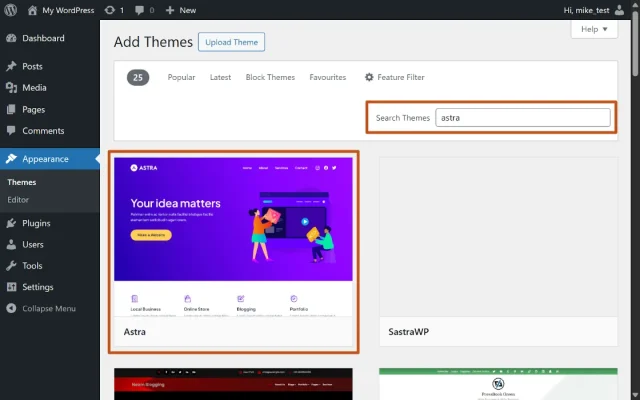
Install and activate the theme you want to use, then head to:
Appearance > Customize
From there, you can start adjusting things like your site colours, fonts, header, footer, navigation menus, and homepage layout.
Before settling on a theme, it’s also worth checking how it performs across different devices. A large percentage of visitors now browse on mobile, so your website should look clean and easy to navigate on smaller screens too.
If you want more control over your page layouts, you can also use a page builder plugin like Elementor. Page builders use drag-and-drop editing, making it much easier to create custom layouts without needing coding knowledge.
For example, a blogger might choose a clean, content-focused theme with large featured images and simple navigation, while a business website may benefit from built-in testimonials, service sections, and stronger call-to-action areas.
Step 4: Add pages and content
Section titled Step 4: Add pages and contentOnce your website design is in place, it’s time to start adding content.
Most WordPress websites begin with a few core pages that help visitors understand who you are, what your website offers, and how to get in touch.
Common starter pages include:
- Home – An introduction to your website or business
- About – Information about you, your company, or your story
- Contact – A way for visitors or customers to reach you
- Blog – Optional, but useful if you plan to publish regular content or improve SEO
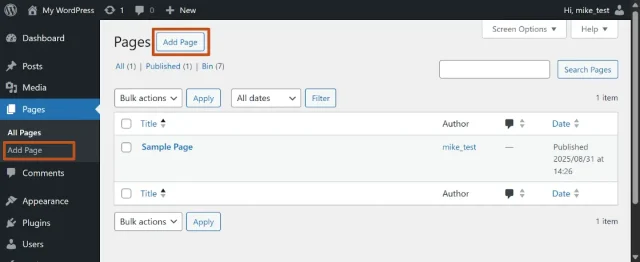
To create a new page, go to:
Pages > Add New
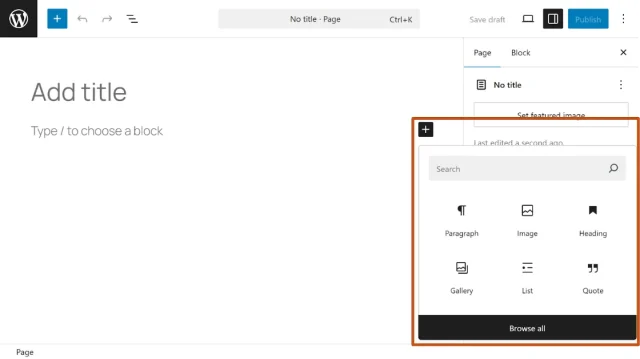
WordPress uses a block editor, which makes it easy to build pages using drag-and-drop style content blocks for text, images, buttons, videos, galleries, and more.
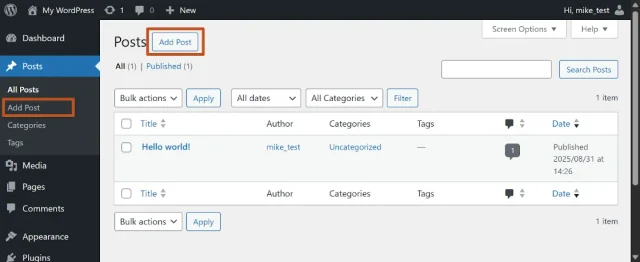
If you want to publish blog articles or news updates, you can create those under:
Posts > Add New
Unlike pages, posts are designed for regularly updated content and are usually displayed in chronological order on your blog page.
Once your page or post is created, you can edit it using the WordPress block editor. This gives you a simple visual way to build content using blocks for things like text, headings, images, buttons, videos, galleries, and more.
Tips for beginners:
- Keep paragraphs short to make your content easier to read.
- Add images to break up text and make pages feel more engaging.
- Use headings to organise your content and improve readability.
- Don’t worry about making everything perfect immediately – your website will evolve over time.
For personal websites, your About page is often one of the most visited sections, so don’t be afraid to share your story or explain what your website is about.
Business websites can use clear service sections, bullet points, testimonials, and calls to action to help visitors quickly understand what they offer.
If you’re starting a blog, publishing a simple introductory post is a great way to get your first piece of content live and become familiar with the WordPress editor.
One thing many beginner guides overlook is image optimisation. Large image files can dramatically slow down your WordPress site, especially on mobile devices.
Before uploading images, it’s a good idea to compress them using tools like TinyPNG. Alternatively, plugins like WP-Optimize can automatically handle image compression alongside other WordPress performance improvements.
Step 5: Customise navigation and features
Section titled Step 5: Customise navigation and featuresOnce you’ve created a few pages, it’s important to make your website easy to navigate.
Most WordPress websites use a main navigation menu at the top of the page to help visitors quickly find important sections like your homepage, blog, services, or contact page.
To create your menu, go to:
Appearance > Menus
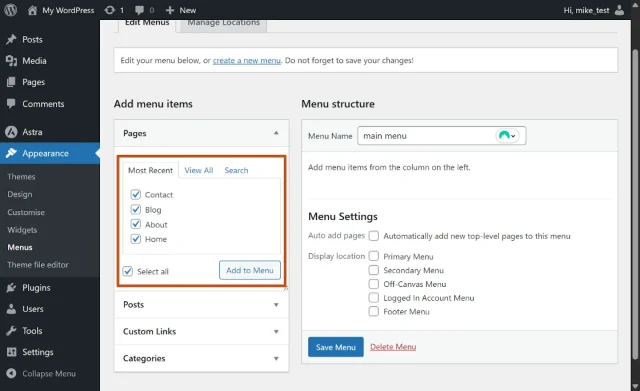
From there, you can create a new menu and choose which pages you want to include.
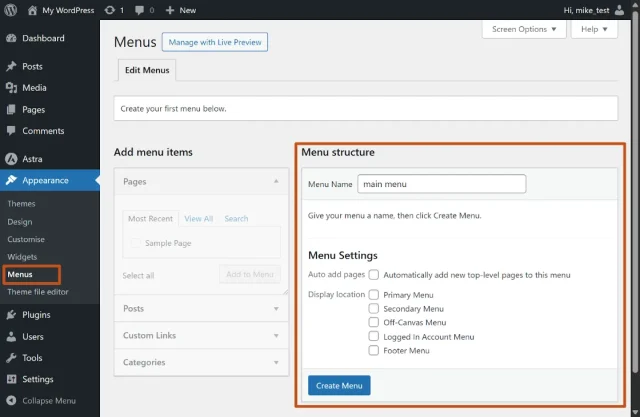
Add the pages you want visitors to access quickly, such as your Home, About, Blog, or Contact pages.
If a page doesn’t appear in the menu settings yet, make sure it has already been created and published first.
Next, it’s time to add extra functionality using plugins.
Plugins work a bit like apps for your WordPress website. They let you add features without needing to write code, whether that’s contact forms, SEO tools, security features, backups, image galleries, or performance improvements.
If you’re unsure where to begin, it’s worth exploring some of the must-have WordPress plugins that many website owners install early on.
To install a plugin, go to:
Plugins > Add New
From there, you can search for the features you need and install plugins directly from your dashboard.
For most beginners, it’s a good idea to start with a few essentials:
- A contact form plugin so visitors can easily get in touch
- An SEO plugin like Yoast to help improve visibility in search engines
- A backup plugin like UpdraftPlus to protect your website
- A performance plugin like WP-Optimize to help improve site speed
- A security plugin like All-In-One Security to help protect against common WordPress threats
- An analytics plugin like Burst Statistics to understand how people are finding and using your website
Try not to install too many plugins straight away. While plugins are incredibly useful, adding unnecessary ones can slow your site down and make it harder to manage over time.
While you’re setting things up, it’s also worth checking a few basic settings under:
Settings > General
Here, you can update your website title, tagline, timezone, and other core settings so everything reflects your brand properly.
One small but important step is updating your permalink structure under:
Settings > Permalinks
Setting your permalinks to “Post name” creates cleaner, more readable URLs that are easier for visitors to understand and generally better for SEO.
Step 6: Optimise for speed and security
Section titled Step 6: Optimise for speed and securitySpeed matters – slow websites lose visitors. Using a caching plugin is one of the easiest ways to improve load times.
WP-Optimize is simple to set up and can help improve performance through caching, image compression, and database clean-ups without needing lots of technical knowledge.
Security is just as important. Keeping WordPress, plugins, and themes updated, using strong passwords, and only installing trusted plugins can go a long way towards protecting your website.
For extra protection, you can also use a security plugin like All-In-One Security, which helps safeguard your site against common threats.
Backups are another essential part of running a WordPress website. Whether it’s a plugin conflict, accidental change, or security issue, having a recent backup can save you a huge amount of stress.
A reliable backup plugin like UpdraftPlus lets you automate backups so your website data is always protected.
A lot of beginner guides leave speed, security, and backups until much later, but setting them up early gives you a much stronger foundation as your website grows.
Step 7: Launch and test your site
Section titled Step 7: Launch and test your siteBefore launching your website, take a little time to review everything properly. Click through your pages, test your links, and make sure any contact forms or buttons are working as expected.
It’s also important to check how your website looks across different devices, especially mobile phones and tablets. A large percentage of WordPress traffic now comes from mobile users, so taking time to optimise your WordPress site for mobile can make a big difference to usability and performance.
A helpful trick is to open your website in an Incognito or private browsing window. This can help you spot broken layouts, outdated content, or caching issues that may not appear while you’re logged into WordPress.
In Chrome, you can open an Incognito window by clicking the three-dot menu in the top-right corner and selecting:
New Incognito Window
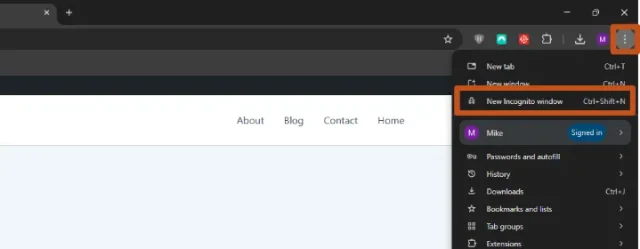
Alternatively, you can use a keyboard shortcut to open an Incognito window:
- Windows: Ctrl + Shift + N
- Mac: ⌘ + Shift + N
Once you’re happy with how everything looks and functions, your website is ready to launch.
Share it on social media, send it to friends or customers, and start gathering feedback from real visitors. Don’t worry if everything isn’t perfect immediately – most WordPress websites continue to evolve and improve over time.
Wrapping up your WordPress journey
Section titled Wrapping up your WordPress journeyBuilding your first WordPress website can feel overwhelming at the beginning, but once you break it down step by step, the process becomes far more manageable.
The most important thing is to get started. Your website doesn’t need to be perfect on day one. Most successful WordPress sites evolve over time through new content, design improvements, performance optimisation, and feedback from real visitors.
By choosing the right hosting, setting up a solid theme, adding the plugins you actually need, and taking care of basics like speed, security, and backups early on, you’ll already be building on a much stronger foundation than many beginners.
Whether you’re starting a blog, launching a business website, building an online store, or creating a personal project, WordPress gives you the flexibility to grow your site as your goals evolve.
Protect your hard work with a reliable backup
Building a WordPress website takes time, whether you’re writing blog posts, designing pages, uploading images, or setting up plugins.
Things can occasionally go wrong in WordPress, from plugin conflicts and failed updates to accidental changes or security issues. Having a recent backup means you can restore your site quickly without starting from scratch.
Frequently asked questions
Section titled Frequently asked questionsIs WordPress free?
WordPress itself is free to use. However, most websites still need paid hosting and a domain name. You may also choose to purchase premium themes, plugins, or additional services as your website grows.
Can I create a WordPress website without coding?
Yes. One of the reasons WordPress is so popular is that you can build and manage a website without coding knowledge. Most themes, plugins, and page builders use beginner-friendly visual editors and drag-and-drop tools.
What’s the difference between WordPress.com and WordPress.org?
WordPress.com is a hosted platform that manages the technical side for you, while WordPress.org (self-hosted WordPress) gives you full control over your website, themes, plugins, and monetisation options.
How much does it cost to create a WordPress site?
Most beginners can create a simple WordPress website fairly affordably. Domains often cost around $10-20 per year, while beginner hosting plans usually start between $3-10 per month. Extra costs may apply if you choose premium themes or plugins.
How long does it take to build a WordPress website?
A basic WordPress website can be set up in under a day. More advanced websites with custom designs, blogs, online stores, or larger amounts of content may take longer depending on your goals and experience level.
What pages should a beginner WordPress website include?
Most websites start with a homepage, about page, contact page, and optional blog section. Business websites may also include service pages, FAQs, testimonials, or pricing pages.
Do I need plugins for WordPress?
Plugins are one of the main reasons WordPress is so flexible. They allow you to add features like contact forms, SEO tools, backups, security, caching, galleries, and online stores without needing to code.
What is the best hosting for WordPress beginners?
<p>Beginner-friendly WordPress hosts usually offer one-click WordPress installation, customer support, automatic updates, and affordable starter plans. The best option often depends on your budget, traffic levels, and long-term goals.</p>
Can I create a WordPress website on my phone?
Yes, but building a WordPress website is usually much easier on a desktop or laptop. Larger screens make it simpler to customise layouts, manage plugins, upload media, and edit pages.
Can I change my WordPress theme later?
<p>Yes. WordPress allows you to switch themes at any time. However, changing themes can affect layouts, menus, widgets, and design settings, so it’s always a good idea to back up your website before making major changes.</p>
Do I need to back up my WordPress website?
Yes. Backups help protect your website if something goes wrong, such as plugin conflicts, accidental edits, security issues, or failed updates. Having a recent backup makes it much easier to restore your website quickly.
Can I make money from a WordPress website?
Yes. Many people use WordPress to run blogs, business websites, online stores, membership sites, affiliate websites, and other projects that generate income online.
About the author

Becks Faulkner
Becks is the Performance Marketing Manager at Updraft WP Software Ltd, with more than 15 years of marketing experience and over 11 years specialising in SEO. She works across TeamUpdraft’s WordPress products, focusing on content strategy and organic growth. Her experience spans both the financial and technology sectors, helping businesses improve their visibility in search.
Categories
UpdraftPlus
Get all our premium features. Direct site-to-site migration, incremental backups, back up automatically before updates and a whole lot more.
From just $70 for the year.
More stories
-

5 WordPress Web Design Tips to Improve Your Website
Good web design is about more than appearance. Explore practical WordPress web design tips to improve your website's layout, navigation, mobile responsiveness, accessibility and performance, helping you create a better experience for your visitors.
-
Best AI Website Builders Compared
AI website builders can help you design, write and launch a website in minutes. Compare the best AI-powered website builders based on ease of use, features, customisation, pricing and performance to find the right solution for your next project.
-
How incremental backups save time and storage in WordPress
Incremental backups only save the changes made since your last backup, helping you reduce storage usage, speed up backups and lower server load. Learn how they work and why they're an essential part of an efficient WordPress backup strategy.
-
Best WordPress Website Builders Compared
Discover the best WordPress website builders for every skill level. Compare features, ease of use, pricing and performance to choose the right builder for your blog, business or online store.
