How to update PHP in WordPress (and why it’s important)
Category Guides and resources
Topics Tips and tricks, WordPress development,

Seeing a “PHP Update Required” or “PHP Update Recommended” notice in WordPress can feel a bit intimidating, especially if you’re worried about breaking your site.
I’ve worked on plenty of WordPress sites where that warning gets ignored for months simply because updating PHP sounds far more technical than it actually is. But in reality, running an outdated PHP version can lead to security risks, slower performance, and compatibility issues with newer plugins and themes.
The good news is that updating PHP in WordPress is usually much simpler than people expect, and if you take a few precautions first, it’s very low risk.
In this guide, I’ll walk you through exactly how to update PHP safely, how to check compatibility before making changes, and the steps I always recommend taking before updating any live WordPress site.
Key takeaways
Section titled Key takeaways- Keeping PHP up to date helps protect your WordPress site from security vulnerabilities and can noticeably improve performance.
- If your site is running an older PHP version, you may start seeing compatibility issues with newer WordPress plugins, themes, or core updates.
- Before updating PHP, I always recommend taking a full backup and checking that your plugins and theme support the newer version.
- The safest approach is to test the update on a staging site first, then update the live site through your hosting control panel.
- If something does go wrong after updating PHP, it is usually caused by an outdated plugin or theme rather than WordPress itself.
Why updating your WordPress PHP version is critical
Section titled Why updating your WordPress PHP version is criticalWordPress is built on a programming language called PHP. Just like WordPress itself, PHP receives regular updates to fix issues, add features, improve security, and boost performance. Here’s why clicking that “update” button is one of the most important things you can do for your site.
1. To keep your website secure
Section titled 1. To keep your website secureThis is the biggest reason to update PHP.
Like WordPress plugins and themes, PHP versions eventually stop receiving security updates. Once a version reaches its end of life (EOL), any newly discovered vulnerabilities are no longer patched.
Older PHP versions such as 7.4 and 8.0 are no longer officially supported, which means running them can leave your site exposed to security risks. In my experience, outdated PHP is often overlooked because everything on the site still appears to be working normally, but behind the scenes, it can become a weak point.
Updating to a supported PHP version helps protect your WordPress site and keeps it compatible with newer plugins, themes, and WordPress core updates.
2. To make your website faster
Section titled 2. To make your website fasterUpdating PHP is one of the fastest ways to get a free performance boost. Each new version is more efficient, uses less memory, and can process more requests per second than the last.
Benchmarks consistently show that PHP 8.x versions can handle significantly more transactions per second than PHP 7.4. For you, this means a faster-loading website, a better experience for your visitors, and a potential edge in search engine rankings. This is just as crucial as optimizing your database, which you can do with tools like WP-Optimize.
3. To ensure future compatibility
Section titled 3. To ensure future compatibilityTechnology does not stand still. The WordPress core team, along with theme and plugin developers, are always moving forward to support modern, faster, and more secure code.
WordPress.org officially recommends running PHP 8.3 or greater. As WordPress itself evolves, it will eventually (and rightly) drop support for older, insecure versions. By updating, you ensure your site remains compatible with future versions of WordPress and all the plugins you rely on.
Recommended PHP versions (at a glance)
Section titled Recommended PHP versions (at a glance)Choosing the right PHP version can feel confusing, especially when your hosting dashboard, WordPress, and plugins may all show slightly different recommendations.
As a general rule, I recommend using the latest stable PHP version supported by both WordPress and your plugins. This gives you the best balance of security, performance, and compatibility.
The table below gives a quick overview of which PHP versions are supported, outdated, or no longer recommended.
Before you click “Update”: The 3-step safe process
Section titled Before you click “Update”: The 3-step safe processJumping straight to the update is a gamble. A professional, safe update follows three simple steps. This process turns a “scary” task into a routine maintenance check.
Step 1: Check your current PHP version
Section titled Step 1: Check your current PHP versionFirst, let’s confirm what version you’re currently using. WordPress makes this easy.
- From your WordPress Dashboard, navigate to Tools > Site Health.
- Click the Info tab at the top.
- Expand the Server section.
- Look for the “PHP version” line.
This will show you the exact version your site is running.
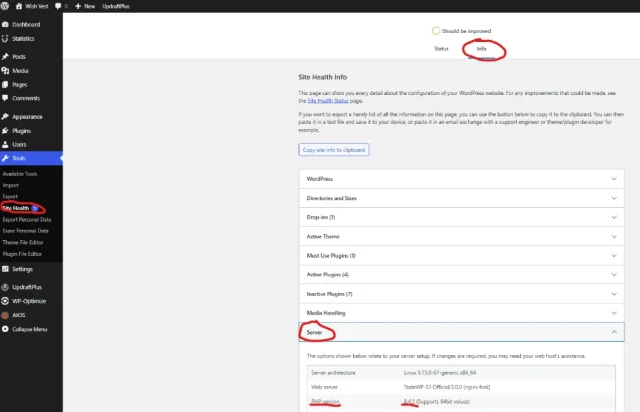
Now, compare this version to the chart above to see how urgent your update is.
Step 2: Create a complete website backup
Section titled Step 2: Create a complete website backupThis is the single most important step in this entire guide. We cannot be clearer: Do not perform a PHP update without a recent, complete backup of your website.
A PHP update can, in rare cases, trigger a “fatal error” if a plugin or theme is incompatible. This error can lock you out of your entire website, showing a “White Screen of Death”.
A complete backup is your “undo” button. It must include both your database and your files (plugins, themes, and uploads). If anything goes wrong, you can restore this backup and your site will be back online in minutes. Always make sure your plugins and themes are running the latest version before upgrading PHP.
Step 3: Test Compatibility on a Staging Site
The #1 reason a PHP update fails is that an old plugin or theme is not compatible with the new version. A staging site is the perfect place to find the culprit before it breaks your live site.
A staging site is a private clone of your website that only you can see. Most modern web hosts (like Kinsta, SiteGround, and WP Engine) offer “one-click staging” to create one instantly.
Once your staging site is active, update the PHP version on it first. Then, browse the staging site. Click around. Does everything look and work as expected?
- If yes: Great! Your site is compatible. You are clear to update your live site.
- If no: You’ve found a problem. The staging site will likely show an error, helping you find the incompatible plugin. Your live site, meanwhile, is completely safe.
For a simple, one-click solution, UpdraftClone lets you spin up a test clone in minutes, right from your UpdraftPlus dashboard.
Before updating PHP, I always recommend taking a full backup first. If a plugin or theme is incompatible with the new version, a backup gives you a quick way to restore your site.
Back up your site before updating PHP
UpdraftPlus lets you back up your entire WordPress site, including files and the database, and store it safely in locations like Google Drive, Dropbox, or UpdraftVault.
How to update your WordPress PHP version (Step-by-Step)
Section titled How to update your WordPress PHP version (Step-by-Step)You’ve got your backup. You’ve tested on a staging site (or you’re ready to proceed). It’s time to update.
This process is not done inside WordPress. The update is done in your web hosting control panel. The exact location varies by provider, but here are the instructions for the most common ones.
Option 1: On most hosts (cPanel)
Section titled Option 1: On most hosts (cPanel)If your host uses cPanel, the steps are very straightforward.
- Log in to your cPanel dashboard.
- Scroll down to the “Software” section.
- Click on “MultiPHP Manager“.
- You will see a list of your domains. Check the box next to the website you want to update.
- In the “PHP Version” dropdown menu on the right, select the latest version (e.g., “PHP 8.3”).
- Click the “Apply” button.
That’s it. Your server will now be running the new PHP version.
Option 2: On managed WordPress hosts
Section titled Option 2: On managed WordPress hostsManaged hosts have their own custom dashboards, which often makes this even easier.
- SiteGround: Log in to your account. Go to Websites > Site Tools (for your site) > Devs > PHP Manager. Click the pencil icon next to the version number to change it.
- Kinsta: Log in to your MyKinsta dashboard. Go to Sites > (Your Site) > Tools. Find the “PHP Engine” section and click “Modify.” Select your new version from the dropdown.
- Bluehost: Log in to your dashboard. Go to My Sites > Manage > Advanced (tab). In the “PHP Version” tile, click “Change” to select your new version.
- WP Engine: Log in to your User Portal. Click on the site you want to manage. In the “Overview” tab, the PHP version is listed. Click on it to change the version.
Option 3: On Plesk control panel
Section titled Option 3: On Plesk control panelIf your host uses Plesk, the process is also very simple.
- Log in to your Plesk dashboard.
- Go to the “Websites & Domains” tab.
- Find your domain name and click on “PHP Settings”.
- From the “PHP support” dropdown menu, select the new version you want to use.
- Click “OK” or “Apply” at the bottom of the page.
What to do if the PHP update breaks your site (don’t panic)
Section titled What to do if the PHP update breaks your site (don’t panic)You updated PHP, and now you’re staring at the “White Screen of Death” (WSoD) or a “Fatal Error” message.
First: Do not panic. This is almost always fixable in 60 seconds. Your site is not gone. This is just an incompatibility error.
Step 1: Immediately roll back your PHP version
Section titled Step 1: Immediately roll back your PHP versionYour site is broken on the new PHP version, but it worked on the old one. The fastest fix is to simply tell your server to use the old version again.
Go back to the exact same place you just were (cPanel’s “MultiPHP Manager,” Kinsta’s “PHP Engine,” etc.) and change the version back to what it was before (e.g., from 8.3 back to 7.4).
Click “Apply.” Now, reload your website. In 99% of cases, it will be back online instantly.
Step 2: Find the incompatible plugin or theme
Section titled Step 2: Find the incompatible plugin or themeYour site is back, but the problem isn’t solved. You still need to update PHP. Now, you must find the culprit.
You can enable WordPress’s built-in debug mode to find the exact error.
- Log in to your site’s files via cPanel’s File Manager or FTP.
- Find the wp-config.php file in your site’s main folder.
- Open the file and find the line that says define( ‘WP_DEBUG’, false );.
- Change false to true, and add the line below it, so it looks like this
15:define( 'WP_DEBUG', true );
define( 'WP_DEBUG_LOG', true ); - Save the file.
Now, try updating your PHP version again (in your host’s panel). This will break your site again, but this time, it will log the error. Roll your PHP version back again to get your site online.
Now, check your wp-content folder. You will find a new file called debug.log. This file will contain an error message, and it almost always points directly to the plugin or theme causing the problem (e.g., …/wp-content/plugins/old-plugin/plugin-file.php…).
Step 3: Fix the issue and try again
Section titled Step 3: Fix the issue and try againYou found the problem plugin. The fix is simple.
- Log in to your site’s files via FTP or File Manager.
- Go to the wp-content/plugins/ folder or wp-content/theme respectively
- Find the folder of the plugin that the error log identified.
- Rename that plugin’s/themes folder folder. For example, change old-plugin to old-plugin-off. This instantly deactivates it.
- Now, go back to your host and update your PHP version to 8.3 again.
This time, your site should load perfectly. You can now log in to your WordPress admin and find a modern, compatible replacement for that old, deactivated plugin.
Final thoughts
Section titled Final thoughtsUpdating PHP might sound intimidating at first, but in most cases, it is a straightforward maintenance task that can improve your site’s security, speed, and compatibility.
The main thing I always recommend is not rushing into it blindly. Take a full backup first with UpdraftPlus, check plugin compatibility, and if possible, test the update on a staging site before changing anything on your live website.
And if something does go wrong, don’t panic. Most PHP update issues come down to an outdated plugin or theme and can usually be fixed quickly by rolling back the PHP version and identifying the incompatibility.
Once your site is running on a modern PHP version, you’ll be in a much better position for future WordPress updates, plugin compatibility, and overall site performance.
Frequently asked questions (FAQ)
Section titled Frequently asked questions (FAQ)What is the best PHP version for WordPress?
WordPress.org officially recommends PHP 8.3 or greater. This will give you the best combination of security, performance, and compatibility.
Is it safe to update PHP in WordPress?
Yes, it is extremely safe if you follow the 3-step safe process: 1. Ensure all plugins and themes are up to date and backup your site with a tool like UpdraftPlus, 2. Test the update on a staging site, and then 3. Update your live site
What happens if I don’t update PHP?
Your site will become progressively slower and more vulnerable to hackers. PHP versions that are “End of Life” (like 7.4 and 8.0) no longer receive security patches, making them an easy target for attacks.
My host only offers PHP 7.4. What should I do?
If your host does not offer modern PHP versions (8.2 or higher), they are not following modern security or performance standards. You should contact their support and ask for an update. If they refuse, it is a very strong sign that you should move your site to a better, more modern hosting provide
About the author

Alexandru Bucsa
Alex is our All-In-One Security Product Manager. With more than six years of WordPress experience, he listens closely to what users need and works hard to make AIOS even better. Drawing on his background in forensic investigations, Alex loves diving into problems to understand their causes and find practical fixes that truly help our community.
Categories
UpdraftPlus
Get all our premium features. Direct site-to-site migration, incremental backups, back up automatically before updates and a whole lot more.
From just $70 for the year.
More stories
-

5 WordPress Web Design Tips to Improve Your Website
Good web design is about more than appearance. Explore practical WordPress web design tips to improve your website's layout, navigation, mobile responsiveness, accessibility and performance, helping you create a better experience for your visitors.
-
Best AI Website Builders Compared
AI website builders can help you design, write and launch a website in minutes. Compare the best AI-powered website builders based on ease of use, features, customisation, pricing and performance to find the right solution for your next project.
-

How incremental backups save time and storage in WordPress
Incremental backups only save the changes made since your last backup, helping you reduce storage usage, speed up backups and lower server load. Learn how they work and why they're an essential part of an efficient WordPress backup strategy.
-
Best WordPress Website Builders Compared
Discover the best WordPress website builders for every skill level. Compare features, ease of use, pricing and performance to choose the right builder for your blog, business or online store.
