How to push changes between your WordPress staging and live site

A staging site lets you test themes, plugins, and layout changes safely, but moving those changes to a live WordPress install can be nerve racking. If you need to push staging site without overwriting the database, this guide walks through practical, low-risk way to transfer code, media, and configuration without destroying live content like posts, users, or WooCommerce orders. You will get a preflight checklist, step by step instructions, FAQs and a recommended toolchain featuring UpdraftPlus for backups, cloning, and selective restores.
Key takeaways
Section titled Key takeaways- Standard staging pushes often overwrite the live database, which can erase real-time data like new customer orders, user comments, or membership registrations.
- The safest way to update a live site is to push files only (themes, plugins, and uploads) or to use table-level selection for specific database changes.
- Always perform a manual backup of your live site via UpdraftPlus before any push to ensure a one-click rollback path in case of conflicts.
- Staging should be a “near-identical” mirror of your live site to ensure that the changes you push will behave predictably in the production environment.
Why you should avoid overwriting the live database
Section titled Why you should avoid overwriting the live databaseThe live database contains dynamic content, user accounts, and transactional records. Overwriting it removes any changes made on production since the staging snapshot, such as new posts, comments, or orders. Most teams therefore separate file changes from database changes and selectively deploy only what is needed.
Core strategies
Section titled Core strategiesFor many use cases, pushing files only is the fastest and safest route. If you absolutely must change content stored in the DB, identify exactly which tables need updates and apply them carefully. Note that true automated database merging is not a solved problem and most migration tools cannot merge two active databases automatically. Plan accordingly.
Preflight checklist before you push
Section titled Preflight checklist before you push- Take a full backup of the live site, including files and database
- Take a backup of the staging site you will push from
- Put the live site in maintenance mode if needed
- Confirm staging uses a separate database from production
- Note any time-sensitive content (orders, form submissions) that may arrive during deployment
- Test the push workflow on an UpdraftClone where possible
Test before you push
UpdraftPlus Premium not only gives you reliable backups and selective restore options, it also includes free UpdraftClone tokens. That means you can create a safe one-time clone of your site to test the push process before going live.
Push changes safely with UpdraftClone and UpdraftPlus selective restore
Section titled Push changes safely with UpdraftClone and UpdraftPlus selective restoreBest for site owners who prefer GUI workflows and safe rollback.
How UpdraftPlus helps
Section titled How UpdraftPlus helpsUpdraftPlus makes backups and lets you restore specific components (plugins, themes, uploads, database) rather than everything. Use the restore wizard to pick what to apply.
Steps to push safely with UpdraftPlus
Section titled Steps to push safely with UpdraftPlus- Go to the live site and create a full backup (including the files and the database)
- Go to the staging site and create a backup where the database is excluded
- On production, upload or locate the staging backup in Existing Backups
- Choose Restore and select only the components you want to overwrite, for example, themes and plugins
- Run the restore and test
This approach gives a controlled way to push code and media without touching the live database.
Example workflow
Section titled Example workflowScenario: You updated a theme and one custom plugin on staging; you want those changes live without touching posts or orders.
- Backup production (files + DB) with UpdraftPlus.
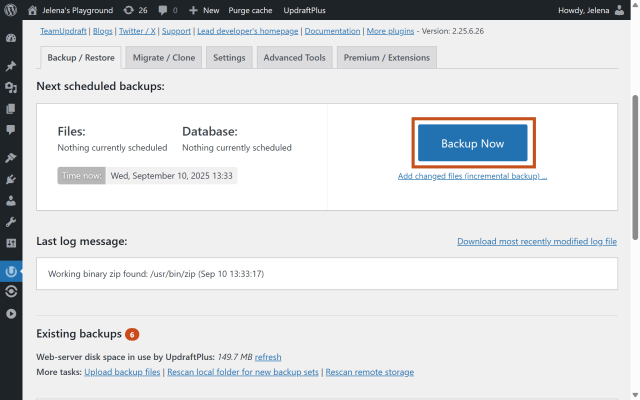
2. Backup staging with Database unchecked (files-only; Themes + Plugins).
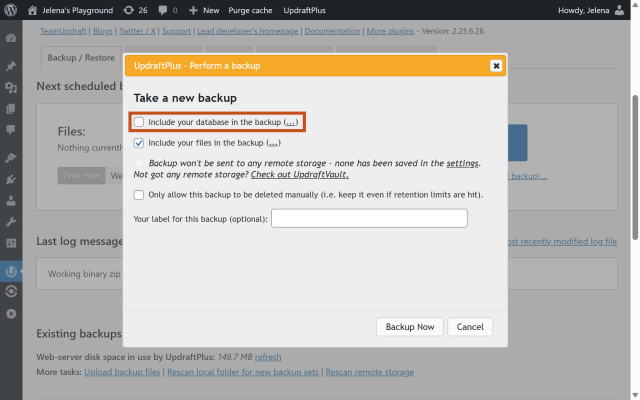
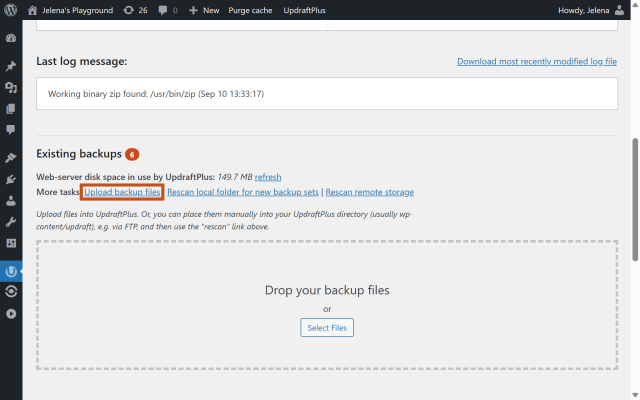
3. Optional: Create an UpdraftClone of production and upload the staging backup to the clone.
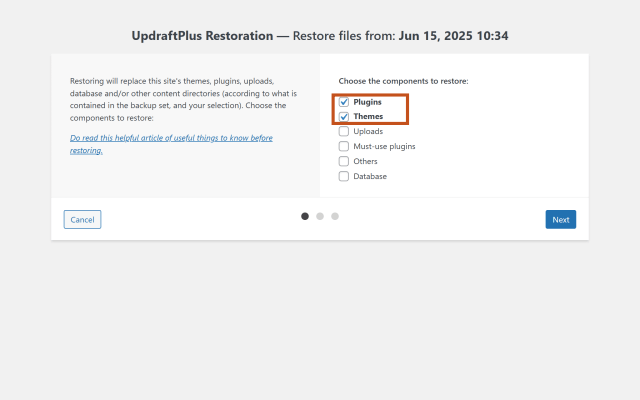
4. Optional: In the clone, Restore → Themes + Plugins only, DB unchecked → test.
5. On production, upload the same staging backup (if it’s not already listed).
6. Restore → Themes + Plugins only, DB unchecked → flush caches → smoke test key flows.
This ensures the code updates are live while the production database remains intact.
With UpdraftPlus Premium, you get finer control:
- Select specific database tables (like wp-options) to restore alongside the files.
- Include/exclude particular plugins, so you could restore just the single custom plugin instead of all plugins.
Always treat the database like sacred ground. For layout and code changes, push files only. When a database change is unavoidable, export and import only the necessary tables and validate on a clone first.
Conclusion
Section titled ConclusionPushing changes from staging to live doesn’t have to mean risking your database. By using UpdraftPlus Premium’s selective restore and free clone tokens, you can move code and files with confidence while keeping live content untouched. Always test on a clone first, then push only what’s needed.
Don’t risk it without a backup
It only takes one mistake to lose important data. UpdraftPlus makes it easy to take a complete backup of your live site before deploying changes. With free UpdraftClone tokens included in Premium, you can also test everything on a safe copy of your site before touching production.
FAQs
Section titled FAQsWill pushing a staging site delete my recent WooCommerce orders?
Not if you use selective syncing. By excluding the wp_woocommerce_order_items and related tables during the push, your live orders remain safe while your theme and plugin updates are applied.
Can I rollback if a database push goes wrong?
Absolutely. This is why we recommend using UpdraftPlus to take a ‘Core’ backup of the live site immediately before pushing from staging. If a conflict occurs, you can restore your live database in minutes.
Do I need to put my live site in Maintenance Mode before pushing?
While not strictly required for file-only pushes, it is a best practice when syncing database tables. This prevents users from submitting new data (like comments or purchases) during the few seconds it takes to merge the staging data.
Does pushing from staging affect my SEO?
Generally, no. As long as your staging site was set to ‘no-index’ (to prevent duplicate content issues) and your live site remains ‘indexed,’ the transition of files and data will not negatively impact your rankings. Always double-check your search visibility settings after a push.
About the author

Jelena Janić
Jelena is the Product Manager for UpdraftPlus and WP-Optimize. With seven years of experience, she’s taken on many roles – from tester to developer and now product manager. Along the way, she noticed a disconnect between how products are built and what customers need, sparking a passion for steering products toward solutions that truly serve the people who use them. Today, she ensures every WP-Optimize development decision is geared toward boosting WordPress website performance, enhancing usability, and increasing customer satisfaction.
Categories
UpdraftClone
Spin up a temporary test site on our servers directly from UpdraftPlus in minutes. Throw it away when you’re done.
More stories
-
10 Best WordPress Plugins for Agencies in 2026
Discover the best WordPress plugins for agencies, from backups and security to performance optimisation and site management. Explore tools that make managing multiple client websites easier and more efficient.
-

Direct WordPress site-to-site migration: A step-by-step guide
Learn how direct WordPress site-to-site migration works and how to move your website between hosts or domains without manually transferring files.
-

5 WordPress Web Design Tips to Improve Your Website
Good web design is about more than appearance. Explore practical WordPress web design tips to improve your website's layout, navigation, mobile responsiveness, accessibility and performance, helping you create a better experience for your visitors.
-
Best AI Website Builders Compared
AI website builders can help you design, write and launch a website in minutes. Compare the best AI-powered website builders based on ease of use, features, customisation, pricing and performance to find the right solution for your next project.
