How to speed up your WooCommerce site
Category Guides and resources
Topics Performance optimization, Tips and tricks, WooCommerce,

If you’re running a WooCommerce store, you already know that speed matters. Slow-loading product pages, carts and checkouts can frustrate visitors and make it harder to turn them into customers.
The good news is that you can speed up WooCommerce without being a developer. From cleaning up your database and optimising product images to reviewing plugins and improving caching, there are plenty of practical ways to improve your store’s performance and create a better shopping experience.
Key takeaways
Section titled Key takeaways- Clean up unnecessary database data to keep WooCommerce running efficiently
- Compress large product images to improve mobile and desktop performance
- Optimize your cart and checkout experience
- Review plugins regularly and remove any you no longer need
- Choose a lightweight, performance-focused WooCommerce theme
- Use WP-Optimize to manage database, image and caching optimizations
1. Clean up WooCommerce database bloat
Section titled 1. Clean up WooCommerce database bloatWooCommerce stores can accumulate a lot of database data over time, alongside common WordPress clutter such as post revisions, expired transients and orphaned metadata. On larger or busier stores, an unnecessarily bloated database can make queries less efficient and contribute to slower performance.
Quick fix
Section titled Quick fixUse WP-Optimize to clean and optimize your database safely.
It helps you:
- Remove unnecessary post revisions
- Clear expired transients
- Delete spam and trashed comments
- Optimize database tables
How to do it
1. Install and activate WP-Optimize
2. Go to WP-Optimize > Database in your WordPress dashboard
3. Select the optimizations you want to run:
- Clean all post revisions (removes older versions of edited posts and pages)
- Clean all auto-draft posts (removes automatically saved drafts that are no longer needed)
- Remove spam and trashed comments (clears comments marked as spam or moved to the trash)
- Remove expired transient options (removes temporary data that has expired)
- Optimize database tables (optimizes your database tables to help keep them running efficiently)
4. Click Run all selected optimizations.
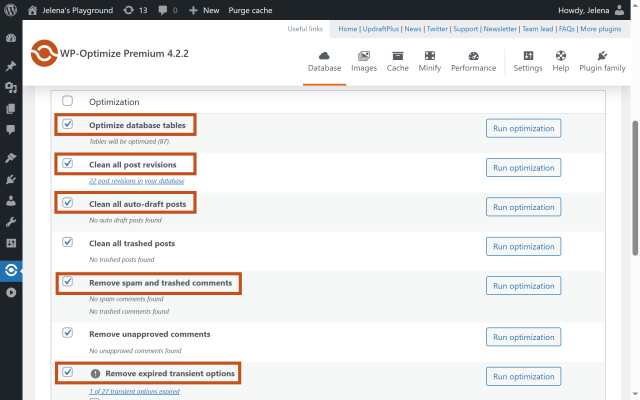
These safe, one-click cleanups can dramatically reduce database overhead and help your WooCommerce store run faster, especially during high-traffic periods.
2. Compress product images without losing quality
Section titled 2. Compress product images without losing qualityLarge product images can significantly slow down WooCommerce pages, particularly on mobile. Reducing image file sizes can improve page load times without noticeably affecting image quality.
Quick fix
Section titled Quick fixUse WP-Optimize’s Image Compression feature to reduce image file sizes while maintaining visual quality.
How to do it
- Go to WP-Optimize > Images
- Choose your preferred compression level:
- Prioritize maximum compression (smaller file sizes with some reduction in image quality)
- Prioritize retention of detail (higher image quality with less compression)
- Custom (manually adjust the balance between compression and quality)
- Click “Compress the selected images” to compress multiple images at once
- Enable “Automatically compress newly-added images” to optimize new images as you upload them
- Select “Create WebP version of the image” to create smaller, WebP versions of your images
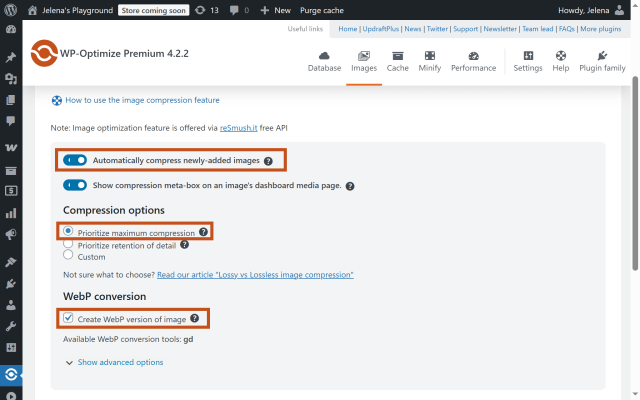
This makes product pages load faster and keeps your store mobile-friendly.
3. Speed up the cart and checkout experience
Section titled 3. Speed up the cart and checkout experienceCart and checkout pages are critical for conversions, but their dynamic content, customer-specific data and payment functionality can make them more resource-intensive than standard pages.
What you can do in WP-Optimize
Section titled What you can do in WP-OptimizeCart, checkout and account pages contain dynamic, customer-specific information and should be excluded from page caching. However, you can use WP-Optimize to speed up the rest of your site and create a faster overall shopping experience.
Enable page caching with exclusions:
- Go to WP-Optimize > Cache
- Enable Page Caching
- Under the Advanced settings tab, make sure your dynamic WooCommerce pages are excluded from caching. These typically include:
- /cart
- /checkout
- /my-account
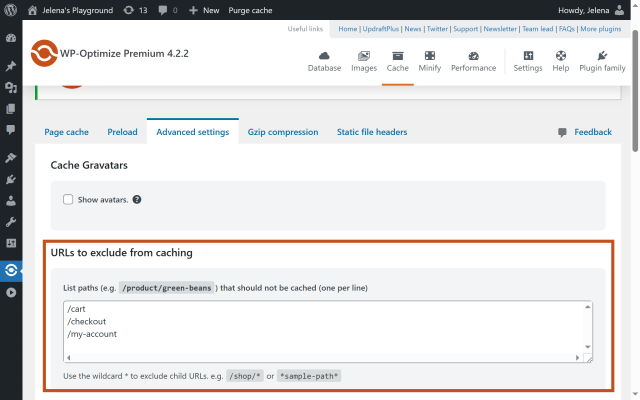
Note: These URLs can vary depending on your WooCommerce settings or customizations. Double-check your actual page slugs under Pages > All Pages to confirm the correct paths.
This allows you to benefit from page caching across suitable areas of your store, while keeping dynamic pages such as the cart and checkout working correctly.
4. Limit plugin conflicts and bloat
Section titled 4. Limit plugin conflicts and bloatPlugins add important functionality to WooCommerce, but poorly optimised, unnecessary or overlapping plugins can affect performance. Some may load scripts, styles or database queries on pages where they aren’t needed.
Quick fixes
Section titled Quick fixes- Audit your plugins: Deactivate and delete any you no longer need.
- Review scripts and styles: Tools such as Asset CleanUp or Perfmatters can help you prevent unnecessary assets from loading on specific pages.
- Choose WooCommerce-compatible plugins: Prioritise well-maintained plugins that are regularly updated and designed to work with WooCommerce.
- Consolidate performance tools where possible: Instead of using several separate plugins for different optimisation tasks, WP-Optimize offers multiple performance features in one plugin, including caching, database cleaning, minification and image compression.
Regularly reviewing your plugin setup can help reduce unnecessary processing, prevent conflicts and keep your WooCommerce store running efficiently.
5. Choose a fast, WooCommerce-optimized theme
Section titled 5. Choose a fast, WooCommerce-optimized themeYour theme can have a significant impact on your WooCommerce store’s performance. A poorly optimised theme may load unnecessary scripts, styles or other resources that can slow down your site.
Quick fix
Section titled Quick fixChoose a lightweight, performance-focused theme that works well with WooCommerce, such as:
- Astra
- GeneratePress
- Storefront (the official WooCommerce theme)
Starting with a lightweight theme gives you a strong foundation for performance, which you can build on with caching, image optimisation and other performance improvements.
6. Optimize customer Total Spent calculation
Section titled 6. Optimize customer Total Spent calculationOn some WooCommerce stores, calculating a customer’s total spend can involve an inefficient database query, which may affect performance on stores with large numbers of customers and orders.
WP-Optimize Premium includes a Power Tweak designed to improve the efficiency of this calculation when it’s relevant to your WooCommerce setup.
What this Power Tweak does
Section titled What this Power Tweak does- Replaces WooCommerce’s slower query with more efficient queries
- Helps improve database performance on stores with large customer and order volumes
How to do it
- Upgrade to WP-Optimize Premium. This feature is available in the Premium version of the plugin.
- Go to WP-Optimize > Database > Power Tweaks
- If the tweak is available for your store, enable “Speed up WooCommerce’s ‘Get total spent’ query”
Note: WP-Optimize automatically hides this Power Tweak when it’s no longer relevant to your WooCommerce setup.
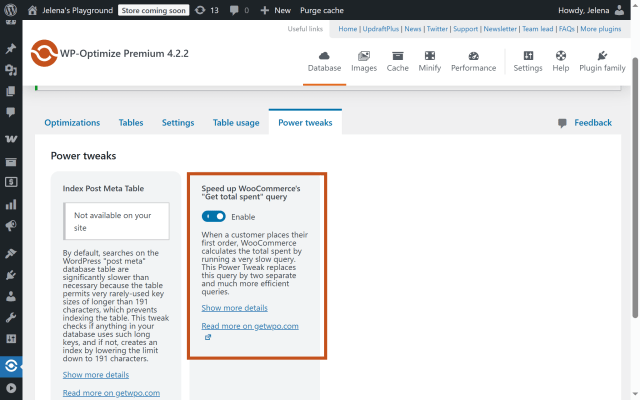
For stores with large numbers of customers and orders, this tweak can help reduce the database overhead associated with calculating customer total spend and improve the efficiency of relevant queries.
Why speeding up WooCommerce matters
Section titled Why speeding up WooCommerce mattersA fast WooCommerce store isn’t just about performance. It can also make a real difference to the experience customers have while browsing and buying from your store.
Faster pages improve user experience: Visitors can browse products and move around your store without unnecessary delays.
Performance can support conversions: A faster, smoother shopping and checkout experience removes potential friction from the buying process.
Performance can support SEO: Core Web Vitals form part of Google’s page experience considerations, alongside many other factors.
Mobile performance matters: Keeping pages fast and responsive is particularly important for customers shopping on mobile devices.
Improving WooCommerce performance can help create a smoother, more reliable shopping experience for your customers while supporting your wider SEO and conversion goals.
Speed up your WooCommerce store the smart way
WP-Optimize brings database cleaning, image compression and page caching together in one plugin, helping you manage key areas of your WooCommerce store’s performance from one place.
FAQs
Section titled FAQsWhy is my WooCommerce website so slow?
A slow WooCommerce site can be caused by large or unoptimized images, database bloat, poorly optimized plugins or themes, inadequate hosting resources, or inefficient caching. Your store’s size, traffic levels and the number of products and orders it handles can also affect performance.
What is the best plugin to speed up WooCommerce?
WP-Optimize is a WordPress performance plugin that can help speed up WooCommerce stores through page caching, image compression, database cleaning and other optimization features. It brings several performance tools together in one plugin, making it easier to manage different areas of your store’s performance.
How do I speed up WooCommerce API?
To improve WooCommerce API performance, reduce unnecessary API requests, optimize your database and use caching where appropriate. You should also review plugins and integrations that make frequent API requests, as these can increase the load on your server.
What is the fastest hosting for WooCommerce?
There isn’t one hosting provider that will be fastest for every WooCommerce store. Look for hosting optimized for WordPress and WooCommerce, with sufficient server resources, modern PHP support, server-side caching and the ability to scale as your traffic and order volume grow.
Will speeding up WooCommerce improve SEO?
Improving WooCommerce performance can support SEO by creating a better experience for visitors and helping your site meet Google’s Core Web Vitals recommendations. However, performance is only one part of SEO, alongside factors such as helpful content, relevance, usability and overall technical health.
About the author

Jelena Janić
Jelena is the Product Manager for UpdraftPlus and WP-Optimize. With seven years of experience, she’s taken on many roles – from tester to developer and now product manager. Along the way, she noticed a disconnect between how products are built and what customers need, sparking a passion for steering products toward solutions that truly serve the people who use them. Today, she ensures every WP-Optimize development decision is geared toward boosting WordPress website performance, enhancing usability, and increasing customer satisfaction.
Categories
WP-Optimize
Get all our premium features. Lazy loading, pre-load key requests, Cloudfare integration. Optimize individual tables, delete unused images and more.
From just $49 for the year.
More stories
-

5 WordPress Web Design Tips to Improve Your Website
Good web design is about more than appearance. Explore practical WordPress web design tips to improve your website's layout, navigation, mobile responsiveness, accessibility and performance, helping you create a better experience for your visitors.
-
Best AI Website Builders Compared
AI website builders can help you design, write and launch a website in minutes. Compare the best AI-powered website builders based on ease of use, features, customisation, pricing and performance to find the right solution for your next project.
-

How incremental backups save time and storage in WordPress
Incremental backups only save the changes made since your last backup, helping you reduce storage usage, speed up backups and lower server load. Learn how they work and why they're an essential part of an efficient WordPress backup strategy.
-
Best WordPress Website Builders Compared
Discover the best WordPress website builders for every skill level. Compare features, ease of use, pricing and performance to choose the right builder for your blog, business or online store.
