WordPress shortcode – Why you should use it
Category Guides and resources
Topics Tips and tricks, WordPress, WordPress development,

Want to add dynamic content very easily into your WordPress posts, pages, and sidebars? Adding shortcode can be the easiest and most suitable way to do just that and has the additional benefit that you can put it pretty much anywhere in your WordPress site.
There is no better way to add reusable features on your WordPress website than shortcodes, as you can use the same shortcode in a variety of different places and still get exactly the same result. While there are a range of default shortcodes you can choose from, some WordPress plugins also allow you to add new shortcodes to them as an added feature.
In this blog, we will try to tell you everything you need to know about WordPress shortcodes, what the how, how they work, how to use them and hope you will learn all you need to know about from this guide. Let’s get started!
Key takeaways
Section titled Key takeaways- Shortcodes are small placeholders that replace long strings of code with simple text.
- They allow you to add dynamic features like forms, buttons, and galleries in seconds.
- Modern shortcodes work perfectly alongside the Block Editor.
- Using them ensures your site design stays consistent and professional.
- They are essential for automating repetitive tasks, like updating your site’s “Copyright” year.
What is a shortcode?
Section titled What is a shortcode?Shortcode is a portmanteau of the words ‘shortcut and code’.
It is typically a small piece of code that can be identified and indicated by square [ ] brackets and is a code that when inserted into any page or post, generates a predefined specific functionality.
For example, if you want to add a gallery, the following code can be added to any page or post within your WordPress site.
[gallery ids="4,5,6,8,7,12" columns="2" size="medium"]This will output a gallery with your site’s image IDs referenced within the code. As per the code, the gallery will have 4 columns and their max size will be ‘medium’ (as defined by WordPress).There are many more small shortcodes like this available in WordPress for outputting different features and functionalities. Below, we will go through the different types of WordPress shortcode you can use on your WordPress site.
The anatomy of a shortcode
Section titled The anatomy of a shortcodeThere are generally three ways you will see shortcodes written on your site:
- Self-closing shortcodes: These stand alone.
Example:[current_year] - Enclosing shortcodes: These wrap around a piece of content to change how it looks.
Example:[bold_text]This will be bold[/bold_text] - Shortcodes with attributes: These let you get specific.
Example:[gallery id="123" columns="3"]
Default WordPress shortcodes
Section titled Default WordPress shortcodesBelow are 6 default short codes offered by WordPress:
- Audio: Embeds audio files and enables playback on your website.
- Caption: Helps to wrap captions around content.
- Embed: Allows you to set a maximum level for embedded items as well as set different attributes in your embeds.
- Gallery: Adds a customizable image gallery to your site. You can use the features to customize what the gallery looks like or determine which image is used.
- Playlist: You can create audio or video playlists with these self-enclosing shortcodes.
- Video: Allows you to embed a video file and play it back. With this shortcode, you can embed videos in formats like MP4, WebM, M4V, OGV, WMV and Flv.
In addition to these default shortcodes, many WordPress plugins will offer custom shortcodes that you can use in the same way.
Why you should still use shortcodes in the age of blocks
Section titled Why you should still use shortcodes in the age of blocksYou might be thinking, “Wait, doesn’t the Block Editor do this now?” It’s a fair question. While blocks have made site building much more visual, the wordpress shortcode remains a vital part of the ecosystem for a few big reasons.
- Shortcodes are incredibly portable. You can drop a shortcode into a text block, a sidebar widget, or even inside some theme settings where a full “Block” might not fit.
- They are the “bridge” for many powerful plugins. When you install a professional tool to handle your site’s functionality, they often provide a shortcode because it is the most reliable way to ensure their feature works on any theme.
Protect your hard work while you build
Experimenting with shortcodes and new layouts is fun, but one wrong click can cause issues. UpdraftPlus ensures you have a fresh backup of your entire site, so you can restore everything in seconds if something goes sideways.
How to use shortcodes in WordPress
Section titled How to use shortcodes in WordPressUsing shortcodes in WordPress should be a simple and straightforward process, although it does depend on where you want to add the shortcodes on your site.
Using WordPress shortcodes in Pages and Posts
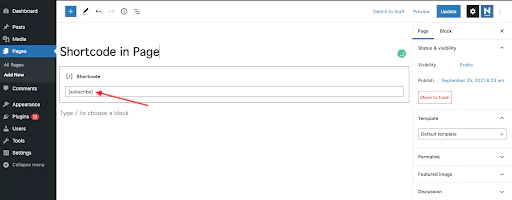
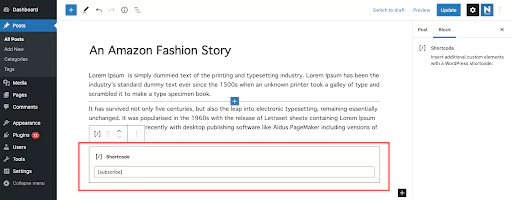
Section titled Using WordPress shortcodes in Pages and PostsFirst, navigate to the respective page/post you want to add the shortcodes to and then access the editor. Now you need to click the add block button to add a shortcode block.
If you are using the Gutenberg editor, you can easily add shortcode tags to the shortcode block. After adding the shortcode block, simply paste your shortcode in the text box and you’re done. The functionality of the shortcode should now be visible on the published page.
Add a shortcode in WordPress theme files
Section titled Add a shortcode in WordPress theme filesWe’ve already seen how shortcodes can be used inside WordPress posts/pages and widgets. WordPress made it simple to also add a shortcode inside a theme file as well. You can add the shortcode to any WordPress theme template following the below format.
<?php echo_do_shortcode("[your_shortcode]");?>How to create a custom shortcode in WordPress
Section titled How to create a custom shortcode in WordPressJust replace the your_shortcode with the shortcut of your choice and you should find it works exactly as intended.
Creating a custom shortcode is all about technical and coding knowledge. It is also helpful if you should also have a solid understanding of why you need to create a custom shortcode and where you want to use it.
To create a custom shortcode, first open the backend file directory of your website. Next, navigate to wp-content > themes > youractivetheme > function.php file. You can now enter the required function for the shortcode and save it for further use.
Below is an example in which you can see that we’ve created a custom shortcode in order to display our Twitter account on our WordPress website.

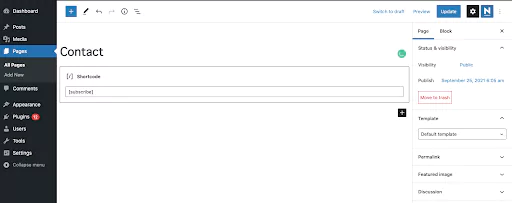
Next, we are going to add the shortcode to our website contact page using the Gutenberg Shortcode block.
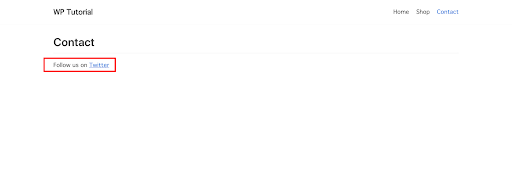
Let’s see how this shortcode works in the front end.
Where to add your custom shortcode script
Section titled Where to add your custom shortcode scriptIf you wish to add the custom shortcode to your theme file, they can be added to your theme’s functions.php file, or included in the plugin. If you decide to add them to the theme file, you can create a child theme and modify the code safe in the knowledge that you will have the original theme on hand, should you ever need to revert back.
If you are adding a new shortcode to a plugin on your WordPress site, it is recommended that you initialize it only once WordPress has finished completely loading. You can do this by wrapping the add_shortcode() function within another function by using a method called ‘the wrapper function’
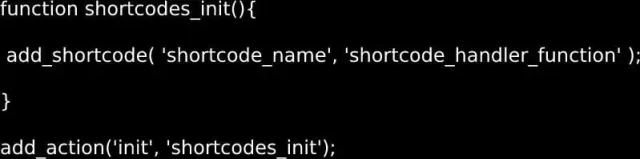
By using the add-action() function hooks, the ‘shortcodes_init’ shortcode has been instructed to only initialize once your WordPress site has completely finished loading by using the init hook.
The benefits and disadvantages of using shortcode
Section titled The benefits and disadvantages of using shortcodeRemember to back up your WordPress site before working on the shortcodes
Section titled Remember to back up your WordPress site before working on the shortcodesBackup is the first level of security for any WordPress site. Every piece of content, post, comment and piece of valuable data you have on your site can be lost in a single second.
If you have ever worked on a WordPress site in the past, you will know that you can lose all of your data and work for any number of reasons. For example, sometimes your website may just crash due to incompatible software. Or maybe your site has been attacked with malware and cyber hacking, traffic overload or has suffered hardware failures. Another reason you can lose your data is if your content or customization has conflict with the WordPress core files, resulting in your site going down. As shortcode plays with codes, there will always be a chance of something unexpected happening (possibly a conflict of code with WordPress core files) that might bring your site to a standstill.
It’s not always possible to prevent such unfortunate events. However, what you can do is to be prepared on how you can get your site back and up and working again, even if something terrible does happen. Our suggestion? Protect your site from this ever-present threat, by using a tool that you can use is the top-notch WordPress backup plugin – UpdraftPlus.
UpdraftPlus provides an easy-to-use interface that makes it very simple to backup your WordPress site. You can save your backups directly to online storage locations, such as Dropbox or Google Drive. With UpdraftPlus, you can set an automatic backup schedule so you don’t even have to remember to back up. Just install, set up, and you are good to go.
Automatic backups for your WordPress site
Why risk losing your content, settings, or customizations? UpdraftPlus Premium lets you schedule backups, store them securely in the cloud, and recover your site instantly if something goes wrong.
Conclusion
Section titled ConclusionShortcodes in WordPress were first introduced back to WordPress 2.5. In addition to the themes and plugins, shortcodes make it easy to customize your WordPress site. By using shortcode, it’s easy to implement and reuse certain features over and over again without the need for coding. Apart from the default WordPress shortcodes, third-party plugins can also come with shortcodes to make your WordPress journey easier.
We hope this guide has helped you learn and discover WordPress shortcodes and help you add shortcodes to your site!
FAQs
Section titled FAQsThere are some questions about WordPress shortcodes that people often ask. Below is a brief overview of the common questions and their answers, which we have not discussed before.
Do shortcodes slow down WordPress?
Site speed is a huge issue in WordPress and using a lot of shortcodes on a single page or a site can slow your website down. So it’s better to use shortcodes only when needed, especially now that you have the option of using Gutenberg blocks.
Where are WordPress shortcodes stored?
WordPress shortcodes are usually placed on posts or pages. However, now that the widget section of WordPress also supports Gutenberg block editing, it is possible to use shortcodes almost anywhere on the website.
Is the shortcode HTML?
Yes, the shortcodes are HTML-based codes that can be integrated into a WordPress website.
Are there any “bad” aspects when using shortcodes?
As discussed above, if you use shortcodes in your theme and decide to change the theme, that particular shortcode will stop working. Otherwise, shortcodes are universal and not dependent on any other factors.
Does WordPress have built-in shortcodes?
Yes, WordPress does offer some shortcodes by default. For example, a gallery that can be added via the shortcode API.
How do I add a shortcode image in WordPress?
Firstly, go to the Page or Post you wish to work in. Then select the page or blog post where you want to add the shortcode. Click the ‘Add Shortcode’ button on the next screen. Select your preferred shortcode in the “Insert shortcode pop-up” box. Now you can create a shortcode image by clicking “Text and Image shortcode”.
About the author

TeamUpdraft
Our team consists of WordPress developers, marketers, and industry experts committed to providing you with the resources and skills you need to succeed online. Whether you’re just starting out or seeking advanced strategies, we’re here to enhance your WordPress journey and support you at every stage.
Categories
TeamUpdraft
We’re the team behind some of the WordPress community’s most loved WordPress plugins.
Developers, designers and website owners trust us to back up, migrate, optimize and secure more than 5 million WordPress websites worldwide.
More stories
-

How to Schedule WordPress Backups
Learn how to schedule WordPress backups, choose the right frequency, and keep copies ready when you need to restore your site.
-

Best plugins for affiliate marketers
Build a smarter affiliate site using WordPress plugins for link management, analytics, conversions, speed, security and programme growth.
-
How to back up WordPress automatically
Learn how to back up WordPress automatically and schedule regular backups of your website’s files and database, so you always have a recent copy ready if something goes wrong.
-

What is DNS over HTTPS (DoH) and should you enable it for WordPress?
DNS over HTTPS encrypts DNS requests to improve privacy and security. Learn how DoH works, its benefits and how to enable it.
