How to automatically back up WordPress to Dropbox

Backing up your WordPress website to Dropbox gives you a separate copy of your files and database that does not depend on your hosting provider. If an update causes problems, your server becomes unavailable or your website is compromised, you will still have a recent backup that you can use to restore it.
Once automatic backups are set up, you do not have to remember to download files or manually move them into Dropbox. Your backup plugin creates them on a schedule and sends them directly to your Dropbox account.
In this guide, we will show you how to automatically back up WordPress to Dropbox using the premium features of UpdraftPlus. We will also explain what a complete backup includes, why storing backups off-site matters and how to check that everything is working correctly.
Key takeaways
Section titled Key takeaways- Storing WordPress backups in Dropbox keeps a copy separate from your hosting account.
- A complete WordPress backup should include both your website files and database.
- Automatic backups make it easier to maintain regular, up-to-date copies of your site.
- UpdraftPlus can automatically send scheduled WordPress backups to Dropbox.
- Running a test backup helps confirm that your Dropbox connection is working correctly.
Understanding what you are backing up
Section titled Understanding what you are backing upBefore setting up automatic backups, it helps to understand what a complete WordPress backup contains. Your site is made up of two main parts: its files and database. You need both if you want to be able to fully restore your website.
Website files
Section titled Website filesYour WordPress files contain many of the components that make your site look and function as it should, including:
- WordPress core files
- Themes
- Plugins
- Photos, videos and other media uploads
- Configuration files
Without these files, your website will not display or function properly.
Database
Section titled DatabaseYour database stores much of your website’s content and settings, including:
- Posts and pages
- User accounts
- Comments
- Website settings
- Plugin data
- Other site configuration information
The database changes as you publish posts, edit pages, receive comments or update settings, which is why regularly backing up your WordPress database is so important.
Why you need both
Section titled Why you need bothA complete WordPress backup includes both your files and database. Backing up only your files could leave you without your posts, settings and other database content, while backing up only the database would leave out themes, plugins and media.
UpdraftPlus can back up both, giving you everything you need to restore your site if something goes wrong.
Why off-site cloud storage matters
Section titled Why off-site cloud storage mattersCreating a backup is only part of protecting your website. Where you store that backup matters too.
If your backups are stored on the same server as your website, a server failure, security incident or hosting problem could leave you unable to access both your live site and its backups. This is why it is good practice to store your WordPress backups off-site.
Dropbox gives you a separate copy of your website outside your hosting environment, with benefits including:
- Protection against hosting problems: Your backups remain accessible if your server or hosting account becomes unavailable.
- Separation from your live site: Your backup files are not stored alongside your WordPress installation.
- Reduced risk of losing everything at once: A problem with your host is less likely to affect both your website and its backups.
- Easier access to your backups: You can access and download them directly from your Dropbox account.
Hosting backups can still be useful, but they are best used as part of a broader backup strategy rather than your only copy. Keeping an additional backup in Dropbox means you are not relying entirely on your hosting provider.
Why choose Dropbox for WordPress backups?
Section titled Why choose Dropbox for WordPress backups?Dropbox is a convenient option for storing WordPress backups, particularly if you already use it for cloud storage. It is easy to access across different devices and integrates directly with backup plugins such as UpdraftPlus.
Some of the benefits of using Dropbox for WordPress backups include:
- Easy access: View and download your backups from the Dropbox website or app whenever you need them.
- Access across devices: Your backups are available from your computer, phone or tablet.
- Flexible storage: You can increase your Dropbox storage as your website and backup requirements grow.
- Built-in security: Dropbox encrypts files while they are being transferred and while stored.
- File recovery: Depending on your Dropbox plan, version history can help you recover files that have been changed or deleted.
- Direct UpdraftPlus integration: UpdraftPlus can automatically send scheduled WordPress backups to your Dropbox account, so there is no need to move files manually.
Combined with an automatic backup schedule, Dropbox gives you a simple way to keep recent copies of your WordPress website stored away from your hosting account.
Why automated backups are more reliable than manual backups
Section titled Why automated backups are more reliable than manual backupsManual backups work, but they rely on you remembering to create them regularly. If your website changes frequently, it is easy to miss a backup and find yourself without a recent copy when you need one.
Creating a manual backup can also involve downloading your website files, exporting your database and storing them somewhere safe. Automating the process removes that extra work and makes it easier to follow a regular WordPress backup schedule.
Once automatic backups are configured, your backup plugin creates them at the intervals you choose and sends them directly to Dropbox. This means you can keep recent copies of your site without having to start each backup manually.
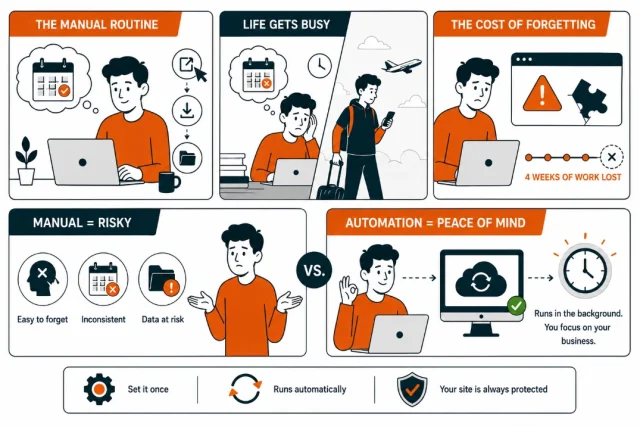
Automation is particularly valuable for websites that change frequently. A business website might receive new form submissions throughout the day, while an online store can continually collect orders and customer data.
The more frequently your site changes, the more important it is to have a recent backup available. Scheduling backups at appropriate intervals helps reduce the amount of data you could lose if you ever need to restore your site.
Keep your website protected before updates
Plugin and theme updates can occasionally cause unexpected problems. UpdraftPlus Premium can automatically create a backup before an update begins, giving you a recent restore point if something does not work as expected.
How to back up WordPress to Dropbox with UpdraftPlus
Section titled How to back up WordPress to Dropbox with UpdraftPlusIn this tutorial, we will use UpdraftPlus to connect WordPress to Dropbox and set up automatic backups.
Dropbox is available as a remote storage option in the free version of UpdraftPlus, so you can complete the steps below without upgrading to Premium.
1. Install and activate UpdraftPlus
Section titled 1. Install and activate UpdraftPlus- Log in to your WordPress dashboard and go to Plugins > Add New Plugin.
- Search for UpdraftPlus and click Install Now.
- Once the installation is complete, click Activate.
2. Open the UpdraftPlus settings
Section titled 2. Open the UpdraftPlus settingsIn your WordPress dashboard, go to Settings > UpdraftPlus Backups.
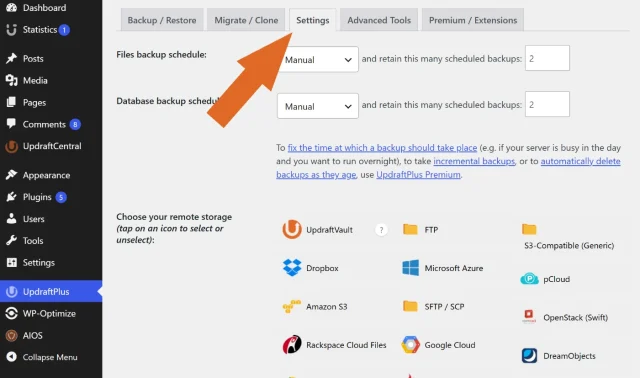
Once the UpdraftPlus dashboard opens, select the Settings tab. This is where you will configure your backup schedule and connect your Dropbox account.
3. Configure your backup schedule
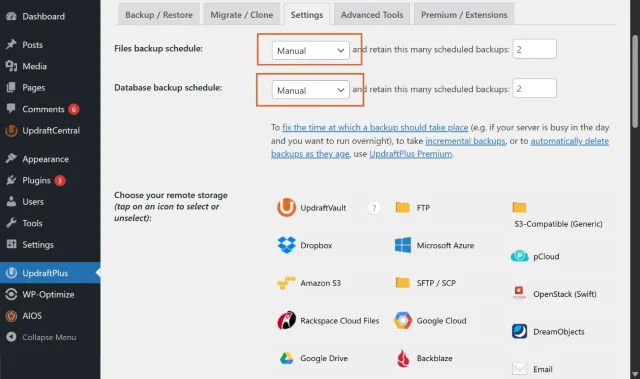
Section titled 3. Configure your backup scheduleAt the top of the settings page, you will see separate options for your Files Backup Schedule and Database Backup Schedule.
Change each setting from Manual to the frequency that suits your website. For example, you might back up your files weekly and your database daily.
How often you should back up depends on how frequently your website changes. If you are unsure which schedule to choose, read our guide on how often to back up your WordPress site.
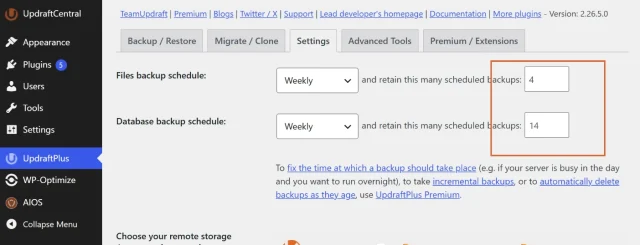
Next to each schedule, choose how many backups you want to retain. For example, you could keep four file backups and 14 database backups, but the right number will depend on how often you back up your site, how frequently it changes and how much Dropbox storage you have available.
Setting a retention limit also helps prevent old backups from unnecessarily using up your available cloud storage.
4. Select Dropbox as your remote storage
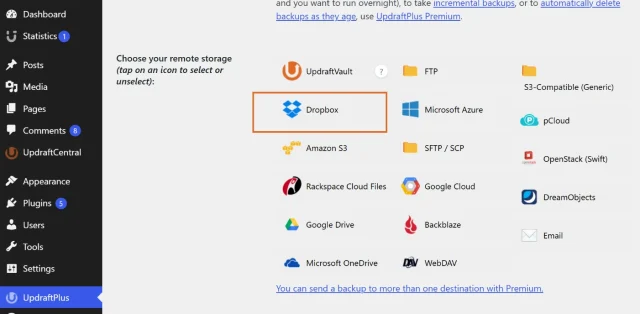
Section titled 4. Select Dropbox as your remote storageScroll down to the Choose your remote storage section, where you will see the available cloud storage options.
Select Dropbox as your remote storage provider. The Dropbox icon will highlight to confirm that it has been selected.
5. Authorise the Dropbox connection
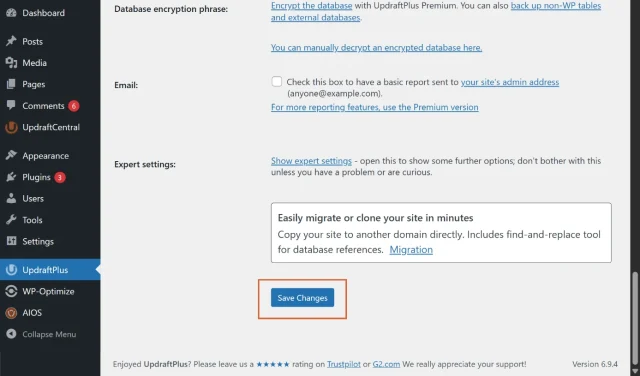
Section titled 5. Authorise the Dropbox connection- Scroll to the bottom of the settings page and click Save Changes. This will start the process of connecting UpdraftPlus to your Dropbox account.
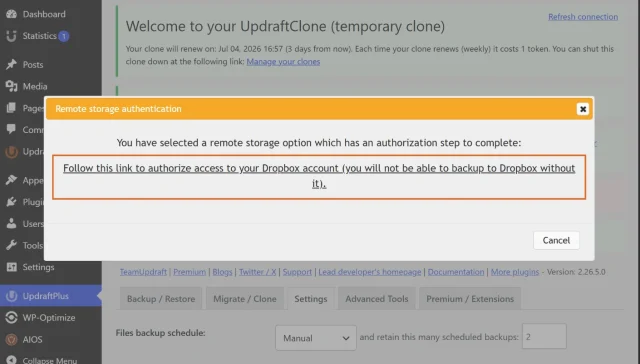
2. After saving your settings, a pop-up will appear asking you to authorise the connection to your Dropbox account. Click the link provided to continue.
3. You will be redirected to Dropbox, where you can log in to your account securely.
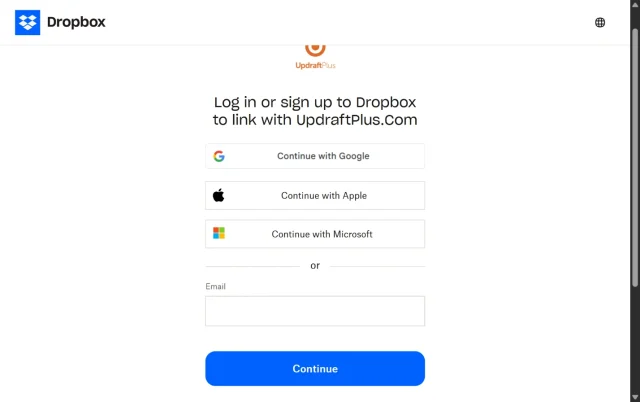
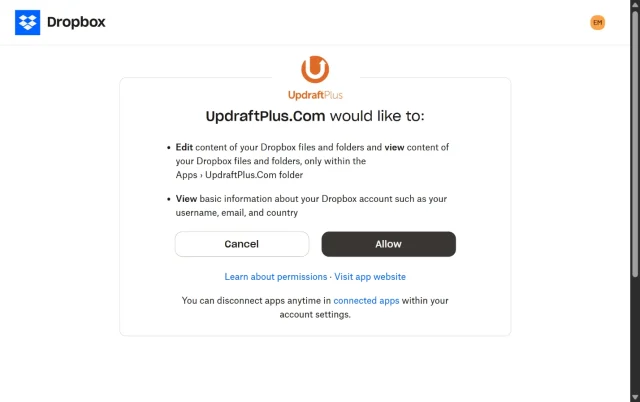
4. Log in to Dropbox and click Allow to give UpdraftPlus permission to create its app folder. Then click Complete Setup to return to your WordPress dashboar
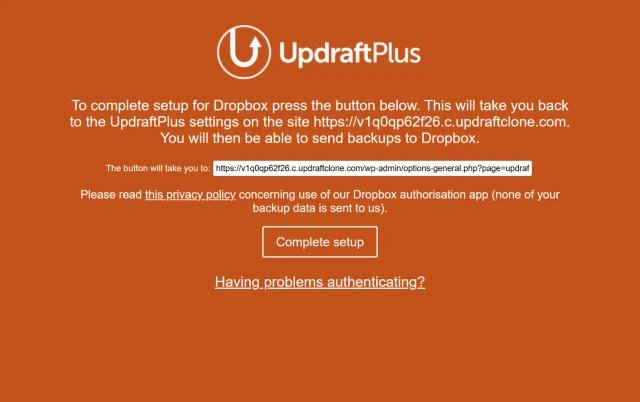
6. Run a test backup
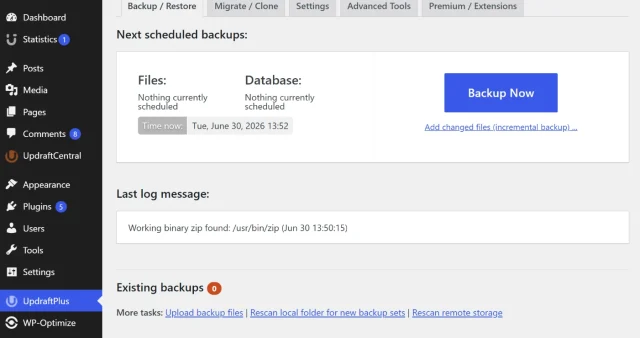
Section titled 6. Run a test backup- Return to the Backup/Restore tab in the UpdraftPlus dashboard.
- Click Backup Now to create your first backup.
3. In the pop-up, make sure the options to include your files and database are selected. Also check Send this backup to remote storage to ensure the backup is uploaded to Dropbox.
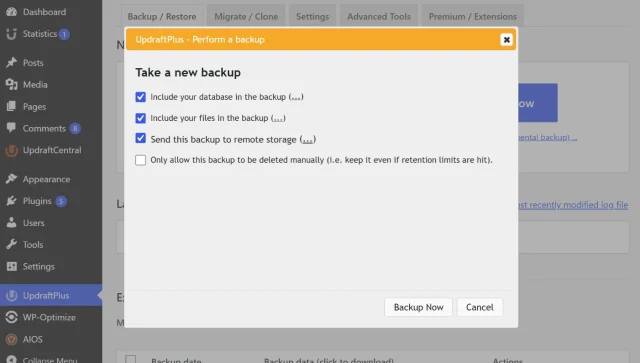
4. Click Backup Now to start the backup. Once the backup is complete, log in to your Dropbox account and go to Apps > UpdraftPlus. Check that your backup files have been uploaded successfully.
Need more flexibility as your website grows?
UpdraftPlus Premium includes incremental backups, advanced scheduling and automatic backups before updates. These features give you more control over when and how your backups run, while helping frequently updated websites back up more efficiently and create restore points before important changes.
Conclusion
Section titled ConclusionAutomatically backing up WordPress to Dropbox gives you a recent copy of your website that is stored separately from your hosting account. If your site experiences a server problem, failed update or security incident, you have an off-site backup available to help you recover.
Once your schedule is set up, UpdraftPlus can create and send backups to Dropbox automatically. It is still worth checking your Dropbox account occasionally to confirm new backups are being stored and testing your restore process so you know your backups work when you need them.
If you haven’t connected your account yet, follow our guide to connect Dropbox to UpdraftPlus and start storing your WordPress backups off-site.
FAQs
Section titled FAQsCan I automatically back up WordPress to Dropbox?
Yes. With a backup plugin like UpdraftPlus, you can schedule automatic WordPress backups and send them directly to Dropbox. Once configured, UpdraftPlus will create and upload your backups automatically according to your chosen schedule.
Does Dropbox back up my WordPress website automatically?
No. Dropbox can store your WordPress backups, but it does not create them automatically. You need a WordPress backup plugin such as UpdraftPlus to create scheduled backups and send them to your Dropbox account.
Where are WordPress backups stored in Dropbox?
UpdraftPlus stores your WordPress backups in the Apps > UpdraftPlus folder in your Dropbox account. This folder is created automatically when you connect Dropbox to UpdraftPlus for the first time.
Can I restore my WordPress website from Dropbox?
Yes. If you backed up your website with UpdraftPlus, you can restore it from your Dropbox backup through the UpdraftPlus dashboard. You can choose which components to restore, such as your plugins, themes, uploads and database.
Is Dropbox a good place to store WordPress backups?
Yes. Dropbox is a convenient option for WordPress backups because it keeps a copy of your site separate from your hosting account. This means your backups can remain accessible if your website or hosting server becomes unavailable.
What happens if my Dropbox storage is full?
If your Dropbox account is full, UpdraftPlus will not be able to upload new backups until more storage becomes available. You can free up space by removing older backups, reducing the number of backups you retain or increasing your Dropbox storage capacity.
What should I do if I can’t authenticate Dropbox with UpdraftPlus?
If Dropbox authentication fails, a browser extension, security plugin, firewall or hosting security rule may be blocking the connection.
Try the following:
- Try authorising Dropbox again in an incognito or private browser window.
- Make sure pop-ups are allowed and temporarily disable browser extensions that could block redirects.
- Check whether a WordPress security plugin or firewall is blocking the authentication request.
- If necessary, check with your hosting provider to see whether a server-level firewall or security rule is preventing the connection.
Once Dropbox is successfully connected, UpdraftPlus can upload your scheduled backups automatically.
About the author

Elvira Mishra
Elvira has over four years of experience creating and designing content in WordPress. Her background spans multiple digital disciplines, including marketing, SEO, user experience, and human computer interaction.
Categories
UpdraftPlus
Get all our premium features. Direct site-to-site migration, incremental backups, back up automatically before updates and a whole lot more.
From just $70 for the year.
More stories
-

10 Best WordPress Plugins for Agencies in 2026
Discover the best WordPress plugins for agencies, from backups and security to performance optimisation and site management. Explore tools that make managing multiple client websites easier and more efficient.
-

Direct WordPress site-to-site migration: A step-by-step guide
Learn how direct WordPress site-to-site migration works and how to move your website between hosts or domains without manually transferring files.
-

5 WordPress Web Design Tips to Improve Your Website
Good web design is about more than appearance. Explore practical WordPress web design tips to improve your website's layout, navigation, mobile responsiveness, accessibility and performance, helping you create a better experience for your visitors.
-
Best AI Website Builders Compared
AI website builders can help you design, write and launch a website in minutes. Compare the best AI-powered website builders based on ease of use, features, customisation, pricing and performance to find the right solution for your next project.
