Best WordPress Website Builders Compared

WordPress gives you the freedom to build almost any type of website, from personal blogs and portfolios to business websites and online stores. The right website builder makes that process even easier, allowing you to create professional-looking pages without writing code.
With so many WordPress website builders available, choosing the right one can be difficult. Some focus on simplicity and speed, while others offer advanced design tools, greater flexibility and deeper customisation for experienced users.
In this guide, we’ll compare some of the best WordPress website builders based on ease of use, design flexibility, performance, features and pricing. Whether you’re building your first website or looking for a more powerful solution, this comparison will help you choose the builder that’s right for your needs.
Key takeaways
Section titled Key takeaways- The best WordPress website builder depends on your experience, the type of website you’re creating and how much flexibility you need over design, functionality and performance.
- Elementor and SeedProd are excellent choices for beginners, while Bricks and Oxygen offer greater control, cleaner code and more advanced customisation for experienced users.
- Your website’s speed won’t depend on the builder alone. Your hosting, theme, plugins, images and overall site optimisation all play an important role.
- Think about the long term before choosing a builder. Some make it easier to switch themes or redesign your site, while others can leave behind layouts or shortcodes that require significant rebuilding.
- Before changing builders or redesigning an existing website, test everything on a staging site and create a recent backup so you can restore your site if anything goes wrong.
Why your choice of WordPress website builder matters
Section titled Why your choice of WordPress website builder mattersChoosing a WordPress website builder can affect much more than how your site looks. The builder you choose can influence performance, design flexibility, ease of maintenance and how straightforward it is to make changes as your website grows.
Your builder can affect site performance
Section titled Your builder can affect site performanceSome website builders add more HTML, CSS and JavaScript to a page than others, particularly as layouts become more complex or additional widgets and features are used. This can affect page size and loading performance if the site isn’t properly optimised. When comparing builders, it’s therefore worth considering performance alongside design features and ease of use.
Switching builders isn’t always straightforward
Section titled Switching builders isn’t always straightforwardWebsite builders often use their own approach to creating and storing layouts. If you later decide to move to another builder, some pages or design elements may need to be recreated rather than transferred automatically. The more complex your website becomes, the more work switching can potentially involve.
Think about what you’ll need in the future
Section titled Think about what you’ll need in the futureIt’s easy to focus on the features you need today, but your website may become more complex over time. Consider whether a builder can support future requirements such as new page layouts, WooCommerce functionality, dynamic content or more advanced design controls. It’s also worth looking at ongoing development, compatibility and support before committing to a particular tool.
How I compared the WordPress website builders
Section titled How I compared the WordPress website buildersTo make this comparison useful, I looked beyond individual features and considered the factors that matter most when choosing a WordPress website builder:
- Performance: How efficiently the builder handles page structure and assets, along with the performance features and controls available.
- Ease of use: How intuitive the editing experience is and the level of technical knowledge needed to get started.
- Design flexibility: The level of control available over layouts, styling, responsive design and other visual elements.
- Features: The range of built-in tools available, including templates, dynamic content, WooCommerce support and other functionality where relevant.
- Cost: Whether a free version is available, what the paid plans include and whether more advanced features require an upgrade.
I also considered who each builder is best suited to, because the strongest option for an experienced developer won’t necessarily be the best choice for someone building their first WordPress website.
Best WordPress website builders
Section titled Best WordPress website buildersBased on the factors above, I’ve selected eight WordPress website builders that stand out for different types of users and websites. I’ve ranked them based on their overall combination of performance, ease of use, design flexibility, features and value, but the best choice for you will ultimately depend on what you’re building.
1. Bricks builder
Section titled 1. Bricks builderPremium | Speed: 10/10 | SEO: 10/10 | Ease of Use: 6/10 | Customization: 10/10 | Overall Score: 9.0/10
Best for: Experienced designers and developers who want strong performance and a high level of control over how their site is built.
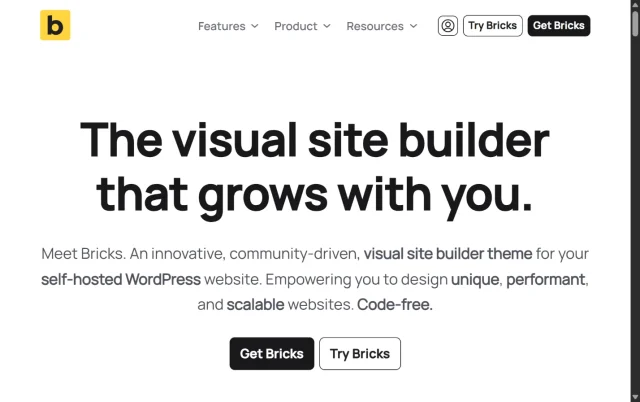
Bricks takes a more developer-focused approach than many traditional WordPress page builders. Rather than working as a standalone plugin alongside your existing theme, Bricks is itself a WordPress theme with a visual site-building interface.
One of its main strengths is the level of control it gives you over your site’s structure and styling. It also places a strong emphasis on performance and efficient code output, making it particularly appealing to developers and experienced WordPress users who want the convenience of visual editing without giving up more advanced controls.
Key features
- Query Loop Builder for displaying dynamic WordPress content
- Support for dynamic data and custom fields
- Advanced responsive design and styling controls
- Accessibility-focused features and controls to help you build more accessible websites
Pros
- Strong focus on performance and efficient code output
- Extensive design and development controls
- Well suited to dynamic and custom WordPress websites
- Active development and community
Cons
- Steeper learning curve than more beginner-focused builders
- Works as a WordPress theme rather than a standalone page builder plugin
- Some of its more advanced features are better suited to users with an understanding of HTML and CSS
Verdict
I’ve ranked Bricks first because it offers a particularly strong combination of performance, flexibility and advanced design control. It’s best suited to experienced WordPress users and developers rather than complete beginners, but it’s a strong choice if you want a visual builder without sacrificing control over how your site is structured.
2. SeedProd
Section titled 2. SeedProdFreemium | Speed: 10/10 | SEO: 9/10 | Ease of Use: 9/10 | Customization: 8/10 | Overall Score: 8.5/10
Best for: Beginners and business owners looking for an easy-to-use builder for landing pages and complete WordPress websites.
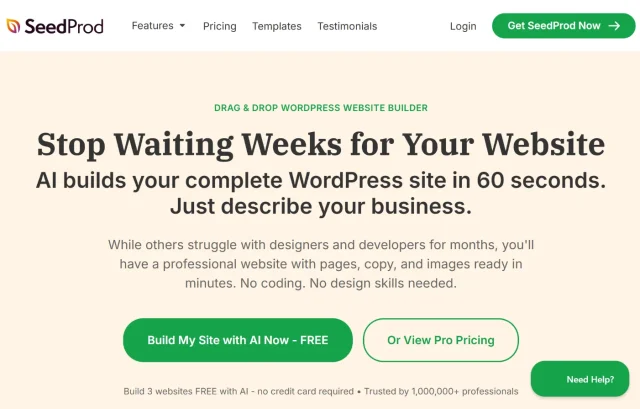
SeedProd started as a coming soon and maintenance mode plugin but has since developed into a more comprehensive drag-and-drop WordPress website builder. Its visual interface is designed to be accessible to users without coding experience, with templates and pre-built blocks that make it easier to create pages quickly.
SeedProd also includes AI-powered tools that can help generate website content and assist with creating and refining page designs. Combined with its landing page features and theme builder, this makes it a particularly useful option for business owners and marketers who want a straightforward way to build and customise a WordPress site.
Key features
- Drag-and-drop page and theme builder
- Built-in coming soon and maintenance modes
- AI-assisted tools for creating and refining website content and designs
- WooCommerce and Easy Digital Downloads integrations
- Library of templates and pre-built page sections
Pros
- Beginner-friendly visual editing experience
- Strong selection of landing page and marketing features
- Can be used to create custom WordPress themes without coding
- Free version available for users who want to try the builder first
Cons
- The free version is more limited than the paid plans
- Some advanced features and integrations require higher-tier plans
- Experienced developers may find it less flexible than more developer-focused builders such as Bricks
Verdict
I’ve ranked SeedProd second because it offers a good balance of ease of use, design tools and features for users who don’t need the deeper technical control offered by Bricks. It’s particularly well suited to beginners, business owners and marketers who want to build landing pages or customise a WordPress site without relying heavily on code.
3. Oxygen builder
Section titled 3. Oxygen builderPremium | Speed: 10/10 | SEO: 9/10 | Ease of Use: 4/10 | Customization: 10/10 | Overall Score: 8.2/10
Best for: Experienced developers and technical WordPress users who want extensive control over site structure, styling and dynamic content.
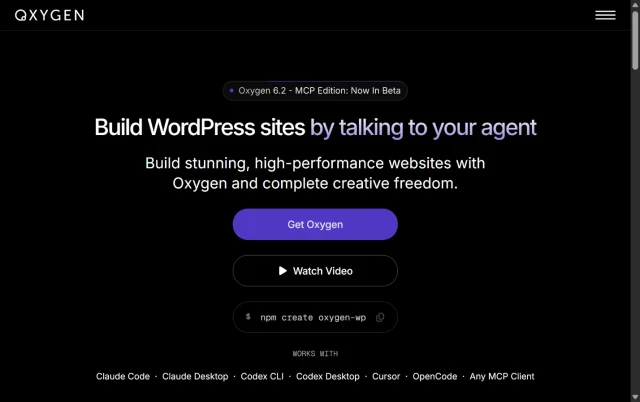
Oxygen takes a more technical approach to visual WordPress website building. Rather than relying on your existing WordPress theme for the site’s design, Oxygen gives you control over templates, layouts and styling through its visual builder.
Its interface and range of controls are aimed more towards developers than complete beginners. An understanding of HTML, CSS and how WordPress sites are structured will help you get much more from the builder, so I wouldn’t recommend Oxygen as a first choice for someone looking for the simplest drag-and-drop experience.
Key features
- Visual control over site-wide templates and layouts
- Dynamic data support for creating content-driven WordPress sites
- Advanced CSS controls and support for custom code
- Responsive design controls for different screen sizes
Pros
- High level of control over site structure and styling
- Well suited to custom and dynamic WordPress websites
- Strong option for users who want visual editing alongside more advanced development controls
- Designed with efficient code output in mind
Cons
- Steeper learning curve than beginner-focused builders
- Best suited to users who are comfortable with HTML and CSS
- The range of technical controls may be more than a beginner or casual site owner needs
Verdict
I’ve ranked Oxygen third because it offers a high level of flexibility and control for technical users, particularly those building more complex or dynamic WordPress sites. It isn’t the easiest builder to learn, but for developers who want a visual workflow without giving up more advanced controls, it’s a strong option to consider.
4. Breakdance
Section titled 4. BreakdancePremium | Speed: 9/10 | SEO: 8/10 | Ease of Use: 7/10 | Customization: 9/10 | Overall Score: 8.2/10
Best for: WooCommerce store owners, agencies and experienced WordPress users looking for extensive built-in design features.
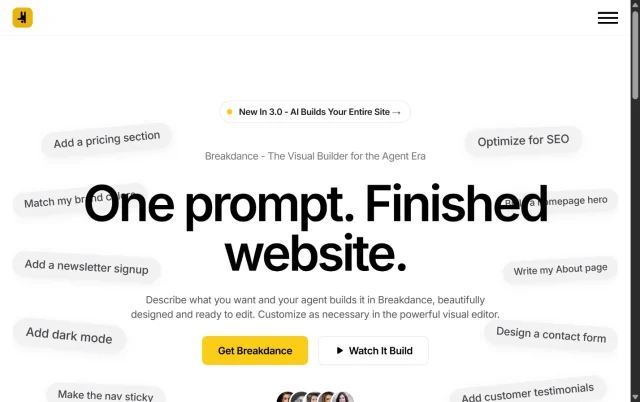
Breakdance is a visual WordPress website builder that combines a user-friendly editing interface with more advanced design and development controls. It includes a large collection of built-in elements, helping users create more complex layouts without relying as heavily on third-party add-ons.
WooCommerce is one of Breakdance’s key strengths. Its WooCommerce elements and visual editing tools give you greater control over the design of important store pages and elements, making it particularly useful for anyone building or customising an online store.
Key features
- Large collection of built-in design elements
- WooCommerce elements and visual store customisation
- Built-in form builder with conditional functionality
- Responsive design and advanced styling controls
Pros
- Strong range of features included within the builder
- Extensive WooCommerce design options
- Combines visual editing with more advanced controls
- Reduces the need for additional design add-ons for many common features
Cons
- No permanent free version, although a demo is available for trying the builder
- The range of features and controls may take time for beginners to learn
- Smaller ecosystem than longer-established builders such as Elementor
Verdict
I’ve ranked Breakdance fourth because it offers a strong combination of built-in features, design flexibility and WooCommerce customisation. It’s particularly worth considering for online stores and more complex WordPress projects where you want plenty of functionality within the builder itself rather than relying heavily on additional design plugins.
Using a page builder? Keep WordPress running smoothly
Feature-rich page builders can add to the performance demands of a WordPress site. WP-Optimize helps you keep your site running efficiently with page caching, image compression and database optimisation.
5. Spectra
Section titled 5. SpectraFreemium | Speed: 9/10 | SEO: 9/10 | Ease of Use: 8/10 | Customization: 7/10 | Overall Score: 8.2/10
Best for: Bloggers, content creators and site owners who want more design flexibility while continuing to use the native WordPress block editor.
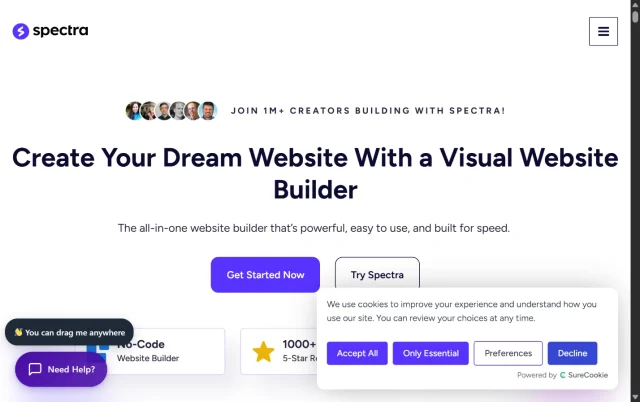
Spectra extends the WordPress block editor with additional blocks and design controls, rather than introducing a completely separate page-building interface. Built by the team behind the popular Astra theme, it can be used to create more advanced layouts while keeping the familiar WordPress editing experience.
Its block-based approach makes Spectra particularly appealing if you already enjoy working with the WordPress editor but find the core blocks too limiting for the layouts you want to create. It also includes performance-focused features designed to avoid loading unnecessary assets where possible.
Key features
- Additional blocks for creating more advanced WordPress layouts
- Container and responsive layout controls
- Templates and pre-built design patterns
- Performance settings designed to load assets more efficiently
- Additional styling and customisation options within the block editor
Pros
- Works directly within the native WordPress block editor
- Familiar editing experience for existing WordPress users
- Strong selection of additional blocks and design controls
- Free version available for users who want to try it first
Cons
- Less granular design control than some standalone visual builders
- Some more advanced features are reserved for the paid version
- Users looking for a completely visual, standalone page-building experience may prefer another option
Verdict
I’ve ranked Spectra fifth because it offers a good balance of ease of use, additional design flexibility and integration with the native WordPress editor. It’s a strong choice if you want to expand what you can create with WordPress blocks without moving to a completely separate page-building system.
6. Kadence blocks
Section titled 6. Kadence blocksFreemium | Speed: 9/10 | SEO: 9/10 | Ease of Use: 7/10 | Customization: 8/10 | Overall Score: 8.2/10
Best for: Content creators, marketers and site owners who want more detailed layout and design controls within the native WordPress block editor.
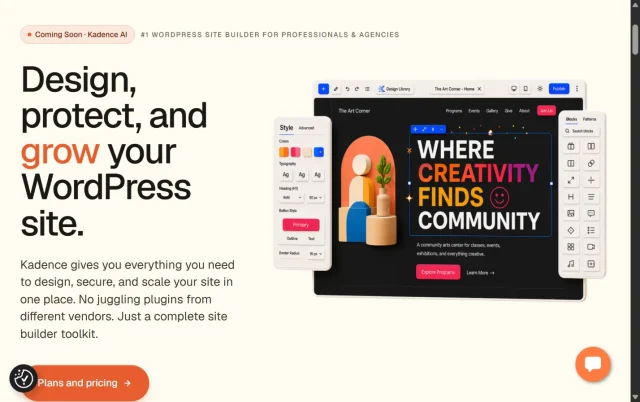
Kadence blocks extends the native WordPress block editor with additional blocks and design controls for creating more customised layouts. Like Spectra, it lets you continue working within the familiar WordPress editing experience rather than introducing a separate page-building interface.
Kadence offers detailed controls for areas such as spacing, typography and responsive layouts, making it a good option for users who want more flexibility than the core WordPress blocks provide. It can also be paired with the Kadence theme, although you don’t need to use the theme to take advantage of Kadence Blocks.
Key features
- Additional blocks for creating more advanced page layouts
- Detailed spacing, typography and responsive design controls
- Pre-built design sections and templates
- Global styling controls for maintaining consistency across your site
Pros
- Works directly within the native WordPress block editor
- Detailed control over layouts and responsive design
- Free version available for users who want to try it first
- Integrates closely with the wider Kadence ecosystem
Cons
- The number of available settings may take some time for beginners to get used to
- Some advanced features are limited to the paid version
- Users wanting a completely separate visual page-building interface may prefer another builder
Verdict
I’ve ranked Kadence Blocks sixth because it offers a strong combination of native WordPress integration and detailed design controls. It’s particularly well suited to users who like the block editor but want greater control over layouts, styling and responsive design without moving to a standalone visual builder.
7. Thrive Architect
Section titled 7. Thrive ArchitectPremium | Speed: 7/10 | SEO: 8/10 | Ease of Use: 8/10 | Customization: 8/10 | Overall Score: 7.9/10
Best for: Marketers, affiliate site owners and businesses that want a visual builder with a strong focus on landing pages and lead generation.
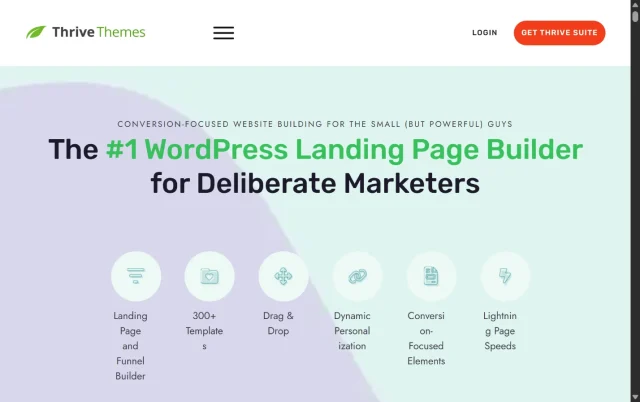
Thrive Architect is a visual WordPress page builder with a strong focus on marketing and conversions. Alongside standard page-building tools, it includes elements and templates designed for landing pages, calls to action and other marketing-focused content.
It also forms part of the wider Thrive Suite, making it particularly relevant for users who want to combine their page builder with other Thrive tools for areas such as lead generation, quizzes and conversion optimisation.
Key features
- Visual drag-and-drop page editing
- Landing page templates and marketing-focused design elements
- Lead generation forms with email marketing integrations
- Responsive design and styling controls
Pros
- Strong focus on landing pages and conversion-focused content
- Visual editing makes it easy to update page content and layouts
- Integrates with a range of email marketing services
- Works closely with other products in the Thrive Suite
Cons
- No free version is available
- Some functionality requires additional products within the Thrive Suite
- May offer more marketing functionality than users building a simple blog or informational website need
Verdict
I’ve ranked Thrive Architect seventh because its real strength lies in its marketing-focused features rather than trying to be the best fit for every type of WordPress site. It’s particularly worth considering if landing pages, lead generation and conversion-focused content are central to your website.
8. Elementor
Section titled 8. ElementorFreemium | Speed: 6/10 | SEO: 7/10 | Ease of Use: 9/10 | Customization: 9/10 | Overall Score: 7.7/10
Best for: Beginners, freelancers and business owners looking for an accessible visual builder with a large template and add-on ecosystem.
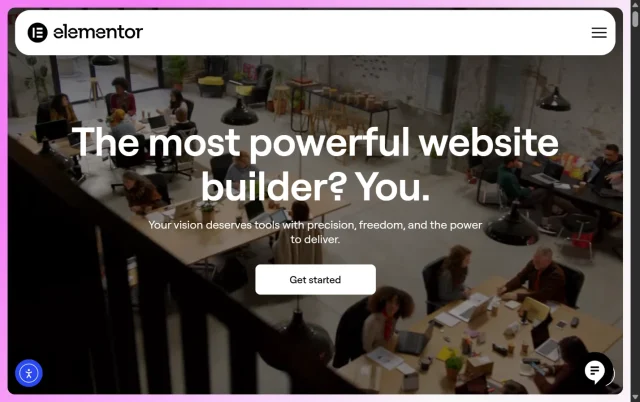
Elementor is one of the most widely used visual page builders for WordPress. Its drag-and-drop interface lets you build and customise pages visually, making it accessible to users who don’t want to work directly with code.
The free version provides many of the tools needed to create standard page layouts, while Elementor Pro adds features such as theme building, forms, pop-ups and more advanced design controls. Its large user base has also resulted in an extensive ecosystem of templates, integrations and third-party add-ons.
Key features
- Visual drag-and-drop page editing
- Large library of templates and pre-designed elements
- Responsive design controls for desktop, tablet and mobile
- Theme Builder and Popup Builder available with Elementor Pro
- Wide range of integrations and third-party add-ons
Pros
- Beginner-friendly visual editing experience
- Free version available with a useful range of design features
- Large ecosystem of templates, integrations and extensions
- Extensive documentation and learning resources
- High level of visual customisation without requiring coding knowledge
Cons
- Complex pages and extensive use of widgets can add additional code and assets that may affect performance
- The number of settings and available add-ons can become overwhelming
- Some of the more advanced site-building features require Elementor Pro
Verdict
I’ve ranked Elementor eighth in this comparison because other builders in the list offer stronger advantages for some of the factors I’ve prioritised, particularly performance or more specialised functionality. However, Elementor remains a strong option for beginners and non-technical users thanks to its accessible visual editor, extensive ecosystem and range of design features. If ease of use and flexibility are your main priorities, it may be a better fit for you than some of the more technical builders ranked above it.
Comparison table
Section titled Comparison tableTest your new builder without risking your live site
Trying a new website builder is safer on a copy of your site. With UpdraftPlus, you can back up your WordPress site before making major changes and use UpdraftClone to create a temporary test site, so you can experiment without affecting your live website.
Common mistakes to avoid with WordPress website builders
Section titled Common mistakes to avoid with WordPress website buildersWebsite builders give you a lot of design freedom, but that can also make it easy to overcomplicate your site. Here are a few common mistakes to avoid when getting started.
1. Using multiple website builders
Section titled 1. Using multiple website buildersUsing more than one website builder on the same site can add unnecessary complexity and may lead to compatibility, styling or performance issues. It can also make your site more difficult to maintain over time. Where possible, choose one builder that meets your needs.
2. Overloading pages with design effects
Section titled 2. Overloading pages with design effectsAnimations, custom fonts and other visual effects can make a page more engaging when used carefully, but adding too many can distract visitors and affect performance. Keep your designs consistent and only use additional effects where they genuinely improve the user experience.
3. Forgetting about mobile users
Section titled 3. Forgetting about mobile usersA layout that looks great on a desktop screen won’t necessarily work as well on a phone or tablet. Use your builder’s responsive design controls to check elements such as font sizes, spacing, images and navigation across different screen sizes before publishing.
How hosting can affect your website builder
Section titled How hosting can affect your website builderYour hosting environment can influence both your website’s performance and how smoothly a visual builder runs. More complex pages and feature-rich builders may require additional server resources, so hosting is worth considering when choosing and configuring your builder.
PHP memory and server resources
Section titled PHP memory and server resourcesVisual builders can require more server resources when editing complex pages, particularly when you’re working with lots of elements, images or dynamic content. If your hosting plan has restrictive PHP memory or resource limits, you may experience a slower editing interface, failed saves or timeout errors.
Check the recommended server requirements for your chosen builder and compare them with the resources available through your hosting provider.
Caching and the editing experience
Section titled Caching and the editing experienceCaching can improve the performance of your published website, but the logged-in editing experience works differently from the cached pages served to visitors. As a result, a site that loads quickly for visitors can still feel slower when you’re working inside a visual builder.
Choosing suitable hosting
Section titled Choosing suitable hostingYou don’t necessarily need expensive hosting to use a WordPress website builder, but your hosting plan should meet the builder’s recommended requirements. For larger or more complex websites, a plan with sufficient PHP memory, processing resources and WordPress-specific support can make the editing experience more reliable.
How to test a WordPress website builder
Section titled How to test a WordPress website builderBefore committing to a new website builder, it’s worth testing how it works with your site and whether the editing experience suits you. This is particularly important if you’re considering changing the builder on an existing website.
- Create a safe testing environment. Use a local WordPress installation, staging site or temporary clone rather than experimenting with major changes on your live website. UpdraftPlus can help you back up your existing site, while UpdraftClone lets you create a temporary copy for testing.
- Check the builder’s requirements. Some builders work alongside your existing theme, while others replace the traditional theme system. Check the recommended WordPress, PHP, theme and hosting requirements before installing it.
- Try the builder before committing where possible. If a free version, demo or trial is available, use it to explore the interface and key features before purchasing a paid plan.
- Build a realistic test page. Rather than experimenting with a simple blank page, try recreating a layout similar to something you’d actually use on your website. This will give you a better idea of the builder’s workflow and design controls.
- Test performance. Use a tool such as Google PageSpeed Insights to compare the performance of your test pages, remembering that hosting, images, plugins and configuration can also affect the results.
- Check responsive layouts. Preview your test page on desktop, tablet and mobile to see how much control the builder gives you over different screen sizes.
- Explore the documentation and support. Look for guidance on a feature or problem you’re likely to encounter. Good documentation and reliable support can make a significant difference once you’re using the builder regularly.
Testing a builder this way can help you understand its strengths and limitations before investing time and money in rebuilding or redesigning your website.
Conclusion
Section titled ConclusionThe best WordPress website builder is the one that fits your workflow, experience level and the type of website you’re creating. Beginners may prefer the simplicity of Elementor or SeedProd, while experienced users often choose Bricks or Oxygen for their flexibility, cleaner code and greater design control. If you’re building an online store, Breakdance is well worth considering, while Thrive Architect is a strong choice for marketers focused on conversions. Spectra and Kadence Blocks are excellent options if you prefer to build with WordPress’s native block editor.
Rather than focusing on the number of features, think about how the builder will perform over the long term. Consider its ease of use, performance, compatibility with your favourite plugins and theme, ongoing costs and how easy it will be to update or redesign your website as it grows.
Before committing, spend some time building the pages you actually need. Test the editing experience, responsiveness on different devices and page performance to make sure the builder suits both your workflow and your visitors.
If you’re trying a new builder on an existing website, it’s always worth taking precautions first. Create a full backup with UpdraftPlus before making major changes, or use UpdraftClone to create a temporary copy of your website where you can safely experiment without affecting your live site.
FAQs
Section titled FAQsWhat is the best WordPress website builder?
The best WordPress website builder depends on your experience and the type of site you’re creating. Bricks offers strong performance and flexibility for experienced users, while SeedProd and Elementor are more accessible for beginners. Breakdance is worth considering for WooCommerce sites, while Spectra and Kadence Blocks are good options if you prefer the native WordPress block editor.
What is the easiest WordPress website builder for beginners?
Elementor and SeedProd are both beginner-friendly options thanks to their visual, drag-and-drop editing experiences. Elementor has a particularly large ecosystem of templates and learning resources, while SeedProd provides a straightforward approach to building landing pages and complete websites.
Can I build a WordPress website without coding?
Yes. Visual website builders let you create and customise WordPress pages without writing code. Tools such as Elementor and SeedProd use visual drag-and-drop editors, while Spectra and Kadence Blocks extend the native WordPress block editor with additional layout and design controls.
Can I switch WordPress website builders later?
You can switch builders, but the process isn’t always straightforward. Builders use different systems for creating layouts, so some pages and design elements may need to be recreated when you move to another tool. Before switching, create a backup and test the new builder on a staging site or temporary copy of your website.
Do I need a WordPress theme if I use a website builder?
It depends on the builder. Plugin-based builders such as Elementor work alongside a WordPress theme, while Bricks operates as the theme itself. Other tools may take control of much of your site’s design and templates. Check how your chosen builder works with themes before installing it on an existing site.
Do WordPress website builders slow down your site?
They can, especially if you build complex pages with lots of widgets, animations or large images. Your hosting, theme and other plugins also play a part, so the website builder isn’t always the only cause of a slow site. Keeping pages relatively simple and using a performance plugin such as WP-Optimize for caching, image compression and database optimisation can help keep your WordPress site running efficiently.
About the author

Elvira Mishra
Elvira has over four years of experience creating and designing content in WordPress. Her background spans multiple digital disciplines, including marketing, SEO, user experience, and human computer interaction.
Categories
UpdraftPlus
Get all our premium features. Direct site-to-site migration, incremental backups, back up automatically before updates and a whole lot more.
From just $70 for the year.
More stories
-

5 WordPress Web Design Tips to Improve Your Website
Good web design is about more than appearance. Explore practical WordPress web design tips to improve your website's layout, navigation, mobile responsiveness, accessibility and performance, helping you create a better experience for your visitors.
-
Best AI Website Builders Compared
AI website builders can help you design, write and launch a website in minutes. Compare the best AI-powered website builders based on ease of use, features, customisation, pricing and performance to find the right solution for your next project.
-

How incremental backups save time and storage in WordPress
Incremental backups only save the changes made since your last backup, helping you reduce storage usage, speed up backups and lower server load. Learn how they work and why they're an essential part of an efficient WordPress backup strategy.
-

How to Schedule WordPress Backups
Learn how to schedule WordPress backups, choose the right frequency, and keep copies ready when you need to restore your site.
