How to use the content control plugin
If you’re wondering how to use the Content Control plugin in WordPress, chances are you want certain users to see specific content while others cannot.
The Content Control plugin lets you restrict content in WordPress based on user roles, making it easy to control who can access specific pages, posts, or sections of your site.
Maybe you’re building a membership site, hiding a download behind a login, running a course, or creating a client portal.
In this guide, we’ll walk through everything from installing the plugin to setting up advanced restriction rules, plus when it’s the right tool and when you might need something more.
Key Takeaways
Section titled Key Takeaways- The Content Control plugin lets you restrict pages, posts, blocks, and widgets based on login status or user role
- You can hide content from non-logged-in users or limit it to specific roles such as subscribers or customers
- Restrictions can be applied globally or to individual pieces of content
- The plugin is ideal for controlling visibility, not full site security
- For deeper protection such as login security and firewall rules, All-In-One Security is a strong long-term solution
What is the content control plugin?
Section titled What is the content control plugin?The Content Control plugin lets you restrict WordPress content based on user roles, login status, or conditions. You can apply rules to pages, posts, blocks, and widgets without needing code.
Unlike large membership plugins that take over your entire site structure, Content Control focuses specifically on restricting access to certain areas of your site. It allows you to add rules to individual pages, posts, blocks, or widgets without changing how your site is built.
You can use it to:
- Restrict access to entire pages or posts
- Hide specific blocks within the Gutenberg editor
- Control widget visibility
- Show custom messages to users who do not have permission to view certain content. Because it works with the existing WordPress user role system, it feels like a natural extension of the dashboard you already know.
Why you might need content control in 2026
Section titled Why you might need content control in 2026If you run a blog with a premium tier, a business site with a staff-only resource area, or a site where certain features should only appear for logged-in users, this plugin can be extremely useful.
It bridges the gap between a completely public website and a full membership system.
In simple terms, Content Control manages who can see what. It does not encrypt files, block hackers, or prevent brute force attacks. It simply controls visibility.
That makes it particularly useful for:
- Membership sites
- Online courses
- Client dashboards
- Private blog content
- WooCommerce stores with members-only products
- Agency staging areas
It integrates with WordPress’ built-in role system as defined in the official WordPress documentation.
Setting up Content Control
Section titled Setting up Content ControlLet’s walk through how to set this up step by step.
Step 1. Installation and activation
Section titled Step 1. Installation and activationFirst things first, you need to get the plugin onto your site.
- Log in to your WordPress admin dashboard.
- Navigate to Plugins and then click Add New.
- In the search bar, type Content Control. Look for the one authored by Code Atlantic, or just install it from the WordPress directory.
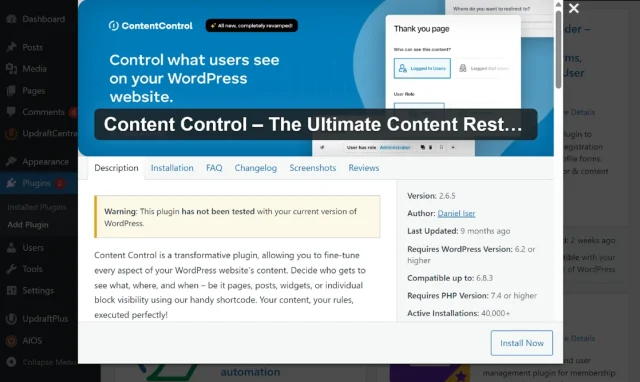
- Click Install Now and then Activate.
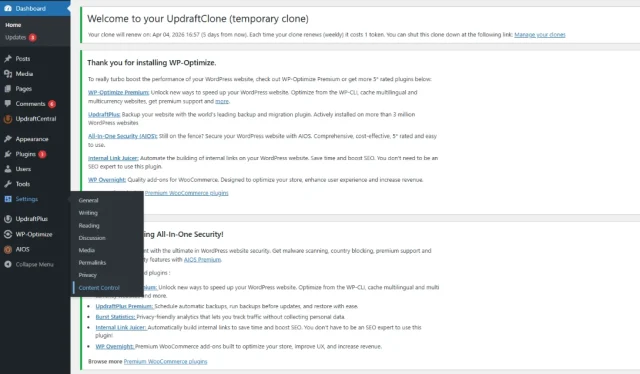
Once activated, you will find a new menu item under Settings > Content Control. This is where the magic happens.
Step 2. Creating your first restriction rule
Section titled Step 2. Creating your first restriction ruleThis is the core of how to use the content control plugin. A “Restriction” is essentially a logic gate: “If the user is X, then let them see Y. If not, do Z.”
- Go to Settings > Content Control.
- Click the Add Restriction button.
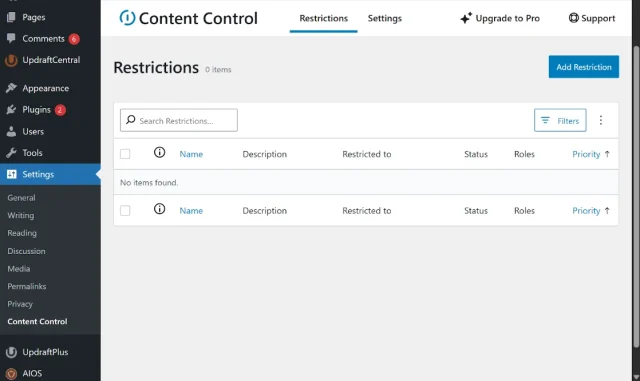
- Give your rule a name, like “Subscriber Only Content.”
- In the ‘Who can see this content?’ tab, choose whether you want to target Logged In Users or Logged Out Users.
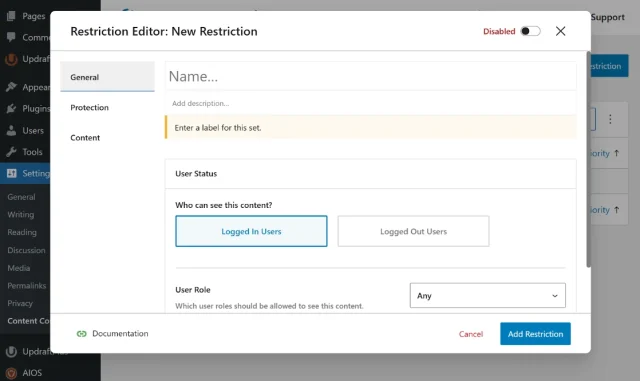
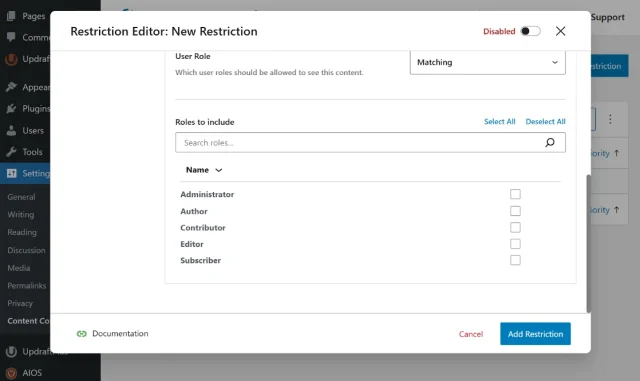
- If you choose Logged In Users, you can further refine this by selecting specific roles, such as Subscriber or Editor.
Step 3. Defining what content to restrict
Section titled Step 3. Defining what content to restrictNow that the plugin knows who the rule applies to, you need to tell it where to apply it.
- Switch to the Content tab within the rule editor.
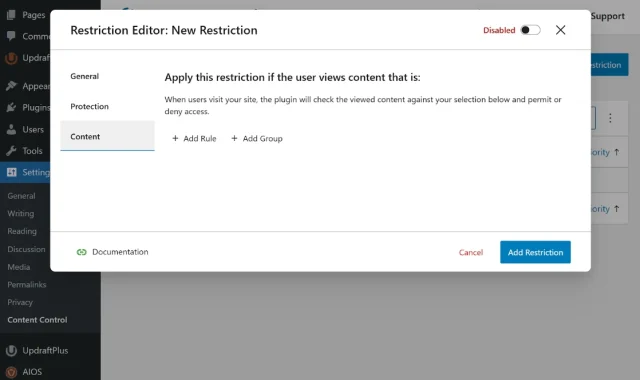
- You can choose to protect A Simple Page, Posts, or even specific Categories.
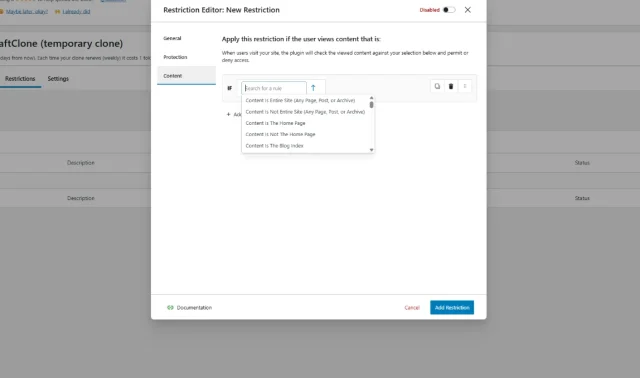
- If you want to protect everything except a few pages, you can use the “Negative” logic settings, though I usually recommend starting small and adding pages specifically to avoid mistakes.
Step 4. Setting up the protection message or redirect
Section titled Step 4. Setting up the protection message or redirectWhat happens when a random visitor stumbles upon a restricted page? You have two main options:
- Redirect: You can send them to your login page or a custom “Sign Up” landing page.
- Custom Message: You can replace the page content with a friendly note saying, “Oops! You need to be a member to read this.”
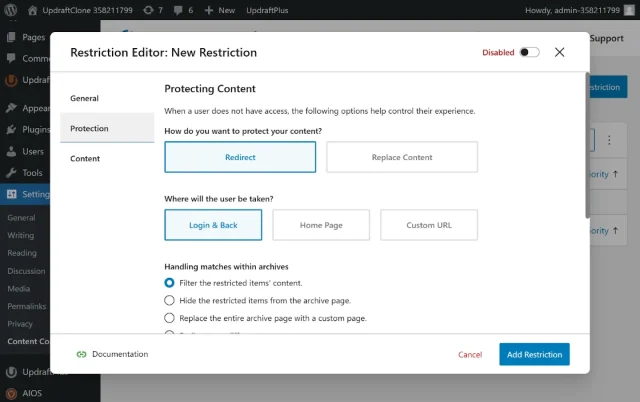
I usually suggest using a redirect to a dedicated landing page if you are trying to sell a subscription, as it keeps the user journey moving forward.
Advanced usage: hiding blocks and widgets
Section titled Advanced usage: hiding blocks and widgetsOne of the coolest parts of learning how to use the content control plugin is discovering that it isn’t just for whole pages. You can get much more granular.
Restricting Gutenberg blocks
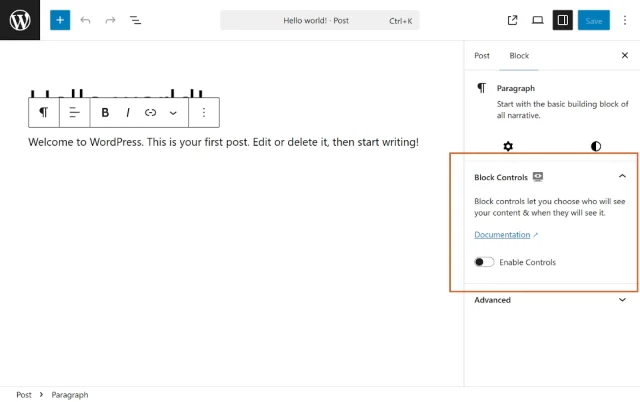
Section titled Restricting Gutenberg blocksIf you are using the Block Editor, you will see a new Content Control section in the sidebar for almost every block. This is incredibly useful for:
- Hiding a “Buy Now” button from people who have already bought.
- Showing a special discount code only to logged-in users.
- Displaying a “Welcome back, [Name]” block only to members.
To do this, just click on a block, look at the settings panel on the right, find the Content Control tab, and set your requirements.
Managing widget visibility
Section titled Managing widget visibilityIf your theme uses sidebars or footers, you can apply these same rules to widgets. In the widget editor, you will find a dropdown menu that lets you choose who can see that specific widget. This is perfect for keeping your sidebar clean and relevant to the specific person browsing your site.
Expert Tip: Always check your site in a different browser or an incognito window after setting a rule. It is the only way to be 100% sure that a “Logged Out” user is seeing what they are supposed to see.
Keep your site fast even with restricted content
Managing visibility shouldn’t slow down your site. Keeping your database clean and images optimised ensures restricted content still loads quickly for your users.
Practical examples of content control in action
Section titled Practical examples of content control in actionTo truly master how to use the content control plugin, it helps to see how it works in real-world scenarios. Here are three common ways I see people using it effectively.
Example 1: The “Teaser” strategy
Section titled Example 1: The “Teaser” strategyYou want everyone to see your blog post titles and the first paragraph, but the rest of the article should be for subscribers only.
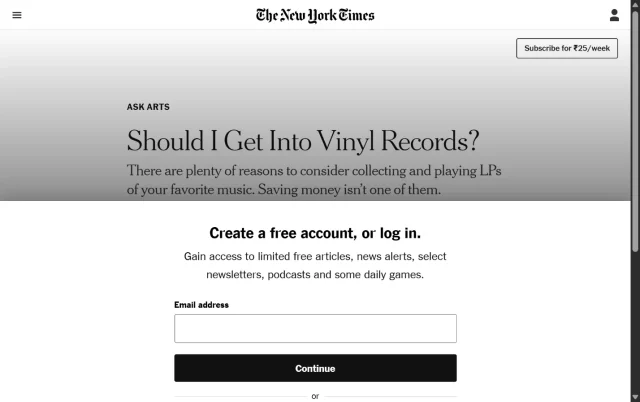
The Fix: Use the Content Control block restriction. Wrap the “bottom half” of your post in a Group block and set that group block to “Logged In Users Only.”
Example 2: The “Internal Resource” hub
Section titled Example 2: The “Internal Resource” hubYou have a business site and want a page where employees can download brand assets or handbooks.
The Fix: Create a page called “Resources.” In the Content Control settings, create a rule that restricts the “Resources” page to the user roles of Editor and Administrator. Anyone else who tries to visit the URL will be redirected back to the homepage. For a real-world example, companies like Airtable keep internal assets and brand guidelines hidden behind login-only pages. If you try to access a private link without logging in, you’re usually redirected back to the main site.
Example 3: The “Guest-Only” call to action
Section titled Example 3: The “Guest-Only” call to actionYou have a big “Join Our Newsletter” banner on your homepage. It is annoying for people who are already members to keep seeing it.
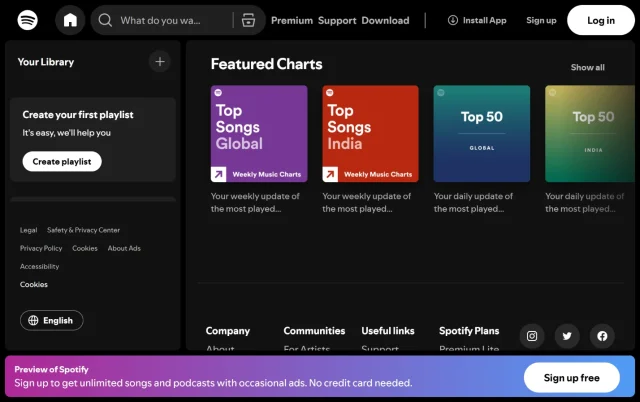
The Fix: Set the block or widget containing the banner to Logged Out Users Only. As soon as someone logs in, the banner disappears, giving them a cleaner, more premium experience.
Comparison of restriction methods
Section titled Comparison of restriction methodsWhen you might need more than content control
Section titled When you might need more than content controlContent Control is great for visibility. But it does not:
- Protect against brute force login attempts
- Add two-factor authentication
- Add firewall protection
- Stop malicious bots
If you want to properly secure your WordPress site, you will need a dedicated security plugin.
This is where All-In-One Security (AIOS) comes in.
While Content Control manages visibility, AIOS adds protection such as:
- Login security to block brute force attacks
- User access monitoring to detect suspicious activity
- Firewall protection to stop malicious traffic
- File protection for sensitive WordPress files
If you run membership sites, client portals, or eCommerce stores, combining Content Control with AIOS gives you both visibility control and site security
Content Control plugin not working? Common fixes
Section titled Content Control plugin not working? Common fixesIf your restrictions are not working as expected, there are a few common issues that are usually easy to fix. Here are the first things to check:
Check your user role settings
Section titled Check your user role settingsMake sure the correct roles are selected in your restriction rules. For example, if you want only subscribers to see content, double check that no other roles are included by mistake.
Clear your cache
Section titled Clear your cacheCaching can sometimes show outdated versions of your pages, making it look like restrictions are not working. Clear your cache and test again. If you are using a caching plugin, keeping your site optimised can help avoid these issues.
Test in an incognito window
Section titled Test in an incognito windowAlways check your restrictions in a private or incognito browser window. This ensures you are seeing the site as a logged-out user and not affected by your current session.
Check for plugin conflicts
Section titled Check for plugin conflictsSome plugins can interfere with how content is displayed. If something is not working, try temporarily disabling other plugins to see if there is a conflict.
Make sure your restriction is active
Section titled Make sure your restriction is activeIt sounds simple, but it is worth checking that your restriction rule is published and applied to the correct content. Draft or inactive rules will not take effect.
Protect your WordPress login from bots and attacks
AIOS hides your login page, adds two-factor authentication, and blocks repeated login attempts automatically.
Conclusion
Section titled ConclusionLearning how to use the Content Control plugin gives you full control over what different users see on your WordPress site, without needing a complex membership setup. It’s a simple and flexible way to manage visibility across pages, posts, and individual blocks.
However, visibility is only one part of running a reliable site. It’s just as important to protect your content and make sure you can recover quickly if something goes wrong. Before making changes like this, it’s always worth setting up reliable backups so you can restore your site if needed.
For ongoing protection, a dedicated security plugin like All-In-One Security helps safeguard your site from login attacks, bots, and vulnerabilities, while UpdraftPlus ensures you always have a safe backup to fall back on.
Using Content Control for visibility, alongside security and backup tools, gives you a solid foundation for managing your WordPress site with confidence.
FAQs
Section titled FAQsIs the Content Control plugin free to use?
Yes. The core version is free and available in the WordPress plugin repository. It includes the main features for restricting pages, posts, and blocks.
There is also a premium version that offers advanced targeting options such as device-based or geolocation restrictions.
Will this plugin slow down my site?
Generally no. The plugin is lightweight and designed to have minimal impact on performance.
However, adding hundreds of block-level restrictions on a single page could slightly increase processing time. Tools like WP-Optimize can help keep your database optimized and performance high.
Can I hide content from search engines?
Yes. If content is restricted to logged-in users, search engine crawlers typically cannot access or index it.
What happens if I deactivate the plugin?
If you deactivate it, all your “hidden” content will become public again. This is another reason why having a backup via UpdraftPlus is vital. If a plugin update goes south and you have to deactivate things to troubleshoot, you want to make sure your private data isn’t exposed to the world while you’re working.
Can I use Content Control with WooCommerce?
Yes. The plugin can restrict access to product pages or other areas of a WooCommerce site based on user roles.
How do I show a “Login to Read More” message?
When creating a restriction rule, choose Custom Message instead of Redirect in the protection settings.
You can then add a message such as:
“This content is for members only. Please log in to continue.”
Can I use Content Control to create a paywall?
It can help create a basic paywall by restricting content to specific user roles. However, it does not handle payments.
You will need a membership or payment plugin to process transactions, while Content Control manages the visibility rules.
How do I restrict content in WordPress without a membership plugin?
You can restrict content in WordPress without a full membership plugin by using a lightweight tool like Content Control. It allows you to set visibility rules based on login status or user roles, meaning you can hide pages, posts, or specific blocks from non-logged-in users or limit access to selected roles without needing a full membership system.
About the author

Elvira Mishra
Elvira has over four years of experience creating and designing content in WordPress. Her background spans multiple digital disciplines, including marketing, SEO, user experience, and human computer interaction.
Categories
AIOS
Comprehensive, feature-rich, security for WordPress. Malware scanning, firewall, an audit log and much more. Powerful, trusted and easy to use.
From just $44.50 for the year.
More stories
-

5 WordPress Web Design Tips to Improve Your Website
Good web design is about more than appearance. Explore practical WordPress web design tips to improve your website's layout, navigation, mobile responsiveness, accessibility and performance, helping you create a better experience for your visitors.
-
Best AI Website Builders Compared
AI website builders can help you design, write and launch a website in minutes. Compare the best AI-powered website builders based on ease of use, features, customisation, pricing and performance to find the right solution for your next project.
-
How incremental backups save time and storage in WordPress
Incremental backups only save the changes made since your last backup, helping you reduce storage usage, speed up backups and lower server load. Learn how they work and why they're an essential part of an efficient WordPress backup strategy.
-
Best WordPress Website Builders Compared
Discover the best WordPress website builders for every skill level. Compare features, ease of use, pricing and performance to choose the right builder for your blog, business or online store.
