The risks and pitfalls of WordPress auto-updates

WordPress introduced built-in plugin and theme auto-updates in WordPress 5.5, giving site owners the option to let selected plugins and themes update automatically. Since then, the feature has evolved considerably. WordPress 6.6 introduced automatic rollbacks for failed plugin auto-updates, making the process safer than it was when this feature first launched.
That does not mean auto-updates are risk-free. An update can still introduce compatibility problems, alter site behaviour or create issues that a simple rollback cannot resolve. The right approach is therefore not to avoid updates altogether, but to combine automation with backups, testing and a way to detect problems quickly.
Key takeaways
Section titled Key takeaways- WordPress auto-updates save time but still cause compatibility issues.
- WordPress 6.6 introduced automatic rollback for failed plugin auto-updates.
- Auto-updates do not replace regular backups or staging tests.
- Selective auto-updates can provide a balance between convenience and control.
- Monitoring your site after updates helps catch issues that automatic rollback may miss.
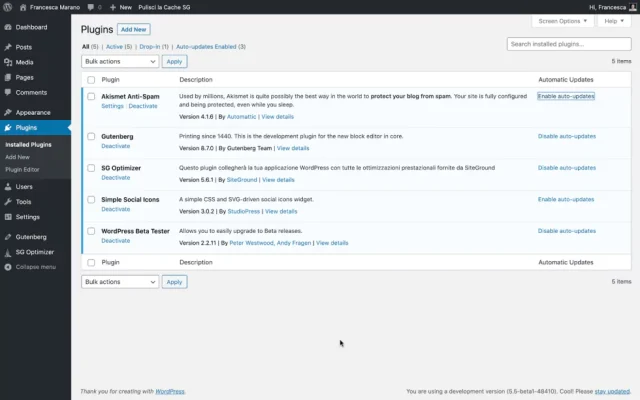
What is an auto-update?
Section titled What is an auto-update?Auto-updates are updates to plugins and themes that take place automatically without the site owner having to do anything manually via WordPress. Unlike manual updates, there’s no need to initiate the process or download new versions of your existing plugins and themes. In WordPress, site owners can choose whether or not to use the auto-update feature. For example, if your WordPress site is integrated with a cloud management platform, it will be automatically updated without you having to lift a finger. Each plugin and theme has its own ON/OFF option specifically for auto-updates.

What are the risks of WordPress auto-updates?
Section titled What are the risks of WordPress auto-updates?Whatever kind of business you’re running – be it a small eCommerce store or a digital marketing agency, before enabling auto-updates on your WordPress site, it’s important to be aware of all the ‘side-effects’ – both good and bad. Auto-updates are convenient, but there can be some big drawbacks.
1. WordPress updates can cause technical issues
Section titled 1. WordPress updates can cause technical issuesUpdates can occasionally introduce compatibility problems between WordPress core, plugins, themes, PHP versions or custom code. An update may change how a feature works, introduce a bug or expose an existing compatibility issue.
However, the risk is lower than it was when WordPress first introduced plugin and theme auto-updates. Since WordPress 6.6, failed plugin auto-updates can automatically roll back to the previous version when a fatal error is detected. This gives site owners an additional layer of protection against one of the most serious update failures.
Rollback does not eliminate every possible problem. An update can still cause functional, visual or compatibility issues that do not produce a fatal PHP error. This is why backups, testing and monitoring remain important even when auto-updates are enabled.
Keep your updates safe
Auto-updates save time, but a failed update can still cause problems. UpdraftPlus backs up your site before updates, giving you a reliable restore point if something goes wrong.
2. Updates can be hard to keep track of
Section titled 2. Updates can be hard to keep track ofIf an update does mess up your site, you will need to know what caused it. Determining exactly what happened and when can be tricky. Especially if multiple updates all took place simultaneously. With selected automatic and manual updates, it can be easier to isolate the root issue and fix it.
WordPress does provide email notifications when plugin or theme auto-update attempts succeed or fail, giving site owners a useful record of what happened. However, notifications alone do not tell you whether an update has affected a site’s front-end functionality, checkout process, forms or other important features.
3. Some major releases may be incompatible
Section titled 3. Some major releases may be incompatibleSometimes auto-updates might include a major release. If a particular plugin releases an update with a larger than normal installation base, it could cause problems. If you have auto-update enabled, you won’t have any control over whether or not you wish to deploy those changes.
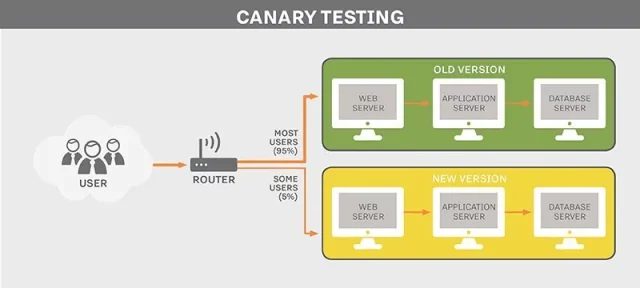
WordPress does not use a ‘Canary update’ testing process. Canary updates roll out code to test sites before official release. Without this, there’s no telling what a new update will do. Likewise with smaller plugins, top-notch quality assurance is not guaranteed. By enabling auto-updates you’re essentially handing over control to unknown quality assurance teams.
The best way to run WordPress updates
Section titled The best way to run WordPress updatesThere are safer ways to enjoy the benefits that automatic updates bring. Just proceed with caution. Now that you’re aware of some of those common issues, you can enjoy auto-updates without worrying too much about the consequences.
With all the potential issues your site can be faced when updating your plugins and theme, it is important to have a secure and recent backup of your site. Using a WordPress backup plugin can protect you against unexpected disasters or errors. Even if you take all the necessary precautions, it is still possible to fall victim to a bad update and have your site die on you. Backing up your site with UpdraftPlus can be done in just a few minutes. Simply download UpdraftPlus, follow these simple instructions to backup your WordPress site and you won’t have to worry about an update permanently taking down your site again.
There are still risks however – even if you take all the precautions necessary, a bad update can sometimes stop you from even logging into your site. In this scenario, restoring it to it’s former working version will be a complicated and difficult process. UpdraftPlus allows you to test your updates on a clone of your site using a WordPress staging plugin like UpdraftClone. It allows you to clone your site instantly and directly from UpdraftPlus, which can further reduce any danger to your main site by allowing you to test updates in a secure and risk-free environment.
UpdraftPlus Premium also has an auto-backup feature that creates a backup for you, before any updates to plugins and themes are performed.
While the latest update of WordPress can update your plugins automatically, we recommend that you turn off auto-updates for all/selected plugins and use a WordPress plugin manager instead. Easy Updates Manager currently helps more than 300,000 WordPress users automatically keep their sites up to date and bug-free. It’s also highly customizable to give you real control over what updates to run.
Conclusion
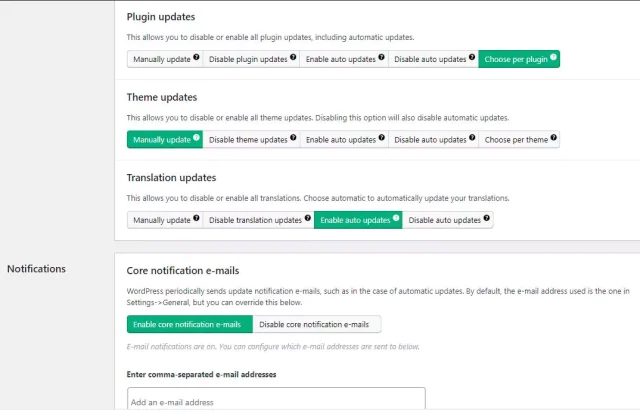
Section titled ConclusionChoose from manually update, disable update, enable auto updates, disable auto updates and choose per plugin/theme, so you always have full control over your site and what aspects are updated. This offers a greater degree of control and limits unnecessary risk or disruption – disruption that could potentially derail a business in its infancy.
The potential business impact of an auto-update-related disruption could be catastrophic. If an automatic update interferes with your customer payment portal for example, the losses could be substantial for a well-established brand with high volume sales.
FAQs
Section titled FAQsAre WordPress auto-updates safe?
WordPress auto-updates are generally safe, but they are not completely risk-free. Compatibility issues can still occur, so keep regular backups and monitor important site functionality.
Can WordPress auto-updates break a website?
Yes. An update can cause compatibility or functionality issues. WordPress can automatically roll back some failed plugin auto-updates, but this does not prevent every type of problem.
Should I enable automatic updates for WordPress plugins?
depends on the site. Automatic updates can reduce maintenance, while critical or complex sites may benefit from testing updates on a staging site first.
Do I need a backup if I use WordPress auto-updates?
Yes. Automatic rollback is not a substitute for a complete backup. A recent backup gives you a recovery option if an update causes problems that rollback does not address.
Does WordPress automatically roll back failed updates?
WordPress 6.6 introduced automatic rollback for certain failed plugin auto-updates. If a fatal error is detected after an update, WordPress can restore the previous plugin version.
About the author

TeamUpdraft
Our team consists of WordPress developers, marketers, and industry experts committed to providing you with the resources and skills you need to succeed online. Whether you’re just starting out or seeking advanced strategies, we’re here to enhance your WordPress journey and support you at every stage.
Categories
TeamUpdraft
We’re the team behind some of the WordPress community’s most loved WordPress plugins.
Developers, designers and website owners trust us to back up, migrate, optimize and secure more than 5 million WordPress websites worldwide.
More stories
-

10 Best WordPress Plugins for Agencies in 2026
Discover the best WordPress plugins for agencies, from backups and security to performance optimisation and site management. Explore tools that make managing multiple client websites easier and more efficient.
-

Direct WordPress site-to-site migration: A step-by-step guide
Learn how direct WordPress site-to-site migration works and how to move your website between hosts or domains without manually transferring files.
-

5 WordPress Web Design Tips to Improve Your Website
Good web design is about more than appearance. Explore practical WordPress web design tips to improve your website's layout, navigation, mobile responsiveness, accessibility and performance, helping you create a better experience for your visitors.
-
Best AI Website Builders Compared
AI website builders can help you design, write and launch a website in minutes. Compare the best AI-powered website builders based on ease of use, features, customisation, pricing and performance to find the right solution for your next project.
