WordPress security best practises
Most WordPress sites are not hacked because someone specifically targets them. In my experience, it is usually automated bots scanning the internet for outdated plugins, weak passwords, exposed login pages, or other security vulnerabilities in WordPress.
And when it happens, the signs are often hard to miss. Your website might suddenly redirect visitors to spam pages, display malware warnings, or get suspended by your hosting provider altogether.
The good news is that improving your WordPress security does not need to be overly technical or complicated. A few good security habits can dramatically reduce the chances of your site being compromised.
In this guide, I’ll walk through the WordPress security best practices I consider most important in 2026, including how to reduce common risks, protect your login area, secure your plugins and themes, and make sure you have a recovery plan in place if something ever does go wrong.
Key takeaways
Section titled Key takeaways- Keeping WordPress, plugins, and themes updated is one of the most important things you can do to improve security.
- Strong passwords and two-factor authentication help protect your site from automated login attacks.
- Regular backups give you a way to recover your website quickly if something goes wrong.
- Poor-quality or abandoned plugins are one of the most common causes of WordPress security vulnerabilities.
- Your hosting provider plays a major role in your site’s overall security and stability.
Overview of best practices
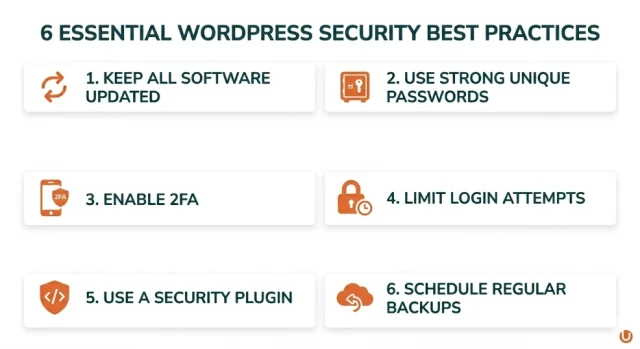
Section titled Overview of best practicesIf you are short on time, these are the WordPress security best practices I would prioritise first. You can also use a WordPress security audit checklist to review your existing setup.
Where WordPress is vulnerable in 2026
Section titled Where WordPress is vulnerable in 2026To properly secure a WordPress site, I think it helps to first understand where most security issues actually come from.
The WordPress core software itself is generally very secure and regularly maintained by a large development community. In most cases, vulnerabilities come from the wider ecosystem around WordPress rather than WordPress itself.
1. Plugins and themes
Section titled 1. Plugins and themesPlugins and themes are one of the most common entry points for attackers.
WordPress gives site owners huge flexibility to extend functionality, but that also means websites often rely on code created by third-party developers with varying levels of security practices and long-term support.
I regularly see issues caused by outdated or abandoned plugins that are no longer receiving updates. In fact, defunct WordPress plugins can pose a serious security risk if they remain installed. Once a vulnerability becomes public, automated bots can quickly begin scanning websites looking for sites still running the affected version.
This is one of the main reasons I always recommend removing plugins or themes you no longer actively use.
2. Automated attacks are getting faster
Section titled 2. Automated attacks are getting fasterSecurity threats have become far more automated in recent years.
Attackers now use bots and automated scanning tools to search for known vulnerabilities almost immediately after they are disclosed publicly. In some cases, vulnerable websites can start being targeted within hours of a flaw becoming known.
That is why keeping plugins, themes, and WordPress updated is so important. Delaying updates for weeks or months creates a much larger window for attackers to exploit older vulnerabilities.
3. Poor isolation between components
Section titled 3. Poor isolation between componentsOne weak plugin can sometimes put an entire WordPress site at risk.
If a vulnerable plugin gains elevated access to your site files or database, attackers may be able to move beyond that single plugin and affect other parts of the website too.
This is also why hosting quality matters. Better hosting providers often include stronger account isolation, malware scanning, firewalls, and server-level protections that can help reduce the impact of security issues.
WordPress security best practices you should implement on your site right now
Section titled WordPress security best practices you should implement on your site right now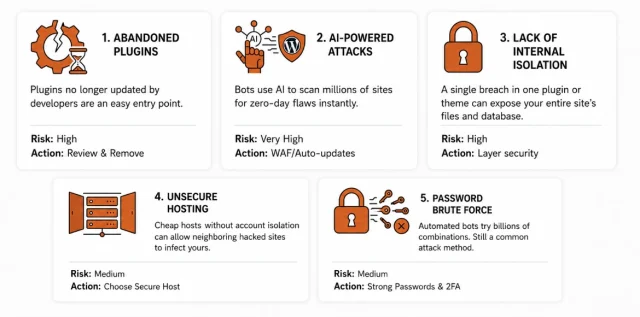
1. Keeping your software updated automatically
Section titled 1. Keeping your software updated automaticallyKeeping WordPress updated is one of the most effective ways to reduce security risks.
Most WordPress attacks target known WordPress security vulnerabilities that already have fixes available, but site owners simply have not installed the updates yet. Once a security issue becomes public, automated bots can begin scanning for affected websites very quickly.
Because of this, I generally recommend enabling automatic updates where it makes sense, especially for trusted tools that are actively maintained.
At a minimum, I would prioritise keeping these updated:
- WordPress core
- Trusted plugins
- Your active theme
- PHP versions
Before enabling automatic updates, make sure you back up your WordPress site first. Updates are usually safe, but backups give you a recovery option if an update ever causes compatibility issues.
2. Strengthening your login security
Section titled 2. Strengthening your login securityYour login page is the most targeted part of your website. Thousands of bots try to guess passwords every day.
- Two-Factor Authentication (2FA) – Password guessing is nearly impossible if you have 2FA enabled. Even if a hacker steals your password, they cannot log in without the temporary code from your phone. This is one of the most important WordPress security practices you can implement.
- Remove the “admin” username – If your username is “admin,” you have already given hackers half of the information they need to break in. I always advise creating a new user with an unpredictable name, granting them the Administrator role, and deleting the original “admin” account entirely.
- Limit login attempts and add CAPTCHA – WordPress allows unlimited login guesses by default. You should install a security plugin that temporarily locks out an IP address after three to five failed attempts. Adding a CAPTCHA to your login screen is another excellent way I use to separate real human users from automated bots.
- Rename your login page – Changing your login URL from the default /wp-login.php to a custom, secret path is a useful additional layer of protection. While this will not stop a highly determined, targeted attack, it immediately reduces a massive volume of automated traffic. This filters out generic bots, keeping your server logs clean and preserving your server’s performance.
Strengthen one of the most targeted areas of your website
AIOS helps protect your login page with two-factor authentication, login attempt limits, CAPTCHA support, and advanced login security features.
3. Strategic plugin and theme management
Section titled 3. Strategic plugin and theme managementEvery plugin you install adds more code to your site, which is why it is important to focus on genuinely must-have WordPress plugins rather than installing unnecessary tools.
- The “Audit and Delete” rule – Do not just deactivate plugins you aren’t using; delete them entirely. Even deactivated plugins can sometimes be exploited. Once a month, look at your plugin list and ask if each one is providing real value. If not, get rid of it.
- Avoid nulled themes and plugins – “Nulled” plugins are premium plugins offered for free on unofficial sites. These almost always contain malware designed to give the uploader access to your server. It is never worth the risk. I would always recommend downloading plugins and themes directly from trusted developers or the official WordPress repository.
4. Choosing a secure hosting provider
Section titled 4. Choosing a secure hosting providerYour hosting provider plays a huge role in your website’s overall security, particularly if you run an online store and need to follow additional WooCommerce security tips. Even the best security setup can be limited if the underlying hosting environment is poorly maintained or lacks proper protections.
- Server isolation – On cheap shared hosting, if one site on the server gets hacked, the malware can sometimes spread to every other site on that server. High-quality hosts use “account isolation” to ensure your site is a self-contained bubble.
- Proactive scanning – A good host will scan your files for malware at the server level and block known malicious IP addresses before they even load your website. This reduces the load on your site and keeps it faster.
5. The role of backups in security
Section titled 5. The role of backups in securityBackups are not just useful for accidental mistakes or failed updates. One of the most common questions site owners ask is how often they should back up their WordPress site.
If your website is compromised, infected with malware, or files become corrupted, a clean backup can often be the fastest way to recover your site and get back online quickly. If the worst happens, it’s important to know what to do if your WordPress site is hacked.
Store backups off-site: One mistake I still see quite often is websites storing backups only on the same server as the live site. There are several reasons why you should store WordPress backups off-site.
If the server fails, becomes compromised, or your hosting account is suspended, those backups may become inaccessible too. That is why I always recommend storing backups in a separate locations like:
- Google Drive
- Dropbox
- Amazon S3
- UpdraftVault
Tools like UpdraftPlus make it easy to automate this process so your backups run in the background without needing constant manual checks.
Personally, I find having reliable automated backups removes a huge amount of stress from managing WordPress sites. If something ever does go wrong, you know you have a recovery point ready.
Recover your WordPress site quickly if something goes wrong
UpdraftPlus helps you automatically back up your website and store copies safely in the cloud, so if your site is hacked, crashes, or breaks after an update, you have a fast way to restore it.
6. Hardening your site files
Section titled 6. Hardening your site filesHardening means making small changes to your site’s configuration to block common attack methods.
- Disable the file editor – WordPress has a built-in editor that allows you to change theme and plugin files directly in the dashboard. If a hacker gains access to your administrator account, the built-in file editor can be used to modify plugin and theme files. You can disable this by adding a single line of code to your
wp-config.phpfile:define( 'DISALLOW_FILE_EDIT', true ); - Protect the wp-config.php file – This file contains your database credentials and security keys. You can use your
.htaccessfile to block anyone from accessing it through a browser by adding the following to your.htaccess
<files wp-config.php>
order allow,deny
deny from all
</files>
Alternatively move your .htaccess one directory above your web root.
7. Give users only the access they need
Section titled 7. Give users only the access they needMany WordPress sites have more administrator accounts than necessary.
If someone only needs to write content, give them an Author or Editor role rather than full administrator access. Limiting permissions reduces the risk of accidental changes and prevents attackers from gaining complete control of your website if a user account is compromised.
8. Scan your site regularly for malware
Section titled 8. Scan your site regularly for malwareMalware is not always obvious. In some cases, a website can remain compromised for weeks before the owner notices unusual behaviour, spam content, or search engine warnings.
Regular malware scans can help identify suspicious files, modified code, unexpected administrator accounts, or other signs that your website may have been compromised. Learning how to detect malware on your WordPress site early can make recovery much easier.
Many WordPress security plugins include malware scanning capabilities that can help monitor your site and alert you to potential issues before they cause significant damage. Depending on the plugin, these features may be included in the free version or offered as part of a premium security package.
9. Use secure file and directory permissions
Section titled 9. Use secure file and directory permissionsWordPress files and folders should only have the permissions they need to function correctly. Permissions that are too restrictive can break parts of your website, while permissions that are too open can make it easier for attackers to modify files if a vulnerability is exploited.
As a general rule, WordPress directories are often set to 755 and files to 644, although the exact requirements may vary depending on your hosting environment. If you’re unsure, check your hosting provider’s documentation or speak to their support team before making changes.
Keeping sensible file permissions in place adds another layer of protection and helps reduce the risk of unauthorised changes to your website.
Final thoughts on WordPress security
Section titled Final thoughts on WordPress securityThe biggest mistake I see website owners make is treating WordPress security as something to think about after a problem occurs. In reality, the sites that stay secure are usually the ones that put a few simple protections in place before they’re ever needed.
If you focus on keeping WordPress updated, securing your login page, limiting unnecessary plugins, choosing reliable hosting, and maintaining regular off-site backups, you’ll already be reducing many of the risks that lead to successful attacks.
You don’t need an enterprise-level security setup or dozens of security tools. In most cases, a sensible security routine and the right tools are enough to protect your WordPress site from the vast majority of common threats.
If you’re reviewing your site’s security today, I’d start with three questions:
- Are all of my plugins, themes, and WordPress core files up to date?
- Do I have strong login protection, including two-factor authentication?
- Could I restore my website quickly if it were compromised tomorrow?
If you can’t confidently answer yes to all three, those are the areas I’d prioritise first.
For site owners looking to strengthen their WordPress security without adding unnecessary complexity, AIOS provides many of the protections covered in this guide, including login security, two-factor authentication, malware detection, firewall features, and user activity monitoring. Combined with reliable backups, it can help make WordPress security far easier to manage day to day.
FAQs
Section titled FAQsIs WordPress less secure than other platforms?
Not necessarily. WordPress powers a huge percentage of websites online, which naturally makes it a larger target for attackers.
In my experience, most WordPress security issues are not caused by WordPress itself, but by outdated plugins, weak passwords, poor hosting environments, or missing updates. The WordPress core software is regularly maintained and generally very secure.
Do I need more than one security plugin?
Usually, no.
Running multiple security plugins with overlapping features can sometimes create conflicts, performance issues, or duplicate firewall and scanning processes. I generally recommend choosing one well-maintained security plugin that covers the features you actually need.
Does an SSL certificate stop hackers?
An SSL certificate helps encrypt data between your website and its visitors, which is important for protecting sensitive information such as passwords or payment details.
However, SSL alone does not protect your site from vulnerabilities in plugins, weak passwords, malware, or brute force attacks. It should be treated as one part of a broader WordPress security strategy.
How can I tell if my WordPress site has been hacked?
Some common warning signs that your WordPress site has been hacked include:
- Unexpected redirects
- Spam pages appearing in Google search results
- New administrator accounts you did not create
- Sudden drops in traffic
- Malware warnings from browsers or search engines
- Suspicious files or plugins appearing in WordPress
If you notice unusual behaviour on your website, I would recommend scanning the site immediately and restoring from a clean backup if needed.
What is the most important WordPress security best practice?
Keeping WordPress, plugins, and themes updated is one of the most effective ways to improve security. Most successful attacks exploit known vulnerabilities that already have fixes available.
Do I need a WordPress security plugin?
A security plugin can help protect your website by adding features such as firewalls, login protection, malware scanning, and two-factor authentication. While good security habits are still essential, a security plugin can make managing security much easier.
Should I enable two-factor authentication on WordPress?
Yes. Two-factor authentication adds an extra layer of protection by requiring a temporary verification code alongside your password. It is one of the most effective ways to prevent unauthorised access
How often should I back up my WordPress site?
That depends on how frequently your site changes. For active websites, daily backups are often recommended, while busy WooCommerce stores may benefit from more frequent backups throughout the day.
Is WordPress secure enough for business websites?
Yes. WordPress is used by businesses of all sizes, including major brands and organisations. When WordPress, plugins, and themes are kept updated and basic security best practices are followed, it can provide a secure foundation for business websites.
About the author

Alexandru Bucsa
Alex is our All-In-One Security Product Manager. With more than six years of WordPress experience, he listens closely to what users need and works hard to make AIOS even better. Drawing on his background in forensic investigations, Alex loves diving into problems to understand their causes and find practical fixes that truly help our community.
Categories
AIOS
Comprehensive, feature-rich, security for WordPress. Malware scanning, firewall, an audit log and much more. Powerful, trusted and easy to use.
From just $44.50 for the year.
More stories
-
How incremental backups save time and storage in WordPress
Incremental backups only save the changes made since your last backup, helping you reduce storage usage, speed up backups and lower server load. Learn how they work and why they're an essential part of an efficient WordPress backup strategy.
-

Best WordPress Website Builders Compared
Discover the best WordPress website builders for every skill level. Compare features, ease of use, pricing and performance to choose the right builder for your blog, business or online store.
-
How to Schedule WordPress Backups
Learn how to schedule WordPress backups, choose the right frequency, and keep copies ready when you need to restore your site.
-
Best plugins for affiliate marketers
Build a smarter affiliate site using WordPress plugins for link management, analytics, conversions, speed, security and programme growth.
