SSL vs TLS: Understanding the difference for WordPress security

If you’ve been looking into WordPress security, you’ve probably come across both SSL and TLS. The two terms are often used interchangeably, but they’re not quite the same thing. SSL (Secure Sockets Layer) was the original protocol used to encrypt data between websites and their visitors, while TLS (Transport Layer Security) is its more secure, modern replacement.
The terminology can be confusing because hosting providers, web browsers and WordPress plugins still commonly refer to “SSL certificates”, even though modern secure connections actually use TLS. Understanding the difference can help you make sense of HTTPS, certificates and the security features available for your WordPress site.
In this guide, we’ll explain what SSL and TLS are, the key differences between them, why SSL is no longer used and what it all means for the security of your WordPress website.
Key takeaways
Section titled Key takeaways- SSL (Secure Sockets Layer) was the original protocol used to encrypt data between websites and visitors, but it is now outdated and no longer considered secure.
- TLS (Transport Layer Security) replaced SSL and is the modern protocol used to secure HTTPS connections.
- Although hosting providers still use terms such as “SSL certificate”, modern websites use TLS to establish secure connections.
- Modern WordPress websites should support TLS 1.2 or TLS 1.3, with TLS 1.3 offering improved security and a faster handshake where supported.
- For WordPress site owners, the important thing is to enable HTTPS, use a modern version of TLS and address any certificate or security warnings that appear.
SSL vs TLS comparison
Section titled SSL vs TLS comparisonSSL is just the first layer of security
HTTPS encrypts data travelling between your website and its visitors, but it doesn’t protect against malware, brute-force attacks or other WordPress security threats. AIOS Premium adds multiple layers of protection to help keep your website secure.
SSL was the beginning
Section titled SSL was the beginningSSL dates back to the 1990s, when the growth of online shopping created a clear need for a safer way to send sensitive information, such as login details and payment data, over the internet.
Netscape developed Secure Sockets Layer (SSL) to create an encrypted connection between a web browser and server. SSL 1.0 was developed but never publicly released because of security weaknesses. SSL 2.0 followed in 1995, with SSL 3.0 released a year later.
SSL became an important foundation for secure web browsing, but vulnerabilities were discovered as the technology and the web evolved. This ultimately led to the development of a more secure successor: TLS.
The evolution into Transport Layer Security (TLS)
Section titled The evolution into Transport Layer Security (TLS)As the internet evolved, researchers discovered weaknesses in the original SSL protocols and it became clear that a stronger security standard was needed.
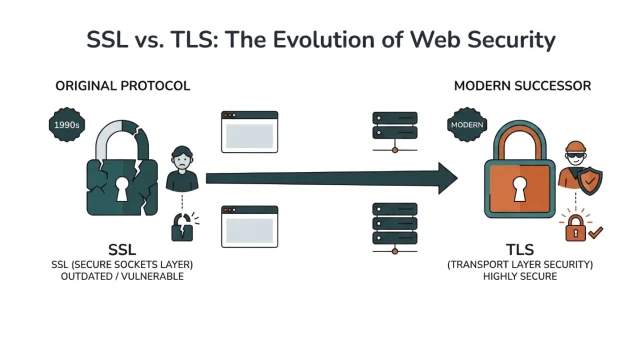
In 1999, the Internet Engineering Task Force (IETF) introduced TLS 1.0 as the successor to SSL 3.0. TLS was based on many of the same principles as SSL, including encrypting data exchanged between a browser and web server, but introduced improvements designed to make those connections more secure.
TLS continued to evolve as new vulnerabilities and security requirements emerged. Later versions strengthened encryption and improved the way secure connections are established, eventually leading to the TLS 1.2 and TLS 1.3 protocols widely used today.
Why people still say SSL
Section titled Why people still say SSLAlthough SSL was replaced by TLS many years ago, the name has stuck. You’ll still see terms such as “SSL certificate” and “SSL settings” in hosting dashboards, WordPress plugins and online documentation.
That’s largely because “SSL” became the familiar term for securing a website with HTTPS. Over time, the technology moved on to TLS, but the terminology used by hosting providers and website owners didn’t always move with it.
So, if your WordPress hosting provider offers an “SSL certificate”, don’t worry that you’re being given outdated SSL technology. In most cases, the certificate will be used with a modern TLS protocol to establish a secure HTTPS connection.
TLS versions explained
Section titled TLS versions explainedLike WordPress itself, TLS has evolved through several major versions over the years. Each version has introduced improvements to security and the way encrypted connections are established, while older versions have gradually been deprecated as weaknesses have been identified.
For WordPress site owners today, the versions that matter most are TLS 1.2 and TLS 1.3. Here’s how we got there and what each version means for your website.
Older versions: TLS 1.0 and TLS 1.1
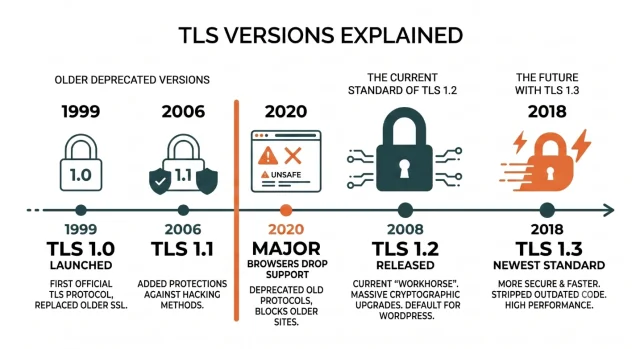
Section titled Older versions: TLS 1.0 and TLS 1.1TLS 1.0 was introduced in 1999 as the successor to SSL 3.0, followed by TLS 1.1 in 2006. Both helped improve the security of encrypted connections, but weaknesses emerged over time and more secure versions of TLS became available.
TLS 1.0 and 1.1 are now deprecated and are no longer supported by major modern browsers. WordPress sites should therefore use a hosting environment that supports TLS 1.2 or TLS 1.3.
TLS 1.2
Section titled TLS 1.2TLS 1.2 was introduced in 2008 and remains widely supported today. It brought important improvements to the cryptographic algorithms that can be used to secure connections and, when configured correctly, continues to provide strong protection for data transmitted over HTTPS.
Most modern WordPress hosting environments support TLS 1.2 as a minimum. If you’re unsure which version your website uses, we’ll explain how to check later in this guide.
TLS 1.3
Section titled TLS 1.3TLS 1.3 was standardised in 2018 and introduced further security and performance improvements. It removed support for a number of older cryptographic algorithms and simplified the process used to establish a secure connection.
One of its main advantages is a faster TLS handshake, which reduces the number of steps needed for a browser and server to establish an encrypted connection. If your hosting provider supports TLS 1.3, your WordPress site can benefit from these improvements while maintaining compatibility with TLS 1.2 where needed.
Security improvements over the years
Section titled Security improvements over the yearsThe move from SSL to modern versions of TLS wasn’t simply a name change. Each new version introduced improvements designed to strengthen encrypted connections and address weaknesses discovered in older protocols.
One of the most important improvements is the use of stronger cryptographic algorithms. Modern versions of TLS support more secure encryption methods and remove support for many of the algorithms that are now considered outdated or vulnerable.
TLS also introduced features such as perfect forward secrecy. In simple terms, this helps protect past encrypted sessions even if a server’s private key is compromised at a later date.
Another key improvement is the removal of older cipher suites and insecure connection methods. By restricting support to stronger security standards, TLS helps reduce the risk of attacks against encrypted web traffic.
How SSL/TLS affects your WordPress site
Section titled How SSL/TLS affects your WordPress siteSSL/TLS does more than add HTTPS to your website’s address. It protects sensitive information as it travels between your WordPress site and its visitors, while also contributing to user trust and providing the secure connection expected by browsers and search engines.
HTTPS and SEO
Section titled HTTPS and SEOGoogle has used HTTPS as a ranking signal since 2014, so using a secure connection is part of good technical SEO practice. However, HTTPS is a relatively lightweight ranking signal and shouldn’t be viewed as something that will significantly improve rankings on its own.
For WordPress site owners, the bigger priority is making sure your entire site loads securely over HTTPS and avoiding issues such as mixed content, incorrect redirects or certificate errors that could affect how users and search engines access your pages.
Building user trust
Section titled Building user trustVisitors expect websites to use HTTPS, particularly when they’re entering passwords, payment details or other personal information. Modern browsers also make it clear when a connection isn’t secure, which can make visitors less comfortable interacting with a website.
A valid certificate and properly configured HTTPS connection help reassure visitors that information sent between their browser and your WordPress site is encrypted. This is particularly important for ecommerce stores, membership sites, contact forms and anywhere else users submit sensitive information.
Securing your WordPress dashboard
Section titled Securing your WordPress dashboardEncryption isn’t only important for your visitors. It also helps protect your WordPress admin area by encrypting the information exchanged between your browser and server when you log in.
Without HTTPS, login credentials and other sensitive information could potentially be intercepted while in transit. Using a modern TLS connection helps protect that data, although it should still be combined with other security measures such as strong passwords, two-factor authentication and login protection.
TLS secures your connection. AIOS secures your site.
Encryption keeps data safe in transit, but it won’t stop malware or brute-force attacks. AIOS Premium continuously monitors your WordPress site for security issues, so you can catch threats early.
How to check your WordPress site security
Section titled How to check your WordPress site securityYou do not need to hire a developer to verify if your site is properly secured. You can check this yourself using the tools built right into your web browser. Let me walk you through the process right now.
- Open Google Chrome and navigate to your WordPress website homepage
- Look at the address bar right next to your domain name
- Click on the small padlock icon or the settings icon next to the URL
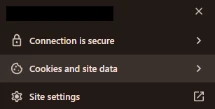
4. Select the option that says “Connection is secure” to expand the menu
5. Click on “Certificate is valid” to view the technical details
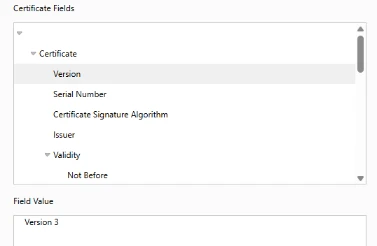
6. Look at the details tab to confirm you are using TLS 1.2 or higher
If you want a more thorough technical check, you can use free online scanner tools. Websites like Qualys SSL Labs allow you to type in your domain name and they will generate a comprehensive grade based on your server configuration.
Troubleshooting common SSL/TLS certificate errors in WordPress
Section titled Troubleshooting common SSL/TLS certificate errors in WordPressEven with HTTPS enabled, you may occasionally see certificate or connection warnings on your WordPress site. These can happen for several reasons, from resources still loading over HTTP to an expired certificate.
Fixing mixed content warnings
Section titled Fixing mixed content warningsMixed content occurs when a page loads over HTTPS but one or more resources, such as images, scripts or stylesheets, are still being requested over HTTP. Because part of the page is being loaded over an insecure connection, browsers may display a security warning.
In WordPress, this can happen after switching a site from HTTP to HTTPS if older URLs are still stored in the database, theme settings or page content. Start by identifying which resources are loading over HTTP using your browser’s developer tools.
If old HTTP URLs need to be replaced across your WordPress database, back up your site first and use a suitable search and replace tool rather than editing the database manually. It’s also worth checking your WordPress Address and Site Address under Settings > General to make sure both use HTTPS.
Resolving expired certificates
Section titled Resolving expired certificatesSSL/TLS certificates have an expiry date and need to be renewed periodically. For example, Let’s Encrypt certificates are short-lived and are normally renewed automatically before they expire.
If renewal fails, visitors may see a browser warning when they try to access your site. Check your hosting dashboard to see whether the certificate is active and whether automatic renewal has failed.
The exact renewal process depends on your hosting provider. In many cases, you can renew or reissue the certificate through your hosting control panel. If that option isn’t available or you’re unsure why renewal failed, contact your hosting provider for help.
How the TLS handshake works
Section titled How the TLS handshake worksBefore a browser and your WordPress server can exchange data securely, they need to establish an encrypted connection. This process is known as the TLS handshake and usually happens in a fraction of a second.
During the handshake, the browser and server agree on the TLS version and cryptographic methods they will use. The server also presents its digital certificate, which allows the browser to verify the website’s identity and check that the certificate was issued by a trusted certificate authority.
The browser and server then establish the encryption keys needed to secure the connection. Once the handshake is complete, information exchanged between them is encrypted. This includes anything from the pages a visitor requests to sensitive information submitted through login forms, contact forms or checkout pages.
TLS 1.3 makes this process more efficient than earlier versions by reducing the number of steps needed to establish a secure connection.
Performance and speed upgrades
Section titled Performance and speed upgradesIn the early days of the internet, encrypting a website actually slowed it down. The math required to scramble and unscramble data took a toll on older servers. Many blog owners refused to secure their sites because they wanted faster page load times.
Today the exact opposite is true. Modern protocols are incredibly lightweight and highly optimized. In fact you cannot use modern speed technologies like HTTP/2 or HTTP/3 unless your site is fully encrypted first.
The newest standard of TLS 1.3 introduced a feature called Zero Round Trip Time. When a user visits your WordPress site for a second time, the browser remembers the previous secure handshake. It skips the introduction process entirely and starts downloading your web pages instantly.
Conclusion
Section titled ConclusionSSL and TLS are closely related, but they’re not the same thing. SSL was the original protocol used to encrypt connections between websites and browsers, while TLS is its more secure, modern replacement. Although you’ll still see terms such as “SSL certificate”, modern WordPress sites use TLS to secure HTTPS connections.
For WordPress site owners, the important thing is to make sure HTTPS is enabled, your hosting environment supports TLS 1.2 or TLS 1.3 and any certificate or mixed content warnings are dealt with promptly.
SSL/TLS is only one part of keeping a WordPress site secure. You’ll also need to think about areas such as login protection, malware, brute-force attacks and other vulnerabilities that encryption alone can’t prevent.
All-In-One Security (AIOS) brings several of these protections together, helping you strengthen your WordPress security beyond SSL/TLS.
FAQs
Section titled FAQsIs SSL and TLS the same thing?
No. SSL (Secure Sockets Layer) was the original protocol used to encrypt connections between browsers and web servers. It has since been replaced by TLS (Transport Layer Security), which is more secure. Although terms such as “SSL certificate” are still widely used, modern secure websites use TLS.
Is TLS more secure than SSL?
Yes. SSL is outdated and its protocols have been deprecated because of known security weaknesses. Modern versions of TLS provide stronger encryption and more secure ways of establishing connections. WordPress sites today should support TLS 1.2 or TLS 1.3.
Does HTTPS use SSL or TLS?
Modern HTTPS connections use TLS. The term SSL is still commonly used by hosting providers and website owners, particularly when talking about certificates, but TLS is the protocol used to encrypt modern HTTPS connections.
How can I tell if my website is using TLS?
You can inspect your website’s certificate in your browser or use an online SSL testing tool. Most modern hosting providers also display your active TLS version within their hosting control panel.
Do I have to pay for a security certificate
No. Free certificates are widely available, including those issued by Let’s Encrypt, and many WordPress hosting providers include them as part of their hosting plans. Paid certificates are also available, but paying for a certificate doesn’t automatically mean your connection uses stronger encryption.
What happens if I disable encryption on my site
If you disable HTTPS, your website will load over HTTP instead. Visitors will see browser security warnings, any data submitted through your site won’t be encrypted, and your website may lose trust with both users and search engines. If you collect logins, contact form submissions or payment information, disabling encryption can put that data at risk.
Is there a difference between free and paid certificates
The actual encryption strength is exactly the same for both. Paid certificates simply offer different levels of identity validation. A paid Extended Validation certificate requires a company to prove their legal identity to a certificate authority before it is issued.
About the author

Elvira Mishra
Elvira has over four years of experience creating and designing content in WordPress. Her background spans multiple digital disciplines, including marketing, SEO, user experience, and human computer interaction.
Categories
AIOS
Comprehensive, feature-rich, security for WordPress. Malware scanning, firewall, an audit log and much more. Powerful, trusted and easy to use.
From just $44.50 for the year.
More stories
-

10 Best WordPress Plugins for Agencies in 2026
Discover the best WordPress plugins for agencies, from backups and security to performance optimisation and site management. Explore tools that make managing multiple client websites easier and more efficient.
-

Direct WordPress site-to-site migration: A step-by-step guide
Learn how direct WordPress site-to-site migration works and how to move your website between hosts or domains without manually transferring files.
-

5 WordPress Web Design Tips to Improve Your Website
Good web design is about more than appearance. Explore practical WordPress web design tips to improve your website's layout, navigation, mobile responsiveness, accessibility and performance, helping you create a better experience for your visitors.
-
Best AI Website Builders Compared
AI website builders can help you design, write and launch a website in minutes. Compare the best AI-powered website builders based on ease of use, features, customisation, pricing and performance to find the right solution for your next project.
