How to back up WordPress automatically

A WordPress site can break for surprisingly simple reasons. A failed plugin update, a theme change, human error, or a security attack can take your site offline and put hours of work at risk.
The bigger problem is that manual backups are easy to forget. Discovering that you haven’t backed up your site after something goes wrong is already too late. Automating your backups removes the need to remember by creating regular copies of your site’s files and database on a schedule. If something goes wrong, you’ll have a recent backup ready to restore.
In this article, we’ll look at how automatic WordPress backups work, what they should include, and how to set them up properly.
Key takeaways
Section titled Key takeaways- Automatic backups create regular copies of your site without relying on you to remember
- A complete WordPress backup should include both your files and database
- Storing backups remotely protects them if something happens to your web server
- Your backup frequency should reflect how often your website changes
- UpdraftPlus lets you schedule automatic backups for free, while UpdraftPlus Premium gives you more control over exactly when and how those backups run
Why you need automatic backups
Section titled Why you need automatic backupsYour WordPress site can run perfectly for years and still be brought down in minutes. A reliable backup gives you a way back when something goes wrong.
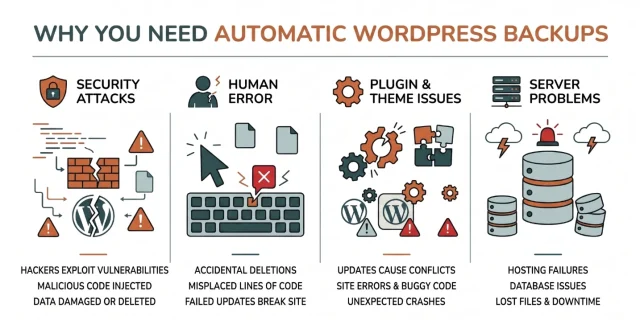
Here are some of the most common risks:
- Security attacks: Hackers constantly scan websites for vulnerabilities in outdated plugins, themes, or weak passwords. If they gain access, they can delete or damage your site in minutes.
- Human error: A misplaced line of code, accidental deletion, or failed update can take your site offline or break important functionality.
- Plugin and theme issues: Updates can sometimes conflict with other parts of your site, causing unexpected errors or crashes.
- Server problems: Hosting failures, database issues, or other technical problems can make your site inaccessible or result in lost data.
An automatic backup gives you a copy of your website that you can restore if something goes wrong. Instead of rebuilding your site from scratch, you can get it back online with a few clicks.
More importantly, you don’t have to remember to create backups yourself. Once configured, your backups run automatically according to your chosen schedule, giving you a more reliable safety net without adding another recurring task to your maintenance routine.
Understanding what makes up your website
Section titled Understanding what makes up your websiteMany new users mistakenly believe that saving their images is enough to protect their site. Your website is actually made up of two distinct parts that work together.
Your WordPress files
Section titled Your WordPress filesYour WordPress files include your themes, plugins, uploads and other files that help your website function and look the way it does. These need to be included in your backups so that your site’s design, media and functionality can be recovered if something goes wrong.
Your WordPress database
Section titled Your WordPress databaseYour WordPress database stores information such as posts, pages, comments, users and site settings. For ecommerce sites, it can also contain frequently changing information such as orders and customer data.
Because your files and database contain different parts of your website, a complete backup should include both.
According to the Advanced Administration Handbook on WordPress.org, keeping regular copies of both your database and files is the most critical security measure you can take.
Manual methods versus automated schedules
Section titled Manual methods versus automated schedulesWhen people first start building websites, they often try to handle everything manually. They log into their hosting control panel, find the file manager and download zip folders to their local computer. This approach might work for a week or two.
The problem is that manual backups rely on you remembering to create them regularly. If you forget, your most recent backup could be days or weeks out of date when you need it.
With automatic backups, you set your schedule once and the plugin creates backups at the intervals you’ve chosen. You should still check periodically that your backups are completing successfully.
Take more control over when your backups run
UpdraftPlus Premium lets you choose the specific time of day your scheduled backups begin. Run backups during quieter periods when your website receives less traffic, helping to reduce the load on your server while keeping your backup routine completely automated.
How to automate WordPress backups with a plugin
Section titled How to automate WordPress backups with a pluginOne of the easiest ways to automate WordPress backups is with a backup plugin. In this guide, we’ll use UpdraftPlus, which lets you schedule automatic backups of your WordPress files and database and send them to a remote storage location.
Step 1. Install UpdraftPlus
Section titled Step 1. Install UpdraftPlus- Log into your admin dashboard.
- Look at the left side menu and hover your mouse over the Plugins option.
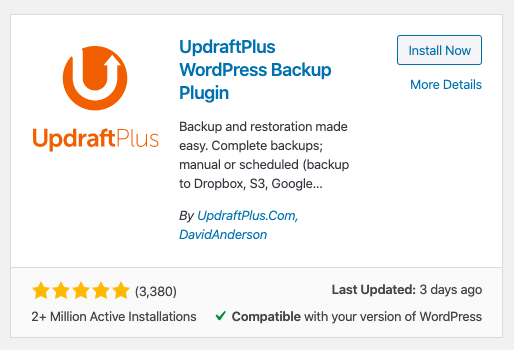
3. Click on Add New to open the repository.
4. Type UpdraftPlus into the search bar at the top right of your screen. Click the Install Now.
5. Once the installation finishes, click Activate to turn the software on and make it available for your website.
Step 2. Open the UpdraftPlus settings
Section titled Step 2. Open the UpdraftPlus settingsOnce UpdraftPlus is activated, open the plugin and select the Settings tab. This is where you can configure your automatic backup schedule and choose where your backups are stored.
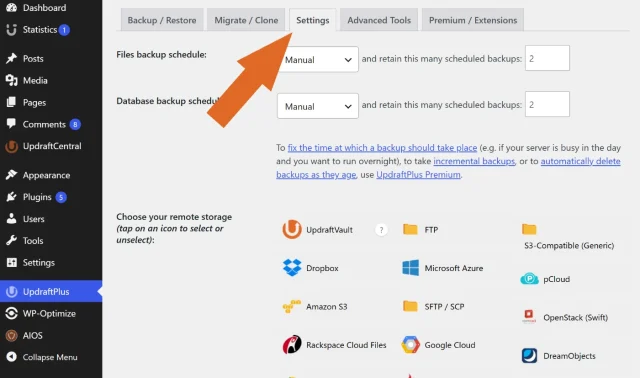
Step 3. Set your backup schedule
Section titled Step 3. Set your backup scheduleAt the top of the Settings page, you’ll see two scheduling options: File backup schedule and Database backup schedule. These let you choose how frequently UpdraftPlus automatically backs up each part of your website.
With free UpdraftPlus, you can schedule backups to run every 2, 4 or 8 hours, daily, weekly, fortnightly or monthly.
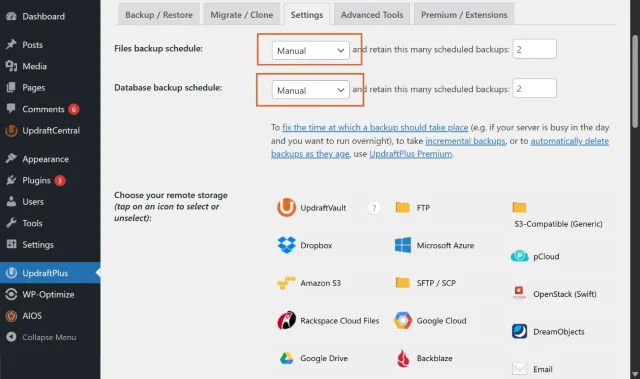
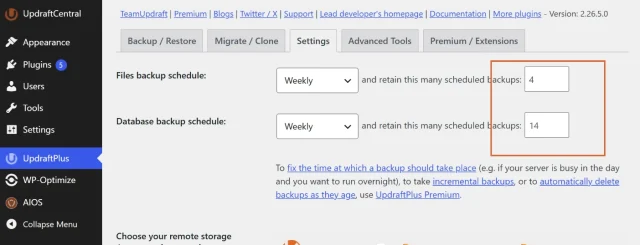
How often you should back up your site depends on how frequently it changes, so choosing the right WordPress backup frequency is important. A common setup is weekly backups for your files and daily backups for your database, as database content such as posts, comments and orders may change more frequently.
Sites that change throughout the day, such as busy ecommerce or membership websites, may benefit from more frequent backups.
You can also choose how many backups you want UpdraftPlus to retain. Once this limit is reached, the oldest backup is automatically deleted.
Want more control over when your backups run?
Not every WordPress site changes at the same pace. UpdraftPlus Premium gives you more advanced scheduling options, so you can tailor your backup routine to how often your content, orders or customer data change.
Step 4. Choose a remote storage location
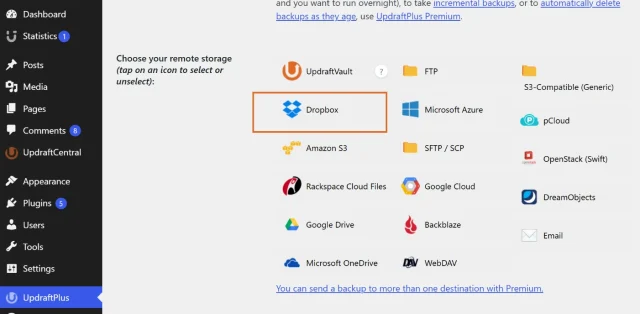
Section titled Step 4. Choose a remote storage locationScroll down to choose your remote storage and select where you’d like UpdraftPlus to send your automatic backups. Keeping a backup somewhere separate from your web server means you’ll still have an independent copy if something happens to your hosting.
For this example, we’ll use Dropbox.
- Select Dropbox from the available remote storage options.
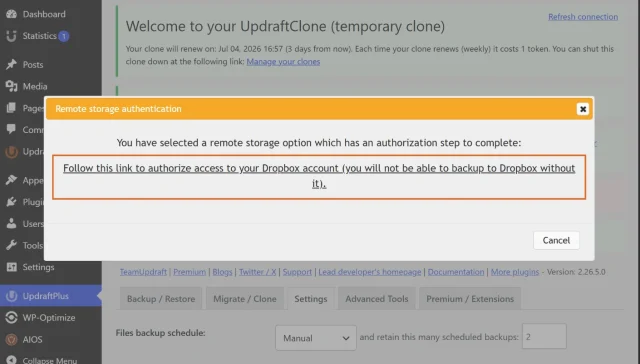
2. Follow the instructions shown to connect your Dropbox account to UpdraftPlus.
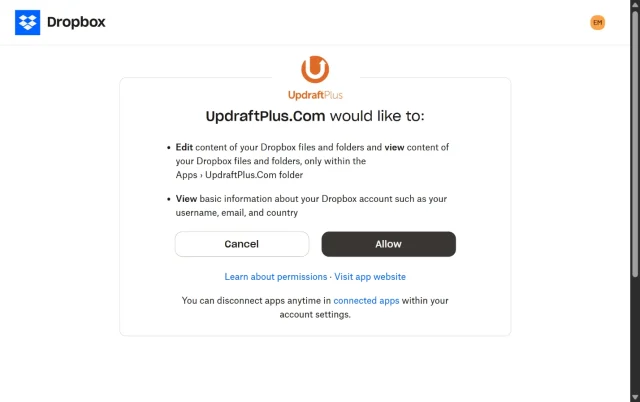
3. Authorise UpdraftPlus to access Dropbox so it can send your scheduled backups to your account.
Step 5. Save and test your new system
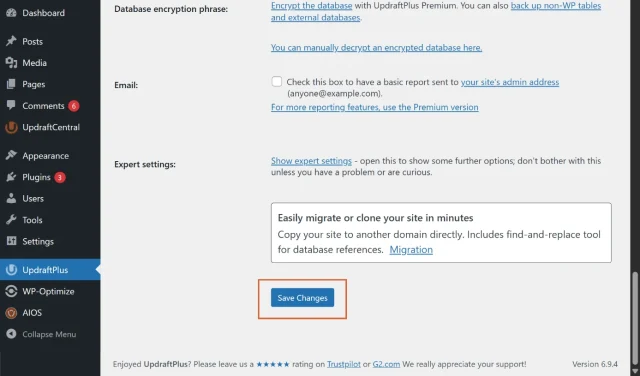
Section titled Step 5. Save and test your new systemScroll to the very bottom of the page and click the Save Changes button. Once saved, a pop up will usually appear to finalize your remote storage authentication.
- After the connection is finalized, return to the Backup/Restore tab.
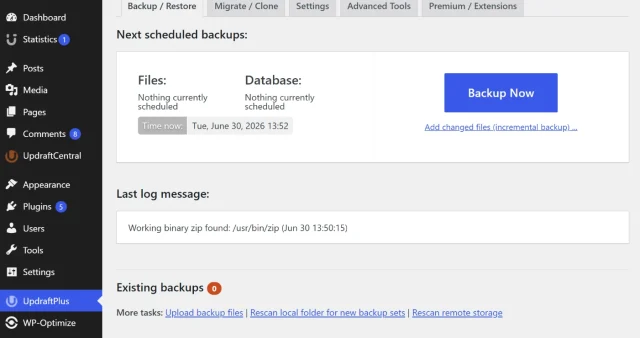
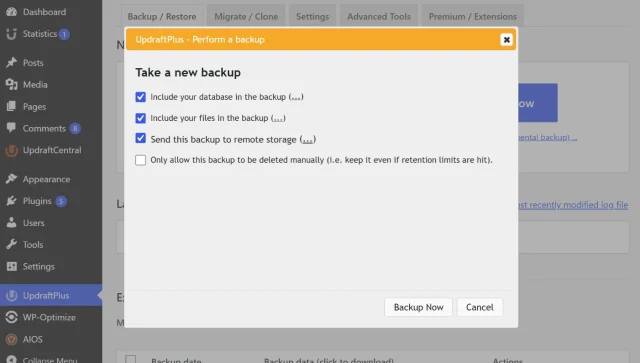
2. Click the big Backup Now button to run your very first test. Watch the progress bar to ensure the process completes successfully.
3. Finally, log into your cloud storage account in a separate browser tab to verify that the zip folders have safely arrived. If you are using a service like Dropbox, you will typically find your newly created archive files neatly organized inside the Apps/UpdraftPlus directory. Checking this specific folder confirms your automated connection is working perfectly
Where should you store your WordPress backups?
Section titled Where should you store your WordPress backups?Where you store your backups is just as important as creating them regularly. If your only backup is stored on the same server as your website, a server failure or security issue could leave you without access to either.
A useful approach is the 3-2-1 backup strategy, which recommends keeping three copies of your data across two different types of storage, with at least one copy stored offsite.
UpdraftPlus can automatically send your WordPress backups to remote storage, giving you an independent copy away from your web server. The storage destinations available depend on whether you’re using free UpdraftPlus or UpdraftPlus Premium.
The best storage option will depend on the services you already use, the size of your backups and the amount of storage you need. Free UpdraftPlus supports popular destinations including Google Drive and Dropbox, while UpdraftPlus Premium gives you more choice if you want to use services such as Microsoft OneDrive, Backblaze, Microsoft Azure, Google Cloud or pCloud.
Troubleshooting common automated backup failures
Section titled Troubleshooting common automated backup failuresAutomatic backups can occasionally fail because of server limits, storage issues or connection problems. If a scheduled backup doesn’t complete, checking the cause can usually help you get your backup routine running normally again.
Server timeouts
Section titled Server timeoutsBackup processes can sometimes be interrupted if your hosting environment has limited server resources or if your website contains a massive amount of data. When your server feels overwhelmed by a heavy task, it forcefully shuts the process down to protect its overall performance.
You can easily diagnose this exact issue by checking your server’s PHP error logs or reading the dedicated text log generated directly within UpdraftPlus. You are looking for a specific fatal error that explicitly mentions a system limit being “exceeded.”
- Maximum execution time: Look for a log entry that reads “
Fatal Error: Maximum execution time of 30 seconds exceeded.” This means your web hosting provider has a strict rule limiting how long a background script is allowed to run. Because compressing gigabytes of media files is heavy work, the server simply killed the backup process before it had enough time to finish. - Memory limit exhaustion: You might also spot an error stating “
Fatal error: Allowed memory size exhausted.” This indicates the backup required more active RAM than your current hosting plan allocates to your website.
If your scheduled backups repeatedly time out and these errors appear in your logs, your first step should be contacting your hosting provider. You can ask their support team to safely increase your PHP max_execution_time and memory limits to accommodate larger file processes.
For larger or frequently changing websites, switching to an incremental backup strategy is an incredibly effective workaround. Taking incremental backups helps drastically reduce the resources needed for regular schedules by backing up only the specific files that have changed since your previous backup. Because the software only has to process a tiny fraction of your data during each run, it finishes in mere seconds and easily bypasses those strict server limitations.
Running out of storage space
Section titled Running out of storage spaceIf your remote storage reaches its capacity, new backups may not be able to complete successfully. Regularly reviewing your available storage and backup retention settings can help prevent this.
UpdraftPlus lets you choose the maximum number of backups you want to retain. Once that limit is reached, the oldest backup is automatically deleted.
With UpdraftPlus Premium, you can create additional retention rules to deeply control which backups are kept for longer periods. This is incredibly useful if you want to keep regular recent backups for daily emergencies while also retaining selected older backups for long-term historical archives. You will know exactly when this happens by keeping an eye on your diagnostic tools.
- Check for zip code errors: Open your backup log file and look for specific technical warnings. If you spot a “zip code error” or a “PclZip error,” your server is struggling to compress or save the backup archive
- Verify your directory permissions: Go to your plugin settings, click on the Show expert settings tab and scroll down to the backup directory section
- Look for writable status: If your server is blocking file creation, that backup directory field will explicitly show a warning stating the directory is not writable
When you see these warnings, simply contact your web host and ask them to fix the folder permissions for your wp-content/updraft directory.
Conclusion
Section titled ConclusionThe right backup schedule depends on how often your WordPress site changes. A simple blog may only need weekly file backups and daily database backups, while a busy ecommerce or membership site may need to back up much more frequently. Whatever schedule you choose, make sure both your files and database are covered and keep at least one copy away from your web server.
UpdraftPlus makes it easy to set up automatic backups and send them to remote storage. For sites that need a little more flexibility, UpdraftPlus Premium gives you more control over when backups run, how frequently changes are backed up and how long different backups are kept.
Once everything is set up, check in on your backups from time to time to make sure they’re completing successfully. A backup routine you know is working is far more useful than discovering there was a problem when you need to restore your site.
FAQs
Section titled FAQsCan I back up WordPress automatically for free?
Yes. Free UpdraftPlus lets you schedule automatic file and database backups every 2, 4 or 8 hours, daily, weekly, fortnightly or monthly. If you need more control, UpdraftPlus Premium also lets you choose the specific time your backups start, use incremental backups and create more advanced retention rules.
How often should I automatically back up my WordPress site?
It depends on how often your website changes. Weekly file backups and daily database backups are a common setup, but busy ecommerce, membership or community sites may need more frequent backups because orders, accounts and other data can change throughout the day.
Will automatic backups slow down my WordPress site?
Backups use server resources while they’re running, so large backups can sometimes affect performance. With UpdraftPlus Premium, you can choose the specific time your scheduled backups start, making it easier to run them during quieter periods when your website receives less traffic.
Where should I store my automatic WordPress backups?
Keep at least one backup somewhere separate from the server hosting your website. Free UpdraftPlus supports remote storage options including Google Drive and Dropbox, while Premium adds more options such as Microsoft OneDrive, Backblaze, Microsoft Azure and Google Cloud.
Do I need a backup plugin if my web host already creates backups?
It’s still a good idea to keep a backup that you control independently of your hosting provider. A WordPress backup plugin lets you choose your own backup schedule and remote storage location, so you aren’t relying entirely on your host if you need to restore your site.
Can I automatically back up WordPress without a plugin?
Yes, but it usually requires more technical knowledge. Automatic backups can be configured at server level using tools such as cron jobs and scripts. For most WordPress users, a backup plugin is a simpler way to schedule file and database backups and send them to remote storage.
About the author

Elvira Mishra
Elvira has over four years of experience creating and designing content in WordPress. Her background spans multiple digital disciplines, including marketing, SEO, user experience, and human computer interaction.
Categories
UpdraftPlus
Get all our premium features. Direct site-to-site migration, incremental backups, back up automatically before updates and a whole lot more.
From just $70 for the year.
More stories
-

10 Best WordPress Plugins for Agencies in 2026
Discover the best WordPress plugins for agencies, from backups and security to performance optimisation and site management. Explore tools that make managing multiple client websites easier and more efficient.
-

Direct WordPress site-to-site migration: A step-by-step guide
Learn how direct WordPress site-to-site migration works and how to move your website between hosts or domains without manually transferring files.
-

5 WordPress Web Design Tips to Improve Your Website
Good web design is about more than appearance. Explore practical WordPress web design tips to improve your website's layout, navigation, mobile responsiveness, accessibility and performance, helping you create a better experience for your visitors.
-
Best AI Website Builders Compared
AI website builders can help you design, write and launch a website in minutes. Compare the best AI-powered website builders based on ease of use, features, customisation, pricing and performance to find the right solution for your next project.
