How to Schedule WordPress Backups

Backing up your WordPress site once is easy enough to remember. Remembering to do it every day, week or month is another matter. Scheduling your backups removes that responsibility by automatically creating regular recovery points, so you’re not relying on memory when something goes wrong.
In this guide, we’ll show you how to schedule WordPress backups using UpdraftPlus, including how to choose the right frequency for your files and database, set retention rules and store your backups remotely. We’ll also look at backup timing, WP-Cron, testing your backups and the common scheduling mistakes to avoid.
Key takeaways
Section titled Key takeaways- Schedule WordPress backups based on how frequently your website changes
- Back up both your website files and WordPress database
- Consider backing up your database more frequently than your files on active sites
- Store at least one backup remotely rather than relying solely on your web server
- UpdraftPlus lets you automate separate backup schedules for your files and database
- Check that scheduled backups are completing successfully and test your recovery process
- Create an additional backup before making significant changes to your website
What is a WordPress backup schedule?
Section titled What is a WordPress backup schedule?A WordPress backup scheduler is a tool or feature that automatically creates backups of your website at intervals you choose.
Instead of logging into WordPress every Friday and clicking a backup button, you can tell your backup solution to do it automatically. Depending on the tool, you might be able to schedule backups hourly, every few hours, daily, weekly or monthly.
The important distinction is between taking a backup and scheduling a backup.
A manual backup happens when you deliberately start the process. A scheduled backup is triggered automatically according to a predefined schedule.
For most WordPress sites, I recommend:
- Scheduled backups for routine protection
- Manual backups before significant changes
- Automatic backups before an update
That second point matters. If I were about to change a theme, install a major plugin, update PHP or make substantial code changes, I would still take a fresh backup immediately beforehand. An automatic backup that ran yesterday is useful, but a backup from five minutes before a risky change is much better.
What does a WordPress backup actually contain?
Section titled What does a WordPress backup actually contain?Before choosing a backup schedule, it helps to understand what you are actually backing up.
WordPress backups generally have two main components:
- Your website files
- Your WordPress database
WordPress itself describes these as separate parts of a complete backup. Your files and database are stored separately, so backing up one does not automatically mean you have backed up the other.
Website files
Section titled Website filesYour files include things such as:
- WordPress core files
- Plugins
- Themes
- Images and other uploaded media
- Custom code
- Configuration files
- Other files stored within your WordPress installation
Your wp-content directory is particularly important because it normally contains your themes, plugins and uploaded media.
The WordPress database
Section titled The WordPress databaseYour database contains much of the information that makes your website dynamic.
This can include:
- Posts
- Pages
- Comments
- Users
- Website settings
- Plugin data
- WooCommerce orders and related information
- Other content created or stored by plugins
This is why I don’t recommend thinking of a database backup as an optional extra. If your database disappears, having your theme and image files won’t magically bring your posts and settings back.
WordPress’s own documentation recommends backing up the database regularly and before upgrades.
How often should you schedule WordPress backups?
Section titled How often should you schedule WordPress backups?There isn’t one perfect backup schedule for every website. The easiest way to choose one is to ask yourself:
How much recent data could I afford to lose?
A useful starting point looks like this:
These are starting points rather than hard rules.
Your hosting resources, database size, storage capacity and recovery requirements should also influence the schedule.
I’ve covered this in more detail in our guide to how often you should back up your WordPress site, including a more detailed backup frequency matrix.
Why your database and files can have different schedules
Section titled Why your database and files can have different schedulesOne of the easiest ways to make your backup strategy more efficient is to stop treating every part of your website as if it changes at the same rate.
Consider a blog: You might upload a new image or install a plugin once a week, but your database could change every day because of new posts, comments, contact form submissions or other activity. Your files may therefore not need to be backed up as frequently as your database.
For example, you could use:
- Files: weekly
- Database: daily
For a busier website, you might choose:
- Files: daily
- Database: every four hours
This way you can protect frequently changing data without unnecessarily creating large file backups several times a day.
How to schedule WordPress backups with UpdraftPlus
Section titled How to schedule WordPress backups with UpdraftPlusFor this example, I’ll use UpdraftPlus because it provides scheduled backups directly from the WordPress dashboard.
UpdraftPlus can back up your WordPress files and database and lets you schedule them at regular intervals. The available scheduling options include intervals such as every few hours as well as daily, weekly, fortnightly and monthly schedules.
Automate your WordPress backup schedule
Manually remembering to create backups defeats much of the point of having a backup strategy. UpdraftPlus lets you schedule your WordPress files and database to back up automatically, so routine protection happens in the background.
Step 1: Install and activate UpdraftPlus
From your WordPress dashboard:
- Go to Plugins > Add New Plugin
- Search for UpdraftPlus
- Find UpdraftPlus WordPress Backup & Migration Plugin
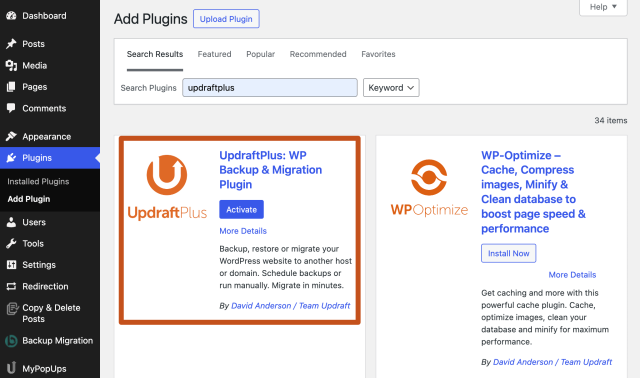
4. Click Install Now
5. Click Activate
Once activated, you can access the plugin’s backup and settings controls from your WordPress dashboard.
Step 2: Open the UpdraftPlus settings
Go to:
- Settings > UpdraftPlus Backups
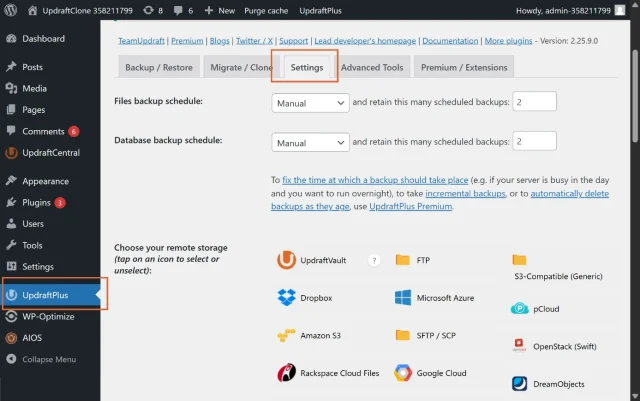
- Then open the Settings tab.
This is where you’ll find the controls for your backup schedule, retention and remote storage.
Step 3: Choose your file backup schedule
Section titled Step 3: Choose your file backup schedule- Look for Files backup schedule and change the setting from Manual to your preferred backup frequency.
You’ll be able to choose how frequently UpdraftPlus should create a file backup.
For a relatively quiet website, weekly may be enough. For a site where plugins, themes or media are changing regularly, you may want to increase the frequency.
Don’t automatically choose the most frequent option just because it sounds safest.
More backups mean:
- More storage consumption
- More server resources used
- More data that needs to be transferred
- Potentially longer backup operations
The goal is to choose a schedule that reflects how often your site changes and how much data you could afford to lose.
Step 4: Choose your database backup schedule
Next, find Database backup schedule.
This can be different from your file backup schedule.
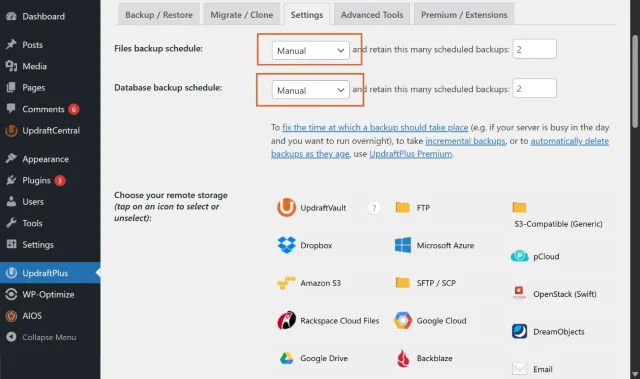
For example, I might use:
- Files: Weekly
- Database: Daily
Step 5: Choose how many backups to retain
Section titled Step 5: Choose how many backups to retainYou’ll also see retention settings for scheduled backups.
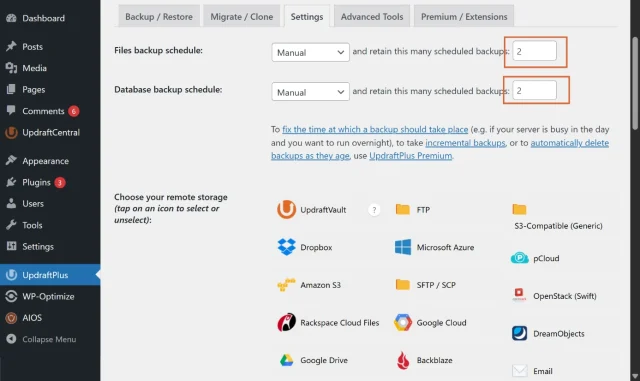
Retention determines how many previous backups you keep before older copies are removed.
For example, if you create one database backup every day and retain seven scheduled backups, you would generally have about a week’s worth of scheduled database backups available.
Retention is important because automatic backups can otherwise consume your storage indefinitely.
I recommend thinking about retention in terms of recovery history, not simply the largest number you can store.
You might decide that you want:
- 7 daily database backups
- 4 weekly file backups
- Additional longer-term backups for important sites
The right number depends on how much storage you have and how far back you may realistically need to restore.
Step 6: Choose remote storage
Section titled Step 6: Choose remote storageDon’t rely entirely on backups stored on the same server as your live website. If that server is compromised, damaged or becomes unavailable, your live website and your backup could disappear together.
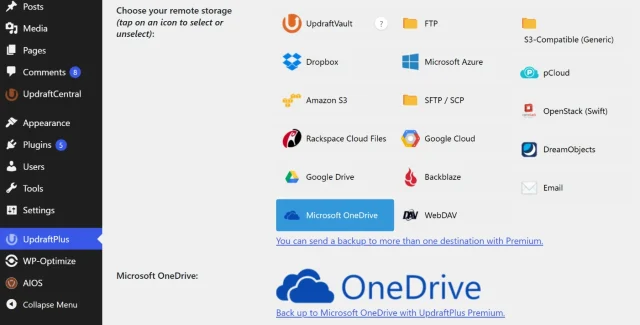
UpdraftPlus supports several remote storage options, including Google Drive, Dropbox, Amazon S3 and other storage services. Premium adds additional destinations and the ability to use multiple remote storage locations.
Step 7: Save your settings
Section titled Step 7: Save your settingsOnce you’ve selected:
- File frequency
- Database frequency
- Retention
- Remote storage
- Files to include
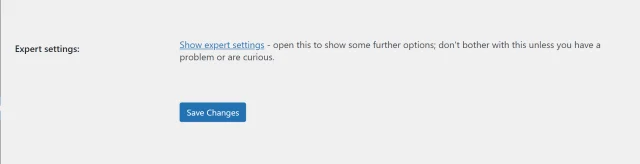
scroll down and click Save Changes.
Your scheduled backup system is now configured.
How to schedule WordPress backups for exact set times
Section titled How to schedule WordPress backups for exact set timesCreating a backup can use additional server resources, particularly on larger websites. Scheduling backups during quieter periods can help reduce the impact on site performance and leave more server resources available when traffic is higher.
Why timing matters for server performance
Section titled Why timing matters for server performanceWith the free version of UpdraftPlus, you can schedule backups at regular intervals, such as every 2, 4, 8 or 12 hours, as well as daily, weekly, fortnightly or monthly. However, you can’t choose a specific time of day for the backup to start.
For busier websites, having more control over timing can be useful. Running backups during periods of lower traffic can help reduce the impact on server resources while visitors are using your site.
Using UpdraftPlus Premium for exact scheduling
Section titled Using UpdraftPlus Premium for exact schedulingUpdraftPlus Premium gives you more control over when scheduled backups begin by allowing you to choose a specific time of day.
For example, you could schedule backups to start overnight or during another period when your website typically receives less traffic. If you manage multiple websites on the same server, you can also stagger backup times to help spread the load rather than running several backups at once.
Keep your backups safe and ready to restore
A backup is only useful if you can access it when you need it. UpdraftPlus Premium gives you more remote storage options and tools to manage and restore your WordPress backups, helping you keep recovery copies separate from your live website.
Advanced retention and incremental backups
Section titled Advanced retention and incremental backupsAs your website grows, your backups may grow with it. Larger backups can require more storage space and server resources, so it can be useful to have more control over how backups are created and retained.
UpdraftPlus Premium includes two features that can help with this: advanced backup retention rules and incremental backups.
Advanced retention rules
While the free version lets you keep a set number of recent backups, Premium allows for advanced retention rules. You can configure the software to keep daily backups for the past week, weekly backups for the past month and monthly backups for the past year. This gives you a longer history of restore points without needing to retain every daily backup indefinitely. This will be important if your site is hacked and it has taken you a while to notice. You will want to restore a backup before the hack.
Incremental backups
Creating a full backup of all your website files every time can use significant storage space and server resources. With incremental backups, UpdraftPlus Premium can back up files that have changed since the previous full backup rather than creating another complete copy of your files.
This can reduce the server resources and storage space required for frequent backups, making it particularly useful for larger or frequently updated websites.
Understanding WP-Cron versus server cron
Section titled Understanding WP-Cron versus server cronWordPress uses a scheduling system called WP-Cron to handle scheduled tasks. Unlike a traditional system cron, WP-Cron is triggered by activity on your website and checks whether any scheduled tasks are due to run.
For websites receiving regular traffic, this is often sufficient for routine scheduled tasks such as backups.
The limitations of default WP-Cron
One limitation of WP-Cron is that scheduled tasks may not run at precisely the time they’re due if your website receives little or no traffic around that time.
For example, if a backup is scheduled overnight but nobody visits the site for several hours, the task may be delayed until WP-Cron is triggered again. This is worth considering if running backups at a particular time is important for your website.
Setting up a server cron for more reliable scheduling
If reliable timing is particularly important, you can use a server-level cron job instead of relying solely on WP-Cron. Server cron jobs run independently of website visits, making them useful for sites where scheduled tasks need to run consistently even during periods of low traffic.
Setting up a server cron is more technical, so if you’re unsure how to configure one, check your hosting provider’s documentation or ask your host for support.
Keep your backups somewhere separate from your website
Section titled Keep your backups somewhere separate from your websiteI strongly recommend following the basic principle behind the 3-2-1 backup strategy:
- Keep at least three copies of your important data
- Use at least two different storage locations or types
- Keep at least one copy offsite
Don’t forget to test your scheduled backups
Section titled Don’t forget to test your scheduled backupsThis is one of the most overlooked parts of backup planning. Seeing a backup listed in your dashboard isn’t the same thing as proving that you can restore your website from it.
After setting up your schedule, I recommend checking:
- Did the scheduled backup actually run?
- Were both files and database included?
- Was the backup uploaded to remote storage?
- Does the backup log show errors or warnings?
- Can the backup be downloaded?
- Can you restore it successfully?
For important websites, a restoration test is especially valuable.
You don’t want your first restoration attempt to happen when your live website is already down.
If you want to learn more, our guide to restoring WordPress from a backup covers the restoration process in more detail.
Common WordPress backup scheduling mistakes
Section titled Common WordPress backup scheduling mistakesI’ve seen a few mistakes come up repeatedly when people set up automated backups.
Only backing up the database or only backing up files
Section titled Only backing up the database or only backing up filesYour database is important, but it isn’t your entire website. A database backup doesn’t contain your themes, plugins and uploaded files. For a full website recovery, you generally need both files and database backups.
The opposite mistake is just as problematic. Your WordPress directory doesn’t contain the database that stores your posts, pages, comments and other dynamic information.
Storing everything on the same server
Section titled Storing everything on the same serverThis creates a single point of failure. If the server goes down or an attacker gains access to it, your backups may be affected too.
Setting the schedule and never checking it
Section titled Setting the schedule and never checking itAutomation is useful because you don’t have to remember to run the backup. But that doesn’t mean you should never check it. I recommend occasionally looking at your backup history and confirming that recent backups exist and completed successfully.
Keeping too few backups
Section titled Keeping too few backupsIf you keep only one backup and that backup is damaged or contains a problem that you didn’t notice immediately, you may have no clean recovery point. Retention should give you enough history to recover from the kinds of problems your website is likely to encounter.
Keeping far too many backups
Section titled Keeping far too many backupsThe opposite can also happen. Keeping hundreds of large backups can consume storage and make managing your backup collection unnecessarily expensive. Choose retention limits carefully
Never testing a restoration
Section titled Never testing a restorationA backup that cannot be restored isn’t much use when you are facing an outage. Make restoration testing part of your maintenance routine, particularly for business-critical websites.
Ignoring error notifications
Section titled Ignoring error notificationsDon’t ignore backup warnings or errors. If you have email reporting enabled, review any notifications you receive and periodically check your UpdraftPlus backup logs.
A failed backup or remote storage connection could mean that your latest recovery copy hasn’t been created or stored where expected, so it’s worth investigating any errors promptly.
A simple checklist for your scheduled WordPress backups
Section titled A simple checklist for your scheduled WordPress backupsBefore considering your backup system finished, I’d check the following:
☐ Both website files and database are included
☐ Your backup frequency matches how often your website changes
☐ Database backups are frequent enough for your site’s activity
☐ A sensible number of backup copies are retained
☐ Backups are stored somewhere separate from the live website
☐ Your first scheduled backup has completed successfully
☐ Backup logs show no unresolved errors
☐ You know where your backups are stored
☐ You know how to restore a backup
☐ You have tested a restoration or recovery process
☐ You create an additional backup before major changes
Conclusion
Section titled ConclusionScheduling your WordPress backups removes the need to remember to create them manually and helps make sure you always have a recent recovery point available if something goes wrong.
The right schedule depends on how often your website changes. For many sites, that could mean backing up files weekly and the database daily, while busy ecommerce or membership sites may need more frequent backups.
With UpdraftPlus, you can schedule your files and database separately, choose how many backups to retain and send them to remote storage automatically. UpdraftPlus Premium adds more control with features such as backups at specific times, incremental backups, advanced retention rules and multiple storage destinations.
Whichever schedule you choose, check that your backups are completing successfully and test your restoration process periodically. A backup strategy is only useful if you can rely on it when you need to recover your site.
FAQs
Section titled FAQsWhat is the best WordPress backup schedule?
The best schedule depends on how often your website changes and how much recent data you could afford to lose. A relatively static site may only need weekly backups, while an active blog or business website may benefit from daily database backups. Busy ecommerce, membership or other frequently changing sites may need backups every few hours
Should I back up WordPress daily?
Daily backups are a good starting point for many active WordPress websites. If your site receives orders, registrations, comments, form submissions or other important data throughout the day, you may need to back up your database more frequently.
Will scheduled WordPress backups slow down my website?
Backups use server resources while they’re running, so very large or frequent backups can affect performance, particularly on resource-limited hosting. Choosing a sensible backup frequency and running resource-intensive backups during quieter periods can help reduce the impact.
Can I schedule WordPress backups without a plugin?
You can schedule backups without a plugin using tools such as server-level cron jobs, WP-CLI or functionality provided by your hosting provider. However, this generally requires more technical knowledge. For most WordPress site owners, a backup plugin is the simpler way to automate and manage scheduled backups.
Does WordPress automatically back up my website?
WordPress doesn’t include a built-in system for creating complete automatic backups of your website. Your hosting provider may include automatic backups with your plan, or you can use a WordPress backup plugin to create and manage your own backup schedule.
Why did my scheduled WordPress backup fail?
Scheduled backups can fail because of insufficient server resources, timeouts, storage limits, connection problems or issues with scheduled tasks such as WP-Cron. Start by checking your backup log for errors or warnings and confirm that your remote storage connection is working correctly. If you’re using UpdraftPlus, see our guide to fixing failed backups for further troubleshooting steps.
Can I rely on my web host’s automatic backups?
Hosting backups can be a useful part of your backup strategy, but check how frequently they’re created, how long they’re retained, where they’re stored and how the restoration process works. Keeping an independent backup in remote storage gives you another recovery option if your hosting account or server becomes unavailable.
About the author

Elvira Mishra
Elvira has over four years of experience creating and designing content in WordPress. Her background spans multiple digital disciplines, including marketing, SEO, user experience, and human computer interaction.
Categories
UpdraftPlus
Get all our premium features. Direct site-to-site migration, incremental backups, back up automatically before updates and a whole lot more.
From just $70 for the year.
More stories
-

5 WordPress Web Design Tips to Improve Your Website
Good web design is about more than appearance. Explore practical WordPress web design tips to improve your website's layout, navigation, mobile responsiveness, accessibility and performance, helping you create a better experience for your visitors.
-
Best AI Website Builders Compared
AI website builders can help you design, write and launch a website in minutes. Compare the best AI-powered website builders based on ease of use, features, customisation, pricing and performance to find the right solution for your next project.
-

How incremental backups save time and storage in WordPress
Incremental backups only save the changes made since your last backup, helping you reduce storage usage, speed up backups and lower server load. Learn how they work and why they're an essential part of an efficient WordPress backup strategy.
-
Best WordPress Website Builders Compared
Discover the best WordPress website builders for every skill level. Compare features, ease of use, pricing and performance to choose the right builder for your blog, business or online store.
